Introduction :
Sometimes, you need to print without margins for maximum use of paper area, professional full-bleed output, or for other purposes. How to print PDF without margins? You’re in the right place! In this comprehensive guide, I will walk you through what borderless printing is and the exact steps to print PDFs without margins effectively. Now, let’s get started!
What Is Borderless Printing?
Before learning how to enable borderless PDF printing, it is important to understand borderless printing, the feature that allows PDF pages to be printed without margins. If you don’t want to learn more about the overview of borderless printing, just jump to the next part.
Borderless printing, also called full-bleed printing or edge-to-edge printing, is a printing mode in which the printer extends ink to the edge of the paper, with no white margins around the image or document. It is commonly used for posters, photos, brochures, or full-page templates. To enable borderless printing, make sure your printer supports full-bleed printing.
If your printer doesn’t support full-bleed printing, you can still achieve a marginless result with a workaround, such as scaling, cropping, or printing to a larger paper size.
How to Print PDF Without Margins with JOPDF
JOPDF is a completely free PDF tool that enables you to print PDFs on Mac and Windows. As a professional PDF printer, it offers some customized print settings. For instance, you can choose to print a PDF with comments, print a PDF in the landscape orientation, or print a PDF as a booklet. How can you print a PDF without margins with JOPDF? Below are the exact steps.
Step 1. Click the corresponding button below to download and install JOPDF on your Windows or Mac PC.
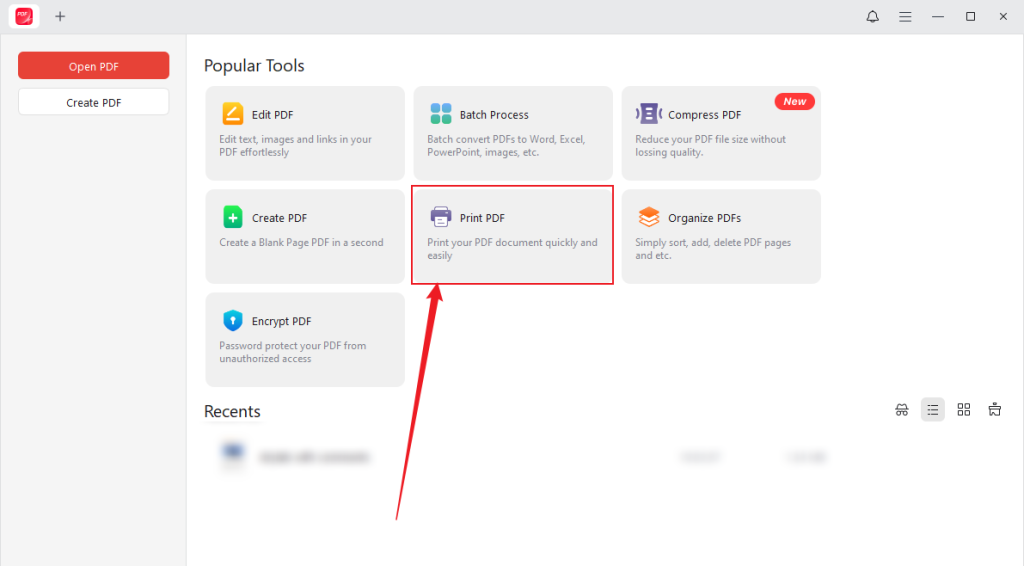
Step 2. Launch JOPDF, click the Print PDF option, locate and choose the target PDF, and click Open to import it into JOPDF.
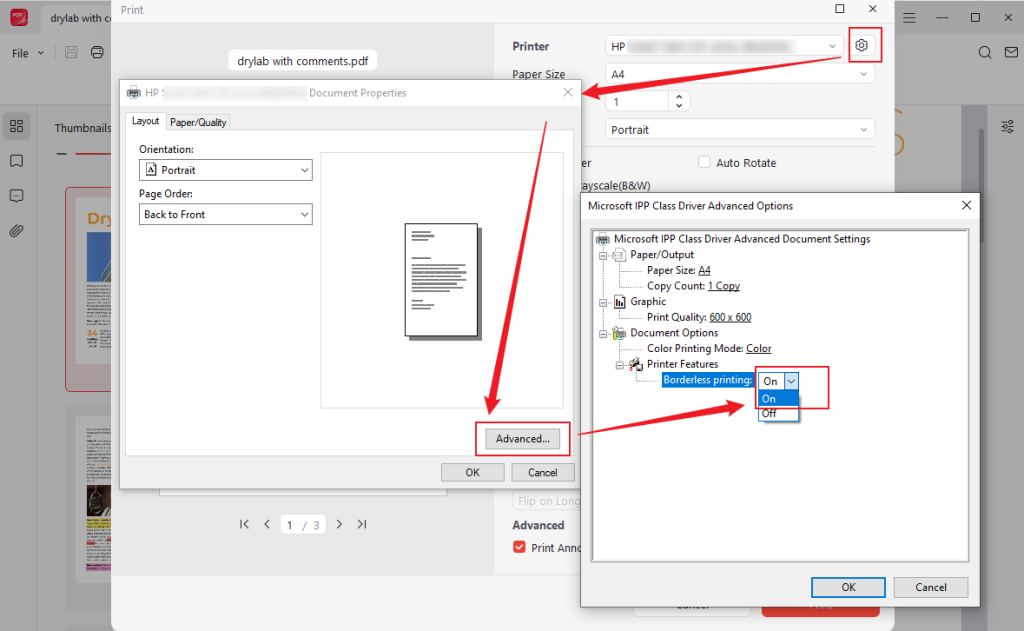
Step 3. Expand the Printer list to select your physical printer, then click the Properties icon (a settings icon) next to it. Click the Advanced button, hit on Borderless printer, and set it to On. Then, click OK to save the changes.
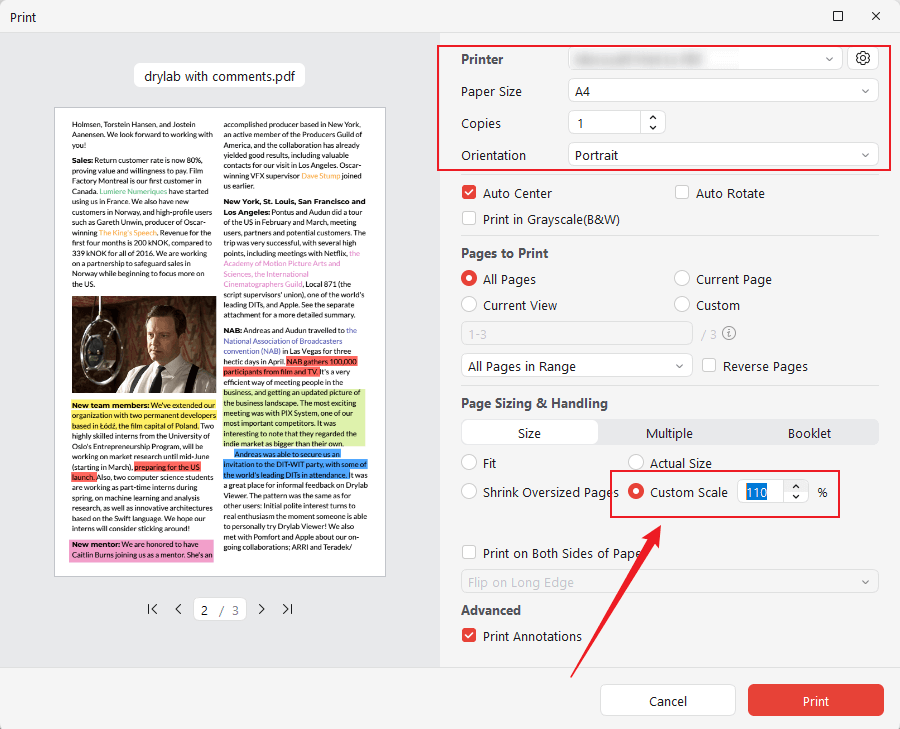
Step 4. Open the Paper Size list to choose the needed paper size, and set the page orientation. Under Page Size & Handling, tick the Custom Scale option and increase the scale slightly. You can check the margin in the left preview section.
Step 5. Once you are satisfied with the PDF, click the Print button to get the PDF file without margins.
How to Print Borderless PDF in Adobe Acrobat
As the leader of thousands of PDF editors, Adobe Acrobat is one of the most reliable ways to print borderless PDFs on Windows, Mac, and other compatible devices. If you are using the full Acrobat version (Acrobat Pro or Standard), you can enjoy its advanced features, such as cropping pages to remove white margins before printing. This feature is quite ideal if your PDF file has built-in white space you want to remove. How to print a borderless PDF in Adobe Acrobat? Check the steps below.
Step 1. Launch Adobe Acrobat and open your PDF file.
Step 2. Then, go to Tools to select the Edit PDF or Print Production option. Next, click the Crop Pages option under Print Production or the Set Page Boxes option.
Step 3. In the dialog box, choose the Remove White Margins option under Margin Controls. Next, click OK to confirm the operation.
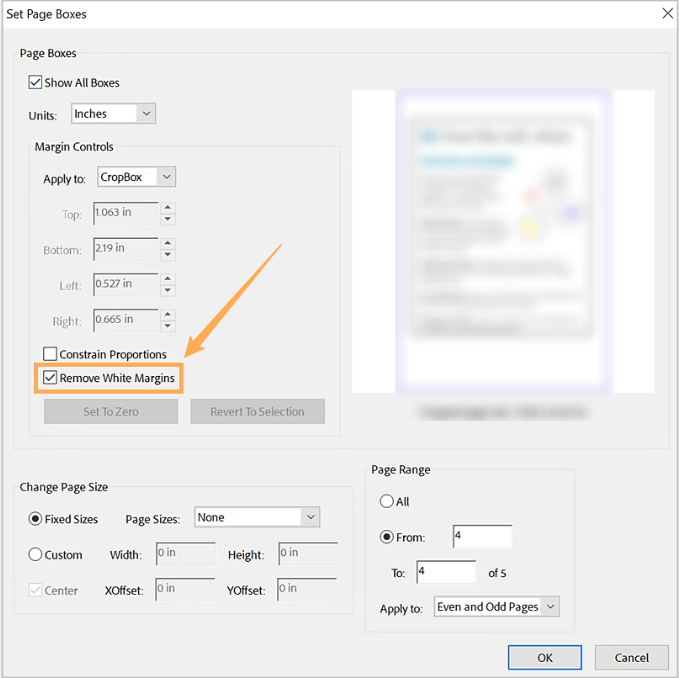
Step 4. Click File and select Print. Choose your printer and go to Properties to enable the Borderless Printing or No Margins option. Meanwhile, select the Actual Size option under Page Sizing & Handling and set Page Scaling to None. Finally, click Print.
How to Print PDF Without Margins with SwifDoo PDF
SwifDoo PDF is a cost-effective alternative to Adobe Acrobat. It is easy to print PDFs with or without margins in SwifDoo PDF. Like Adobe Acrobat, SwifDoo PDF lets you crop PDF pages to remove the built-in white margins. In addition to printing PDF in black and white, it also supports color printing. Furthermore, SwifDoo PDF enables you to edit, watermark, organize, protect, or annotate PDFs before printing. Let’s learn how to print a PDF without margins in SwifDoo PDF.
Step 1. Download SwifDoo PDF from its download center and install it on your computer.
Step 2. Click Open to upload your target PDF file. Then go to the Edit tab and click Crop. Click the Auto Selection or Adjustments option to remove the white margins. Click Page Range to select All to set all PDF pages as the target. Next, click Apply Changes to eliminate the white margins.

Step 3. Next, click the Print icon to access the Print dialog. Click Margins next Page Sizing & Handling. Untick the Keep Page Margins checkbox, set all margin values to 0, and click OK to confirm the operation.
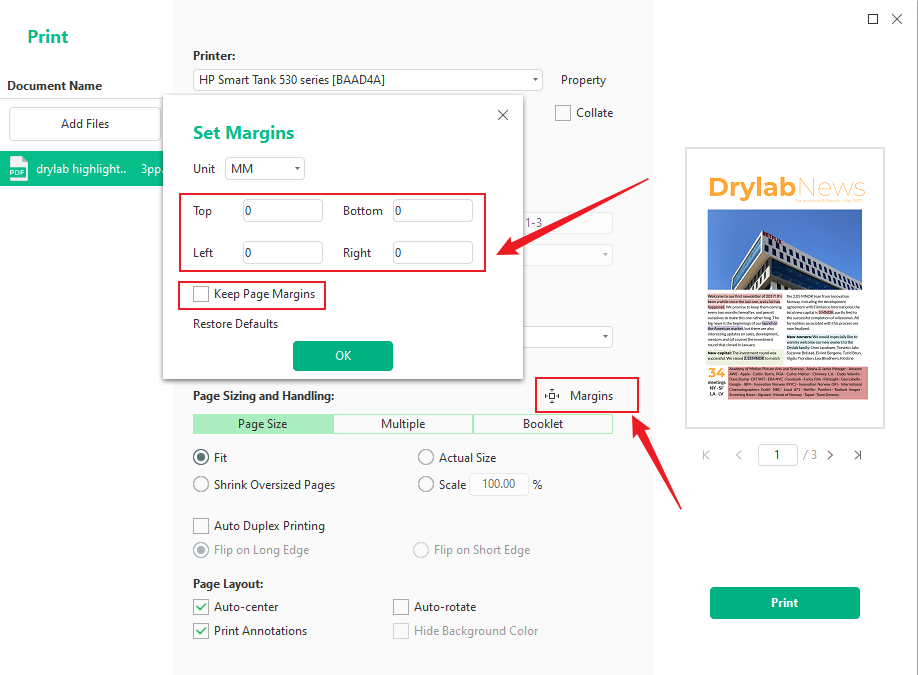
Step 4. Customize other print settings and click the Print button to activate the borderless printing process.
How to Print a PDF Without Margins Using Preview
Preview is Mac’s pre-installed program for viewing, editing, annotating, or printing images and PDF documents. It allows you to print a PDF without margins. Though there is no direct “borderless” or “zero margin” option in Preview, it can still print a PDF with no margin by combining two settings. Here’s how:
Step 1. Locate your PDF file, right-click it, select Open With, and choose Preview. Then, the PDF file will open in Preview.
Step 2. Go to File and select Print. Set Scale to 100% or slightly higher, such as 101 – 105%. Next, check the Scale to Fit checkbox, then click Print Entire Image.
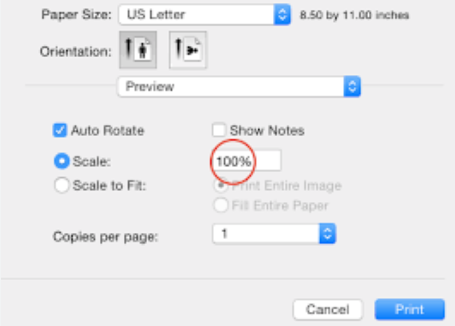
Step 3. Finally, hit Print.
How to Print Without Margins in Microsoft Word
Microsoft Word is a professional word processing program. If you are using Microsoft Word 2013 or later versions, you can enjoy its features for handling PDFs. When you import a PDF file into Microsoft Word, it will automatically turn the PDF into an editable Word file. Then, you can edit the file as needed. Additionally, Microsoft Word enables you to print without margins. Below is the tutorial on how to print without margins in Microsoft Word.
Step 1. Launch Microsoft Word on your device and click Open to import your target PDF file. Then, here is a pop-up to notify you that the PDF will be converted to an editable Word file. Click OK to confirm.
Step 2. Edit the file as needed. Then, click File and select the Print option. Next, click Page Setup, set all margin values to 0, and click OK.
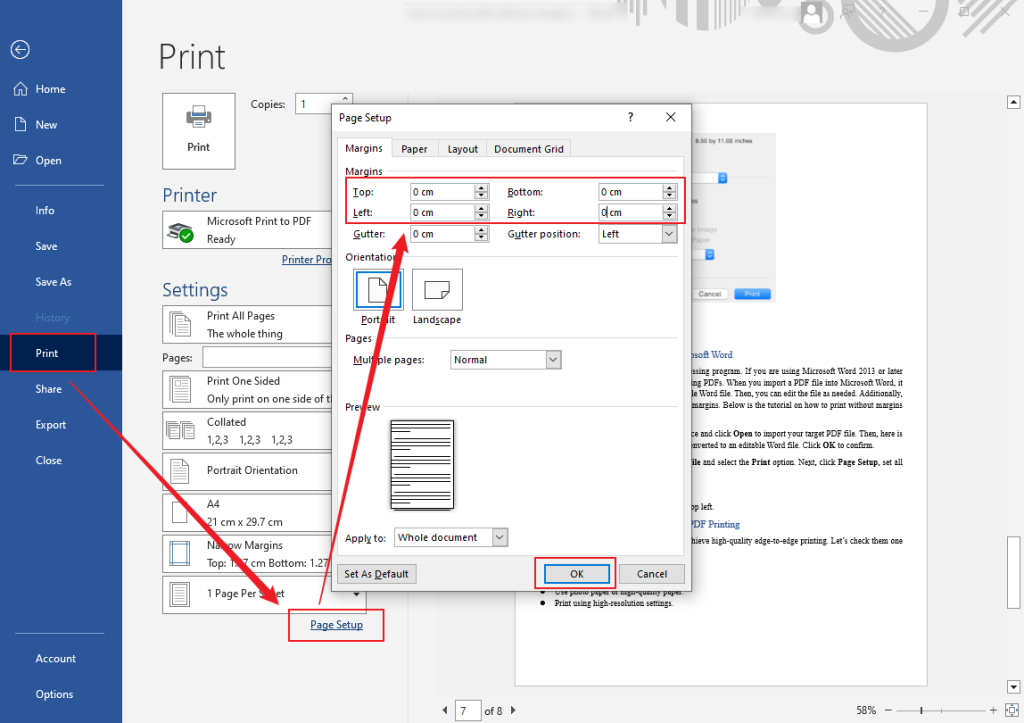
Step 3. Finally, click the Print button in the top left.
Advanced Tips for Perfect Borderless PDF Printing
Below are some advanced tips to help you achieve high-quality edge-to-edge printing. Let’s check them one by one.
🎈Disable the “Shrink to Fit” settings.
🎈Preview the output before printing.
🎈Use photo paper or high-quality paper.
🎈Print using high-resolution settings.
Final Words
It is essential to master how to print PDF without margins if you need to produce professional full-page documents, graphics, or marketing materials. How to print without margins on different devices? With the methods and exact steps provided in this guide, you’ll be able to print PDFs without white edges effortlessly.
FAQs
1. Your printer doesn’t support borderless printing.
2. The paper size doesn’t match the document.
3. You don’t enable the borderless mode for printing.
4. Your PDFs have built-in margins.
Table of Contents

Your Best Free PDF Expert in PDF editing, compressing, converting, annotating, protect, organizing, and more.
Free DownloadWindows · macOS · Linux

Olivia
“Olivia is an editor at JOPDF, where she writes practical guides and insightful articles on managing PDFs—covering topics like editing, annotating, converting, and organizing files efficiently. Passionate about clear communication and digital productivity, Olivia enjoys spending her free time cooking, watching movies, and hiking to unwind and find inspiration for her writing.”
![How to Print Selected Area in PDF in 2026 [4 Best Ways]](https://b.jopdf.com/wp-content/uploads/2026/03/how-to-print-selected-area-in-pdf.png)
![Adobe Print to PDF Not Working [Reasons and Solutions]](https://b.jopdf.com/wp-content/uploads/2026/03/adobe-print-to-pdf-not-working.png)
