![Learn the Full Guide on How to Print PDF on Mac [Detailed Steps]](https://b.jopdf.com/wp-content/uploads/2025/11/how-to-print-pdf-on-mac-thumbnail.png)
Introduction :
Printing PDF files on a Mac is generally quick and convenient, but if you’re new to macOS or transitioning from Windows, you may need some guidance on how to do it efficiently. Whether you want to print PDF documents for work, school, or personal use, your Mac provides multiple ways to handle PDF printing. In this JOPDF post, I’ll show you how to print PDF on Mac using built-in features and third-party tools.
Recommended Free Way to Edit and Print PDF on Mac
In the beginning section, I’d like to introduce JOPDF to print PDFs on Mac, especially if you need to edit them before printing. Serving as a completely free PDF editor and printer, JOPDF offers you comprehensive editing features and customizable printing settings. You can use it to print white and black or color PDFs, or set it to print double-sided PDFs, and make other printing settings. Here, let’s learn how to print a PDF on Mac using JOPDF.
Step 1. Download and install JOPDF.
Click the convenient button to download and install this free PDF printer on your Mac and then launch it.
Step 2. Import the PDF file you want to print.
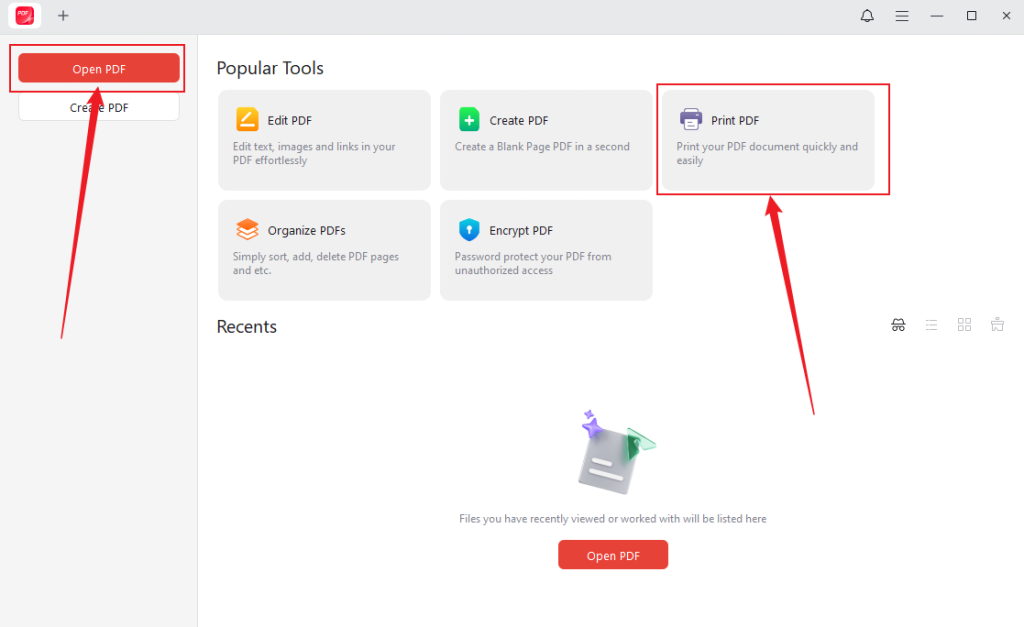
In the main interface of JOPDF, click the Print PDF option to upload the target PDF document. Alternatively, click the Open PDF button to import your PDF.
Step 3. (Optionally) Edit the PDF file.
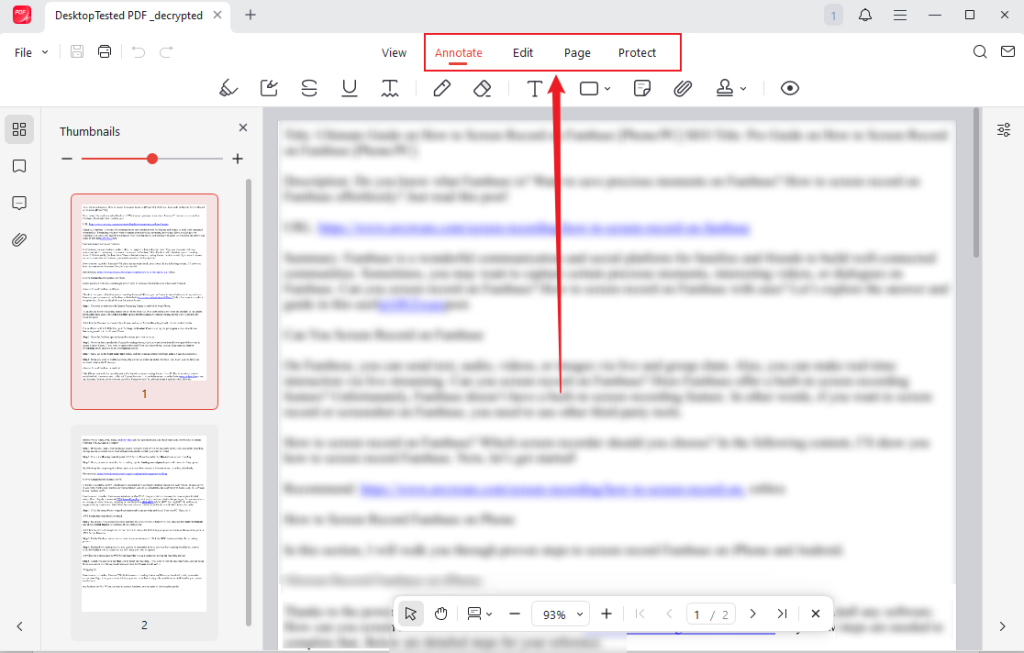
If you click the Print PDF option, your PDF file will be uploaded, and the Print window will appear. You need to close the Print window if you need to edit the PDF file before printing. Next, you can go to the Annotate, Edit, Page, or Protect section to refine your PDF file.
Step 4. Customize the print settings and print it.
Once finish the editing, click the Print icon in the top left or press Command + P to open the Print window. Here, you can set the printed paper size, orientation, and color. Select the page range you want to print or set to print the PDF as a booklet. Or adjust other printing settings. Finally, click the Print button.
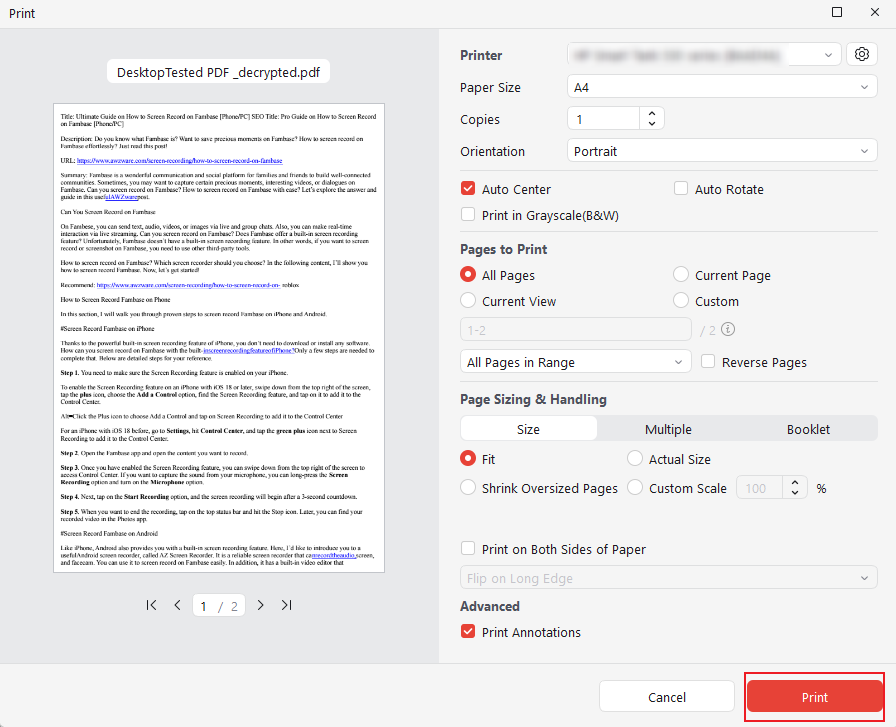
All in all, JOPDF is a good choice to edit and print PDFs on a Mac for free. It has the additional features that the Mac’s built-in programs don’t have. You can use it to print secured PDFs. If you have additional needs to refine PDFs, try JOPDF!
Built-in Ways to Print PDFs on Mac
If you don’t want to download and install any software, the built-in features of Macs can meet your needs for printing PDFs. Preview and browsers can be your choices. Now, let’s check them one by one.
Option 1. Use Preview
Preview is built into every macOS system without installing anything extra. It’s a powerful, lightweight tool designed for viewing, editing, annotating, and printing PDF files and images. In addition, it supports printing multiple PDF files at once. How to print a PDF on Mac using Preview. Just check the steps below:
Step 1. If you have set Preview as the default PDF viewer, double-click the target PDF file to open it in Preview. If you haven’t, right-click on the target PDF and select the Open with Preview option.
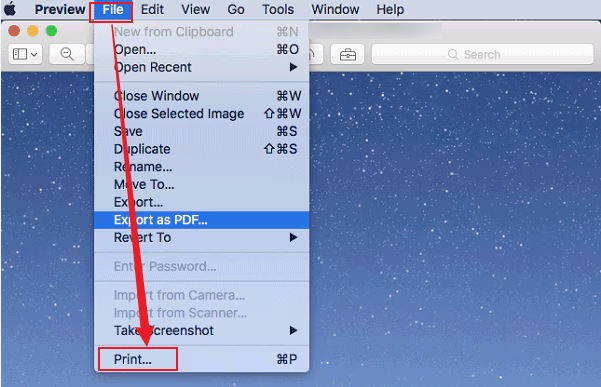
Step 2. Click File and select the Print option or press Command + P to access the Print dialog.
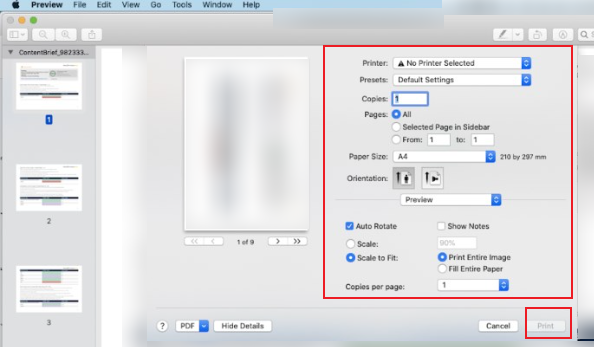
Step 3. In the Print dialog, you can configure the following options: select your printer, choose the pages you want to print, pick portrait or landscape mode, and set the paper size. Once done, click the Print button to start the printing process.
Option 2. Use Browsers
Additionally, you can choose to open and print PDFs in your web browsers. Fortunately, printing from browsers like Safari or Chrome is just as easy. Here’s how:
#Printing from Safari:
Step 1. Right-click the PDF and choose to open it in Safari.
Step 2. Press Command + P.
Step 3. Select your printer and customize other printing settings.
Step 4. Hit Print.
#Printing from Chrome:
Step 1. Open the target PDF in the Chrome browser.
Step 2. Click the Three-dot icon and click Print.
Step 3. Adjust the printing settings based on your needs.
Step 4. Click Print.
How to Print a PDF on Mac via Adobe Acrobat Reader
If you use Adobe Acrobat Reader to view and manage PDFs, you can also print directly from there. This app offers more advanced print settings, such as scaling, booklet printing, and page handling. Below is how to print a PDF in Adobe Acrobat Reader on Mac.
Step 1. Open your PDF document in Adobe Acrobat Reader.
Step 2. Click File and select Print to open the Print dialog.
Step 3. Next, select the pages you want to print, customize the page sizing and handling, select the orientation, and others. At last, click Print.
How to Print to PDF on Mac
Want to save a file or web page as a PDF document instead of sending it to a physical printer? If so, the Print to PDF feature can help you. It enables you to preserve layout, fonts, and formatting. How to print to PDF on Mac? Luckily, macOS has a native PDF printing feature available in almost all apps, such as Safari, Pages, Mail, Preview, and Chrome. Here, let’s learn how to print to PDF on Mac.
Step 1. Open the file you want to save as a PDF.
Step 2. Press Command + P to access the Print dialog.
Step 3. The specific option is based on the app you choose to open a PDF. Here are the options you can choose from:
- Save as PDF: to create a simple PDF copy
- Save as PostScript: for advanced printing workflow
- Mail PDF: to instantly attach it to an email
- Save as PDF-X: for professional printing standard
- Add to Books: to save in the Apple Books app
Step 4. Next, choose a folder to save the PDF file and click Save.
Whether you’re exporting a report, saving a web page, or archiving a form, macOS gives you a seamless built-in option through the Print dialog. Just click File > Print > PDF > Save as PDF, adjust settings, and you’re done.
Bottom Line
Now you know exactly how to print PDF on Mac whether you’re using JOPDF, Preview, Safari, Chrome, or Adobe Acrobat Reader. It is quite easy, especially with this comprehensive guide. Now, it is your time to choose a preferred method and give it a try.
FAQs
1. The PDF file has permission or security restrictions.
2. The PDF file is corrupted or damaged.
3. The printer driver is outdated or incompatible.
4. There are some incorrect print settings.
Table of Contents

Your Best Free PDF Expert in PDF editing, compressing, converting, annotating, protect, organizing, and more.
Free DownloadWindows · macOS

Olivia
“Olivia is an editor at JOPDF, where she writes practical guides and insightful articles on managing PDFs—covering topics like editing, annotating, converting, and organizing files efficiently. Passionate about clear communication and digital productivity, Olivia enjoys spending her free time cooking, watching movies, and hiking to unwind and find inspiration for her writing.”
![Solved! Microsoft Print to PDF Missing [Causes and 6 Fixes]](https://b.jopdf.com/wp-content/uploads/2026/02/microsoft-print-to-pdf-missing.png)