Introduction
Being familiar with how to enlarge a PDF for printing guarantees sharper text and preserves the document’s original layout. In this guide, you will discover four easy and practical methods. Let’s get started.
1. Free and Professional Way to Enlarge a PDF for Printing
⭐ Best For: Users who wish for a free yet professional tool to enlarge PDFs for printing while maintaining full control over editing and scaling.
JOPDF is a powerful, reliable, and user-friendly tool that lets users resize a PDF for printing with full control over layout and clarity.
As a free PDF editor, JOPDF delivers extensive editing capabilities and adjustable printing settings for user convenience. You can use it to print white and black or color PDFs, and even set it to print double-sided PDFs, along with other printing settings.
It combines easy-to-use features with professional-level control, making it suitable for both casual users and business professionals.

JOPDF’s Key Features:
- Lets you enlarge PDF for printing through precise resizing with customizable scale options.
- Adjust page orientation, margins, and layout for printing.
- Edit both text and graphics directly in your PDF documents.
- Merge, split, compress, reorder PDF and add password protection.
- View and annotate PDF to meet the desired needs and preferences.
- 100% FREE.
Learn how to enlarge a PDF for printing with JOPDF in a few clicks.
Step 1. Download and set up the free JOPDF on your Windows (or Mac) system. After installation, open the program.
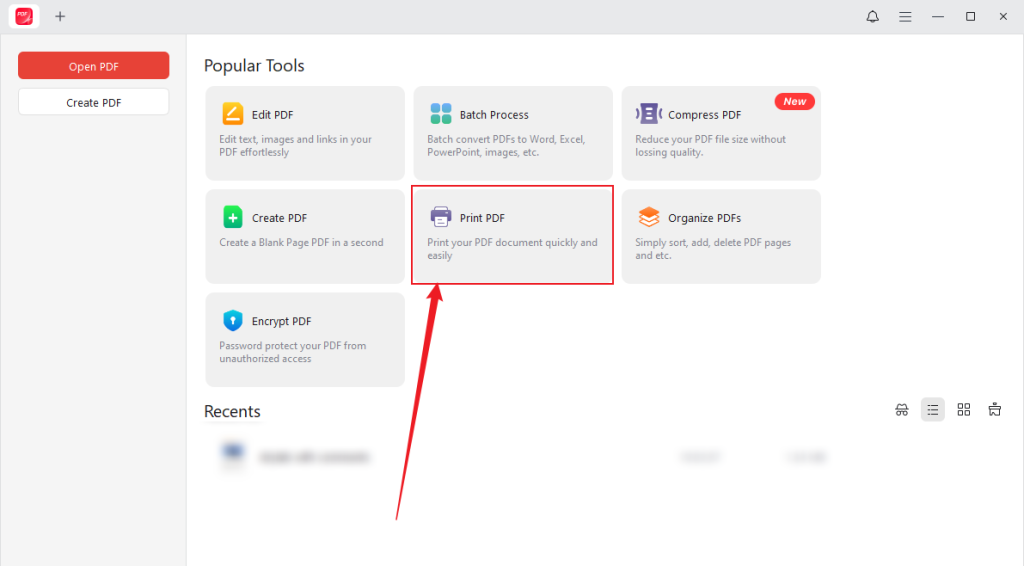
Step 2. Click on the Print PDF button in the main interface to enlarge the selected PDF file.
Alternatively, tap the Open PDF button and select the PDF you want to upload. Hit the Print icon in the top menu bar. Or press Command + P to open the Print window.
Step 3. Open the Page Sizing & Handling section, select Custom Scale, and set values above 100% to enlarge the PDF.
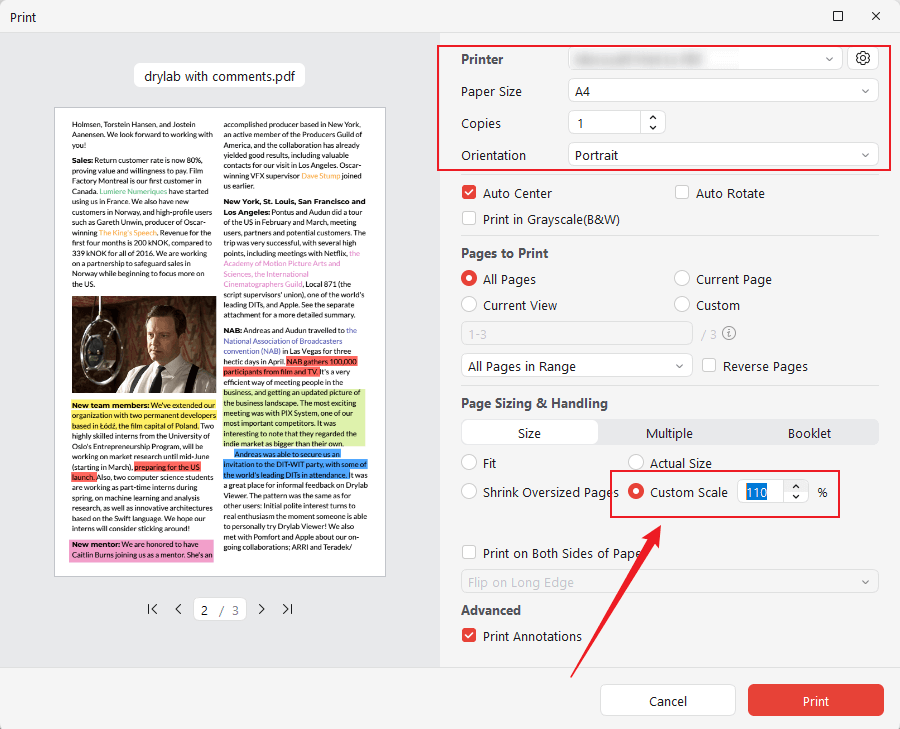
Additionally, you should choose the paper size, orientation, and color before printing. Select the page range you want to print, or set the PDF to print as a booklet.
Step 4. After adjusting all the necessary printing settings, click the Print button.
🔶 Main Advantages of Using JOPDF
- A free, safe, and powerful solution for PDF resizing and editing.
- Maintains high print quality and document formatting.
- Simple, user-friendly design that works well for all skill levels.
- Reduces the need for multiple PDF tools by combining key functions into a single platform.
2. Enlarge a PDF for Printing on Mac
⭐ Best For: Mac users who need simple, reliable PDF enlargement and printing without altering the original document or file content.
Preview is the default macOS program for viewing and managing documents, offering stable printing controls for everyday tasks.
When you print PDF on Mac with Preview, it offers adjustable scaling, layout, and paper-handling features to ensure clear, accurate output without changing the original file. It is a convenient solution for enlarging PDFs for printing while keeping alignment and quality intact.
Learn how to enlarge and print PDFs using Preview.
Step 1. Open the PDF document in Preview. Right-click on the PDF, pick Open with, then select Preview.
Step 2. Click File on the main menu bar and choose the Print option.
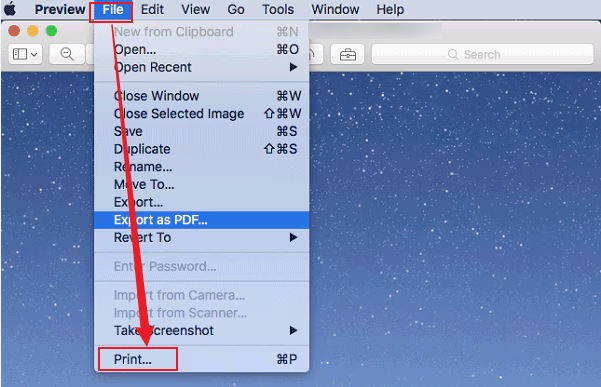
Step 3. In the Print dialog, pick Scale and adjust the value above 100% to enlarge the PDF content. Additionally, modify any other required print settings.
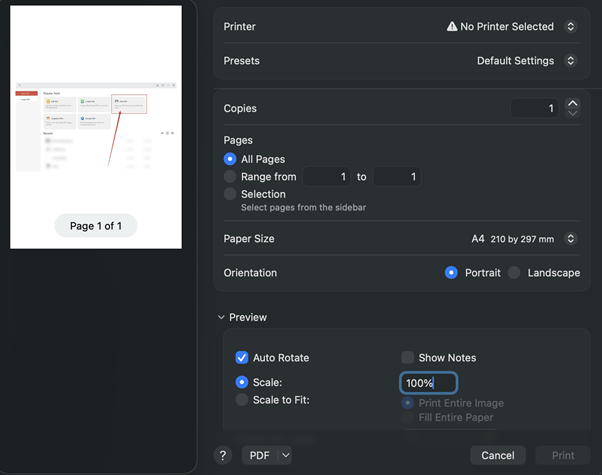
Step 4. Finally, click Print.
However, Preview cannot modify or rewrite existing text content. If you need to edit PDF on Mac outside basic viewing and printing controls, a professional tool like JOPDF provides deeper text editing options.
3. Enlarge a PDF for Printing in Adobe Acrobat
⭐ Best For: Professionals looking for precise scaling, layout control, and consistently high-quality output for complex document workflows.
Adobe Acrobat provides professional tools that allow users to enlarge PDFs for printing with accurate scaling and document management.
The print settings provide accurate scaling, page sizing, tiling, and preview features, ensuring enlarged PDFs stay clear and aligned. It is suitable for complex layouts and high-quality print requirements in demanding professional and commercial environments worldwide today.
Check out how to use Adobe Acrobat to get the job done.
Step 1. Download and open Adobe Acrobat on your device. Open your desired PDF with the software.
Step 2. Select the hamburger menu on Windows or the File menu on macOS. And select Print.
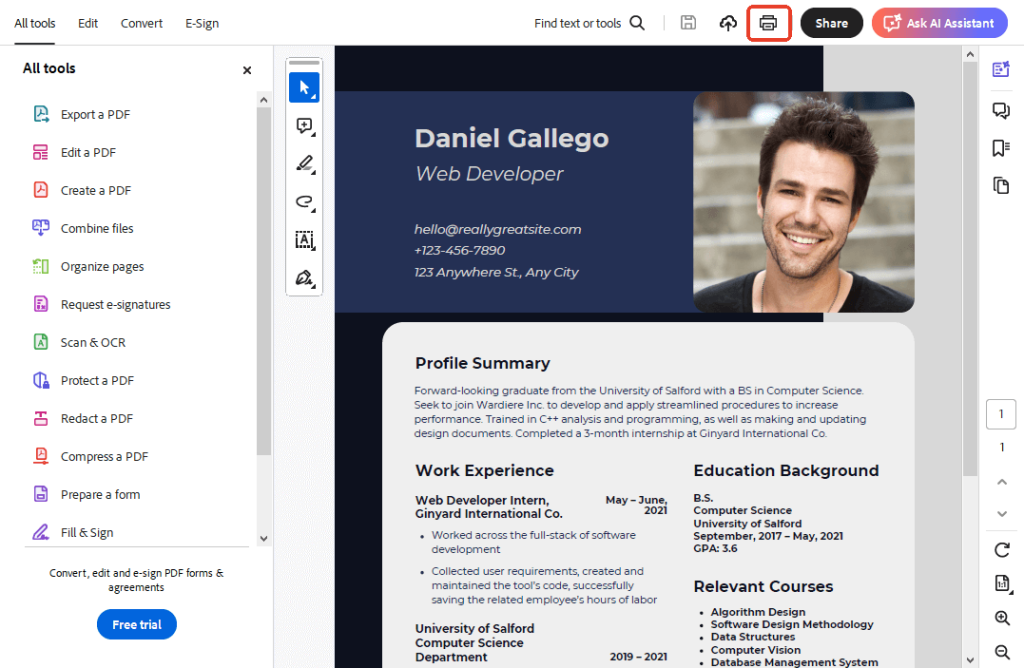
Step 3. From the Page Sizing & Handling menu, select Custom Scale. Enter the percentage (e.g., 200%) you want to magnify to enlarge the PDF for printing.
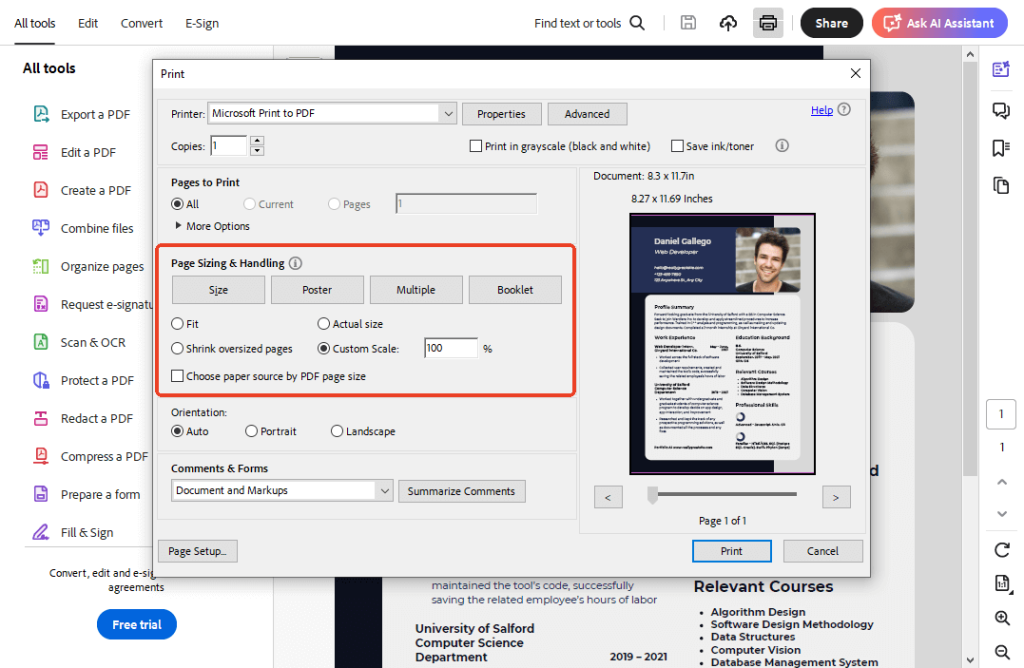
Alternatively, pick the Poster menu in Page Sizing & Handling and change the Tile Scale to increase file size. Also, adjust the Overlap option if needed.
Step 4. Click Print to obtain the desired paper size.
4. Enlarge a PDF for Printing in Chrome
⭐ Best For: Quick PDF enlargement for printing in Chrome, with no additional software required.
You can also enlarge a PDF in the Chrome browser. When you do so, the browser’s built-in PDF viewer lets you adjust the print scale easily before sending the file to your printer. This approach is fast and requires no extra software, making it perfect for simple print enlargement.
Explore how to enlarge a PDF in Chrome easily in a few clicks.
Step 1. Right-click the PDF, click Open With, and pick Google Chrome to open it in a web browser.
Step 2. Click the Print icon. Alternatively, hit Ctrl + P (Windows) or Command + P (Mac) to open printing options.
Next, choose Microsoft Print to PDF as the destination.
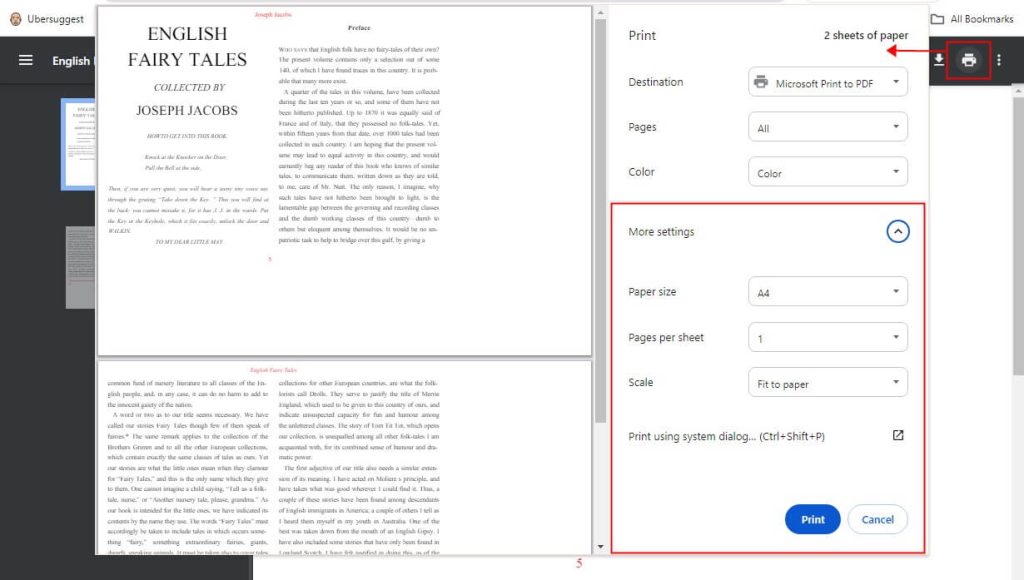
Step 3. In More settings, set the Scale as Custom to enlarge the PDF. You must increase the scaling percentage to more than 100, like 150. Select the printer and adjust other options.
Step 4. Click on Print to print the PDF.
Final Wrap Up
Understanding how to enlarge a PDF for printing guarantees your documents remain clear, accurately scaled, and well-presented on paper.
Whether using JOPDF for free but powerful resizing, Preview on Mac for dependable printing, Adobe Acrobat for professional accuracy, or Chrome for fast scaling, each method ensures your document prints clearly at the right size.
Knowing how to use these tools makes the process easier and helps you confidently handle your PDFs. However, if you also want to edit PDF for free, JOPDF is the best option.
FAQs
Table of Contents

Your Best Free PDF Expert in PDF editing, compressing, converting, annotating, protect, organizing, and more.
Free DownloadWindows · macOS · Linux

Queena
Editor
“As a staff editor for JOPDF, Queena excels at guiding users to the optimal tools and solutions. When she's not analyzing the latest PDF solutions, she enjoys spending her free time playing with her four cats.”
![How to Print Selected Area in PDF in 2026 [4 Best Ways]](https://b.jopdf.com/wp-content/uploads/2026/03/how-to-print-selected-area-in-pdf.png)
![Adobe Print to PDF Not Working [Reasons and Solutions]](https://b.jopdf.com/wp-content/uploads/2026/03/adobe-print-to-pdf-not-working.png)
