![Adobe Print to PDF Not Working [Reasons and Solutions]](https://b.jopdf.com/wp-content/uploads/2026/03/adobe-print-to-pdf-not-working.png)
Introduction :
Adobe is a widely trusted tool for generating, viewing, and handling PDF documents on various devices. However, the issue of Adobe Print to PDF not working can be annoying when the printer option is unavailable, conversions fail, or printing errors occur. Fixing this problem is crucial for smooth PDF creation, sharing, and long-term document storage. This JOPDF article explores the reasons, fixes, and helpful tips to avoid Adobe Print to PDF not working going forward.
What Is Adobe Print to PDF
As a virtual printer, Adobe Print to PDF lets users convert documents into PDF format directly from most applications. Instead of printing on paper, it saves the file as a PDF. This enables the creation of secure, shareable, and professional-quality PDFs.
Using the Adobe PDF printer driver, Adobe Print to PDF processes print commands and converts documents into PDF format. By selecting “Print” and choosing Adobe PDF as the printer, the driver processes the document and produces a PDF file on the system.
Common Reasons for “Adobe Print to PDF Not Working”
Several factors can cause the Adobe Print to PDF not working issue, including software glitches and system configuration problems. Recognizing these common causes helps users pinpoint the problem quickly and implement the correct solution.
a. Adobe PDF Printer Is Missing
A common reason the issue occurs is that the Adobe PDF printer option is missing from the system’s available printers. The issue may arise when the Adobe PDF printer driver is incorrectly installed, deleted during system changes, or disabled, stopping users from creating PDFs through Print.
b. Corrupted or Outdated Adobe Installation
A damaged or outdated Adobe installation can also cause printing problems. When important program files are damaged or the software version is incompatible with the system, the PDF printer feature may stop responding. Performing an update or a fresh installation of Adobe often restores the feature and resolves the problem
c. Print Spooler Service Issues
The Print Spooler service manages all print tasks in Windows, including virtual printers. When the service stops responding, hangs, or becomes overloaded with pending tasks, the Adobe PDF printer may fail to process files. Printing issues are frequently resolved by restarting the Print Spooler service.
d. Windows Update or Driver Conflicts
In certain cases, Adobe’s virtual printer may be affected by recent Windows updates or conflicting printer drivers. As a result, Adobe Print to PDF not working on Windows 10 or Windows 11can occur, where the printer becomes unresponsive or is missing from the available printers.
e. Permission or Security Restrictions
Strict security settings or system permissions may stop the Adobe PDF printer from being accessed. At times, users may face the “Adobe PDF printer access denied” error, stopping the document from converting into a PDF file. This can occur if administrative rights are missing or if security software restricts printer access.
How to Fix “Adobe Print to PDF Not Working”
Having seen the usual causes of the Adobe Print to PDF not working issue, you can more easily identify the problem and apply the appropriate fix. By applying the steps below, you can troubleshoot the problem and bring back the Adobe PDF printer for smooth PDF generation.
Solution 1. Restart the Print Spooler Service
Rebooting the Print Spooler service is an effective and straightforward way to address printing issues. If the service is stuck or malfunctioning, it can stop the Adobe PDF printer from processing print jobs. By restarting it, the printing system is refreshed, which may fix the Adobe Print to PDF not working problem.
Follow these steps to restart the Print Spooler service.
Step 1. Open the Run dialog with Windows key + R and type services.msc to access Services. Then, hit Enter.
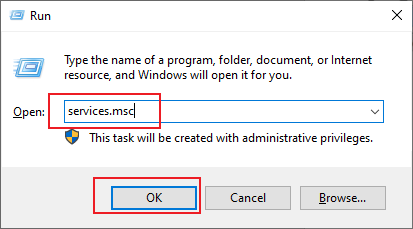
Step 2. In the window that opens, scroll down to locate Print Spooler.
Step 3. Right-click Print Spooler.And select Restart.
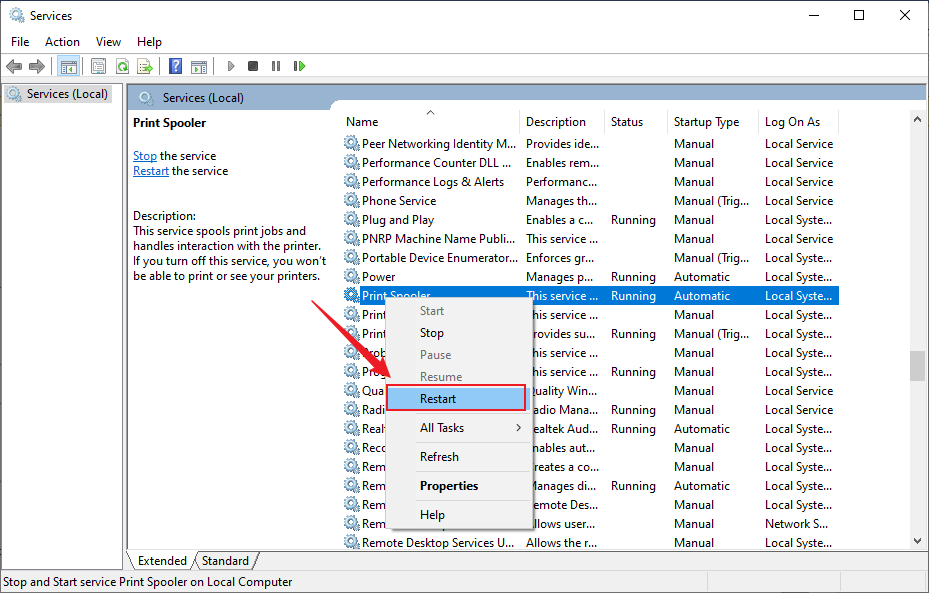
Step 4. After closing the window, try printing your document to PDF again.
Note. Following this solution can help you resolve the issue of “Microsoft Print to PDF not working” as well.
Solution 2. Repair Adobe Acrobat Installation
When Adobe Acrobat program files are damaged or corrupted, performing a repair can bring back functionality. The tool analyzes the program for errors and fixes corrupted or missing components without manual intervention. By doing this, the Adobe PDF printer is restored, which can fix the Adobe Print to PDF not working problem.
Learn how to repair the Adobe Acrobat Installation.
Step 1. Start Adobe Acrobat on your PC.
Step 2. From the Menu, go to Help and select Repair Installation to begin the process.
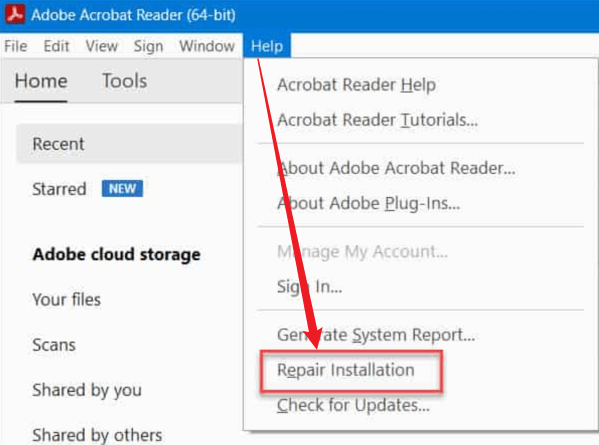
Complete the steps as prompted and wait for the repair to finish.
Step 3. Then, restart your computer when finished.
Solution 3. Reinstall or Add Adobe PDF Printer Manually
When the Adobe PDF printer is missing or has been uninstalled, restoring it manually or reinstalling it can resolve the issue. It confirms that the virtual printer is correctly configured and identified by your system. Performing this step frequently resolves the Adobe Print to PDF not working problem and brings back complete PDF printing capabilities.
Find out how to reinstall or add the Adobe PDF Printer manually.
Step 1. Open the Control Panel. And navigate to Devices and Printers. Then click Add a printer.
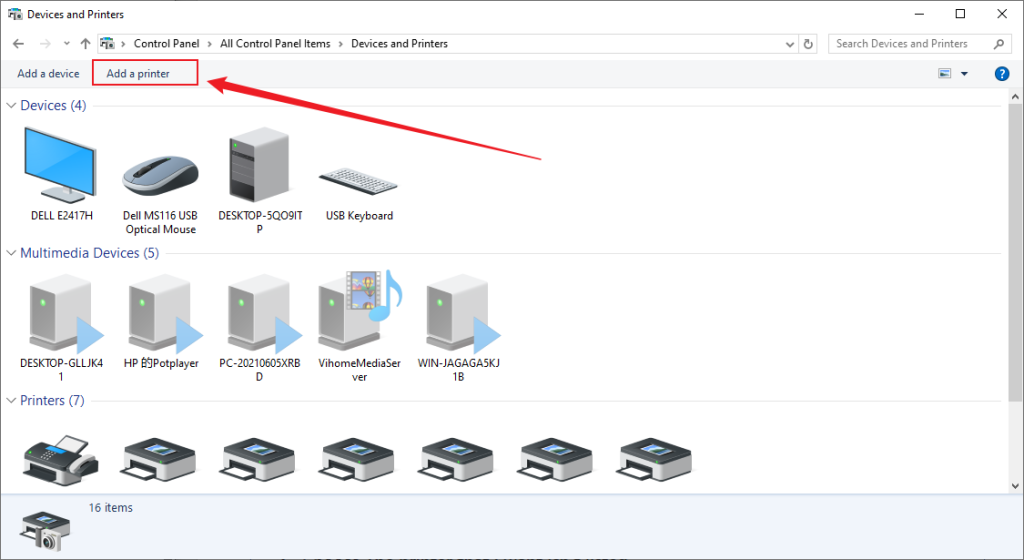
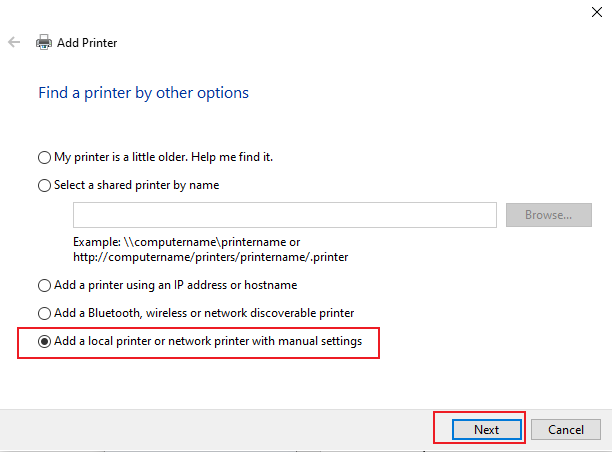
Step 2. In the Add a device window that opens, select the The printer that I want isn’t listed option.
Choose the Add a local printer or network printer with manual settings option. And click Next.
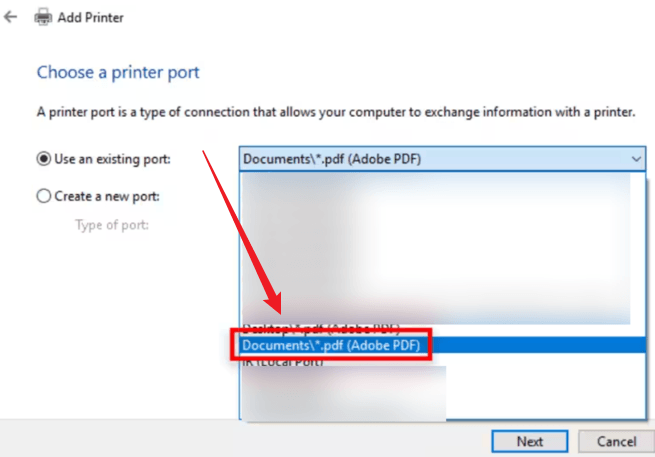
Step 3. Choose Use an existing port and select Documents*.pdf (Adobe PDF) from the dropdown menu.
Step 4. Choose Have Disk and point to this directory:
C:\Program Files (x86)\Adobe\Acrobat <version>\Acrobat\Xtras\AdobePDF.
Step 5. Then, select the first Adobe PDF Converter in the list, press Next, and name it Adobe PDF to finalize the installation.
Solution 4. Update or Roll Back Windows Updates
Recent Windows updates can occasionally create conflicts that cause the Adobe PDF printer to stop working. Updating to the newest Windows version or uninstalling a problematic update can often resolve these issues. This approach helps restore compatibility and fix the Adobe Print to PDF not working on Windows 10 or Windows 11 problem.
Here are the steps to update or roll back a Windows update (uninstall it).
#Update Windows
Step 1. On Windows 11, go to Start and select Settings.
Step 2. Head to Windows Update and select Check for updates.
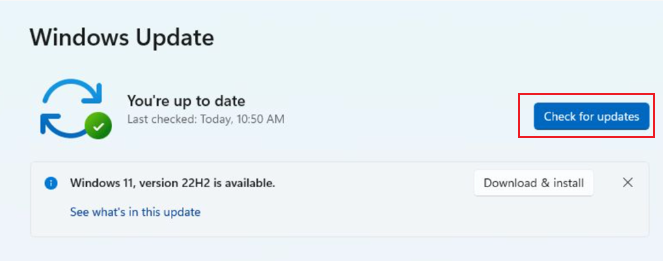
Note. Windows 10 users can click Start > Settings > Update & Security > Windows Update and select Check for updates.
Step 3. If updates are available, click Download & Install.
Step 4. If prompted, restart your device to apply the updates.
#Roll Back a Windows Update
Step 1. Select Start and press Windows Key + I to open Settings.
Step 2. Go to Windows Update > Update history.
Step 3. Navigate to the bottom and click Uninstall updates to restore system stability.
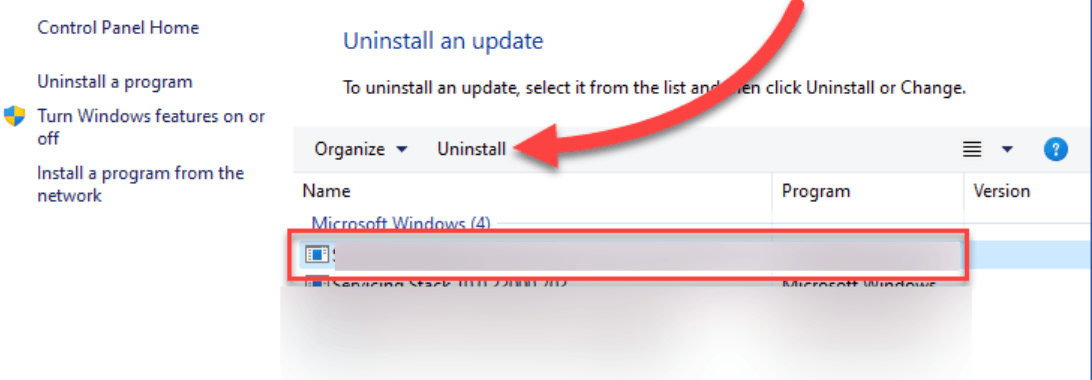
Step 4. Tap the latest update (check its date) and then click Uninstall.
Step 5. Complete the prompts to reboot your computer.
Solution 5. Run Adobe Acrobat as Administrator
Occasionally, security or permission restrictions may prevent Adobe from using the PDF printer. Launching Adobe Acrobat with administrative rights ensures it has the necessary permissions to complete printing. This straightforward step often fixes Adobe PDF printer access denied errors and resolves the Adobe Print to PDF not working issue.
Let us find out the steps to temporarily run Adobe Acrobat as an administrator.
Step 1. Locate the Adobe Acrobat shortcut on your desktop or in the Start menu.
Step 2. Right-click the icon.
Step 3. Select Run as administrator.

Step 4. If a User Account Control prompt appears, tap Yes.
Step 5. Then try printing to PDF again.
Note. If this works, adjust Acrobat’s shortcut settings to always run as administrator.
Solution 6. Update Adobe Acrobat
Running an outdated version of Adobe Acrobat can cause the PDF printer to malfunction. Installing the latest updates delivers bug fixes and improvements that can correct the Adobe Print to PDF not working error. Keeping Acrobat up to date helps maintain smooth PDF creation and printing.
Let us see how to update Adobe Acrobat.
Step 1. Launch the Adobe Acrobat application on your computer.
Step 2. Check for Updates:
- Click the Menu at the top left on Windows, or Acrobat at the top left on macOS.
- Select Help and press Check for updates.
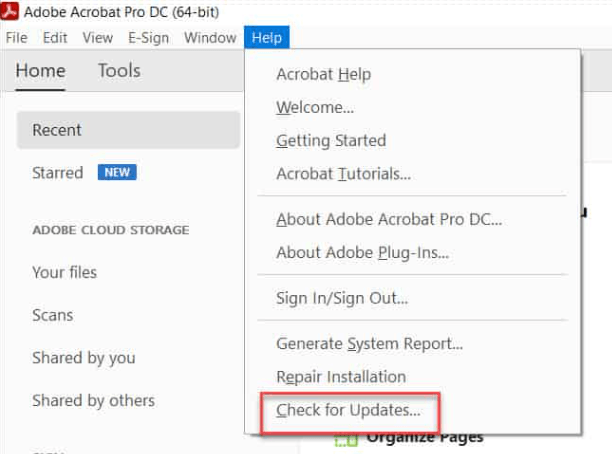
Step 3. When a new version is detected, select Download and Install to update.
Step 4. Restart the application to apply the updates and complete the process
Solution 7. Use Alternatives to Adobe Print to PDF
When all the above fixes fail, and Adobe Print to PDF still doesn’t work, alternative tools can be used to create PDFs. These alternatives let users produce PDFs reliably without Adobe’s virtual printer, supporting seamless workflows and straightforward sharing.
⭐Use Professional PDF Tools.
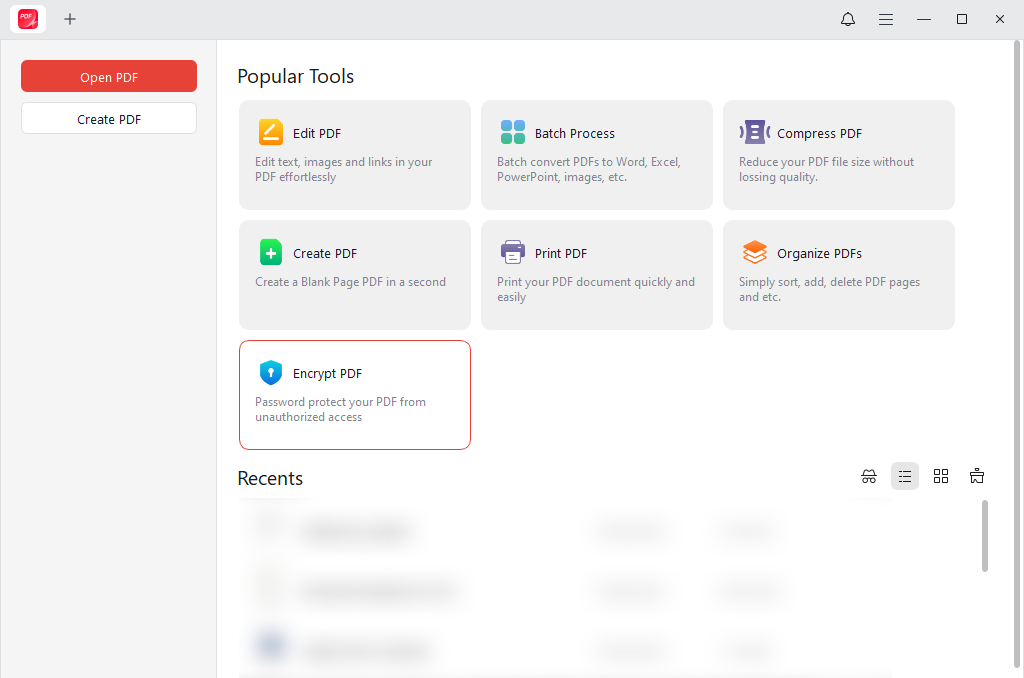
Tools like JOPDF, SwifDoo PDF, and Smallpdf provide dependable print-to-PDF functionality, along with advanced features such as batch conversion, editing, and file management. These tools are ideal for users who need more flexibility and reliability than standard virtual printers.
For users looking for a reliable solution, JOPDF is an excellent free PDF converter. It lets you convert Excel, images, Word, or PowerPoint to PDF quickly and efficiently. As a free alternative to Adobe Acrobat, JOPDF provides stable PDF creation, editing, and management features, making it ideal for both personal and professional use. Its user-friendly interface makes it easy for beginners to create PDFs with no ads, no sign-up, and no watermarks.
⭐Use Microsoft Print to PDF.
This native Windows tool enables saving documents as PDFs straight from the print menu. Simple and fast, this option works in most applications, providing a convenient backup when Adobe’s PDF printer fails.
How to Prevent Adobe Print to PDF Issues in the Future
It’s easier to avoid Adobe Print to PDF not working problems in the future by adopting a few straightforward habits. Keeping your system and software well-maintained helps avoid frequent errors and allows for seamless PDF creation.
Here are some useful tips to keep Adobe PDF printing trouble-free.
- Keep Adobe Acrobat updated. Regular updates fix bugs and improve compatibility.
- Restart the Print Spooler service regularly. This keeps the printing system running smoothly.
- Check printer settings and drivers. Ensure the Adobe PDF printer is correctly installed.
- Avoid interrupting print jobs. Let each PDF generation complete to prevent spooler errors.
- Maintain proper system permissions. Run Adobe Acrobat with administrative rights to prevent access-denied errors.
- Ensure important PDFs are backed up on a consistent basis. Maintaining copies helps prevent loss of work caused by printing issues.
- Temporarily disable any conflicting software. Security programs or other PDF tools may interfere with Adobe PDF printing.
Final Wrap Up
Encountering Adobe Print to PDF not working may be annoying, yet understanding the reasons and following the proper fixes makes it easier to handle. From restarting the Print Spooler and repairing Adobe Acrobat to using alternatives like JOPDF, there are multiple ways to restore PDF functionality. Keeping software up to date and applying preventive tips helps users maintain seamless PDF creation and avoid problems later. Addressing these issues maintains workflow efficiency and reduces frustration.
FAQs
1. Adobe PDF printer not installed properly/failed updates.
2. Corrupted or outdated Adobe installation.
3. Windows or driver conflicts.
4. The Windows OS update may have overridden or removed third-party drivers.
5. Disabled printer in Windows.
6. Permission or security restrictions.
7. The driver package for the PDF printer has expired.
8. Using the Adobe Reader free version instead of Adobe Acrobat Pro/Standard.
Table of Contents

Your Best Free PDF Expert in PDF editing, compressing, converting, annotating, protect, organizing, and more.
Free DownloadWindows · macOS · Linux

Olivia
“Olivia is an editor at JOPDF, where she writes practical guides and insightful articles on managing PDFs—covering topics like editing, annotating, converting, and organizing files efficiently. Passionate about clear communication and digital productivity, Olivia enjoys spending her free time cooking, watching movies, and hiking to unwind and find inspiration for her writing.”
![Solved! Microsoft Print to PDF Missing [Causes and 6 Fixes]](https://b.jopdf.com/wp-content/uploads/2026/02/microsoft-print-to-pdf-missing.png)