Summary :
You may have created a PDF from many photos or other files, or scanned a large volume of papers into a PDF. However, the page order got reversed. Recreating or rescanning is cumbersome, making you wonder whether there is a simple way to reverse the PDF back. The answer is yes, but you’d better find the most effort-saving PDF editor to maximize your productivity. Read through this article for the 3 easy and quick ways to reverse PDF page order for free.
What Is “Reverse Page Order”?
“Reverse pages or page order” means to reorder the document pages so that the last page appears first and the first page comes last. This operation is usually needed in printing and scanning.
- Some printers print PDFs with the first page stacked at the bottom and the last page on the top. You can reverse the PDF page order automatically before printing to collate the document in its correct, forward order.
- You may already have scanned a document with page one at the end and the end page at the beginning. You can reverse PDF pages to fix the sequence problem in one click. As a result, you can view the scan in the right order.
Way 1: Reverse PDF Page Order Using JOPDF
JOPDF is a free PDF application that can reverse PDF page order on Windows and Mac. The offline desktop PDF editor provides two methods to reverse a PDF for viewing or printing. Its page-organizing feature also lets you adjust the order of single pages. You can also rotate, duplicate, or delete a page from the PDF if needed. Furthermore, the software allows PDF annotation, text editing, and security.
- For Viewing
Step 1: Hit the download button to install and run JOPDF for Windows or Mac, and click Open PDF in the program.
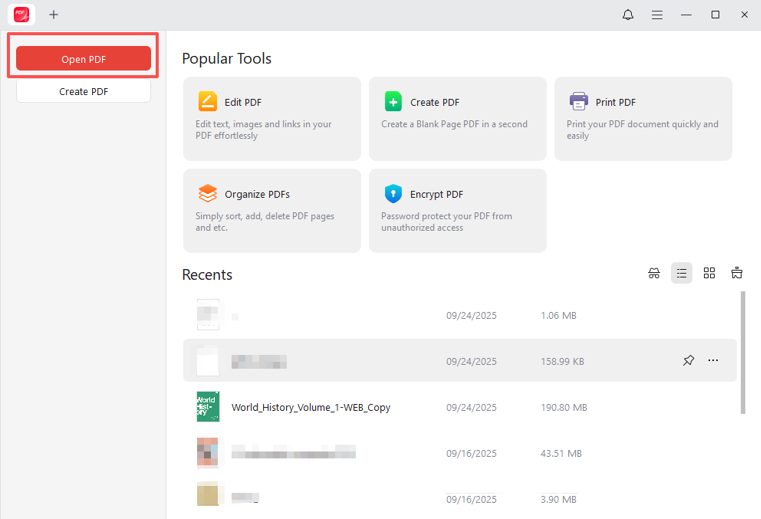
Step 2: Select and import the PDF you need to reverse page order to open it.
Step 3: Click the Page tab and select Reverse Pages in the drop-down menu.
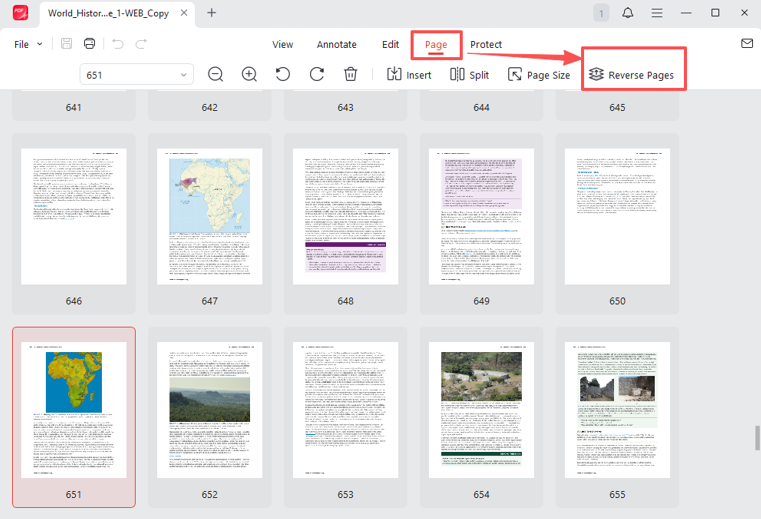
Step 4: JOPDF will immediately reverse the PDF page order, which you can check by scrolling down the thumbnails.
Step 5: Go to File > Save As to save the reversed PDF, if necessary.
- For Printing
Step 1: Download and launch the JOPDF, and open your PDF with it.
Step 2: Click the File button to select the Print option.

Step 3: Select Microsoft Print to PDF or another PDF printer from the Printer list.
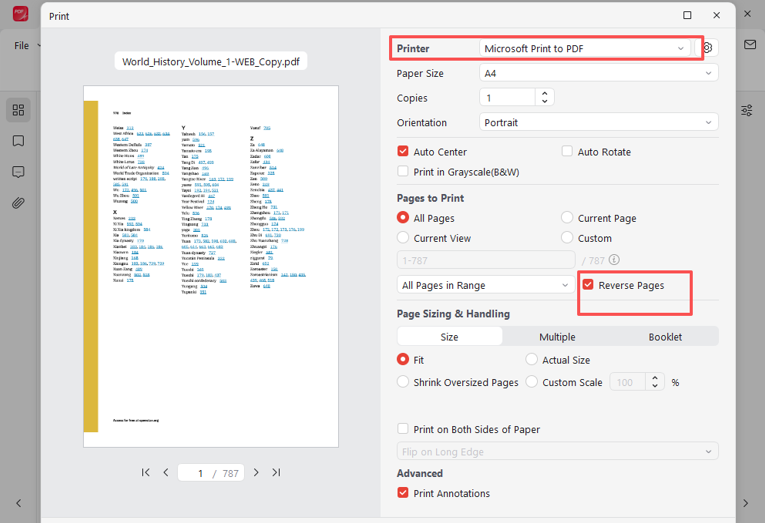
Step 4: Check the Reverse Pages box in the Pages to Print section. Step 5: Click Print, specify a location to reverse the PDF pages, and save the reversed file.
Way 2: How to Reverse Page Order in PDF with Adobe Acrobat
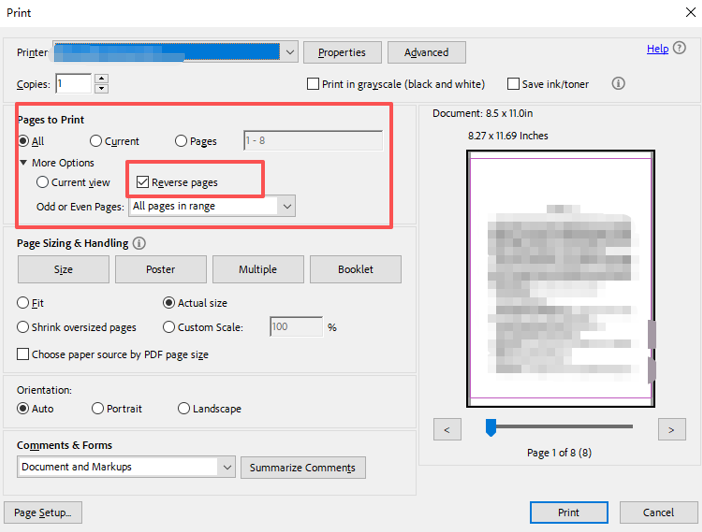
If you are stuck with how to reverse PDF page order, Adobe Acrobat might save you. You can use the page reversing option when printing to Adobe PDF to automate the process. Or you can use the “Organize Pages” feature to manually drag and drop pages to their locations. Please note that this workaround may flatten the PDF, merging all the layers into a single picture. That will make the document non-editable anymore.
Steps to reverse pages in a PDF in Adobe Acrobat are listed below.
Step 1: Open the PDF you wish to reverse page order in Acrobat.
Step 2: Click File > Print, and set the printer to Adobe PDF.
Step 3: Expand the More Options part under the Pages to Print section.
Step 4: Tick the Reverse pages checkbox to reverse the page order in the PDF in Adobe Acrobat DC.
Step 5: Hit the Print button, then click Save to print backward in PDF.
Way 3: Reverse PDF Pages with pdfux
Using pdfux is another way to reverse PDF page order online for free. The fast, free online platform offers a set of PDF tools for merging, splitting, and extracting pages. It supports removing and rearranging pages. The reversing process is simple, and there is no sign-up requirement.
Here is a quick look at how to reverse the order of PDF pages with pdfux.
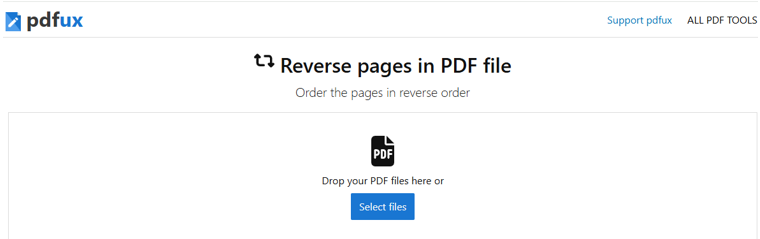
Step 1: Visit the web application, and choose the Reverse pages in PDF file tool.
Step 2: Click Select files to upload the PDF you’d like to reverse page order online.
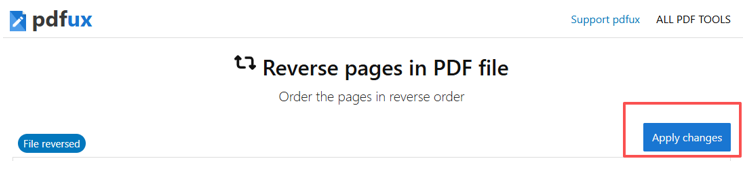
Step 3: Click Apply changes directly, as the file has been reversed automatically.
Step 4: Download the PDF with reversed pages and save it.
Conclusion
Next time, when you find PDF pages going from last to first, go over the three efficient ways in this post. You can reverse the order of pages in a PDF in just a few clicks through a single feature. If you generate a PDF from several files in your file folder, you can also re-sort the files by name in reverse order by clicking the “Name” header. After that, recreate your PDF from them.
Whether you need to reverse a PDF document on Windows or Mac, JOPDF is your ideal choice! Download the freeware now!
FAQs
You can also flip a single PDF page in Adobe Acrobat. Choose "Tools" > "Organize Pages", control-select the pages you want to flip in the PDF file, click "Rotate Pages", and choose the horizontal or vertical flipping option.
Table of Contents

Your Best Free PDF Expert in PDF editing, compressing, converting, annotating, protect, organizing, and more.
Free DownloadWindows · macOS

Selena
Staff Editor
“Selena is a staff editor working for JOPDF, passionate and committed to providing how-to and round-up articles. Over 8 years of specialized skills and experience in PDF solutions, hoping to help users ease their lives and solve whatever they encounter. "Work smarter, not just harder!"”
![[2026 Newest] Expert Guide on How to Rotate a PDF in Google Drive](https://b.jopdf.com/wp-content/uploads/2026/01/how-to-rotate-a-pdf-in-google-drive-thumbnail.png)
