Introduction :
For most of us, especially those who work with international paper standards, we need to resize PDFs to A4 for various reasons. Whether you need to print a document for business use, share standardized academic material, or convert a design to globally accepted dimensions, mastering how to resize a PDF to A4 is essential. How can you resize PDF to A4 effectively? Keep reading to find the detailed steps.
Introducing A4 Size
A4 is the most widely used paper standard worldwide, measuring 210 mm × 297 mm (8.27 × 11.69 inches) and part of the international ISO 216 standard. Except for the United States, Liberia, and a few others that still use Letter, most countries use A4. How do you convert a PDF to A4 size without changing the format? The process may sound technical, but it can be accomplished in just a few clicks using the right PDF tool. Below are four reliable ways. Let’s check them one by one!
Way 1. Resize PDF to A4 for Free on Windows and Mac Using JOPDF
The first reliable PDF editor I want to introduce is JOPDF, a completely desktop-free PDF editor for Windows and Mac. In addition to supporting converting PDFs to Letter size, JOPDF also allows you to resize PDFs to A4, Legal, Statement, Tabloid, and other paper sizes. Additionally, you can use JOPDF to complete other document formatting tasks, like rearranging PDF pages, adding blank pages to PDFs, and more. Simply follow the steps below to resize a PDF to A4 in JOPDF.
Step 1. Download and install JOPDF on your Windows or Mac PC for free. Then, launch it to enjoy all of its features without registration.
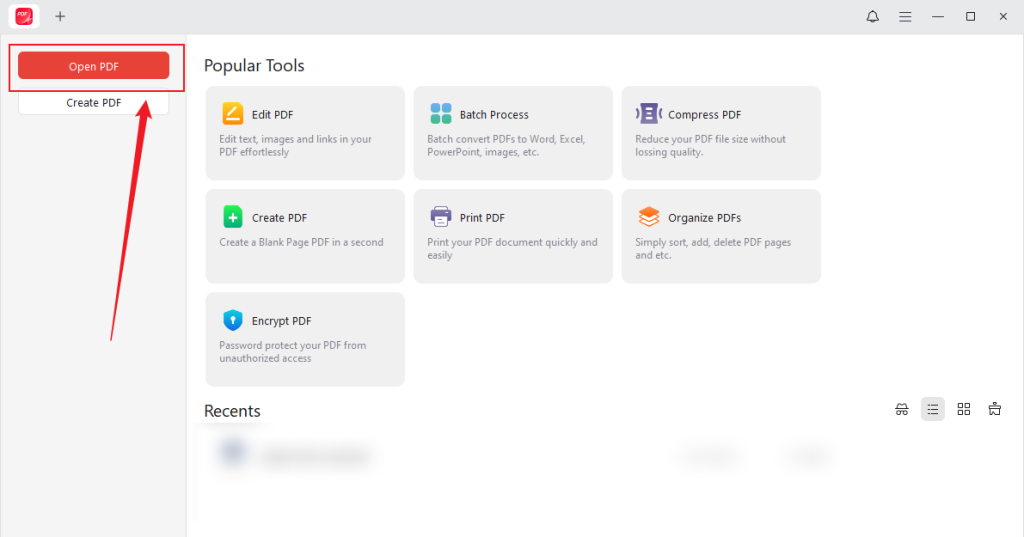
Step 2. On its main interface, click the Open PDF button to upload the PDF you want to resize.
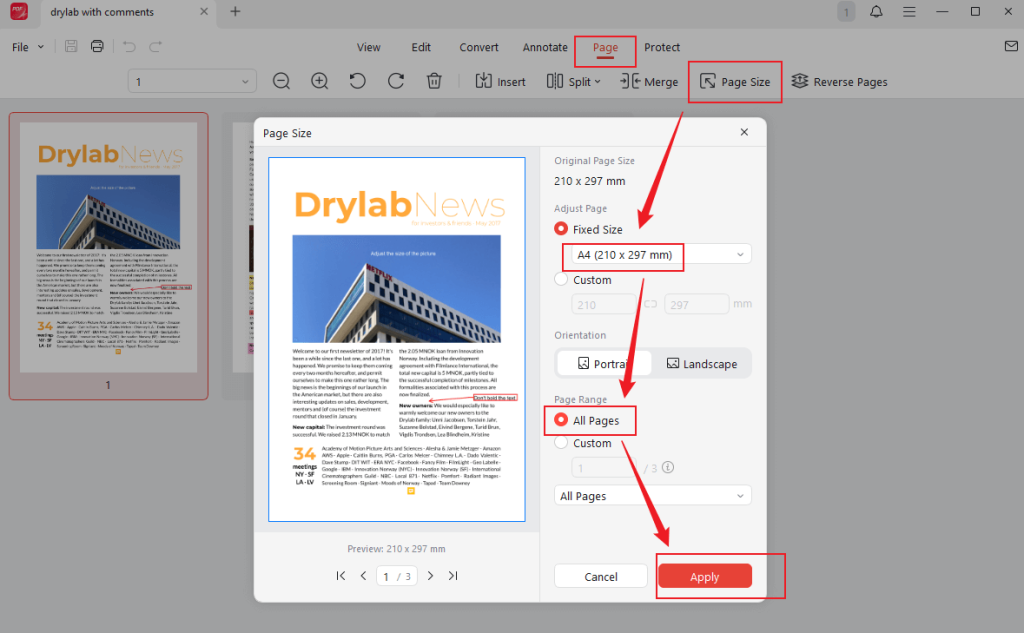
Step 3. Click the Page tab from the top menu bar and click the Page Size option. On this Page Size window, open the Fixed Size list and select the A4 (210 × 297 mm) option. To resize all PDF pages, tick the All Pages option. Next, don’t forget to click Apply to confirm the operation.
Step 4. Click the Save icon or press Ctrl/Command + S to save the PDF file.
What’s more, JOPDF enables you to resize PDFs to A4 for printing. The process is also quite easy.
Step 1. Click the Print icon or press Ctrl/Command + P to access the Print dialog.
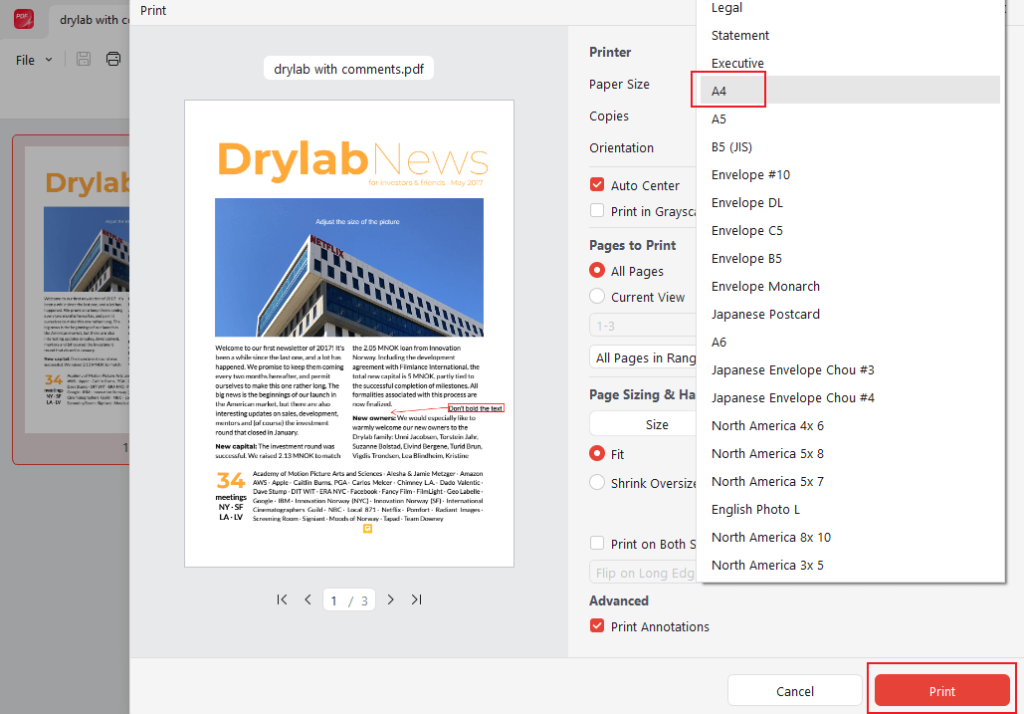
Step 2. Expand the Paper Size dropdown and click the A4 option. Furthermore, you can choose to print the PDF with comments or personalize other printing settings. Finally, click the Print button.
Tips
If you don’t want to print the PDF on paper, open the Printer list and select the Microsoft Print to PDF option to save your PDF digitally.
Way 2. Convert PDF to A4 Size in Adobe Acrobat
Even if you are encountering a PDF editor for the first time, you must have seen many posts or websites recommending Adobe Acrobat. Can you resize a PDF in Adobe Acrobat? Of course, as a professional PDF editor, Adobe Acrobat enables you to perform a wide range of PDF tasks, including but not limited to resizing PDFs, annotating PDFs, protecting PDFs, and more. Here are two options for converting a PDF to A4 size in Adobe Acrobat. Let’s have a look.
Option 1. Change page size using Print to PDF
Step 1. Launch Adobe Acrobat Pro and import the PDF you want to resize.
Step 2. Click File and select the Print option. Then, open the Printer list and select the Adobe PDF option for virtual printing. Next, choose the Fit or Shrink oversized pages option under Page Sizing & Handling.
Step 3. Click the Page Setup button in the lower-left corner, open the Size list, and choose A4. Then, click OK to save the changes.
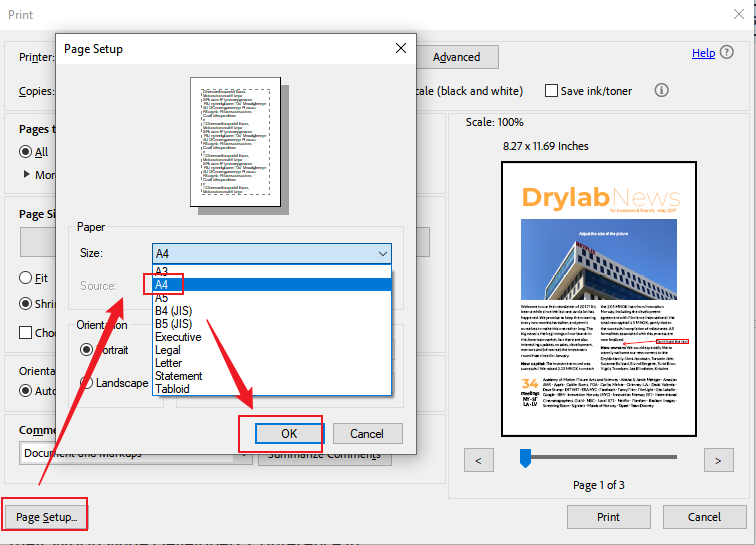
Step 4. Finally, click the Print button.
Option 2. Use Preflight
If you don’t want the content scaled, Preflight is the better choice.
Step 1. Go to Tools > Print Production > Preflight.
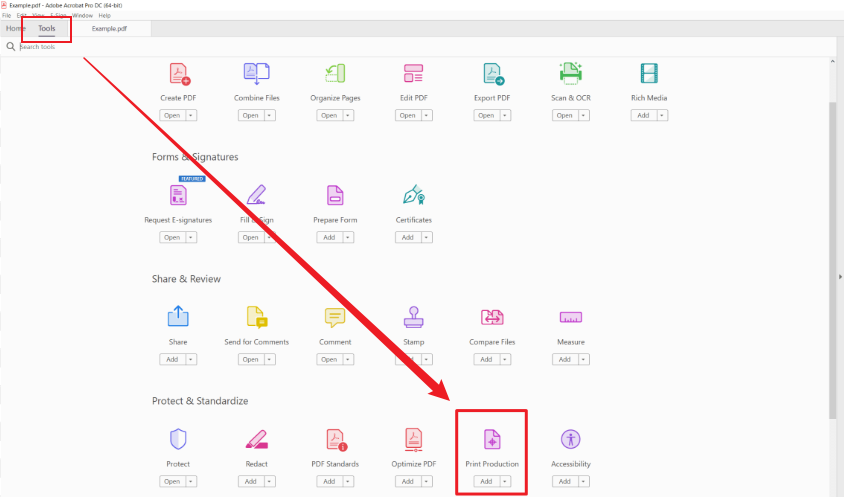
Step 2. In the Preflight window, click the Fixup option (a wrench icon) and type Set page size in the search box.
Step 3. Next, you can choose the following three options: Scale pages to A4, Set page geometry boxes to A4 size, or Scale pages to specified size. Then, click Fix.
Step 4. At last, save the PDF file in A4 size.
Between the two options, Option 1 is adaptable to almost all documents, such as letters, reports, and ebooks. If you notice that scaling ruins something critical, like a form field moving or the map scale becoming wrong, switch to Option 2.
Way 3. Resize PDF to A4 in Mac Preview
Congratulations! For Mac users, you don’t need to waste time downloading or installing any software. Because its built-in program, Preview, can help. Instead of offering a page resize feature, Preview lets you print a PDF to A4 size. How to resize a PDF to A4 in Mac Preview? Check the steps below.
Step 1. Locate your PDF file, right-click it, and choose to open it in Preview.
Step 2. Go to File > Print, open the Paper Size list, and select A4. Then, set Scale to 100%.

Step 3. Next, open the PDF dropdown in the bottom-left corner and select Save as PDF.
Way 4. How to Convert PDF to A4 Size Online with Sejda
Is there any way that doesn’t require downloading or installation? Of course, there is! Online PDF resizers can meet your needs. Among various online tools, I’d like to recommend Sejda. This full-featured online tool enables you to resize PDFs, delete or add PDF pages, extract images from PDF, and convert PDF to Excel or other formats. With its intuitive and user-friendly interface, you can easily master how to convert a PDF to A4 size online with Sejda.
Step 1. Open a browser on your PC and visit Sejda’s Resize PDF website.
Step 2. Click the Upload PDF files button to import a PDF from your local storage. Alternatively, click the inverted triangle next to Upload PDF files to select files from Dropbox, Google Drive, or OneDrive.
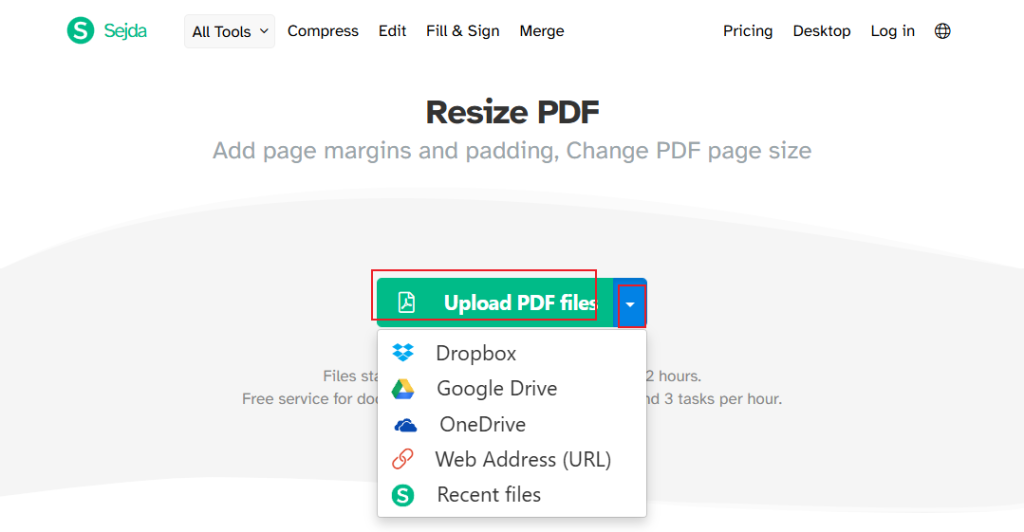
Step 3. Select the Change page size option.
Step 4. Expand the Page Selection dropdown and choose Select All. Then, open the Page size list to choose the A4 (8.27 × 11.69 in) option.
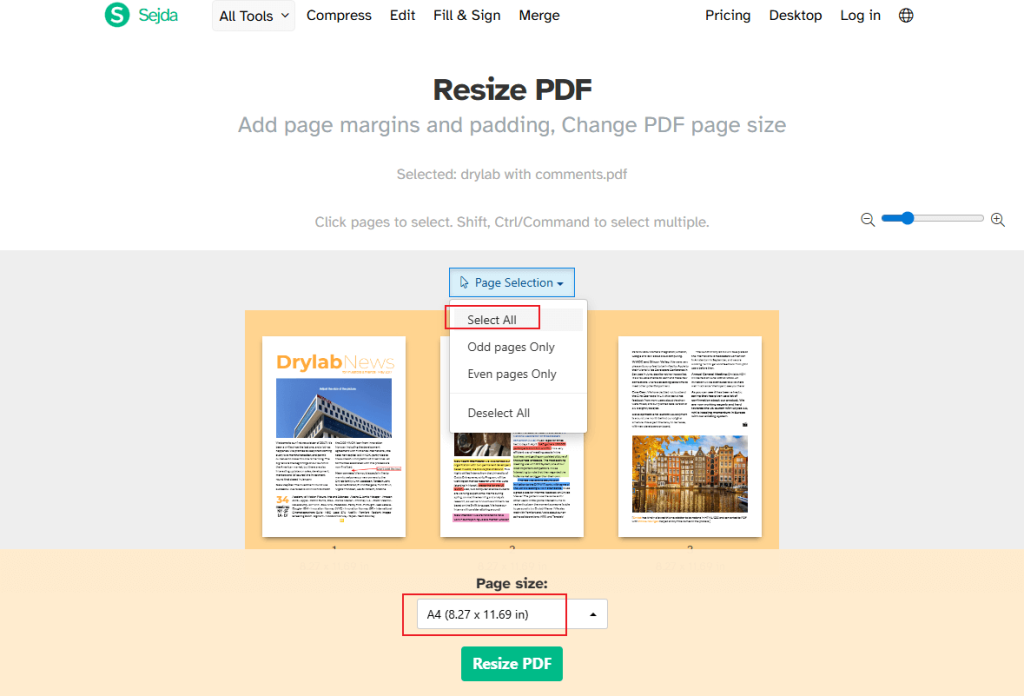
Step 5. Click the Resize PDF button. When the process is complete, click the Download button to save the resized PDF.
Bottom Line
It is much easier to resize PDF to A4 than most of you expect. You can use JOPDF to resize and print a PDF to A4 page size for completely free on either Windows or Mac. Also, you can use Adobe Acrobat and enjoy its advanced features if you have a sufficient budget. Alternatively, Preview and Sejda are good choices if you don’t want to download or install any software. Now, it’s your turn to have a try!
FAQs
Table of Contents

Your Best Free PDF Expert in PDF editing, compressing, converting, annotating, protect, organizing, and more.
Free DownloadWindows · macOS · Linux

Olivia
“Olivia is an editor at JOPDF, where she writes practical guides and insightful articles on managing PDFs—covering topics like editing, annotating, converting, and organizing files efficiently. Passionate about clear communication and digital productivity, Olivia enjoys spending her free time cooking, watching movies, and hiking to unwind and find inspiration for her writing.”
![[2026 Newest] Expert Guide on How to Rotate a PDF in Google Drive](https://b.jopdf.com/wp-content/uploads/2026/01/how-to-rotate-a-pdf-in-google-drive-thumbnail.png)
