Introduction
Learning how to resize a PDF in Adobe Acrobat can be confusing. The tool is powerful, but its options aren’t always obvious. No worries. This guide will show you the specific steps. Also, we will introduce a simpler alternative to perform the task.
Do You Want to Resize PDF Page Size or File Size?
Before you start, it’s critical to know what “resize” means to you. Because the solutions are completely different.
🔸 The need to change the PDF page:
This means changing the physical size of the document pages. For example, you may want to convert a “Legal” (8.5″ x 14″) document to “Letter” (8.5″ x 11″).
🔸 The need to reduce PDF file size:
It is usually called “compression” or “optimization.” It will reduce the quality of images and remove redundant data to make the file easier to email or store. In this case, you would use Adobe’s “Optimize PDF” or “Reduce File Size” tool.
This article will focus on how to resize a PDF page in Adobe Acrobat. If this is what you want, then keep reading.
Resize PDF in Adobe Acrobat: Step-by-Step Guide
In Adobe Acrobat, there are two tools that can help you resize the PDF page size: Print to PDF or Organize pages. However, the latter is only available in the Pro version.
Method 1: Use the”Print to PDF” Feature
This is a simple way to resize a page in a PDF. You aren’t printing the document physically. Instead, you are using the “Adobe PDF” printer as a virtual printer to “re-print” the document into a brand new PDF, forcing it to fit new dimensions. It can also help you change a PDF to landscape.
Here is how to resize a PDF in Adobe Acrobat Reader/Pro:
1. Open your PDF in Adobe Acrobat. Press Ctrl + P on Windows or Cmd + P on Mac to open the print dialog.
2. In the Printer dropdown, select “Adobe PDF” or “Microsoft Print to PDF.”
3. Next, go to Page Sizing & Handling to adjust settings.
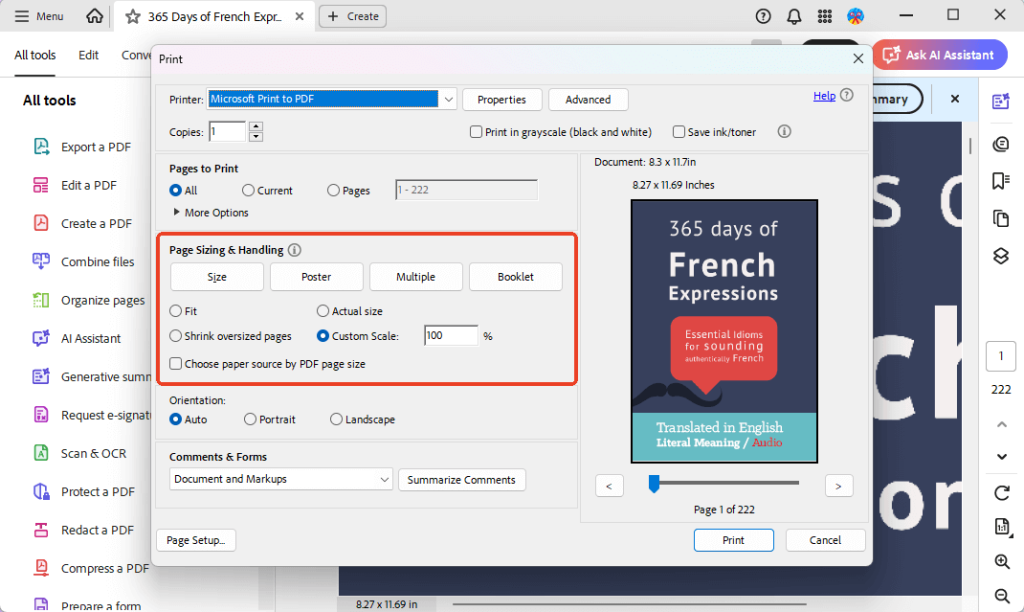
4. Now, click the “Page Setup…” button in the bottom-left corner. Click the Paper Size dropdown menu. Select your new target size from the list (e.g., “Letter”, “A4”, “Legal”, “A3”).
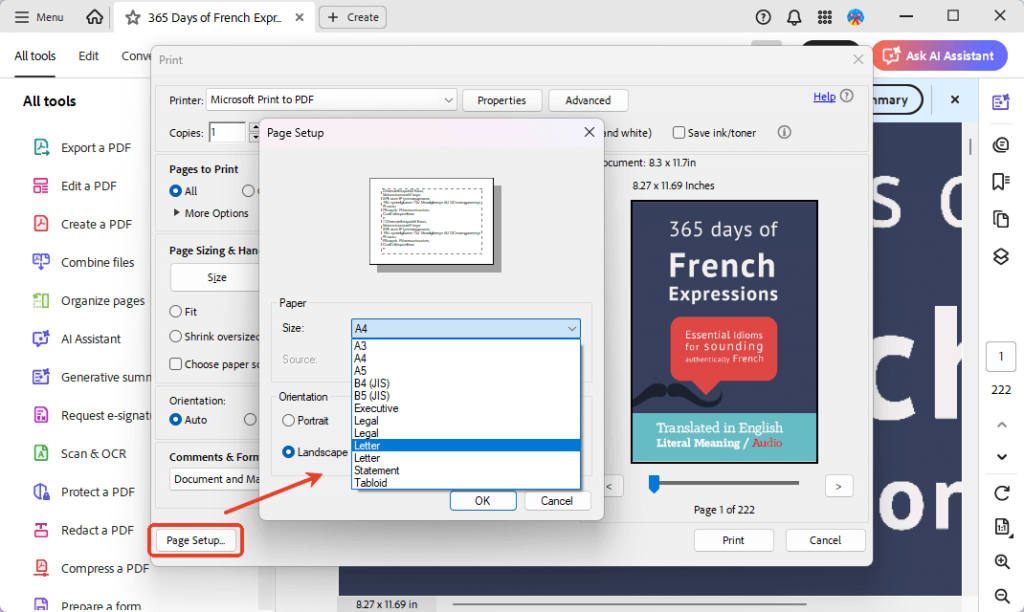
5. Click OK to close this dialog.
6. Confirm everything and click the Print button.
7. Finally, name the file and select a location to save the document.
Method 2: Use the Organize Pages Tool
This feature lets you change the page to a fixed size or choose your preferred page size. It can also help you rotate a PDF. However, this is a paid feature. The steps are as follows.
1. After opening the PDF, go to All tools and click Organize pages.
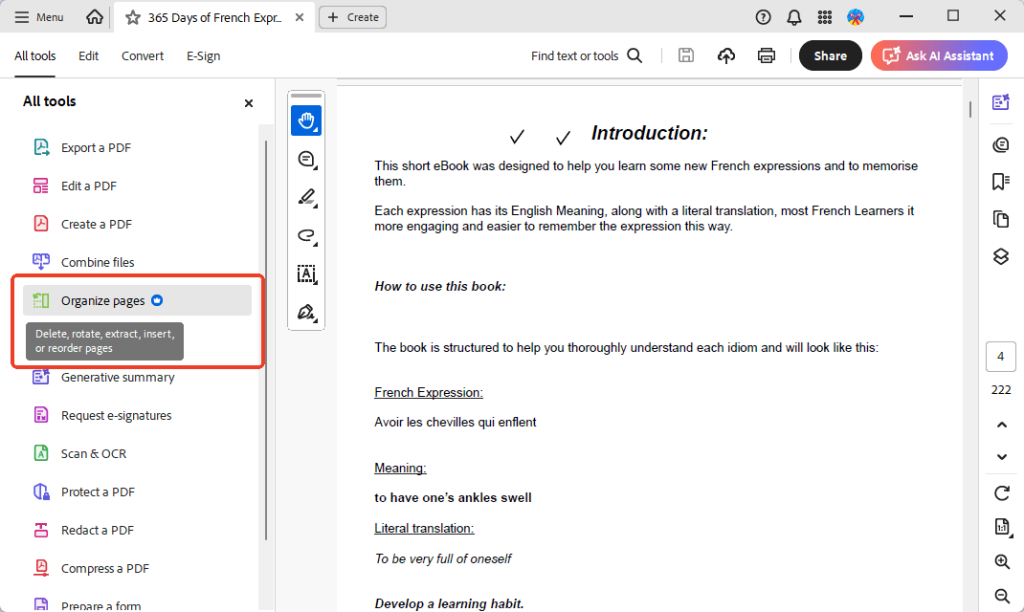
2. Then, click Set page boxes. On the new window, find the Change Page Size section.
3. Now, you can select a fixed size or set the width and height as per your needs.
4. Click OK to save the changes.
Pros and Cons of Using Adobe Acrobat
Acrobat is the industry standard. However, it may not the best option for everyone. Here are the pros and cons of using Adobe.
Pros
- The “Set Page Boxes” dialog gives you professional-grade control, which is essential for professional printing.
- Acrobat is the gold standard. It handles complex PDFs with layers, vector graphics, and embedded fonts more reliably than any other tool.
- When you have Acrobat Pro, you also have “Optimize PDF” (for file size), “Edit Text,” “Sign,” “Combine Files,” and dozens of other features. It’s a complete solution.
Cons
- Resizing, cropping, and editing are all “Pro” features. This means you must have an expensive monthly or annual subscription to Adobe Acrobat Pro.
- The interface is complicated, and tools like “Set Page Boxes” can be very intimidating for a user who just wants to make an A4 page.
- Acrobat is a large, heavy program. It can take a long time to launch on some systems just to perform a simple resizing task.
Think Adobe is not suitable for you? Want a free PDF editor? Keep reading to learn more!
An Alternative: How to Resize a PDF with JOPDF
If you think Adobe’s pricing is too high or its interface is too complicated, a tool like JOPDF is an excellent alternative.
It’s a free, lightweight, and user-friendly PDF editor for Windows and macOS. It’s designed to handle the top 90% of PDF tasks—like resizing—in a much more direct and intuitive way. Let’s see the details.
Method 1: Use the “Page Setup” Tool
JOPDF can help you easily organize the pages within a PDF file, including resizing them. In addition, you can select the pages that need adjustment.
1. Download, install, and launch JOPDF.
2. Click the Organize Pages option and select the document.
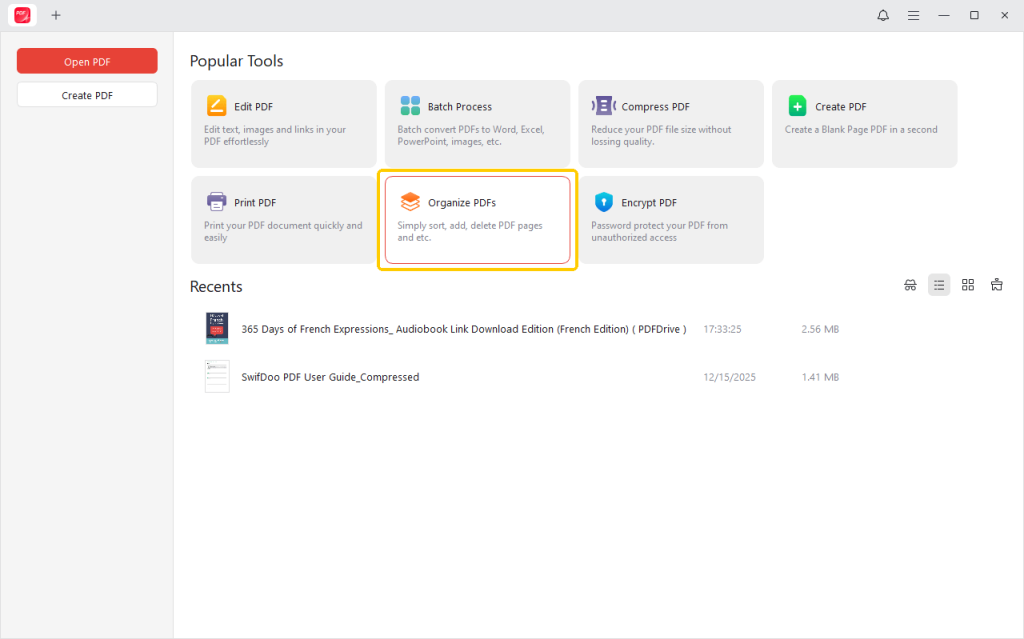
3. Then, click the Page Size option.
4. Now, you can adjust the size and page range. You can select a fixed size or enter custom values.
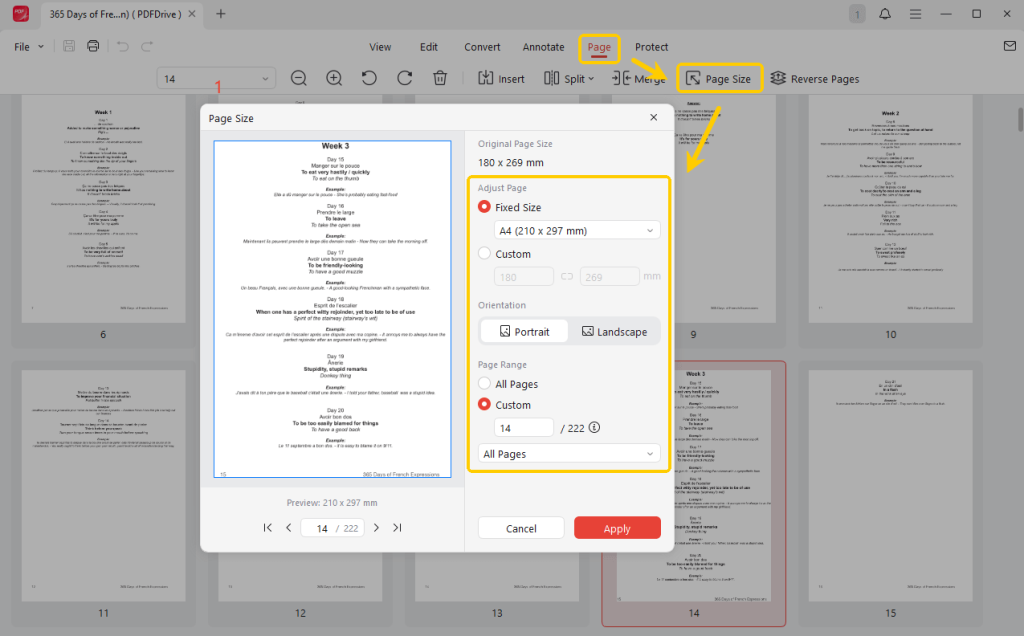
5. Finally, click Apply, and save your new document.
Method 2: Use the Print Feature
Just like Acrobat, JOPDF also has a powerful “Print to PDF” function. This is useful for scaling content to fit a new page size. You can use this feature to print a PDF as a booklet or a poster.
1. Download JOPDF. Install and launch it.
2. Open the PDF document and click the Print button.
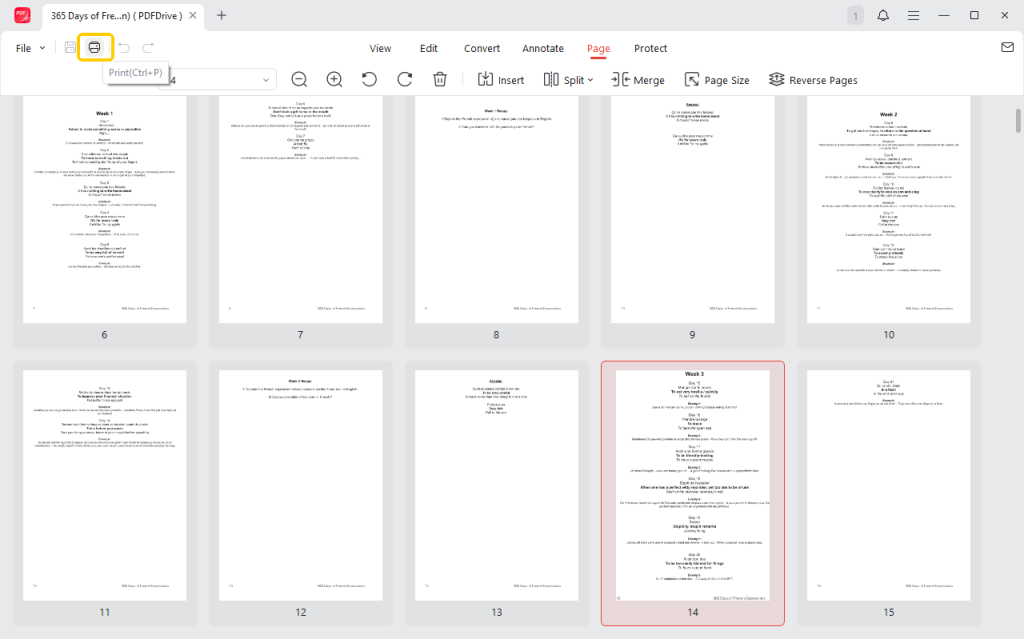
3. Choose the “Save as PDF” option next to Printer.
4. Select the correct paper size, then select the pages you want to change.
5. Next, you can zoom in/out on the page using the scale tool.
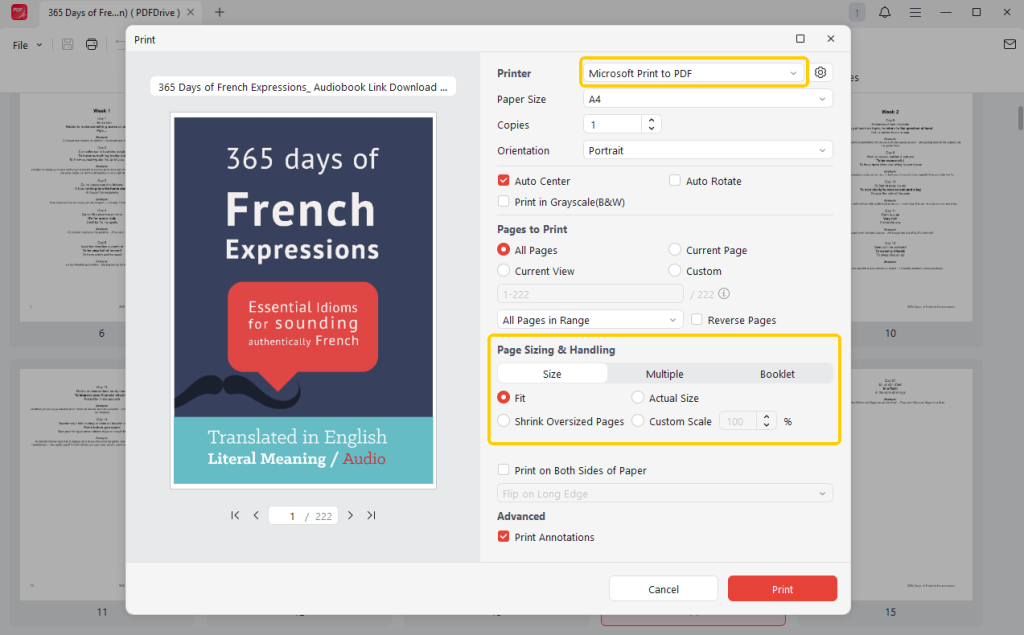
6. When OK, click the Print button and save the document.
As you can see, JOPDF is much easier to use than Adobe Acrobat. It also includes various tools to help you handle PDF files. More importantly, it is completely free! Try it now.
Conclusion
That’s all about how to resize a PDF in Adobe Acrobat. While Adobe Acrobat is powerful, its high cost and professional-grade complexity aren’t for everyone.
For most users, a free alternative like JOPDF may be a better solution. It provides the same high-quality resizing feature. Anyhow, you can try all of them to see which one suits you best.
FAQs
Table of Contents

Your Best Free PDF Expert in PDF editing, compressing, converting, annotating, protect, organizing, and more.
Free DownloadWindows · macOS · Linux

Queena
Editor
“As a staff editor for JOPDF, Queena excels at guiding users to the optimal tools and solutions. When she's not analyzing the latest PDF solutions, she enjoys spending her free time playing with her four cats.”
![[2026 Newest] Expert Guide on How to Rotate a PDF in Google Drive](https://b.jopdf.com/wp-content/uploads/2026/01/how-to-rotate-a-pdf-in-google-drive-thumbnail.png)
