Summary :
Oversized PDF documents often create sharing and storage issues, and dividing them into smaller files makes management more efficient. Curious about how to split a PDF without Adobe? This article shares four free and practical online and offline solutions.
1. The Best Free Way to Split a PDF Without Adobe: JOPDF
JOPDF is a free desktop tool that enables users to split a PDF without Acrobat easily and securely. The powerful tool offers a range of easy-to-use PDF utilities and practical PDF management features for offline use.
This trusted Adobe Acrobat alternative lets you split large documents into smaller files with ease. You can easily separate PDFs into defined page sections or extract specific pages.
Check out how to split a PDF into multiple files without Acrobat with JOPDF in a handful of clicks.
Step 1. Download and open JOPDF on your Windows or Mac computer. Then, open your PDF document with the program.
Step 2. Navigate to the Page menu and choose Split. Then, select Split PDF from the dropdown menu.
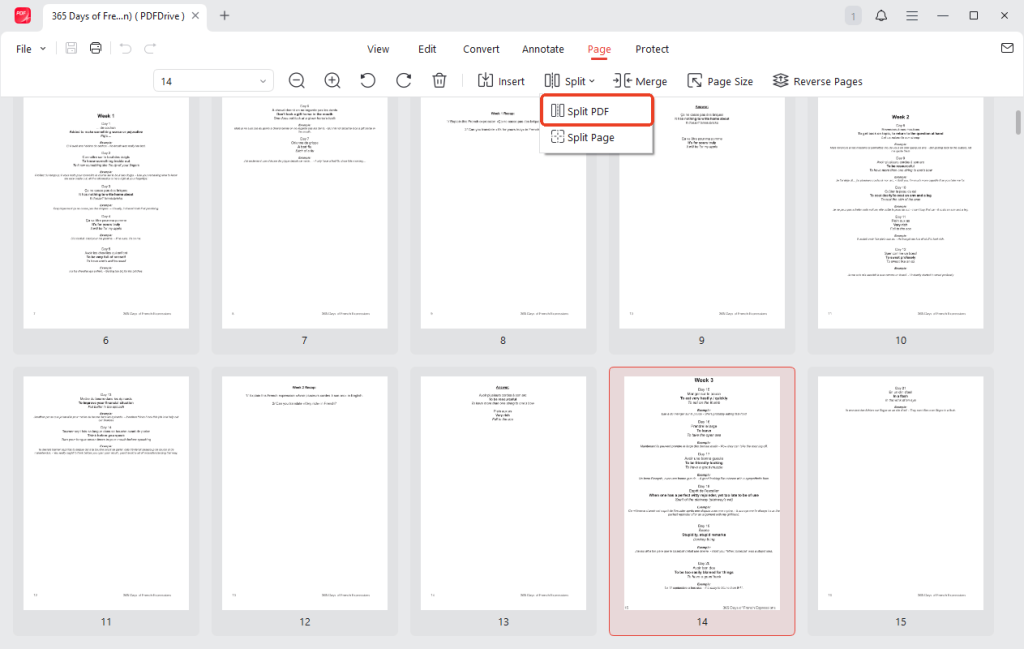
Alternatively, open the JOPDF Converter from Batch Process under Popular Tools on the start page. And select Split PDF.
Step 3. In the pop-up that appears, choose the method for dividing your PDF file.
- Split by Pages Per File: Adjust the settings to determine how many pages each new file will contain.
- Split by Number of Files: Select the total number of files to be produced.
- Custom: Manually enter the pages or page ranges you want.
Choose the method that fits your needs.
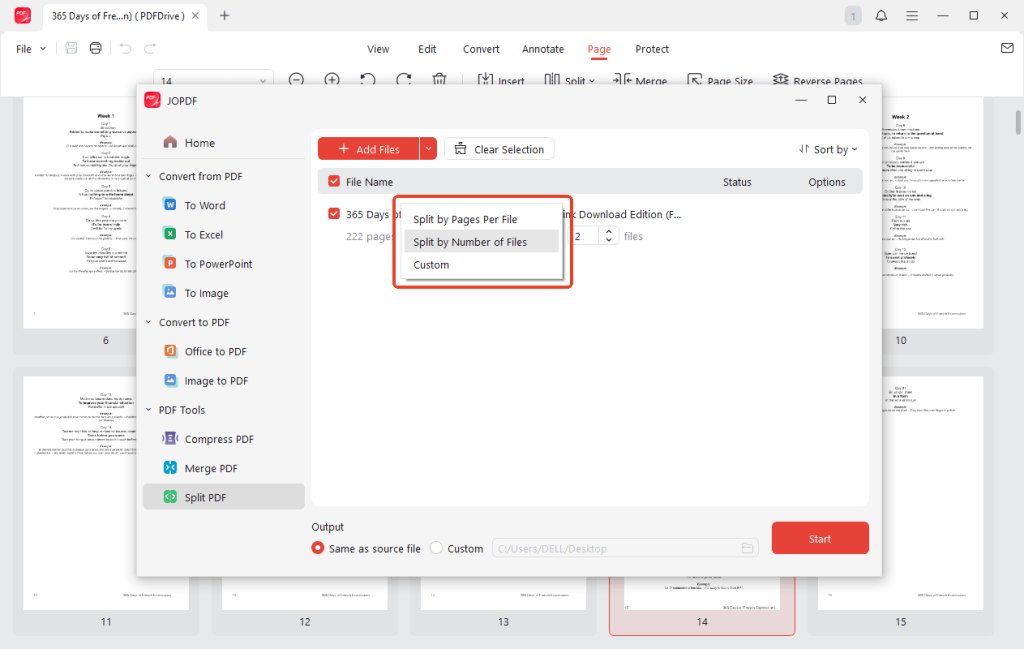
Step 4. After configuring your settings, click Start. As soon as it’s done, your divided documents will be available.
As one of the best free PDF editors, JOPDF also offers a range of other useful PDF tools to simplify document management.
From combining and compressing to converting and editing PDFs, it serves as a complete tool for everyday use.
Download JOPDF today to enjoy an easy way to manage PDFs!
2. Split a PDF Using a Browser
Using the Print function in your browser is a simple method to extract pages from PDF files without installing anything.
Many modern browsers let you save selected pages as a new PDF, making it easy to split large documents. This method is quick, free, and convenient for basic PDF splitting needs.
Let us find out how to split a PDF without Adobe using the Print feature.
Step 1. Open the large PDF file in your web browser, such as Chrome or Edge.
Step 2. Tap the Print icon in the top right corner.
Step 3. In the Print dialog, choose Save as PDF as the destination.
Step 4. Under the Pages section, select All, Odd pages only, Even pages only, or Customised.
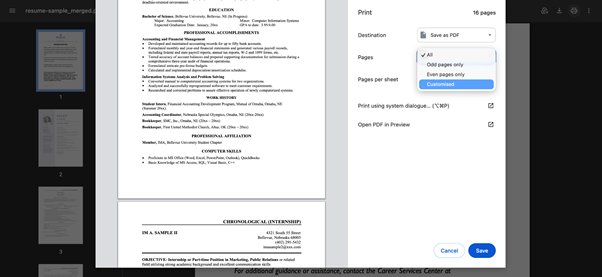
Step 5. Once selected, click Save. Choose a file storage location and tap Save again.
3. Split a PDF in Preview
Mac users can use Preview to effortlessly separate pages in a PDF. Its split functionality lets you separate large PDFs into smaller, easier-to-handle files without using additional programs.
Plus, Preview lets you quickly extract specific pages, create new PDFs from selected sections, and rearrange or remove pages as needed. It offers an easy, free solution for splitting pages from a larger PDF file.
Discover how to split a PDF without Adobe but through Preview on Mac in just a few clicks.
Step 1. Locate and select your large PDF file. Right-click on the document, go to Open With, and pick Preview.
Step 2. Click the page thumbnail you want to split in the left sidebar. You can also hold down the Command key and click to select multiple page thumbnails.
Note: If you do not see a sidebar, click the View menu at the top and select Thumbnails to show the sidebar.
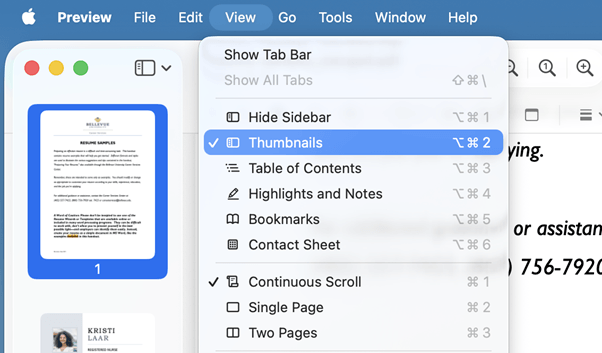
Step 3. Click and drag the thumbnail directly from the sidebar onto your desktop or into a folder.
A new, separate PDF file containing only that page will be created.
Step 4. Now, rename and save your new PDF.
While convenient, Preview has limitations when it comes to advanced editing. You cannot fully edit existing text within a PDF using this tool.
If you need to edit PDF on Mac with more flexibility, including modifying text and content, using JOPDF would be a better alternative for more complete PDF editing features.
4. Split a PDF with an Online Tool
Using online tools is a convenient way to split PDFs without installing software. Smallpdf, for example, can help users split large PDFs fast and effectively.
The Split PDF function lets you easily extract specific pages or split a PDF into several smaller files. Online tools like this provide a fast solution for tasks and are accessible from any device with an internet connection.
Let’s find out how to split a PDF without Adobe by using Smallpdf’s online tool with just a few simple clicks.
Step 1. Access Smallpdf on your web browser. Then, locate and click the Split PDF tool.
Step 2. Click Choose Files to bring in your PDF from the desktop, Dropbox, Google Drive, or OneDrive.
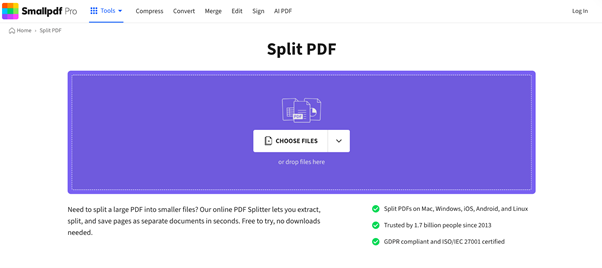
Alternatively, drag and drop the PDF files directly into the program.
Step 3. After the upload, the PDF pages will be shown as thumbnails.
Step 4. Click the scissor tool icon to split specific pages in the PDF. Tap the Split PDFs button to break your PDF into multiple files.
Conclusion
Dividing PDF files doesn’t need to be difficult or involve costly software. Whether using a free desktop program like JOPDF, the Print feature in a browser, Mac’s Preview, or an online tool like Smallpdf, there are plenty of free and efficient ways to handle PDFs.
Using these techniques makes it easy to manage, extract, and distribute documents. Now that you understand how to split a PDF without Adobe, you can select the method that works best for you and manage your files effortlessly!
FAQs
Table of Contents

Your Best Free PDF Expert in PDF editing, compressing, converting, annotating, protect, organizing, and more.
Free DownloadWindows · macOS · Linux

Queena
Editor
“As a staff editor for JOPDF, Queena excels at guiding users to the optimal tools and solutions. When she's not analyzing the latest PDF solutions, she enjoys spending her free time playing with her four cats.”