Summary :
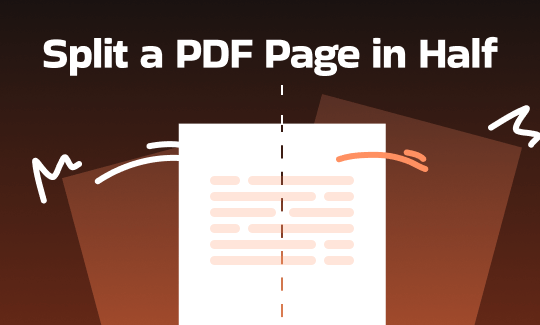
If you are wondering how to split a PDF page in half, you are exactly in the right place. In this guide, we will show you how to cut your document pages perfectly in half. You will know how to do it with professional tools like JOPDF and with a free online tool for a one-time task.
1. The Best Way to Split a PDF in Half Vertically or Horizontally: JOPDF
If you want the easiest, fastest, and most accurate way to fix your document, you should use a professional computer program. Our top recommendation is JOPDF.
JOPDF is a powerful but very simple software. Unlike basic free PDF readers that only let you view files, JOPDF is a true editor. It has a tool designed to cut pages perfectly without losing any picture quality or blurring the text.
Here is exactly how to use it, no matter which way your page needs to be cut.
Steps to Split a PDF Page in Half Vertically (Left and Right)
If you scan a real paper book, the scanner usually captures both the left and right pages together. So, how to split a scanned PDF page in half? Here is how to separate them:
1. Download JOPDF. Open your scanned two-page document in the software.
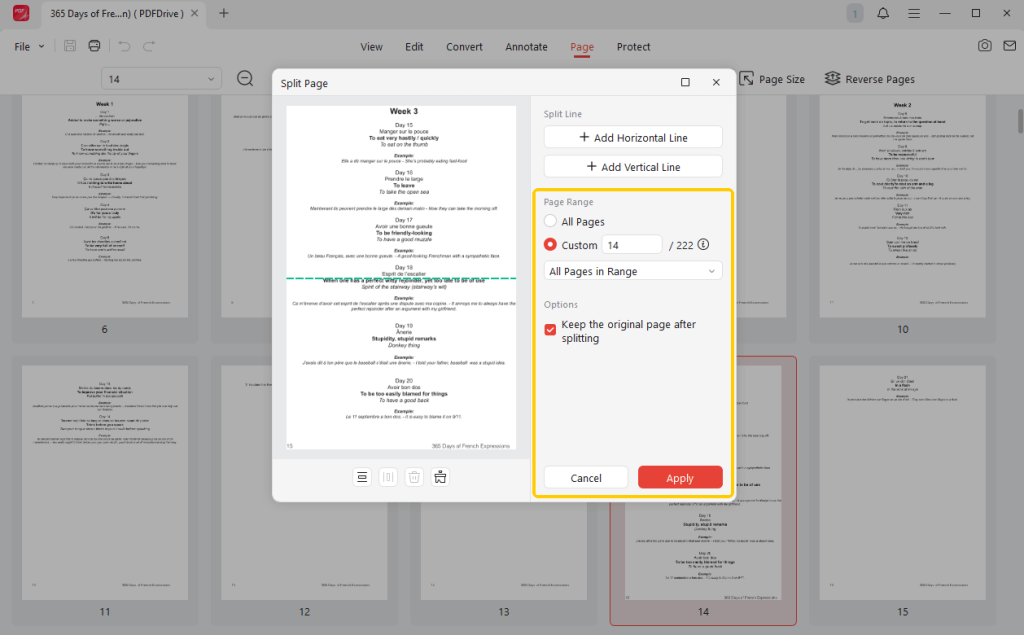
2. Go to the Page menu and select the Split Page tool.
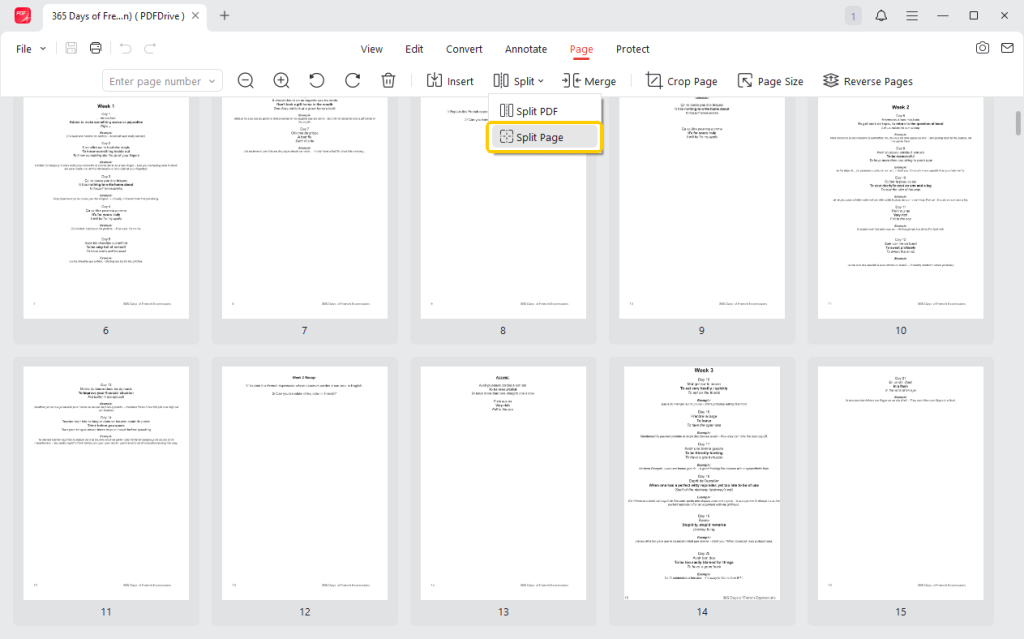
3. Select the Horizontal split line and delete it. If needed, you can use your mouse to drag the Vertical line to the right place.
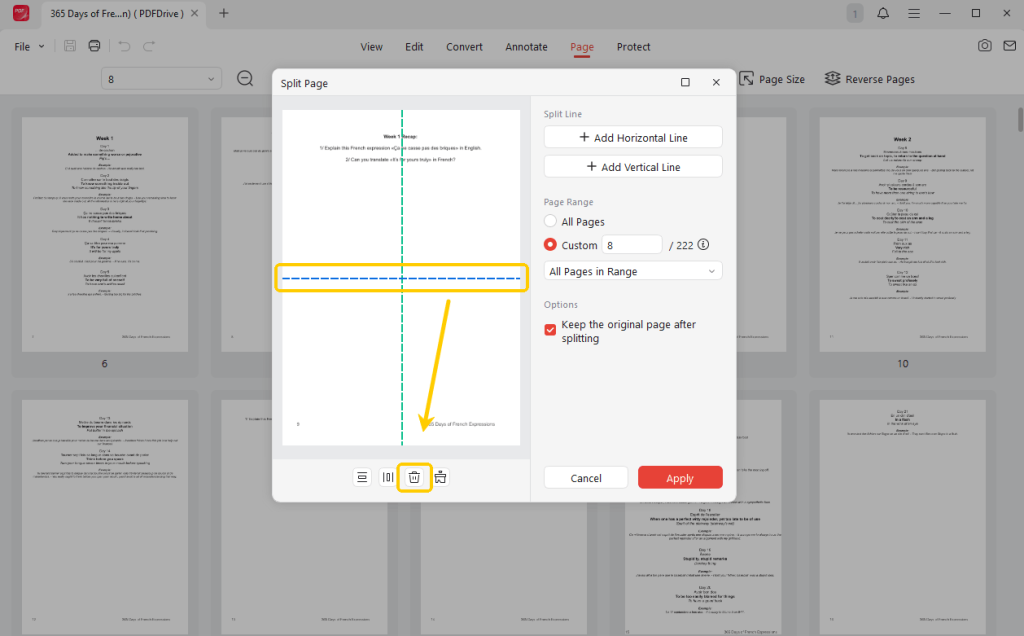
4. Set the page range and click the Apply button. Now, the left side will be page 1, and the right side will be page 2. It will read naturally, just like a normal digital book.
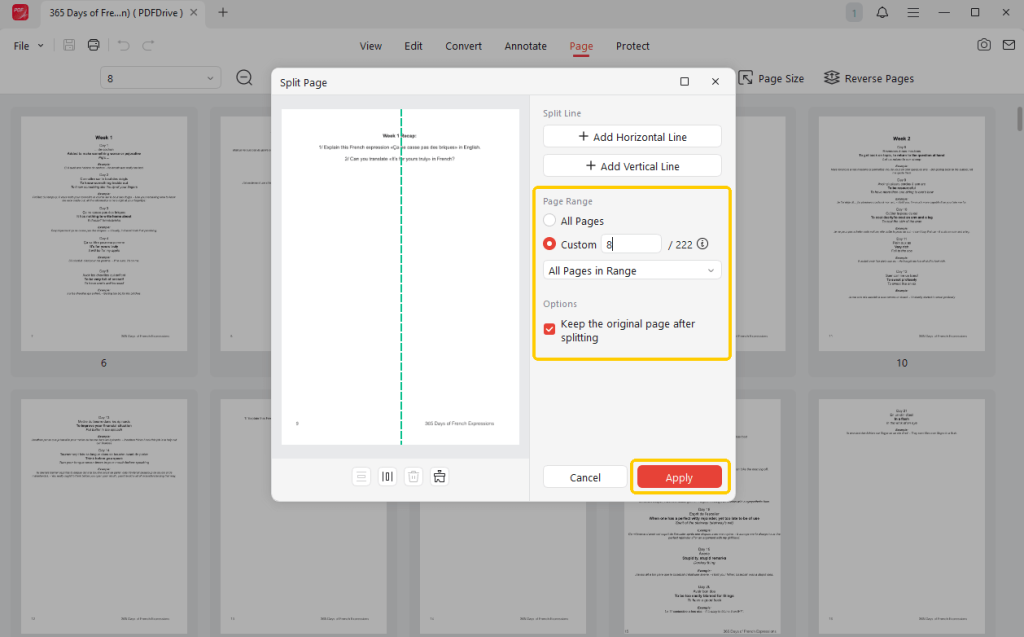
5. To save the changes, click the Save button.
Steps to Split a PDF Page in Half Horizontally (Top and Bottom)
When you need a page cut in half, separating the top half from the bottom. Here is how you do it:
1. First, download, install, and launch the JOPDF program on your computer. Click the open button and select the PDF document.
2. Click on the tab labeled Page. Then, go to Split > Split Page.
3. In the pop-up window, select the Vertical Line, then click the Delete icon.
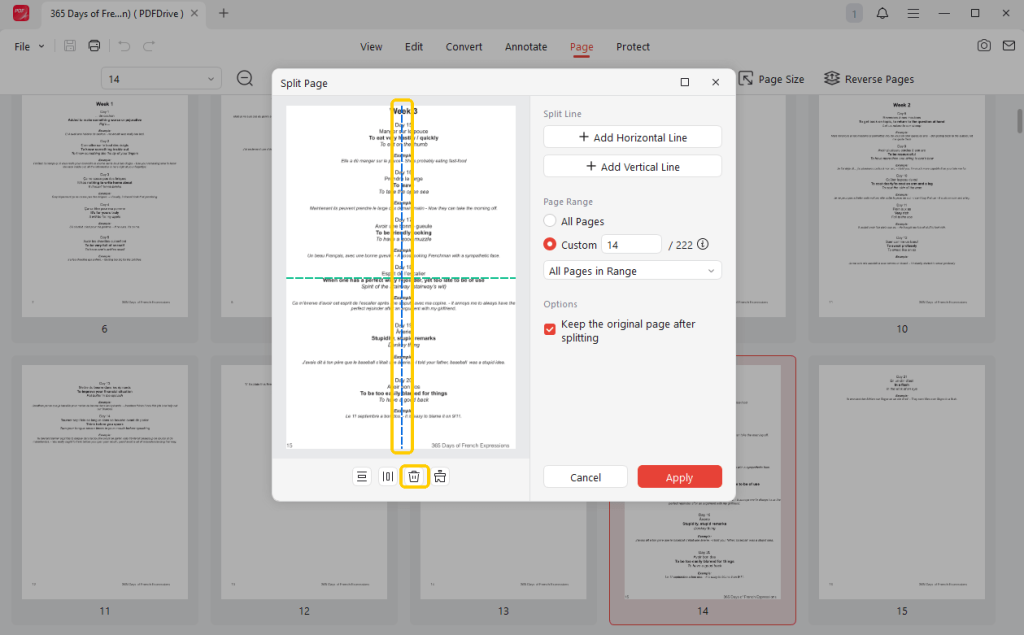
4. Next, select the pages you want to apply to, and choose whether to keep the original page.
5. Finally, click Apply and save the document.
🔶 JOPDF is More Than Just a Splitter
JOPDF does much more than just cut pages. It is a complete toolbox for your documents. You can use it to rotate a PDF, merge several small files together, compress massive files for email, edit typos in the text, and even add highlight colors to your notes.
If you want to make your reading experience perfect or easily edit the PDF document, just download this best free PDF editor today!
👍 Best For: Users who want a free, offline tool. It is the best choice for handling large scanned books or for keeping private work documents secure.
2. Split a PDF Page in Half in Acrobat
Adobe Acrobat Pro is the most famous PDF software in the world. It is an industry standard used by many businesses. However, it can be surprisingly tricky to use for this specific task.
Believe it or not, Acrobat does not have a simple, one-click “split page in half” button. To do it in Acrobat, you have to use a clever workaround using the crop tool. Moreover, it requires a subscription.
Get the free Adobe Acrobat alternative for easy page splitting.
Here is how to split a PDF page in half in Acrobat:
1. Open your PDF file in Acrobat Pro. First, you need to double the size of your book. If you have a 10-page document, you must duplicate all the pages so you have 20 pages in total.
2. Click Edit PDF and then select the Crop Pages tool.
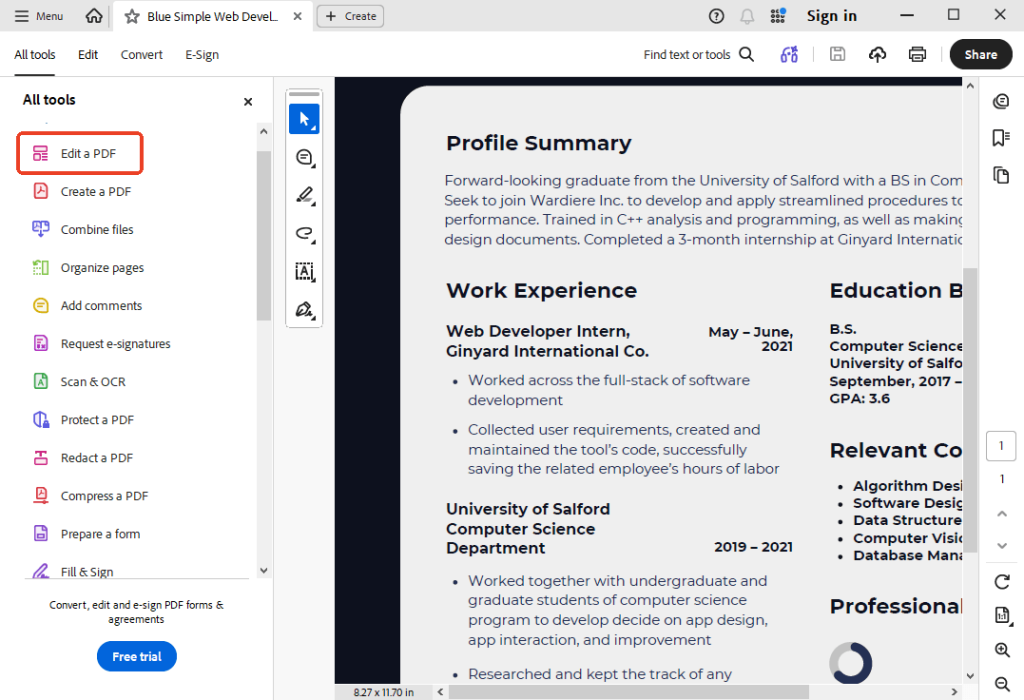
3. Now, you need to cut off the parts you do not want. Select all the odd-numbered pages (page 1, 3, 5, etc.). Drag the crop box so it only surrounds the left side of the page, cutting off the right half entirely. Apply this to all odd pages.
4. Next, select all the even-numbered pages (page 2, 4, 6, etc.). Open the crop tool again. This time, drag the box so it only surrounds the right side of the page, cutting off the left half. Apply this to all even pages.
Because you duplicated the pages first, page 1 is now the left side, and page 2 is now the right side. Save this newly ordered document to your computer.
👍 Best For: Professionals and graphic designers who already pay a high monthly fee for an Adobe Creative Cloud subscription and do not want to download any extra software.
3. Split a PDF Page in Half Online
What if you are using a public computer at a library? Or what if you just have one single page to split, and you are in a huge rush?
If you do not want to download and install a computer program, using a free online web tool is very handy. Websites like Online2PDF, DeftPDF, or PDFResizer are all good choices.
The Steps:
1. Open your browser and go to a trusted online PDF splitter website, such as Online2PDF (https://online2pdf.com/en/cut-pdf-pages-into-halves).
2. Follow the prompts to upload your document.
3. Change the settings to make it split the page vertically or horizontally.
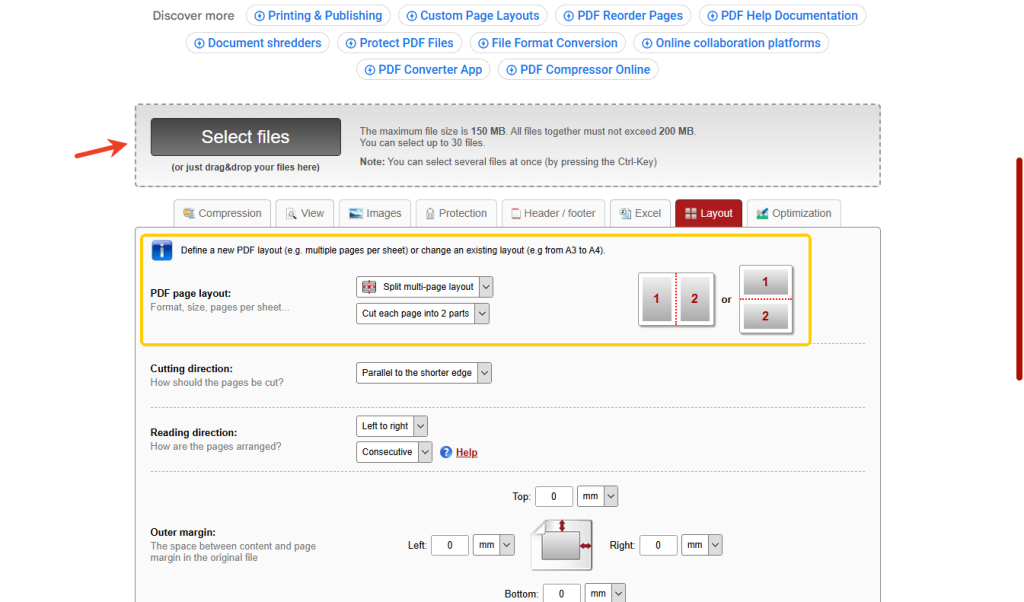
4. When OK, click the Convert button. Wait a few moments for the website’s computers to finish the hard work. When it is done, a download link will appear. Click it to save your new, perfectly split file.
👍 Best For: Users who are in a major rush, only have a single document to fix, and do not mind uploading their file to the internet.
Conclusion
That’s all about how to split a PDF page in half. Once you know the correct steps, separating these pages is actually very easy.
- If you are in a hurry, online tools are incredibly fast.
- If you are a professional who already uses Adobe, its cropping tool will get the job done.
- If you are looking for the best balance among accuracy, privacy, and ease of use, JOPDF is the best choice. It can perfectly split pages every time. Moreover, it offers a variety of editing and annotation tools!
FAQs
Table of Contents

Your Best Free PDF Expert in PDF editing, compressing, converting, annotating, protect, organizing, and more.
Free DownloadWindows · macOS · Linux

Queena
Editor
“As a staff editor for JOPDF, Queena excels at guiding users to the optimal tools and solutions. When she's not analyzing the latest PDF solutions, she enjoys spending her free time playing with her four cats.”