Introduction
Exploring how to split a PDF in Adobe helps users enhance workflow, maintain file accuracy, and efficiently manage documents in various situations. This article will show you the detailed process. Also, stay tuned to learn about a completely free Adobe alternative.
How to Split a PDF in Adobe Acrobat
Adobe Acrobat is a professional, dependable, and widely adopted tool for creating, editing, and managing PDF documents.
When using Adobe Acrobat, you have two easy options: using the Adobe Acrobat desktop application or the Adobe online editor, depending on your preference and access. Here, we will guide you through the steps of both methods.
Use the Acrobat Desktop App
Adobe Acrobat desktop is an efficient, powerful tool for handling PDF documents. The desktop app lets you quickly divide a PDF into separate files by page range, bookmarks, or individual pages, offering full control and precision over your documents.
Discover the easiest way on how to split a PDF in Adobe Acrobat with the desktop app in a few clicks.
Step 1. Download and install Adobe Acrobat on your device. Once launched, open the PDF document you want to split.
Step 2. Click All Tools (or Tools) in the top menu. And select Organize Pages. Tap the Split button in the toolbar that appears.
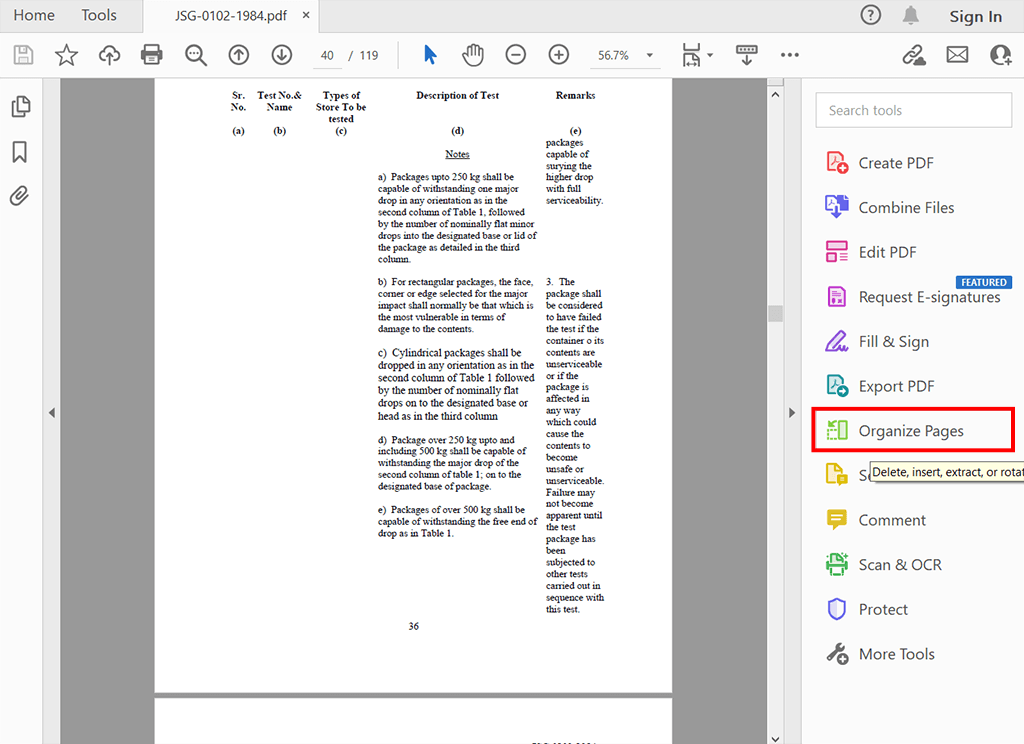
To access the Organize Pages features, you should upgrade to the Pro version. If you want a free solution, try JOPDF. It is a popular Adobe alternative.
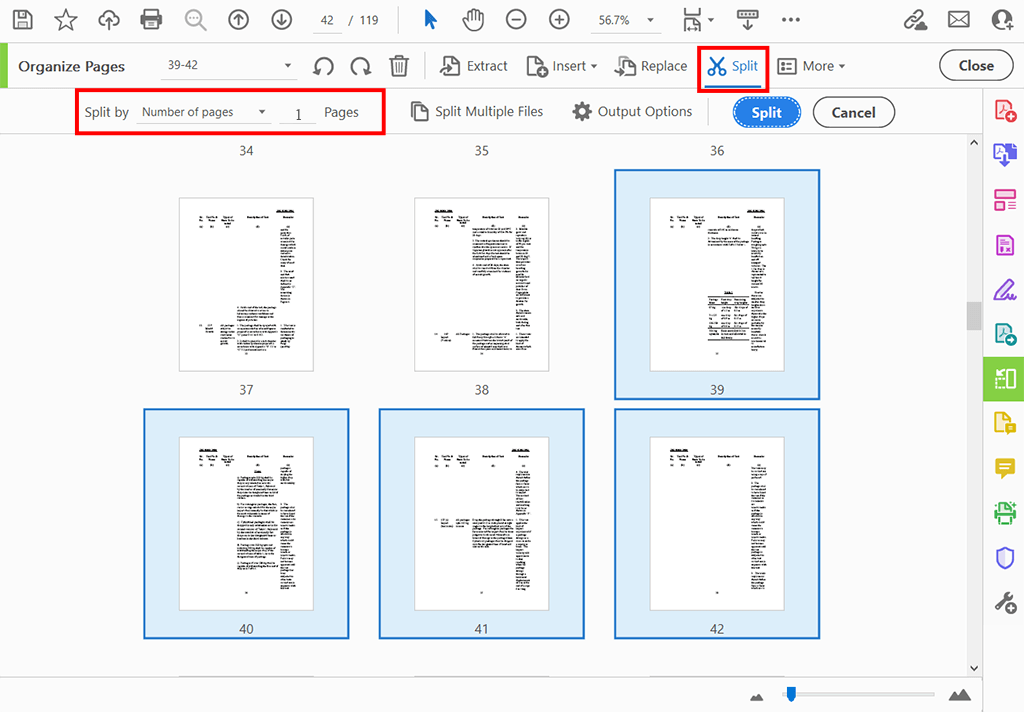
Step 3. In the “Split Document” dialog box, use the Split by dropdown menu to select how you want to divide the file. Options include:
a. Number of pages: Splits into equal-sized page groups (e.g., every 10 pages).
b. File size: Creates files under a specified size.
c. Top-level bookmarks: Splits at major bookmark levels.
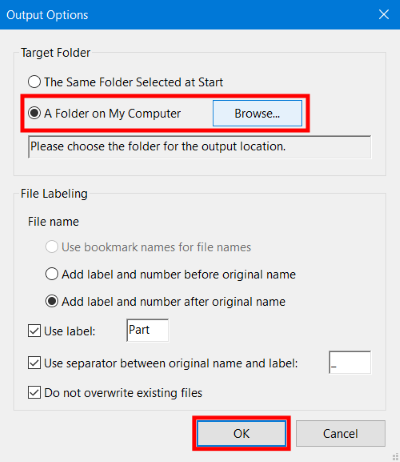
Step 4. Access Output Options to select the destination folder and set how the new files will be named, such as “_part1” or “_part2”.
Click OK (if you changed output options) and then tap the main Split button.
Name your new PDF. And click Save to finish.
Use Acrobat Online Editor
Adobe Acrobat Online Editor enables splitting PDF files straight from your browser with no software installation required. It’s a convenient option for quickly separating pages or page ranges, making PDF management fast, simple, and accessible from anywhere.
Find out how to split a PDF in Adobe Acrobat Online editor.
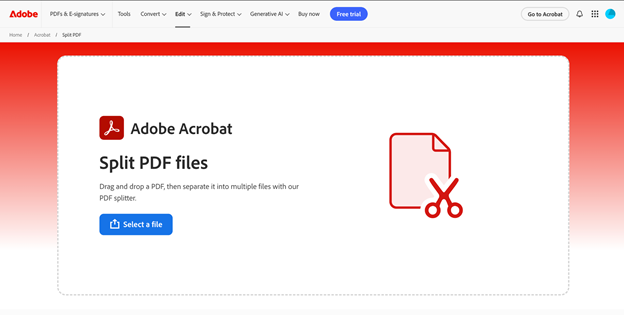
Step 1. Open your web browser and go to the Adobe Acrobat online Split PDF tool.
Note. Be sure to log in to the program with your valid credentials.
Step 2. Click the “Select a file” button. Or directly drag and drop your PDF into the designated area. Sign in if prompted.
Step 3. In the Page thumbnail view, click the dotted horizontal lines between pages to mark where you want to split the PDF; the lines turn blue. Then, tap the “Continue” button.
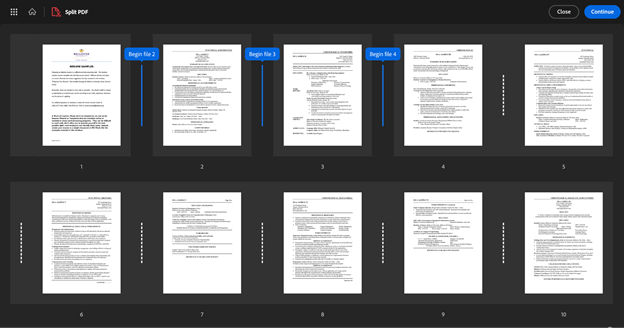
Step 4. Within the “Save your split files” window, enable “Save in a new folder” to keep your files orderly. Then click “Save“.
Your new split PDF files will be saved to your Adobe Cloud storage. You can access it from the “Recent” or “Documents” section.
Another Free and Easy Way to Split a PDF
Users searching for a reliable alternative to Adobe who face steep learning curves, high costs, or complex tools will find JOPDF highly suitable.
JOPDF is a free PDF editor designed for simple and efficient document management. With its PDF split function, users can divide pages or turn large files into multiple smaller PDFs quickly and easily.
At its core, JOPDF focuses on user-friendly tools that require no technical skills. This makes JOPDF a great option for fast, straightforward PDF splitting, entirely free and easy to use.
⭐ Key Advantages of Using JOPDF
- Allows you to extract pages from PDFs easily.
- Allows you to divide large PDFs into smaller, easier-to-manage files.
- User-friendly interface suitable for beginners.
- Completely free to use with no hidden costs.
- Maintains the original formatting and quality of your PDFs.
- Compatible with Windows, macOS, and Linux.
- No ads, watermarks, or sign-up required.
Check out how to split a PDF in Adobe Acrobat alternative, JOPDF, in a few clicks.
Step 1. Download and launch JOPDF on your Windows or Mac computer. Open your PDF in the software.
Step 2. Next, go to Page > Split. Then choose Split PDF from the dropdown menu.
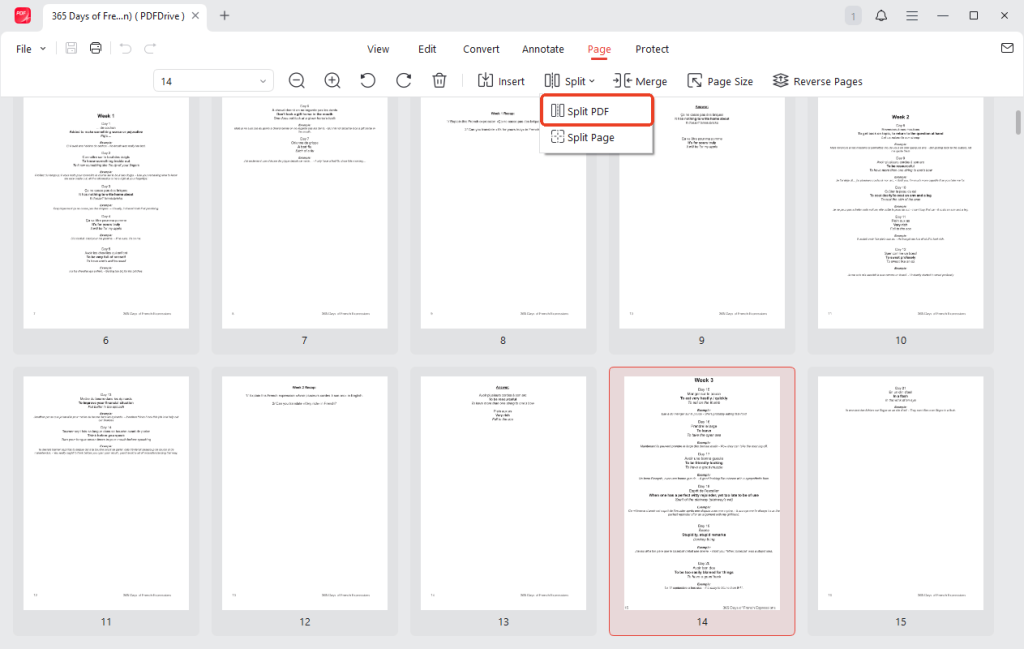
Note: You can also open the JOPDF Converter from Batch Process under Popular Tools on the start page. And then select Split PDF.
Step 3. In the pop-up window, select your preferred splitting method for your PDF:
- Split by Pages Per File: Set how many pages each output file contains.
- Split by Number of Files: Choose how many output files you would like.
- Custom: Manually enter the pages or page ranges you want.
Then, choose the method that fits your needs.
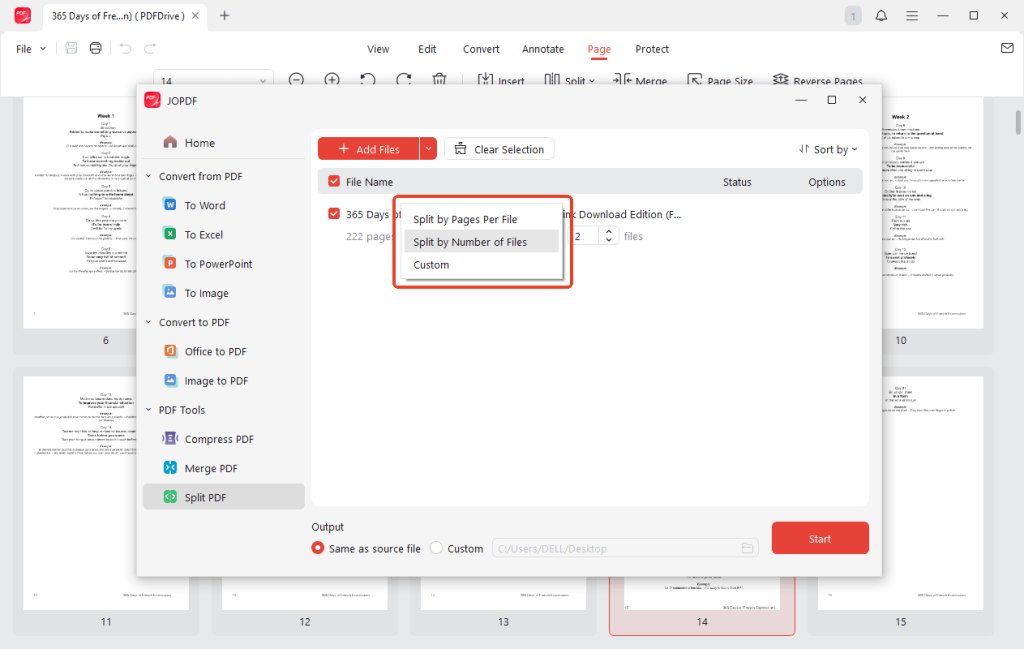
Step 4. After setting your preferences, click Start. Once the process completes, your split documents will be ready.
JOPDF offers much more than PDF splitting. It includes features such as merging, compressing, converting, and editing PDFs, all of which are free.
With an intuitive, simple interface, organizing and managing PDFs has never been simpler. Download JOPDF today and enjoy a fast, easy, and free way to manage every aspect of your PDF files.
A Quick Wrap Up
Knowing how to split a PDF in Adobe makes managing large documents much easier. Whether using the desktop app or the online editor, we have thoroughly explained the process for both for your convenience.
Those seeking a free, easy alternative can use JOPDF, which offers quick PDF splitting and numerous other helpful features. Using the proper method ensures your PDFs stay neat, organized, and shareable. Hope this guide is helpful!
FAQs
Table of Contents

Your Best Free PDF Expert in PDF editing, compressing, converting, annotating, protect, organizing, and more.
Free DownloadWindows · macOS · Linux

Queena
Editor
“As a staff editor for JOPDF, Queena excels at guiding users to the optimal tools and solutions. When she's not analyzing the latest PDF solutions, she enjoys spending her free time playing with her four cats.”