Introduction
Adjusting a PDF helps reduce file size, modify page dimensions, and simplify sharing. It’s very useful for attaching files to emails, uploading online, and keeping devices compatible. Here, we explain how to resize a PDF on Mac using three effective methods.
1. The Best Free Way to Resize a PDF on Mac
For a straightforward, no-cost solution, JOPDF ranks among the best PDF editors for Mac, letting you resize PDFs effortlessly.
JOPDF lets PDF resizing be easy—no confusing settings, no difficult learning, no ads, no watermarks, and no hidden costs. It works perfectly for students, professionals, or anyone who simply wants their PDFs sized correctly.
With JOPDF, you get two powerful methods: resize the PDF pages to fit A4, Letter, or custom sizes, or compress the PDF to make sharing and uploading faster and easier. Using both features, resizing PDFs on Mac becomes fast, simple, and remarkably efficient.
⭐ Key Features of JOPDF
- Resize PDF pages to standard or custom dimensions.
- Quickly batch compress PDFs to reduce file size without losing quality.
- View and edit text, images, and links directly in PDFs.
- Easily print, sign, merge several PDFs, or break up large files.
- Annotate PDFs with comments, highlights, and shapes.
- Convert multiple PDFs to and from popular file formats, including Word, Excel, and PowerPoint.
How to Change Page Size
Step 1. Install JOPDF and launch it on your Mac computer. Then, select a page you wish to change the size of.
Step 2. Click Page in the top menu bar, then choose Page Size from the secondary menu that appears.
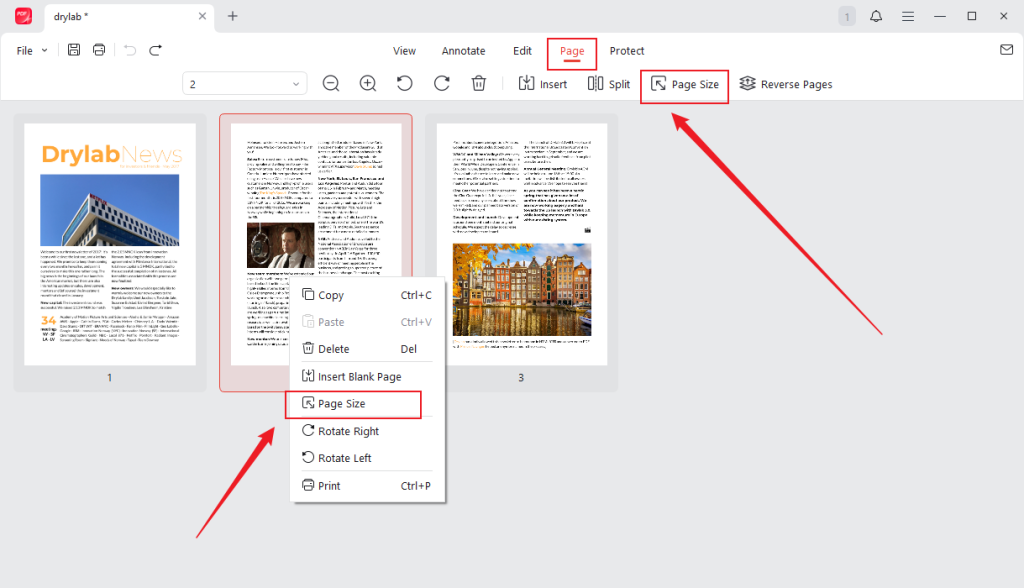
Alternatively, right-click the page and select Page Size.
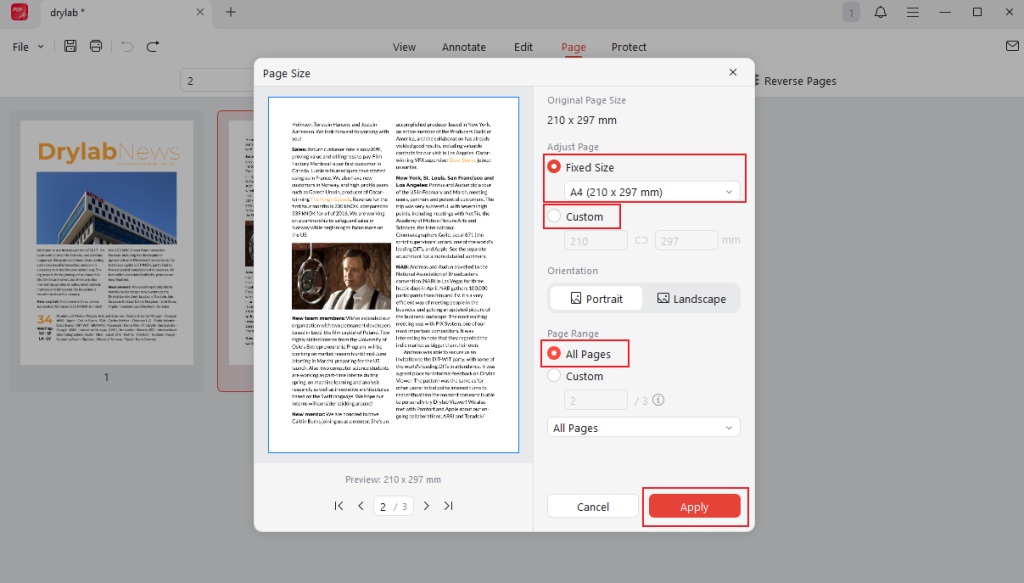
Step 3. In the Page Size window that pops up, adjust the size, orientation, and page range.
Step 4. Once finished, click Apply to save the changes.
How to Compress PDF to Reduce File Size
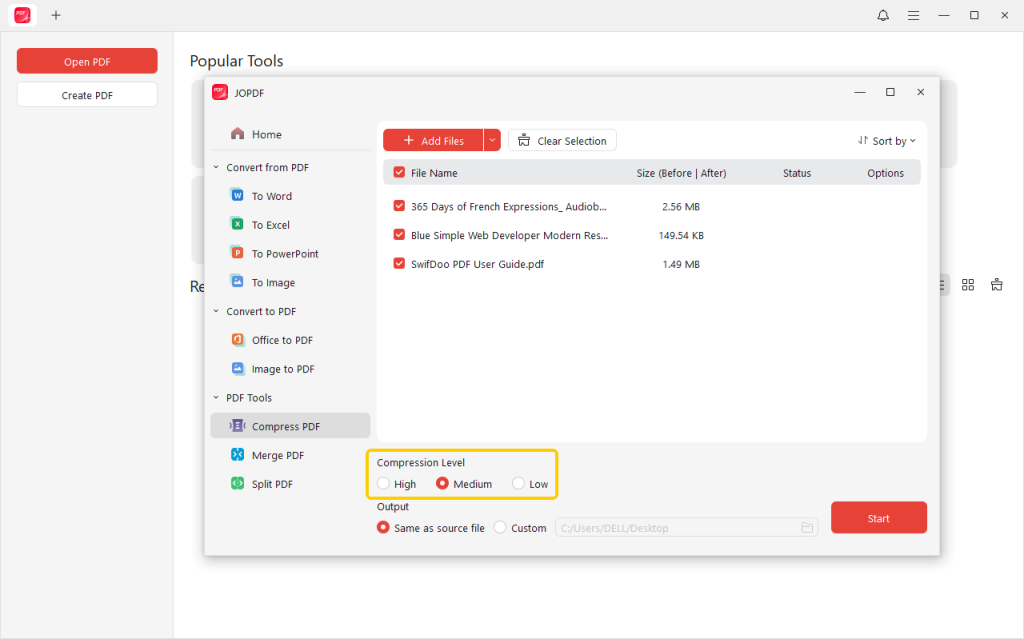
Step 1. First, download and install JOPDF, and then launch the program. Once you enter the main interface, go to Compress PDF under the Popular Tools section.
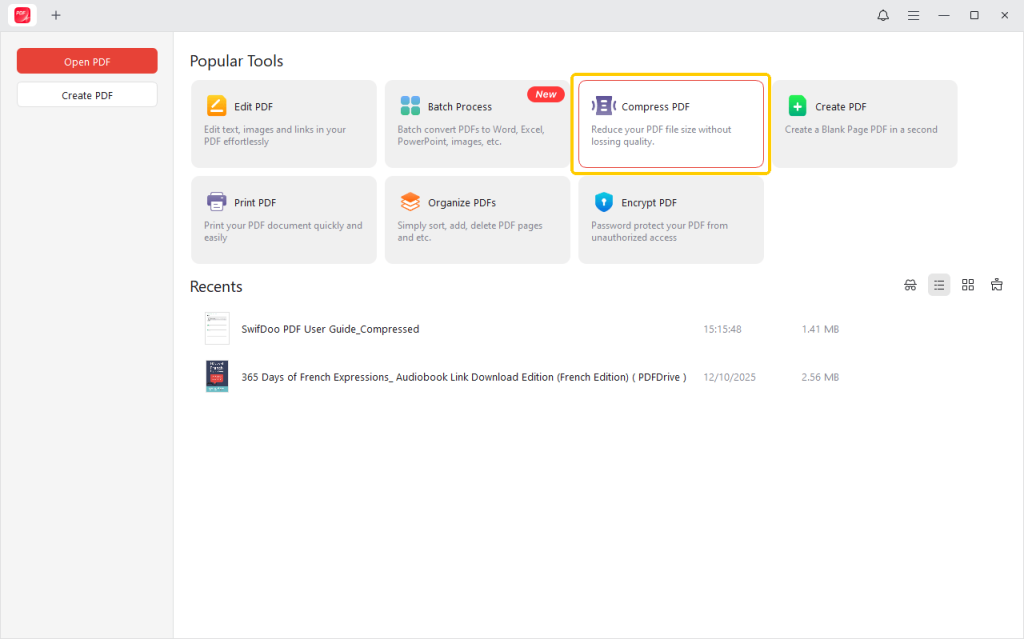
You can also open a PDF you want to compress in the program, move to the Edit tab, and click Compress.
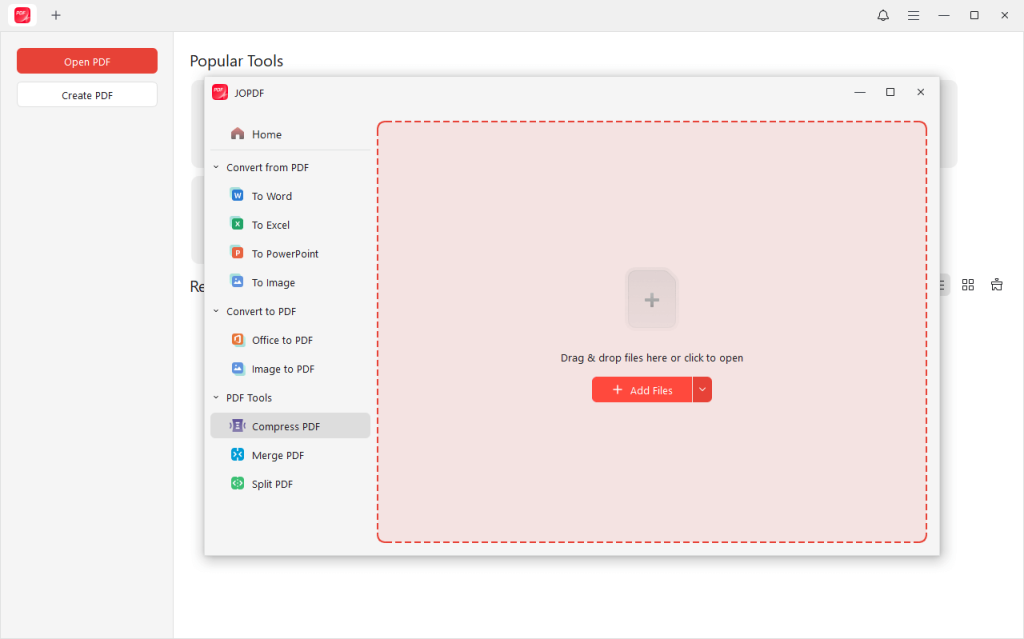
Step 2. Drag and drop the PDF files you need to compress into the list to add files. Or, click the +Add Files button to browse and open your preferred PDFs.
Step 3. Then, pick from the three available compression levels shown at the bottom of the screen.
- High: Maximum compression, lower quality.
- Medium: A balanced compromise between file size and quality (recommended).
- Low: Minimal file reduction, top-quality output.
Step 4. Once you choose your preferred level, set the output path and click Start to begin.
Ready to take full control of your PDFs? JOPDF makes it straightforward to adjust page sizes or compress files for easy distribution.
Beyond resizing, it’s a complete PDF management solution that lets you edit, organize, annotate, and convert PDFs in one place. Grab JOPDF today and make PDF management on your Mac faster, easier, and worry-free.
2. Resize a PDF on Mac in Preview
If you want a simple, stress-free way to handle PDFs on Mac, Preview works well. Already available on every Mac, Preview is more than a PDF viewer— it’s a lightweight editor that lets you manage PDFs without installing any additional software.
You can either change PDF page size by adjusting the page dimensions or compress the PDF to reduce file size and make sharing and uploading easier. This provides a fast, free, and effortless way to handle and resize PDFs right on your Mac.
Steps to Change Page Size
Step 1. To adjust the page size, right-click your PDF, hover over Open With, and click Preview.
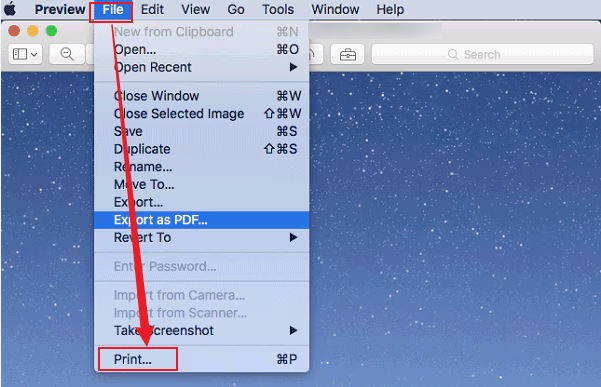
Step 2. Open File in the top menu bar and choose Print… to proceed.
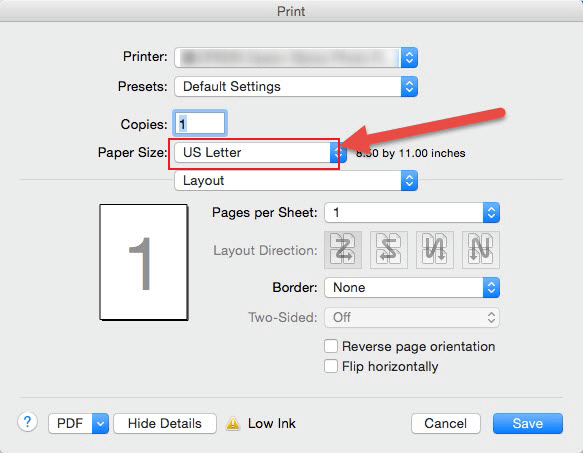
Step 3. Next, click Show Details at the bottom of the Print Preview to access more options.
Step 4. After that, select the specific page size for your PDF. Once finished, click Print to save your PDF with the new page size.
Steps to Reduce File Size (Compression)
Step 1. Start the Preview application on your Mac. Next, select and open the PDF you want to compress.
Step 2. Choose File from the top menu, then select Export…
Step 3. In the Quartz Filter pop-up menu, choose Reduce File Size.
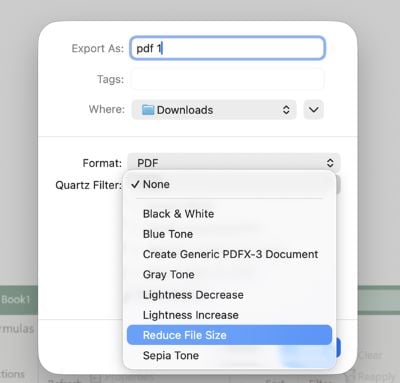
Step 4. Once compressed, hit Save to replace the existing file. Alternatively, click Cancel, enter a new filename in the Export As field, and click Save.
3. Resize a PDF on Mac with Adobe Acrobat
For professional-level control, Adobe Acrobat is an excellent option for Mac users who need to resize a PDF for printing.
Unlike built-in tools, Acrobat offers precise options to scale pages, adjust margins, and fit your content to standard paper sizes, including A4, Letter, and custom dimensions.
You can also compress files to make sharing easier without sacrificing quality. Thanks to its robust editing and printing features, Adobe Acrobat makes resizing PDFs for printing fast, precise, and completely hassle-free.
Steps to Resize Page Size
Step 1. Download and install Adobe Acrobat on your Mac to get started. Then, launch the program and open your PDF file with Acrobat.
Step 2. Go to the Tools menu and choose the Edit PDF option. Click the Crop Pages option in the toolbar.
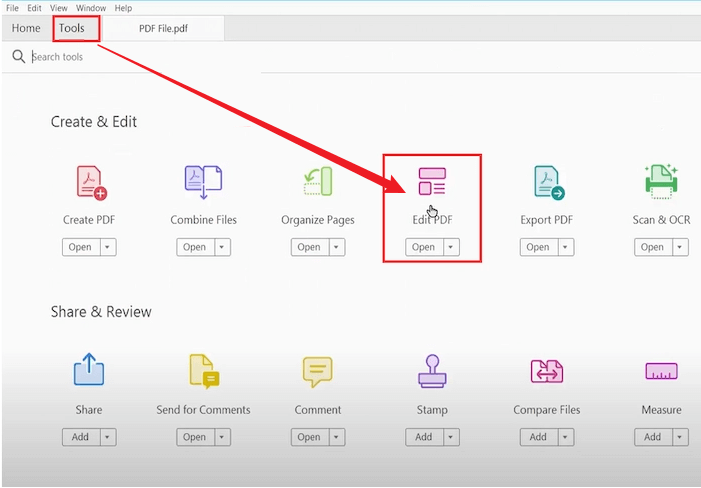
Double-click within the document to open the Set Page Boxes dialog.
Step 3. Next, go to the Change Page Size option and select your desired page size using custom or preset dimensions. Pick a page range and click OK to apply the changes.
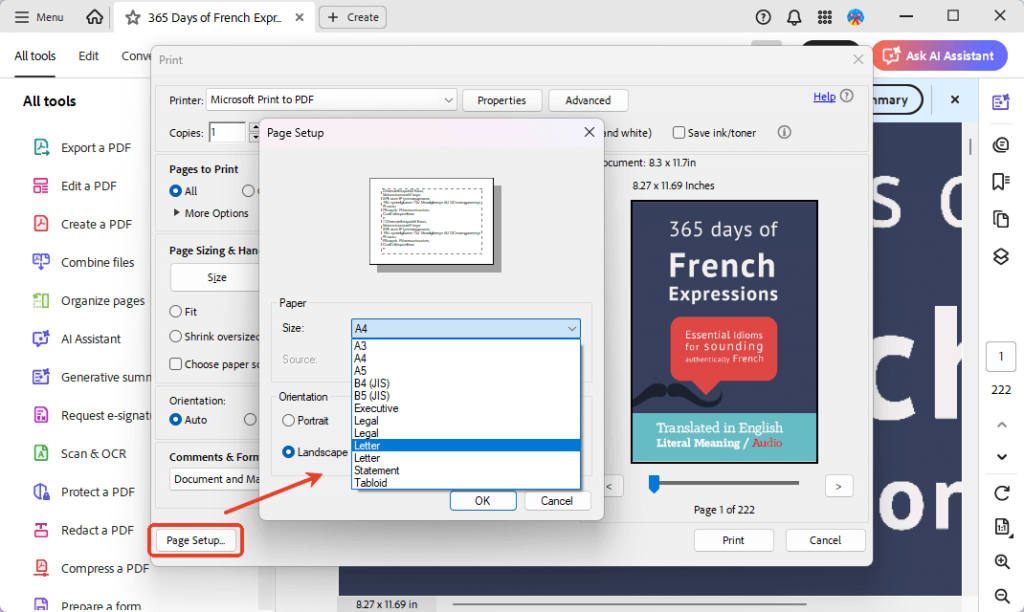
Step 4. Go to File, then tap Save As to save the new adjustments.
Steps to Reduce File Size (Compression)
Step 1. Download and launch Adobe Acrobat Pro on your Mac. Then, navigate to the Optimize PDF tool and click it.
Step 2. Locate the PDF file you want to compress, then click Open.
Step 3. Next, click Reduce File Size in the top menu. Select the appropriate compatibility settings, then click OK.
Or, go to File > Save as Other > Reduce Size PDF…
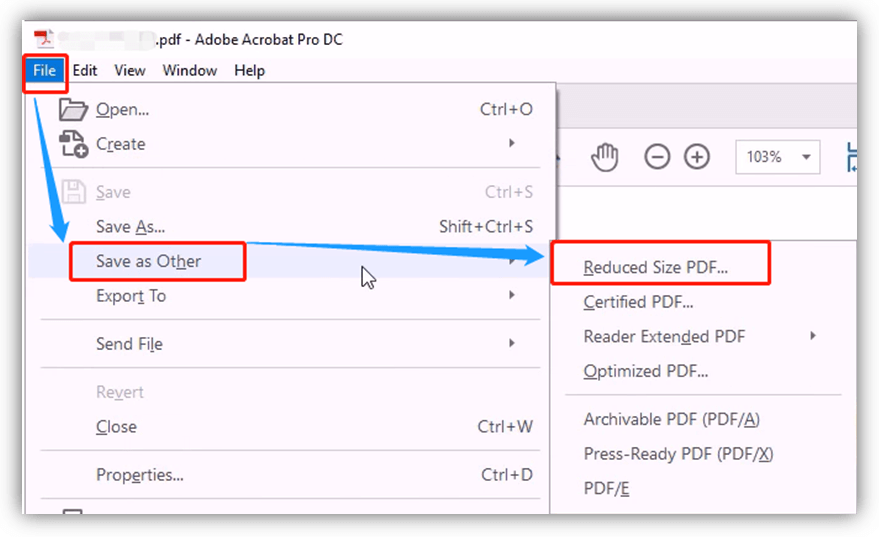
Step 4. When compression is complete, provide a file name and click Save.
A Quick Wrap Up
Understanding how to resize a PDF on Mac lets you share, print, and manage your documents efficiently, giving you full control over PDFs without any stress or extra effort.
Whether you’re using JOPDF for free, flexible page resizing and compression, Preview for quick built-in edits, or Adobe Acrobat for professional-level printing control, each tool makes it easy to adjust file size or page dimensions. Hope this guide is helpful!
FAQs
Table of Contents

Your Best Free PDF Expert in PDF editing, compressing, converting, annotating, protect, organizing, and more.
Free DownloadWindows · macOS · Linux

Queena
Editor
“As a staff editor for JOPDF, Queena excels at guiding users to the optimal tools and solutions. When she's not analyzing the latest PDF solutions, she enjoys spending her free time playing with her four cats.”