Introduction
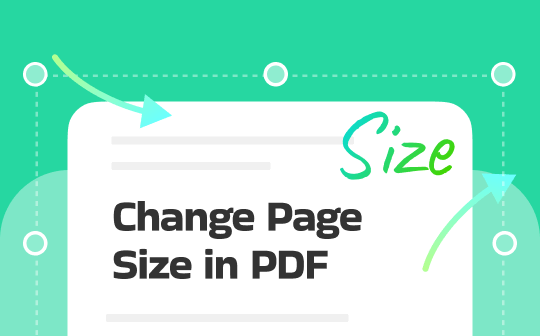
At times, modifying PDF page dimensions is important for printing accuracy, enhanced readability, or hassle-free uploading. Ready to learn how to change PDF page size? Here are five straightforward ways to make it happen.
1. The Professional and Free Way: JOPDF (Win & Mac)
👍 Best For: Users who want a professional desktop application to resize PDF pages with precision and maintain formatting quickly.
JOPDF is a free, professional tool that lets you change PDF page size quickly and accurately. Whether you need to resize a PDF for printing, sharing, or professional purposes, JOPDF ensures formatting stays intact.
Learn how to change PDF page size using JOPDF in a few clicks.
Step 1. Launch JOPDF on your Windows or Mac computer. Then, tap Open PDF to add your document.
Step 2. Select the pages you want to resize. You can click any page you like, as you can still make adjustments later.
Step 3. Navigate to the Page tab in the top menu bar and click on the Page Size button.
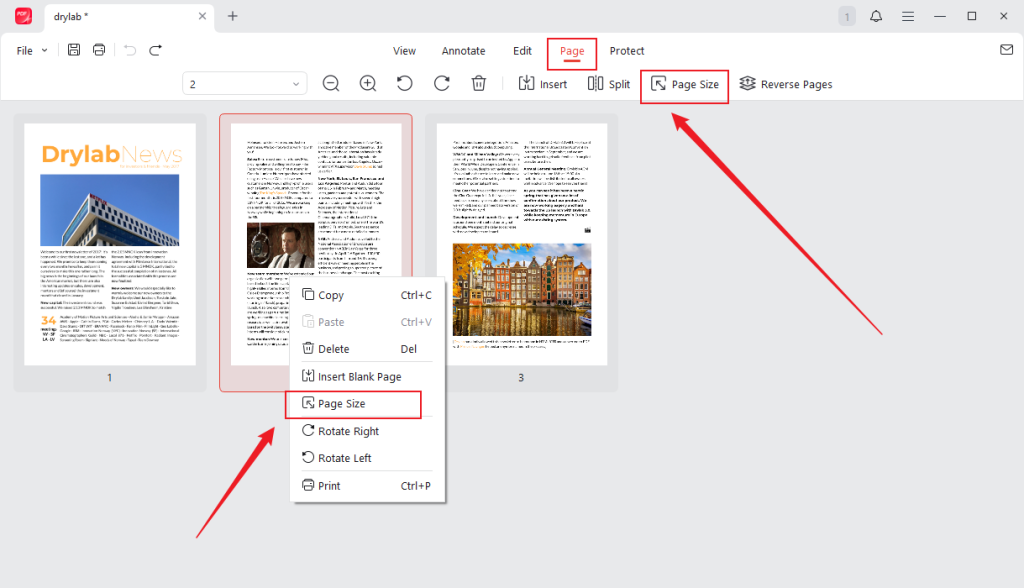
Now, a new dialog box will open. Under Adjust Pages, you can select from a wide range of standard page sizes. You can choose A3, A4, B5, and Legal, using the dropdown menu. You can also select Custom to manually set your preferred page dimensions.
Note
Always preserve the aspect ratio to keep the content from becoming distorted.
Step 4. Under the Page Range section, choose whether to apply this new size to all pages, the current page, or a specific range of pages.
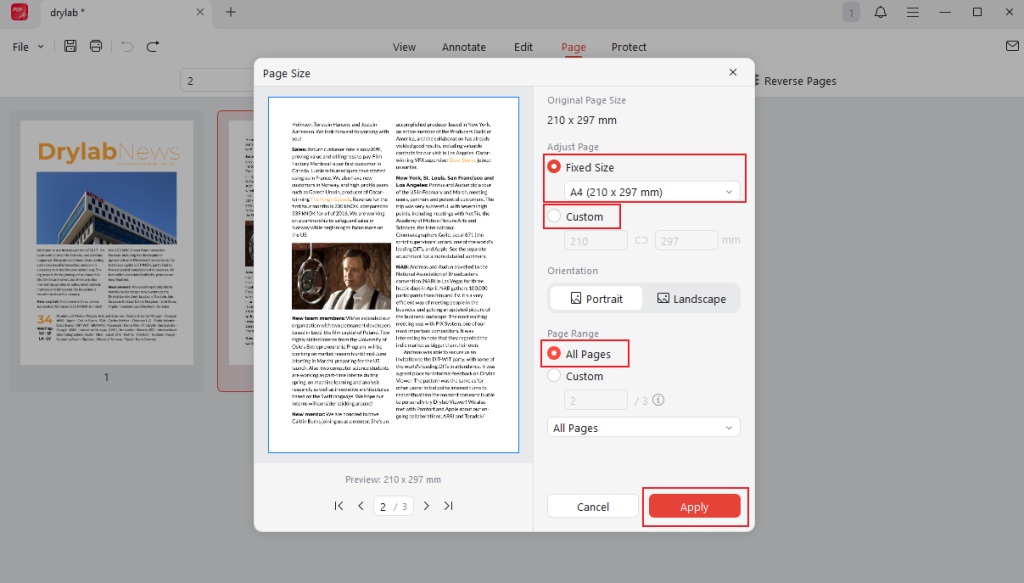
Step 5. Click Apply to confirm. After that, you can click the Print button to print the PDF. Alternatively, you can edit a PDF for free before printing if necessary.
2. How to Change PDF Page Size in Adobe
👍 Best For: Advanced users who need comprehensive PDF editing tools in addition to resizing capabilities.
Adobe Acrobat is another reliable tool for changing PDF page size. It uses the Print feature to make fast and accurate page adjustments.
Plus, it also lets users rearrange PDF pages for better organization. Ideal for professionals, Adobe maintains high quality while supporting standard and custom dimensions.
Check out how to change PDF page size in Adobe using the Print feature in a few clicks.
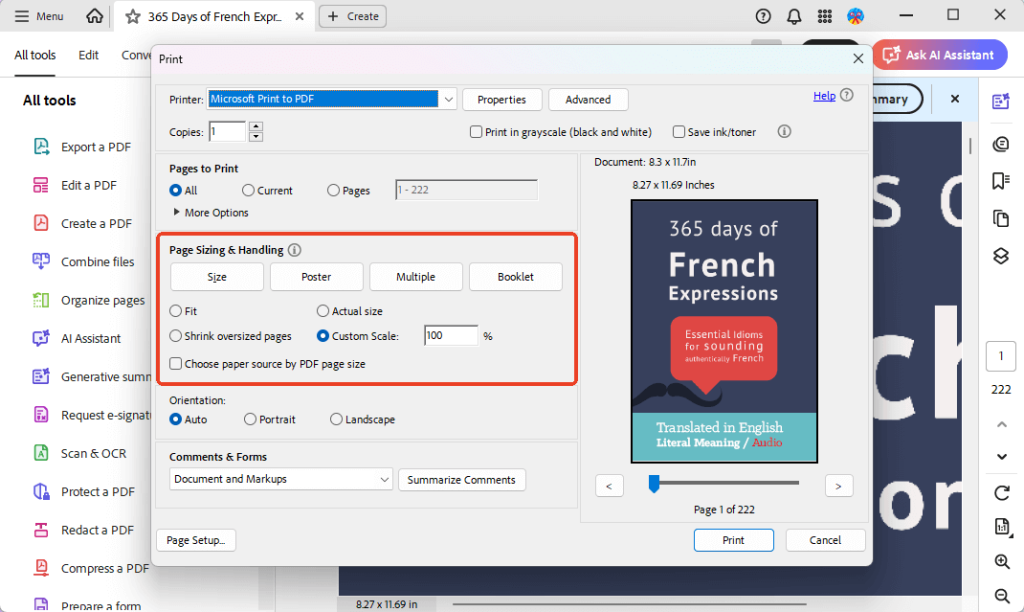
Step 1. Launch Adobe Acrobat. Go to File and click Print.
Step 2. Next, choose Page Size & Handling. Next, select Fit to automatically adjust your PDF to the chosen page dimensions. Or if you want a specific size, choose Custom Scale.
Step 3. Pick a predefined size, for example, A4, Letter, or Legal.
Note
To set a custom page size, manually input the width and height values.
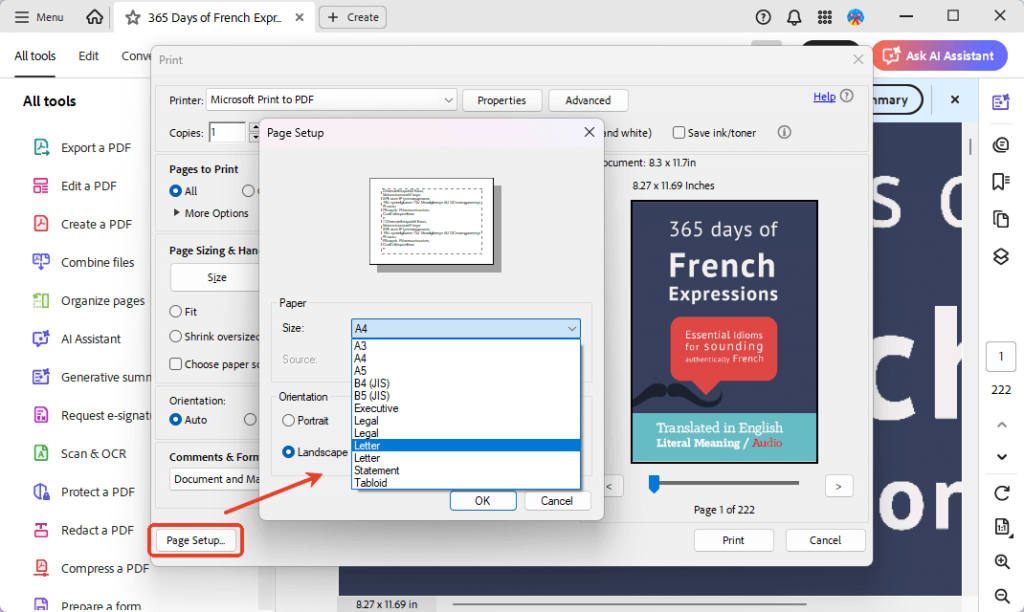
Step 4. After setting your preferred page size, confirm by clicking Apply or OK. Preview your document to ensure it looks correct. Once done, tap Save As to save your newly resized PDF.
3. How to Change PDF Page Size on Mac
👍 Best For: Mac users who want a fast, lightweight, and built-in method to adjust PDF page sizes natively.
Preview is a reliable Mac PDF editor that lets users quickly change PDF page size. However, it cannot edit existing text. In such a case, JOPDF may be necessary for deeper edits.
But resizing remains seamless and compatible with printing and sharing.
Find out how to change the page size of a PDF on Mac using the Preview app with ease.
Step 1. Open the Preview app on your Mac. Add the PDF you want to resize.
Step 2. Click File at the top of the main menuand select Print… in the dropdown menu.
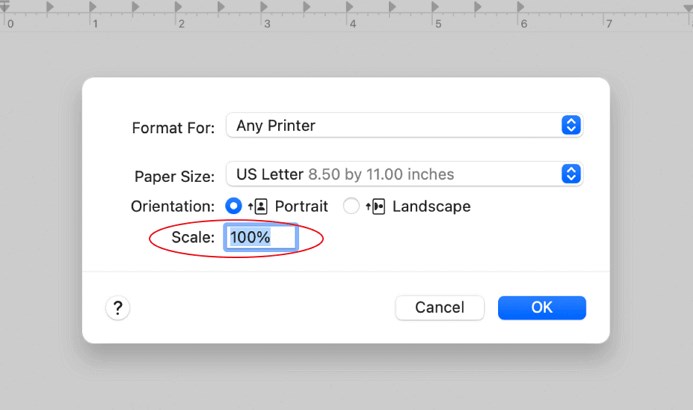
Step 3. In the Print dialog, find the Paper Size option. And select your desired size from the list. You can choose A3, A4, A5, B5, Tabloid or Letter.
Step 4. Once done, click the PDF dropdown menu at the bottom-left corner of the print dialog. Then, click Save as PDF…
4. Change Page Size in PDF Using a Browser
👍 Best For: Anyone who wants to resize PDFs quickly through a web browser.
Adjusting PDF page size online is a quick method that requires no software installation. With online extensions or built-in browser tools, you can resize pages from any device. It’s ideal for simple, convenient edits without installing additional programs.
Check out how to change page size in PDF using your browser without hassle.
Step 1. Launch your PDF directly in a browser like Chrome, Edge, or Firefox.
Step 2. To access printing options, press Ctrl+P on Windows or Cmd+P on Mac.
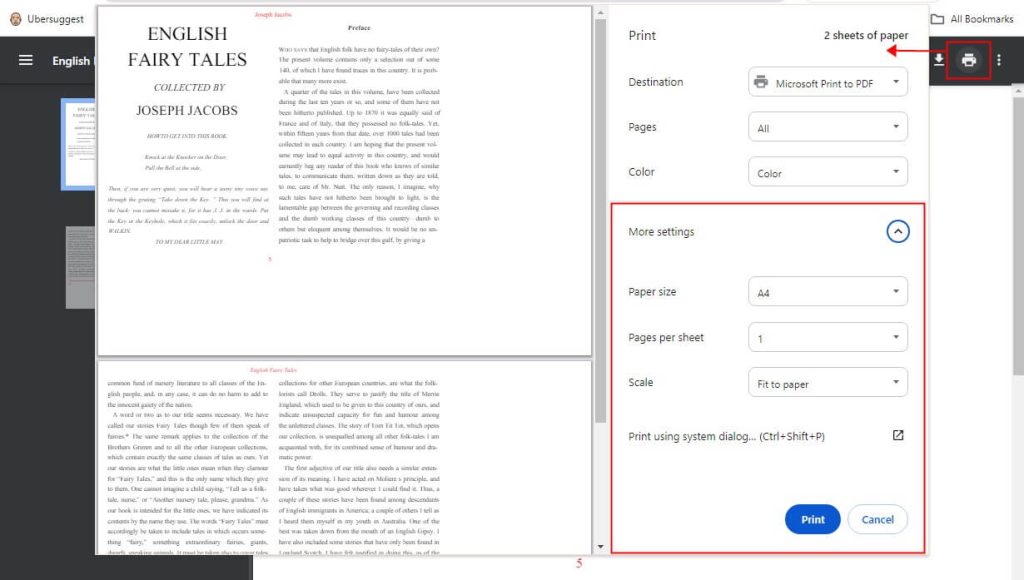
Step 3. From the printer dropdown, choose Save as PDF or Microsoft Print to PDF.
Next, adjust settings by clicking More Settings or Page Attributes.
Step 4. Select a standard format, such as A4 or Letter. Or, use the “Scale” option to resize the PDF content to a new percentage, for instance 75% or 120%. Once done, click Save.
Step 5. Finally, decide on a storage location and name your new PDF document.
5. Use an Online Tool to Change Page Size
👍 Best For: Users seeking accessible, efficient tools to adjust PDF page size without installing programs.
Using web-based tools to adjust PDF page size provides a speedy solution. Several free tools are available, making it easy to resize pages for printing or sharing without installing software. It is perfect for quick, on-the-go adjustments.
Learn how to change page size in PDF online.
Step 1. Go to an online editor your web browser. Here, we choose PDF2GO. Upload the PDF file you wish to resize.
Step 2. Adjust the pase size as needed.
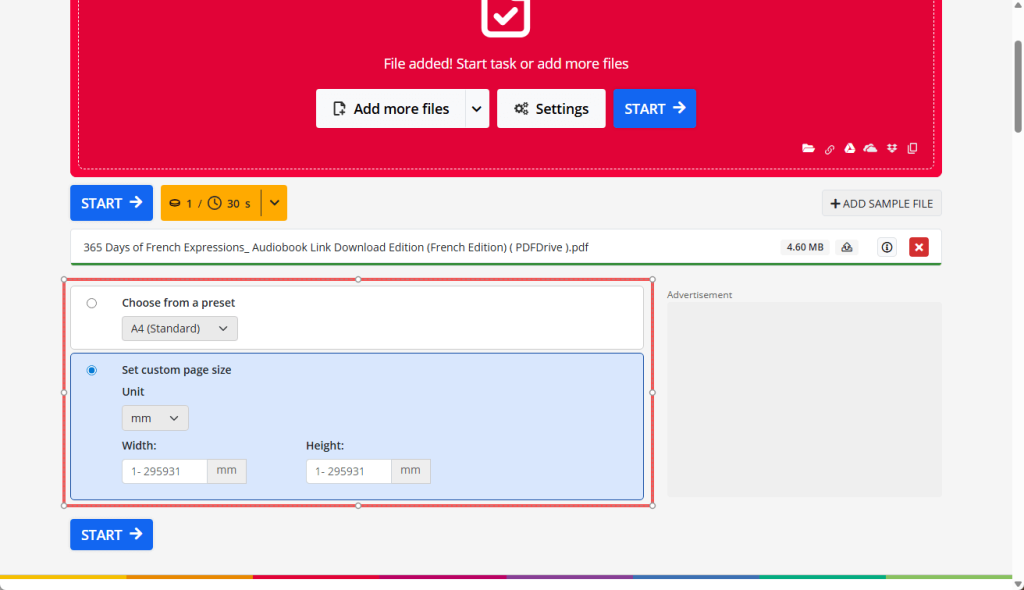
Step 3. Finally, click START. When finished, download the document to your computer.
Quick Wrap Up
Understanding how to change PDF page size lets you easily print, share, or organize your documents. With desktop apps, Mac tools, browsers, and online platforms, you can resize pages however you prefer. These five easy methods ensure you always have the correct page dimensions for any task!
FAQs
Table of Contents

Your Best Free PDF Expert in PDF editing, compressing, converting, annotating, protect, organizing, and more.
Free DownloadWindows · macOS · Linux

Queena
Editor
“As a staff editor for JOPDF, Queena excels at guiding users to the optimal tools and solutions. When she's not analyzing the latest PDF solutions, she enjoys spending her free time playing with her four cats.”