Summary :
People often look for how to combine PDF files without Acrobat because the software is subscription-based and not very user-friendly. Thankfully, you don’t need to pay. Here we’ll explore three practical ways: built-in tools, browser tools, and desktop software.
1. The Professional Way to Combine PDF Files Without Acrobat: JOPDF
JOPDF offers a full suite of PDF tools as a free Adobe Acrobat alternative for both personal and professional use. It offers a clean interface and professional-grade tools for efficiently handling PDF documents.
Its Merge feature lets you combine multiple PDFs into a single, organized document. This feature ensures complete flexibility in arranging and sequencing your PDF pages.
In short, JOPDF is a reliable solution for users who want fast, flexible, and professional PDF merging without using Adobe Acrobat.
Learn how to combine PDF files without Adobe, using JOPDF, in just a handful of clicks.
Step 1. Download JOPDF on your Windows or Mac computer. And launch it.
Step 2. Go to Batch Process under Popular Tools and select Merge PDF. Then, add all the PDF files you wish to combine.
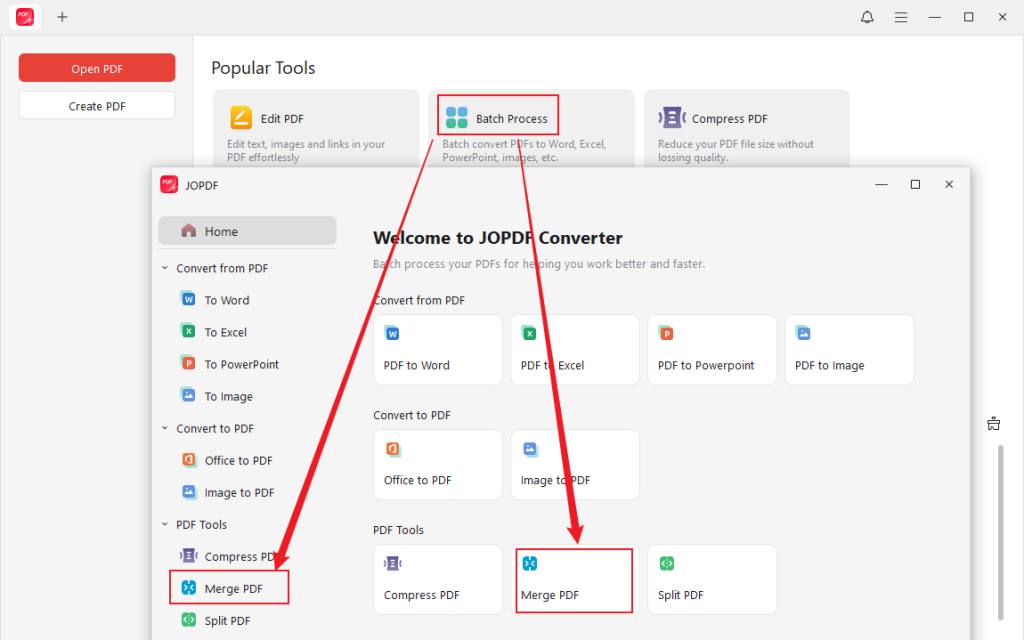
Alternatively, open a PDF file with JOPDF. And then go to Page and choose Merge PDF. Then, add the PDF documents you want to combine.
Step 3. Click Start in the bottom-right corner. Within a few moments, JOPDF will combine your PDF files.
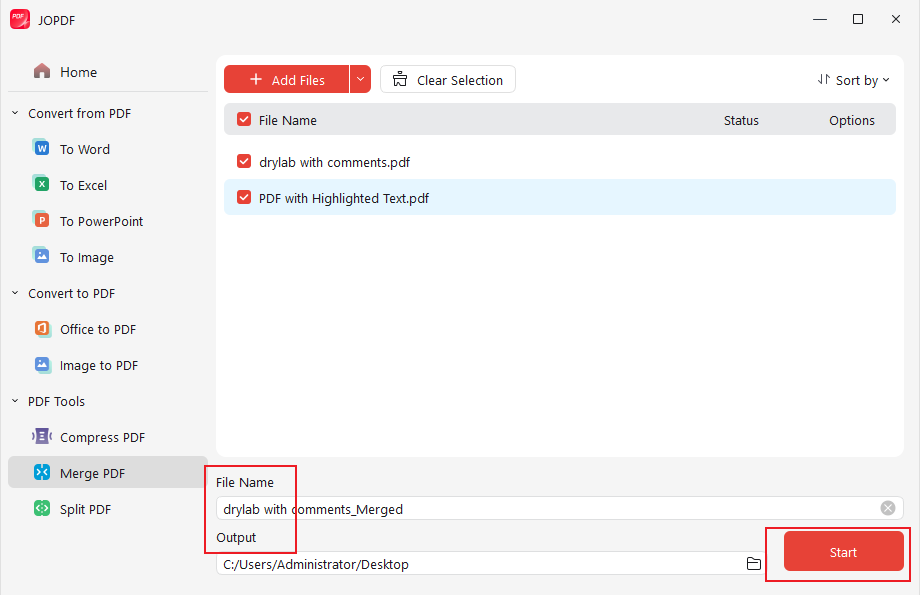
In addition to merging, JOPDF offers a wide range of PDF tools. It includes splitting, compressing, converting, and editing PDFs.
Its user-friendly interface makes managing documents simple and efficient. JOPDF is the best free Adobe Acrobat alternative! Try it now.
2. Combine PDF Files Without Acrobat in a Browser
Web-based tools make it easy to combine PDFs on a Mac without downloading extra software. Many web-based platforms are available, and some are even considered among the best free PDF editors for basic tasks.
For example, iLovePDF allows users to merge multiple PDFs with simple drag-and-drop. It also helps reorder files and quickly create a single, organized document directly in the browser—no need for Adobe Acrobat.
Let us see how to merge PDF files without Acrobat, but using iLovePDF in your browser.
Step 1. Access iLovePDF on your web browser. And locate and click the Merge PDF tool on the main interface.
Step 2. Click Select PDF Files to add all the desired PDFs from the computer, Google Drive, or Dropbox.
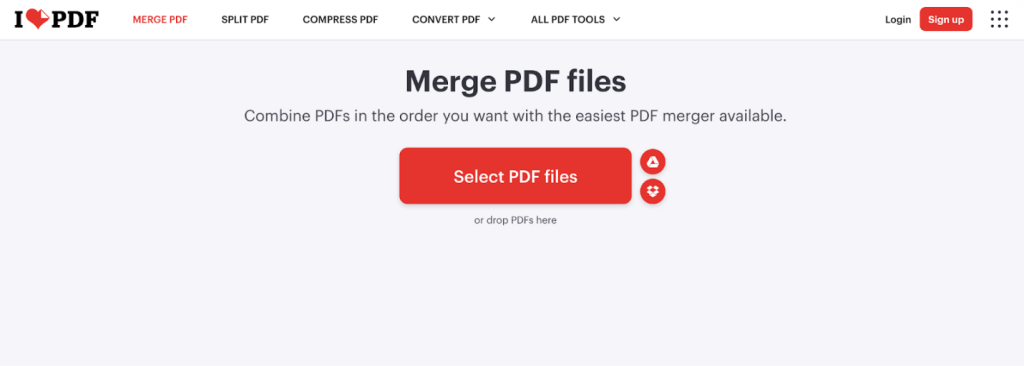
Alternatively, drag and drop all the PDF files directly into the workspace.
Step 3. Once the files appear in the display window, you can change the order of your PDFs by adjusting the file thumbnails.
Step 4. Once selected, click Merge PDF to combine all the added files. iLovePDF will automatically merge your PDFs within a few moments.
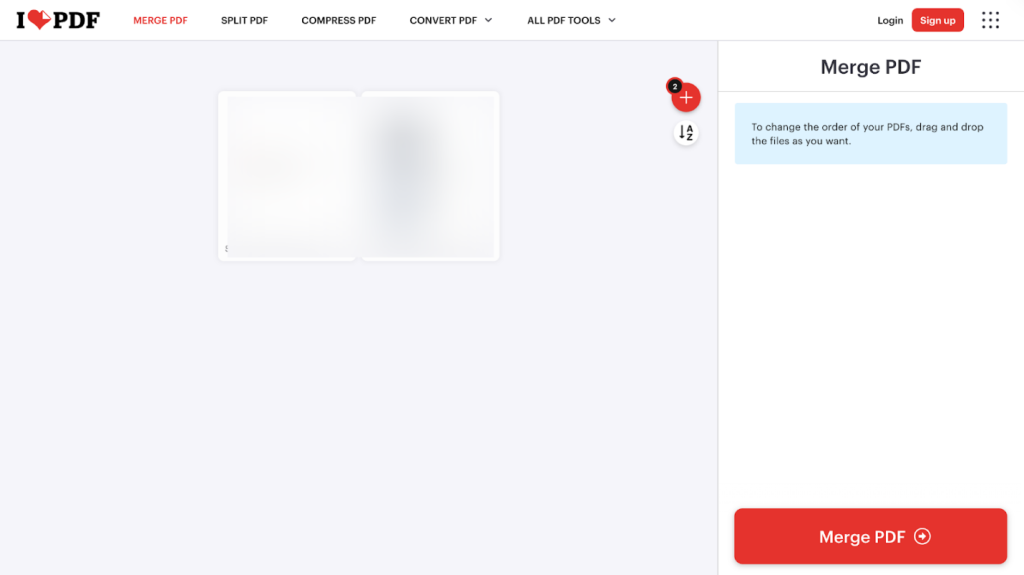
After merging, click Download merged PDF to store the combined file on your computer.
3. Combine PDF Files Without Acrobat on Mac
Preview lets you quickly and easily combine PDF files on a Mac. The software offers easy-to-use yet powerful merge options, allowing you to insert entire PDF documents.
You can effortlessly drag and reorder pages to form a well-structured PDF, all without spending a dime. This makes Preview a fast and secure solution for Mac users who wish to merge PDFs without installing extra software.
Here’s how to combine PDF files without Adobe on Mac with Preview.
Step 1. Open the Finder in your Dock on a Mac. Then, find the PDF files you want to merge.
Right-click the first PDF. Then, choose “Open With” and select “Preview.”
Alternatively, open the Preview app on your Mac. And open the PDF file you need to combine.
Step 2. Click View in the top toolbar at the left corner. And select Thumbnails from the available options in the dropdown menu.
Tap on the page thumbnail. Then, go to the Edit tab in the upper-left corner. And access Insert from the dropdown menu. Select Page from File… in the available options.
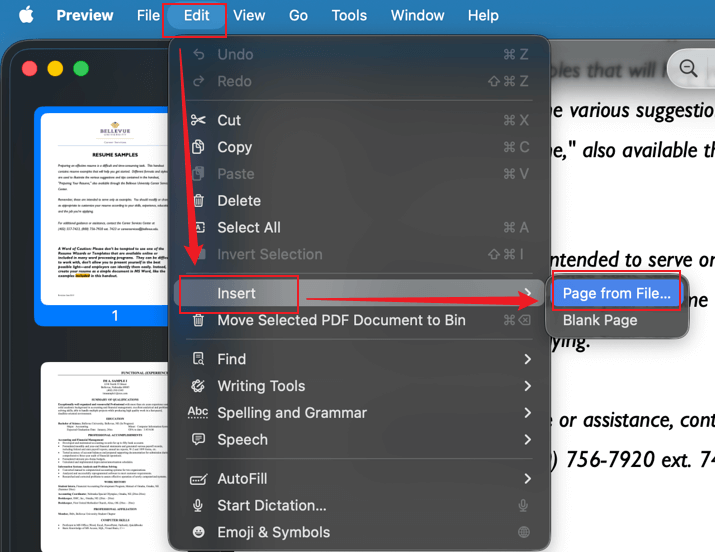
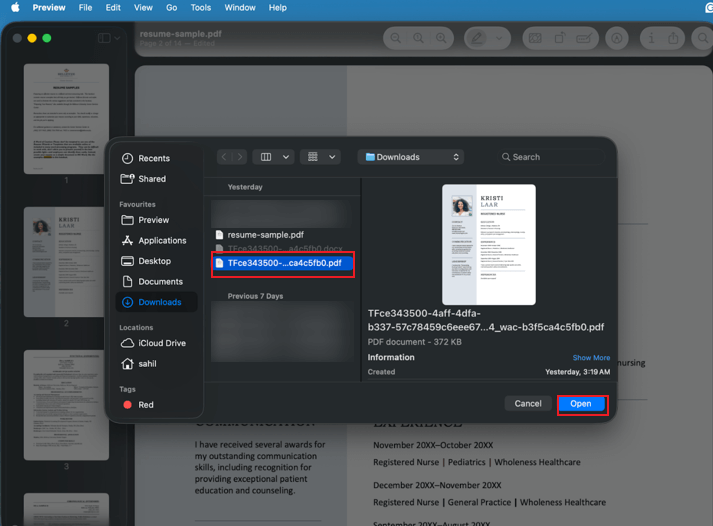
Step 3. Select the PDF you want to merge from the first and click Open. You can also drag that thumbnail to rearrange the pages accordingly.
Step 4. Once adjusted, navigate to File and select Export as PDF… to save your merged file across Preview.
While convenient to combine PDF files, Preview has certain limitations. It cannot fully edit or delete text from PDF files that already contain embedded content.
For advanced editing capabilities, including the ability to alter or remove text, JOPDF is worth considering.
Final Wrap Up
Knowing how to combine PDF files without Acrobat is essential for anyone looking to organize multiple documents efficiently without paying for expensive software.
Thankfully, there are free and convenient ways to merge PDFs quickly and securely. Going by the guide, you can use built-in tools like Preview on Mac, online platforms such as iLovePDF, or professional alternatives like JOPDF.
You can choose the right method based on your needs, file size, and desired features. Hope this guide is helpful.
FAQs
Table of Contents

Your Best Free PDF Expert in PDF editing, compressing, converting, annotating, protect, organizing, and more.
Free DownloadWindows · macOS · Linux

Queena
Editor
“As a staff editor for JOPDF, Queena excels at guiding users to the optimal tools and solutions. When she's not analyzing the latest PDF solutions, she enjoys spending her free time playing with her four cats.”