Introduction :
Sometimes, you may need to change PDF to landscape if you are preparing a presentation, printing a wide spreadsheet, or simply want a better viewing experience. Owing to the landscape orientation, which makes a PDF appear wider than it is tall, it offers more horizontal space for content like tables, images, and charts. In this JOPDF, let’s explore how to make PDFs landscape with 4 effective methods!
Method 1. Change PDF to Landscape for Free Using JOPDF
JOPDF is an excellent free PDF editor with no ads and registration requirements. It enables you to change the PDF orientation randomly in the process of viewing, editing, managing, or printing PDFs. With its various useful features, you can make your PDFs professional. For instance, it allows you to add hyperlinks to PDFs to enrich the information in PDFs. Also, it enables you to encrypt or decrypt PDFs with ease. To learn more about its wonderful features, download and explore it!
Here, let’s see how to change a PDF from portrait to landscape in JOPDF now.
Step 1. First, click the download button below to download and install JOPDF on your Windows or Mac PC. Next, launch it without signing in.
Step 2. Click the Open PDF button to import the PDF whose orientation you want to change. Or, you can directly drag and drop the target PDF into JOPDF to complete the file uploading.
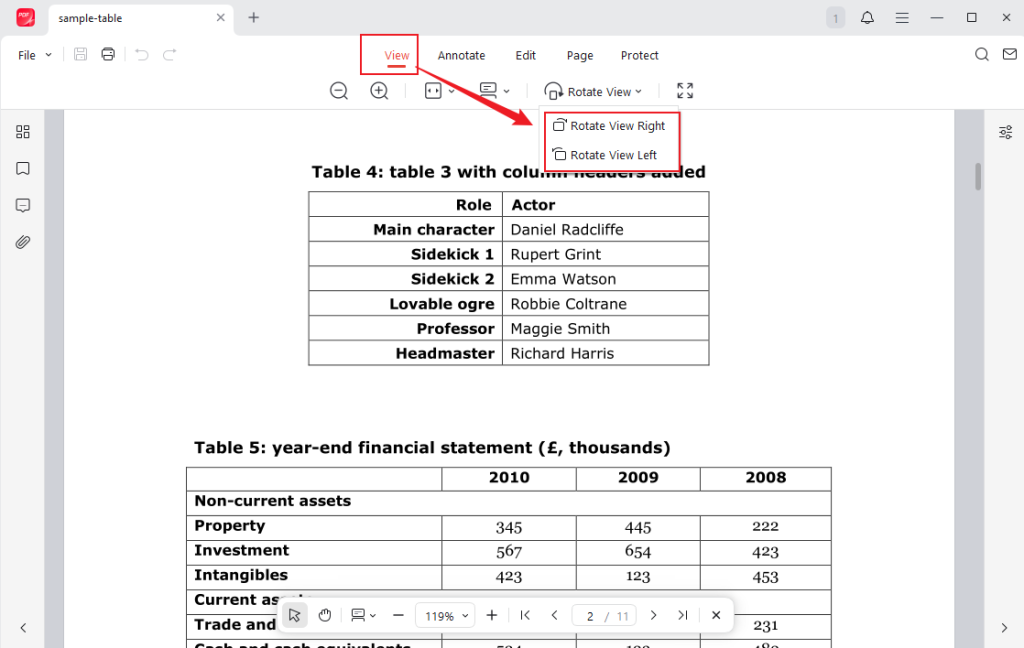
Step 3. Under the default View tab, you can open the Rotate View list and select either Rotate View Right or Rotate View Left to temporarily change the PDF orientation to landscape. If you want to change the PDF to landscape permanently, switch to the Page tab.
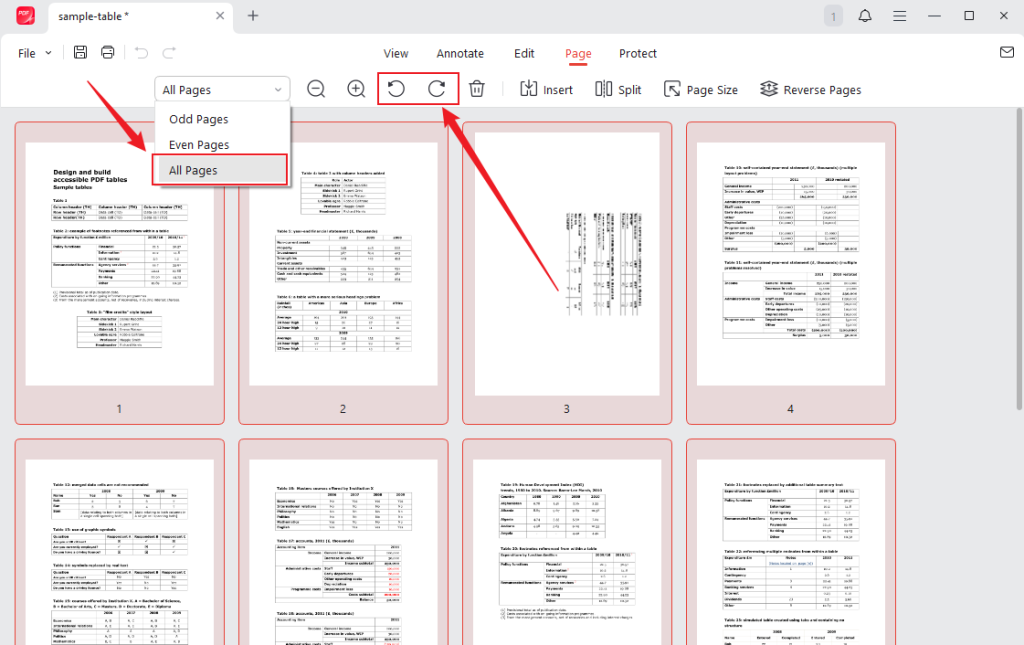
Step 4. Under the Page tab, select the page you want to change to landscape and click the rotate icon. If you want to change all PDF pages to landscape, select the All Pages option first and then click the rotate icon.
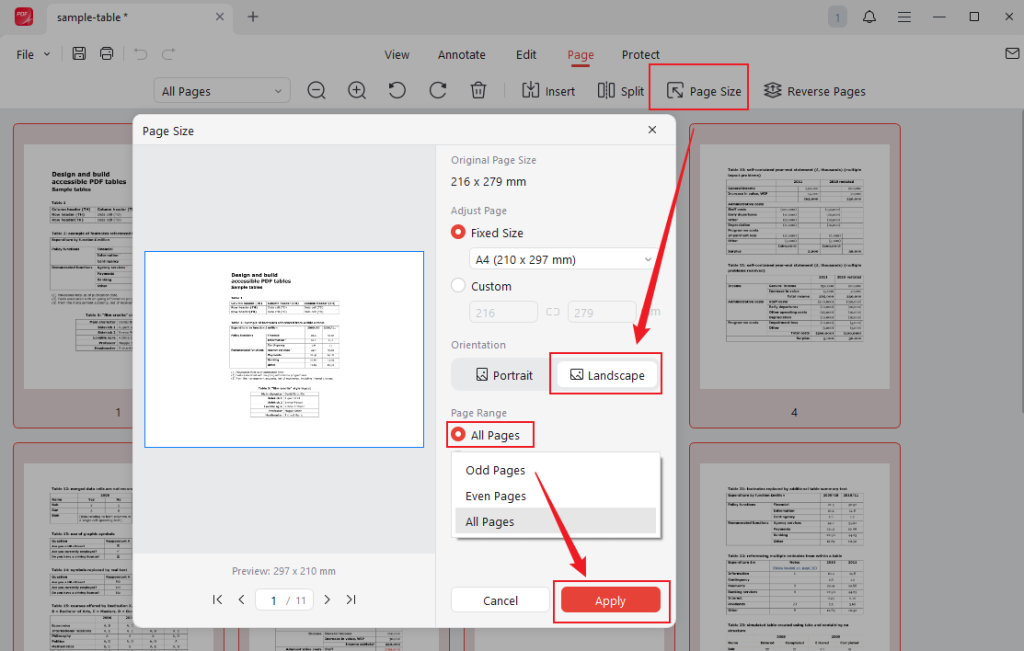
Besides, you can select the Page Size option and click the Landscape option under the Orientation section. Ensure the All Pages option is selected and then click Apply.
Step 5. Next, you can click the Save icon in the top left to save the PDF in landscape orientation.
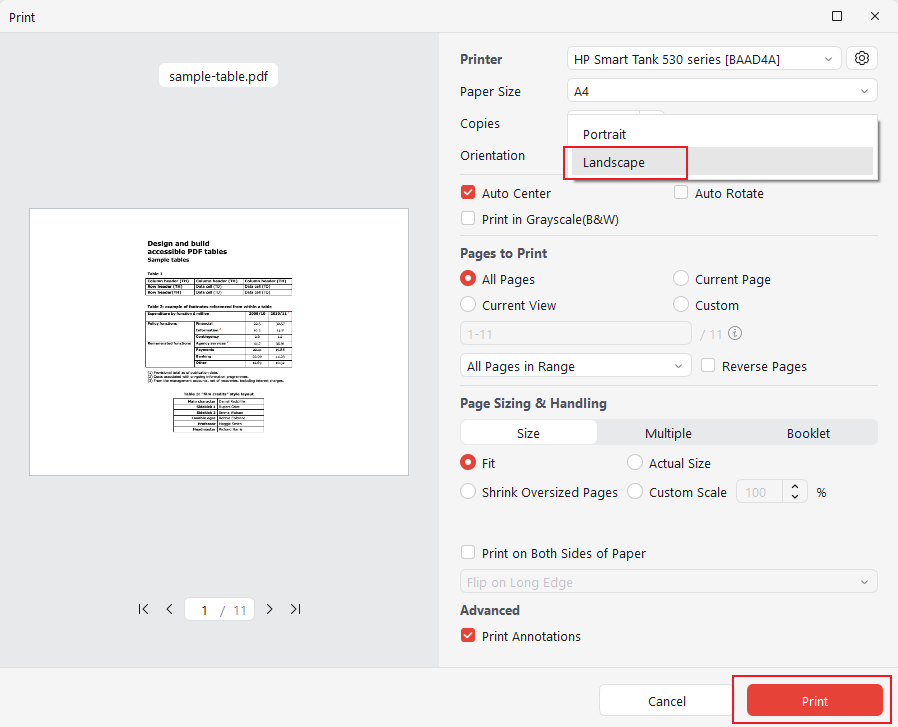
In addition to making a PDF landscape while editing, JOPDF enables you to change a PDF to landscape or portrait during printing. After importing a PDF, click the Print icon to access JOPDF’s Print window. Open the Orientation list and select the Landscape option. Next, you can customize other settings for PDF printing. Finally, click the Print button.
Method 2. Change PDF from Portrait to Landscape with Online Tools
There are many online tools available to change PDF orientation from portrait to landscape or vice versa. Many of them allow you to upload, rotate, and save PDFs in just a few clicks and don’t require software installation. Here are some popular, secure, and user-friendly options:
- Smallpdf
- iLovePDF
- PDF2Go
- Sejda PDF Editor
How to make PDF landscape with online tools? Most online tools are easy to use, and their steps for changing PDF orientation are largely similar. Here, I only take Smallpdf as an example to show the steps to make PDF pages from portrait to landscape.
Step 1. Open the Smallpdf official website in your browser.
Step 2. Expand the Tools list and select the Rotate PDF option.
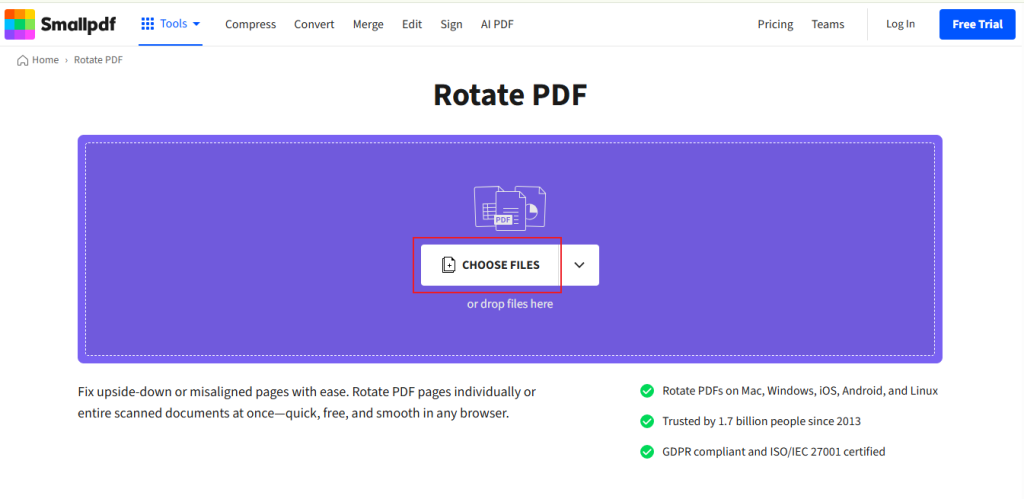
Step 3. Click CHOOSE FILES to import the PDF that you need to change to landscape.
Step 4. Click the Rotate icon on the target PDF page to change it to landscape. Meanwhile, you can click the top rotate icon to change all PDF pages to landscape.
Step 5. Finally, click the Finish button. Once the process is over, hit the download button to save the PDF file in landscape orientation.
Method 3. Change PDF to Landscape in Chrome
In addition to the online and desktop tools, browsers, like Chrome and Microsoft Edge, enable you to view and print PDFs. These browsers allow you to change PDF files to landscape orientation. How can you change a PDF from portrait to landscape in Chrome? Below are the exact steps for your reference.
Step 1. Right-click on your PDF file, move to Open with, and select the Google Chrome option.
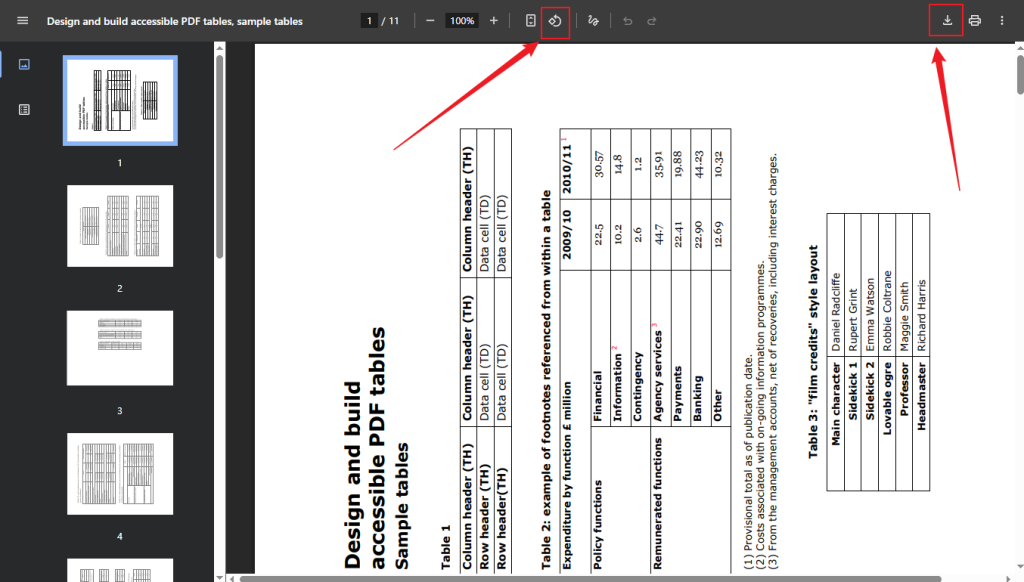
Step 2. Once the PDF file is opened in Chrome, click the rotate icon from the top toolbar. Then you can find that all the pages of the PDF are changed to landscape.
Step 3. Finally, click the download icon in the upper right and choose a folder to save the PDF file.
Method 4. Change PDF to Landscape on Mobile
If you often handle PDFs on mobile, you can use apps such as Adobe Acrobat Reader, Foxit PDF Editor, or SwifDoo PDF to change PDF to landscape. Among them, SwifDoo PDF is highly recommended, which is available on both Android and iPhone. It offers a rotate feature to rotate PDF to landscape or portrait with ease. Additionally, as a full-featured PDF editor, SwifDoo PDF comes with a wide range of editing features for PDFs. Here, let’s learn how to convert PDF to landscape on mobile using SwifDoo PDF.
Step 1. Download SwifDoo PDF from the App Store or the Google Play Store and then install it on your phone.
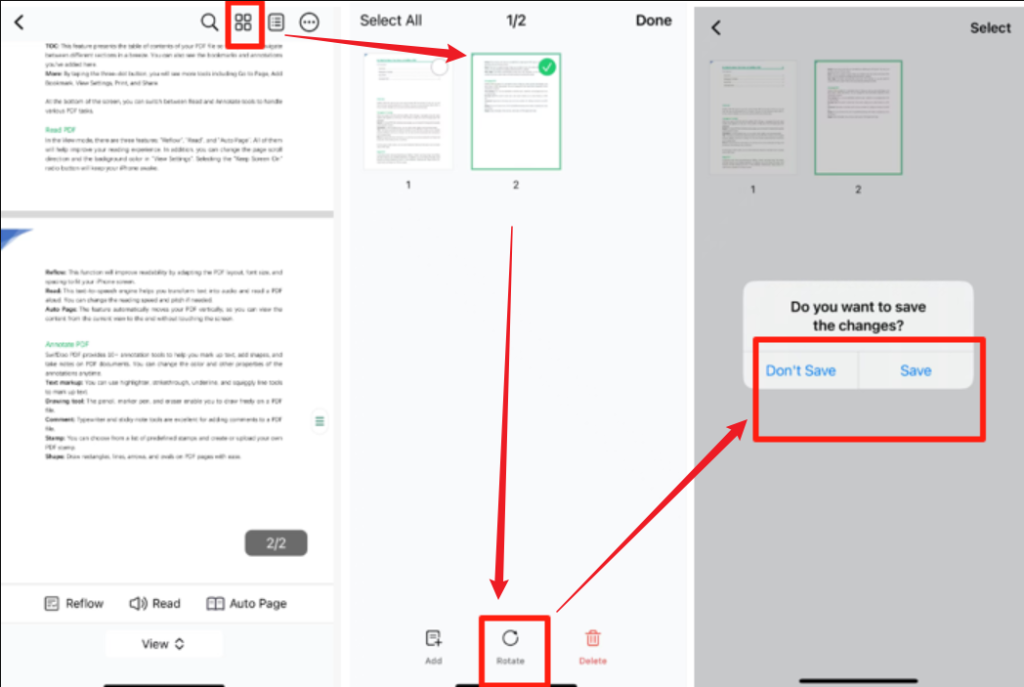
Step 2. Launch SwifDoo PDF on your phone and open your PDF in it. Next, tap on the four-square icon and tick the pages you need to rotate to landscape.
Step 3. Next, hit the Rotate option at the bottom.
Step 4. Once done, tap the Done option and hit the Save option to save the changes.
Conclusion
Landscape orientation makes wide content easier to view, print, and share, especially for charts, slides, or images that demand extra horizontal space. With the methods above, you can confidently change PDF to landscape on any device in just a few clicks. If you need a free way to change the PDF orientation on either Windows or Mac, JOPDF is worth a try. Now, it’s your time to select a preferred method and give it a try!
FAQs
Table of Contents

Your Best Free PDF Expert in PDF editing, compressing, converting, annotating, protect, organizing, and more.
Free DownloadWindows · macOS

Olivia
“Olivia is an editor at JOPDF, where she writes practical guides and insightful articles on managing PDFs—covering topics like editing, annotating, converting, and organizing files efficiently. Passionate about clear communication and digital productivity, Olivia enjoys spending her free time cooking, watching movies, and hiking to unwind and find inspiration for her writing.”
![[2026 Newest] Expert Guide on How to Rotate a PDF in Google Drive](https://b.jopdf.com/wp-content/uploads/2026/01/how-to-rotate-a-pdf-in-google-drive-thumbnail.png)
