Summary :
Being able to add PDF pages together is beneficial. Sometimes you need to add a cover page to a PDF. Or you have two or multiple PDFs and need to insert one into another to make them a single document. Re-making or re-printing each page is unrealistic. Fortunately, there are quick fixes. You can take no effort to insert a PDF into a PDF, add another page to a PDF, or add multiple pages to a PDF with the right PDF editor. Learn how to add pages to a PDF using 4 easy ways. No more worry that online tools aren’t really free or that offline software is difficult to use. This article is compiled to save you.
Way 1: Add Pages to PDF for Free Using JOPDF
JOPDF is a simple yet versatile free PDF editing application you will love. It lets you view, annotate, edit, and password-protect PDFs without paying anything.
You can remove and add pages to a PDF, and insert images, hyperlinks, text, and other objects. JOPDF supports adding pages wherever they are in place. The program can also copy, rotate, rearrange, and resize PDF pages.
With Windows and Mac versions, it features an intuitive layout and a tools menu.
Here we briefly outline how to add a page to a PDF using JOPDF on Windows or Mac.
Step 1: Download and install the free PDF page adder and editor, and launch it.
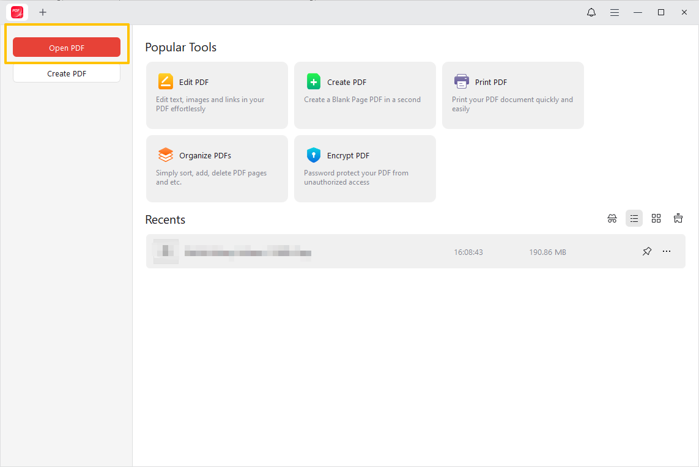
Step 2: Click the Open PDF option to select and open the PDF file you want to add pages to.
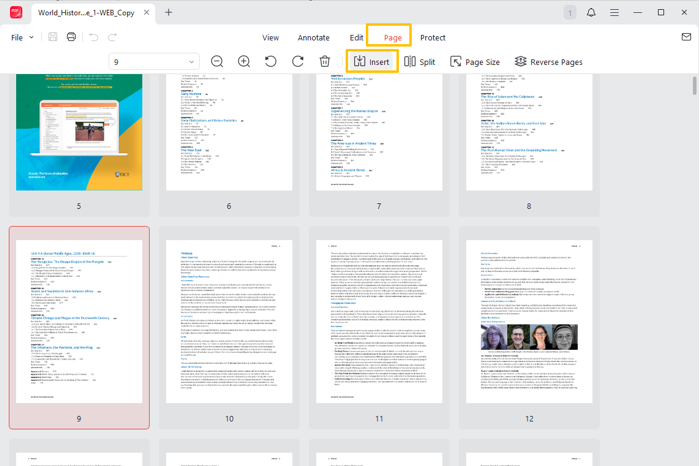
Step 3: Click the Page tab, scroll the page view, and right-click the page you need to add a second page after.
Step 4: Choose the Insert icon in the floating vertical bar or choose the Insert option from the top toolbar to add a new page to the PDF right after the current page.
Alternatively, choose Insert Blank page in the context menu to add blank pages to a PDF.
Step 5: Select any page and press Ctrl + C to copy it, and click another page to press Ctrl + V to paste and duplicate it there.
Step 6: Drag to reorder and organize the pages, and then save the new PDF.
Way 2: How to Add Pages to a PDF in Adobe Acrobat
Adobe Acrobat Pro is super helpful when you wish to add pages to a PDF on a Mac or Windows. It includes a complete set of PDF editing tools and lets you convert, compress, sign, and fill PDFs. It can add a blank page or an entire file to a PDF and offers merging capability for adding and combining multiple documents together. You can specify which location to insert by page number.
The process of adding pages to a PDF in Adobe Acrobat is broken down below.
Step 1: Import your PDF file into Acrobat, and click the navigation arrow on the left side.
Step 2: Click the Page Thumbnails icon in the sidebar.
Step 3: Click the drop-down option in the thumbnails pane, and select Insert Pages > From File.
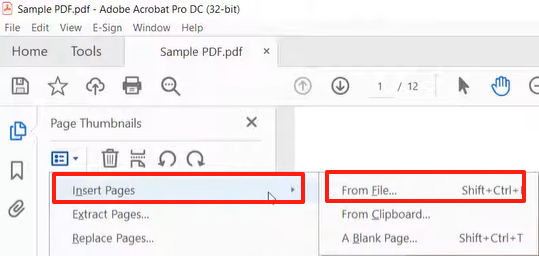
Step 4: Browse your computer to select a file to open. Set the location in the PDF where you want the file page added.
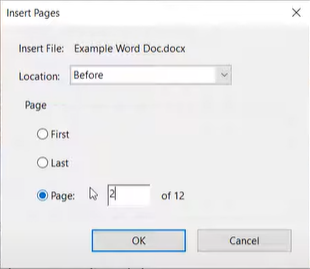
Step 5: Click OK to add the pages in the existing PDF file immediately. You can select and delete unnecessary pages from the PDF.
Way 3: How to Add Pages in a PDF Using Preview
Mac Preview is what you are looking for when you need to add and remove pages in a PDF. The application is native to macOS and free if you run into a paywall. It is very friendly to navigate. You can add two PDF files together or add pages from one PDF to another flawlessly. The program also lets you adjust the page order and export the merged PDF with a reduced size.
Read the tutorial on how to add pages to a PDF in Preview for free.
Step 1: Right-click the PDF you desire to add pages to, and choose Open with > Preview.
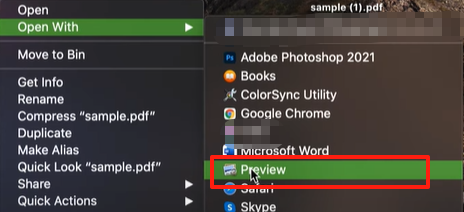
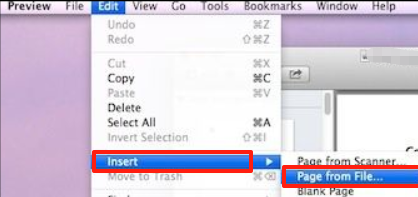
Step 2: Select the page after which you plan to add additional pages, and click Edit at the top.
Step 3: Select Insert > Page from File or Blank Page to add a page in the PDF file.
Step 4: Click View > Thumbnails to open the thumbnails pane, and you can move or do more with the pages. Step 5: When you finish, click File > Save to save the changed PDF.
Way 4: How to Insert Pages in a PDF with iLovePDF
You can sort, delete, and add pages to a PDF online for free using the iLovePDF online platform. After going through lots of PDF sites, you must be thirsty for a free one without a sign-up requirement. iLovePDF is great and works well with larger files, though it still has a limitation. It can add two PDF pages that make up two PDFs together, and also add blank pages.
Step 1: Visit ilovepdf.com and select the Organize PDF tool.
Step 2: Click the Select PDF file button to upload a PDF file.
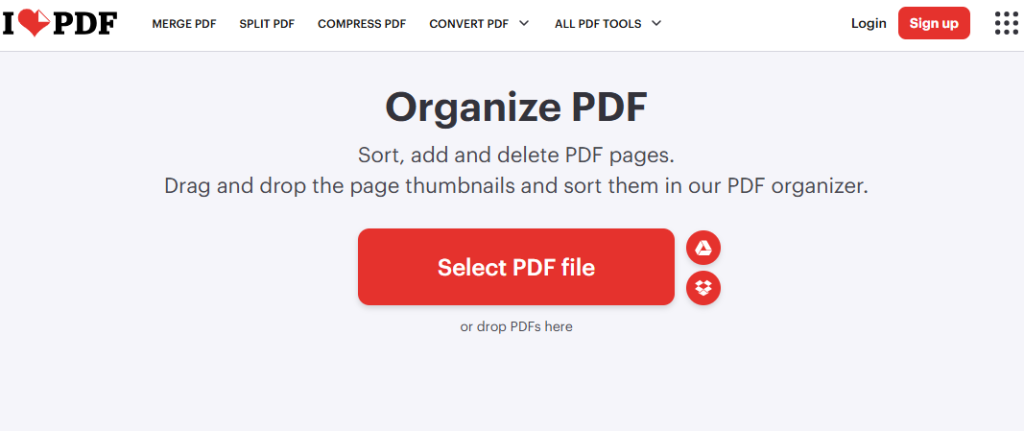
Step 3: Click the plus icon to upload another PDF file containing the pages you need to insert.

Step 4: Click the + icon again to add more pages to the PDF, and you can drag the added file up or down in the right panel.
Step 5: Reorganize the pages and click the Organize button. Then, download the file.
iLovePDF can only insert pages to the PDF at the end or beginning.
Final Words
Finding the best methods to add a page to a PDF document can make a world of difference. If you work with PDFs frequently, why not download a dedicated PDF program on your PC or Mac? For basic page editing and content modifying, JOPDF for Mac and Windows is worth a shot and is 100% free. You can also invest in commercial software for more advanced needs. If you’d rather use a browser-based tool or website to add pages to a PDF without Acrobat, iLovePDF is an option.
FAQs
Table of Contents

Your Best Free PDF Expert in PDF editing, compressing, converting, annotating, protect, organizing, and more.
Free DownloadWindows · macOS

Selena
Staff Editor
“Selena is a staff editor working for JOPDF, passionate and committed to providing how-to and round-up articles. Over 8 years of specialized skills and experience in PDF solutions, hoping to help users ease their lives and solve whatever they encounter. "Work smarter, not just harder!"”
![[2026 Newest] Expert Guide on How to Rotate a PDF in Google Drive](https://b.jopdf.com/wp-content/uploads/2026/01/how-to-rotate-a-pdf-in-google-drive-thumbnail.png)
