![WATCH: Why Can’t I Copy and Paste from a PDF [Answered]](https://b.jopdf.com/wp-content/uploads/2025/11/why-cant-i-copy-and-paste-from-a-pdf-thumbnail.png)
Introduction :
PDF files are designed to preserve the layout, fonts, and content of documents across different devices and operating systems. However, sometimes, we need to edit the PDF as well as copy and paste from the PDF. In that case, a professional PDF editor is necessary. To make you disappointed, you can’t copy text from PDF. When faced with this situation, we find ourselves wondering: Why can’t I copy and paste from a PDF? In the JOPDF post, let’s discuss why can’t I copy text from a PDF and how to fix it.
Why Can’t I Copy and Paste from a PDF?
There are several reasons why you may fail to copy and paste from a PDF. Some have to do with security settings, while others are related to how the file was created. Let’s go through the most common causes one by one.
Cause 1. The PDF Is Secured or Password-Protected
The first prominent cause is that your PDFs are locked to prevent copying, editing, and printing. Some PDF documents, especially business documents, contracts, reports, or financial files, are protected with copying and editing restrictions. Generally, these types of files allow you to read or print the content but block copying or editing.
Once you can’t copy text from PDF files, you can reasonably suspect that the PDF files are password-protected. When a PDF is secured, you can often see a lock icon or a message like “Content copying is not allowed.” In that case, JOPDF can help you unlock a PDF.
Cause 2. The PDF Is an Image-based or Scanned One
Another common cause is that the PDF file is not actually text but an image of text. If you printed a physical paper document and scanned it as a PDF file, you get just a series of pictures, but not an editable text file. In that case, your computer can’t recognize the words until you use OCR technology to make these words editable. That’s why when you try to select text, the entire page highlights like a picture rather than individual words.
Cause 3. The Text Is Embedded in a Graphics Layer
If the PDF creators create PDFs from programs like InDesign, Illustrator, or Photoshop, the text in these files can be embedded in a vector graphic or text box layer. On the surface, the text may appear normal, but it isn’t technically recognized as editable or copyable content.
How do you tell if the text in a PDF file is embedded in a graphic layer? Simply try to zoom in on the PDF file. If the text becomes pixelated, it is likely an image. If the text stays sharp but can’t be selected, it is likely part of a vector layer. In that case, you also need to use a PDF editor, like SwifDoo PDF, to recognize text in PDFs using OCR.
Cause 4. The PDF Viewer Has Limited Functionality
Not all PDF readers or viewers have features for text selection or copying, especially lightweight or browser-based ones like Google Chrome and Safari. In that case, you can try another PDF viewer. If the text copying works in another app, your problem is software-related rather than document-based.
How to Fix “Can’t Copy Text from a PDF”
Why can’t I copy from a PDF? It can be caused by both PDFs and PDF viewers. Now that we have identified the primary cause of the problem, we can explore effective solutions. I have tested various ways in the past few weeks. Finally, I have found 3 workable ways. Now, let’s check them one by one.
Fix 1. Ask the Owner for Permission Password or Use a Safe PDF Unlocker
If your PDF document is protected by passwords or has permission restrictions, you can’t copy from a PDF. The first legal and reliable way is to request a version without restrictions if the PDF was sent to you by someone else. Also, you can ask for the permission password.
If you have legal rights to the file but it’s copy-protected, you can use a reliable PDF unlocker to remove restrictions. Please note: you can’t unlock PDFs without authorization, as it may violate laws or agreements. Here are some reliable tools to remove restrictions.
- JOPDF
- Adobe Acrobat Pro
- SwifDoo PDF
- Smallpdf
- PDFgear
- iLovePDF
Among the above options, I strongly recommend JOPDF, a completely free PDF editor for both Windows and Mac. In addition to unlocking PDFs, JOPDF also allows you to encrypt PDF documents so they cannot be viewed, copied, edited, or printed. Here’s a brief tutorial on how to unlock a PDF with JOPDF.
Step 1. Download, install, and launch this free PDF unlocker.
Step 2. Import the target PDF file by clicking on Open PDF.
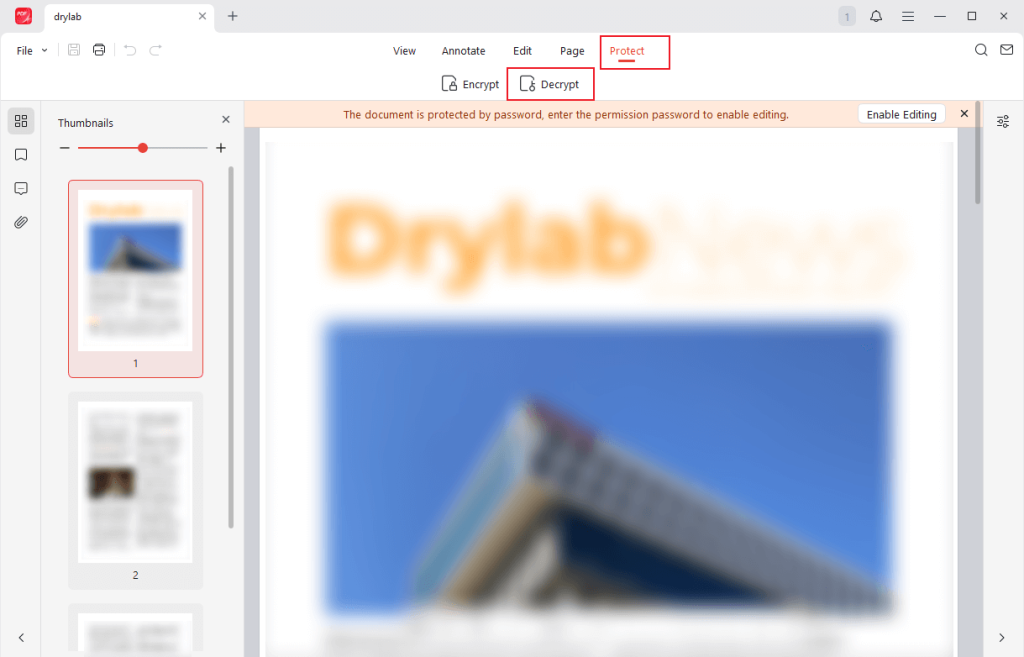
Step 3. Click the Protect tab from the top 5 tabs, then click the Decrypt option.
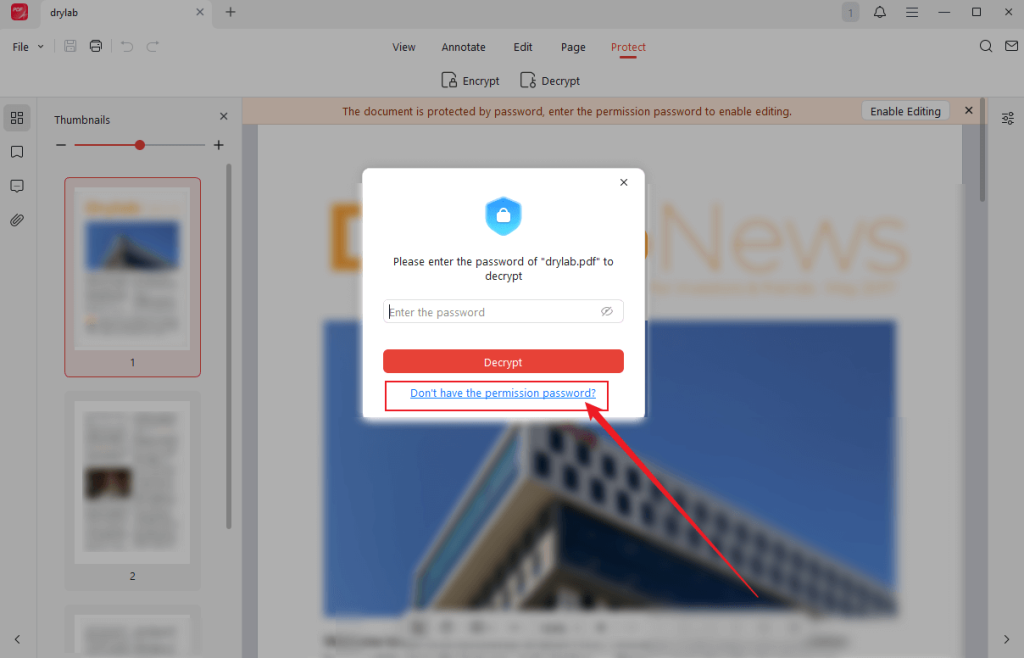
Step 4. Click the “Don’t have the permission password?” option and click the Remove button. Next, choose a folder to save the decrypted PDF file and click Save. Then, the decrypted PDF file will automatically open in JOPDF. Next, you can copy and paste from the PDF.
Fix 2. Use a PDF Editor with the OCR Engine
If the PDF file is created from a scanner or the text is embedded in a graphic layer, the text in the PDF file can’t be recognized. To make a scanned or image-based PDF document editable, you need to use a PDF editor with an OCR engine. Using OCR, it can convert PDFs into editable, searchable PDFs. How many reliable PDF editors with OCR can you choose from? Here, I have rounded up several useful ones.
- SwifDoo PDF
- Adobe Acrobat Pro
- Wondershare PDFelement
- Google Drive
- PDF24
- iLovePDF
Fix 3. Convert the PDF into an Editable Word File
The last workable and easy way to make your PDFs copyable is to convert them into an editable Word file. How can I convert a PDF to Word or other formats like TXT and RTF? A reliable PDF converter is essential. There is a wide range of PDF converters available on the market. Which one should be your choice? To save you time picking a reliable PDF converter, I have selected some excellent online and offline PDF converters for you to choose from.
- SwifDoo PDF
- Adobe Acrobat Pro
- PDF Candy
- FreeConvert
- SwifDoo PDF Online Converter
- Google Drive
- Nitro PDF
Final Thoughts
Why can’t I copy and paste from a PDF? It is usually due to four primary causes, including that the PDF file is secured, the PDF is scanned or image-based, the text is embedded in a graphics layer, or the PDF viewer has limited functionality. To solve the problem of copying from PDFs seamlessly, you can try the solutions mentioned above. I hope this article can be helpful to you.
FAQs
Table of Contents

Your Best Free PDF Expert in PDF editing, compressing, converting, annotating, protect, organizing, and more.
Free DownloadWindows · macOS · Linux

Olivia
“Olivia is an editor at JOPDF, where she writes practical guides and insightful articles on managing PDFs—covering topics like editing, annotating, converting, and organizing files efficiently. Passionate about clear communication and digital productivity, Olivia enjoys spending her free time cooking, watching movies, and hiking to unwind and find inspiration for her writing.”
![Find Ways to Download Manga as PDF for Free [5 Proven Ways]](https://b.jopdf.com/wp-content/uploads/2026/04/download-manga-pdf.png)

![5 Best Free PDF Compressors in 2026 [Desktop and Online]](https://b.jopdf.com/wp-content/uploads/2026/04/best-free-pdf-compressor.png)
