![3 Quick Ways to Rotate an Image in a PDF [Two for Free]](https://b.jopdf.com/wp-content/uploads/2025/12/rotate-image-in-pdf.png)
Summary :
You may have a PDF with lots of images inserted in the wrong orientation. You must be seeking a way to rotate them for a correct visual presentation. You can also do the PDF photo rotation to improve the layout. While there are many PDF tools, most only allow PDF page rotation. It’s a bit challenging to rotate only an object or element. This JOPDF post walks you through 3 quick ways to rotate an image in a PDF to a certain degree.
Rotate an Image in a PDF with JOPDF
If you’d like a free solution, JOPDF is worth knowing about. It is straightforward to rotate a PDF image only or rotate an entire PDF and save it with the tool. JOPDF lets you rotate images to random degrees or to the standard 90, 180, and 270 degrees. You can flip the image in the vertical or horizontal direction. Other PDF image editing operations, such as resizing, cropping, or changing transparency, can also be performed.
If you’re struggling with how to rotate an image in a PDF for free, here’s a simple guide.
Step 1: Download JOPDF for Windows or Mac, and launch it.
Step 2: Select the PDF you intend to rotate an image in, then drop it into the program.
Step 3: Click Edit and confirm the Edit All option is enabled by default.

Step 4: Click the image you want to rotate, and drag the rotation arrow to rotate the image to any angle.
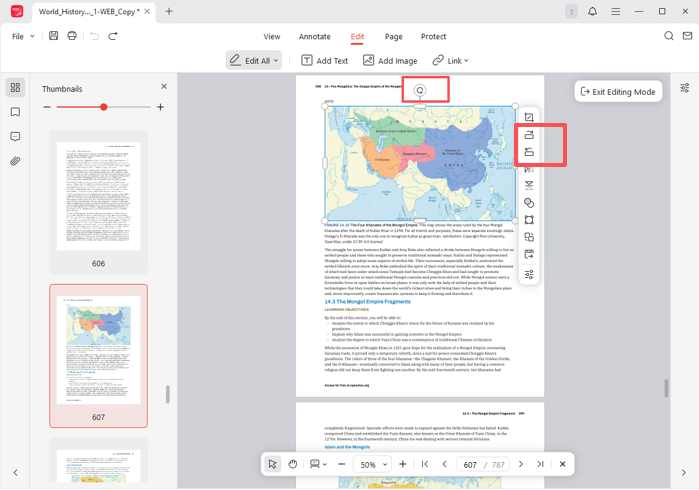
Step 5: You can also click the Rotate Left or Rotate Right option in the vertical bar to rotate the image in the PDF by 90, 180, or 270 degrees.
JOPDF can easily detect images and text in complex PDFs, allowing you to rotate a PDF image and save it without changing anything else. You will edit each element in the PDFs separately while preserving quality and formatting. The software is free and requires no sign-up. Download it to embark on a joyful PDF work.
Rotate a PDF Image with Adobe Acrobat Pro
Adobe Acrobat Pro DC is a PDF editor that can rotate an image in a PDF file and save it, in accordance with industry standards. Though the software costs a high monthly subscription, it’s no doubt a capable and powerful document solution. It allows for editing PDF text, images, pages, and many other objects or content in a breeze. It also offers some advanced features for more difficult PDF manipulation. You can also add images to a PDF.
Here are the steps to do PDF image rotation in Adobe Acrobat Pro.
Step 1: Open the PDF in which you strive to rotate an image, then save it with Acrobat.
Step 2: Click the Edit PDF tool in the side tools pane or click Tools > Edit PDF.
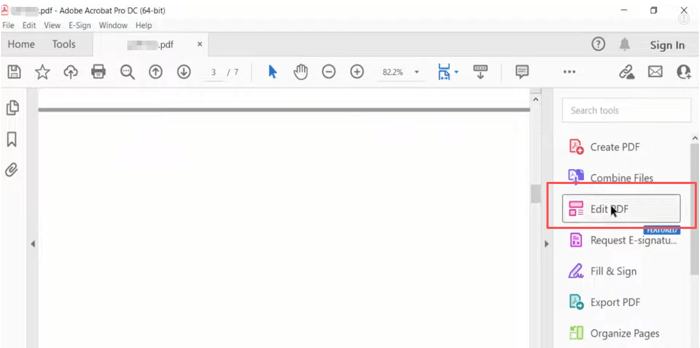
Step 3: Select the image you want to rotate, then tap the rotation icon to rotate it manually.

Step 4: You can click the rotation options in the side panel to rotate images in the PDF clockwise or counterclockwise by 90 degrees every time.
How to Rotate an Image in a PDF with Google Docs
If you’d rather use an online tool or website to rotate PDF images, try the online Google Docs. Along with Google Drive, it lets you convert a PDF into an editable Google Doc. As a result, you can choose the editing options to change content and edit images in your PDF. This method is suitable for files with simple layouts. It will inevitably result in some layout and formatting issues that you need to fix.
Follow the instructions to rotate an image in a PDF online for free using Google Docs.
Step 1: Upload your PDF to Google Drive and open the uploaded PDF.
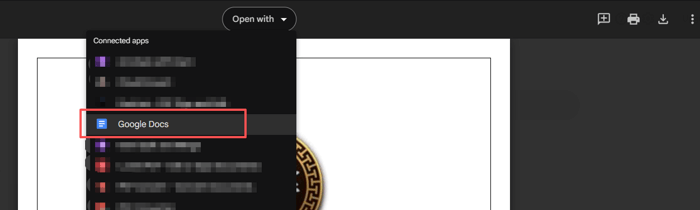
Step 2: Click the Open with button while viewing the PDF, and choose Google Docs to open it.
Step 3: Once the PDF is opened and converted to an editable file, select an image and drag the rotation handle to the angle you like.
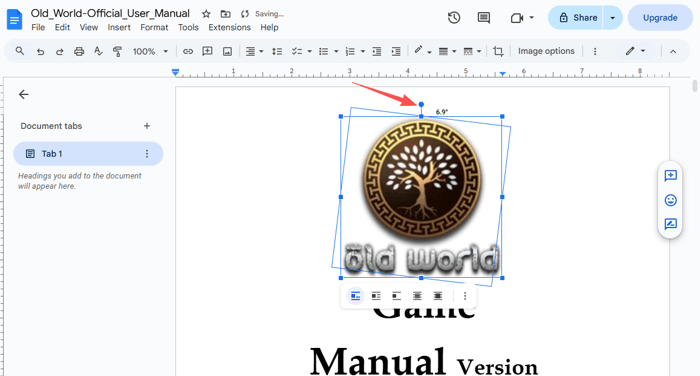
Step 4: Hit the Image options icon (three vertical dots), select Size & rotation, and enter the degree value in the right panel to rotate the image automatically.
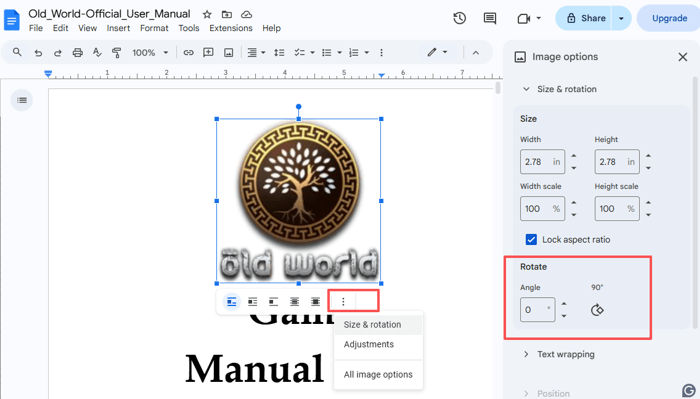
Step 5: When you finish the PDF image rotating online, navigate to File > Download to download the file in PDF or another format.
Conclusion
At last, all the introduced approaches apply to text-based and unprotected PDFs. For free options, JOPDF and Google Docs. Adobe users can consider the paid version of Acrobat.
If your PDF is restricted from editing, you can edit a locked PDF by removing the password. It will be much harder to rotate a picture or image in an Adobe PDF if it’s a scanned copy. In a scanned document, the entire page is an image. So you will need to use the OCR tool for text and image recognition.
FAQs
Table of Contents

Your Best Free PDF Expert in PDF editing, compressing, converting, annotating, protect, organizing, and more.
Free DownloadWindows · macOS · Linux

Selena
Staff Editor
“Selena is a staff editor working for JOPDF, passionate and committed to providing how-to and round-up articles. Over 8 years of specialized skills and experience in PDF solutions, hoping to help users ease their lives and solve whatever they encounter. "Work smarter, not just harder!"”
![Find Ways to Download Manga as PDF for Free [5 Proven Ways]](https://b.jopdf.com/wp-content/uploads/2026/04/download-manga-pdf.png)

![5 Best Free PDF Compressors in 2026 [Desktop and Online]](https://b.jopdf.com/wp-content/uploads/2026/04/best-free-pdf-compressor.png)
