![Replace an Image in a PDF with 3 Efficient Methods [One for Free]](https://b.jopdf.com/wp-content/uploads/2025/11/replace-image-in-pdf.png)
Summary :
When you process PDF files, one of the difficult tasks is to substitute the pictures in the files with others. You need to do that to update product photos or charts to enhance visuals and professionalism. However, which software offers a tool to replace an image in a file? Is there a free method? Read this post by JOPDF to explore the answer. Learn about the 3 recommended ways to replace an image in a PDF without pain.
Replace an Image in a PDF with JOPDF
JOPDF is a valuable, free, dedicated PDF editor that lets you easily modify and delete images in PDFs. It offers a direct image-replacement feature and also lets you add an image to a PDF to cover up the existing one. You can also resize, rotate, crop, flip, and do many more things to the pictures. You can use JOPDF without signing up or any limitations.
Download JOPDF for Windows or Mac, and learn how to replace an image in a PDF.
Step 1: Open the PDF in which you try to replace an image by drag-and-drop.
Step 2: Navigate to the Edit menu > the Edit All button to enable editing mode.
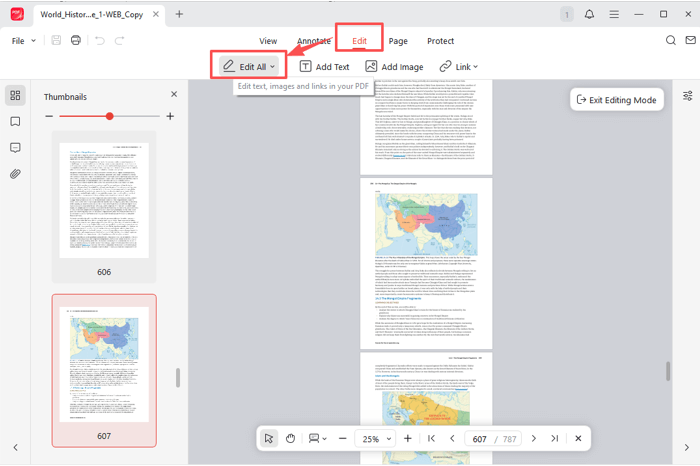
Step 3: Locate the image, then right-click it and select Replace Image.
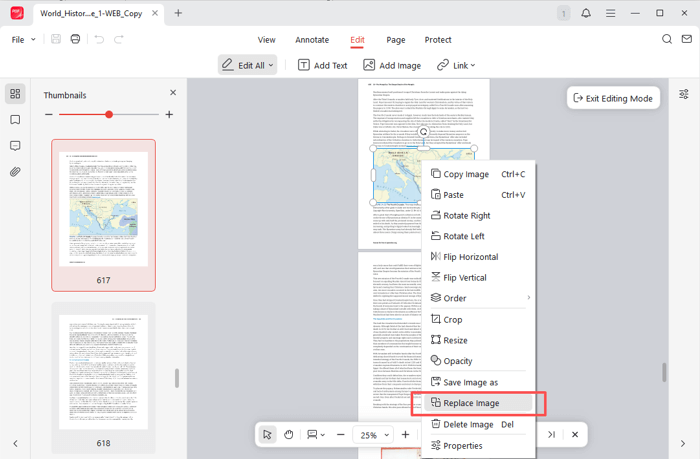
Step 4: Browse your computer to select the image to insert and replace the photo in the PDF.
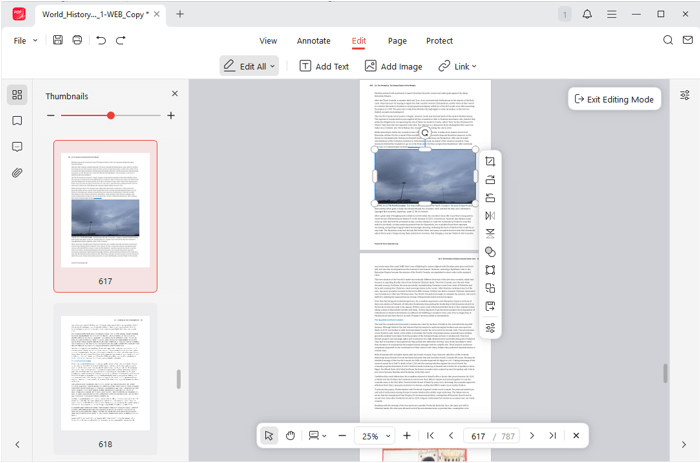
Step 5: The new image is placed at the same position in the same dimension, and you can further edit it with the floating toolbar.
How to Replace Images in a PDF in Adobe Acrobat Pro
Whenever you’re stuck on how to replace an image in a PDF or edit a PDF, Adobe Acrobat Pro can always help. The industry-leading PDF solution contains most of the tools on the market. You can also use the move, flip, insert, and delete options to edit the images in a PDF. The other features let you create, sign, OCR, and secure documents and perform many more actions.
Briefly look at how to replace a picture in a PDF file in Adobe Acrobat Pro.
Step 1: Click the Open option in Adobe to open the PDF where you want to replace an image.
Step 2: Open the tools pane by clicking the top Tools tab or from the side, and choose Edit PDF.
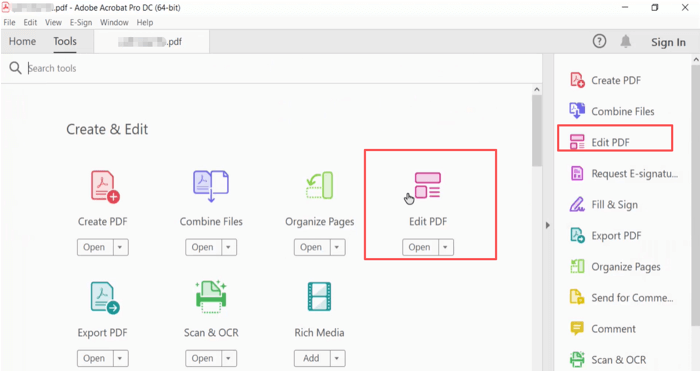
Step 3: Right-click on the image and select Replace Image in the context menu.
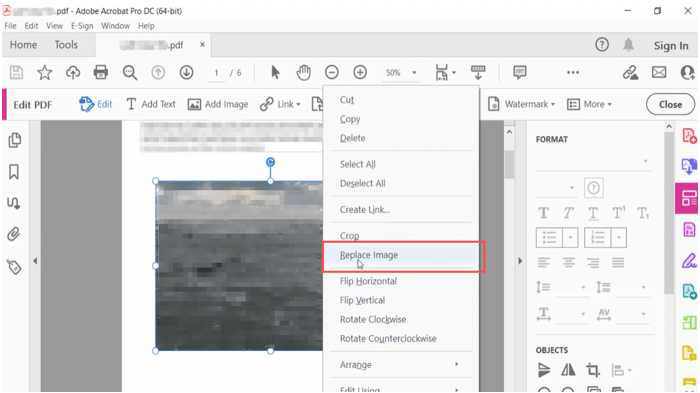
Step 4: Select the image substitute and click Open in the pop-up dialog box.
Step 5: The selected image replaces the old image, and you can adjust it using the editing options in the right panel.
How to Replace an Image in a PDF with Nitro Pro
If you found Acrobat frustrating to use, you can find your way around a program called Nitro Pro. This is another costly but powerful PDF editing application that can convert, merge, compress, and deeply change PDFs. It allows adjusting brightness, color, and resolution, and extracting images from a PDF.
Step 1: Open the PDF you want to replace an image in with Nitro Pro.
Step 2: Click the Edit option at the top left corner, and select the specific image.

Step 3: Under the Format tab, choose the Replace option, and select an image from your device.

Step 4: Import the selected image to replace the photo in the PDF.
Tips for Image Replacing in PDF
There are times when you can’t replace an image in a PDF or even select it. Why is that, and how should you do it? Browse the main cases and figure out which software to pick.
No matter which method you choose, you can only replace the images in a searchable text-based PDF. If your PDF is a scanned document, you’ll need to apply OCR to convert it to editable text in advance. Afterwards, you can select the image to replace it with another. In this case, Adobe Acrobat is the way to go.
If your PDF is protected from editing, you can do nothing to it. You should first unlock the PDF or remove the password protection to enable editing. JOPDF lets you edit a locked PDF with a feature to unsecure the file.
Compare the three methods above, JOPDF is the choice with no cost and no burden. It meets all your basic daily PDF viewing and annotating needs, and also offers advanced editing functionality for free. For enterprises or individuals who already have Adobe Acrobat or can afford an all-around program, turn to the other two methods.
Conclusion
Replacing an image in a PDF is useful when you need to fix an image issue or keep your document up to date. If you have not found your ideal workaround, look no further than this post. Whether you are budget-tight individuals or businesses looking for subscription software, always give the free JOPDF a try.
FAQs
Table of Contents

Your Best Free PDF Expert in PDF editing, compressing, converting, annotating, protect, organizing, and more.
Free DownloadWindows · macOS · Linux

Selena
Staff Editor
“Selena is a staff editor working for JOPDF, passionate and committed to providing how-to and round-up articles. Over 8 years of specialized skills and experience in PDF solutions, hoping to help users ease their lives and solve whatever they encounter. "Work smarter, not just harder!"”
![Find Ways to Download Manga as PDF for Free [5 Proven Ways]](https://b.jopdf.com/wp-content/uploads/2026/04/download-manga-pdf.png)

![5 Best Free PDF Compressors in 2026 [Desktop and Online]](https://b.jopdf.com/wp-content/uploads/2026/04/best-free-pdf-compressor.png)
