Introduction :
Watermarks—those faint texts or logos stamped across a PDF’s background—are meant for branding or to mark a document as a “Draft” or “Confidential.” However, they often obscure critical information, ruin the professional look of a file, or get in the way when you need to use the document for a legitimate purpose. In this JOPDF guide, I’ll walk you through 5 tested methods on how to remove a watermark from a PDF.
What You Need to Know Before Removing a Watermark
Before we dive into the steps, it’s important to understand a few key things about watermarks in PDFs.
First, not all watermarks are created equal. Some are separate, editable objects that can be easily selected and deleted. Others are flattened, meaning they have been merged into the PDF as a permanent part of the page, much like text printed on paper. Flattened watermarks are significantly harder—and often impossible—to remove with simple tools.
Second, there’s an ethical and legal consideration. Removing a watermark may violate the copyright or terms of service of the document’s owner. Always ensure you only remove watermarks from PDFs that you have created, own the copyright to, or have explicit permission from the copyright holder to edit. If in doubt, check the document’s license or contact the owner.
Quick Comparison – Best PDF Watermark Removers
To help you choose the right PDF watermark remover for your needs, here, I introduce you to a comparison of the best methods available in this article.
| Method | Cost | Platform | Best for |
| Adobe Acrobat Pro | Paid (Subscription) | Win/Mac | One-click removal with a professional tool |
| JOPDF | Free | Win/Mac/Linux | A completely free, private offline editor without feature limits |
| Online Tools (e.g., Aspose) | Free | Web Browser | Quick removal with no software installation |
| Microsoft Word | Free (with Office) | Win/Mac | Removing watermarks you can select as an object |
| SwifDoo PDF | Free Trial / Paid | Windows | Powerful batch removal with an intuitive interface |
Method 1: Remove Watermark from PDF for Free in JOPDF
For a powerful, free, and private solution that doesn’t require an internet connection, JOPDF is an excellent choice, which is a fully-featured desktop PDF editor for Windows, macOS, and Linux. As the best free PDF watermark remover, you can use it to remove watermarks from PDF with a few clicks. Additionally, it supports adding watermarks to a PDF. Here, let’s learn how to remove a watermark from a PDF with JOPDF.
Step 1. Click the convenient download button to download and install JOPDF on your Windows or Mac PC. Additionally, you can download JOPDF for Linux from the official website.
Step 2. Launch this free PDF watermark remover, click Edit PDF, and import your watermarked PDF file.
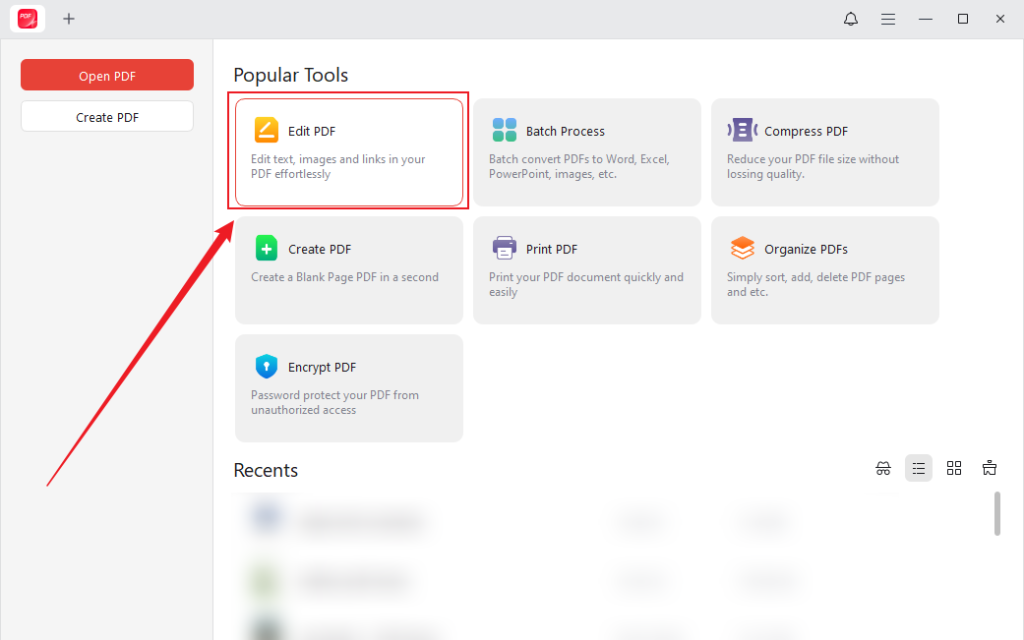
Step 3. Under the Edit tab, click Watermark and select the Delete Watermark option from the list.
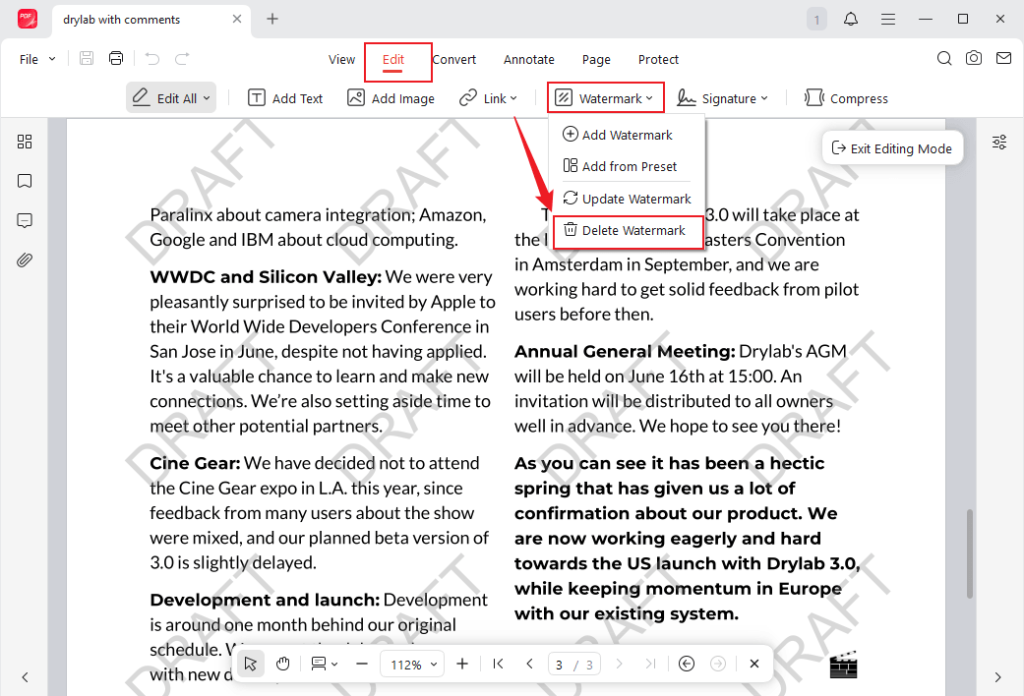
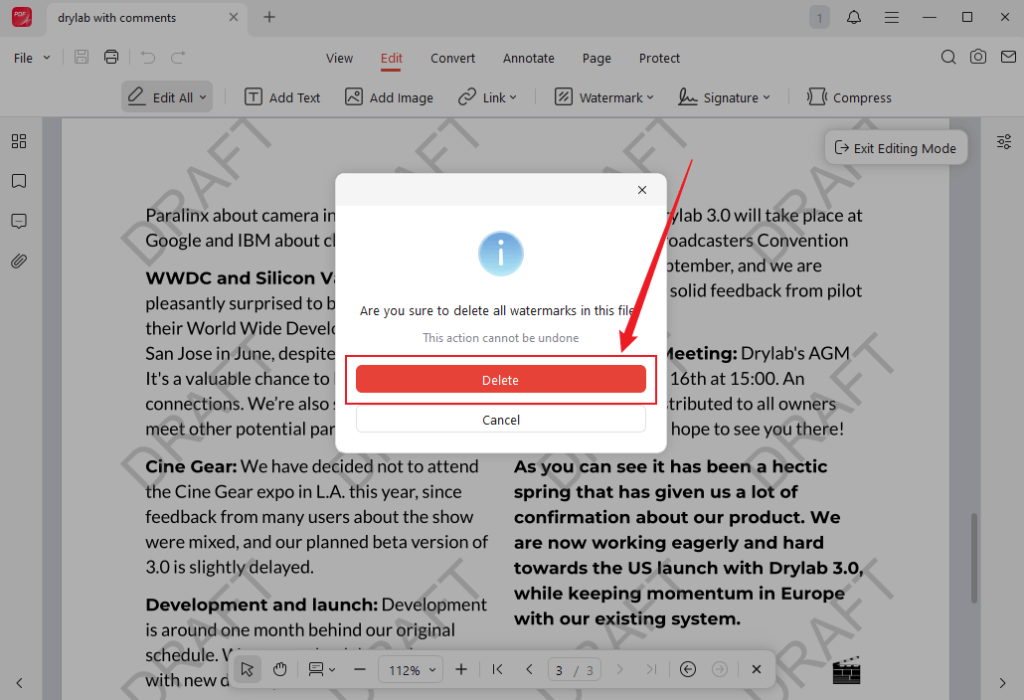
Next, a notice window will pop up. Click the Delete button to confirm the operation. Then, the watermarks can be removed.
Step 4. Finally, click the Save icon to save the PDF without watermarks. Or, you can use JOPDF to view, edit, and annotate the PDF as needed.
Beyond serving as a PDF watermark remover, JOPDF offers the following features.
- It is one of the best free PDF editors, offering a range of features.
- Create and add signatures to a PDF efficiently.
- Offer a variety of annotation tools for PDFs.
- Support converting PDFs to and from various formats, such as DOCX, JPG, PNG, HEIC, Excel, etc.
- Password-protect PDF files.
Method 2: Remove Watermark from PDF with Adobe Acrobat Pro
If you have a subscription to Adobe Acrobat Pro, this is by far the most professional method. Or, you can also try Adobe Acrobat Pro if you have a sufficient budget and need to handle PDFs frequently. It enables you to recognize and remove standard watermarks in just a couple of clicks. However, it has a steep learning curve for new users. Here, I prepare a step-by-step guide on how to remove watermarks from a PDF in Adobe Acrobat Pro.
Step 1. Locate the watermarked PDF, right-click it, click Open With, and select Adobe Acrobat.
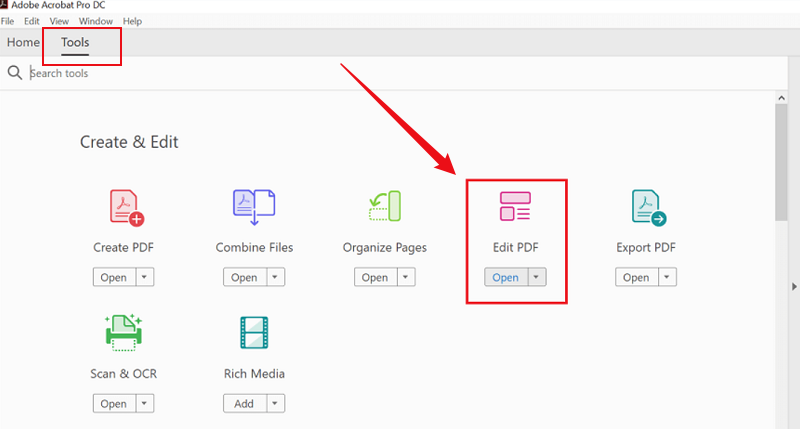
Step 2. Click the Tools menu and select the Edit PDF option.
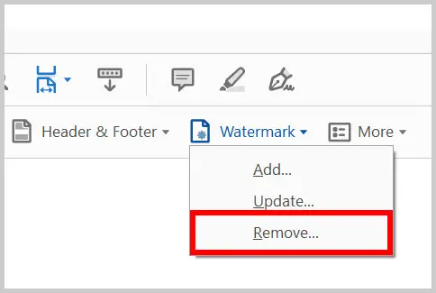
Step 3. Next, click the Watermark option and click Remove. Then, confirm the removal.
Step 4. Finally, save the PDF file with no watermark.
Method 3. How to Remove Watermark from a PDF with Microsoft Word
You might not realize it, but if you already have Microsoft Word installed, you have a powerful PDF editor at your fingertips. This method works best for text-based watermarks, though it can sometimes handle image watermarks as well. Additionally, Microsoft Word enables you to convert PDF to and from Word effectively. Below are step-by-step instructions to remove watermark from PDF in Microsoft Word.
Step 1. Launch Microsoft Word, click File, and click Open to select your PDF file.
Step 2. Then, Microsoft Word will pop up a message saying it will convert the PDF to an editable format. You need to click OK to confirm the operation.
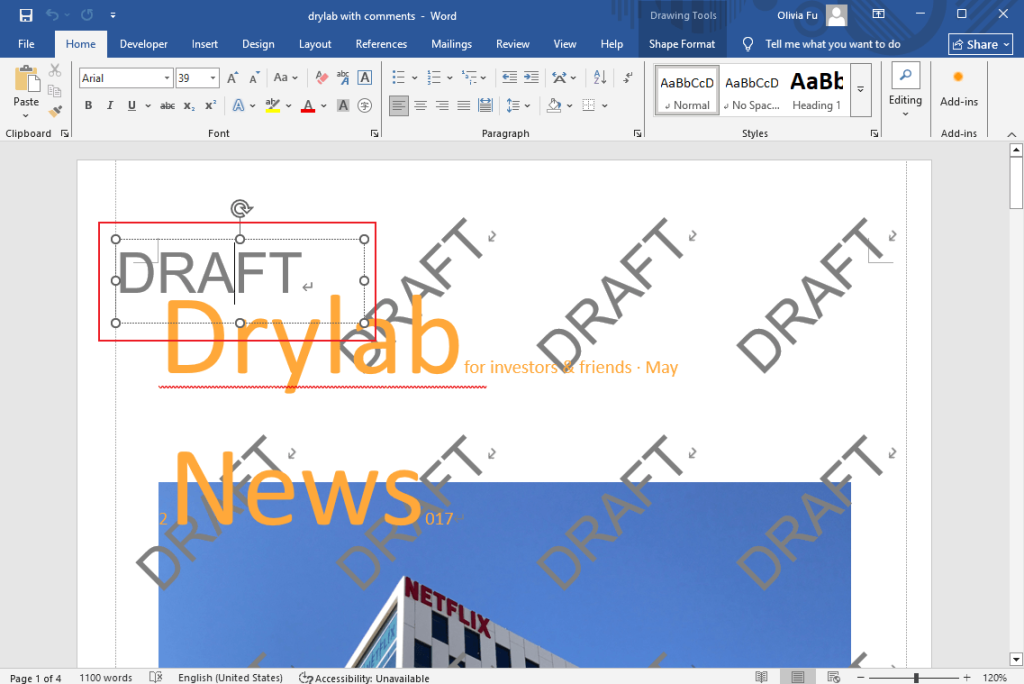
Step 3. When the file is open, try to click on the watermark. If it’s a text watermark, it will usually become selectable. Press the Delete key on the keyboard to remove the watermark from the PDF.
Step 4. Later, click File, select Save As, and choose the final saving folder. Name the file, select PDF from the file type dropdown, and click Save.
While this method is convenient, complex PDF layouts with multiple columns, images, or unusual fonts may shift slightly during the conversion process. Always review the document in Word before saving it back to PDF.
If you haven’t installed Microsoft Word and need a free PDF watermark remover, JOPDF is still the best choice.
Method 4. Remove PDF Watermark in SwifDoo PDF
SwifDoo PDF is a comprehensive PDF editor praised by users for its lightweight design, user-friendly interface, and rich feature set. While it is a paid application for long-term use, it offers a free trial that allows you to test its powerful capabilities, including one-click watermark removal and advanced features like OCR for scanned documents. You can use it to edit scanned PDFs with ease. Below is how to remove a watermark with SwifDoo PDF.
Step 1. Download SwifDoo PDF from its official website and install it on your PC.
Step 2. Click Open to locate and select the target PDF file from your computer. Then click Open to import it.
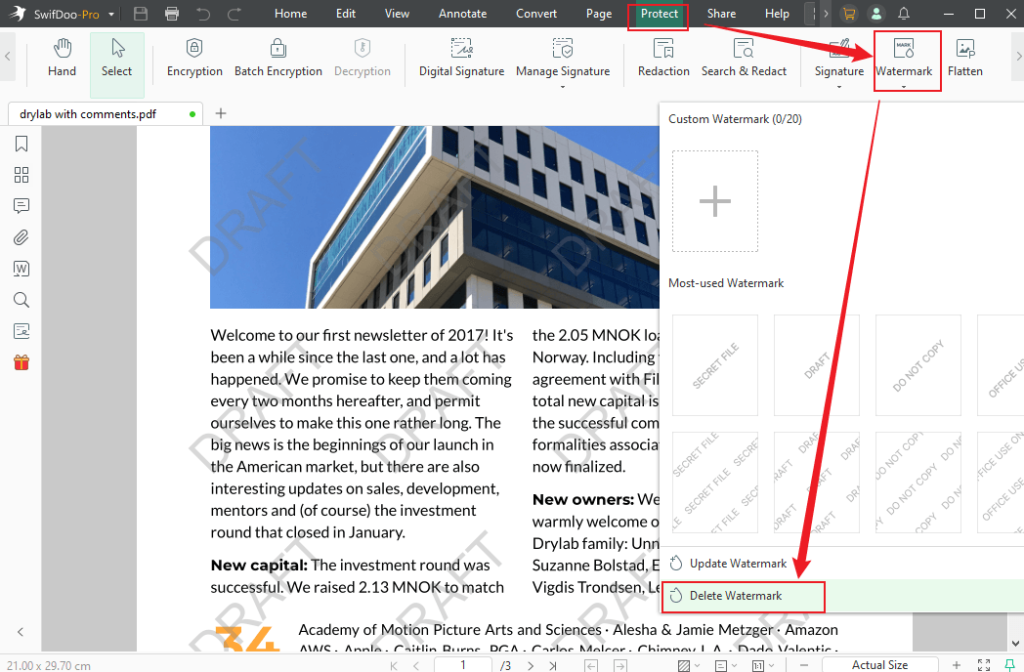
Step 3. Click the Protect option from the top menu, hit Watermark, and select the Delete Watermark option.
Step 4. Finally, save the modified PDF file.
All in all, SwifDoo PDF is a good PDF watermark remover. Meanwhile, it is regarded as the cost-effective alternative to Adobe Acrobat.
Method 5. How to Remove a Watermark from a PDF Online
If you prefer not to install any software on your computer, online PDF editors offer a quick and convenient alternative. They work entirely in your web browser and are ideal for a one-off job. In the past few days, I have tested and found the following reliable online PDF watermark remover for you to choose from.
- pdfFiller
- LightPDF
- Smallpdf
- Aspose
- Canva
Most online PDF editors have an intuitive and user-friendly interface. Even if you are a beginner, you can master how to use it. Meanwhile, their operations are similar. Here, I take Aspose as an example to show you how to remove a watermark from a PDF online with pdfFiller.
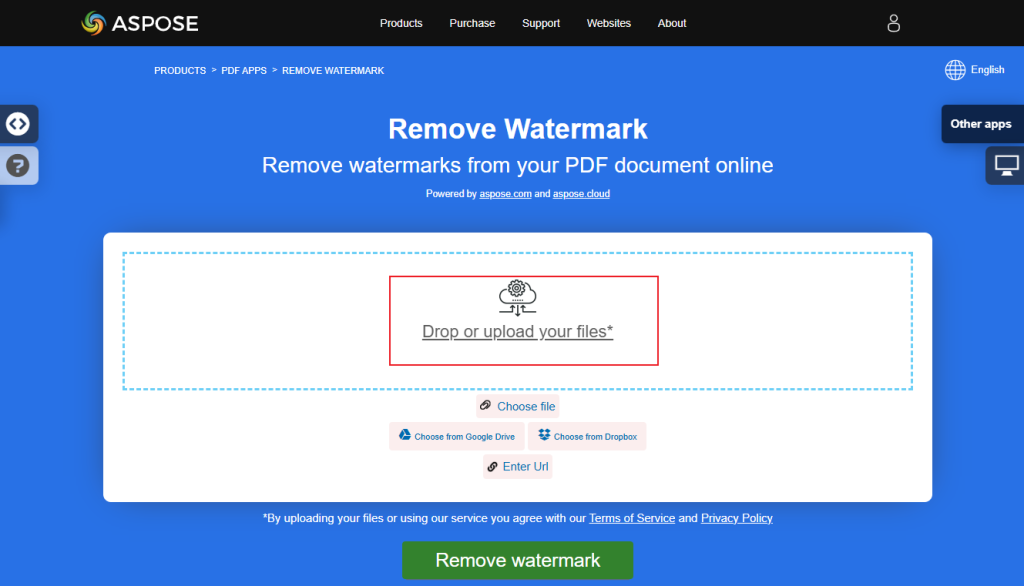
Step 1. Open your browser and navigate to Aspose’s Watermark Remover website.
Step 2. Directly drag and drop your PDF file into Aspose. In addition to uploading from your device, you can also upload from Google Drive or Dropbox. Next, click the Remove watermark button.
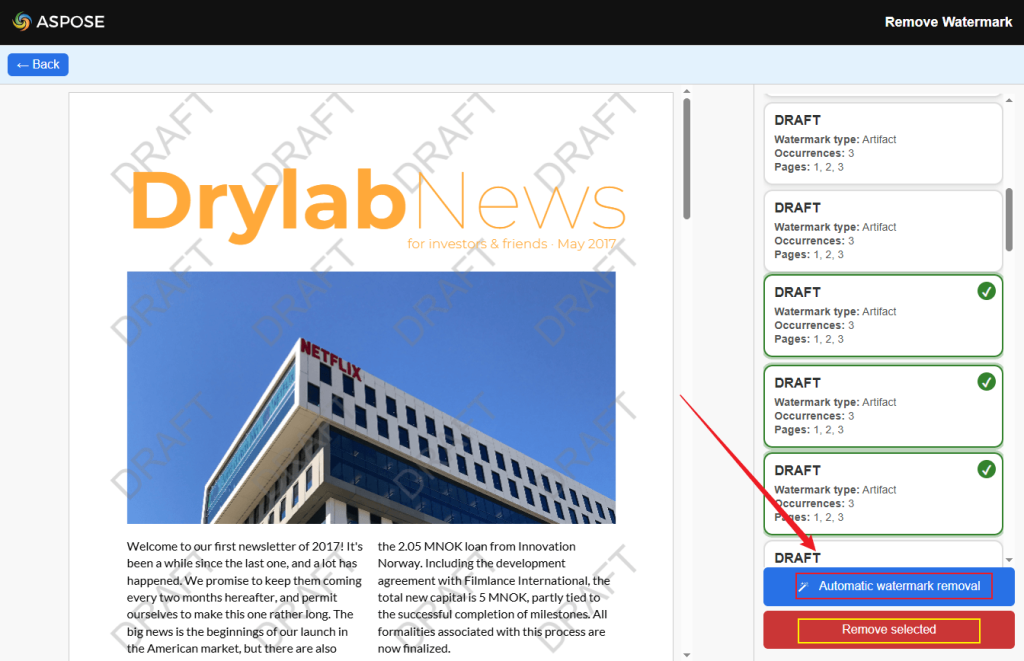
Step 3. Then, Aspose will recognize the watermark and show the recognized watermarks on the right side. You can click the Automatic watermark removal button or choose the Remove selected button to remove watermarks manually.
Step 4. Finally, click the Download clean PDF button.
To Wrap Things Up
Removing a watermark from a PDF can be an easy task as long as you get the right PDF watermark remover. For most of us, JOPDF offers the perfect balance of being completely free, private, and powerful. Whether you need to add or remove PDF watermarks for free, JOPDF is trustworthy! Additionally, you can try other watermark removers mentioned above. Hopefully, this article can be helpful to you.
FAQs
Table of Contents

Your Best Free PDF Expert in PDF editing, compressing, converting, annotating, protect, organizing, and more.
Free DownloadWindows · macOS · Linux

Olivia
“Olivia is an editor at JOPDF, where she writes practical guides and insightful articles on managing PDFs—covering topics like editing, annotating, converting, and organizing files efficiently. Passionate about clear communication and digital productivity, Olivia enjoys spending her free time cooking, watching movies, and hiking to unwind and find inspiration for her writing.”
![[Top 4 Ways] How to Compress a PDF Without Adobe in 2026](https://b.jopdf.com/wp-content/uploads/2026/04/how-to-compress-a-pdf-without-adobe.png)
![How to Compress a PDF File on Windows [Free & Easy Ways]](https://b.jopdf.com/wp-content/uploads/2026/04/how-to-compress-a-pdf-file-on-windows.png)
