Introduction
Extensive PDF files can be cumbersome and slow to open, making compression crucial. Discover 3 handy ways on how to reduce PDF file size without losing quality and make your PDFs faster to share and store!
Best Way to Reduce PDF File Size Without Losing Quality [100% Free]
👍 Best For: Students, professionals, and businesses looking for fast, safe, and free PDF compression.
JOPDF is one of the most user-friendly and best ways to reduce PDF file size without losing quality for free.
With its simple interface, JOPDF lets you manage many files at once, saving time and effort and simplifying PDF tasks. Its smart, easy-to-use features let anyone effortlessly manage work reports, academic papers, or personal documents.
Using JOPDF’s compression, you can reduce PDFs while preserving both clarity and proper formatting. Users can upload multiple files at once to batch-compress PDFs, saving time and improving convenience.
Check out how to compress a PDF without losing quality using JOPDF.
Step 1. Download and install JOPDF. Launch the program on your Windows, Mac, or Linux computer.
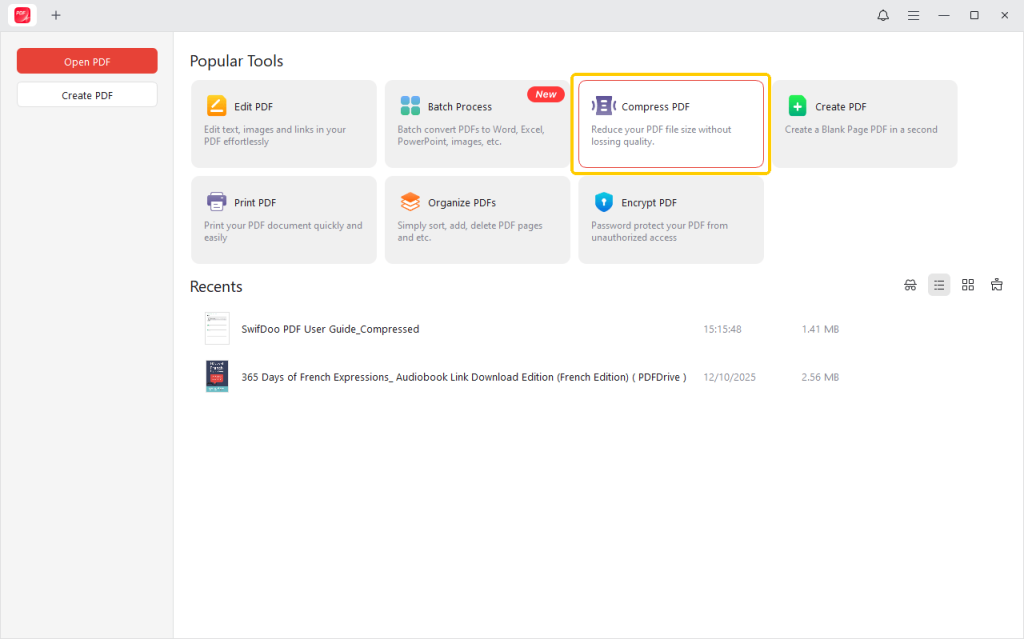
Step 2. Navigate to the Compress PDF tab under the Popular Tools section.
Alternatively, open your PDF in the software and go to Edit > Compress.
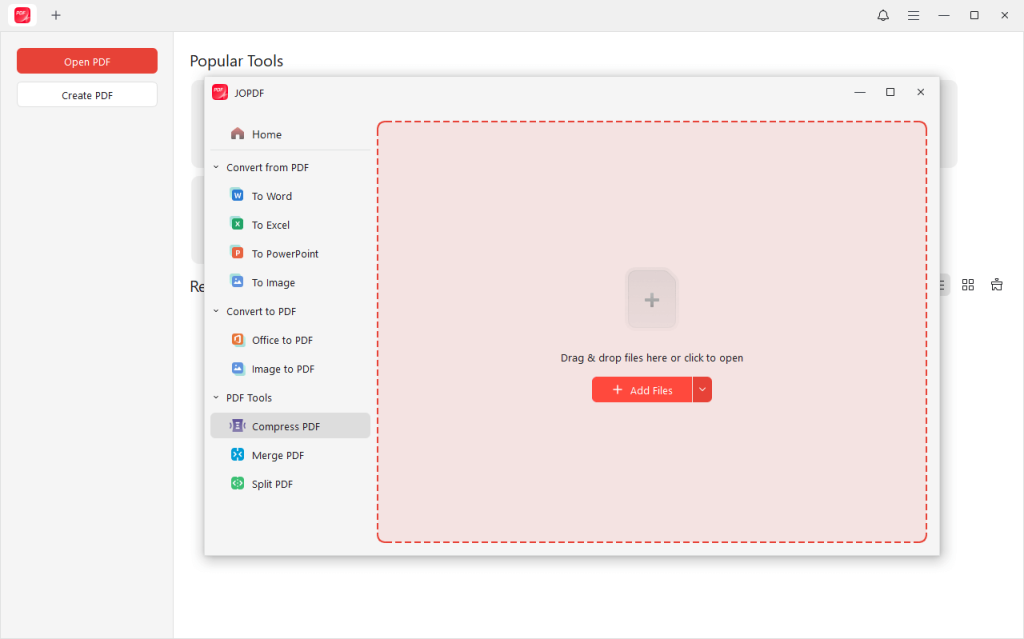
Step 3. Drag and drop the PDFs you wish to compress into the list to add files. Or, press the + Add Files button at the top to browse and open them.
Step 4. Pick one from three compression levels.
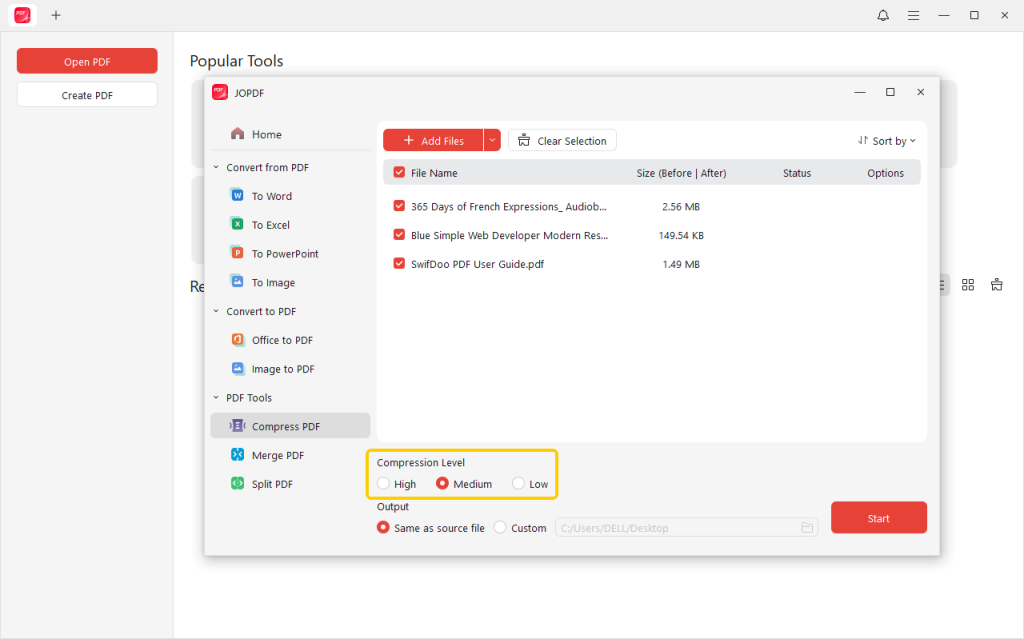
- High: Maximum size reduction, though at the expense of quality.
- Medium: An optimal balance between file size and quality (highly recommended).
- Low: Minimal compression, but has the highest quality.
After selecting your preferred level, set the output path, and click Start. In moments, you’ll get your compressed PDF.
JOPDF makes it easy to compress a PDF in seconds. Beyond compression, it offers a range of free PDF tools to help you edit, annotate, merge, protect, print, sign, and organize PDF files.
Give JOPDF a try today—download now and enjoy an easier, quicker way to handle all your PDFs!
Reduce PDF File Size Using Adobe Acrobat
👍 Best For: Students and professionals seeking dependable, high-quality PDF compression and document management tools.
Adobe Acrobat is another powerful PDF tool to compress PDF file size without losing quality. Besides being trusted worldwide for editing, creating, and managing PDF files, you can also compress PDF in Adobe Acrobat efficiently.
Whether handling extensive reports, presentations, or eBooks, Acrobat delivers fast, consistent compression while maintaining clarity, easing both storage and sharing.
Find out how to reduce PDF file size without losing quality using Adobe Acrobat in a few clicks.
Step 1. Download and install Adobe Acrobat software on your device. Launch the program to proceed.
Step 2. Navigate to the File menu in the top-left corner. Once clicked, tap Open… and choose the PDF document you want to compress.
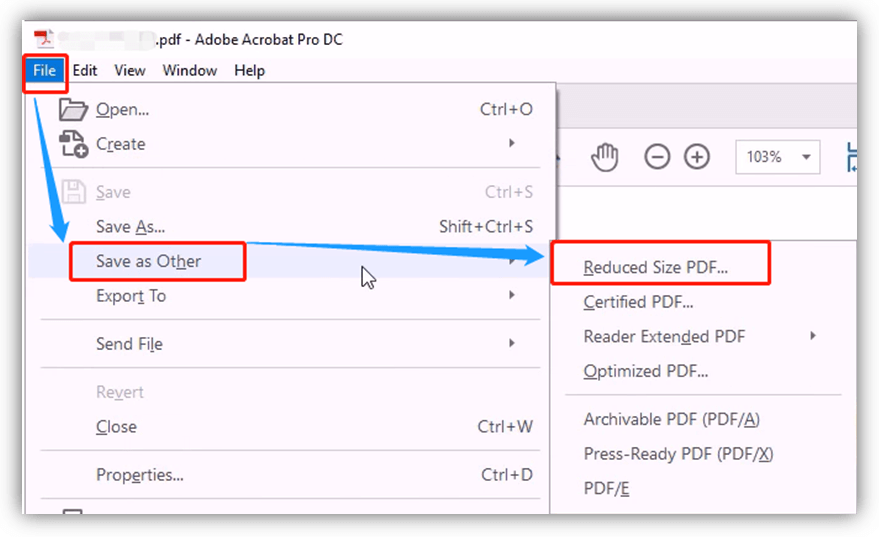
Step 3. After opening your PDF, click the File menu again and select Save as Other. Then, choose Reduced File Size… and click OK.
Step 4. Rename your compressed PDF file in the File name section. Then, hit Save.
Adobe Acrobat reduces your file size quickly in just moments.
Reduce PDF File Size with Online Tools
👍 Best For: Users who want quick, free, and hassle-free PDF compression without installing software.
Several tools are available that help users reduce PDF file size without losing quality online for free. Tools like Smallpdf provide easy, browser-based compression while keeping text and images clear.
In just a few taps, users can add PDFs, compress them smartly, and download optimized files instantly. These tools are ideal for quick sharing, emailing, and saving storage space with minimal effort.
Here are the steps to reduce PDF file size without losing quality online with Smallpdf in a few clicks.
Step 1. Launch Smallpdf using your web browser. Click the Compress tool in the top menu bar.
Step 2. Select Choose Files on the main interface to add your large PDF file. PDFs can also be added by dropping them straight into the interface if required.
Step 3. Once the PDF file is added, you must select the compression level for your document:
- Basic: Medium file size with standard resolution.
- Strong: Small file size with lower resolution.
Once you have made your choice, select Compress.
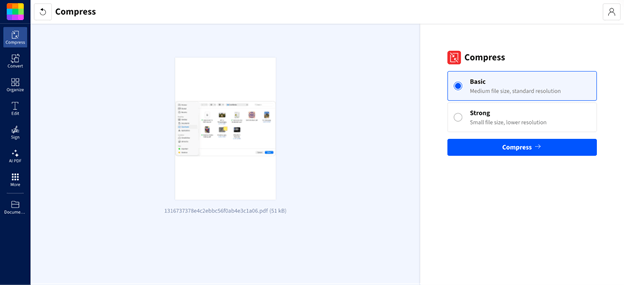
Step 4. According to your chosen level, Smallpdf will automatically process and compress your document. Tap Download to save the compressed PDF locally on your device.
Key Tips for Quality Preservation
Now that you know the best ways to reduce PDF file size on Windows, Mac, and online, it’s crucial to preserve document clarity.
Compression should minimize file size without affecting readability, images, or formatting. Following correct methods keeps your PDFs clear, professional, and usable after compression.
Here are a few practical ways to protect the quality of your PDFs.
- Select lossless or high-quality compression whenever available.
- Avoid compressing the same PDF multiple times.
- Keep image resolution balanced (not too low).
- Remove unneeded elements, including hidden metadata and fonts you don’t use.
- Use dependable software that keeps the original formatting and layout intact.
- Preview the compressed PDF before sharing or uploading.
These steps make it possible to reduce file size without affecting quality.
Final Wrap Up
Cutting PDF size doesn’t have to reduce clarity or professionalism. Using the proper techniques and tools, you can efficiently reduce PDF file size without losing quality for free on Windows, Mac, or online.
Choose reliable solutions, apply smart compression, and enjoy faster sharing, easier storage, and high-quality PDFs every time. Start optimizing your PDFs today and make document management simpler and more efficient.
FAQs
Table of Contents

Your Best Free PDF Expert in PDF editing, compressing, converting, annotating, protect, organizing, and more.
Free DownloadWindows · macOS · Linux

Queena
Editor
“As a staff editor for JOPDF, Queena excels at guiding users to the optimal tools and solutions. When she's not analyzing the latest PDF solutions, she enjoys spending her free time playing with her four cats.”