Introduction :
Handling PDFs effectively often requires saving just the pages you need instead of the whole document. Learning how to save one page from a PDF helps daily users manage documents efficiently. Whether on Windows, Mac, iPhone, or Android, this technique helps manage file size, secure important content, and streamline your workflow. Discover the easiest ways to save certain pages of a PDF in just a few steps.
How to Save One Page of a PDF on Windows
Learning how to save one page of a PDF on Windows 10/11 is straightforward with the various effective methods at your disposal. In the following section, we’ll explain this process in detail and walk you through three easy ways. This includes desktop software and online tools to get the job done efficiently.
Method 1. Save One Page of a PDF for Free in JOPDF
JOPDF is a free, user-friendly tool that lets you extract pages from a PDF. Whether you need to save only one page or certain pages of a PDF,JOPDF does the job effortlessly. Available for both Windows and Mac, it makes page selection and saving quick and straightforward, even for beginners. In addition to page extraction, JOPDF offers PDF merging, splitting, and basic editing features.
Main Features of JOPDF:
- Effortlessly extract images from a PDF for use in other documents or projects.
- Rearrange PDF pages to customize the order of your document quickly.
- Insert or remove PDF pages to update or trim your PDFs effortlessly.
- Quickly print PDFs without margins for clean, full-page printing results.
- Easily split and merge PDFs for better document management.
- Easy-to-use design suitable for users of all skill levels.
Learn how to save only one page from a PDF in JOPDF.
Step 1. Download and install this free PDF editor on a Windows or Mac computer to get started.
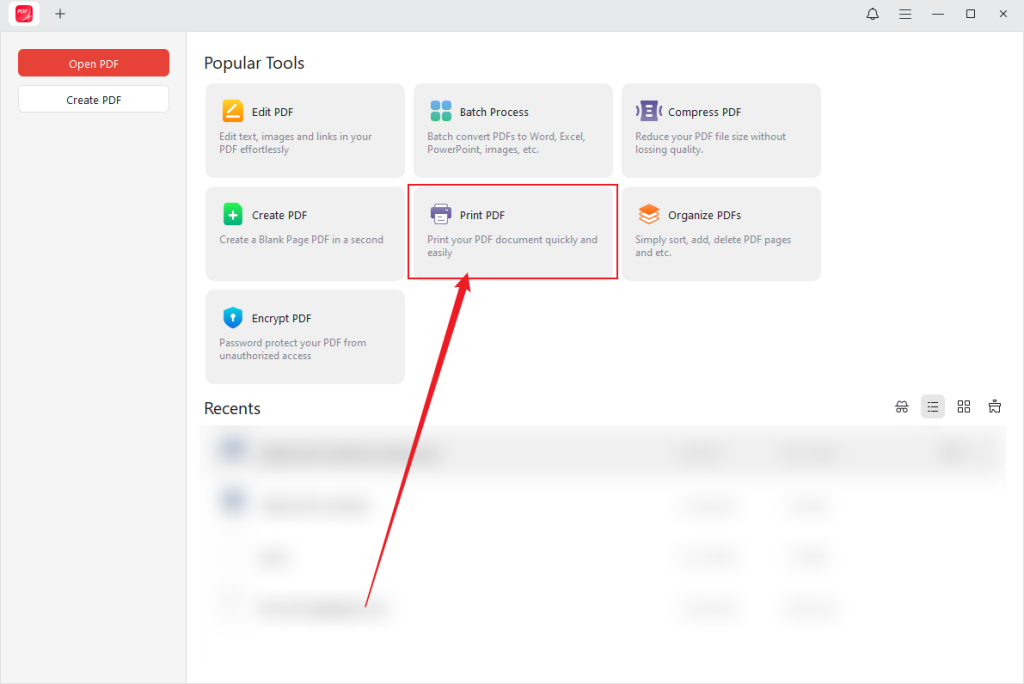
Step 2. Then launch the program and click the Print PDF option on the main screen. Locate and select the target PDF. Then tap Open to import your PDF into the program.
Step 3. In the Print window that opens, select Microsoft Print to PDF as the Printer. Then, in the Pages to Print section, choose Current Page. Additionally, you can adjust other print parameters, such as Orientation and Fit (under Page Sizing & Handling), among others.
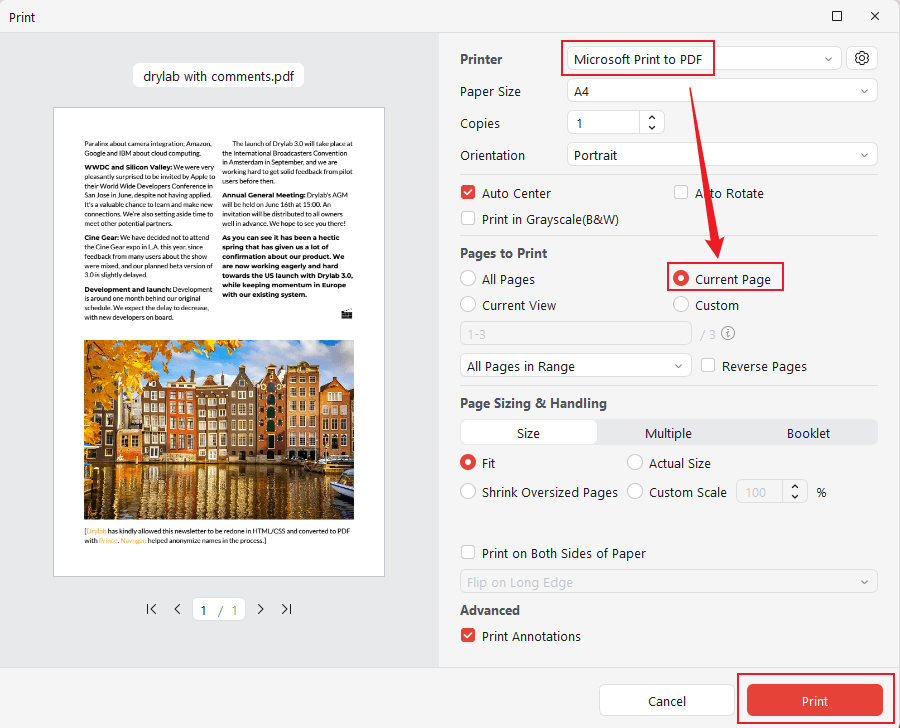
Step 4. Once you are satisfied with the PDF, tap the Print button to save a single page.
Tips
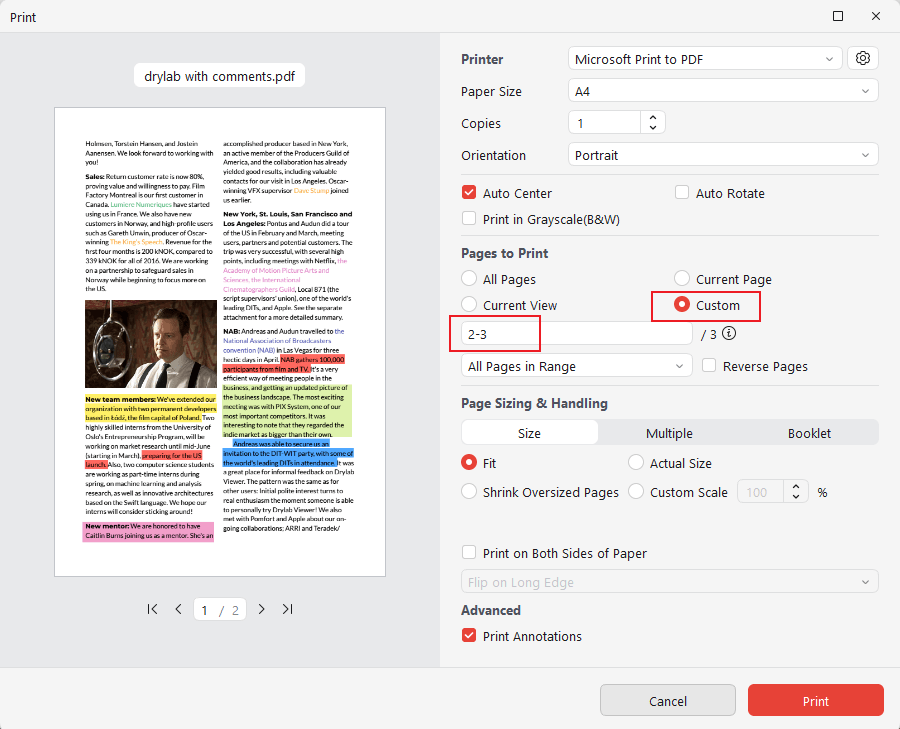
To save certain pages in JOPDF, follow the directions above and open the Print window. Then, select Custom under Pages to Print and state the pages you want to print in the text field. Configure the settings and adjust the necessary print parameters. After that, click Print to save only the pages you selected.
Method 2. Extract a Single Page from a PDF Online Using Smallpdf
Next up is Smallpdf, a trusted web-based tool that makes it simple to extract PDF pages directly from your browser. The tool lets you upload a PDF, extract one or more specific pages, and download the result effortlessly. In addition to page extraction, Smallpdf also supports PDF compression, conversion, merging, and editing.
Find out how to extract a single page from a PDF online using Smallpdf.
Step 1. Open Smallpdf on your web browser. Scroll down and find Extract PDF Pages. Click to open it.
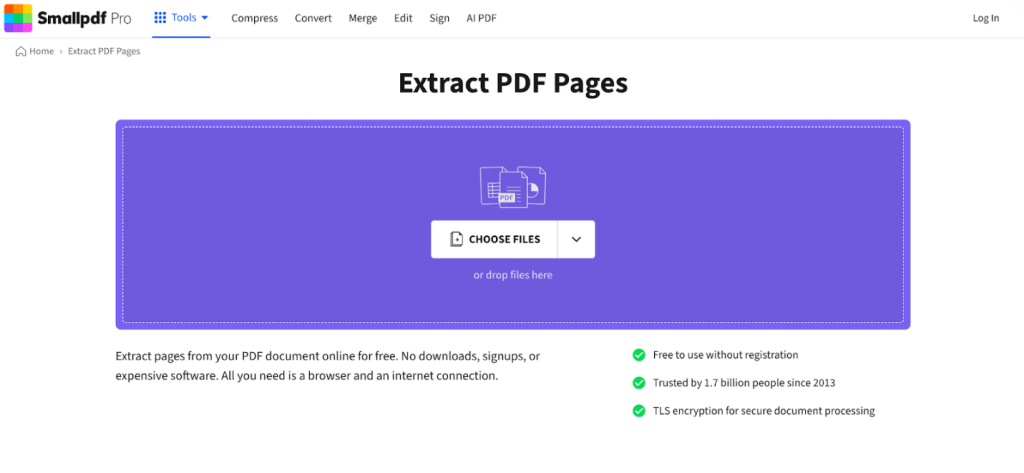
Step 2. Tap Choose Files. And import the PDF you want to extract a single page from.
Step 3. After the upload is complete, all PDF pages are shown on the screen. Select the page you want to extract.
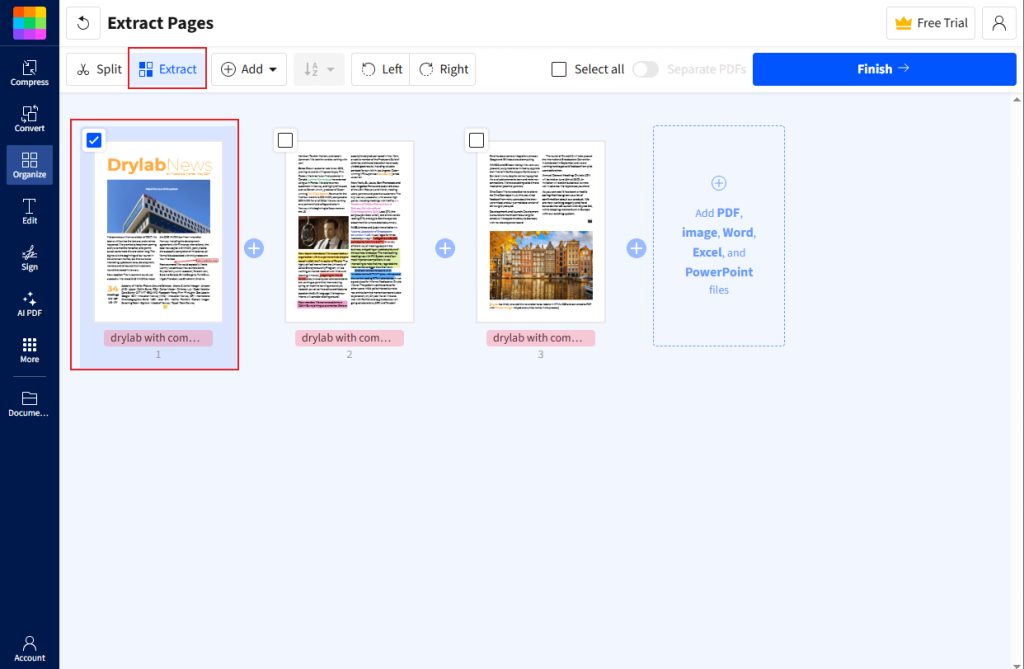
Step 4. Once done, click Finish in the upper-right corner. Smallpdf will process your request instantly.
After that, click the Download icon to save the extracted page to your local storage.
Method 3. Save Only One Page of a PDF in SwifDoo PDF
SwifDoo PDF provides a simple way to save one page of a PDF while keeping the original formatting intact. Positioned as a cost-effective alternative to Adobe Acrobat, it prioritizes fast and precise page extraction while preserving the original layout. SwifDoo PDF works best for Windows users needing efficient, offline PDF processing. In addition to extracting pages, the software lets you edit, annotate, convert, and compress PDFs.
Let’s learn how to save a single page from a PDF in SwifDoo PDF.
Step 1. Obtain SwifDoo PDF from the official website or Microsoft App Store and complete the setup on your Windows machine.
Step 2. Import your desired PDF file into the program. Then select the Page menu at the top.
Click Extract in the secondary menu to open the Extract Pages dialog box.
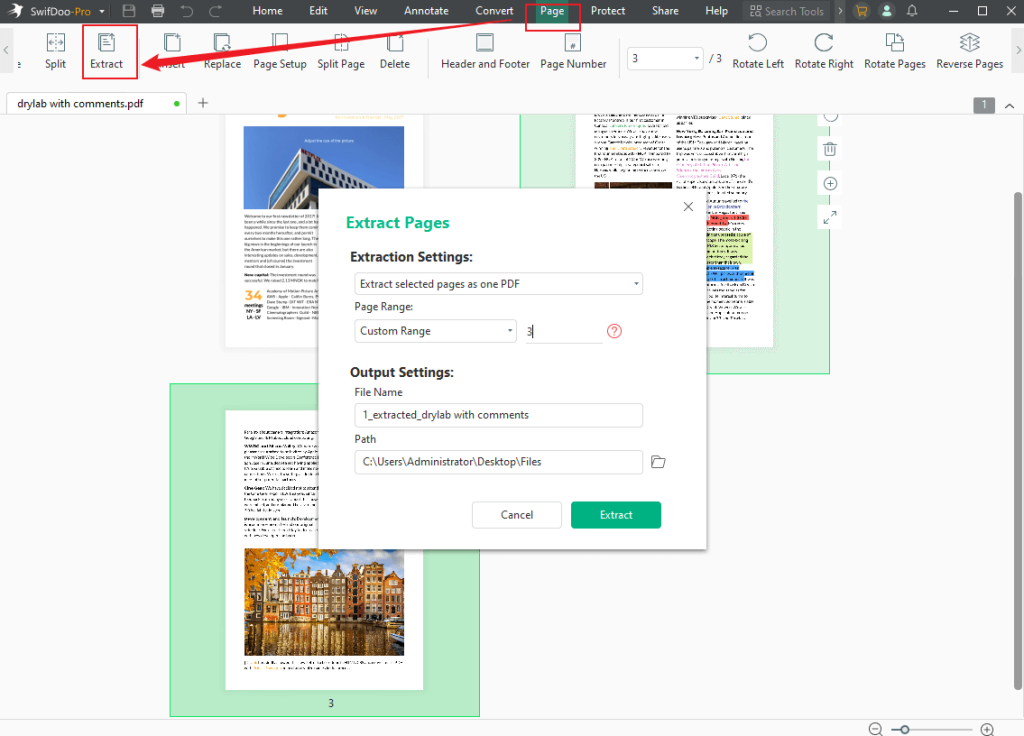
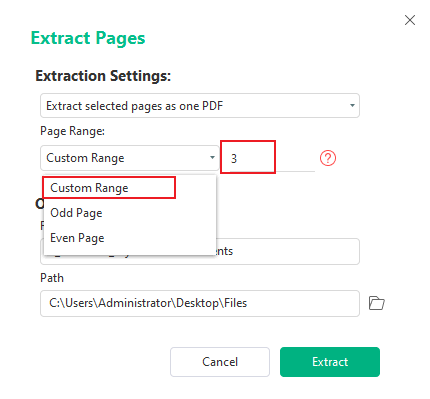
Step 3. Ensure you have chosen Custom Range in the Page Range selection. Next, type the page number you want to save as a standalone PDF.
Step 4. Specify where you want to store the output in the Output Path field. Next, click Start to initiate the extraction process.
How to Save Only One Page of a PDF on Mac
Mastering how to save just one page of a PDF on Mac simplifies both document management and sharing. macOS makes it easy to extract individual pages, whether you use the system’s native tools or extra software. In the following section, we’ll walk you through the process and cover two practical methods using built-in features and desktop PDF tools.
Method 1. Save One Page of a PDF Using Mac Preview
As the built-in PDF tool on macOS, Preview enables users to easily save a single page from a PDF without installing anything. It lets you extract specific pages easily by selecting and exporting them from the file. Additionally, users can use Preview for annotation, image editing, and merging PDFs
Discover how to save a specific page from a PDF on Mac Preview without hassle.
Step 1. In Preview on your Mac, open the PDF file you wish to save a page from.
Step 2. Open the View menu and select Thumbnails to enable thumbnail view.
As another option, hit Command + Option + 2 on your keyboard.
Step 3. Scroll through the thumbnails to select the page you want to save separately.
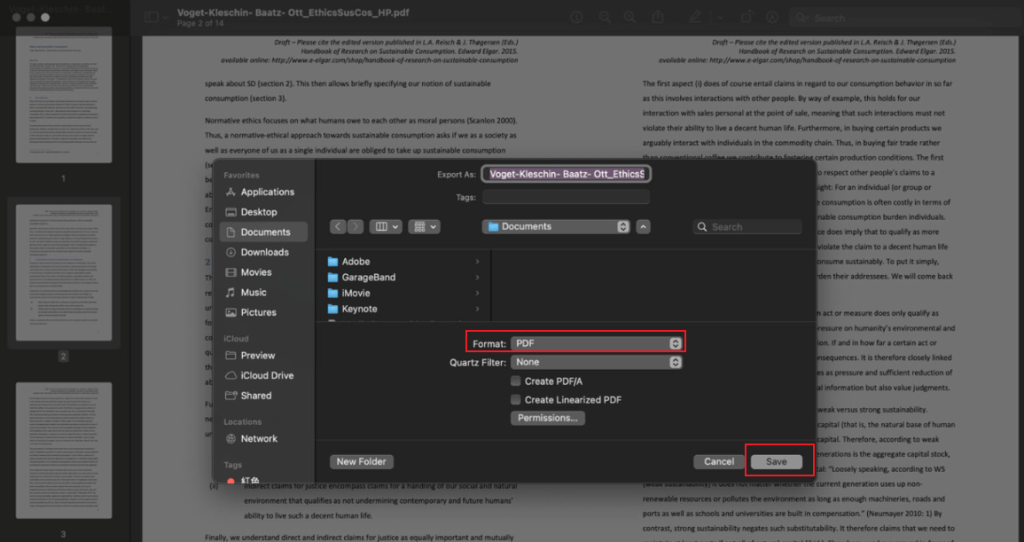
Step 4. Select the page you wish to export. Right-click on the page, then click Export As… from the menu.
Now, in the Export window that opens, you can rename your page. Select Format as PDF, then click Save.
Method 2. Extract One Page of a PDF in Adobe Acrobat Pro
Adobe Acrobat Pro is a professional PDF solution that makes it easy to extract a single page from a PDF. Its effortless extraction technique preserves formatting with precision. Users can quickly select specific pages and save them as a new document, making it ideal for managing detailed PDFs. In addition, Acrobat Pro offers editing, converting, annotating, and secure sharing features.
Follow these steps to extract one page from a PDF with Adobe Acrobat Pro.
Step 1. Install and launch Adobe Acrobat Pro on your Mac computer. Then, launch the program and open the PDF file for page extraction.
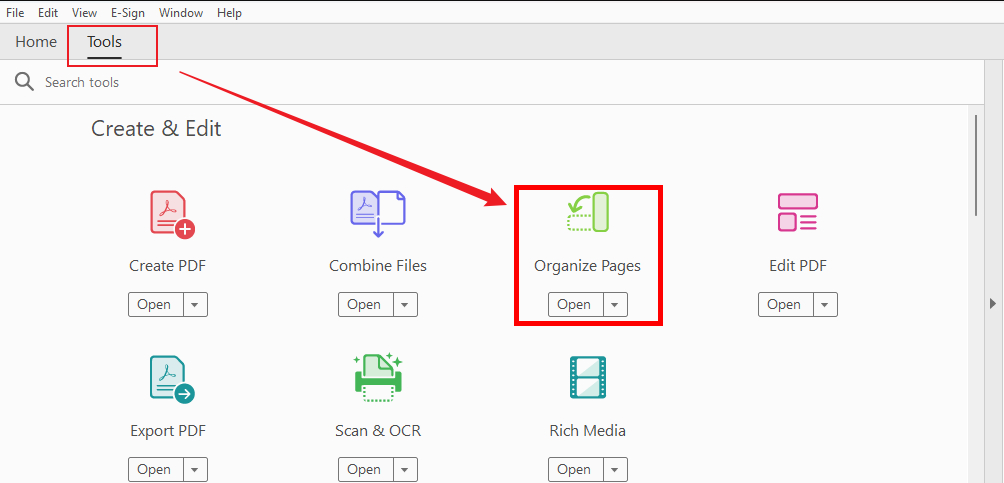
Step 2. Browse to the Tools tab and choose the Organize Pages tool (it looks like two overlapping pages) in the right-hand panel.
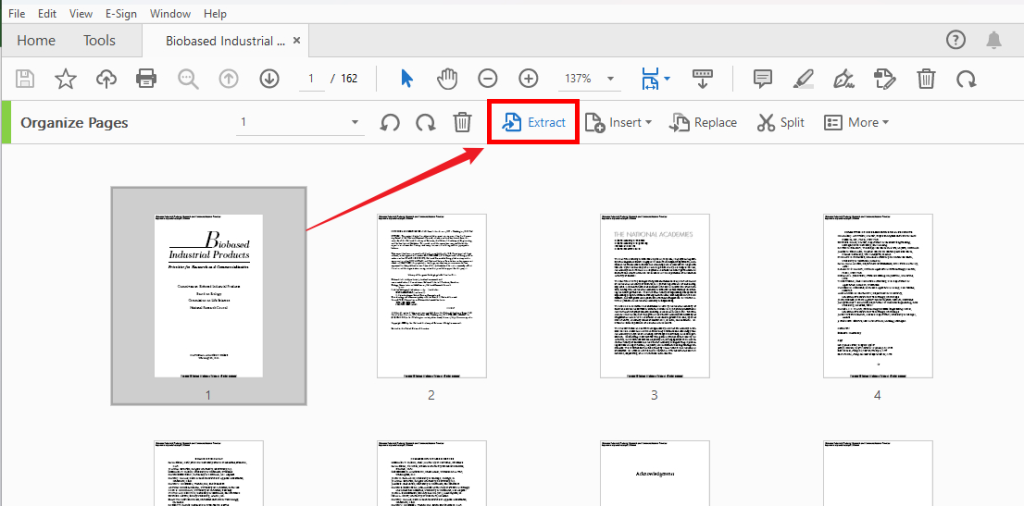
Step 3. In the Organize Pages view, you’ll see thumbnails of your PDF pages. Click the thumbnail of the single page you want to extract. In the top toolbar (or right-side panel), click the Extract button.
Step 4. In the dialog window, select “Extract pages as separate files” to generate a single-page PDF. After that, hit Extract or OK to extract the page.
Select a save location and enter a file name for the extracted single-page PDF. Then tap Save to save your new PDF.
How to Save Certain Pages of a PDF on Phone
Managing PDFs on the go is easier than ever when you know how to save one page of a PDF on iPhone or Android. Mobile apps make it simple to save individual pages from a PDF without a computer, ideal for on-the-go tasks. In the section below, discover two practical ways suitable for iPhone and Android devices.
Method 1. Save Just One Page of a PDF in the File App on iPhone
The Files app on iPhone is a built-in tool that lets you easily extract PDF pages on iPhone.You can just select and save specific pages from any document. It provides a straightforward way to manage PDFs without additional apps. In addition to page extraction, the Files app supports organizing, sharing, and accessing cloud-stored documents.
See how to save a single PDF page on your iPhone using the Files app.
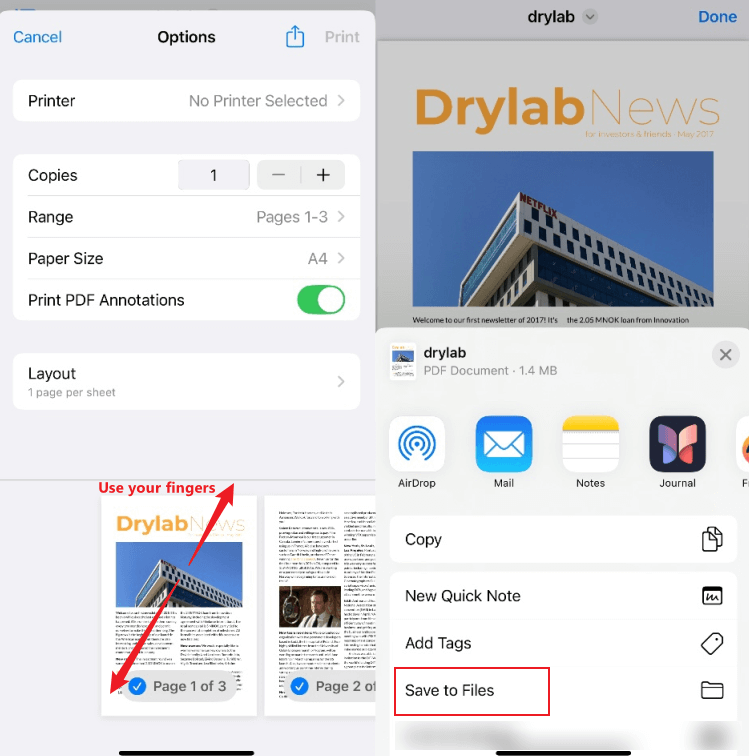
Step 1. Find your desired PDF file in the Files app on iPhone, then tap to open it.
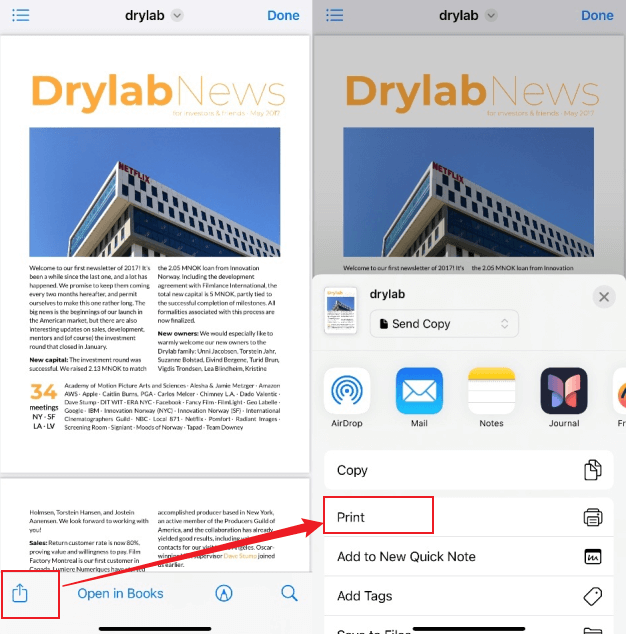
Step 2. Click the Share icon (a square with an arrow pointing up) in the bottom-left corner of the screen.
Scroll through all the options and click Print.
Step 3. In the Print Options screen, you’ll see a page preview. Use a pinch-out (zoom in) gesture on the page you want to save to expand it to full screen.
Step 4. Click the Share button at the upper-right of the new full-screen preview. Select Save to Files from the share sheet. Pick a location for the file and press Save.
Method 2. Save One Page of a PDF Using Xodo PDF Reader on Android
With Xodo PDF Reader, you can quickly and efficiently extract a page from PDF on Android.You can quickly select and save desired pages thanks to its simple, intuitive interface. In addition to page extraction, Xodo also supports PDF annotation, editing, signing, and cloud syncing.
Discover how to extract a page from a PDF on Android in a few clicks.
Step 1. Download the Xodo PDF Editor & Reader app and launch it on your Android phone or tablet.
Open the PDF containing the page you wish to save separately.
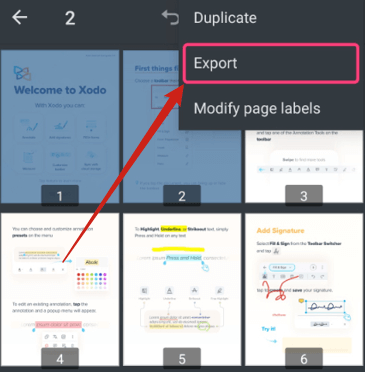
Step 2. Tap the three-dot (Overflow) menu located in the top-right corner. Next, tap the More Actions menu and choose either Extract Pages or Split PDF.
Step 3. Choose the specific page you wish to save (deselecting others if using Split.)
Step 4. Click the Extract or Split button. The page has been extracted and saved as a separate PDF file.
To Wrap Things Up
Becoming skilled in how to save one page of a PDF can make handling and organizing documents simpler and more efficient. No matter if you’re on Windows, Mac, iPhone, or Android, these methods—from built-in tools to desktop and online apps—provide easy solutions for every situation. Start applying these techniques today to streamline your PDF workflow.
FAQs
Step 1. Load the PDF file in Microsoft Edge.
Step 2. Press the three dots menu in the upper-right and select Print. Or, use the Ctrl+P keys.
Step 3. In the Printer dropdown menu, select Microsoft Print to PDF or Save as PDF (if available.
Step 4. Under Pages, select the Custom or Page Range option and type the single page number you want.
Step 5. Click Print, and a Save Print Output As dialog will appear. Choose your storage location and filename for the new PDF. Click Save.
1. Built-in system tools - On Mac, use Preview; on Windows, use the Print-to-PDF feature.
2. Free desktop software - JOPDF and SwifDoo PDF software.
3. Online PDF services - With Smallpdf, iLovePDF, or PDF2Go.
4. Mobile apps - use Xodo PDF on Android or the Files app on iPhone.
Table of Contents

Your Best Free PDF Expert in PDF editing, compressing, converting, annotating, protect, organizing, and more.
Free DownloadWindows · macOS · Linux

Olivia
“Olivia is an editor at JOPDF, where she writes practical guides and insightful articles on managing PDFs—covering topics like editing, annotating, converting, and organizing files efficiently. Passionate about clear communication and digital productivity, Olivia enjoys spending her free time cooking, watching movies, and hiking to unwind and find inspiration for her writing.”
![Find Ways to Download Manga as PDF for Free [5 Proven Ways]](https://b.jopdf.com/wp-content/uploads/2026/04/download-manga-pdf.png)

![5 Best Free PDF Compressors in 2026 [Desktop and Online]](https://b.jopdf.com/wp-content/uploads/2026/04/best-free-pdf-compressor.png)
