![Guide on How to Resize a PDF Image in 4 Easy Ways [Can’t Miss]](https://b.jopdf.com/wp-content/uploads/2025/12/how-to-resize-a-pdf-image.png)
Introduction :
PDF files are widely used for forms, documents, presentations, and images since they can preserve formatting across different devices and operating systems. However, there are many situations where you need to resize a PDF image, either to make it smaller for email sharing or to scale it properly for websites or presentations. How to resize a PDF image? In this post, I will walk you through 4 easy, effective ways.
Resizing images in a PDF is a little more complex than resizing a regular JPG or PNG file. PDF files can contain embedded images, vector graphics, or text layers that don’t behave the same way as standard image files. Let’s delve into the following content to learn how to resize images in a PDF file.
What Does “Resize a PDF Image” Mean?
In most cases, we equate “resize a PDF image” with changing the image dimensions. However, depending on your goal, resizing can have different means as follows:
- Increasing or decreasing the width and height of the image in a PDF.
- Adjusting the scale of an image relative to the page.
- Reduce image resolution to lower file size.
How to Resize a PDF Image Free in JOPDF
How do you resize a PDF image for free? JOPDF can be a good choice, which is a free PDF editor available on both Windows and Mac. You can use it to resize or crop the images in a PDF according to your needs. Additionally, as a PDF image editor, JOPDF enables you to rotate, flip, transparentize, or replace images. What’s more, it lets you extract images from a PDF with ease.
Beyond a PDF image editor, JOPDF has a wide range of PDF functions, from editing, annotation, organization, to conversion and compression. Moreover, you can utilize JOPDF to convert images to and from PDFs. How can you resize a PDF image for free using JOPDF? The steps below are for your reference.
Step 1. Click the corresponding download button below to download and install JOPDF on your Windows or Mac PC.
Step 2. Launch this free PDF image editor to get to its main interface and click Edit PDF to import your target PDF file. Alternatively, click Open PDF to import the target PDF, then switch from the View tab to the Edit tab.
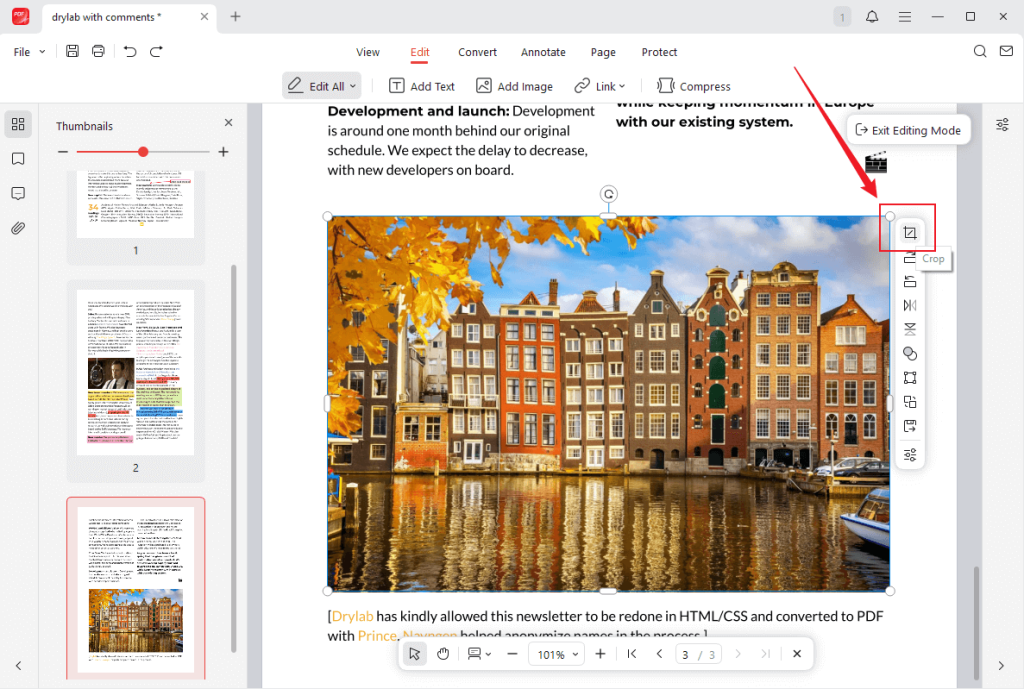
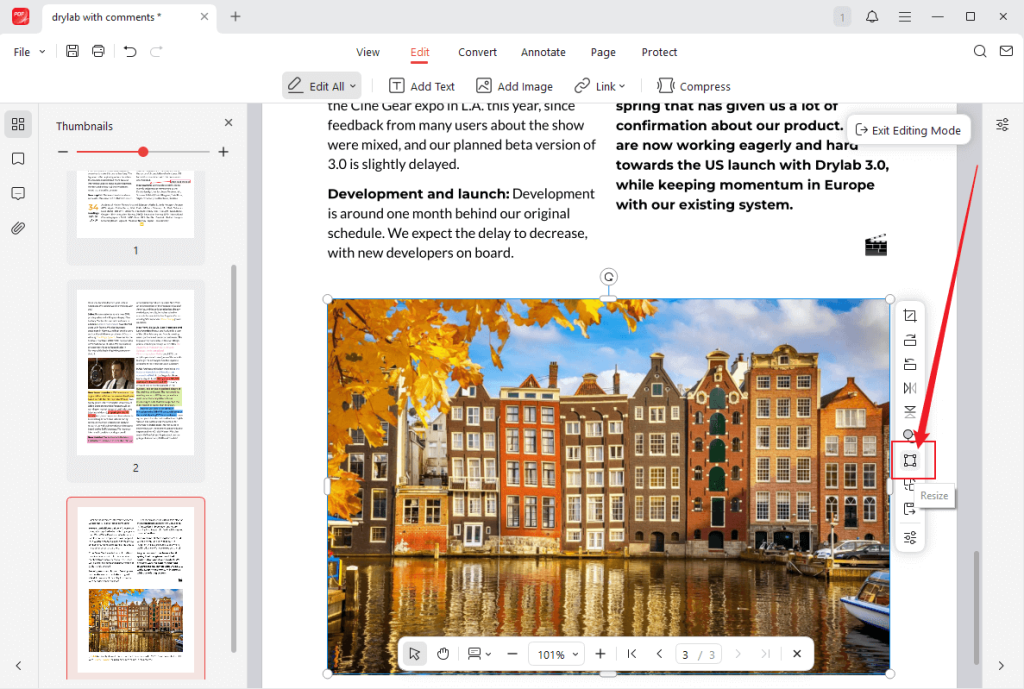
Step 3. The Editing Mode will be enabled. Locate and click on the image you need to resize. Then, there are two options for you.
🎈Option 1. Adjust the image’s width and height.
Click the Crop icon (the first icon), then drag the corners or sides inward to crop the image.
🎈Option 2. Adjust the image’s scale relative to the PDF page.
Hit the Resize icon (the seventh icon), then drag the corners or sides inward or outward to adjust the scale of the image.
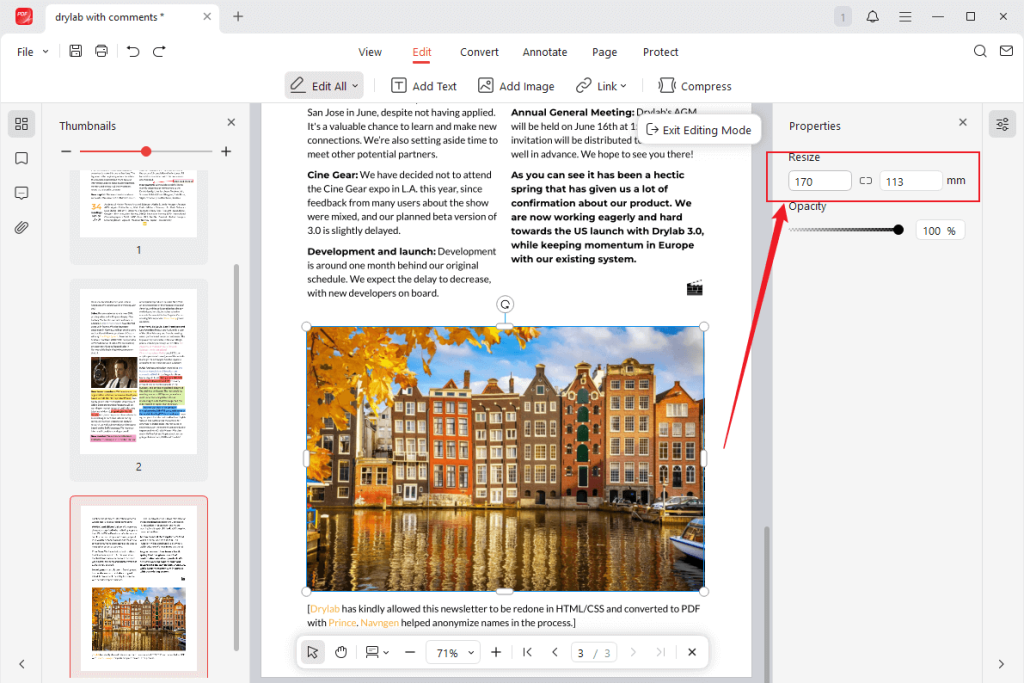
Alternatively, you can directly enter the target image dimensions in the right-side Properties window.
Step 4. Finally, press Ctrl + S or Command + S to save the modified PDF file. If you want to save the modified PDF as another file, click File, then select Save As.
Tips
To resize or edit images in a PDF file, you can make the PDF editable by converting it to Word. Then, you can edit the PDF images and other content in the PDF randomly. JOPDF can help you convert PDF to Word (DOCX or DOC).
How to Resize a PDF Image in Adobe Acrobat Pro
As long as you need to handle PDF files, then you must have heard of Adobe Acrobat, which is an industry-leading PDF editor available on multiple platforms. Its Pro version, Adobe Acrobat Pro, offers both basic and advanced features, including resizing images inside a PDF document. In addition to adjusting the scale of the PDF image, Adobe Acrobat Pro supports optimizing image resolutions.
How to resize PDF images in Adobe Acrobat Pro? Let’s learn the detailed tutorial below.
Step 1. Launch Adobe Acrobat Pro and import your PDF document.
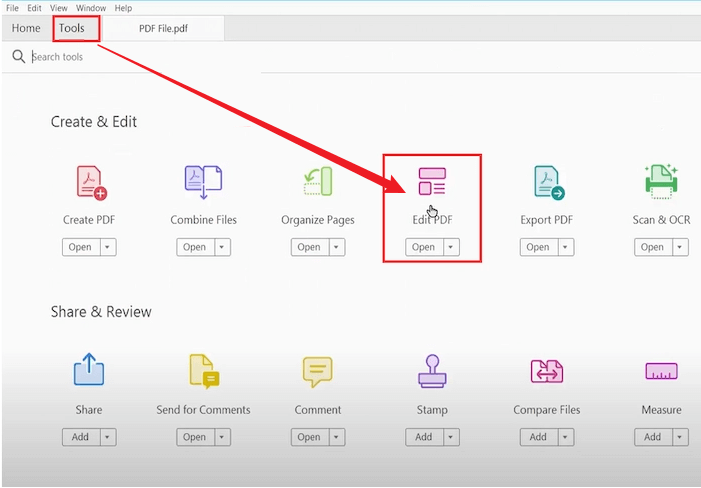
Step 2. Go to Tools to select the Edit PDF option.
Step 3. Then, select the image you need to resize and drag its corner handles to scale the image proportionally. Next, you can adjust the position of the image as needed.
Step 4. Finally, click File and Save to save the updated PDF document.
If you want to resize the PDF image to reduce the file size, go to File > Save As Other to choose the Optimized PDF option. Then, access the Images panel and select the image resolution, like 300 DPI or 150 DPI. At last, apply the compression settings and save the optimized PDF file.
If you think the subscription fee is too high, JOPDF is a good, free alternative to Adobe Acrobat.
How to Resize an Image in a PDF Using Mac Preview
Wants to resize PDF images with extra software installed? If so, never miss Preview, a built-in program on Mac PCs. This macOS-prebuilt program lets you view, edit, annotate, and print PDFs and images. How do you resize a PDF image on Mac Preview? Refer to the detailed guidance below.
Step 1. Import your PDF file by right-clicking the target PDF and selecting Open With > Preview.
Step 2. Click the View tab from the top menu and select Show Markup Toolbar. Next, click the Rectangular Selection tool and drag your mouse to select the image you want to resize.
Step 3. Unlike JOPDF and Adobe Acrobat Pro, Preview doesn’t directly resize embedded PDF images. You need to press Command + C to copy the selected image first. Then, click File, select New from Clipboard, and then the new image file will open in Preview.
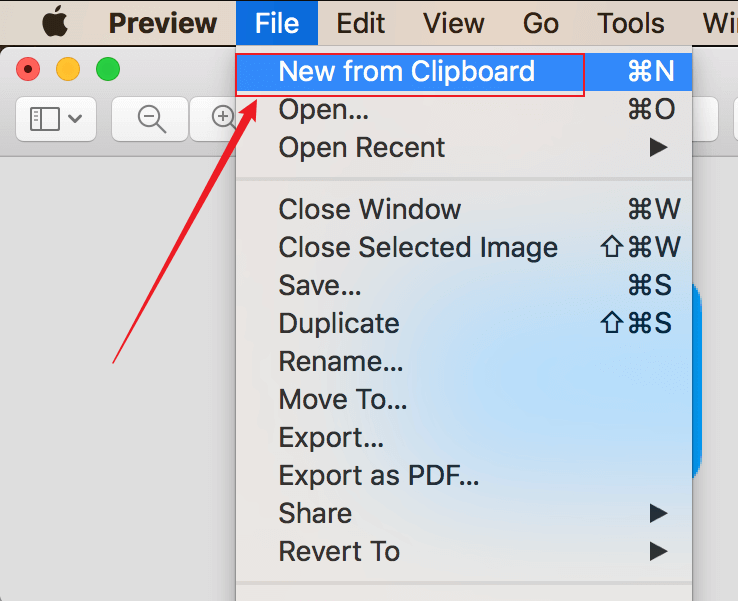
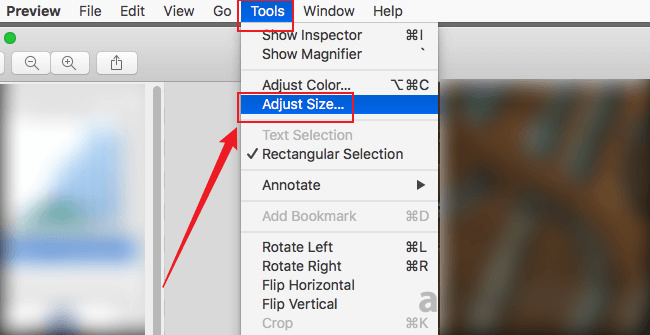
Step 4. In the new image window, click Tools in the top menu, then choose the Adjust Size option. Here, you can adjust the image’s width, height, and resolution. Meanwhile, you need to keep the Scale proportionally option checked to avoid distortion. Then, don’t forget to click OK to save the changes.
Step 5. At last, click File and Save to save the resized PDF image.
How to Resize PDF Images Online with Smallpdf
Are you looking for a way to resize an image in a PDF without downloading or installing any software? Instead of using a built-in program with limited features, an online tool with a range of features is a better choice. Among various online tools, I strongly recommend Smallpdf.
As an online PDF editor, Smallpdf enables you to resize PDFs, add watermarks to a PDF, edit images in a PDF, and more. What’s more, it supports converting, signing, protecting, unlocking, and printing PDFs. However, you need to know that you need to pay to unlock the features for editing PDF images. How to resize PDF images online using Smallpdf? Here’s how:
Step 1. Open your browser and visit the Smallpdf Edit PDF website.
Step 2. Click CHOOSE FILES to import the PDF file that contains the images you want to resize.
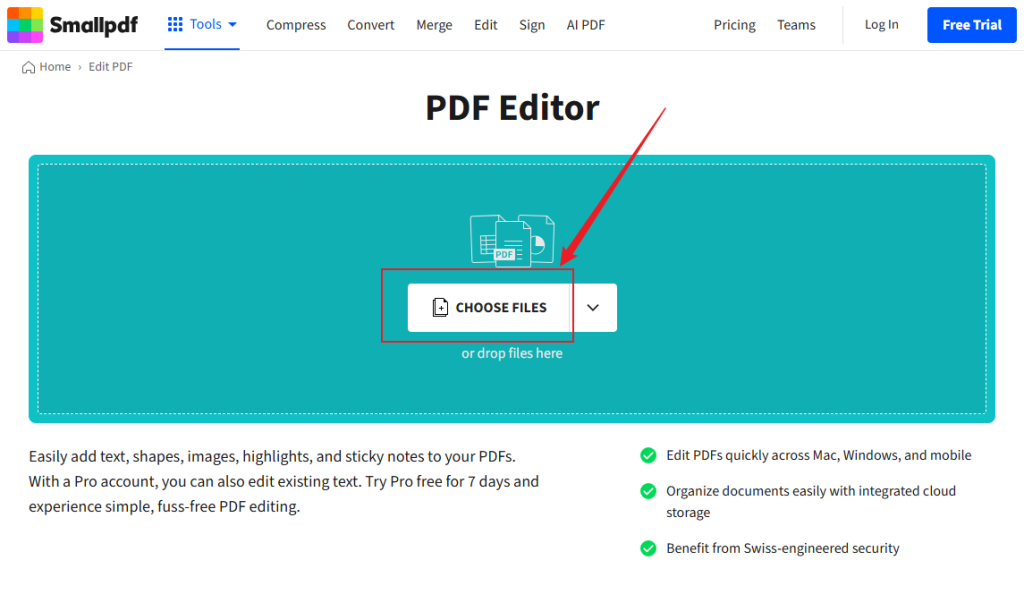
Step 3. Click the image you want to resize, then grab one of its corners and drag inward or outward to make it smaller or larger.
Step 4. Once you are satisfied with the resized PDF image, click Download.
To Sum Up
How to resize a PDF image? Once you understand your goal and get the right tool, the task can be finished easily. Whether you need to adjust image size for layout purposes, reduce file size for sharing, or for other purposes, this article offers 4 effective and reliable ways to meet your needs. Among the above 4 methods, JOPDF is strongly recommended. Now, choose one method based on your needs and give it a try!
FAQs
Table of Contents

Your Best Free PDF Expert in PDF editing, compressing, converting, annotating, protect, organizing, and more.
Free DownloadWindows · macOS · Linux

Olivia
“Olivia is an editor at JOPDF, where she writes practical guides and insightful articles on managing PDFs—covering topics like editing, annotating, converting, and organizing files efficiently. Passionate about clear communication and digital productivity, Olivia enjoys spending her free time cooking, watching movies, and hiking to unwind and find inspiration for her writing.”
![Find Ways to Download Manga as PDF for Free [5 Proven Ways]](https://b.jopdf.com/wp-content/uploads/2026/04/download-manga-pdf.png)

![5 Best Free PDF Compressors in 2026 [Desktop and Online]](https://b.jopdf.com/wp-content/uploads/2026/04/best-free-pdf-compressor.png)
