Introduction :
Have you ever tried to email a PDF only to see the dreaded “file too large” error message? Or waited minutes for a single document to upload to a website? Large PDF files are a common frustration. How to make a PDF smaller? It is quite quick and easy once you know the right tools and techniques. In this guide, I’ll show you 4 proven methods to reduce PDF file size effectively. Let’s get started!
Why You Need to Make a PDF Smaller
Before we learn how to make a PDF smaller, it’s helpful to understand why file size matters. Large PDFs cause frustration since they bounce back from email servers, take forever to upload, and consume storage space. By learning how to reduce PDF file size, you can:
- Email PDFs without hitting attachment limits.
- Upload PDFs to websites quickly.
- Save space on your hard drive and cloud storage.
- Speed up website loading times when embedding PDFs.
All in all, it is helpful to master how to make a PDF smaller for email or other uses, which is a practical skill to save time and hassle. In the following content, let’s learn the top 4 ways to reduce PDF file size from desktop to online.
How to Compress a PDF Offline with JOPDF (Free Desktop Tool)
If your PDF file contains some private or confidential information, a desktop PDF compressor is your best bet. JOPDF is known as one of the best free PDF compressors for Windows, Mac, and Linux. You can use it to compress PDF files without uploading them to any server. Beyond a PDF compressor, JOPDF is a free PDF editor that enables you to edit, convert, merge, and split PDFs with no watermarks or registration.
In short, JOPDF is a trustworthy tool to make a PDF smaller offline. Below is the step-by-step guide on how to compress a PDF to a smaller size using JOPDF.
Step 1. Download and install JOPDF from its official website or click the download button below.
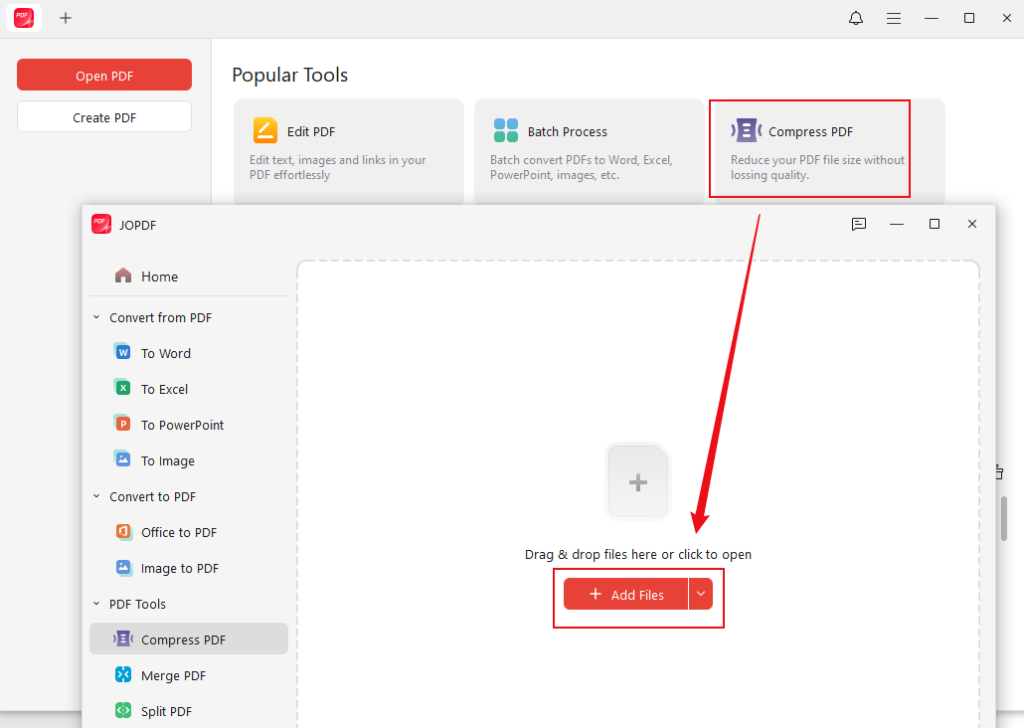
Step 2. Click the Compress PDF option from the main toolbar and click Add Files to upload the PDF you want to compress. If you need to batch compress PDFs, import several PDFs at once.
Step 3. Here are 3 compression levels for you to choose from: Low, Medium, and High. You can select “High” to compress a PDF to 2MB or even below 100KB. Alternatively, you can select the Medium option to make a PDF smaller without losing quality. Then, choose a folder as the final destination.
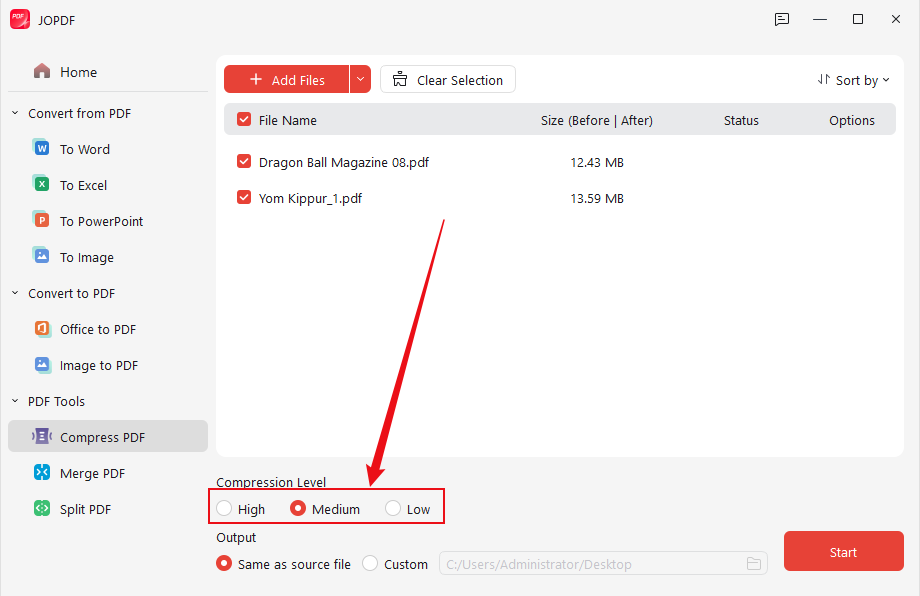
Step 4. Click Start to enable the compression process.
How to Reduce PDF File Size with Adobe Acrobat Pro (Professional Tool)
If you need granular control over every element, Adobe Acrobat Pro is the industry standard. It allows you to customize the compression settings as needed, like removing hidden data. If you are a professional who needs to shrink a PDF file size while preserving print quality, Adobe Acrobat Pro is a good choice.
However, it is not beginner-friendly, as it has a steep learning curve. In that case, JOPDF, a free alternative to Adobe Acrobat, is the best choice. You can use it to compress a PDF file without Adobe Acrobat.
Here, let’s learn how to make a PDF smaller with Adobe Acrobat Pro.
Step 1. Once you have installed and subscribed to Adobe Acrobat Pro, launch it and open your large PDF.
Step 2. Click File from the top menu bar, move to Save as Other, and click the Optimized PDF option.
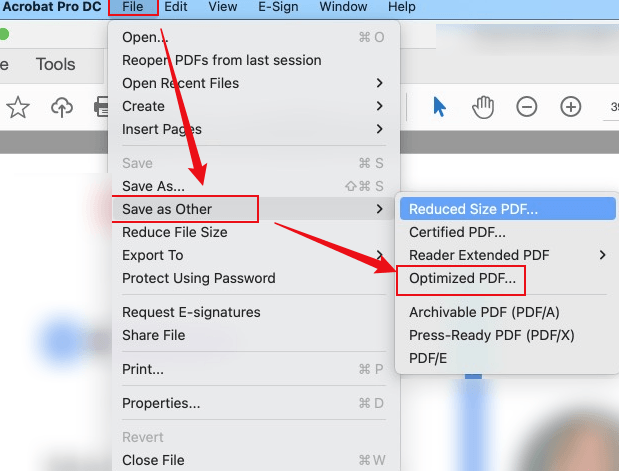
Step 3. The PDF Optimizer window will pop up. Here, you can adjust settings in the Images, Fonts, and Discord Objects panels.
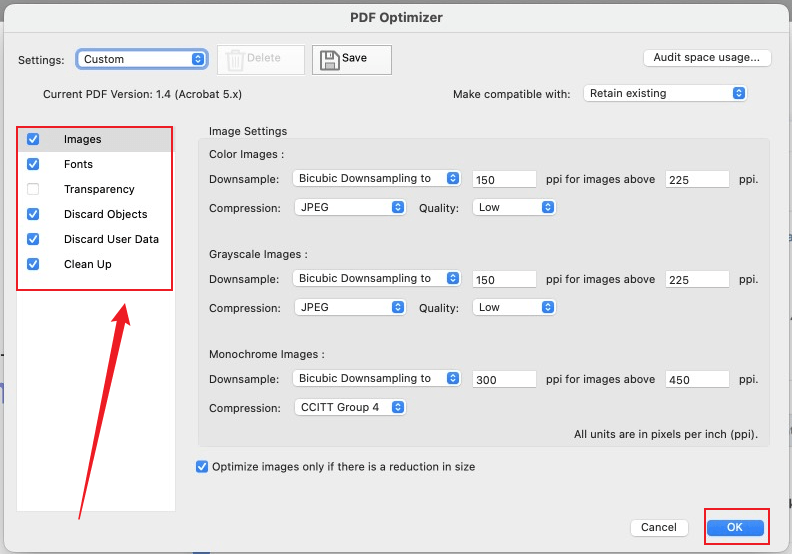
Step 4. Next, click OK to confirm the operation. Finally, save the compressed PDF file with a smaller file size.
Tips
If you only need a quick PDF reduction in Adobe Acrobat Pro, go to File > Save as Other > Reduced Size PDF.
How to Make a PDF Smaller Online with Free Online PDF Compressors
Online PDF compressors are quick solutions for reducing PDF file size without installation. They are perfect when you need to make a PDF smaller right now without installing software. Below are some reliable and popular options for your choice.
- Smallpdf
- iLovePDF
- Adobe free online PDF compressor
- SwifDoo PDF Online Converter
Most online PDF compressors have a simple and user-friendly interface. Meanwhile, you can compress a PDF online in just a few clicks. Hence, I only take Smallpdf as an example to show you how to make a PDF smaller online.
Step 1. Visit Smallpdf’s official website, open the Tools list, and select Compress PDF.
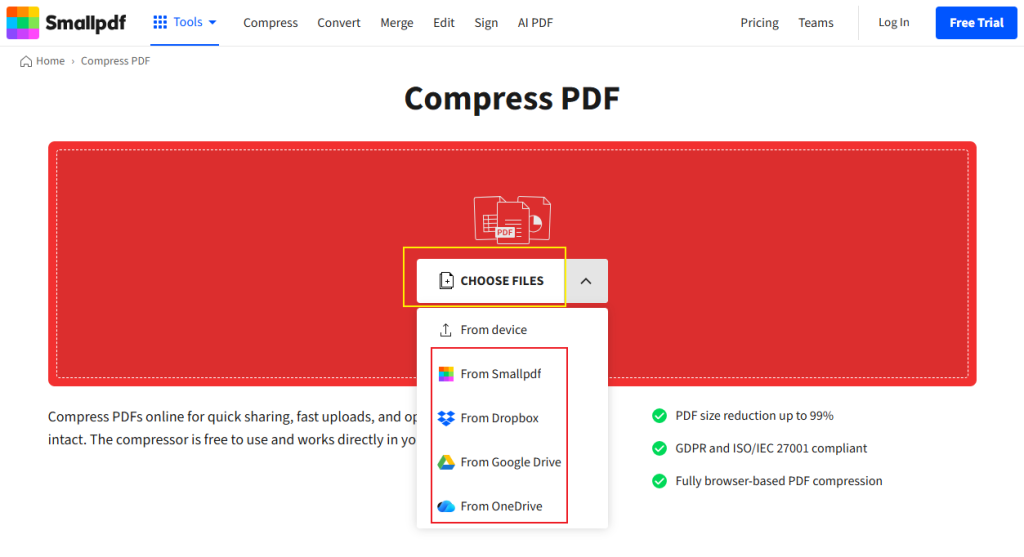
Step 2. Hit the CHOOSE FILES button to locate and select the target PDF to upload it to Smallpdf. Additionally, expand the CHOOSE FILES list to upload a PDF file from Google Drive, Dropbox, or OneDrive.
Step 3. Click the Basic option to get a PDF file in medium file size and standard resolution. Furthermore, you can pay for the Pro version of Smallpdf to access the Strong compression level.
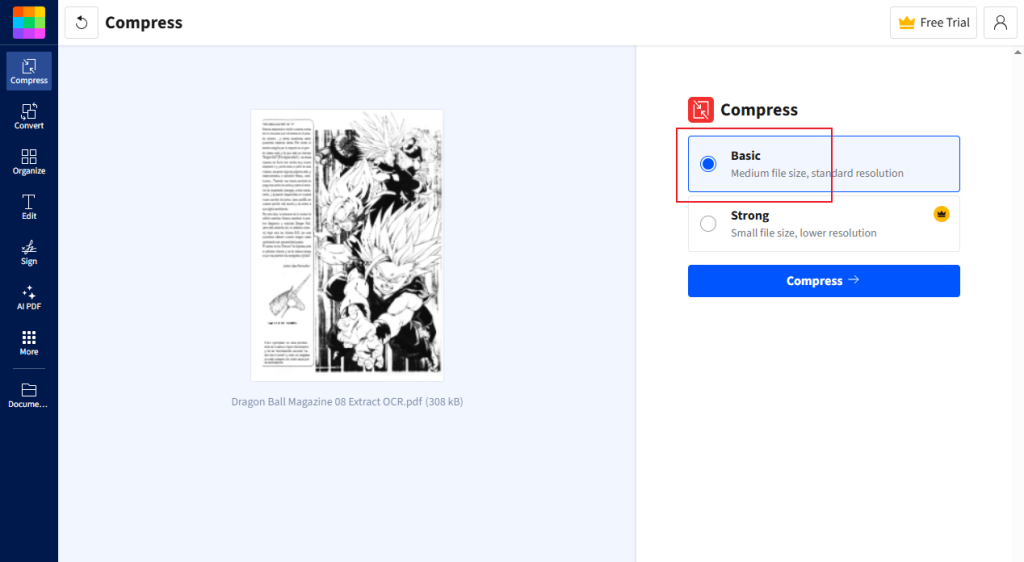
Step 4. Next, click Compress to initiate the compression process. Once finished, click Download to save the compressed PDF file.
How to Make a PDF Smaller on a Mac Using Preview
How to make a PDF smaller on Mac? Fortunately, Mac offers a built-in program, Preview, to reduce PDF file size without extra software. Here’s one thing you need to note: Preview will aggressively compress images, which can degrade image quality. In that case, JOPDF for Mac is the better choice. Now, let’s learn how to make a PDF file smaller on Mac using Preview.
Step 1. Open the large PDF file in Preview.
Step 2. Click File and select Export from the list.
Step 3. Expand the Quartz Filter dropdown and click the Reduce File Size option.
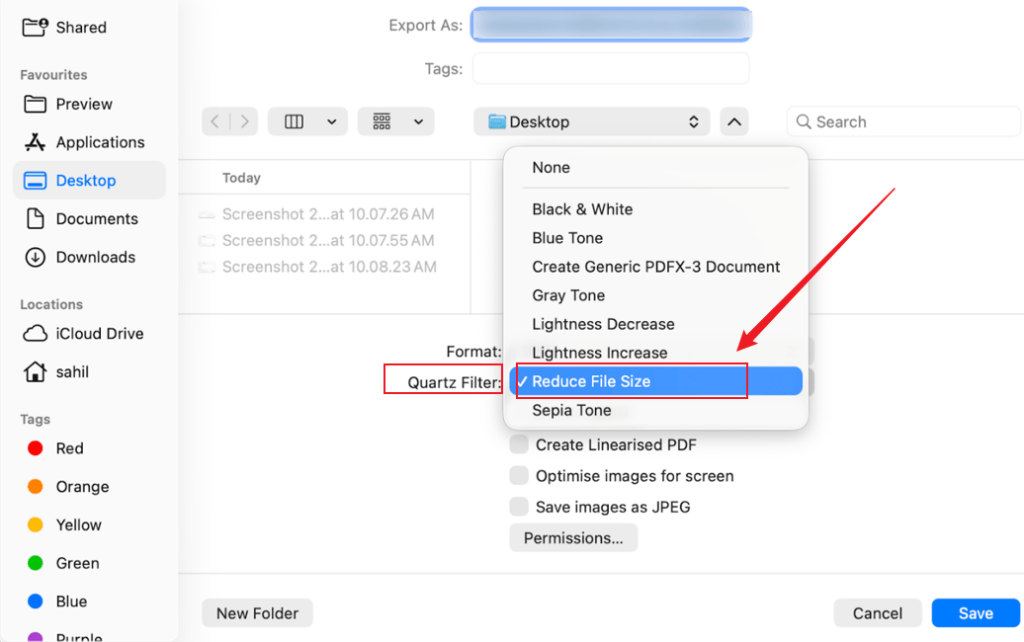
Step 4. Finally, customize other settings, then click Save to generate a small PDF file.
How to Compress a PDF to a Specific Size (2MB, 100KB, etc.)
Sometimes you need to hit an exact file size, like compress PDF to 2MB for an online form or compress PDF below 100KB for a quick email. Here’s how:
- Use a desktop PDF compressor with adjustable DPI settings.
- Choose the highest compression level first.
- Apply stronger image compression or remove unnecessary pages.
For batch processing, JOPDF’s batch compress feature is a huge time‑saver when you need to make multiple PDF files smaller at once.
A Quick Comparison: Best PDF Compression Tools
Below is a quick comparison table of the 4 PDF compression tools. You can view it and select the right tool immediately.
| Tool | Best For | Key Feature | Price |
| JOPDF | Privacy‑focused users needing a free offline tool | 100% free, batch compression, no uploads | Free |
| Adobe Acrobat Pro | Professionals needing precise control | Advanced optimization (image, fonts, metadata) | Paid |
| Smallpdf | Quick online compression | Simple interface, up to 5GB files | Freemium |
| Preview (Mac) | Built‑in Mac solution | No installation, already on every Mac | Free |
A Quick Wrap Up
Now you know how to make a PDF smaller using five different methods, from free offline tools like JOPDF to online compressors and built‑in OS features. Whether you need to compress a PDF for email, reduce PDF file size for storage, or shrink a PDF to a specific size, you have a complete toolkit. For most of us, JOPDF is the best choice for free PDF compression. Hopefully, this article can be helpful to you.
FAQs
Table of Contents

Your Best Free PDF Expert in PDF editing, compressing, converting, annotating, protect, organizing, and more.
Free DownloadWindows · macOS · Linux

Olivia
“Olivia is an editor at JOPDF, where she writes practical guides and insightful articles on managing PDFs—covering topics like editing, annotating, converting, and organizing files efficiently. Passionate about clear communication and digital productivity, Olivia enjoys spending her free time cooking, watching movies, and hiking to unwind and find inspiration for her writing.”
![[Top 4 Ways] How to Compress a PDF Without Adobe in 2026](https://b.jopdf.com/wp-content/uploads/2026/04/how-to-compress-a-pdf-without-adobe.png)
![How to Compress a PDF File on Windows [Free & Easy Ways]](https://b.jopdf.com/wp-content/uploads/2026/04/how-to-compress-a-pdf-file-on-windows.png)
