Introduction :
Many users today want to convert a screenshot to a PDF for easier sharing, storage, and professional use. Whether it’s a receipt, document, or vital conversation, turning a screenshot to PDF ensures the content stays high-quality across devices. Knowing how to make a screenshot a PDF helps you quickly store and access your screenshots efficiently. Explore these effective, easy methods you can use immediately.
Before getting started, it helps to understand why users frequently convert screenshot to PDF. PDFs are easier to share, print, archive, manage, and look more professional than image files. Many readers ask, can I save a screenshot directly as a PDF? While most devices save screenshots as images by default, there are built-in and third-party ways to do it. This guide shows how to save a screenshot as a PDF on a PC or phone.
How to Make a Screenshot a PDF on Windows & Mac
Learning how to make a screenshot a PDF on Windows and Macis simple once you know the right tools. While both systems offer built-in solutions, trustworthy desktop software can make the process smoother.
The sections below will explore both built-in features and desktop applications for efficiently converting screenshots.
Method 1. Make a Screenshot a PDF Using Windows’ Built-in Tools
Windows offers handy built-in tools that allow you to make a screenshot into a PDF without extra software. Using the Snipping Tool or Snip & Sketch, you can capture your screen and save screenshots as JPG, PNG, or GIF. With Microsoft Print to PDF, converting your saved screenshots into PDF format is quick and simple. This approach is straightforward, dependable, and perfect for daily tasks.
Explore how to make a screenshot a PDF effortlessly with Snipping Tool or Snip & Sketch.
Step 1. Press the Windows button + Shift + S keys. Alternatively, press the Windows key, type Snipping Tool, and press Enter.
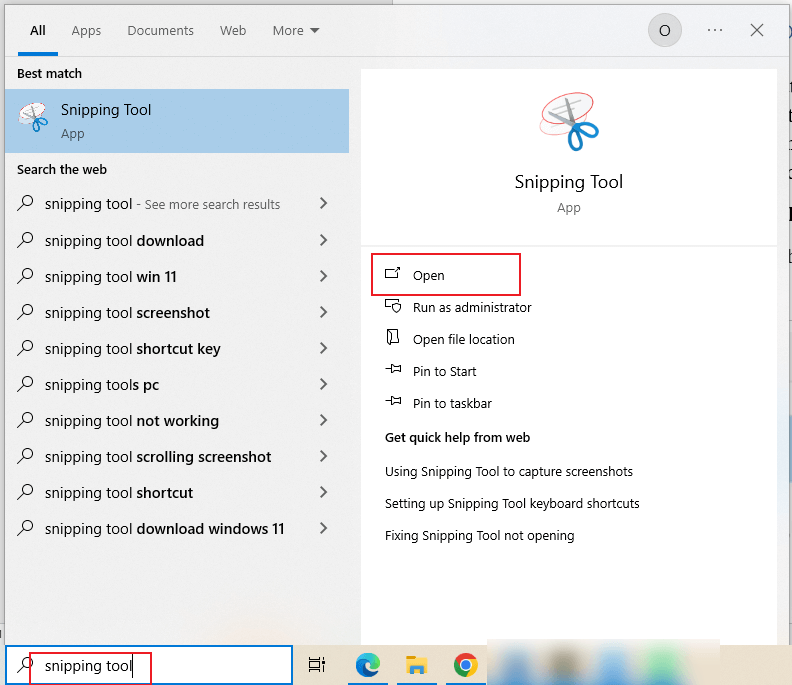
Step 2. Use the cursor to click and drag until everything is in your desired screenshot. Next, open the thumbnail that pops up at the lower-right side of the screen.
Step 3. Press Ctrl + P on your keyboard. Next, make sure the printer is set to Microsoft Print to PDF.
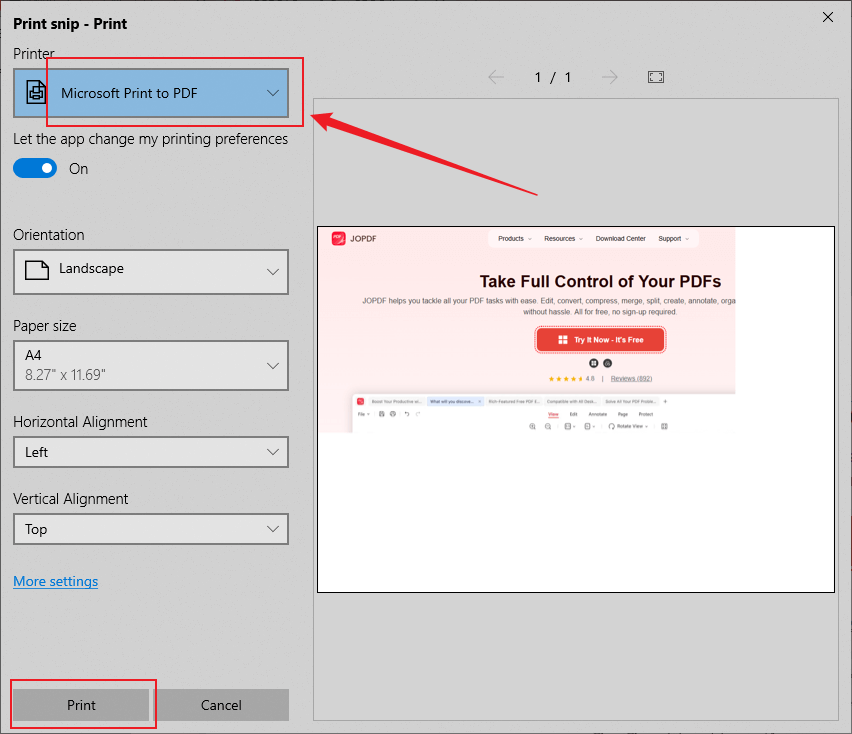
Step 4. Press Print and name your new PDF. Then, press Save.
Method 2. Convert Screenshot to PDF for Free with JOPDF
JOPDF provides a reliable way to convert screenshot to PDF quickly and without any fees. Designed to work on Windows and Mac, it provides easy access for everyone. Beyond basic conversion, JOPDF allows you to convert images to PDFs or vice versa with just a few clicks. You can also batch convert multiple screenshots into a single PDF or various PDFs and extract images from PDFs. In addition, if you want to better your presentation, JOPDF can be the best bet as it also allows you to edit images in a PDF.
Let’s see how to convert a screenshot to a PDF in JOPDF in a few clicks.
Step 1. Download and install JOPDF PDF Converter on your Windows or macOS computer. After that, launch the program.
Step 2. Navigate to the PDF Converter tools and select Image to PDF under the Convert to PDF menu. Click Add Files to add your screenshots in JPG, PNG, or other supported formats to the list.
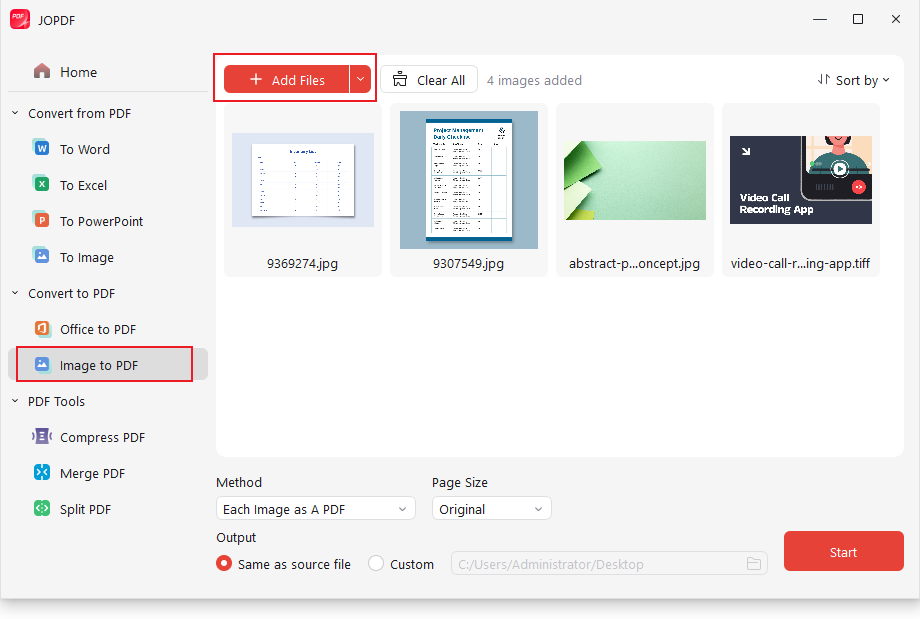
If needed, you can also drag and drop the screenshot to reorder them before conversion.
Step 3. With JOPDF, you get two output methods.
- All Images as a PDF: Combines all images into one PDF.
- Each Image as a PDF: Export each image as a separate PDF file.
You can pick any option. In addition, set the page size and other settings as needed.
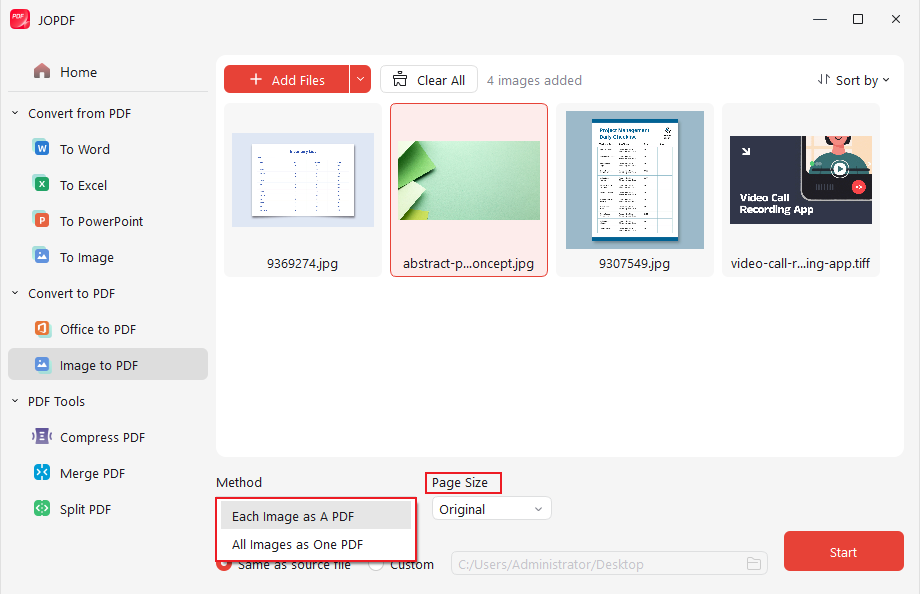
Step 4. Once everything is ready, tap Start. JOPDF converts your screenshot to a PDF in seconds.
Tips
JOPDF can also help you convert multiple screenshots to a single PDF or multiple PDFs. Simply download and open JOPDF and click the Batch Process category. Then, go to the Convert to PDF section and choose the Image to PDF tool. Click Add Files to add the screenshots you want to combine into a single PDF or multiple PDFs. Click on the Method option to choose your settings and specify the page dimensions. Next, choose a save location and provide a file name. Hit Start to convert all your screenshots into PDFs.
Method 3. Save a screenshot as a PDF Using Mac Preview
Using Preview, Mac users can effortlessly save screenshots as PDF files. Preview allows you to open screenshots immediately, perform basic edits like cropping or adding annotations, and export them as PDFs. Requiring no extra software, this method is efficient, intuitive, and great for daily macOS activities.
Master how to convert a screenshot into a PDF using Mac Preview.
Step 1. Navigate to the screenshot on your Mac. Right-click and pick Open With from the options. Then select Preview.
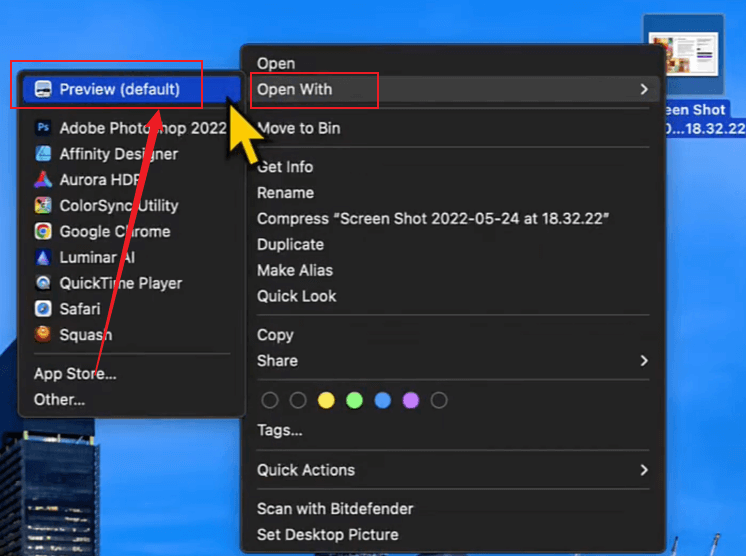
Alternatively, double-click your screenshot. And it will open in Preview by default.
Step 2. After opening Preview, click File in the top menu bar. Next, click Export as PDF… in the menu.
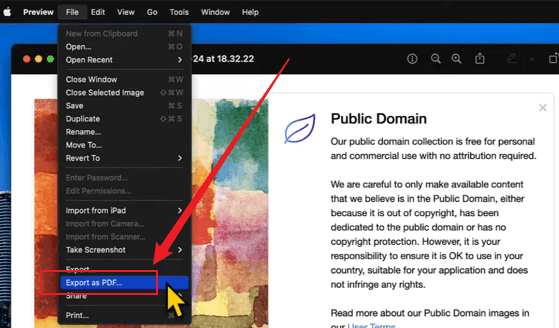
Step 3. In the window that pops up, select Save As (file name)and Where (storage location).
Step 4. Then, tap Save. The screenshot will now save itself as a PDF.
How to Save a Screenshot as a PDF on iPhone
If capturing important info on your phone is common, knowing how to save a screenshot as a PDF on iPhone can make organizing and sharing much easier. Below, we’ll walk through two effective ways to convert iPhone screenshots to PDFs using simple, accessible options.
Method 1. Save a Screenshot as a PDF via the Markup and Share Tools
A simple method to make a screenshot a PDF on iPhone is by using the Markup and Share tools. This method lets you edit your screenshot and instantly save or share it as a PDF without any additional apps.
Check out how to save a screenshot as a PDF on iPhone using the Markup and Share Tools.
Step 1. To begin, take a screenshot by simultaneously pressing the Side and Volume Up buttons. The screenshot thumbnail will appear in the lower-left corner.
Step 2. Tap the screenshot thumbnail quickly before it vanishes. This will launch the screenshot in the Markup editor.
Step 3. Press the Share icon, a square with an upward arrow, in the upper-right corner.
Step 4. Scroll down and select Print. On the Printer Options screen, pinch out on the preview image with two fingers. The screenshot will automatically convert into a PDF.
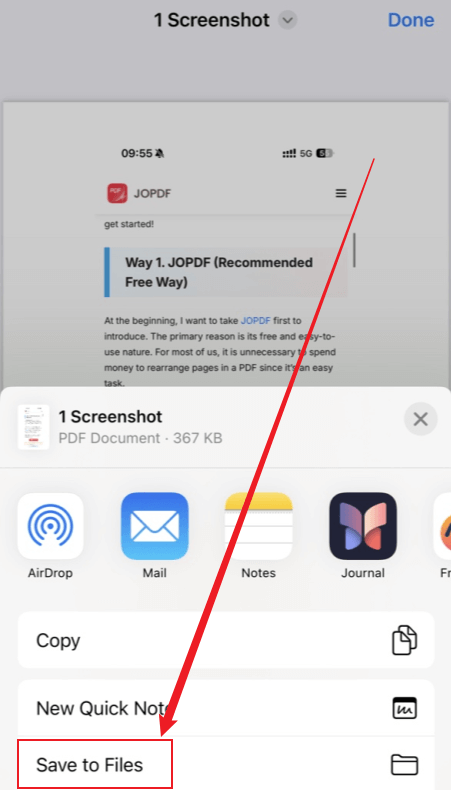
Click the Share icon again. Then select Save to Files to save the PDF to your iPhone. Preferably, you can share it via email, WhatsApp, AirDrop, or another desired method.
Method 2. Convert Screenshot to PDF with the Files App
Another practical option for saving a screenshot as a PDF is via the iPhone Files app. This method shows how to make a screenshot into a PDF by uploading the image to Files and exporting it as a PDF. Overall, this provides a quick, neat way to keep your screenshots stored digitally.
Learn how to make a screenshot into a PDF on iPhone using the Files app.
Step 1. Launch the Photos app and choose the screenshot you want. Then, click the Share icon at the lower-left corner of the screen.
Step 2. Next, scroll down and hit Save to Files. Next, choose a folder and tap Save.
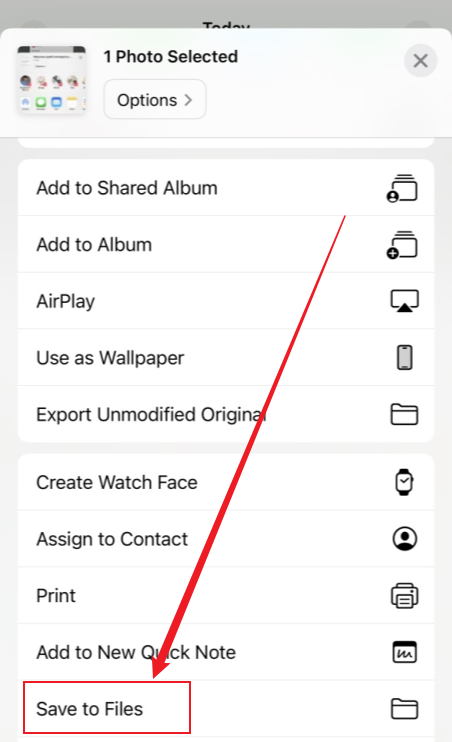
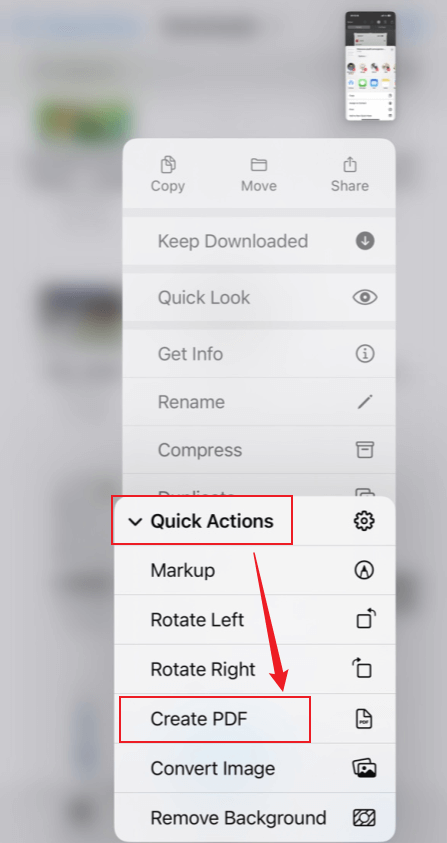
Step 3. Open the Files app and locate your saved screenshot.
Step 4. Finally, press and hold the file, then select Quick Actions. Then select Create PDF to convert your screenshot to a PDF.
How to Make a Screenshot a PDF on Android
Knowing how to make a screenshot a PDF on Androidis simple thanks to the device’s built-in tools. The Gallery app, combined with Print to PDF, allows you to quickly convert screenshots into PDFs, making image storage and sharing effortless. Fast and convenient, this method doesn’t need any additional applications.
Learn how to make a screenshot a PDF on Android using the built-in Gallery app.
Step 1. Locate your screenshot within the Gallery or Google Photos app. Click to open your screenshot, then find the three-dot icon in the lower-right corner.
Step 2. Choose the Print option from the menu. The print preview screen will appear.
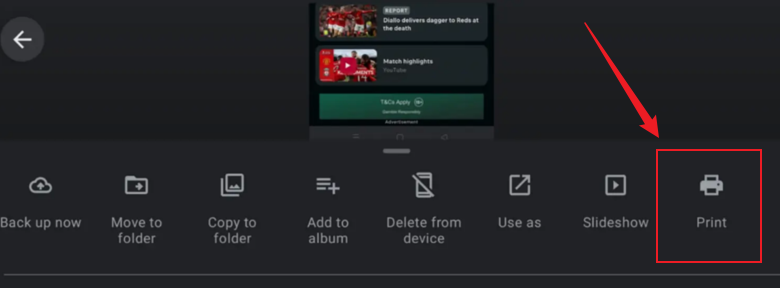
Step 3. Tap Select a Printer, then open the list of printers with the dropdown arrow, and select Save as PDF. The current PDF view should change to a PDF preview.
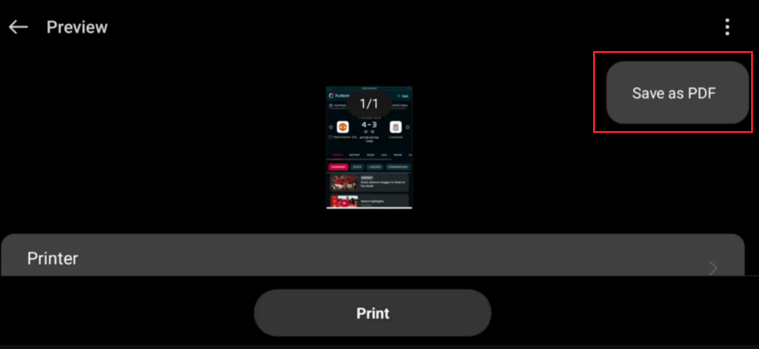
Step 4. Click the Save button or PDF download icon to continue. A window will open, requesting you to choose a location to store the PDF file.
Add a file name and select Save to finish saving the PDF.
Quick Wrap Up
Converting images to PDF format has become important for efficient file management and sharing. The guide showed how to make a screenshot a PDF using various methods on Windows, Mac, iPhone, and Android. With native tools and free apps such as JOPDF, turning a screenshot to PDF is now fast and hassle-free. Now enjoy seamless management and quick sharing on any device.
FAQs
On Windows: Use the Snipping Tool or Snip & Sketch.
On Mac: Press Shift + Command + 4 to take a screenshot of a selected portion.
On iPhone and Android: Use the usual screenshot gestures, such as pressing the Side button with the Volume or Home button.
Once your screenshot is captured, you have the option to save it as an image or convert it to a PDF.
Table of Contents

Your Best Free PDF Expert in PDF editing, compressing, converting, annotating, protect, organizing, and more.
Free DownloadWindows · macOS · Linux

Olivia
“Olivia is an editor at JOPDF, where she writes practical guides and insightful articles on managing PDFs—covering topics like editing, annotating, converting, and organizing files efficiently. Passionate about clear communication and digital productivity, Olivia enjoys spending her free time cooking, watching movies, and hiking to unwind and find inspiration for her writing.”
![Find Ways to Download Manga as PDF for Free [5 Proven Ways]](https://b.jopdf.com/wp-content/uploads/2026/04/download-manga-pdf.png)

![5 Best Free PDF Compressors in 2026 [Desktop and Online]](https://b.jopdf.com/wp-content/uploads/2026/04/best-free-pdf-compressor.png)
