![Complete Guide on How to Make a PDF Editable [6 Methods]](https://b.jopdf.com/wp-content/uploads/2025/12/how-to-make-a-pdf-editable.png)
Introduction :
PDFs are a standard for documents like forms, reports, and contracts, but their static nature makes them tricky to handle. From updating text to adding details or repurposing content, knowing how to make a PDF editable can save you time. Turning PDFs into editable files saves time, minimizes repeated work, and enhances productivity. Let’s dive into the top methods for transforming static PDFs into fully editable files—right away.
How to Make a PDF Editable via Converting to Word
Converting a PDF to Word is a simple and effective way to make changes to static documents. For those aiming to master how to make PDFs editable and searchable, this method works best. In this section, we’ll look at two approaches: dependable desktop software and easy-to-use online tools.
Option 1. Using JOPDF
JOPDF is a reliable, powerful tool for Windows and Mac that lets users make a PDF editable. As a free PDF to Word converter, it helps users edit, convert, annotate PDFs, and more. You can quickly convert PDF to Word without losing format, ensuring the text layout remains exactly as in the original. This ensures that routine document editing is faster, smoother, and more accurate.
In addition, JOPDF enables users to edit a locked PDF, making it useful for both students and professionals. With this tool, you can edit a PDF for free, enabling quick edits without spending a dime. Converting PDFs into editable files, JOPDF removes standard limitations and makes updating content simple. Overall, JOPDF stands out as a versatile tool for speedy and flexible PDF editing online.
Let’s find out how to make a PDF editable by converting it to Word with JOPDF.
Step 1. Download and install the JOPDF converter. Then, launch the program. On the start page, go to Popular Tools and tap Batch Process. Then, in the pop-up windows, select the To Word option.

Alternatively, open a PDF file with JOPDF. And navigate to the Convert tab at the top. Then, select the conversion tool you want to use.
Note
You’ll require a conversion plugin to ensure conversions work properly. Just follow the on-screen guide and install the JOPDF converter plugin. After the plugin is installed, JOPDF will no longer ask you to install it. You can use the PDF conversion tools seamlessly online and offline.
Step 2. Tap the Add Files button to open PDFs. Or simply drag and drop them into the converter window.
Step 3. Next, specify your output format, such as DOC or DOCX. Then, pick the folder where the converted files should be saved.
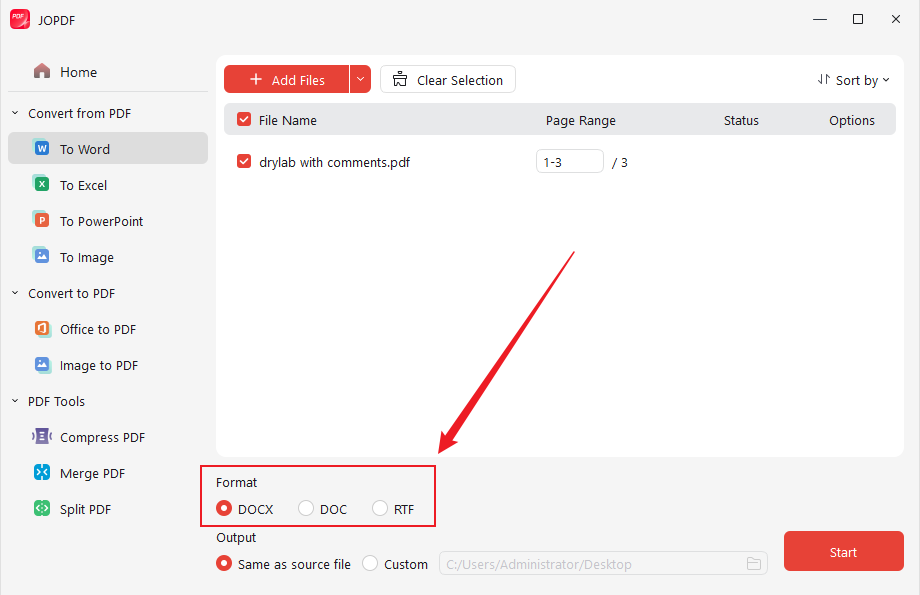
Step 4. When all settings are ready, tap the Start button to initiate the conversion. Within moments, your PDF document will be converted to the Word format.
Tips
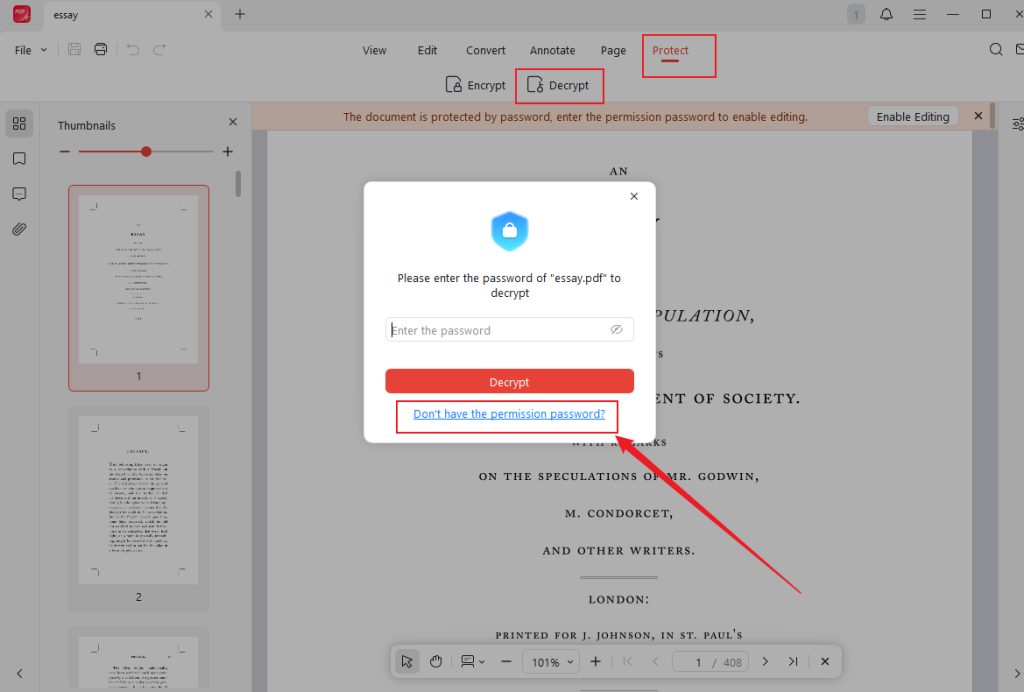
If you need to make a password-protected PDF editable, JOPDF lets you remove the password with ease. Simply, navigate to the Protect tab after uploading the encrypted PDF file. Click Decrypt and choose the “Don’t have the permission password?” option. Next, follow the on-screen prompts to save your PDF file. After completing that step, go ahead and make the required changes.
Option 2. Using iLovePDF
As a web-based platform, iLovePDF is well-known for providing simple and accessible PDF features. The platform lets you convert PDF to Word, so the file becomes editable without requiring software installation. This approach makes editing quick and convenient, especially when working on multiple devices. In addition, iLovePDF supports tools for compressing, merging, and organizing files to make PDF management easier.
Explore how to make a PDF file editable via iLovePDF.
Step 1. Launch iLovePDF on your web browser. Then, open the PDF to Word Converter tool.
Step 2. Click Select PDF File and upload the file you wish to convert.

Note
You can add many PDF files for conversion by tapping the + icon at the right side of the screen.
Step 3. Press Convert to Word to prepare your document for modifications.
iLovePDF will automatically convert your PDF to Word in seconds.
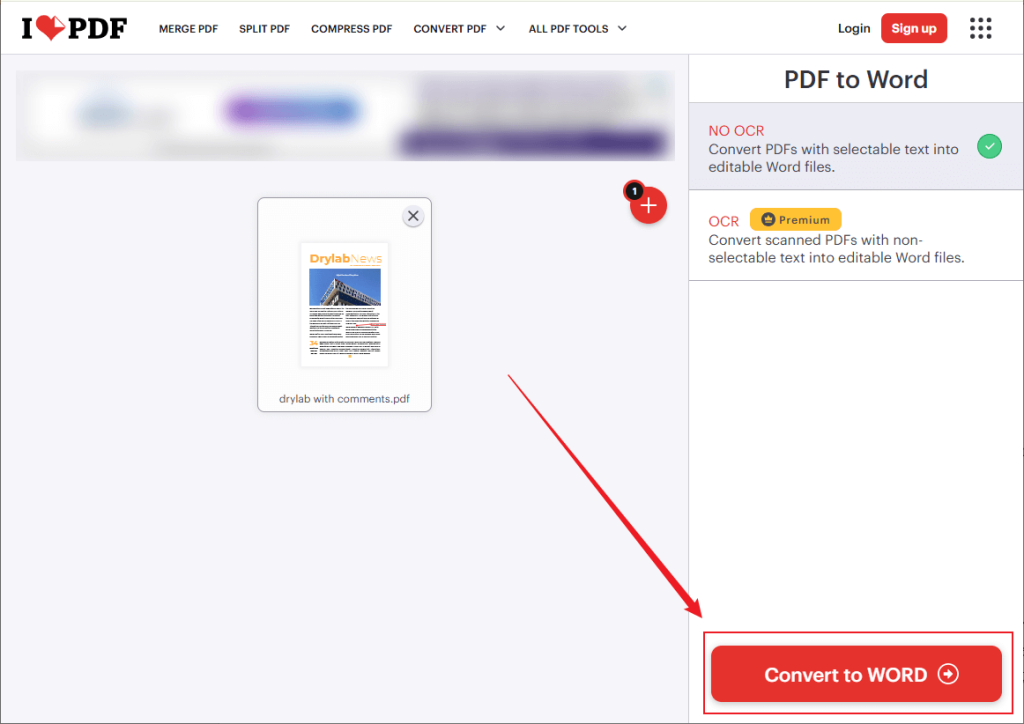
Step 4. When done, select Download Word to download the file. Alternatively, you can back up your file to Google Drive or Dropbox.
How to Make a PDF Editable Using PDF Editor with OCR
Advanced PDF editing tools allow you to efficiently handle and update complex documents. In particular, using OCR is an effective method to make a scanned PDF editableby turning text images into selectable, editable content. This method works well for scanned contracts, invoices, and forms. This section highlights the two best approaches to applying OCR for smooth and accurate PDF editing.
Option 1. Using Adobe Acrobat Pro
As a professional PDF solution, Adobe Acrobat Pro is relied upon by users around the world. It allows users to make a PDF editable on Mac and Windows with ease by offering advanced editing tools and accurate OCR capabilities. Beyond OCR, it supports form creation, annotations, conversions, and secure document management for complete PDF control.
Check out how to make a PDF editable on Windows or Mac computers using Adobe Acrobat Pro.
Step 1. Download and launch Adobe Acrobat Pro on your device. Then, access the PDF file you want to convert with OCR.
Step 2. Next, select the Tools button in the top menu. Under the Create & Edit menu, select Scan & OCR.
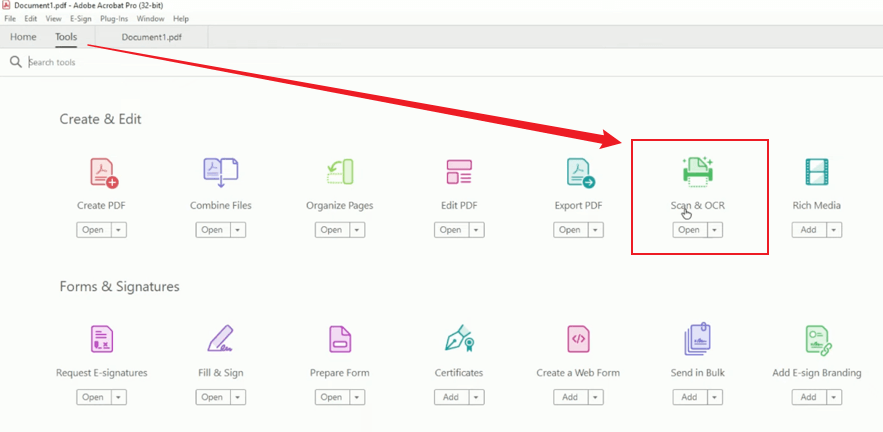
Note. A couple of options will automatically appear underneath the main navigation menu to help you enhance the scanned PDF document.
Step 3. Select the Recognize Text tab in the top menu and select In This File in the dropdown menu.
- Tap Pages to select which pages you wish to OCR.
- Tap Language to select the language you want to recognize.
- Tap Settings to configure additional options for your document.
Click OK.

Step 4. Click Recognize Text. And Adobe Acrobat will automatically perform the OCR.
After the process completes, select File and click Save As from the options bar to save the output. Also, you can edit and search the text in a PDF.
Option 2. Using SwifDoo PDF
SwifDoo PDF is a modern Adobe Acrobat alternative that simplifies PDF editing and overall document management. It enables users to make PDFs editable on Windows and accurately recognize text in PDFs, including scanned pages. With its advanced OCR engine, SwifDoo PDF can accurately turn scanned documents into editable PDFs. In addition to OCR, it offers smooth editing, format conversion, annotation, and compression. Overall, it serves as an all-in-one PDF management tool for everyday and professional use.
Discover how to make a PDF editable using SwifDoo PDF in just a few clicks.
Step 1. Visit the official website or Microsoft AppSource to download SwifDoo PDF. And set it up on your Windows PC.
Step 2. Begin by opening the program. Import your scanned PDF file into the workspace.
Step 3. Then, click the Edit tab and choose OCR. Once the Recognize Document dialog appears, choose how to OCR or output the scanned PDF document.
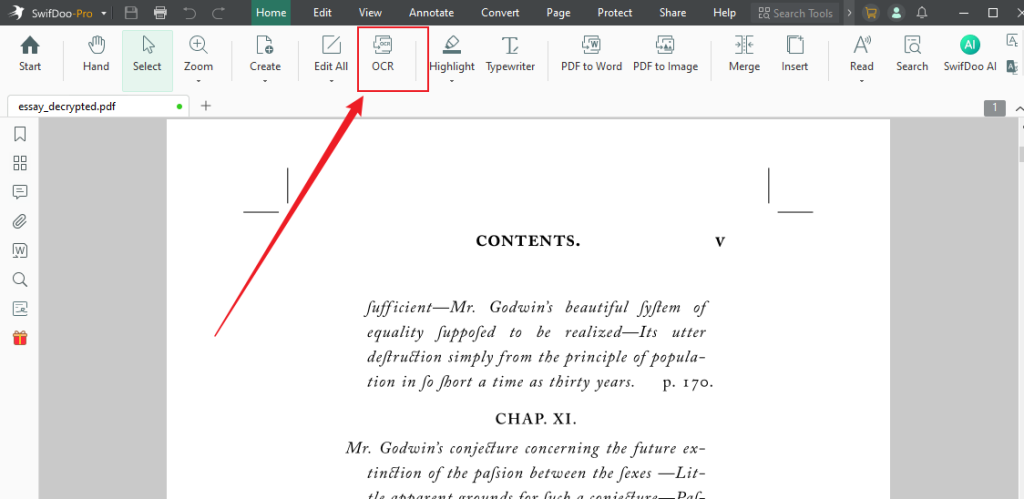
Select “Document Language,” Output, and more to improve conversion.
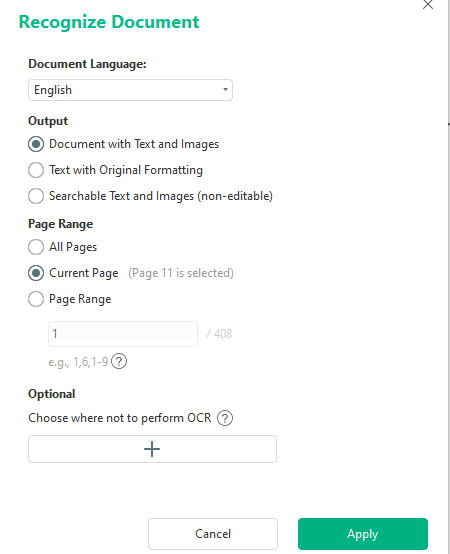
Note. SwifDoo PDF will automatically convert the scanned PDF to a document with text and images; text with original formatting; searchable text and images, but non-editable; or pure text.
Step 4. After setting the necessary parameters, specify the page range to perform OCR (if needed). Then, once ready, click OK to OCR the PDF.
How to Make a PDF Editable in Google Docs
Editing PDFs is quick and convenient in Google Docs, and no additional software is required. By uploading a PDF to Google Drive and opening it with Google Docs, the file is converted into an editable document. It is most effective for text-based PDFs, enabling fast editing and collaborative work online.
Check out how to make a PDF editable using Google Docs.
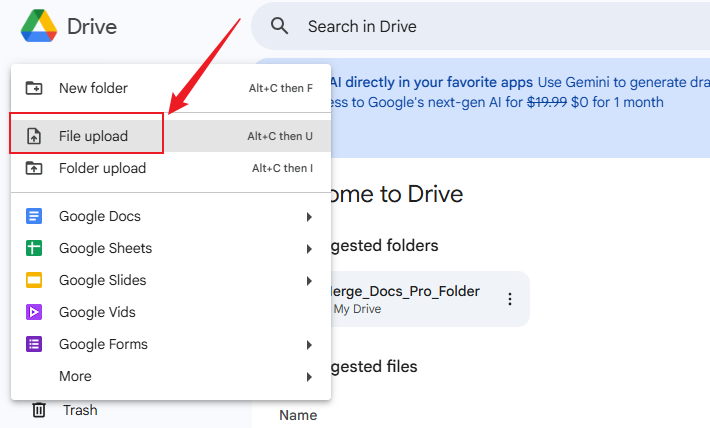
Step 1. Authenticate with your active Google account to access Drive. Next, tap +New in the top-left corner and choose the File Upload icon to upload your PDF.
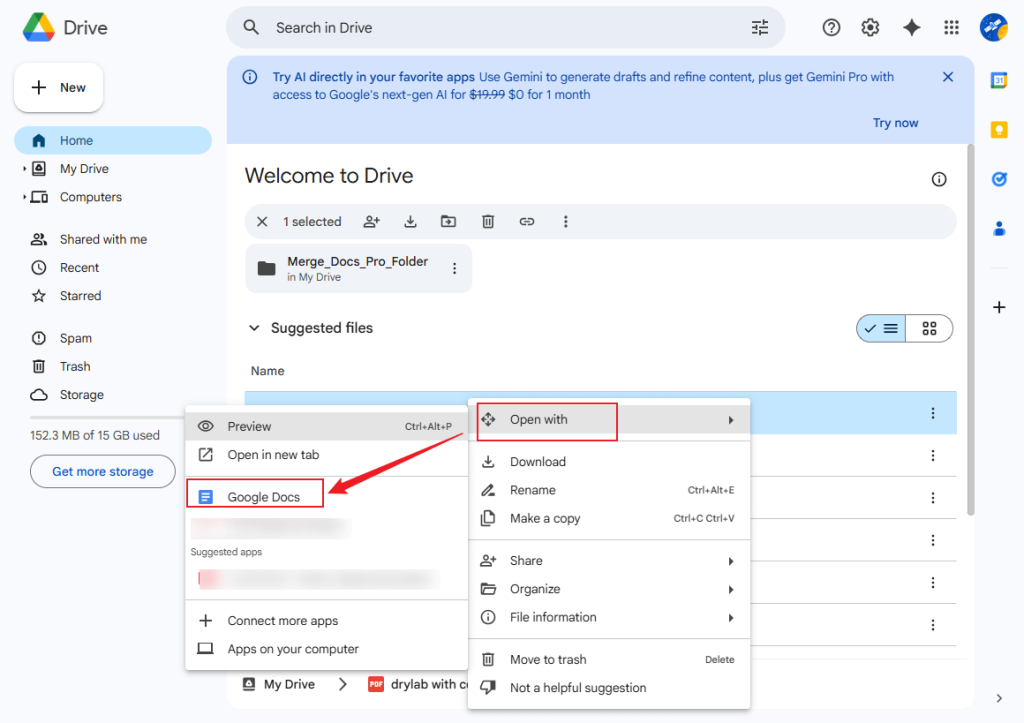
Step 2. Right-click the PDF file you uploaded, then select Open with. Then, choose Google Docs.
Step 3. After opening in Google Docs, the PDF’s text, images, and links can be edited.
- Edit text: Choose the text to edit, then navigate to Format > Text to change its appearance and size.
- Add text: Hover your cursor where you want to insert text, then start typing.
- Edit images: Select the image and make simple edits like cropping, resizing, or adjusting brightness and color.
- Add new images: Select where you want to insert the photos, go to Insert > Image, and select the images to add.
Step 4. Once your changes are complete, go to File. And choose Download > PDF to save it locally.
How to Make a PDF Editable in Microsoft Word
With Microsoft Word, you can conveniently edit PDF files using its built-in feature. Word converts PDFs into editable files upon opening, preserving the majority of the original formatting. This approach is great for users needing fast text modifications using a desktop tool they already know.
Learn how to use Microsoft Word to quickly make a PDF editable.
Step 1. In Microsoft Word, click Open and navigate to the PDF you wish to edit.
Step 2. Select the file and tap Open. When the dialog box appears asking to convert the PDF to Word, click OK to move forward.
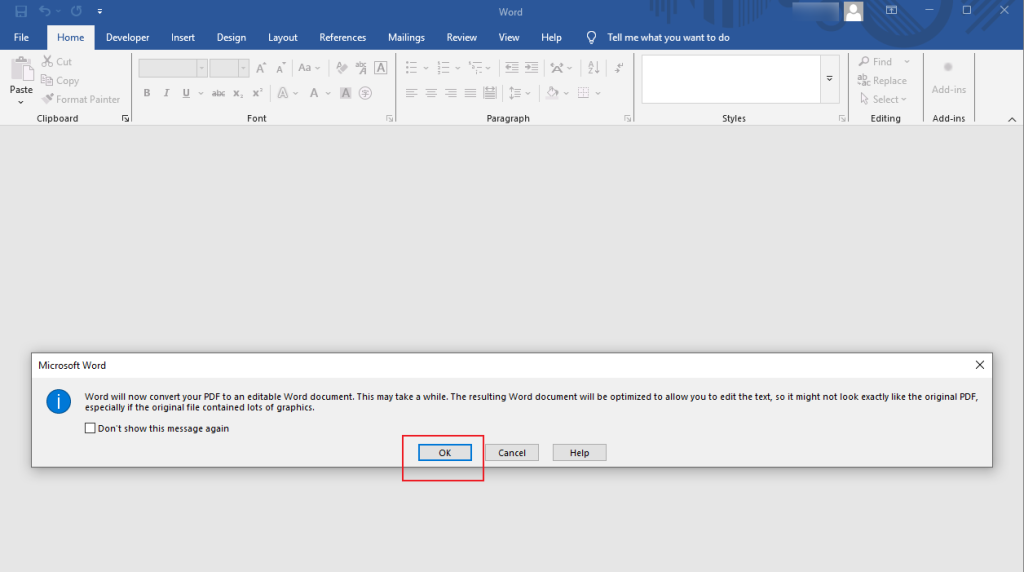
Step 3. The PDF will open in Word format, allowing you to edit it. You can edit text, alter fonts and formatting, insert images, and perform other edits.
Step 4. Once you have finished editing, click the File button, then select Save or Save As to save your recent changes.
Remember. Some PDF features, such as annotations, form fields, or digital signatures, might not be editable in Word. For these types of tasks, specialized PDF editing programs work best.
Final Thoughts
Although PDFs are ideal for storing and sharing files, their fixed layout can make changes tricky. Mastering how to make a PDF editable can improve workflow, increase productivity, and simplify document tasks. Whether you convert PDFs to Word, use OCR editors, or rely on online tools like Google Docs and iLovePDF, these six methods allow for efficient PDF editing and management.
FAQs
PDF editors like Adobe Acrobat and JOPDF, along with online tools such as iLovePDF and PDFescape, can turn standard PDFs into fillable forms, simplifying data collection and submissions.
Simply open your PDF, select the Prepare Form or Add Form Fields option, and click or drag the interactive elements into the document.
Table of Contents

Your Best Free PDF Expert in PDF editing, compressing, converting, annotating, protect, organizing, and more.
Free DownloadWindows · macOS

Olivia
“Olivia is an editor at JOPDF, where she writes practical guides and insightful articles on managing PDFs—covering topics like editing, annotating, converting, and organizing files efficiently. Passionate about clear communication and digital productivity, Olivia enjoys spending her free time cooking, watching movies, and hiking to unwind and find inspiration for her writing.”