Summary :
Bank statements summarize your transactions to help you track spending and savings. For legitimate reasons, you might need to edit a bank statement. For instance, hide or remove your private information, correct an error, or add your signature. The bank statements you download are often in PDF format, and editing PDFs is challenging. This JOPDF guide is compiled with streamlined steps to simplify your work. Learn how to edit a bank statement PDF using 4 free approaches.
Make sure you only perform editing for legitimate, and personal use. Better not modify the original content, but add additions or redactions.
How to Edit a Bank Statement PDF with JOPDF
JOPDF is a lightweight, free bank statement PDF editor that lets you take control of PDF matters in a breeze. You can highlight specific entries, add textboxes for writing corrections, and “blackout” sensitive data in color. The program can also make existing statement details editable. Thus, you can fix spelling mistakes and change the name, address, or phone number.
How to use the best PDF editor to edit a bank statement PDF.
1. Get the editor application: Download JOPDF for Windows or Mac, and install and launch it.
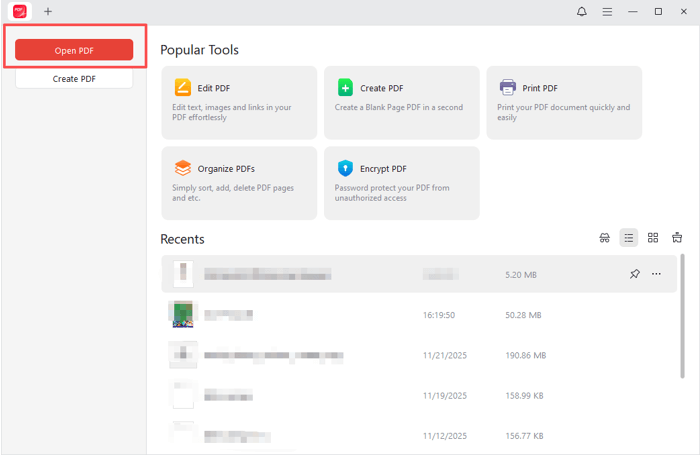
2. Open your bank statement: Open the bank statement you want to edit in PDF by dropping the Open PDF option.
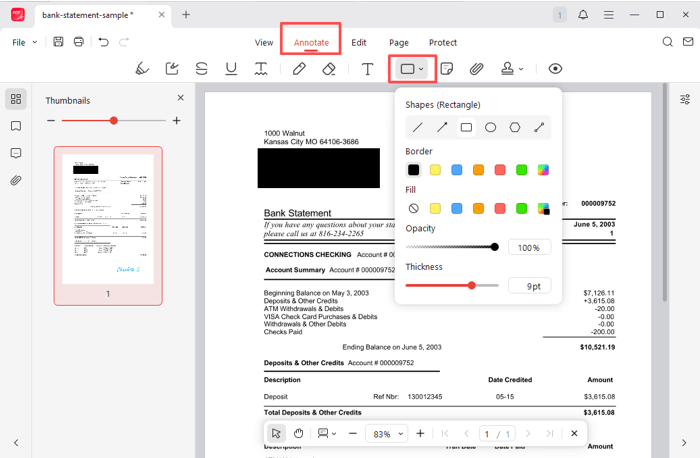
3. Annotate to Redact: Click the Annotate group, select the Shapes tool, choose a dark color, and draw rectangles to redact confidential information.
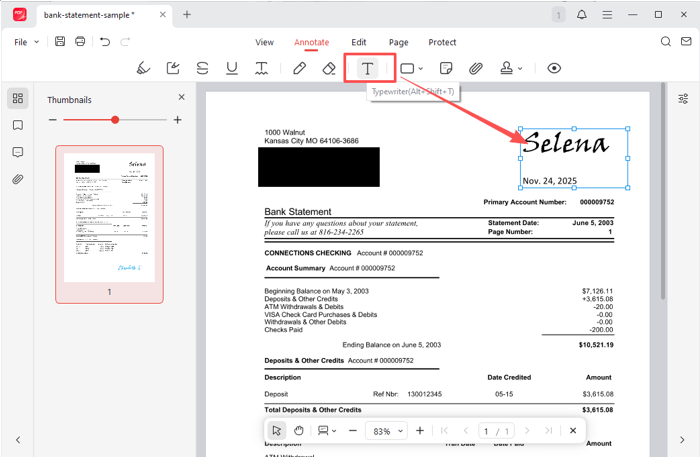
4. Add Signature Text: Select the Typewriter tool, and type text on the PDF to sign your name or add a date or other details.
5. Further edit the bank statement PDF: Use other tools to add highlights, draw lines, create stamps, or insert sticky notes. If necessary, click Edit to edit the existing text in the PDF to adjust the transaction details.
6. Save or print the file: Go to File to save the changes or print the PDF to a non-editable version.
When you download an encrypted PDF bank statement from a bank’s website, JOPDF can remove the password from the PDF or unlock it.
How to Edit a PDF Bank Statement with Adobe Reader
The second way to edit a bank statement PDF for free is by using Adobe Acrobat Reader DC. The free version of Acrobat includes basic annotating, signing, and filling features. Therefore, you can correct small errors with strikethrough lines and text additions, add notes, or hide something. The software may take up some space and slightly slow down your computer.
Here is the method for bank statement editing in Adobe Reader.
1. Import your bank statement: drag and drop the PDF bank statement you wish to edit into Adobe.
2. Add details: Click the comment option in the vertical bar to start editing the bank statement PDF. Select a comment tool to insert pop-up notes or direct new text.
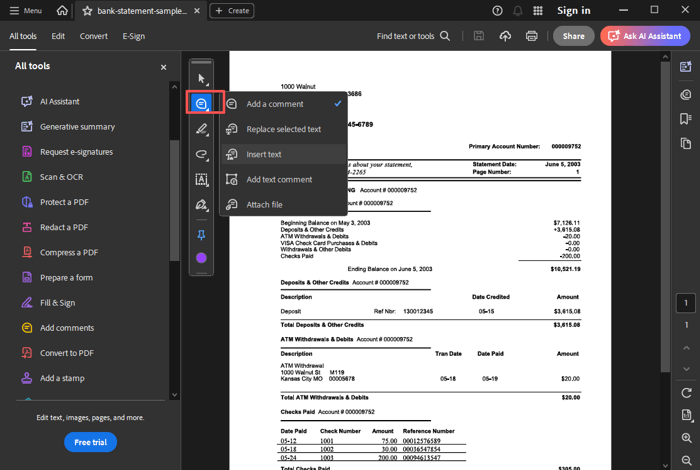
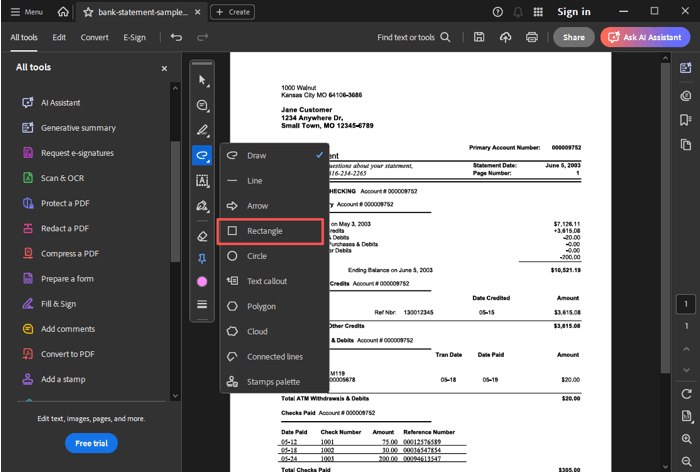
3. Cover up secret info: select the drawing option, choose a shape tool, and specify the black color to draw a shape to hide something.
4. Add a signature: click Fill & Sign in the left pane, and select Add signature to draw or upload a signature.
5. Save the PDF: Go to the Save as option to save the edited bank statement.
How to Edit a Bank Statement in Preview
Mac has a built-in application to edit Chase, HDFC, or any other bank statement PDFs and edit the password protection. It’s the Preview app that lets you edit a bank statement PDF to mark up specific items, write down notes, and fix errors. It allows you to perform real redaction of PDF content, add signatures, and fill out forms. It doesn’t allow modifying the original document, only adding extra content. It is also your free PDF viewer and printer.
Look at how to get the Preview app to edit bank statements on your Mac.
1. Open a bank statement PDF: right-click the PDF, choose Open with, and select Preview as the opener.
2. Access markup tools: Click the pen icon (Show Markup Toolbar) to expand a drop-down of markup tools.
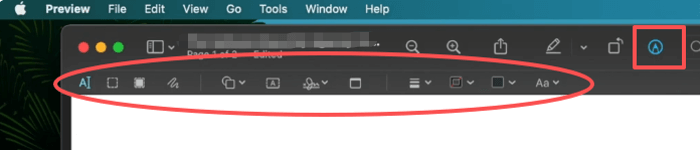
3. Add annotations: begin bank statement PDF editing using the text adding tool, shape tool, or highlighter tool in the toolbar. You can add notes or comments or draw on the PDF.
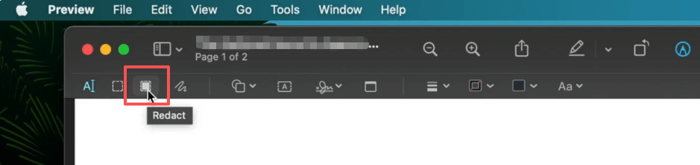
4. Redact sensitive info: You can use the Redact tool to draw around and remove certain things from the bank statement. This way is to remove things from a bank statement permanently.
5. Sign and save the PDF: select the signature tool to draw or capture your signature to apply to the PDF. Then, save the well-edited bank statement PDF.
How to Edit a Bank Statement with Xodo
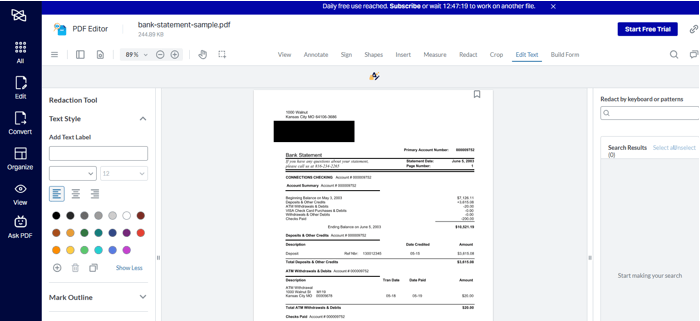
You can edit a bank statement PDF online for free using the Xodo online PDF editor. There is no need to download or install software, or even log in. Xodo makes PDF signing, annotating, drawing, and editing convenient on any device. It allows downloading the edited file for free, watermark-free. However, note that you can only process 1 file for free per day.
Explore how to edit your bank statement PDF file online for free.
Step 1: Visit the PDF bank statement editor online for free in your browser.
Step 2: Upload your PDF bank statement, and click the Edit Text in the toolbar to add extra instructions for the transactions.
Step 3: Click the Annotate tool to take notes, highlight text, and do more eye-catching edits.
Step 4: Use the Redact, Crop, Sign, or other tools to edit the bank statement in PDF online, like deleting the account number or phone number.
Step 5: Finally, click the Download button to save your updated document.
Conclusion
For compatibility and safety considerations, digital bank statements are usually created in PDF format. Editing bank statements can be easily done with the four recommended software apps. To make legal edits and avoid disputes, don’t fake the statement information or change the original amount. To get around the edit issue, use JOPDF or other tools to insert and append any corrections or supplements to an existing PDF.
FAQs
Table of Contents

Your Best Free PDF Expert in PDF editing, compressing, converting, annotating, protect, organizing, and more.
Free DownloadWindows · macOS · Linux

Selena
Staff Editor
“Selena is a staff editor working for JOPDF, passionate and committed to providing how-to and round-up articles. Over 8 years of specialized skills and experience in PDF solutions, hoping to help users ease their lives and solve whatever they encounter. "Work smarter, not just harder!"”
![Find Ways to Download Manga as PDF for Free [5 Proven Ways]](https://b.jopdf.com/wp-content/uploads/2026/04/download-manga-pdf.png)

![5 Best Free PDF Compressors in 2026 [Desktop and Online]](https://b.jopdf.com/wp-content/uploads/2026/04/best-free-pdf-compressor.png)
