![4 Best Methods on How to Edit a Signed PDF [Includes Tips]](https://b.jopdf.com/wp-content/uploads/2026/04/how-to-edit-a-signed-pdf.png)
Introduction :
Editing a signed document might seem difficult, but there are times when updates are needed even after it has been finalized. Being able to manage how to edit a signed PDF is useful for minor corrections, updates, and document reuse. Mastering this can save time, reduce repetition, and streamline workflow tasks. This JOPDF article explains four practical ways to modify a signed PDF.
You may be curious why signed PDFs cannot be edited directly. The main reason lies in how digital signature technology protects documents. When a PDF is signed, a unique encrypted fingerprint is created from its content. This secures integrity, so even tiny edits break the signature. As a result, most tools block changes, since altering anything would invalidate the original signed approval and trust.
It is also important when you try to edit digitally signed PDF files to know the types of signatures. Electronic signatures, like images or typed names, are simpler and sometimes removable. In contrast, digital certificate signatures use encryption and identity verification. Once altered after signing, the system shows the file as invalid, signaling recipients the document cannot be fully trusted.
Can You Edit a Signed PDF?
Editing a signed PDF can be possible at times, depending on how it was signed and by whom. How restricted a PDF is varies according to the signature type and the permissions set at signing.
The table below provides a clear overview of how editable a signed PDF is under different circumstances.
| Different Scenarios | Can You Edit It | Explanation |
| PDF Signed by You | Yes | You can typically clear your own signature, edit the document, and then reapply the signature with the same or updated information. |
| PDF Signed by Someone Else | No | Editing is not allowed without invalidating the signature. You will need to obtain the original file or make a new editable version. |
| PDF with Certificate-Based Signature | No | These signatures are encrypted and secure. Any change will invalidate the signature and mark the document as tampered with. |
| PDF with Simple E-Signature | Yes (in many cases) | Such signatures can be adjusted or deleted, giving you the ability to modify the document. |
Method 1. Remove the Signature and Edit the PDF
A simple approach to learning how to edit a digitally signed PDF document is by removing the signature before making any necessary edits. Tools like Adobe Acrobat Pro or Standard let you remove the signature if you are the original signer, which unlocks the document for editing. Once the content is updated, you can reapply your signature to complete the document again.
Note
If someone else signed the PDF, you generally need authorization to remove the signature. Attempting to do so may invalidate the document or be restricted by the software.
Let’s see how to remove the digital signature and edit the PDF in Adobe Acrobat Pro or Standard.
Step 1. Download Adobe Acrobat and set it up on your computer. Once launched, open your signed PDF file to make the required changes.
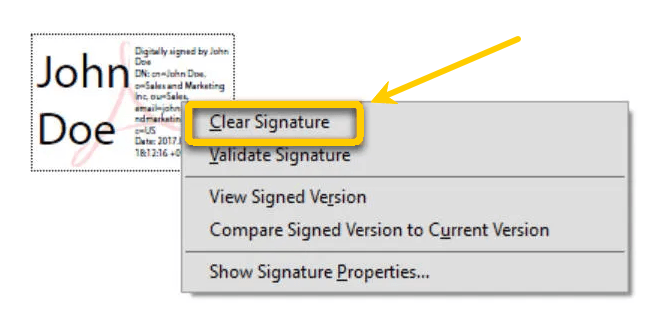
Step 2. Locate the digital signature and navigate to the Edit tab. And select the signature with Control-click on Windows or Command-click on Mac.
Then, click Delete or Clear Signature from the context menu.
Tips
If the signature box remains, go to the Tools menu and select Prepare Form. Then, right-click the signature box and select Delete. Now, save the PDF as a new version.
Step 3. Once the signature is removed, select the Edit PDF tool from the right-hand panel. And click the text or images you wish to edit.
Step 4. Take advantage of editing tools to add, delete, or modify content.
Method 2. Print the Signed PDF to a New File
One more method for how to edit a PDF that has been signed involves flattening it by printing it into a new PDF file. This process allows you to flatten the signed file by printing it to a new PDF and remove the signature verification layer, effectively turning the document into a regular, editable PDF copy.
For this method, JOPDF is a dependable choice that runs smoothly across platforms, letting you print PDFs on Mac, Windows, and Linux without hassle. The tool also allows you to edit locked PDFs and add a signature to a PDF, providing a complete and convenient solution.
Learn how to print the signed PDF to a new file using JOPDF in just a handful of clicks.
Step 1. Download and install JOPDF on your computer. After launching, click the Print PDF option in the main interface. Now, upload the target signed PDF document.
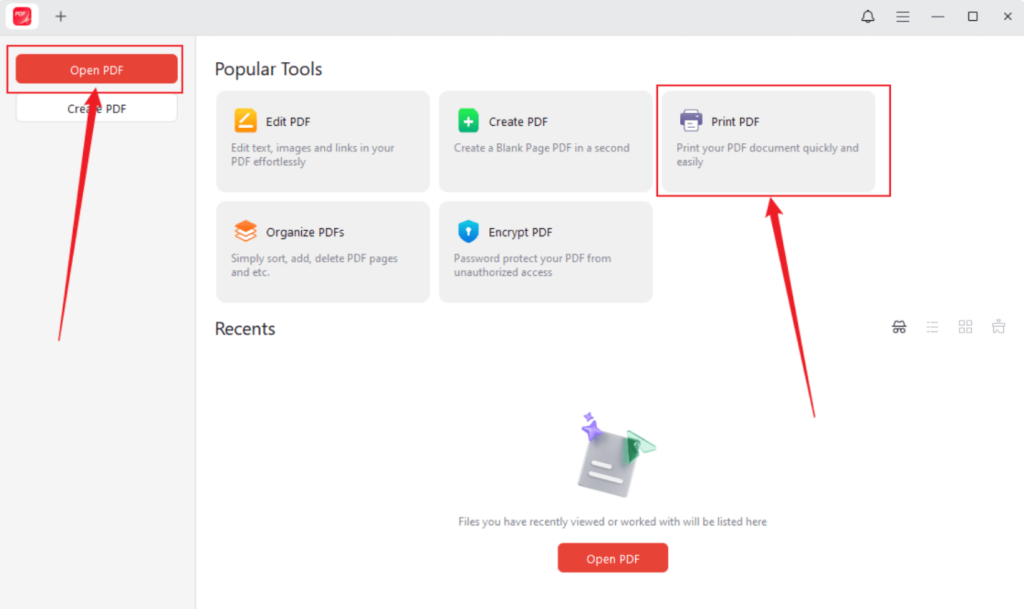
Alternatively, tap the Open PDF button in the left sidebar to upload your signed PDF to edit.
Step 2. As soon as you click the Print PDF option, your PDF file will be uploaded, and the Print window will appear. You must close the Print window before editing the file.
Step 3. Next, go to the Annotate, Edit, Page, or Protect section to modify your PDF file.
Once you finish editing, tap the Print icon in the top left. Or, press Command + P to open the Print window.
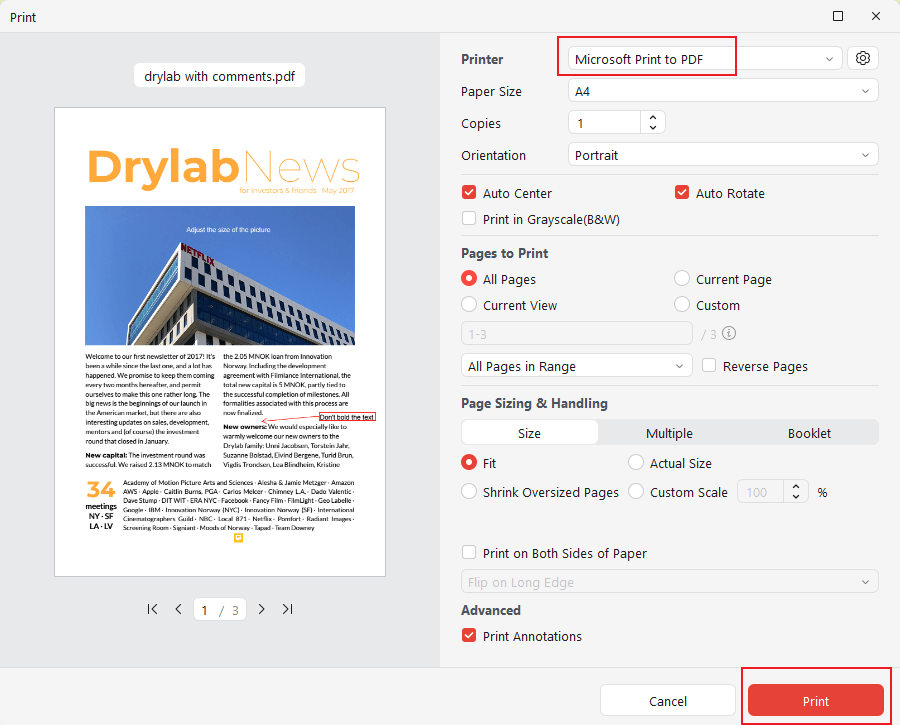
Step 4. Now, select the Microsoft Print to PDF option as the printer. Next, set the printing settings such as printed paper size, orientation, and color. Also, select the page range you want to print, or set the PDF to print as a booklet.
Finally, click the Print button.
Note
If you flatten a signed PDF by printing to a new file, the original signature is erased and cannot be validated. This means the document’s legal validity and authenticity may be revoked, so this method should be used only for editing—not for official or legally binding documents.
Method 3. Edit a Signed PDF Using a Professional PDF Editor
Another efficient way to edit a PDF that has been signed is to work with a professional editor that includes advanced capabilities. These tools allow you to adjust content by clearing signatures, creating editable files, or unlocking restricted documents based on permissions.
Below are popular tools for advanced PDF editing.
- Adobe Acrobat Pro
- SwifDoo PDF
- JOPDF (free Adobe Acrobat alternative)
- Foxit PDF editor
- Nitro PDF Pro
- PDF-XChange Editor
These advanced tools make it easier to edit a PDF after it has been signed by offering features like managing digital signatures, removing or invalidating existing signatures, and unlocking restricted documents when permitted. They allow you to edit text, images, and formatting, then safely apply new signatures to finalize the document.
Discover how to edit a signed PDF using a professional editor like JOPDF in just a few clicks.
Step 1. Download JOPDF and set it up on your Windows or Mac computer. Then, open your signed PDF with the program.
Step 2. Then, go to the Edit tab on the top toolbar and choose Edit Text or Edit All to make text editable.
You can click into a text box to change, delete, replace, or add new text. Tap Properties to adjust font size, color, and more.
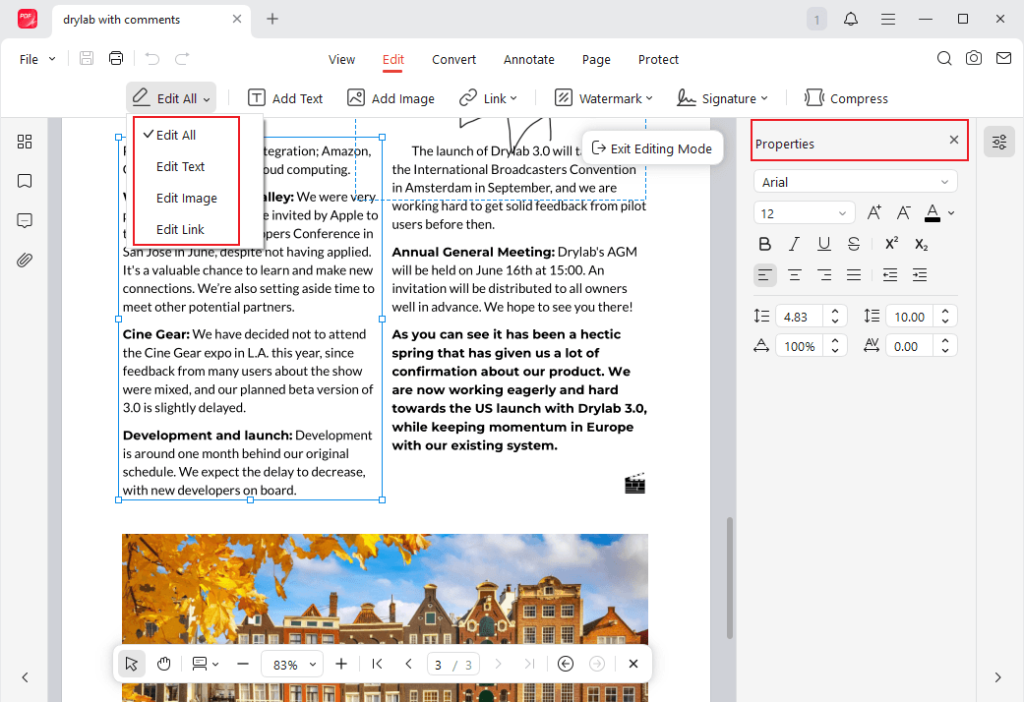
Similarly, click Edit Image to crop, rotate, flip, resize, replace, or adjust its transparency.
Note. You may click Edit Link to change the link’s look and target in the pop-up window.
Step 3. After finishing your text edits, click the Exit Editing Mode button in the top right corner to leave the editing mode. As another option, press the Esc key on your keyboard.
Method 4. Request the Original Unsigned PDF
Another dependable approach is to ask the sender for the original unsigned PDF before making any edits. It ensures you can modify the document without signature constraints or concerns about invalidation. Plus, it ensures the document’s integrity while facilitating accurate updates and straightforward resubmission for signatures in professional or legal use.
Tips for Editing Signed PDFs Safely
Working with signed PDFs demands care to avoid losing important data or breaking signatures. Following a few best practices can help you make changes safely and efficiently.
Here are some tips for safely editing signed PDFs.
- Always keep a backup copy.
- Verify the type of signature before making edits.
- Check document permissions and restrictions.
- Use trusted and professional PDF editing tools.
- Re-sign the document after making any changes.
Final Wrap Up
Learning how to edit a signed PDF can save time and reduce complications when dealing with important documents. Although certain methods allow you to modify content, it’s important to select the right approach based on the signature type and permissions. When you edit a PDF that has been signed by removing the signature, printing it anew, or using advanced editors, always safeguard the document’s integrity. Applying the correct methods and safeguards allows you to manage signed PDFs effectively and safely.
FAQs
Table of Contents

Your Best Free PDF Expert in PDF editing, compressing, converting, annotating, protect, organizing, and more.
Free DownloadWindows · macOS · Linux

Olivia
“Olivia is an editor at JOPDF, where she writes practical guides and insightful articles on managing PDFs—covering topics like editing, annotating, converting, and organizing files efficiently. Passionate about clear communication and digital productivity, Olivia enjoys spending her free time cooking, watching movies, and hiking to unwind and find inspiration for her writing.”
![Find Ways to Download Manga as PDF for Free [5 Proven Ways]](https://b.jopdf.com/wp-content/uploads/2026/04/download-manga-pdf.png)

![5 Best Free PDF Compressors in 2026 [Desktop and Online]](https://b.jopdf.com/wp-content/uploads/2026/04/best-free-pdf-compressor.png)
