
Introduction
You’ve just scanned a contract or an old document, and you need to change a date, fix a typo, or update a name. You open the PDF, but you can’t click on the text. How to edit a scanned PDF? No worries! This guide will show you 4 proven methods. You are sure to find the most suitable method for you here.
Why Your Scanned PDF Isn’t Editable?
How to edit text in a scanned PDF? Are you wondering why your PDF file can’t be edited? Then you need to understand what a scanned PDF is.
You can create a PDF from a scanned document or by taking a picture with your phone. However, the file is just a container holding a .jpg or .png image. The computer sees only a grid of colored pixels; it has no idea that a certain shape is the letter “A”.
In this case, you should apply OCR (Optical Character Recognition) technology to make it editable. After that, you can select and edit text in PDF as usual. It doesn’t seem that difficult, does it? Keep reading to learn the specific methods and steps!
Method 1. How to Edit a Scanned PDF Document for Free
If you have a simple document and don’t want to install any software, a free online tool can work. Many tools, such as Smallpdf, iLovePDF, or pdfFiller can perform OCR to make the document editable.
After that, you open the PDF in a PDF editor and make any edits. Don’t have a suitable PDF tool yet? Then click the button below to download the free PDF editor, JOPDF.
Do not use this method for sensitive files. Uploading the scanned contract, financial statement, and the personal ID to a third-party website carries numerous risks. For confidential information, it’s better to use a desktop program.
Steps:
- Use a reputable online PDF converter with an OCR feature. Here, we choose iLovePDF: https://www.ilovepdf.com/ocr-pdf.
- Upload your scanned PDF. Select the language and click the Apply OCR button.
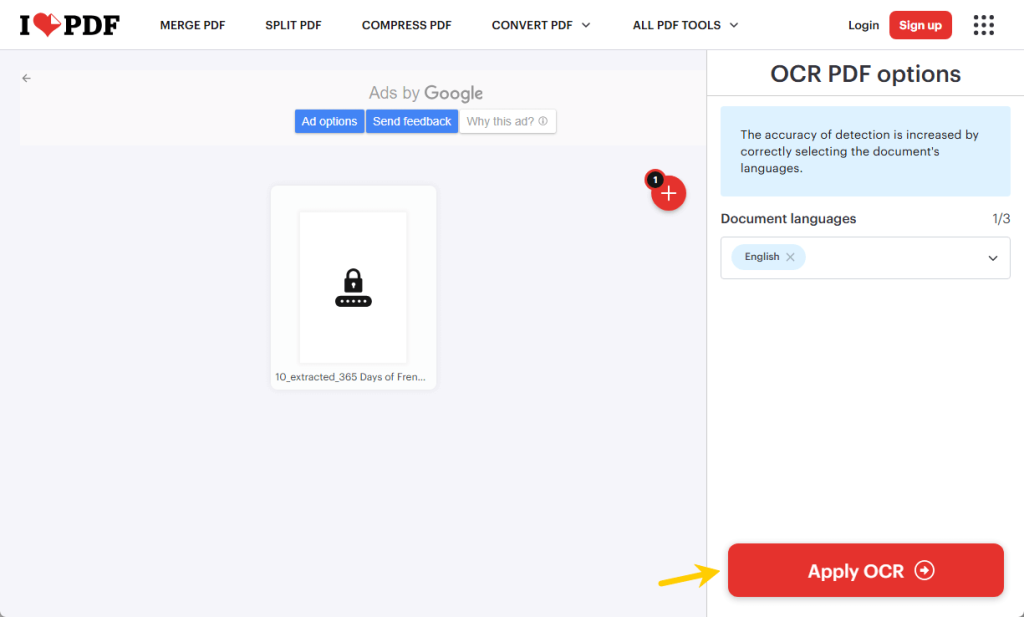
- Wait for a while and download the editable document.
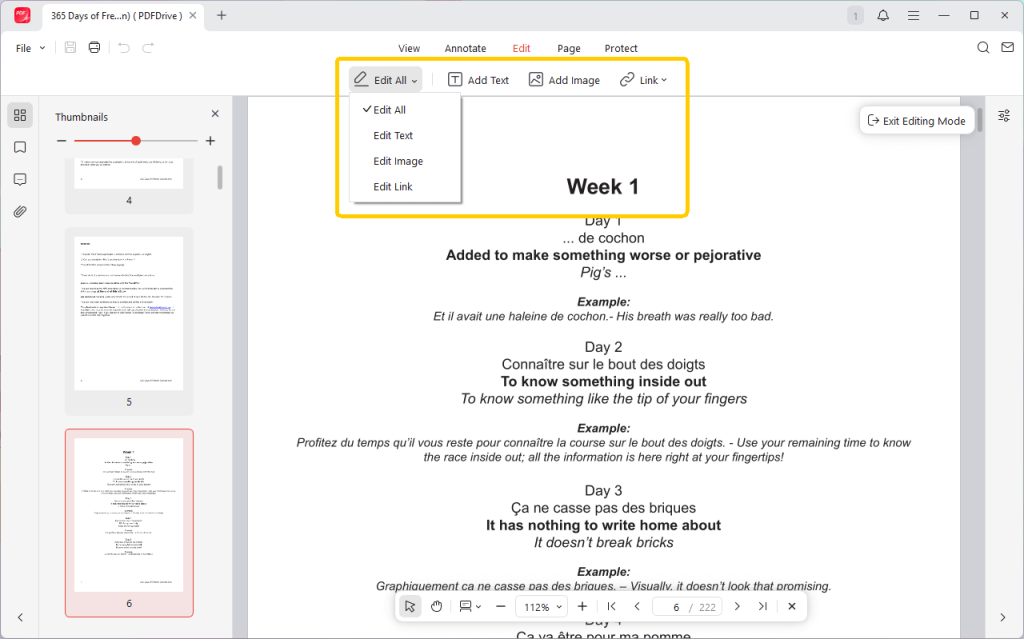
- Now, you can open the document in JOPDF, select the right tool, and start editing. JOPDF helps you edit text and images, add links and graphics, highlight content, and more.
👍 Best for: Quick, non-sensitive, single-page documents when you’re on a computer without the right software.
Method 2. How to Edit a Scanned PDF in Adobe Acrobat
As the industry “gold standard”, Adobe Acrobat has one of the most powerful and accurate OCR engines on the market. However, it is available only in the paid Pro version. The free Adobe Acrobat Reader can view PDFs but cannot perform OCR or edit text.
If you require a high degree of accuracy and have the budget, then Adobe is the way to go.
Steps:
- Open your scanned PDF file in Adobe Acrobat Pro.
- Go to the Tools tab on the top left and select Edit PDF.
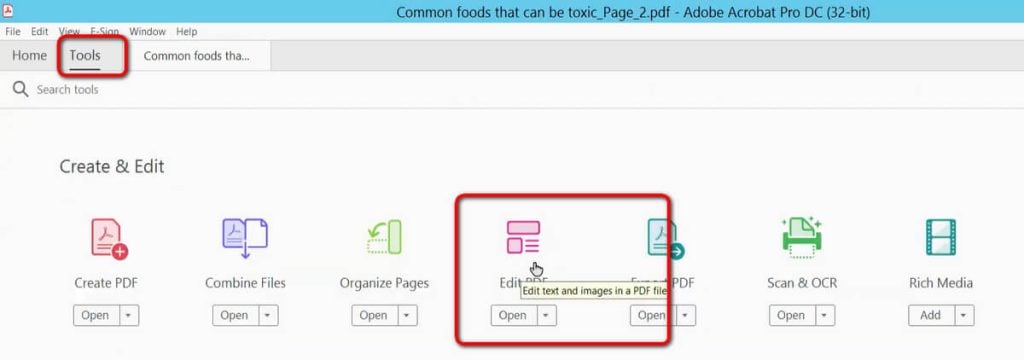
- Then, Adobe will start converting the PDF.
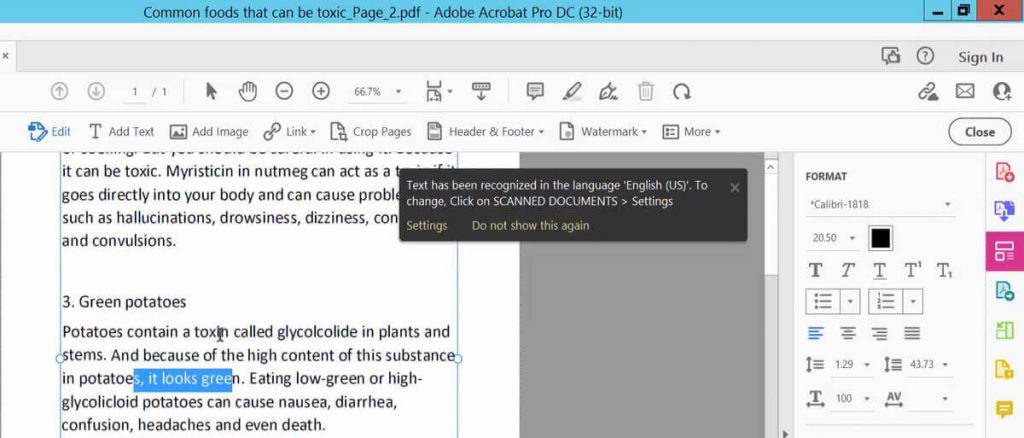
- Once done, you can now click directly on any text and make changes.
👍 Best for: Professionals, complex multi-page documents, and users who need the highest possible accuracy.
Method 3. How to Edit a Scanned PDF with SwifDoo PDF
If you find Adobe Acrobat too expensive or complicated, SwifDoo PDF is a lightweight, fast, and user-friendly alternative. It has a powerful OCR engine that supports various languages. More than that, after OCR, you can start editing immediately.
Steps:
- Download SwifDoo PDF. Install and launch it.
- Open the PDF document. Go to Edit and choose OCR.
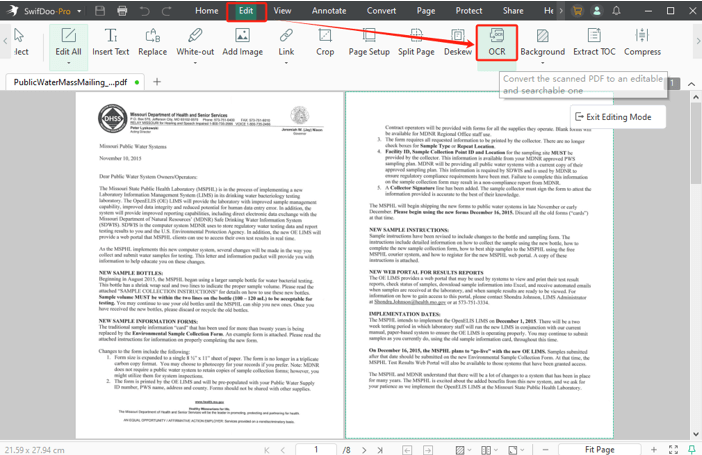
- A dialog box will appear. Select the document language and the page range.
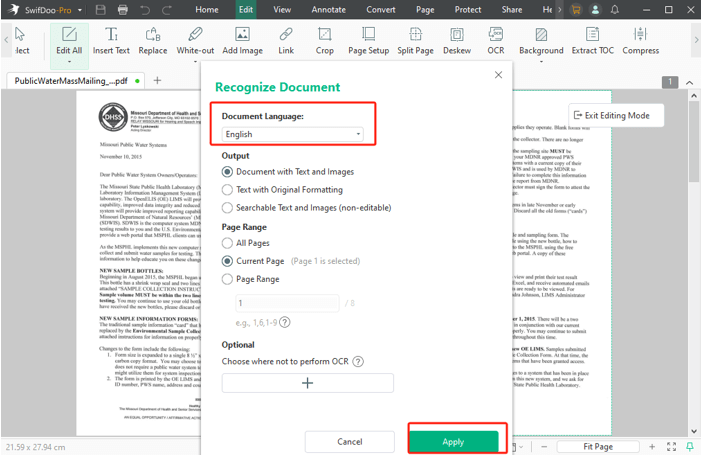
- Click OK. SwifDoo will analyze the document and apply the text recognition.
- Once it’s finished, stay in the Edit tab and click the main Edit button. You can now click anywhere on the text to make changes.
👍 Best for: Home users, students, and businesses who want a powerful, secure offline editor without the high subscription cost of Adobe.
Method 4. How to Edit a Scanned PDF Document in Word
In fact, you can convert and edit scanned PDFs without using specialised PDF software. If you have Microsoft Word (2013 or newer), you have a powerful OCR engine built right in.
Word can open PDFs, and when it detects a scanned image, it will automatically try to convert it to an editable Word document. Then you can edit the document and save it as a PDF.
Steps :
- Open Microsoft Word on your computer.
- Go to File > Open. Browse for and select your scanned PDF file.
- Word will show a pop-up warning message. Please click OK.
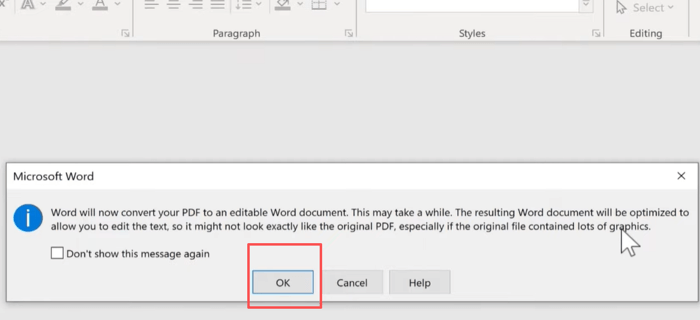
- Word will perform OCR in the background. After a few seconds or a minute, your PDF will open as an editable Word document.
- Make all your edits as needed. When you are finished, go to File > Save As… > Select PDF as the format and save the file.
👍 Best for: Users who already have Microsoft Office and want to edit a PDF for free. It is a good choice for a text-based document because it may struggle with complex layouts, tables, and images.
Conclusion
That’s all about how to edit a PDF document. The OCR technology can recognize the text and let you make changes easily. You can choose one of the tools to help you get the job done.
- Online tools are fast and convenient for anything non-confidential.
- Adobe Acrobat offers the most professional and accurate results.
- SwifDoo PDF provides a fast, secure, and user-friendly alternative.
- Microsoft Word is a clever choice for text-based documents.
Anyhow, for any regular or sensitive work, a secure desktop application like SwifDoo PDF or Adobe Acrobat is always the most reliable and secure choice.
FAQs
Table of Contents

Your Best Free PDF Expert in PDF editing, compressing, converting, annotating, protect, organizing, and more.
Free DownloadWindows · macOS · Linux

Queena
Editor
“As a staff editor for JOPDF, Queena excels at guiding users to the optimal tools and solutions. When she's not analyzing the latest PDF solutions, she enjoys spending her free time playing with her four cats.”
![Find Ways to Download Manga as PDF for Free [5 Proven Ways]](https://b.jopdf.com/wp-content/uploads/2026/04/download-manga-pdf.png)

![5 Best Free PDF Compressors in 2026 [Desktop and Online]](https://b.jopdf.com/wp-content/uploads/2026/04/best-free-pdf-compressor.png)
