Introduction
Stuck with a PDF you need to change but don’t want to pay for an expensive Adobe Acrobat subscription? Thankfully, you can edit PDFs without spending a dime. This guide will show you how to edit a PDF without Adobe for free.
Part 1. Can You Edit PDF Without Adobe?
Yes! While Adobe Acrobat is the industry standard, many powerful and reliable alternatives on the market let you edit PDFs on Windows and Mac for free.
Free PDF editing tools come in various forms: including dedicated desktop software that offers robust features, convenient online tools accessible from any browser, and even built-in apps already have on your computer.
Next, let’s explore how to edit a PDF without Adobe for free, ensuring you complete the task efficiently and affordably.
Part 2. 5 Free Ways to Edit PDF Without Adobe
Here are five of the most effective methods to work with your PDF files. We will explain the features of each tool in detail and guide you through using them to edit PDFs.
1. Best Free Way to Edit a PDF Without Adobe (Win & Mac)
If you’re looking for a comprehensive and completely free Adobe alternative, JOPDF is a great choice. It’s a powerful all-in-one solution for anyone who frequently works with PDFs. It packs an extensive suite of features into an intuitive interface.
💎 Key features
- Easy text and image editing
- Create, merge, split, and rotate PDFs
- Add annotations, comments, stamps, and shapes
- Encrypt PDFs with the open and permission password
Learn how to edit a PDF without Adobe but with JOPDF:
1. Click the download button to get the free JOPDF.
2. Launch the software and click Open PDF to select the document you want to edit. Or, you can select Edit PDF.
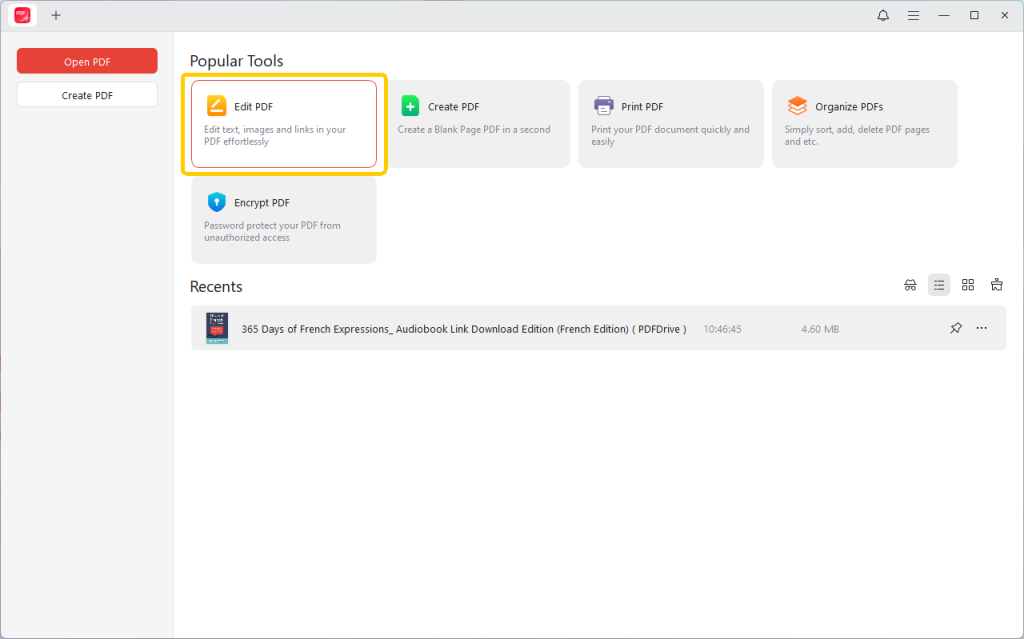
3. Next, go to Annotate or Edit as needed. For example, under the Edit tab, you can add new text, images, or links. To highlight PDFs, add comments, or draw shapes, please go to the Annotate tab.
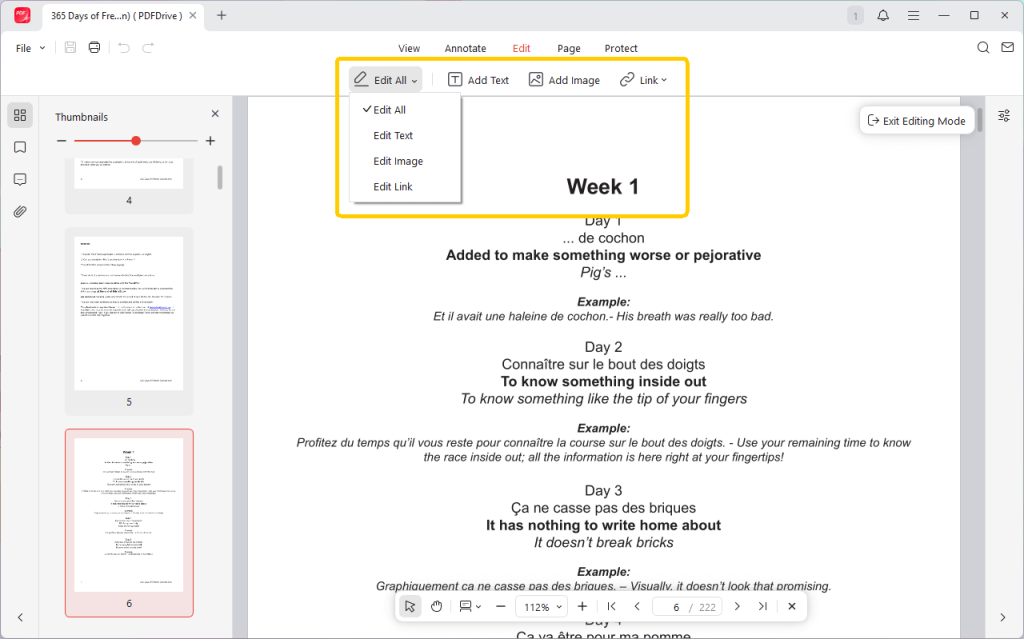
4. When OK, click the Save button to save your edited PDF.
✅ Advantages of JOPDF
- Completely free
- Clean interface, suitable for beginners
- Offers a range of tools that usually come with a premium price tag
🏆 Best For
JOPDF is the best choice for those who need a powerful, all-in-one free PDF editor with advanced features for frequent use, without any cost.
2. Edit a PDF with Microsoft Word
Microsoft Word (2013 or newer) can convert a PDF into an editable Word document, allowing you to make changes and then save it back as a PDF.
However, please note that this method is better for text-heavy documents. If the content includes images and complex formatting, changes may occur after the conversion.
💎 Key Features
- Convert PDFs into fully editable Word documents
- Full access to Word’s text formatting and editing tools
- Add or replace images and tables
Check to learn how to use Microsoft Word to edit a PDF:
1. Open Microsoft Word. Go to File > Open and select the PDF document.
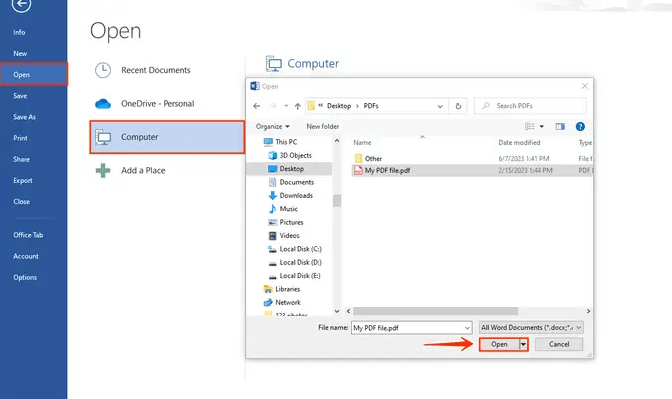
2. A pop-up will appear, please click OK to confirm.
3. Once it opens, you can make any changes as needed.
4. After making your edits, go to File > Save As. In the Save as type dropdown menu, select PDF and click Save.
✅ Advantages of using Microsoft Word
- Most users already have Microsoft Word installed
- No need to learn new software if you’re comfortable with Word
- Easily edit text-based documents, like contracts, reports, or essays
🏆 Best For
Users who already own Microsoft Office need to perform text-based editing on documents with relatively simple layouts.
3. Edit a PDF on Mac Without Adobe
For Mac users, the system actually comes with a built-in PDF editor: Preview. While it’s often used as a simple image and document viewer, Preview features robust annotation and commenting tools that are well-suited for handling many common editing tasks. However, it cannot help users edit the existing text.
💎 Key Features
- Add text boxes to fill in non-interactive forms
- Draw on PDFs: shapes and lines
- Highlight, underline, and strikethrough text
- Add comments, notes, and signature
- Rearrange, delete, and insert pages from other PDFs
See how to edit a PDF on Mac without Adobe but with Preview:
1. Open the PDF in Preview.
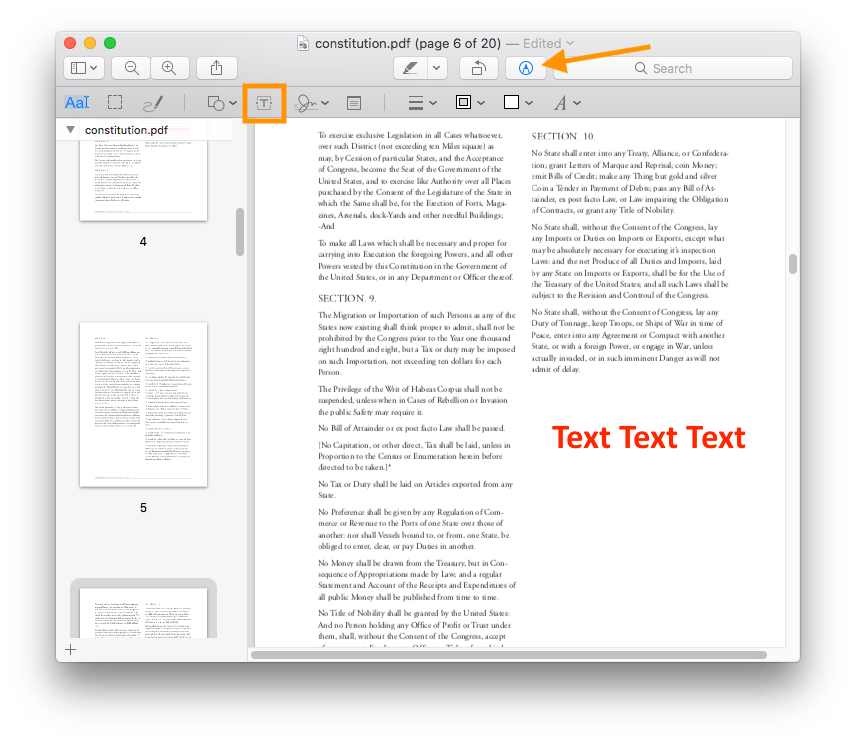
2. Find the Show Markup Toolbar icon and click on it.
3. Now, you can use the tools to make your edits:
- Click the “T” icon to create a text box and add new text anywhere on the page.
- Use the shape tools to draw rectangles, ovals, or lines.
- Use the highlight tool to select and color text.
- To manage pages, open the “Thumbnails” view.
4. Preview will save changes automatically, but you can also use File > Save to ensure your edits are stored.
✅ Advantages of using Preview
- No download or installation
- Runs smoothly without consuming significant system resources
- Perfect for reviewing documents, signing forms, and adding notes
🏆 Best For
Mac users who need to perform quick annotations, sign documents, or make simple additions without needing to download third-party software.
4. Use Google Docs to Edit PDFs
Google Docs is a cloud-based tool that allows you to open and edit PDF files. Similar to Microsoft Word, it converts the PDF into an editable Google Doc, which you can then export back to PDF format. Google Docs is also a standout choice for team projects due to its collaborative features.
💎 Key Features
- Converts PDFs into editable text documents
- Real-time collaboration features
- Integrates seamlessly with Google Drive
Steps to use Google Docs to edit a PDF:
1. Open a browser and go to Google Drive. Log in to your Google Drive account.
2. Click + New and select File upload to upload your PDF.
3. Once uploaded, right-click on the PDF file in your Drive. Select Open with and choose Google Docs.
4. Google Docs will convert the PDF. This may take a moment. Edit the document as needed.
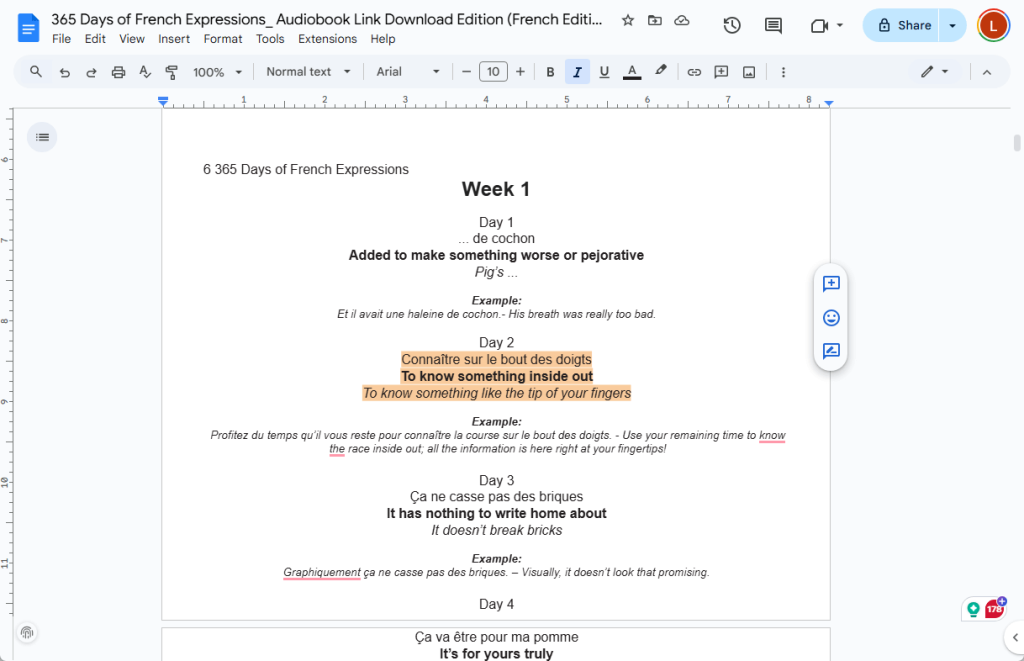
5. Once you are done editing, go to File > Download > “PDF Document (.pdf)“. This will save the newly edited version to your computer.
✅ Advantages
- Accessible anywhere with an internet connection
- Changes are automatically saved to Google Drive
- Multiple users can handle the document at the same time
🏆 Best For
Users who need to edit text-heavy PDFs and want a cloud-based solution that is accessible from anywhere.
5. Use an Online Editor to Edit PDFs
Another method to edit a PDF without Adobe is to use an online service. Take iLovePDF as an example, its “Edit PDF” tool provides a user-friendly interface for making quick changes directly in your web browser.
💎 Key Features
- Add text, images, and shapes
- Freehand drawing and highlighting
- A wide range of other tools (merge, split, compress, convert, etc.)
Steps to edit a PDF with iLovePDF:
1. Navigate to the iLovePDF website (https://www.ilovepdf.com/) and select the Edit PDF tool.
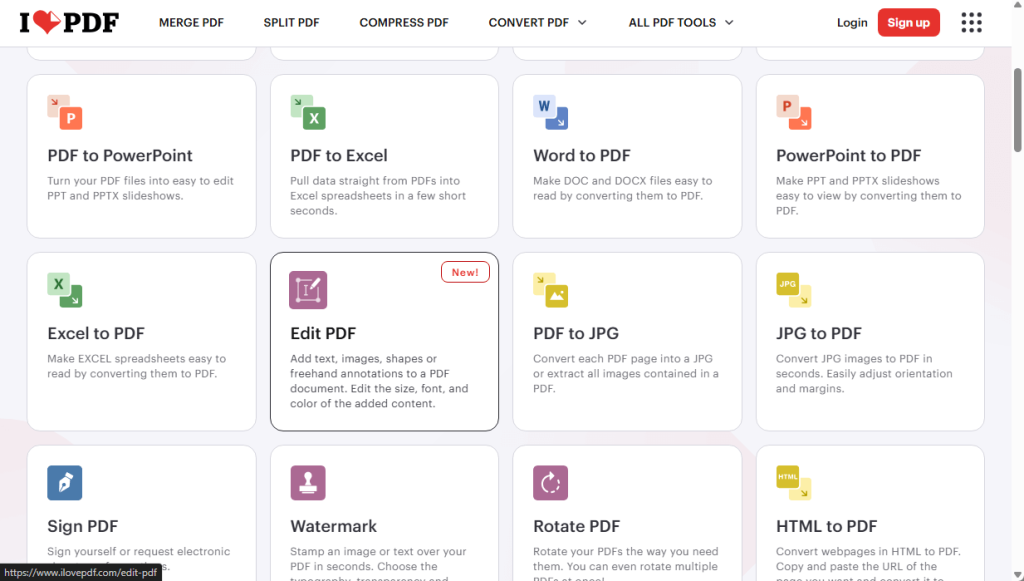
2. Click the Select PDF file button to upload your document.
3. Select the tool and make changes.
4. When done, click the red Edit PDF button in the bottom right corner.
5. Finally, click Download PDF to save the edited file to your device.
✅ Advantages of this method
- The interface is straightforward
- No need to download software
- Provides many more tools than editing
🏆 Best For
Users who need to perform quick, one-time edits online without installing any software.
Part 3. What’s the Best Way to Edit PDF Without Adobe?
Now that you know about five tools that can help you edit PDF files, which one is the best? Well, The “best” free PDF editor truly depends on your specific needs. Before choosing a tool, consider these factors:
💡 Operating System: Are you using Windows, Mac, or another operating system?
💡 Network Connection: Do you prefer a desktop program for privacy or a cloud-based tool that doesn’t require downloading?
💡 Editing Complexity: Do you only need simple text modifications, or do you want to advanced features?
In any case, the most effective way to find your perfect match is to try them out. Since they are all free, you can experiment with a sample document to see which interface you prefer and which tool best handles your specific PDF editing tasks.
If you want to save time, why not give JOPDF a try? Like Adobe, this software offers a suite of tools to help you tackle most PDF-related issues.
Conclusion
That’s all about how to edit a PDF without Adobe Acrobat. Editing PDFs without Adobe is not only possible, but also simple and free.
JOPDF offers powerful features like Adobe, Microsoft Word and Preview are quick solutions, Google Docs and iLovePDF lets you edit PDFs anywhere. You can choose the one that best suits your need. Hope this guide is helpful.
FAQs
Table of Contents

Your Best Free PDF Expert in PDF editing, compressing, converting, annotating, protect, organizing, and more.
Free DownloadWindows · macOS · Linux

Queena
Editor
“As a staff editor for JOPDF, Queena excels at guiding users to the optimal tools and solutions. When she's not analyzing the latest PDF solutions, she enjoys spending her free time playing with her four cats.”
![Find Ways to Download Manga as PDF for Free [5 Proven Ways]](https://b.jopdf.com/wp-content/uploads/2026/04/download-manga-pdf.png)

![5 Best Free PDF Compressors in 2026 [Desktop and Online]](https://b.jopdf.com/wp-content/uploads/2026/04/best-free-pdf-compressor.png)
