Introduction
PDF files retain their formatting across all devices, but editing them is not so simple. If you want to know how to edit a PDF on Mac for free, this article will provide you with the answers. You will learn about three free Mac PDF editors and how they can help you edit your PDF documents.
🟡 Quick Start
If you are a beginner or in a hurry, the following Q&A can quickly help you resolve your doubts.
Q: Does Mac have a built-in PDF editor?
A: Yes. Mac has a built-in PDF editor called Preview. However, it lacks comprehensive editing tools and can only assist you in adding text and making annotations.
Q: Can I edit a PDF for free on a Mac?
A: Yes. You can use the built-in Preview, or free PDF editing software, such as JOPDF.
Q: What’s the best way to edit PDF on Mac?
A: If you want to edit PDFs on Mac in a professional and free way, then JOPDF is the best choice. IIt is an easy-to-use PDF editor that allows you to edit text, images, and other elements.
Way 1. How to Edit a PDF on Mac for Free with JOPDF
JOPDF is a lightweight yet powerful PDF editor that is available on macOS and Windows. It supports PDF creation, editing, annotation, page management, encryption, and more. With this JOPDF, you can edit PDFs just like you would edit a Word document.
JOPDF’s interface is very intuitive, and the workflow is simple. Even beginners will find it easy to use, with no learning curve required. In short, JOPDF enables you to edit PDFs with ease in an industry-standard manner.
Click the download button to get JOPDF and edit PDF files according to your needs.
How to edit a PDF on Mac with JOPDF:
1. Launch JOPDF. Click Edit PDF and select the document. Or, you can open a PDF by drag-and-drop.
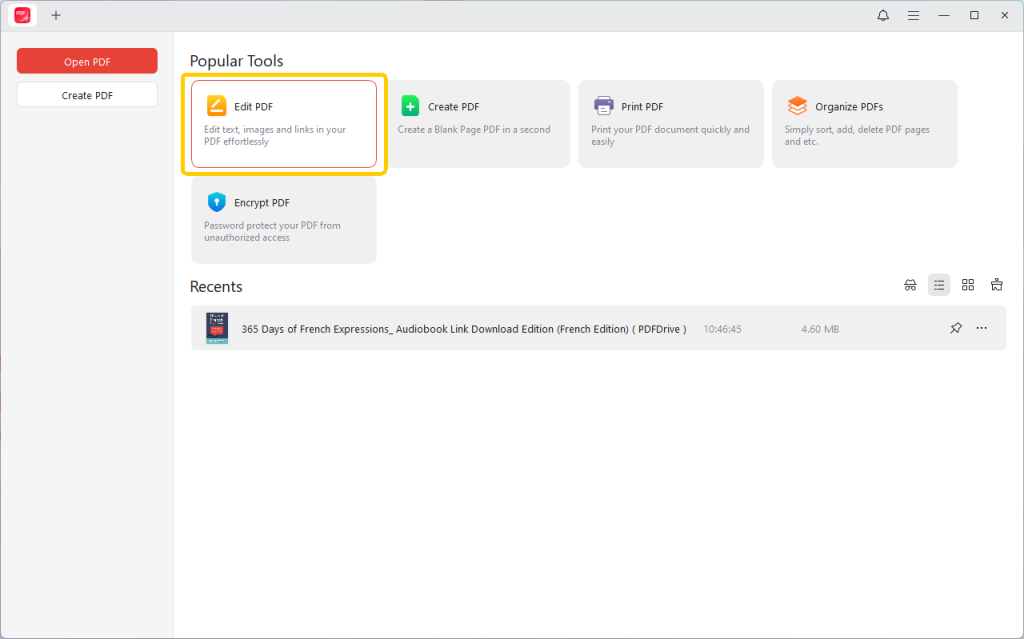
2. Under the Edit tab, select a tool as needed. For example, if you want to edit the existing text, select “Edit Text.” If you want to add new text, select the “Add Text” option.
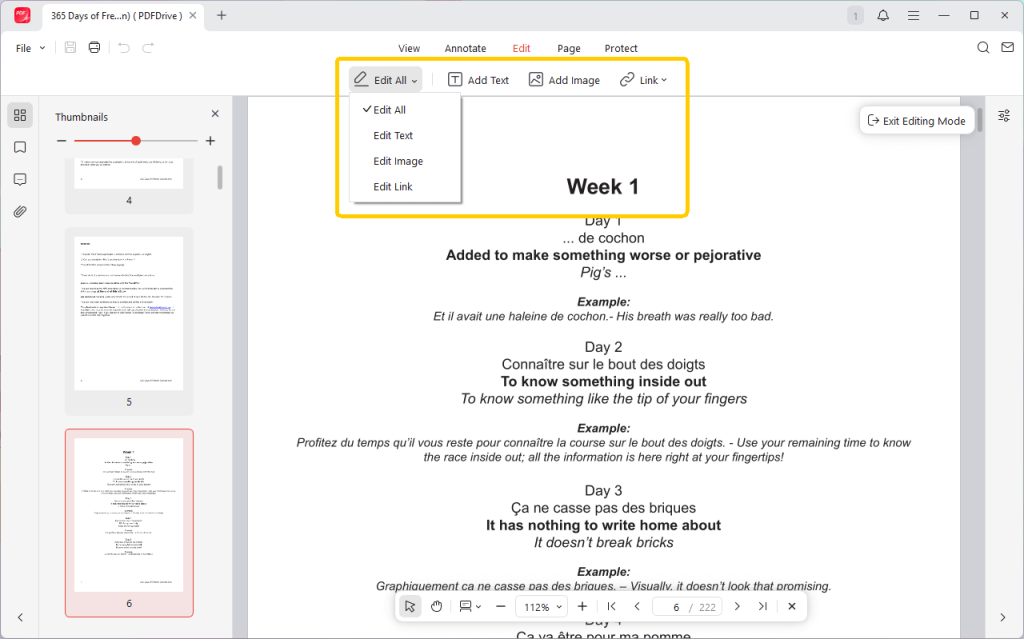
3. Go to Annotate, where you can highlight text, add shapes, notes, stamps, and draw on PDFs.
4. To add, delete, or reorder pages, please go to the Page section.
5. When OK, click the Save button to save the changes.
🔶 Key Features
- Edit existing text, images, and hyperlinks, add new content, and customize fonts and styles.
- Annotation features: highlight, underline, sticky notes, stamps, shapes, freehand drawing.
- Page management: rotate, insert, add, delete, and resize pages.
- Document security: add open and permission password protection.
✅ Best For
JOPDF is designed specifically for Mac users who need powerful PDF editing capabilities. It is suitable for individuals, professionals, and advanced users.
Way 2. How to Edit a PDF on Mac in Preview
Preview is a built-in app that helps users view and manage PDF documents. Normally, you only need to double-click a PDF file to open it in Preview.
It offers multiple markup tools like highlighting, annotation, text overlays, and basic page organization. However, Preview does not support editing existing text; it can only help you add new text boxes and enter content in them.
How to edit PDF on Mac via the Preview app:
1. Open the PDF in Preview by double-clicking it.
2. Enable the Markup Toolbar.
3. Use annotation tools to add text boxes, shapes, highlight text, or draw freehand.
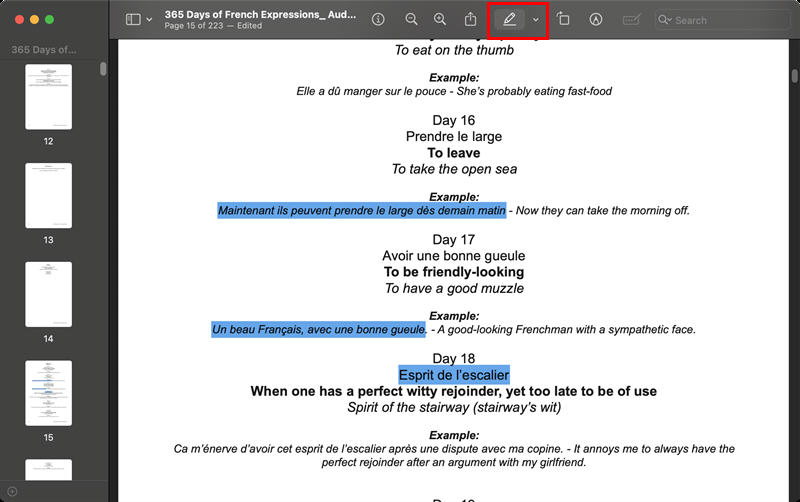
4. To replace the existing text, you can overlay a white shape and add new text.
5. Save or export the edited version.
🔶 Key Features
- Annotate PDF files using highlighting, underlining, strikethrough, comments, and shapes.
- Organize pages: rotate, extract, rearrange, and export pages.
- Insert signatures using a trackpad, iPhone, or camera.
- Use white rectangles on existing text, then add new text on top.
✅ Best For
Causal users who need basic tools to add text to PDF and other annotations and manage pages.
Way 3. How to Edit a PDF on Mac Using Canva
Canva is an online graphic design platform that supports importing PDF files into editable designs, allowing you to modify text, images, layouts, and styles using its visual editor.
With Canva, you can easily edit text in PDF, replace images, and add shapes. It is a good option if you have an internet connection.
How to edit PDF on Mac using an online tool:
1. Open a browser and go to Canva PDF editor (https://www.canva.com/pdf-editor/).
2. Sign in and upload the PDF document.
3. Click text to edit, or add design elements from Canva’s library.
4. Customize layout, fonts, and images if needed.
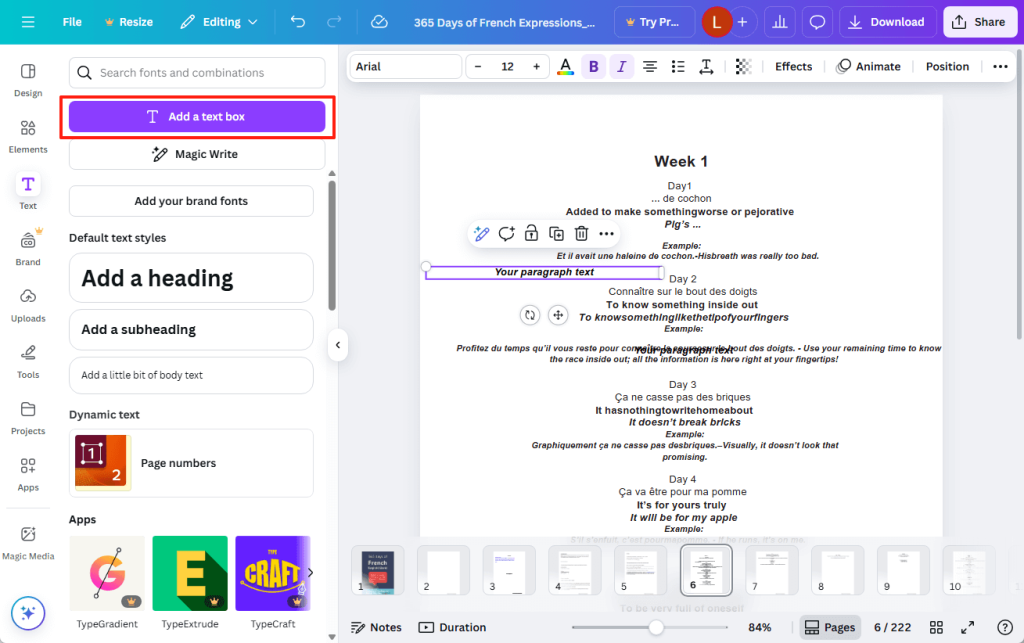
5. Finally, download the PDF document to your computer.
🔶 Key Features
- Modify existing text, customize fonts, colors, and styles.
- Replace images, add icons, shapes, charts, and other visual elements.
- Download the document as a PDF or convert it to other file formats.
✅ Best For
Users who want to enhance the style and layout of PDFs directly through a browser without installing any software.
Conclusion
That’s all about how to edit a PDF on Mac for free. Although Mac comes pre-installed with Preview to help users handle PDF files, this app only offers basic annotation features. If you need to edit existing content, you can use JOPDF or online tools.
Of course, if you need a complete set of editing tools and PDF solutions, JOPDF would be a better choice. After all, it is a professional PDF editing tool. Try it now!
FAQs
Table of Contents

Your Best Free PDF Expert in PDF editing, compressing, converting, annotating, protect, organizing, and more.
Free DownloadWindows · macOS

Queena
Editor
“As a staff editor for JOPDF, Queena excels at guiding users to the optimal tools and solutions. When she's not analyzing the latest PDF solutions, she enjoys spending her free time playing with her four cats.”