Introduction
In this guide, we will show you how to edit a PDF in Preview. We will also cover the limitations of the software—specifically why you cannot change existing text—and introduce a powerful, free alternative called JOPDF that solves the problems Preview can’t.
Can You Edit a PDF in Preview?
We can easily open a PDF on a Mac using the default image and PDF viewer: Preview. It is integrated into the operating system, so you don’t need to download extra software.
While most people use it strictly for reading, Preview actually contains a suite of “Markup” tools. These allow you to annotate, sign, highlight, and reorganize pages. You may have already noticed, so you want to know how to edit a PDF in Preview.
However, it is important to distinguish between marking up a document and editing a document. In short, you can’t edit a text in PDF in Preview. If your goal is to edit a PDF, such as modifying its text, you will need to use a professional editor like JOPDF. Click the button below to get it and give it a try.
Step-by-Step: How to Edit a PDF in Preview on Mac
If all you want to do is add comments, highlight text, sign a form, or reorganize pages, Preview is a good choice. Check to learn the details.
1. Launch the Markup Toolbar
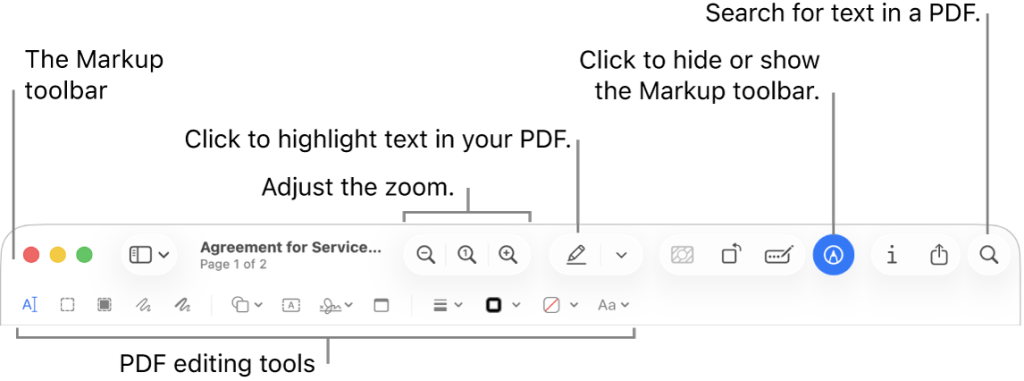
The editing tools are usually hidden, so you should first launch the Markup tool.
- Double-click to open your PDF in Preview.
- Look for the Markup Toolbar icon in the top right corner, which looks like a small pencil tip inside a circle.
- Click the icon, and you will see a row of tools just below the main toolbar.
2. Add Text to a PDF
As mentioned earlier, Preview does not allow you to edit the existing text. However, it lets you add text to a PDF. In other words, you can use this feature to leave a comment.
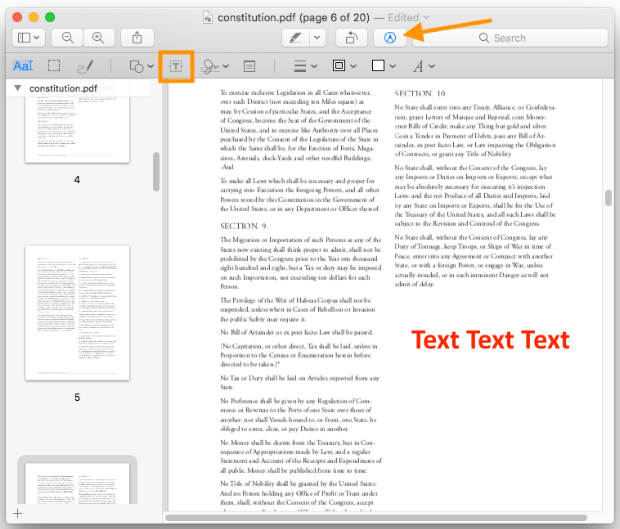
- Click the Text tool (box with an “A” inside).
- Then, you will see a text box appear in the center of the page.
- Now, type your desired text.
- Next, you can drag this box to its proper place. If needed, use the “Aa” button to change the font, size, and color.
3. Highlight Text, Add Notes, and Shapes
When you don’t want to change the content but still need to provide feedback or mark key points for future reference, you can highlight the text or add a sticky note.
Highlight: Click the Highlighter icon > Then, move the cursor to select text. Click the arrow next to it to change the color.
Notes: Click the Note icon to place a small square on the PDF. When clicked, it expands to show your long-form comments.
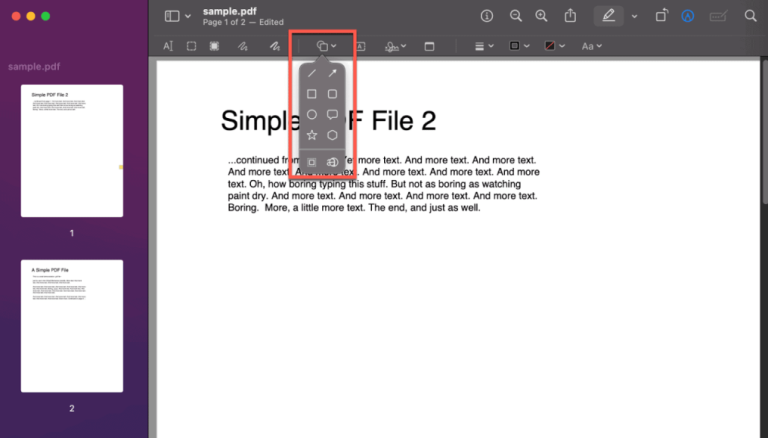
Shapes: Click the Shapes icon, then select the shape you want to use. Then, draw the shapes. Adjust the color and style as needed.
4. Create and Add a Signature
One of Preview’s best features is the ability to sign documents digitally without a printer.
- Click the Signature icon (looks like a scribble).
- Select Create Signature.
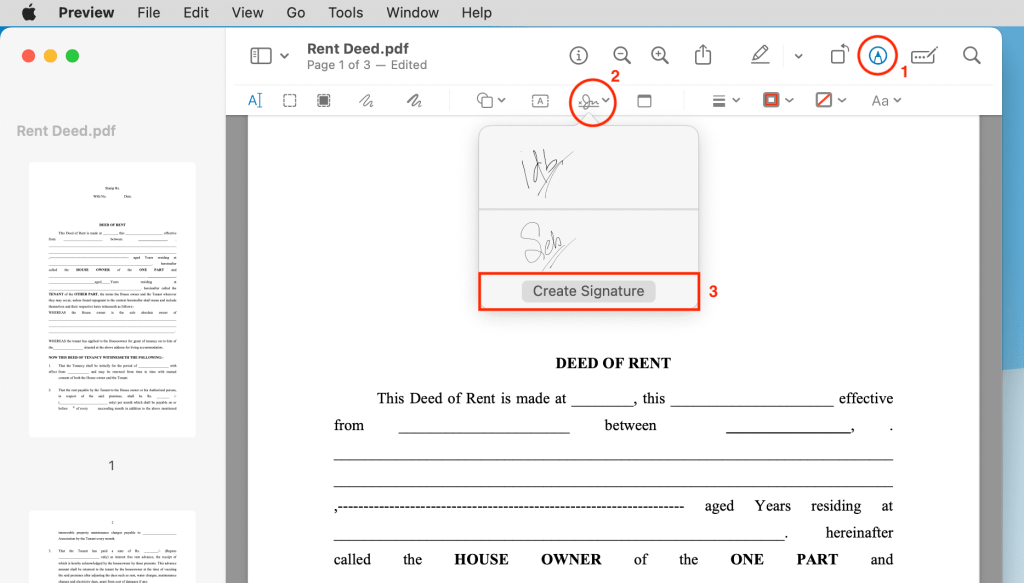
- Choose an option to create your signature.
- Once saved, just click the signature to drop it into the PDF, then drag it to the signature line.
5. Manage PDF Pages
You can also edit the PDF file’s structure.
Go to the menu bar: View > Thumbnails. A sidebar will appear showing page previews.
- Reorder: Click and drag any page in the sidebar to move it up or down.
- Delete: Select a page thumbnail and press the “Delete” key on your keyboard.
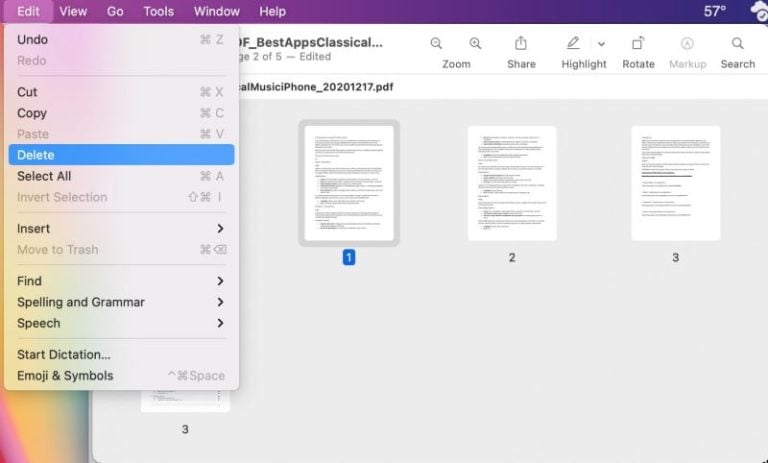
- Merge: To add pages from another PDF, drag the other PDF file from your desktop directly into the thumbnail sidebar of the open document.
The Better Alternative: JOPDF
Now that you know how to edit a PDF with Preview, however, as you can see, you cannot edit the original text. If you edit a PDF on a Mac without limitation, that is, change the actual content of the PDF, Preview is not the right tool. In this case, you need a dedicated PDF editor, such as JOPDF.
JOPDF is a feature-rich, free PDF editor that lets you edit the file itself.
✅ True Text Editing
With JOPDF, you can handle PDF files just like you do with word processing software. You can delete typos, rewrite sentences, change dates, and still maintain the original font and format.
✅ Advanced Image Handling
Preview only can help you copy the new image and paste it over the old one. JOPDF allows you to select images, resize them, move them around the page, or replace them entirely.
✅ It Is Free and Secure
JOPDF provides these advanced editing features for free, with a clean interface that respects your data privacy.
Just download the best PDF editor for Mac and give it a try!
After opening a PDF in JOPDF, you can quickly go to Edit, Convert, Annotate, Page, and Protect tools to make edits as needed. Very easy.
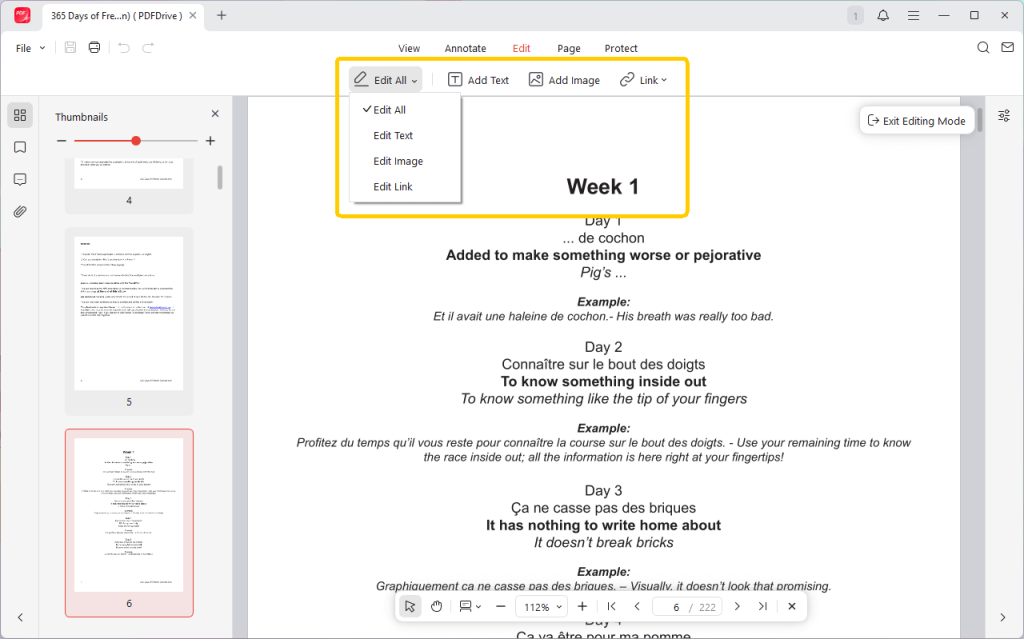
If you are wondering which tool to use for your specific task, here is a quick breakdown:
| Feature | Apple Preview | JOPDF |
| View PDFs | Excellent (Native) | Excellent |
| Annotate (Highlight/Draw) | Yes | Yes |
| Sign Documents | Yes | Yes |
| Edit Existing Text | No (Impossible) | Yes (Full Editing) |
| Replace Images | No | Yes |
| Reflow Paragraphs | No | Yes |
| Platform | Mac Only | Mac, Windows, Linux |
| Cost | Free (Built-in) | Free |
Conclusion
That’s all about how to edit a PDF in Preview on Mac. If you only need to highlight text, add notes, or rearrange pages, Preview is a quick solution. However, when you need to correct spelling errors, replace images, or delete text, JOPDF is where you’ll find the help you need.
With JOPDF, you can access all advanced editing features at no cost and with no learning curve, ensuring your documents look professional every time!
FAQs
Table of Contents

Your Best Free PDF Expert in PDF editing, compressing, converting, annotating, protect, organizing, and more.
Free DownloadWindows · macOS · Linux

Queena
Editor
“As a staff editor for JOPDF, Queena excels at guiding users to the optimal tools and solutions. When she's not analyzing the latest PDF solutions, she enjoys spending her free time playing with her four cats.”