![How to Edit a PDF for Free: 6 Quick Ways in 2025 [No Hassle]](https://b.jopdf.com/wp-content/uploads/2025/11/how-to-edit-a-pdf-for-free.png)
Summary :
A PDF is created to contain images, text, signatures, and whatever other content in a document. You may feel like finding a free program for editing PDF documents is very difficult. You may want to put additional text in it, add your name, or update the information. Lots of PDF editing software claims to be free, but mostly still asks for your card for file export. Find out the 6 best methods to see how to edit a PDF for free quickly to save you unnecessary cost and time.
Way 1: How to Edit a PDF for Free with JOPDF
JOPDF lets you easily edit a PDF file for free offline without signing up. There are no limitations on the features and file sizes. The 100% free PDF editor for Windows and Mac allows you to edit text, images, hyperlinks, pages, and security in your document. The interface is intuitive, and the workflow is straightforward. You can add new content and change existing content.
Check out how to edit a PDF for free on Windows PCs or laptops, or Macs, using JOPDF.
Step 1: Download and open the best free software program to edit PDF files.
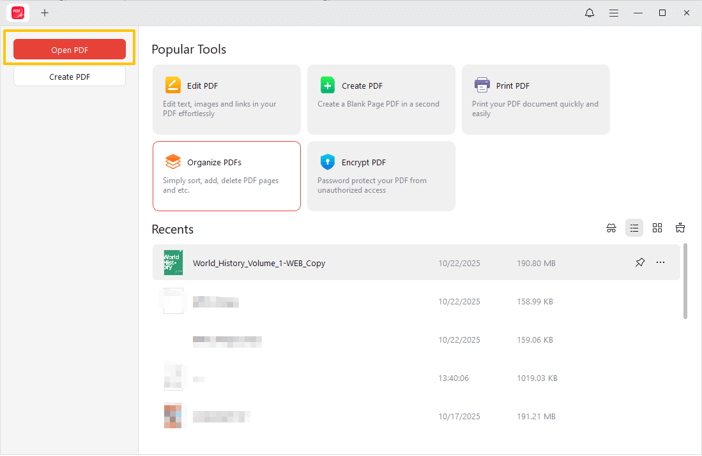
Step 2: Open the PDF you want to edit for free by clicking Open PDF or dragging and dropping.
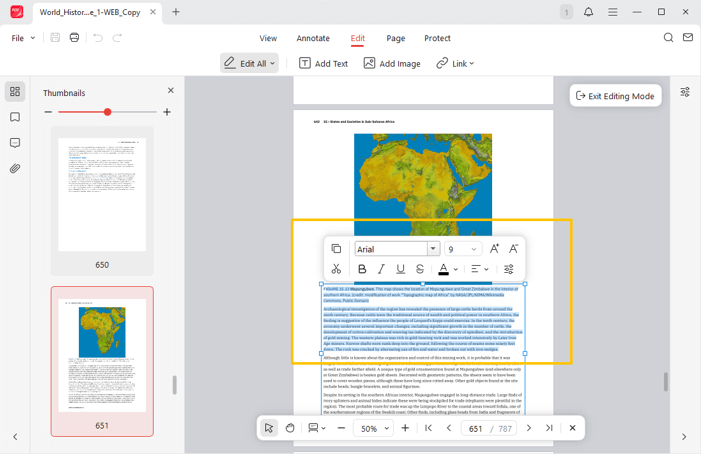
Step 3: Under the Edit menu, select Edit All to enter editing mode.
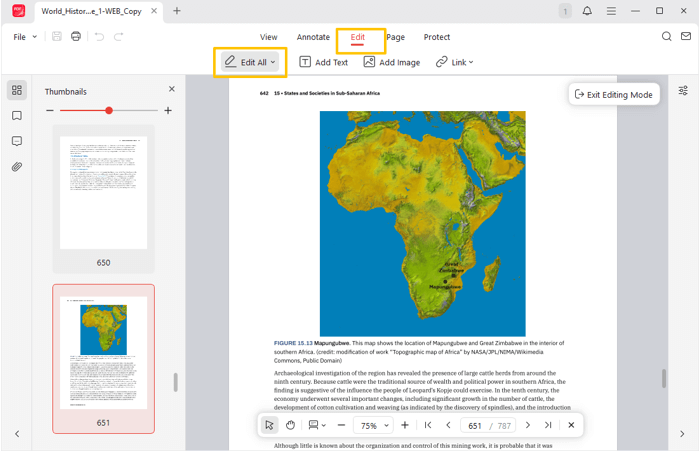
Step 4: Hover over the PDF text and double-click it. You can select, format, align, add, or delete text.
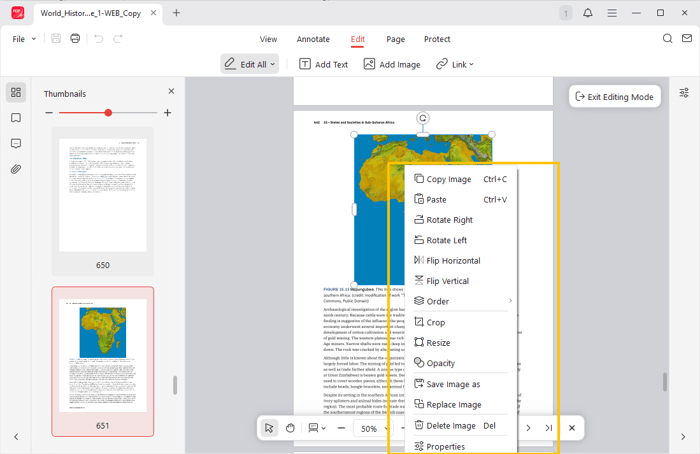
Step 5: Right-click and edit an image in the PDF using the pop-up editing options, such as rotate, flip, or resize.
Step 6: Make more PDF edits for free using other tools, and then save the edited version.
Download JOPDF for Windows or Mac to edit and save a PDF for free without a hidden version or fee.
Way 2: How to Edit a PDF File for Free with LibreOffice Draw
LibreOffice Draw provides an open-source method to edit a PDF for free. It allows you to add or modify text, insert and edit images, fix typos, and add annotations. It doesn’t have any limits or watermark the output documents. You can use it like a pro in no time. However, LibreOffice Draw is designed for vector graphic drawing and editing. Thus, it is less smooth, less powerful, or less simple to use than dedicated PDF software.
Here is how to use the best free way to edit a PDF document.
Step 1: Launch the LibreOffice application on your desktop (available for Windows, Mac, and Linux).
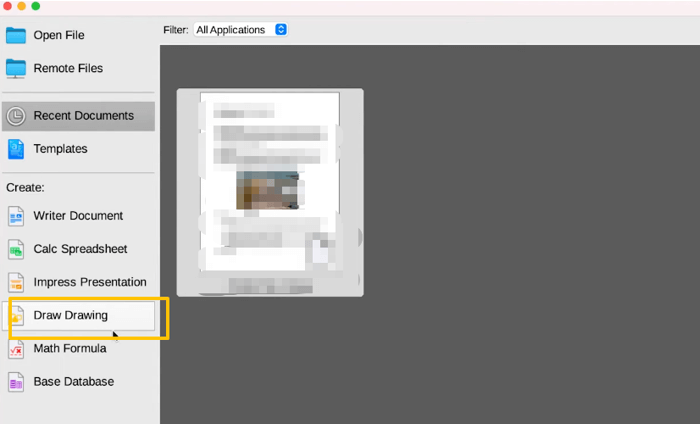
Step 2: Select Draw Drawing on the left side to open the LibreOffice Draw.
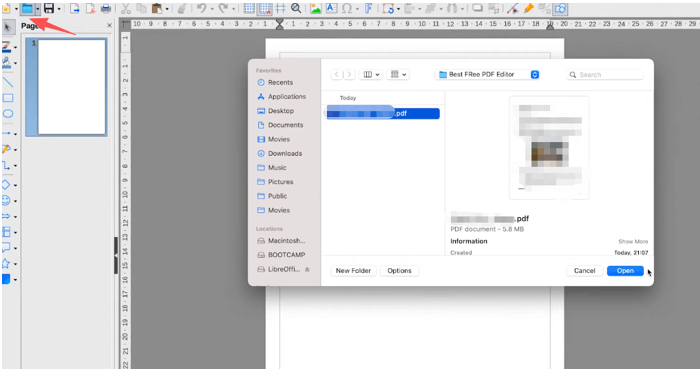
Step 3: Click the file folder icon to select your PDF and click Open.
Step 4: Start your free PDF editing once the file is fully loaded. You can directly select a line of text to delete, type, and reformat it.
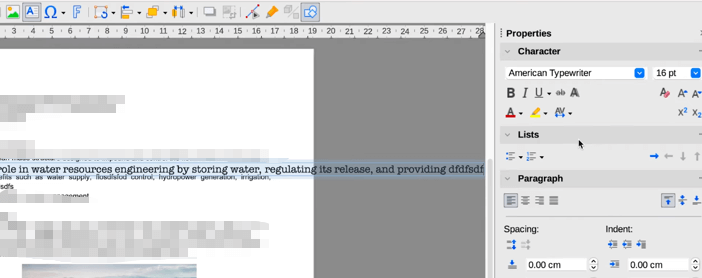
Step 5: Select an image in the PDF to edit its dimensions, transparency, and other properties.
Step 6: Go to File > Export As > Export as PDF to save the modified PDF.
Way 3: How to Edit a PDF in Word for Free
Microsoft Word is where you can edit a PDF for free if you are an MS Office user. It doesn’t offer a real PDF editing feature; it converts PDFs to Word. As a result, you can edit the text, pictures, or any other elements in the Word document. After that, you can export the doc back to PDF. This method may lose some formatting or layout, so you may need to adjust it.
Dive into the way of editing a PDF for free using MS Word.
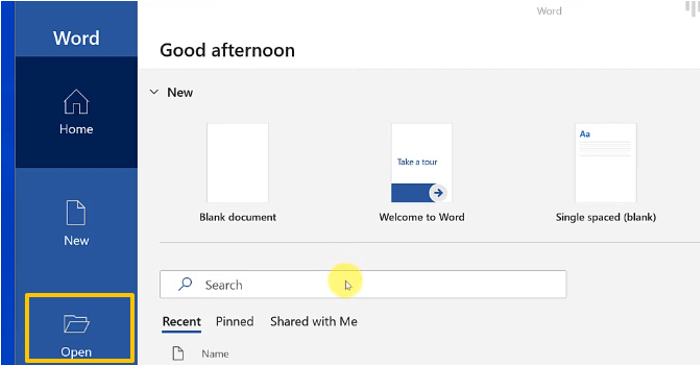
Step 1: Click the File button > Open and select the PDF for editing from your computer.
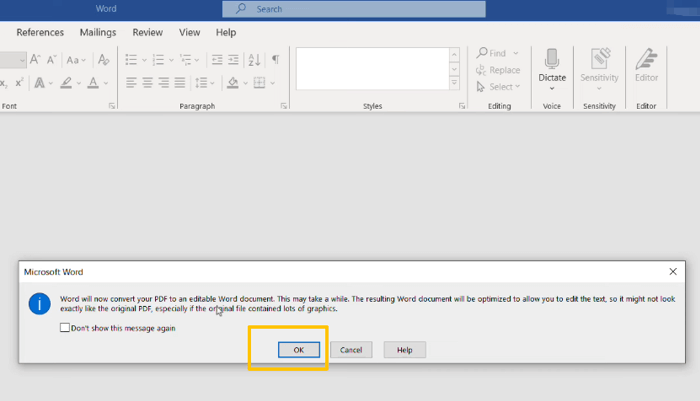
Step 2: A window appears asking you to confirm the conversion; click OK.
Step 3: Now you can start free editing of the PDF by choosing the editing options in Word.
Step 4: When you’re done, save the file as a new PDF.
Way 4: Edit PDF Files for Free with Sejda
Sejda stands out from the market by letting you edit a PDF document online for free, without login, sign-up, or watermarks. It supports both PDF annotation and advanced editing. You can insert text, shapes, markups, signatures, images, and links. Better yet, it lets you edit PDF forms for free, with form fields and symbols to apply. The best free web app, website, and online tool to edit PDF files limits three tasks per hour and 50 MB per file.
Dig into how to edit and download a PDF for free using the Sejda editor.
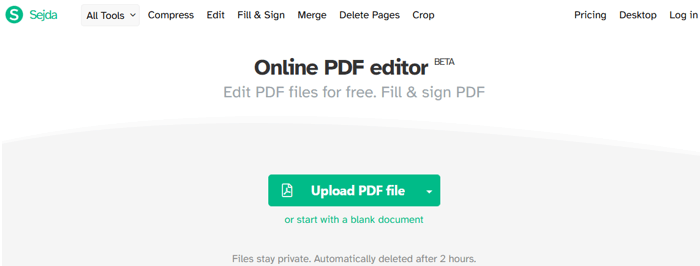
Step 1: Visit the online Sejda PDF editor and upload the PDF you plan to edit text or more for free.
Step 2: Select the Text tool in the toolbar, and click to type your text on the PDF.
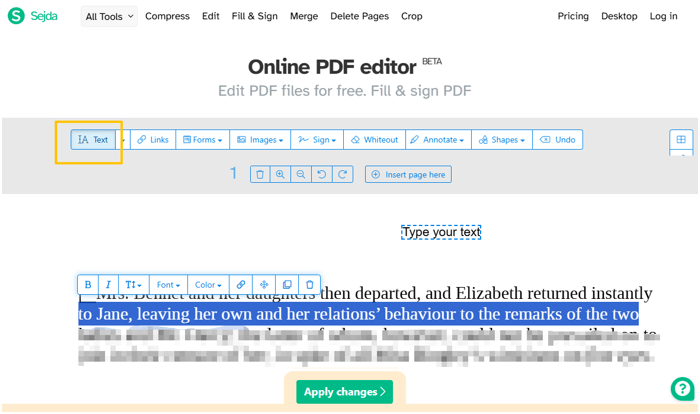
Step 3: Click a text line, and replace the existing text or change the text color or style.
Step 4: Choose other editing tools to edit the PDF text and editable objects online for free.
If you need to edit a large PDF file online for free in Google or other browsers, you can split the PDF into smaller files.
Tips
You can use the above 4 free PDF editing tools to edit the original content in a PDF and also add extra text or images. The next two methods are compiled to help with basic edits, such as adding text and comments.
Way 5: Firefox for Editing a PDF Document for Free
Firefox is a go-to tool to edit a PDF for free. The browser contains a built-in PDF viewer and supports adding signatures, images, and text. It allows you to highlight text in a PDF, draw freehand, rotate the view, and print the PDF.
Here are the steps to edit your PDF for free in Firefox.
Step 1: Right-click your PDF document and select Open with > Firefox.
Step 2: Click the Text tool (letter T) on the top right, and hit a position on the PDF to add your text.
Step 3: Choose the Add or edit images tool > Add image to place a photo into the file.
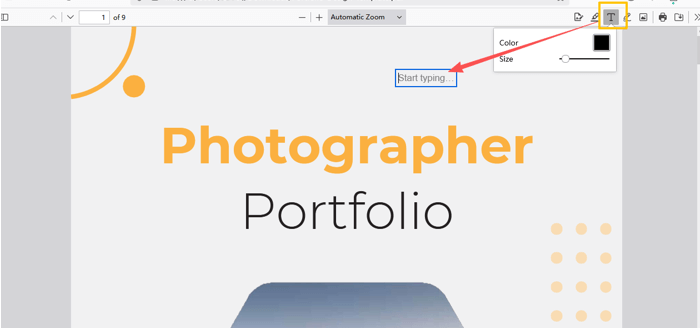
Step 4: Make further edits on the PDF for free using the available options, and save it.
Way 6: Preview to Edit PDF Documents for Free
MacOS devices come with a free PDF and image viewer and editor, Preview. The native program lets you edit a PDF for free by typing text, adding notes, and drawing lines. It also empowers you to sign, combine PDF files, and extract pages.
Step 1: Right-click the PDF to be edited, then select Preview from the list of applications.
Step 2: Click the Markup icon or Show Markup Toolbar (pen in a circle) to show all the editing tools.
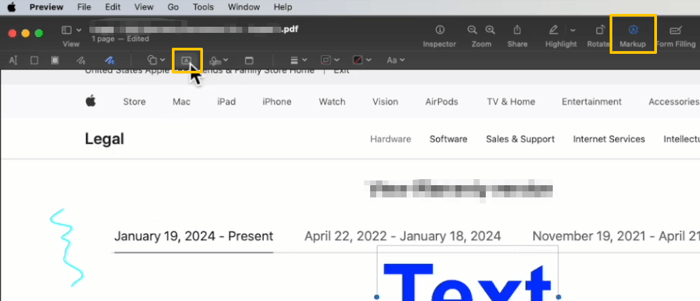
Step 3: Choose your preferred option to edit the PDF doc for free, and save the file from the File tab.
Conclusion
This article may help you stop wasting time and money on expensive PDF editor software. Anyone who wants to learn PDF editing skills and methods should look no further than the free PDF editing apps mentioned. Even though Adobe Acrobat is the most famous and reliable choice, there are many other trustworthy alternatives. For individuals or small businesses having no budget, turn to JOPDF, LibreOffice Draw, and Sejda. JOPDF is a solid and dependable offline way to edit a PDF without Adobe for free.
FAQs
Table of Contents

Your Best Free PDF Expert in PDF editing, compressing, converting, annotating, protect, organizing, and more.
Free DownloadWindows · macOS

Selena
Staff Editor
“Selena is a staff editor working for JOPDF, passionate and committed to providing how-to and round-up articles. Over 8 years of specialized skills and experience in PDF solutions, hoping to help users ease their lives and solve whatever they encounter. "Work smarter, not just harder!"”