Introduction :
Sometimes, people choose to lock PDFs to protect copyright, maintain confidentiality, or stop accidental editing. In that case, it is difficult to copy text from those locked PDFs. Fortunately, it’s not entirely hopeless. If you genuinely need text from secured PDFs for work, study, or accessibility, you can read this useful JOPDF post to learn how to bypass or defeat security without authorization. Now, let’s discuss how to copy text from secured PDF.
At the beginning of this post, one thing I must remind you of is: you can’t attempt to remove or bypass security if you don’t own the document or have permission to do so. Instead, contact the document owner and request permission to extract the text. Alternatively, if you only need the text in secured PDFs for personal use, you can use tools to bypass the security without a password. In the following content, I will introduce 4 effective methods for copying text from protected PDFs. Let’s get started!
How to Copy Text from Secured PDF for Free with JOPDF
Why can’t I copy and paste from a PDF? One of the primary causes is that the PDF is secured or password-protected. The most direct and effective way to copy text from secured PDFs is to remove the password. A reliable PDF unlocker is essential for that type of task. Recently, I found an excellent PDF editor that is completely free and doesn’t require registration. That is JOPDF.
JOPDF lets you unlock PDFs so they can’t be edited, copied, or printed. In other words, you are allowed to copy text from a PDF that can’t be copied. In reverse, JOPDF also enables you to protect PDFs with open or permission passwords. How can you copy and paste from a secured PDF in JOPDF? Below are detailed steps for your reference.
Step 1: Download JOPDF for Windows or Mac PCs by clicking the button below. Then install it on your PC.
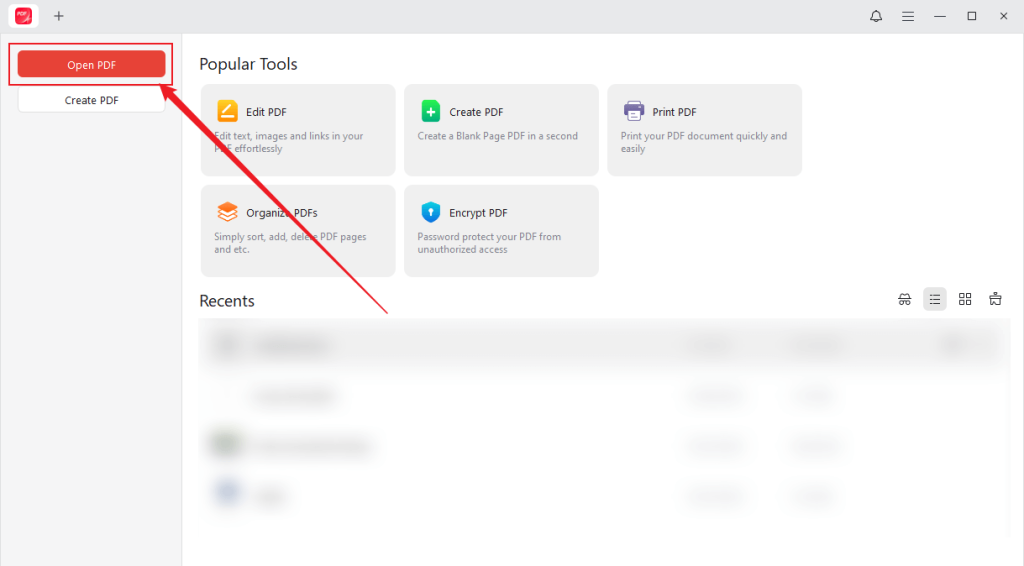
Step 2: Run JOPDF and get to its main interface. Click the Open PDF button to locate and upload your target PDF file.
Step 3: Once uploaded, switch to the fifth Protect tab and click the Decrypt option. If you know the password, enter the password and click the red Decrypt button. If you don’t have the password, click the bottom “Don’t have the permission password?” option and click the Remove button. Choose a folder to save the unlocked PDF. Then, the unlocked PDF will automatically open in JOPDF.

Step 4. The unlocked PDF is copyable now. You can use the mouse to select the text you want to copy and press Ctrl + C or Command + C. Open the file you want to paste the copied text into and paste it.
Want to know more about more features of JOPDF? You can refer to the following feature list.
- Add and edit images into PDFs.
- Add hyperlinks to PDFs to expand the information.
- Insert blank pages or existing PDF file pages into a PDF.
- Annotate PDFs with a set of annotation tools.
- Rearrange PDF pages.
- Resize a PDF to change its page size or reduce its file size.
- …
How to Copy Text from Secured PDF in Adobe Acrobat Pro
If the PDF file is password-protected and set as non-editable or read-only, and you have the password, you can try using it to open the file in a PDF reader or browser. Also, you can use a PDF reader, such as Adobe Acrobat Pro, to permanently remove restrictions. If you usually use Adobe Acrobat Pro to edit PDFs and handle various PDF tasks, you can also use it to copy text from password-protected PDF files. Here’s a guide on how to copy text from a secured PDF in Adobe Acrobat Pro.
Step 1: Launch your Adobe Acrobat Pro and import your secured PDF document.
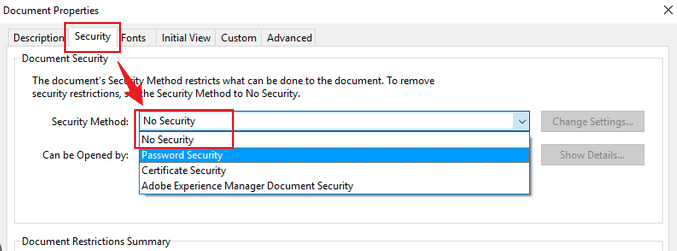
Step 2: Click the File tab from the top menu bar and select Properties. Then, the Document Properties window will appear. Click the Security tab, open the Security Method list, and click on No Security. Next, save the changes.
Step 3: Then, you can get a PDF file without copy restrictions. Now, you can select the target text and copy it within Adobe Acrobat Pro.
With the above steps, it is not difficult to remove restrictions from PDFs if you have the password. However, if you are a beginner, it is not easy to master Adobe Acrobat, as it has a steep learning curve. In that case, JOPDF is your best choice.
How to Copy Text from Secured PDF Using Google Drive
Is there a way to copy text from secured PDFs without downloading software? Of course, there is! In addition to using online PDF unlockers, Google Drive can also give you a hand. You might be wondering: Isn’t Google Drive just cloud storage? How can it remove restrictions from PDF files?
It doesn’t actually remove PDF file restrictions in the same way as JOPDF or Adobe Acrobat Pro. Instead, it employs an indirect approach by converting the PDF to an editable Google Docs format. Want to try Google Drive to copy text from a secured PDF file? You can refer to the step-by-step tutorial below.
Step 1: Open a browser on your device, visit Google Drive, and log in to your account.
Step 2: Click the + New button in the upper left corner and select the File upload option to upload your secured PDF document into Google Drive.

Step 3: Once uploaded, click to open it. Next, open the top Open with list and click the Google Docs option.
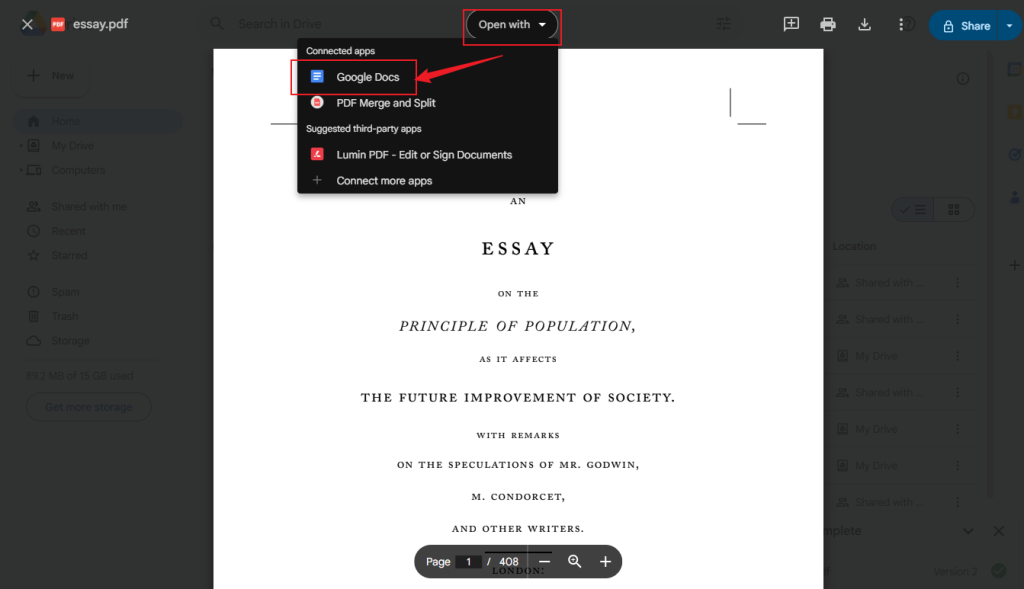
Step 4: Then, Google Docs’ built-in OCR capabilities can extract text from the protected PDF file without needing the password. Here, you can copy text from the PDF file.
Finally, if you want to save this PDF file without a password, click File, move to Download, and select a preferred output format.
How to Copy Text from Protected PDF via SwifDoo PDF
The last application I want to introduce is SwifDoo PDF, a cross-platform tool for Windows, macOS, Android, and iOS. This feature-rich and robust PDF editor provides you with two options to complete the text copying task in secured PDFs. One is removing restrictions with or without passwords. The other one is converting secured PDFs into other editable and copyable formats. Here, I offer a detailed guide on how to copy text from a protected PDF with SwifDoo PDF. Let’s have a look.
At the beginning, you need to go to the download center of SwifDoo PDF to download it and then install it on your device. Then, follow the steps below.
#Option 1. Remove Restrictions
Step 1: Click Open in the left panel to locate and import the target PDF file into SwifDoo PDF.
Step 2: Hit the Protect tab from the top menu and click the Decryption option. If you know the password, tick the “Yes, I have a permission password” option, click Next to enter the password, and click Continue. If you don’t know the password, select the “No, I don’t have the permission password” option, click Next, and hit on Remove.
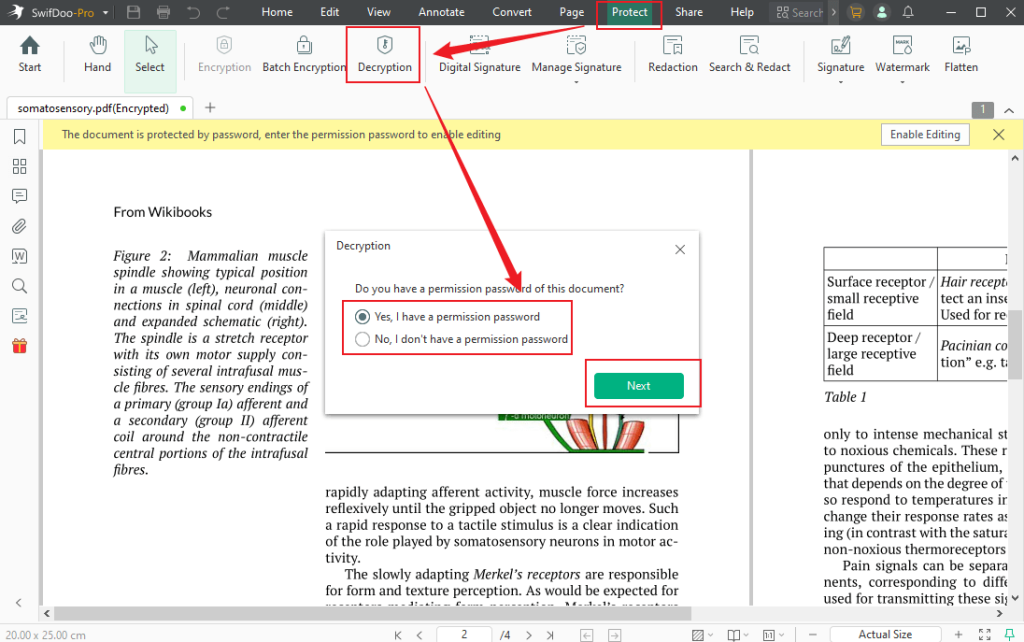
Step 3: Then, save the PDF file without a password. Next, you can copy text from it.
#Option 2. Convert the Protected PDF into Another Editable Format
Step 1: Go to the Convert tab, click the PDF to Word option, or select one of the conversion options.
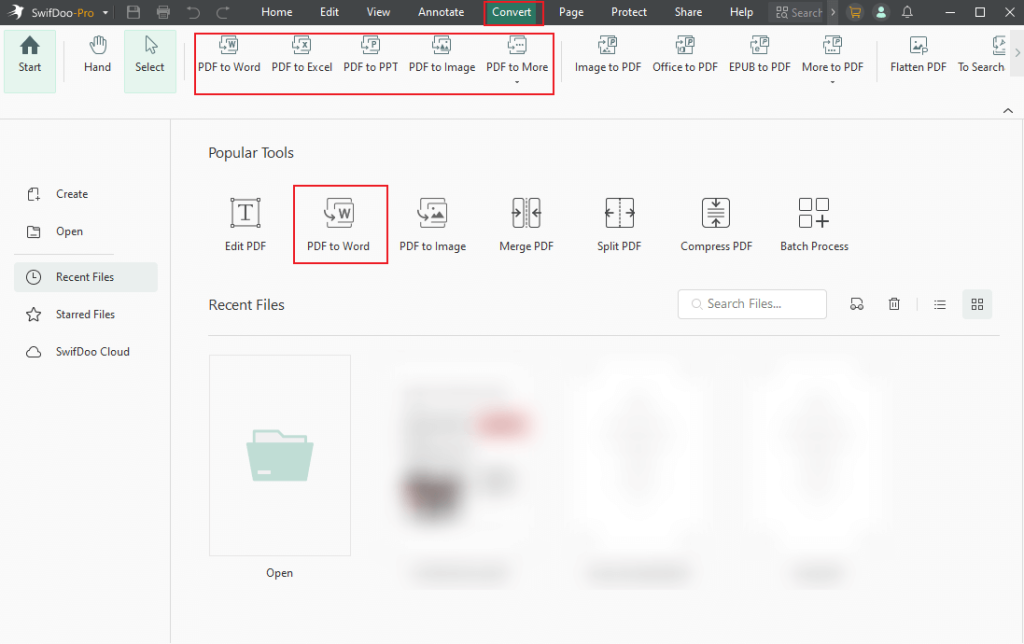
Step 2: Click on + Add Files to upload your secured PDF file and click Start to initiate the conversion process. Once the conversion process is over, you can open the converted file to copy text from it.
Final Words
Extracting text from a secured PDF is routine when done with permission. In our daily work and study, we usually need to handle PDFs and copy text from them. Unlike normal PDFs, if the PDF file has copy restrictions, you can’t copy from it if you don’t have the permission password. Fortunately, there are third-party programs that can help you complete that task. How to copy text from secured PDF? Among the 4 methods above, I strongly recommend JOPDF. Now, it’s your time to have a try!
FAQs
1. The PDF file is locked from copying.
2. The PDF file is scanned so that the PDF editor can’t recognize text.
Table of Contents

Your Best Free PDF Expert in PDF editing, compressing, converting, annotating, protect, organizing, and more.
Free DownloadWindows · macOS · Linux

Olivia
“Olivia is an editor at JOPDF, where she writes practical guides and insightful articles on managing PDFs—covering topics like editing, annotating, converting, and organizing files efficiently. Passionate about clear communication and digital productivity, Olivia enjoys spending her free time cooking, watching movies, and hiking to unwind and find inspiration for her writing.”
![How to Add a Digital Signature in Adobe in 2026 [Best Ways]](https://b.jopdf.com/wp-content/uploads/2026/03/how-to-add-a-digital-signature-in-adobe.png)
![How to Add a Signature to a PDF [Windows, Mac, and Online]](https://b.jopdf.com/wp-content/uploads/2026/03/how-to-add-signature-to-pdf.png)