Introduction
You’ve found the perfect chart, a high-quality logo, or a specific photo you need for a presentation, but it’s locked inside a PDF file. Don’t worry. Check this guide to learn how to copy image from PDF and paste it into Word, PowerPoint, or anywhere else.
Simple Way to Copy Image from PDF: Take a Screenshot
This is the fastest method, and it works 100% of the time. It doesn’t matter if the PDF is secured, encrypted, or a scanned document. However, the only drawback is the limited image quality.
The image resolution depends on your screen’s resolution, not the original high-resolution one. However, for a quick presentation slide, an email, or copying an image from a PDF to Word, it’s often “good enough.”
How to Screenshot on Windows
The best way to screenshot a PDF on Windows 10 or 11 is to use the built-in Snipping Tool.
1. Open your PDF in a browser or a PDF reader.
2. Find the image, and use the zoom function (Ctrl + +) to make it as large as possible on your screen while still fitting it all in.
3. Then press the keyboard shortcut Windows Key + Shift + S. Your screen will dim, and your cursor will turn into a crosshair (+).
4. Drag the crosshair to select the image you want to capture.
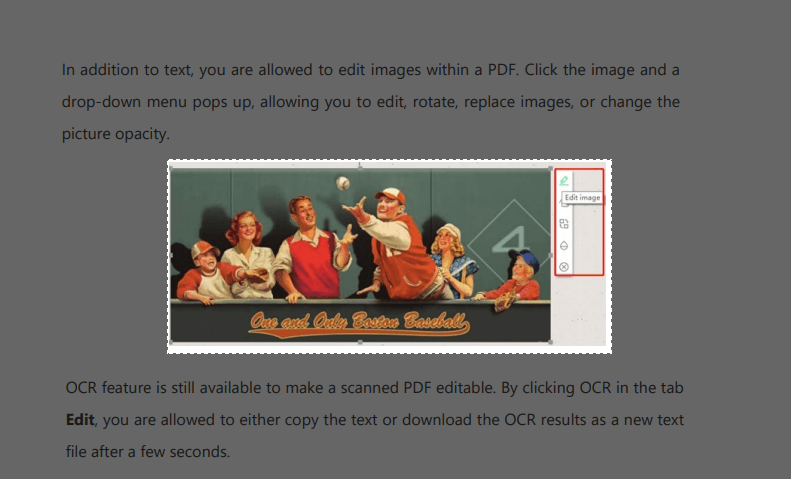
5. When you release the mouse, the image is automatically copied to your clipboard.
6. You can now go to Microsoft Word or PowerPoint and press Ctrl + V to paste the image.
Note
A notification will also pop up in the corner of your screen. You can click this to open the Snipping Tool, where you can save the image as a JPG or PNG.
How to Screenshot on Mac
Like Windows, macOS also has a built-in tool that lets you take screenshots of anything. This is one of the simplest way to copy image from PDF on Mac.
1. Open your PDF in Mac Preview and zoom in on the image until it is clear.
2. Press the keyboard shortcut: Command + Shift + 4.

3. Your cursor will turn into a crosshair (+). Then, click and drag a precise box around the image.
4. When you release the mouse, you will hear a camera shutter sound. It saves screenshots by default to your desktop as a new file (usually a .png).
5. You can then drag this file into your presentation or email, or open it to copy and paste.
The Professional Methods to Copy Image from PDF
When a blurry, low-resolution screenshot doesn’t meet your needs, you need to extract the original image from the PDF. The following methods show you how to pull the original, high-resolution image from the document, and they are all free.
Use a Free PDF Editor
The most reliable way to get a high-quality image is to use a professional PDF editor. While professional tools like Adobe Acrobat are expensive, many powerful alternatives can do the job just as well.
Here, let’s take JOPDF as an example. It is a comprehensive and free PDF editor that works on both Windows and macOS. With JOPDF, you can easily copy image from PDF to another PDF, Word, PowerPoint, and more. Click the download button to get the tool and follow us!
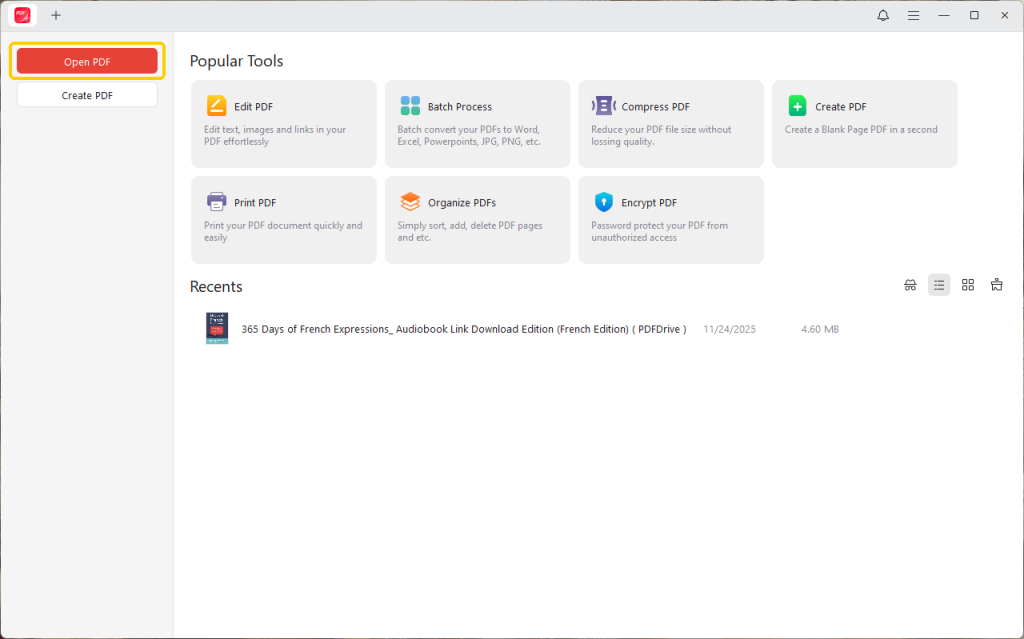
1. Launch JOPDF and open the PDF containing the image.
2. Navigate to the “Edit” tab in the top toolbar. This will switch the document into an editable mode.
3. Make sure you have selected “Edit All” or “Edit Image”. Then, right-click the image and choose “Copy Image”.
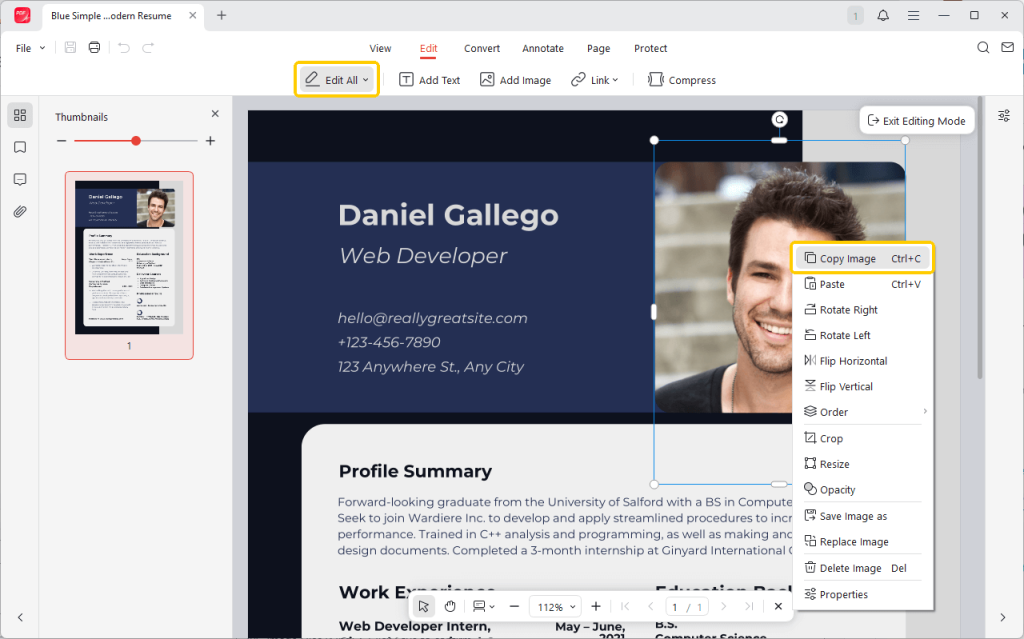
If you want to save the image as JPG or PNG, please select the “Save Image as” option.
4. Now, you can paste the image into another app.
Beyond image copying, JOPDF also enables you to edit images and text, add annotations, insert or delete pages in PDF, and more. If you need a comprehensive yet lightweight PDF editor, it’s an excellent choice!
Use Google Docs
Don’t want to download software? Then you can use Google Docs. You need to upload your PDF to Google Drive and open it using Google Docs. It will extract all the text and images and place them into an editable format. Then select and copy the image.
1. Open Google Drive in a browser.
2. Click the “+ New” button to upload the PDF.
3. Once the file is uploaded, find it in your Drive list and right-click on it. Choose “Open with” and select “Google Docs“.
4. Google will take a moment to process and convert the file. It will then open as a new Google Doc.
5. Find the image you want, right-click it, and select “Copy“.
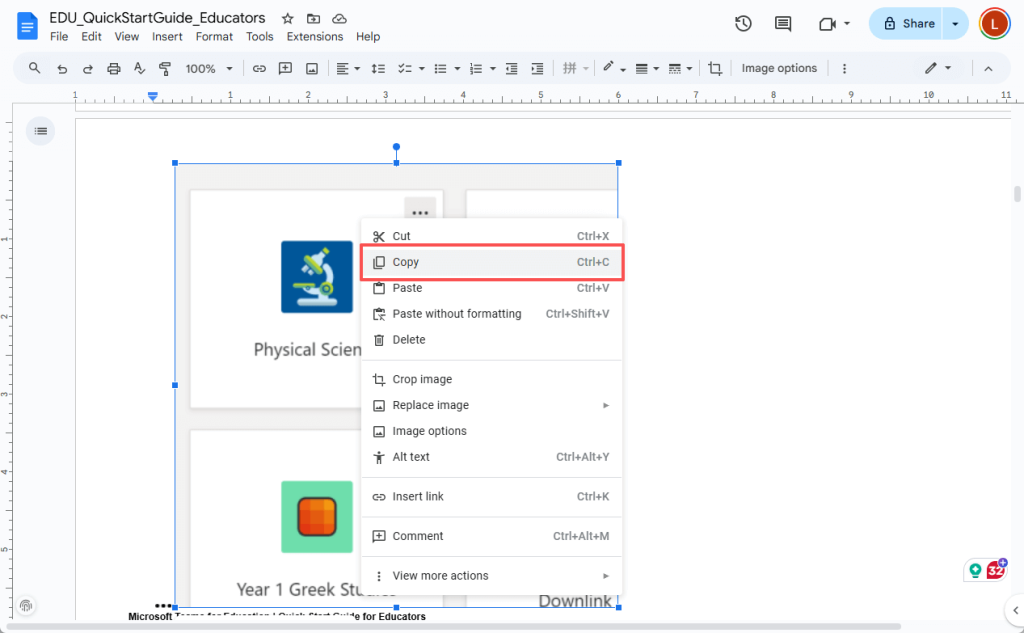
6. You can now paste this image anywhere.
Use an Online Tool
Another way to copy image from PDF online is to use online tools. They can find all the embedded images and package them for you to download. However, it’s better not to upload sensitive or confidential documents to online services.
1. Go to your browser and visit a reputable online tool. Here, we choose PDF Candy.
2. Upload the PDF and let the tool process it.
3. Click the EXTRACT IMAGES button and wait for a while.
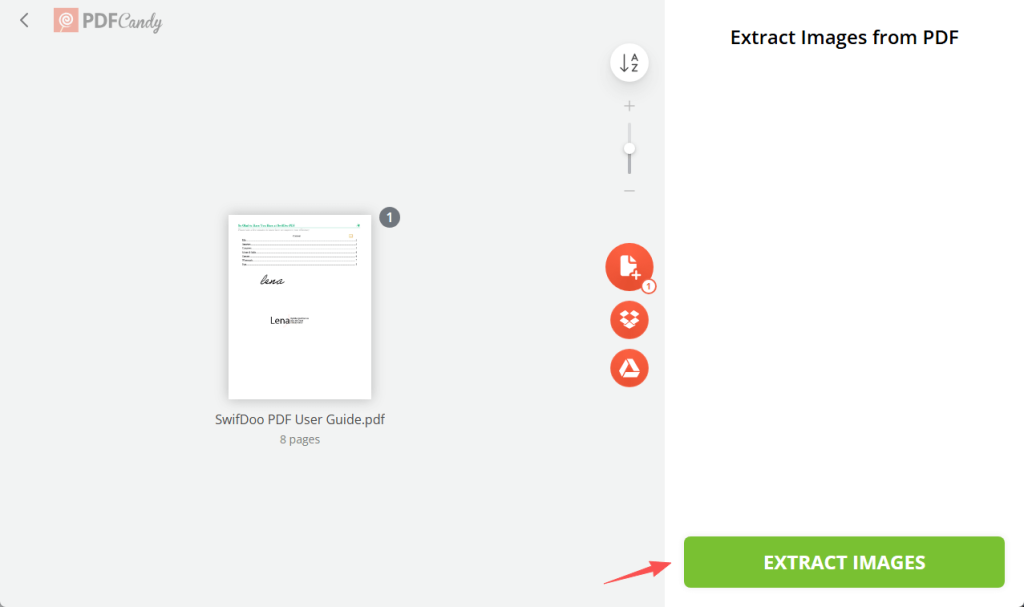
4. You can download the specific images you need one by one, or download all of them at once in a .zip file.
Conclusion
That’s all about how to copy image from PDF. A quick method is to use a screenshot tool, but if you want high-quality images, you can opt for professional PDF tools or online solutions. Of course, if you also want to edit images and text, JOPDF is the way to go. It provides various useful editing tools.
Choose the tool that best suits your needs to copy images from PDFs and use them in presentations, reports, and projects!
FAQs
Table of Contents

Your Best Free PDF Expert in PDF editing, compressing, converting, annotating, protect, organizing, and more.
Free DownloadWindows · macOS · Linux

Queena
Editor
“As a staff editor for JOPDF, Queena excels at guiding users to the optimal tools and solutions. When she's not analyzing the latest PDF solutions, she enjoys spending her free time playing with her four cats.”
![Find Ways to Download Manga as PDF for Free [5 Proven Ways]](https://b.jopdf.com/wp-content/uploads/2026/04/download-manga-pdf.png)

![5 Best Free PDF Compressors in 2026 [Desktop and Online]](https://b.jopdf.com/wp-content/uploads/2026/04/best-free-pdf-compressor.png)
