![[Top 4 Ways] How to Compress a PDF Without Adobe in 2026](https://b.jopdf.com/wp-content/uploads/2026/04/how-to-compress-a-pdf-without-adobe.png)
Introduction :
Exchanging large PDF documents digitally often feels slow and difficult. And knowing how to compress a PDF without Adobe is more important than ever. Compressing files saves disk space, improves sharing speed, and eases access. Many users want to reduce PDF size quickly to prevent delays and save storage. In this JOPDF article, we’ll explore 4 effective methods for compressing a PDF without Adobe.
Many people choose to compress a PDF without Adobe since Adobe Acrobat is costly and bulky to install. Fortunately, there are reliable Adobe Acrobat alternatives that are lightweight and easy to use. Additionally, free PDF compressor tools allow you to reduce file sizes quickly without sacrificing quality.
Best Ways to Compress a PDF Without Adobe
Large PDFs are hard to manage, but there are ways to reduce PDF file size without Adobe Acrobat. Here are some effective desktop tools, built-in features, and online options to help you get started.
Method 1. Use JOPDF to Compress a PDF Without Adobe for Free
⭐Best For: Shrink several PDFs quickly at no cost while keeping full quality.
As the best free PDF compressor without Adobe, JOPDF allows users to shrink PDFs quickly while maintaining quality and avoiding complicated setups. It allows you to reduce PDF file size without losing quality, keeping all your content intact. JOPDF lets you batch compress PDFs, saving effort when working with multiple documents simultaneously. That’s why it’s a leading choice for fast, reliable PDF file shrinking.
See how to compress a PDF for free without Adobe easily with JOPDF in moments.
Step 1. Download and install JOPDF from the official website on your Windows or Mac computer. And then launch the program.
Step 2. Then, go to Compress PDF under the Popular Tools section. Or open a PDF in JOPDF and navigate to Edit > Compress.
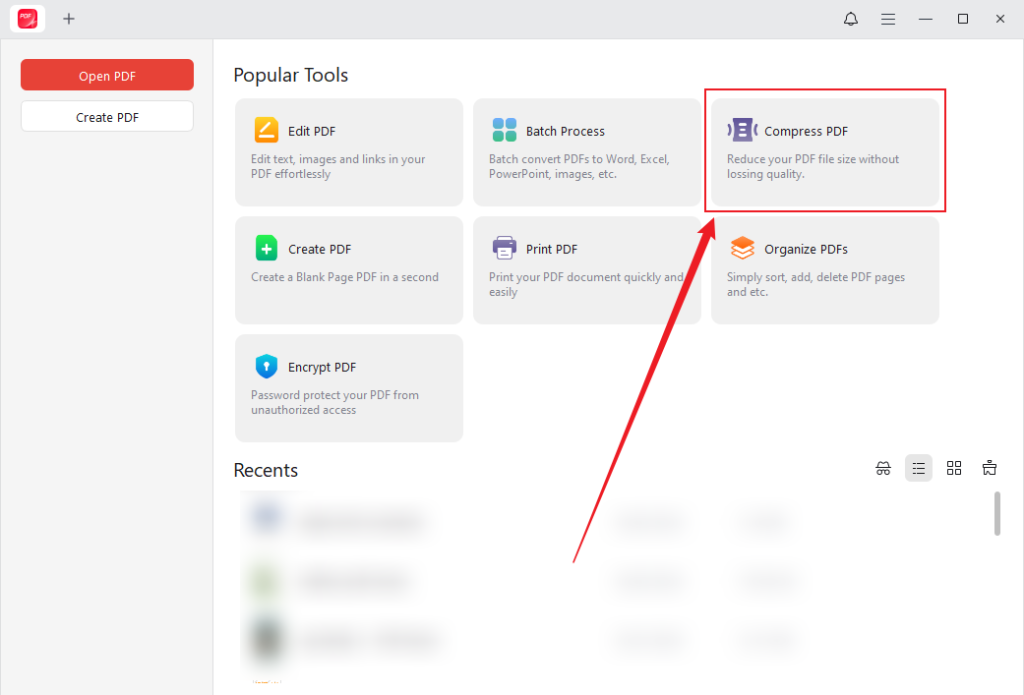
Step 3. Now, drag and drop the PDFs you want to compress into the list to add files. Or click the Add Files button to browse and open them.
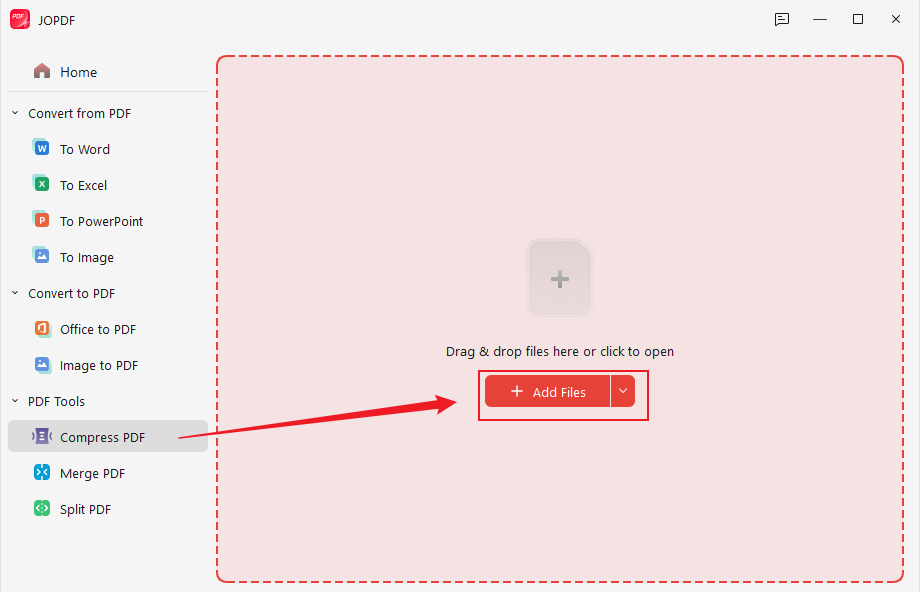
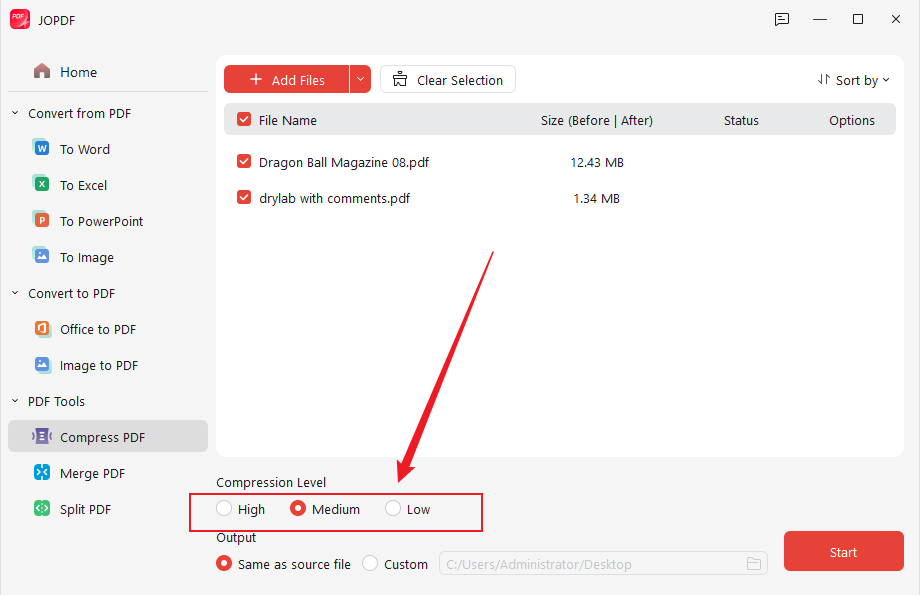
Step 4. Now, choose from three compression levels.
- High. Maximum compression, lower quality.
- Medium. A balanced compromise between file size and quality (recommended).
- Low. Minimal compression, highest quality.
Once you select your preferred compression level, set the output path, and click Start.
Within moments, your PDF will be fully compressed.
Method 2. Use Built-in Windows Tools
⭐Best For: Effortless PDF compression on Windows with no extra software required.
Users can compress PDF using Windows built-in tools, giving them a quick, hassle-free way to reduce file size. Windows allows you to compress PDF on Windows without Adobe through tools like Print to PDF or by creating a ZIP archive.
Let us look at both the available options to get started.
Option 1. Microsoft Print to PDF
Step 1. Open the PDF file in a browser or viewer to begin compressing it.
Step 2. Then, click the File menu and select Print. Or, press Ctrl + P on your keyboard.
In the Printer selection dropdown menu, choose Microsoft Print to PDF.
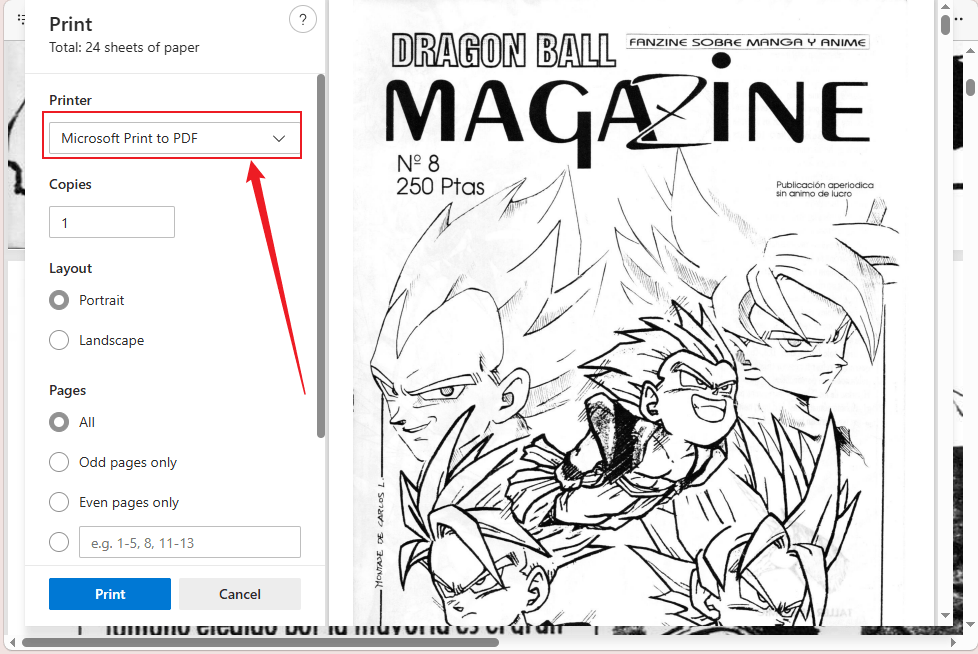
Step 3. Click on “Preferences” or “More Settings” to see if you can lower the DPI (dots per inch) to a lower resolution (e.g., 72 or 150 DPI) to further reduce size.
Step 4. Click Print. A “Save Print Output As” dialog box will appear.
Give the file a new name and save it to your desired location. This new file will generally be smaller than the original.
Option 2. Compress via ZIP
Step 1. Locate the PDF file(s) to compress in File Explorer.
Step 2. Right-click the PDF file you wish to compress.
Step 3. Select Send to, followed by Compressed (zipped) folder.
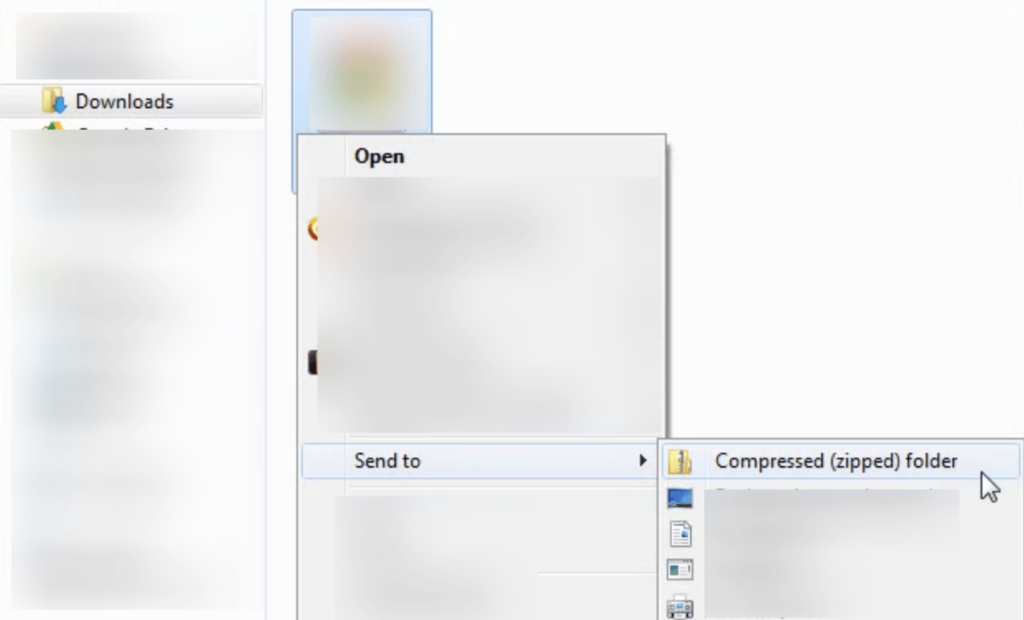
A new .zip file will be created in the same location.
Note. This method shrinks the file size but needs extraction before opening.
Method 3. Compress PDF on Mac Using Preview
⭐Best For: Effortless PDF compression on macOS without installing extra applications.
You can compress PDF on Mac without Adobe using Preview, a native app that provides an easy way to reduce file sizes. It proves helpful whenever you need to make a PDF smaller for email or distribute rapidly.
Let us see how to compress a PDF on Mac using Preview in a few clicks.
Step 1. Go to the Preview app on your Mac. And open the PDF you want to reduce in size.
Step 2. Choose File > Export.
Step 3. In the Quartz Filter pop-up menu, choose Reduce File Size. And click Save.
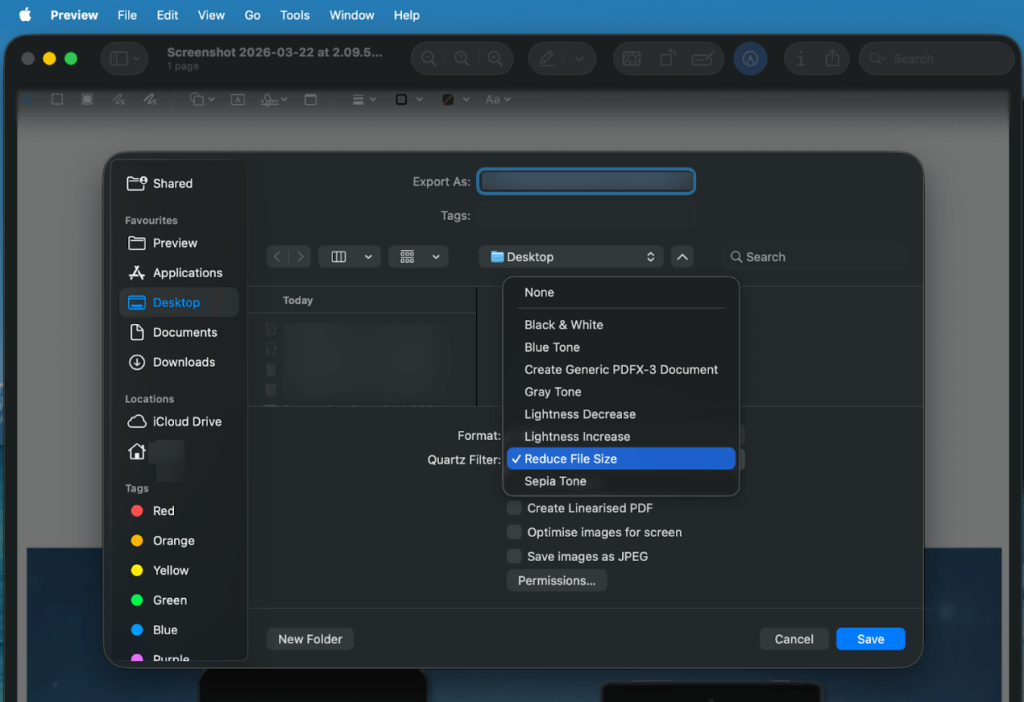
Note. If you’re asked whether you want to replace the existing file, do one of the following.
- Replace the existing file. Click Save.
- Choose a different filename for the new file. Click Cancel, type a new name in Export As, then hit Save.
Method 4. Compress PDF Online
⭐Best For: Fast file shrinking with zero software installation.
It’s simple to compress a PDF online without Adobe with web-based tools that work everywhere. These services are speedy, user-friendly, and ideal for reducing file size instantly.
Take a look at several online PDF compressors:
- Smallpdf
- iLovePDF
- Online File Compressor
- Canva
- Sejda PDF
- PDF24 Tools
Among these tools, Smallpdf is known as a top choice for ease of use and popularity.
Learn how to compress a PDF online without Adobe Acrobat with Smallpdf.
Step 1. Access Smallpdf through your web browser. Then choose the Compress PDF tool from the main menu.
Step 2. Click Choose Files and add the PDF files(s) you wish to compress.
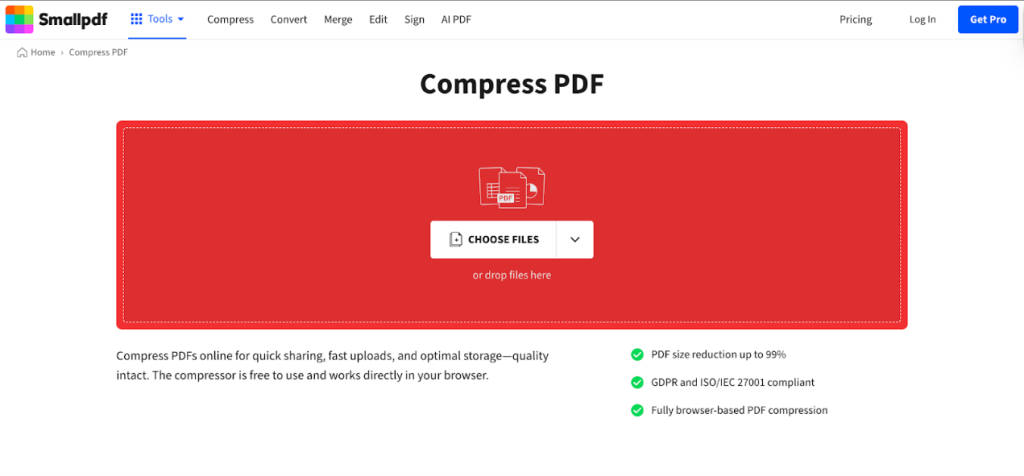
Step 3. In the Compress window that appears, choose a compression level.
Basic. Medium file size, standard resolution.
Strong. Small file size, lower resolution.
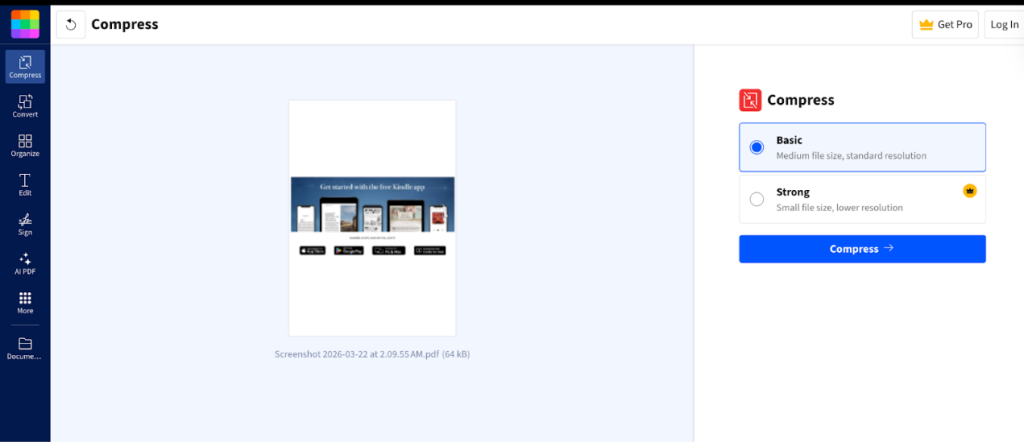
Step 4. Once done, click Compress. Within a few moments, your PDF files will reduce in size.
Tap the Download button to save the new compressed PDFs to your local storage.
Best Free Tools to Compress PDF Without Adobe
Finding the right tool can make PDF compression faster and more efficient without relying on Adobe. Desktop features and online platforms offer several free solutions to suit different requirements.
Check out this comparison of leading tools to find the one that suits you.
| Tool | Platform | Compression Level | Key Features | Best For |
| JOPDF | Windows, Mac, and Linux | High, medium, and low | Batch processing, fast compression, and no signup. | Free, quick compression of multiple PDFs. |
| Built-in Windows Tools | Windows (Built-in) | Basic | No installation, print-to-PDF option, quick use. | Simple compression without extra software. |
| Preview | macOS, iPadOS, and Windows 10/11 | Basic | Built-in, simple export options. | Mac users needing quick file reduction. |
| Smallpdf | Web browser, and dedicated apps for Mac, Windows, Android, and iOS | Basic and strong | Easy UI, cloud integration, secure processing. | Beginners and quick online compression. |
How to Reduce PDF Size Without Losing Quality
Reducing PDF size while preserving quality is key for professional distribution and effective storage. Using the right methods, you can reduce file size without compromising readability or visuals.
Below are some practical ways to achieve efficient, lossless compression.
- Optimize images. Large images are often the main cause of bulky PDFs. Reduce or compress images to a lower resolution while keeping them clear on screen.
- Remove unnecessary elements. Delete unused pages, annotations, embedded fonts, or hidden data that increase file size without adding value.
- Adjust compression levels. Select balanced compression settings to shrink file size while keeping text and images clear. Avoid overly aggressive compression.
- Use smart tools. Smart algorithms in current PDF compressors minimize file size while maintaining visual fidelity.
Quick Wrap Up
Compressing PDFs doesn’t have to be complicated or expensive once you know how to compress a PDF without Adobe. With the right approaches and tools, managing large files and sharing them becomes quick and easy. Whether using built-in features, web tools, or dedicated apps, you can reduce PDF size without losing quality. Pick the method that suits your needs and experience quicker, more convenient document management.
FAQs
#Desktop tools (like JOPDF). Best if you work with large files often or need batch compression.
#Built-in tools (Windows Print to PDF, Mac Preview). Great for quick, simple compressions without installing anything.
#Online compressors (Smallpdf, iLovePDF, PDF24 online). Ideal if you need convenience, device flexibility, or occasional use.
#High compression. May lower image resolution or remove embedded fonts, making visuals slightly blurry or text less sharp.
#Medium or smart compression. Often retains text sharpness and most visuals, maintaining a readable and professional PDF.
#Tools like JOPDF(desktop) and Smallpdf (online). Employ algorithms that shrink file size while preserving quality, so differences are usually unnoticeable.
In summary, proper compression shrinks file size without much quality loss, but excessive settings may harm images and graphics.
Table of Contents

Your Best Free PDF Expert in PDF editing, compressing, converting, annotating, protect, organizing, and more.
Free DownloadWindows · macOS · Linux

Olivia
“Olivia is an editor at JOPDF, where she writes practical guides and insightful articles on managing PDFs—covering topics like editing, annotating, converting, and organizing files efficiently. Passionate about clear communication and digital productivity, Olivia enjoys spending her free time cooking, watching movies, and hiking to unwind and find inspiration for her writing.”
![How to Compress a PDF File on Windows [Free & Easy Ways]](https://b.jopdf.com/wp-content/uploads/2026/04/how-to-compress-a-pdf-file-on-windows.png)
