![How to Compress a PDF on Mac [4 Best Ways and Practical Tips]](https://b.jopdf.com/wp-content/uploads/2026/03/how-to-compress-a-pdf-on-mac.png)
Introduction :
Oversized PDF files often create problems when emailing, uploading, or sharing due to limited file size allowances. That’s why learning how to compress a PDF on Mac matters. This lets you reduce file size, optimize storage, and share documents more quickly without compromising clarity. Through this detailed article from JOPDF, we outline simple and free ways to compress PDF on Mac step by step. It features native, desktop, and online solutions, along with practical strategies to minimize file size while maintaining quality.
Built-in Way to Compress a PDF on Mac in Preview
Many Mac users may not know that their system already includes a built-in tool for reducing PDF file sizes. So, does Mac have a PDF compressor? Yes! The built-in Preview app on macOS lets you reduce PDF file sizes quickly, with no need to install extra programs. You can quickly reduce PDF size using Preview by applying the Quartz “Reduce File Size” filter when exporting the document. This built-in compression option reduces your PDF’s file size in just a few clicks, making it easier to share or upload.
Let us check out how to compress a PDF file on Mac via Preview in just a few clicks.
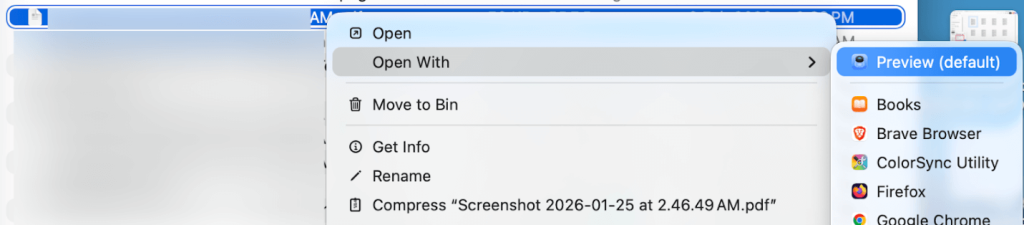
Step 1. Go to Finder and open the PDF file to compress.
Right-click the PDF, navigate to Open With, and click Preview.
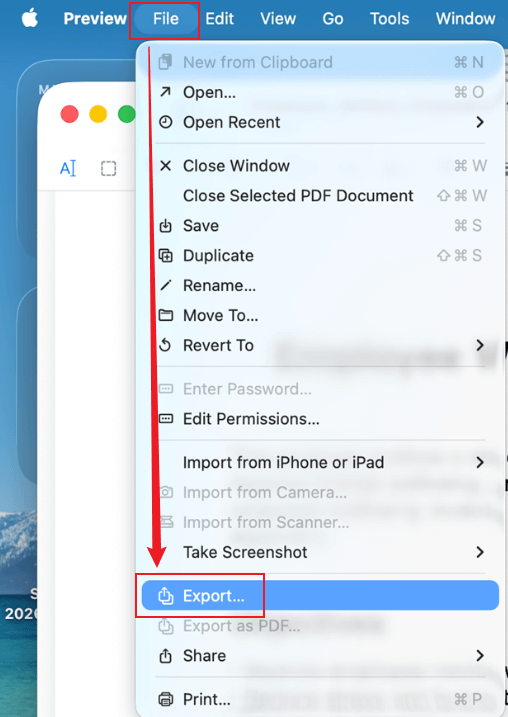
Step 2. With your PDF open in Preview, click File on the top menu bar and select Export….
Step 3. In the dialog box that appears, go to the Quartz Filter section and choose Reduce File Size in the dropdown menu.
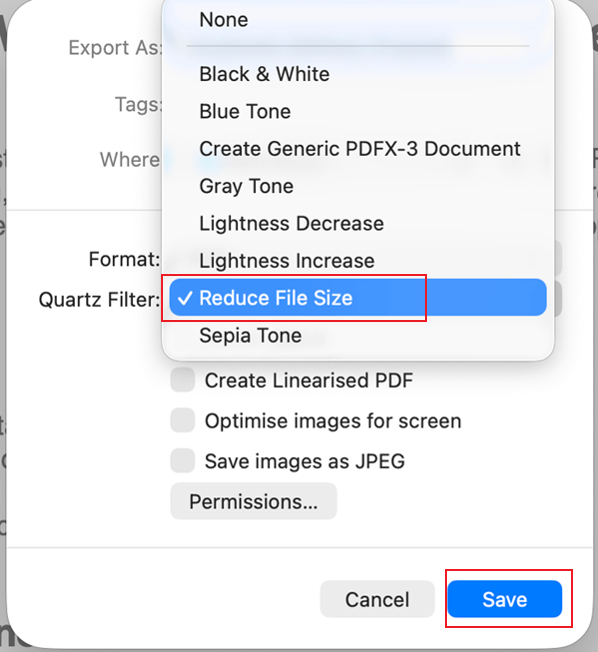
Step 4. Click Save. And tap Replace when you’ll be asked to replace the original file. The PDF will be automatically processed and placed in the default save location.
All in all, Preview provides a quick, built-in, free solution to shrink PDFs on Mac, ideal for basic sharing. Nevertheless, the Quartz “Reduce File Size” filter may result in quality loss, limited control, and excessive compression in some cases. It can lower image clarity and isn’t suitable for professional or high-resolution documents.
How to Compress a PDF on Mac for Free with JOPDF
JOPDF provides a simple way to compress PDFs on Windows and Mac for free, offering both efficiency and quality preservation. Whether your goal is to make a PDF smaller for email or optimize it for storage and sharing, JOPDF is accessible on multiple platforms. You can also batch compress PDFs to handle multiple files at once. In addition, its intuitive interface ensures that even beginners can quickly and effectively reduce file sizes.
Due to its efficiency and intuitive interface, JOPDF is recognized as one of the best free PDF compressor choices for Mac and Windows.
Let us learn how to compress a PDF on a Mac for free using JOPDF in just a handful of clicks
Step 1. Download JOPDF and set it up on your Mac computer.
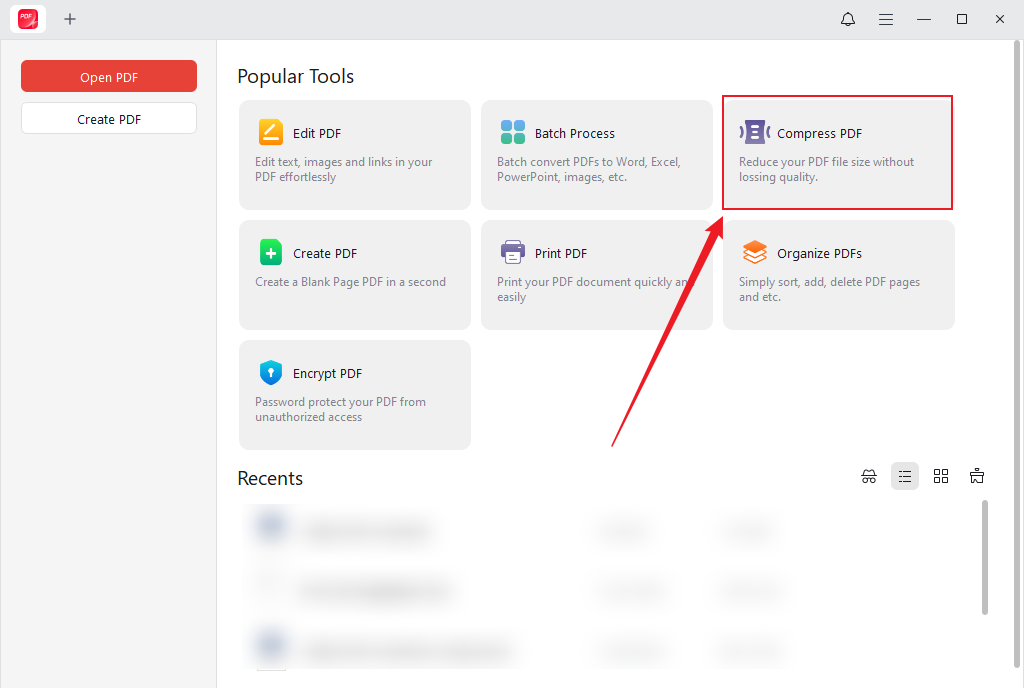
Step 2. Once you launch the program, go to the Compress PDF tool on the main interface under the Popular Tools section.
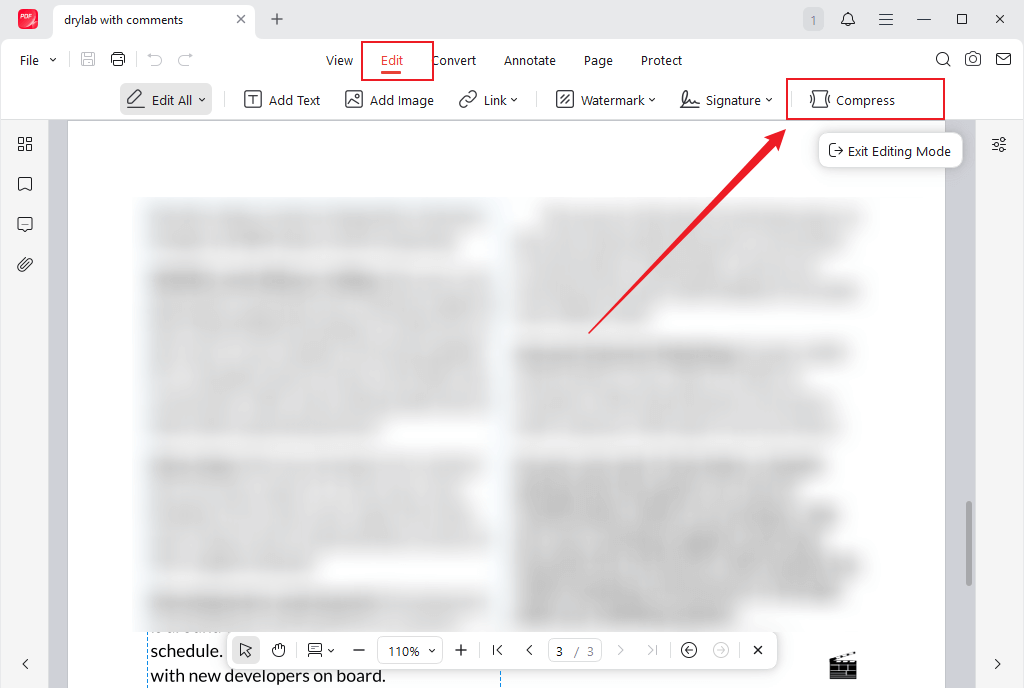
Alternatively, open your PDF in the software and go to Edit > Compress.
Step 3. Drag and drop the PDF file(s) you wish to compress into the list to add files. Or, press the +Add Files button at the top to browse and open them.
Step 4. Pick one from three compression levels.
- High. Maximum size reduction, though at the expense of quality.
- Medium. An optimal balance between file size and quality (highly recommended).
- Low. Minimal compression, but has the highest quality.
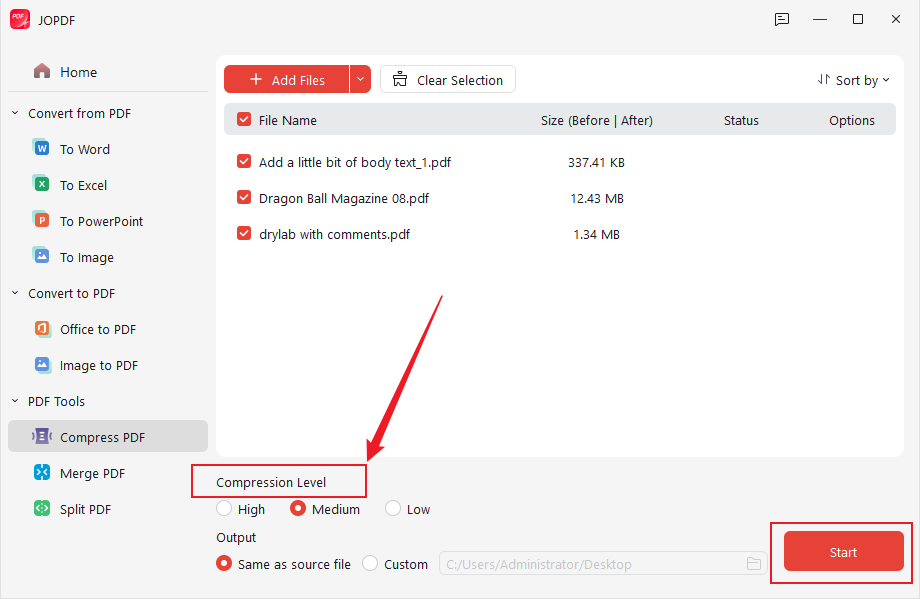
After selecting your preferred level, set the Output path, and click Start. In moments, you’ll get your compressed PDF.
Batch Compress PDFs on Mac in Adobe Acrobat
You can also compress a PDF in Adobe Acrobat efficiently, making files easier to share and store. Adobe Acrobat is a professional PDF tool that lets you resize a PDF to reduce file size or change paper size, giving you complete control over formatting. This makes it a versatile choice for professional PDF management on Mac.
Let us find out how to reduce PDF file size on Mac using Adobe Acrobat in just a few clicks.
Step 1. Download and open Adobe Acrobat on your Mac.
Note. Go to the “File” menu and select “Create” > “Combine Files into a Single PDF” if you want to merge first, or skip if compressing multiple files individually.
Step 2. Click Tools and select Optimize PDF.
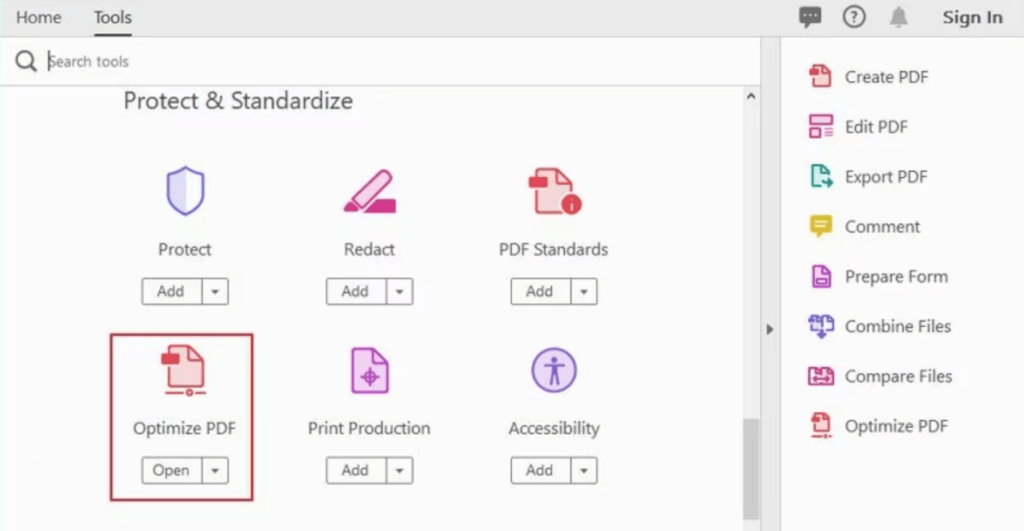
After that, choose “Reduce File Size” or opt for “Advanced Optimization” to adjust compression levels.
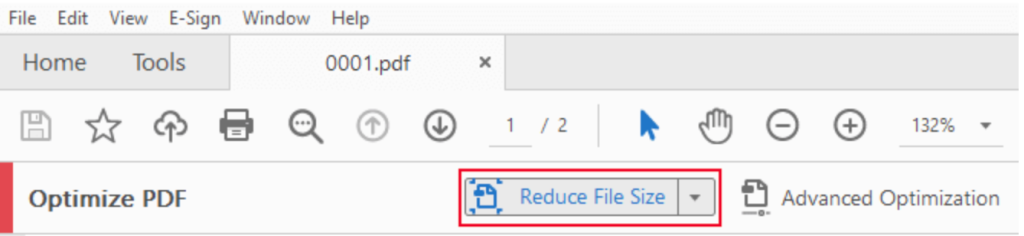
Step 3. Select “Add Files” to pick all the PDF documents you want to compress at once.
Step 4. Next, configure your preferred compression options, including image resolution and quality, and press “OK”.
To complete the process, choose “Save” or “Save As” to batch compress the PDFs.
How to Compress a PDF File on Mac Online Using PDF Candy
Known as one of the best free PDF online compressor tools, PDF Candy makes shrinking PDFs quick and effortless. You can easily compress a PDF file on a Mac online without installing any software. Additionally, its compression options let you balance file size and quality for optimal results. In general, PDF Candy combines a user-friendly design with fast performance, making PDF handling seamless across browsers.
Follow these steps to see how to reduce the size of a PDF on Mac using PDF Candy effortlessly.
Step 1. Launch a web browser and access PDF Candy online. Next, find and open the Compress PDF tool from the main interface.
Step 2. Tap +Select File(s) to import your PDF file from your computer, Dropbox, or Google Drive.
Alternatively, drag and drop your PDF document directly into the program.
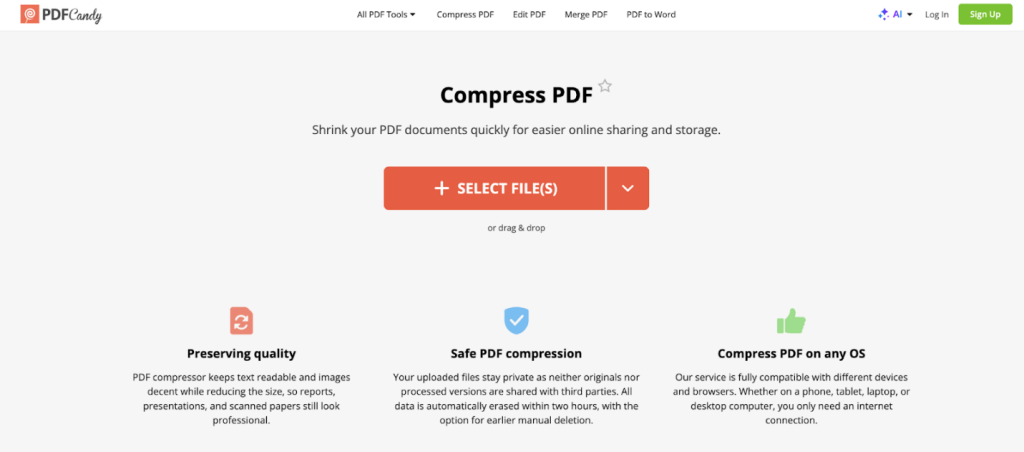
Step 3. Once your PDF is added, choose a compression option.
- Recommended compression. Balance between compression and quality.
- Maximum compression. Maximum compression and lower quality.
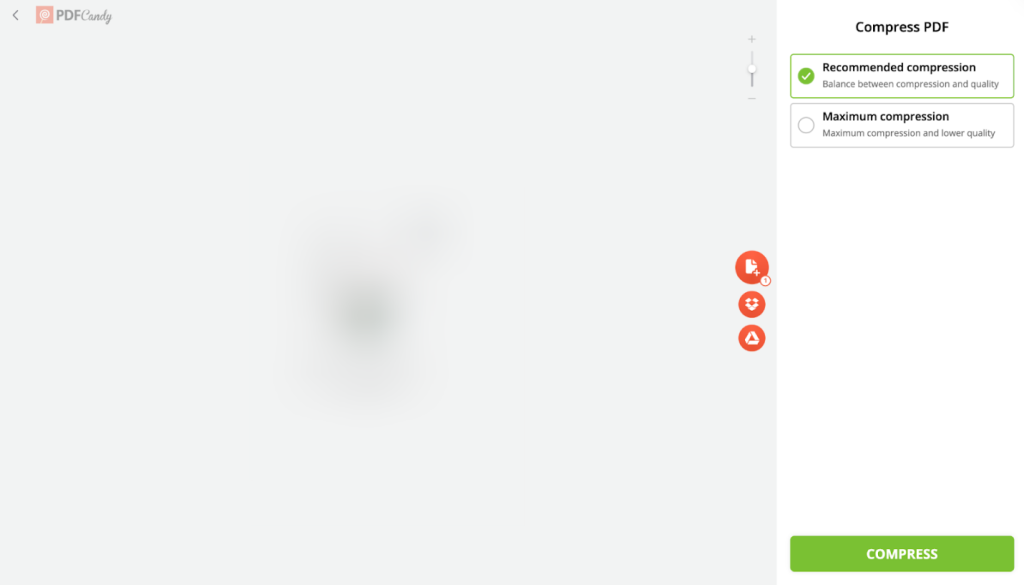
Step 4. Then, click Compress. PDF Candy will automatically process your PDF within a few moments.
Once you see “Done,” tap “Download file” to save the compressed PDF locally on your Mac.
Tips to Compress PDF on Mac Without Losing Quality
Having looked at the 4 most effective ways to learn how to compress a PDF on Mac, it’s obvious you can shrink PDFs while keeping them clear. Using the proper methods, it’s possible to maintain image quality when compressing PDFs and make your files smaller and more manageable.
Use these practical tips to efficiently achieve the best possible results when compressing PDFs.
- Choose the right compression tool to control file size and quality.
- Ensure to choose lossless or high-quality compression whenever available.
- Adjust image resolution carefully— lower it only as much as needed.
- Remove unnecessary elements like extra images, blank pages, or annotations.
- Handle multiple PDFs simultaneously with batch compression, but avoid overdoing it to maintain quality
- Always save a backup of the original PDF to retain the highest quality version
- Avoid multiple rounds of compression on the same PDF
How to Batch Compress Multiple PDFs on Mac
Batch compression is a real time-saver when managing many sizable documents. With suitable software, it’s possible to compress multiple PDF files on Mac at once while preserving clarity and efficiency.
Here’s a list of the best methods for batch PDF compression on Mac.
⭐Automator. The built-in Automator app in macOS lets you set up a custom workflow to batch compress PDFs. You can set a Quartz filter to reduce file size and apply it to an entire folder of PDFs, saving time without installing additional software.
⭐Professional PDF editors like Adobe Acrobat. Adobe Acrobat offers advanced batch compression options. With the “Action Wizard” or “Optimize PDF” tools, you can select multiple PDFs, adjust image quality and resolution, and compress them all at once while preserving clarity.
⭐Desktop PDF compressors with batch support like JOPDF. JOPDF provides a user-friendly interface for Mac users to compress multiple PDF files on Mac at once. It allows batch selection, customizable compression levels, and fast processing, making it ideal for both casual and professional use.
A Quick Wrap Up
Knowing how to compress a PDF on Mac allows you to reduce file size, speed up sharing, and handle documents more efficiently. From built-in tools like Preview to professional editors like JOPDF and Adobe Acrobat, and online options like PDF Candy, there are plenty of choices to suit every need. The best PDF compressors for Mac let you shrink file sizes without losing quality, streamline your workflow, and work with both single and multiple PDFs effortlessly.
FAQs
a. First, you can use the built-in Preview app. Launch your PDF, head to File > Export. And pick the Quartz “Reduce File Size” filter to reduce its size fast.
b. Secondly, you can use tools like Adobe Acrobat, JOPDF, or PDF Candy. They offer improved control over compression and quality, letting you adjust resolution, eliminate redundant content, or batch-compress PDFs so your documents remain clear and easy to send.
Table of Contents

Your Best Free PDF Expert in PDF editing, compressing, converting, annotating, protect, organizing, and more.
Free DownloadWindows · macOS · Linux

Olivia
“Olivia is an editor at JOPDF, where she writes practical guides and insightful articles on managing PDFs—covering topics like editing, annotating, converting, and organizing files efficiently. Passionate about clear communication and digital productivity, Olivia enjoys spending her free time cooking, watching movies, and hiking to unwind and find inspiration for her writing.”
![How to Combine PDFs in Preview in 2026 [2 Best Ways]](https://b.jopdf.com/wp-content/uploads/2026/03/how-to-combine-pdfs-in-preview.png)