![How to Compress a PDF File on Windows [Free & Easy Ways]](https://b.jopdf.com/wp-content/uploads/2026/04/how-to-compress-a-pdf-file-on-windows.png)
Introduction :
A PDF file can be large if it contains images, scanned pages, or graphics. Large PDF files can be a common source of frustration, as they can run out of storage on your Windows PC or cause failures when sending emails or uploading files. In those cases, you need to compress PDFs to reduce their file size. How to compress a PDF file on Windows 10/11? Let’s explore the best PDF compressors and detailed guidance in this JOPDF article.
Why Compress PDFs
Compressing a PDF file can significantly decrease its file size, offering several benefits listed below:
- Compress a PDF for faster email attachments and uploads.
- Reduce storage space usage for local or cloud storage.
- Share PDFs quickly on WhatsApp, Teams, or Google Drive.
- Improve website performance for PDFs.
How to reduce PDF file size on Windows without losing quality? Keep reading on.
Quick Comparison of the Best PDF Compressors for Windows
Here’s a quick comparison table of the best PDF compressors for Windows. You can refer to this table and pick a desired PDF compressor and jump to the corresponding part to learn the exact steps to compress a PDF.
| PDF Compressor | Price | Offline or Online | Batch Support |
| JOPDF | 100% Free | Offline | Yes |
| Adobe Acrobat Pro | 7-day free trial; paid | Offline | Yes |
| Smallpdf | Free version with limited features | Online | Limited |
| PDF24 Creator | Free | Offline | Yes |
| Microsoft Word | Paid | Offline | No |
Best Free Way to Compress PDFs on Windows with JOPDF
I have used and tested many PDF compressors for Windows. Among them, JOPDF is my preferred choice. Known as one of the best free PDF compressors, JOPDF enables you to compress PDF files without any hidden costs. Additionally, it supports compressing multiple PDFs simultaneously, improving efficiency and saving time. Here, let’s learn how to reduce a PDF file size without losing quality in JOPDF.
Step 1. Click the button below to download and install the best free PDF compressor for Windows. Then, launch it to get to its main interface.
Step 2. Select the Compress PDF option and click Add Files to import your large PDF file. Alternatively, directly drag and drop the PDF into JOPDF.
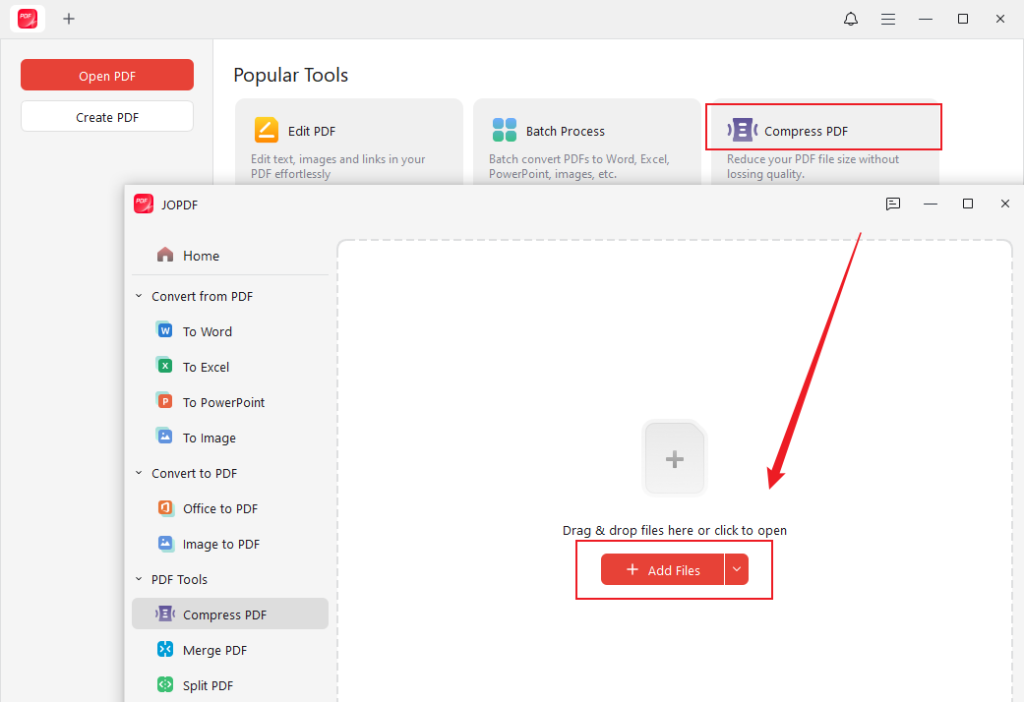
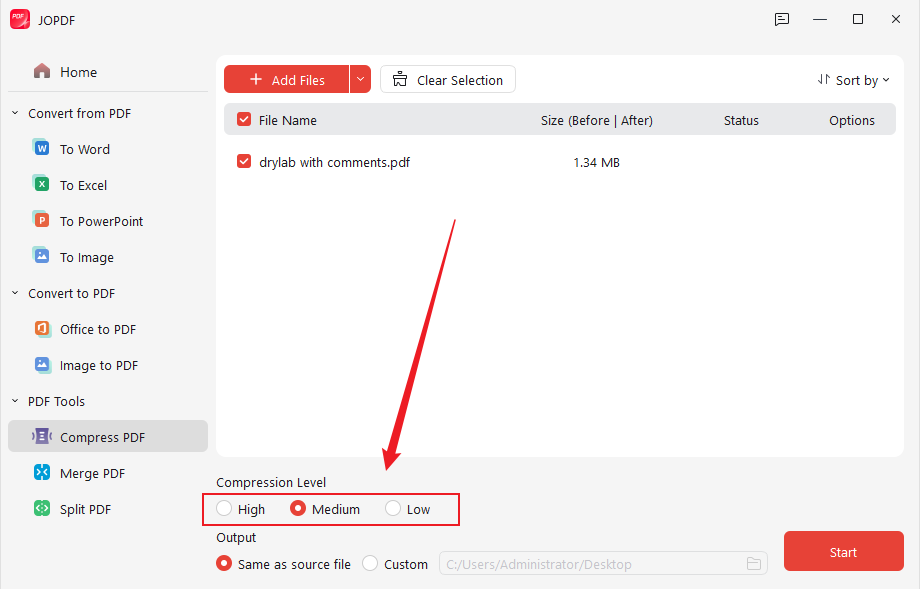
Step 3. Three compression levels for you to choose from: High, Medium, and Low. Make a choice as needed. Next, select the save path for the compressed PDF file.
Tips
If you need to batch compress PDFs on Windows, import several PDFs and select the compression level.
Step 4. Click the Start button to enable the compression process.
Beyond a PDF compressor, JOPDF also functions as a PDF converter and editor. You can use it to modify PDF files with its useful editing and annotation features, such as adding signatures to a PDF, removing PDF watermarks, and embedding videos. Furthermore, it allows you to convert images to PDF, PDF to Word, PDF to PowerPoint, and more.
How to Compress a PDF File on Windows with Adobe Acrobat Pro
If you cater to professional-grade compression, Adobe Acrobat Pro would be the most reliable solution. As a professional PDF tool, Adobe Acrobat Pro offers advanced capabilities to create, edit, convert, secure, and manage PDFs. It can significantly reduce file size and preserve visual quality, making it ideal for compressing large PDFs. Compared to JOPDF, Adobe Acrobat Pro is a paid application. If you subscribe to Adobe Acrobat Pro or are using its free trial, follow the steps below to compress a PDF in Adobe Acrobat Pro.
Step 1. Launch Adobe Acrobat Pro and open your large PDF file.
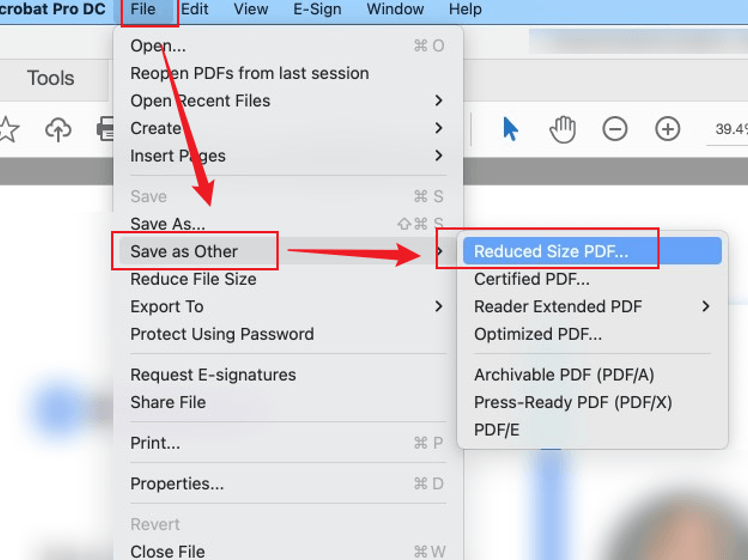
Step 2. Click the Tools tab and select the Compress a PDF option (or Optimize PDF). Alternatively, click File, select Save as Other, and click Reduced Size PDF.
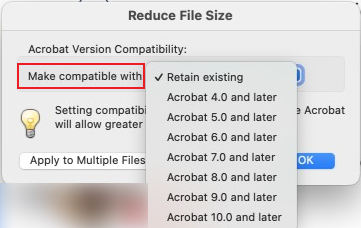
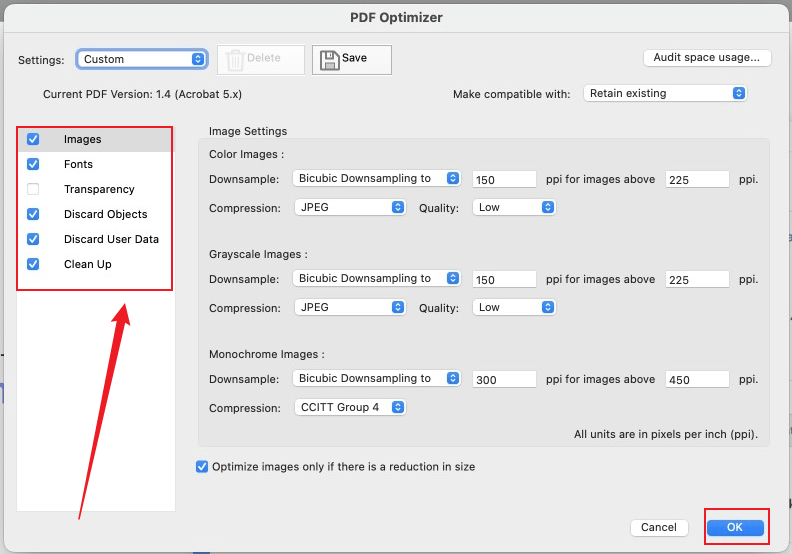
Step 3. In the Reduce File Size dialog, choose a compatibility option. For instance, choose the Retain existing option for the minimal changes.
Step 4. Select a folder to save the compressed PDF, name it, and click the Save button.
Tips
If you want to get more customization for PDF compression, click the Advanced Optimization option. Or go to File > Save as Other > Optimize PDF. In the PDF Optimizer dialog box, you can customize images, fonts, discard objects, and others. Then, click OK to apply changes.
Compress a PDF File on Windows Using Online Smallpdf
Want to compress a PDF without additional software on Windows? Try online PDF compressors. Smallpdf is a full-featured online PDF tool that offers editing, annotating, converting, protecting, and compressing. You can use it to compress PDF files with ease owing to its simple interface. Below is how to compress a PDF online with Smallpdf.
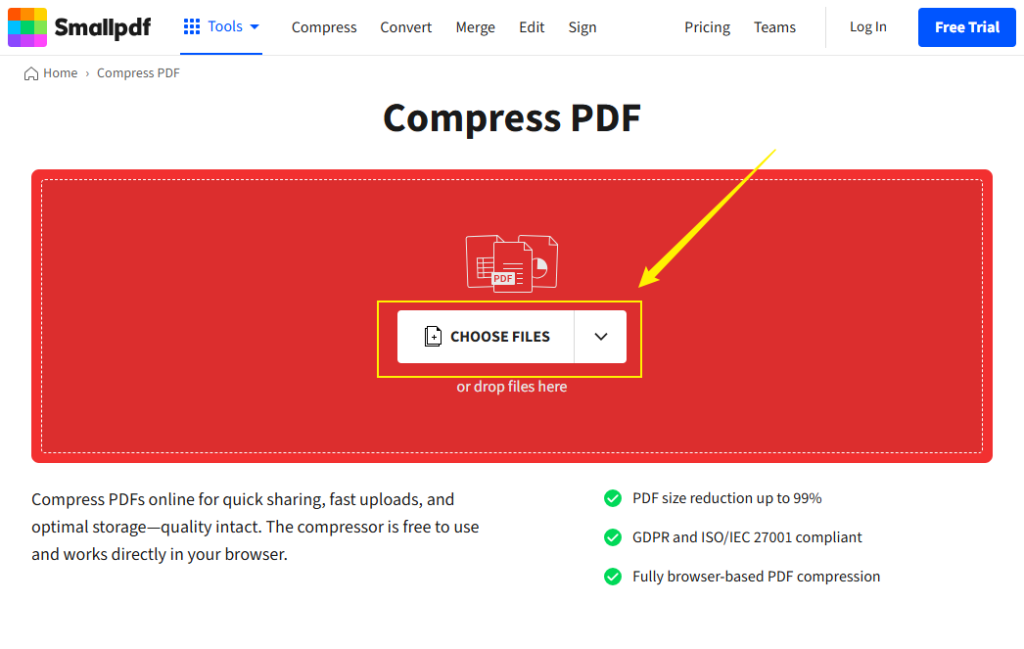
Step 1. Open a browser on your Windows PC and visit Smallpdf’s official website. Next, click the Compress option.
Step 2. Click CHOOSE FILES to upload the large PDF file you want to reduce the file size.
Step 3. Here are 2 options for you: Basic and Strong. Select Basic for medium compression. Or you can pay for its Pro version to unlock the Strong compression.
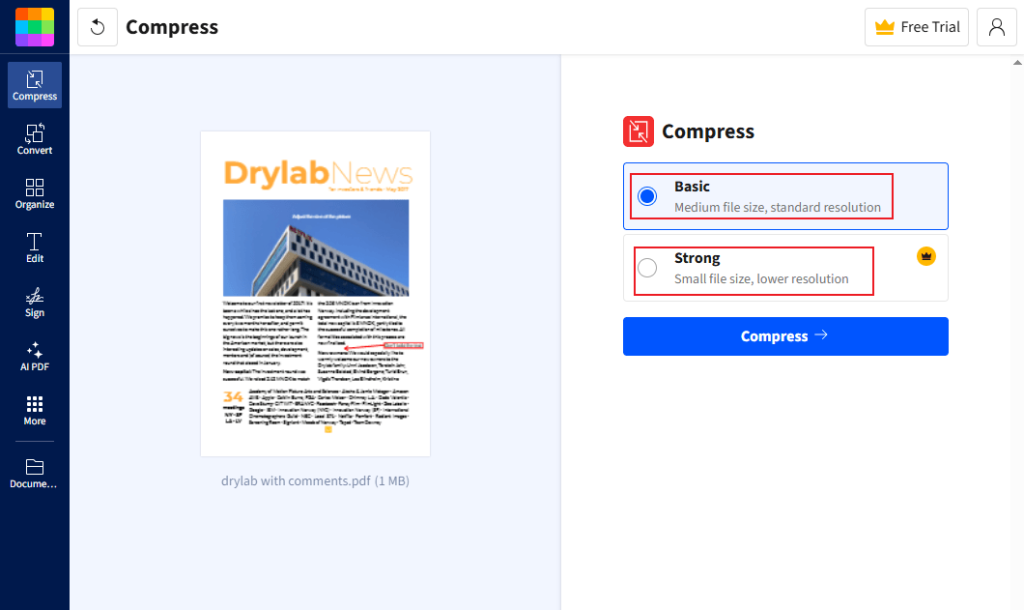
Step 4. Click Compress to reduce the PDF file size online in Smallpdf. When the compression is over, download the compressed PDF file.
How to Reduce PDF File Size on Windows with PDF24 Creator
PDF24 Creator is a free PDF compressor for Windows that can quickly reduce large PDF file sizes. Like JOPDF, it also supports batch compression for multiple PDF files. In addition, PDF24 Creator allows you to create, edit, annotate, protect, and organize PDFs. Here’s the detailed guide on how to reduce PDF file size on Windows with PDF24 Creator.
Step 1. Download and install PDF24 Creator on your Windows PC.
Step 2. Launch this free PDF compressor and select the Compress PDF option from its main interface.
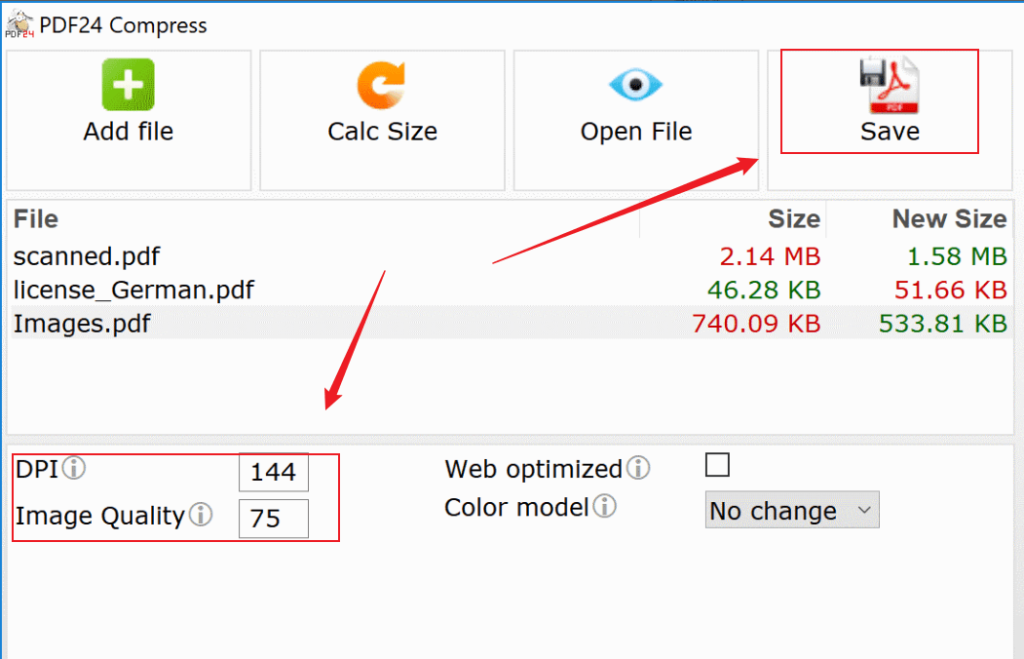
Step 3. Next, click Choose files to import a large PDF file that needs to be compressed.
Step 4. Then, you can adjust the DPI and Image Quality as needed. Finally, click the Save button.
How to Compress a PDF on Windows Using Microsoft Word
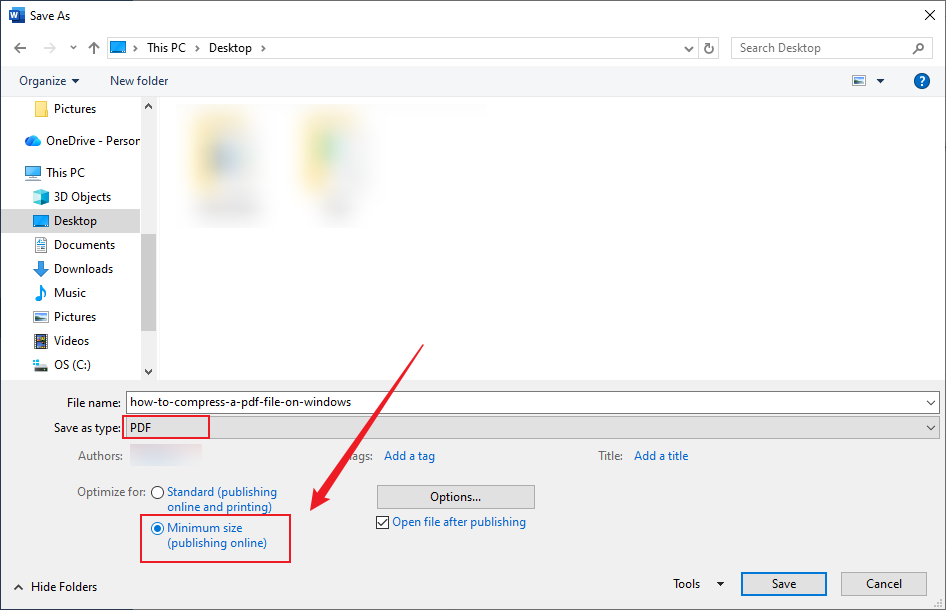
Microsoft Word is a powerful word-processing tool. Can you use Microsoft Word to compress PDFs? Though Microsoft Word doesn’t offer a built-in “Compress PDF” option, it allows you to reduce PDF file size when you export or save a document as a PDF. Here, let’s learn how to reduce PDF file size on Windows with Microsoft Word.
Step 1. Run Microsoft Word and click Open to open your large PDF file. Then, Microsoft Word will convert the PDF into an editable Word document.
Step 2. Optionally, you can edit the content and formatting as needed. Next, click File and select Save As.
Step 3. Specify the saving path and set PDF as the output format. Select the “Minimum size” option and click Save.
Tips to Reduce PDF File Size Without Losing Quality
How can you strike a balance between file size and quality when compressing a PDF? Here are some tricks to help you shrink a PDF file size without losing quality.
- Compress and reduce image resolution first.
- Remove unnecessary elements, such as embedded fonts, metadata, and hidden layers.
- Convert scanned PDFs to searchable text before compression.
- Avoid over-compression.
Quick Sum Up
To send or share large PDFs quickly, compressing is a good way to reduce their file size. How to compress a PDF file on Windows? If you need to compress PDFs on Windows for free, use JOPDF or Smallpdf. You can also use Adobe Acrobat Pro if you need a professional-grade compression. Other PDF compressors for Windows, such as PDF24 Creator, SwifDoo PDF, or iLovePDF, can also reduce PDF file size efficiently. Now, it’s your time to choose a method to compress PDFs.
FAQs
#Smallpdf
#iLovePDF
#SwifDoo PDF Online Converter
#PDF24 Tools
Click Compress PDF.
Click Add Files to import the target large PDF file.
Select the High, Medium, or Low compression level to reduce file size.
Select the saving path and click Start.
Table of Contents

Your Best Free PDF Expert in PDF editing, compressing, converting, annotating, protect, organizing, and more.
Free DownloadWindows · macOS · Linux

Olivia
“Olivia is an editor at JOPDF, where she writes practical guides and insightful articles on managing PDFs—covering topics like editing, annotating, converting, and organizing files efficiently. Passionate about clear communication and digital productivity, Olivia enjoys spending her free time cooking, watching movies, and hiking to unwind and find inspiration for her writing.”
![[Top 4 Ways] How to Compress a PDF Without Adobe in 2026](https://b.jopdf.com/wp-content/uploads/2026/04/how-to-compress-a-pdf-without-adobe.png)
