![How to Combine PDFs in Preview in 2026 [2 Best Ways]](https://b.jopdf.com/wp-content/uploads/2026/03/how-to-combine-pdfs-in-preview.png)
Introduction :
Organizing several PDFs becomes confusing when they’re scattered across various folders. For this reason, users often need to combine PDFs on Mac without installing extra software. Combining PDFs simplifies organization, facilitates sharing, and keeps related documents together for work, educational, or legal tasks. If you want to learn how to combine PDFs in Preview on Mac, this article from JOPDF walks you through two simple methods and an effective alternative tool.
What Is Preview on Mac
Built into macOS, Preview lets users view, edit, and organize PDF and image files without any additional applications. It proves especially effective when you need to combine multiple PDFs into one file quickly.
Here’s a list of its main PDF features.
- Viewing and reading PDF files.
- Combine multiple PDFs into one PDF file.
- Rearrange, rotate, and delete PDF pages.
- Extracting specific pages into a new document.
- Annotating PDFs with highlights, text boxes, drawing shapes, and signing documents.
- Filling out and signing PDF forms.
- Creating bookmarks to navigate easily.
- Simple image-to-PDF conversion.
Why Use Preview to Combine PDF Files on Mac
Preview provides a convenient and trustworthy way to combine PDFs. Since it’s pre-installed on every Mac, it handles basic PDF tasks smoothly without third-party software.
- No need to download or install third-party software.
- Free and built into macOS.
- Simple drag-and-drop interface.
- Lets you merge entire PDFs or just selected pages.
- Supports rearranging pages before saving.
- Lets you view and annotate PDFs while merging.
- Maintains original document quality.
- Ideal for quick personal, academic, or office tasks.
How to Combine PDFs in Preview on Mac
Keeping several documents separate can be both time-consuming and cumbersome. If you’re looking to merge PDF files, Preview provides a hassle-free, built-in method.
Learn step by step how to combine PDFs on Mac using Preview for fast and organized results.
Option 1. Combine Multiple PDFs in Preview Using Thumbnails
Using the Thumbnail view in Preview is one of the simplest ways to combine multiple PDFs. This method allows you to open one main PDF and add other PDFs, positioning them before or after certain pages as required. By dragging entire documents into the thumbnail sidebar, you can quickly merge multiple PDFs into a single, well-organized file without affecting the original content or formatting.
Let us check out how to combine PDF files in Preview on Mac using thumbnails in just a handful of clicks.
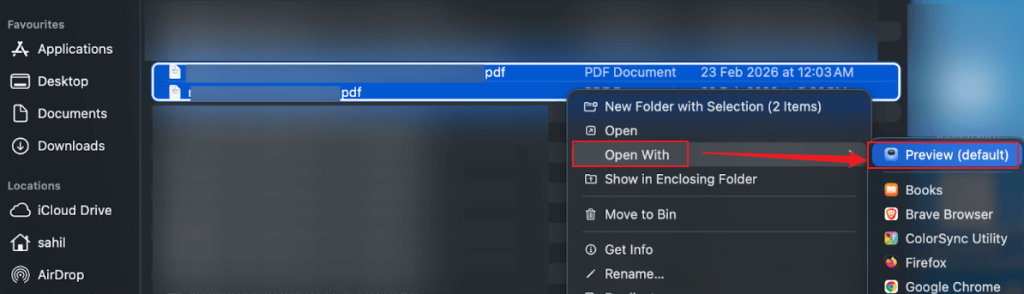
Step 1. Right-click the PDF file and select Open With. Choose Preview.
Alternatively, go to the Preview app on your Mac. And open the PDFs you need to combine.

Step 2. In the top menu, click View and select Thumbnails in the dropdown menu. A sidebar will appear on the left, displaying all pages.
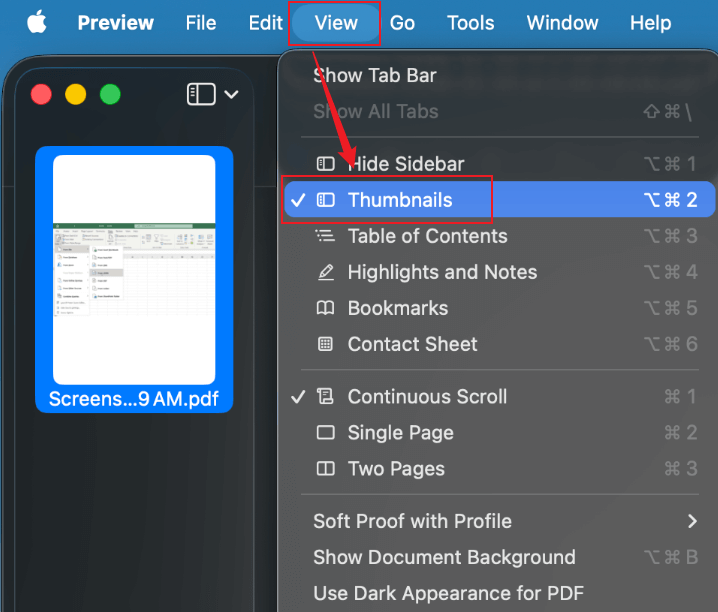
Step 3. Open the second PDF in a separate Preview window or drag it directly.
Step 4. Drag the entire PDF into the Thumbnails sidebar of the first document.
Note. If the thumbnails you want aren’t next to one another, you can Command-click to select each one.
Step 5. Drag pages up or down in the sidebar to change their order. Then, click File in the top menu bar. And then select Save to keep your combined document.
Option 2. Combine Specific PDF Pages in Preview
If you only need certain pages, Preview allows you to merge specific PDF pages into a new document. This method is useful when you only want selected pages from different PDFs, such as particular chapters, reports, or signed forms. Using the thumbnail view, you can extract and arrange only the required pages, creating a customized PDF without unnecessary content.
Let us see how to combine specific PDF pages in Preview in a few clicks.
Step 1. Access both PDFs in the Preview app.
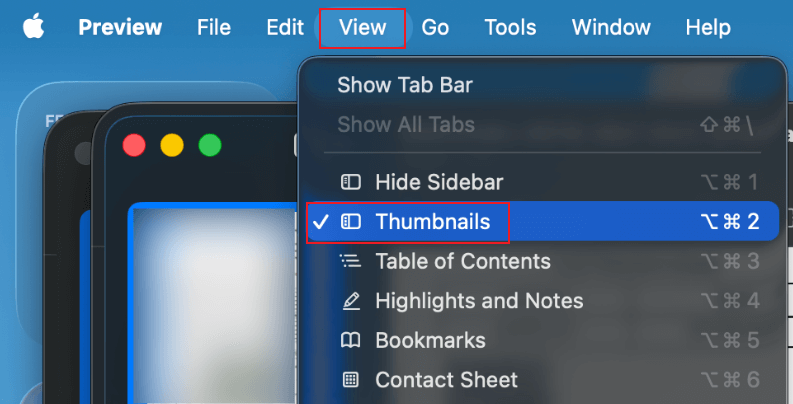
Step 2. Click View and choose Thumbnails in both windows.
Step 3. Press Command and select the specific page thumbnails in the second PDF you want to combine.
Step 4. Drag the selected pages into the target (first) PDF’s sidebar.
Note. You can add pages to the end of a document or between pages. Drag thumbnails to reorder them.
Step 5. Arrange the pages and save the file.
Best Alternative Way to Combine PDFs on Mac in JOPDF
Preview helps split PDFs into several files.While Preview works for basic tasks, it may struggle with text edits, bulk file processing, or managing many documents at the same time. Users often find themselves limited when trying to merge, split, or reorder PDFs efficiently, which is why exploring a more powerful alternative can save time and reduce frustration.
JOPDF is a versatile solution that lets you easily combine PDFs on Windows, Mac, and Linux and split PDFs into multiple files with just a few clicks. Recognized as one of the best PDF editors for Mac, JOPDF makes managing, merging, and organizing your documents seamless, giving you more control than Preview and streamlining your PDF workflow. Plus, with a fast and intuitive interface, JOPDF supports batch processing, letting you handle multiple PDFs at once without any hassle.
Let us guide you through combining PDFs on Mac with JOPDF in a few clicks.
Step 1. Download and launch JOPDF on your Mac computer.
Step 2. Next, open Batch Process under Popular Tools and choose Merge PDF.
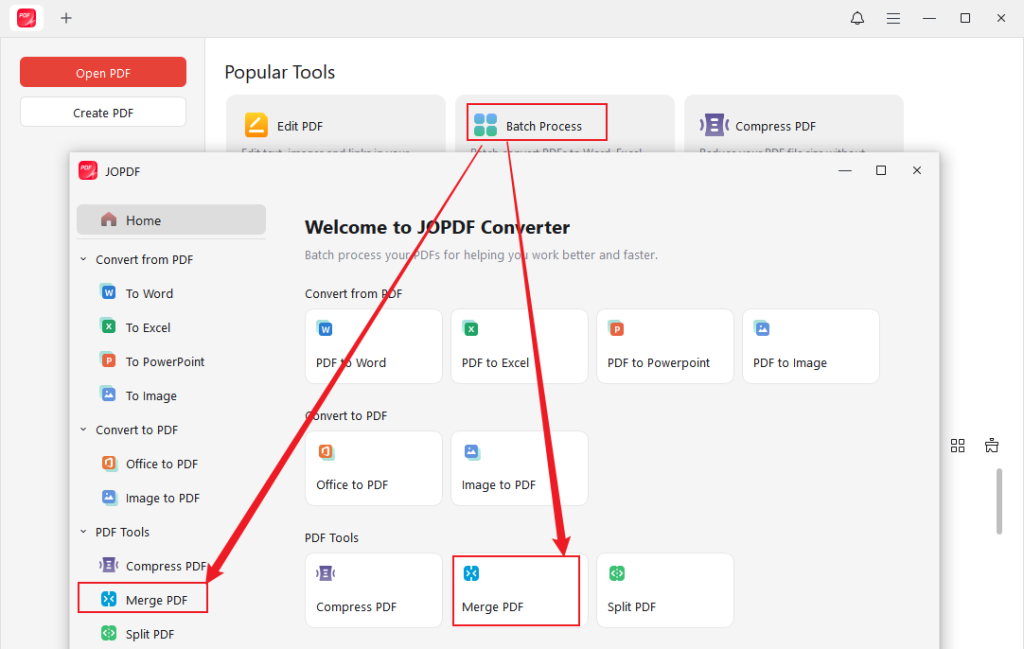
Next, click +Add Files to add the PDFs you want to combine.
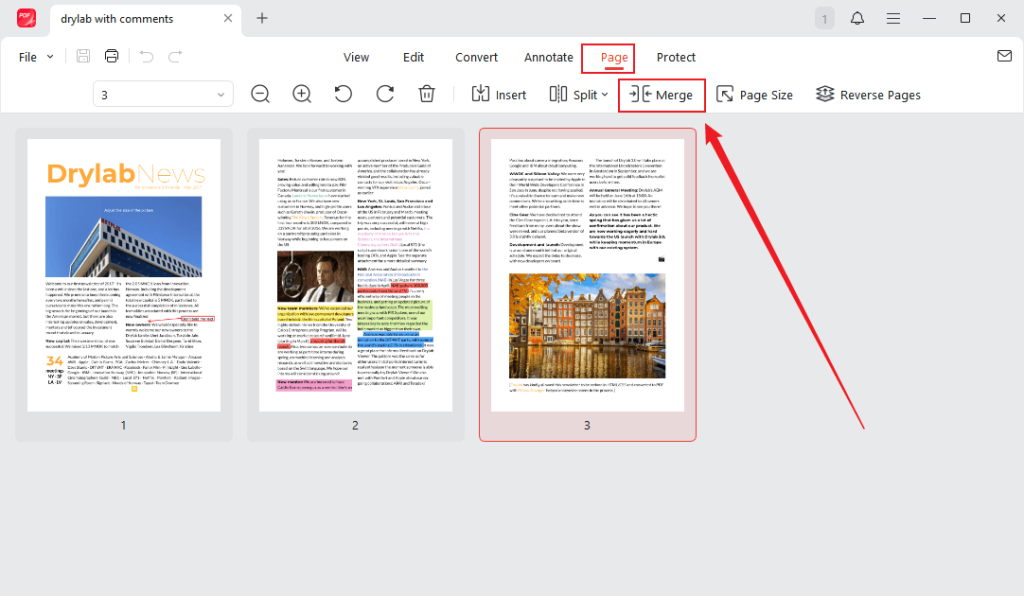
As another option, you can start by opening a PDF in JOPDF. And then go to Page > Merge PDF. And then add the PDF documents you want to combine.
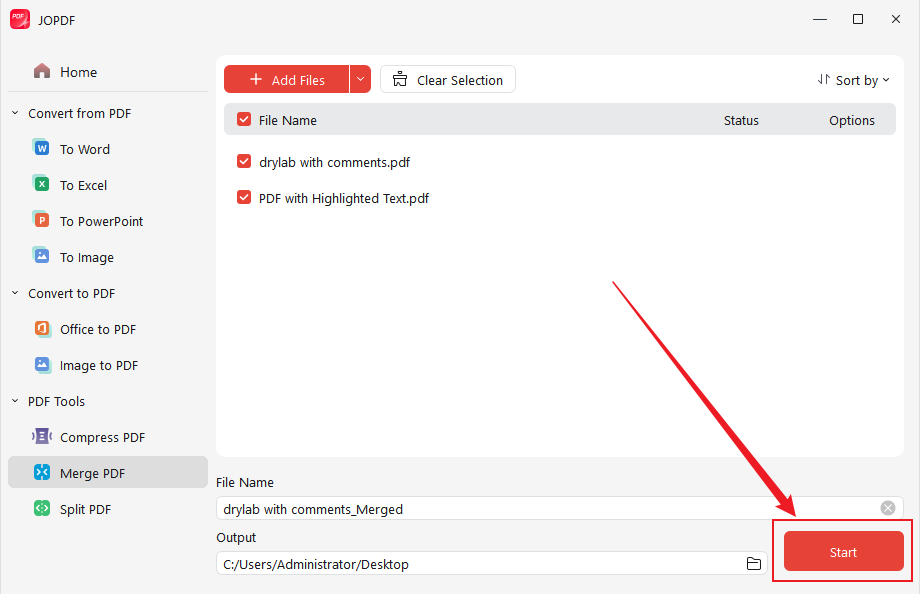
Note. Dragging the files lets you organize them so the merged PDF reflects your chosen order.
Step 3. Tap Start in the bottom right corner. Within a few moments, your combined PDF will be ready.
Final Words
Knowing how to combine PDFs in Preview on Mac makes managing documents faster and more organized, whether for work, study, or personal use. Preview handles basic merging and page selection effortlessly. But for more advanced needs, you can combine and edit PDFs with JOPDF.It offers additional tools for rearranging, annotating, and optimizing your files. With these options, handling multiple PDFs becomes simple, efficient, and stress-free.
FAQs
1. The easiest choice is the built-in Preview app, allowing you to merge full documents or selected pages without extra software.
2. If you prefer a web-based solution, there are several online PDF tools that can merge files quickly.
3. If you need advanced features and a dependable workflow, desktop tools such as JOPDF are ideal for merging, arranging, and managing PDFs.
Table of Contents

Your Best Free PDF Expert in PDF editing, compressing, converting, annotating, protect, organizing, and more.
Free DownloadWindows · macOS · Linux

Olivia
“Olivia is an editor at JOPDF, where she writes practical guides and insightful articles on managing PDFs—covering topics like editing, annotating, converting, and organizing files efficiently. Passionate about clear communication and digital productivity, Olivia enjoys spending her free time cooking, watching movies, and hiking to unwind and find inspiration for her writing.”
![How to Compress a PDF on Mac [4 Best Ways and Practical Tips]](https://b.jopdf.com/wp-content/uploads/2026/03/how-to-compress-a-pdf-on-mac.png)