Introduction :
Combining images into one PDF keeps files organized, shareable, and professional for school, work, and archiving, reducing clutter while preserving quality. Knowing how to combine images into one PDF saves effort, protects your documents, allows for hassle-free printing, and makes them accessible everywhere. In this article from JOPDF, follow proven step-by-step methods to merge images flawlessly. Start now with clear benefits and practical everyday uses.
Combine Images into PDF for Free Using JOPDF
Supported OS: Windows, Mac, and Linux computers.
JOPDF is a powerful yet easy-to-use tool that lets users combine images into one PDF for free with no technical effort. It enables you to upload multiple images at once and reorder them easily before merging. With quick batch processing, you can merge all your photos into one PDF within seconds while maintaining their original quality.
Designed as a free PDF editor, JOPDF also makes it easy to combine PDFs without Adobe Acrobat, making it ideal for students, professionals, and everyday users seeking quick, reliable results.
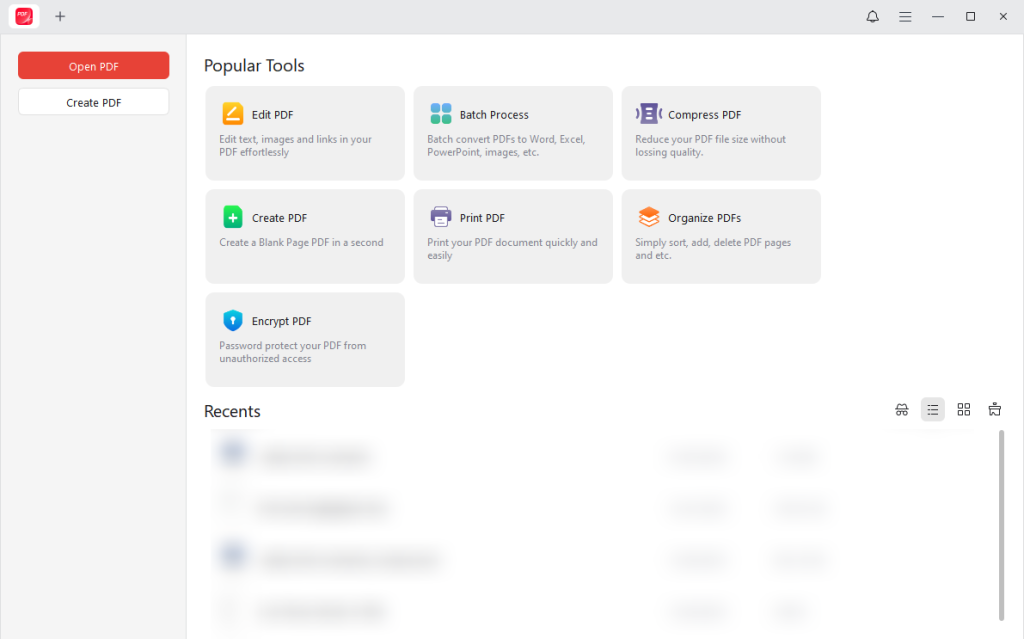
Other prominent features of JOPDF are:
- Quickly make a screenshot a PDF for anytime use and storage.
- Helps easily convert PDF to JPG, PNG, BMP, or TIFF without any hassle.
- Easily edit and resize PDF images to meet your preferences.
- Create high-quality PDFs from images, Word, and all types of formats.
- Offers 15+ annotation tools to cover all the markup needs.
- Merge, split, and compress PDFs for easy sharing and organization.
- No ads, no watermark, and no sign-up is required.
Find out how to combine multiple images into one PDF for free in JOPDF in a few clicks.
Step 1. Install JOPDF on your Windows or Mac computer by visiting the official site. Once installed, launch the program.
Step 2. Select the Batch Process category on the start page under Popular Tools. Then, under the Convert to PDF section, choose the Image to PDF tool in the left pane.
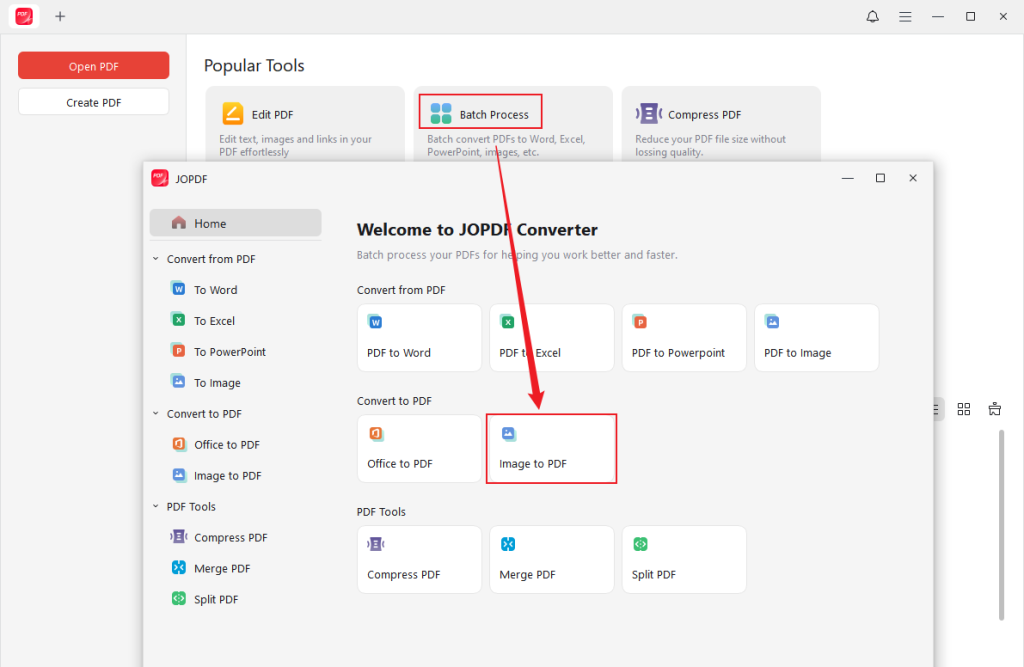
Step 3. Add all the image files you want to combine into one PDF by dropping them into the program. Alternatively, use Add Files to select the images you want to include.
In the Method dropdown option at the bottom, select All Images as One PDF. Choose the page size from options including Original, A4 Portrait, A4 Landscape, or Custom.
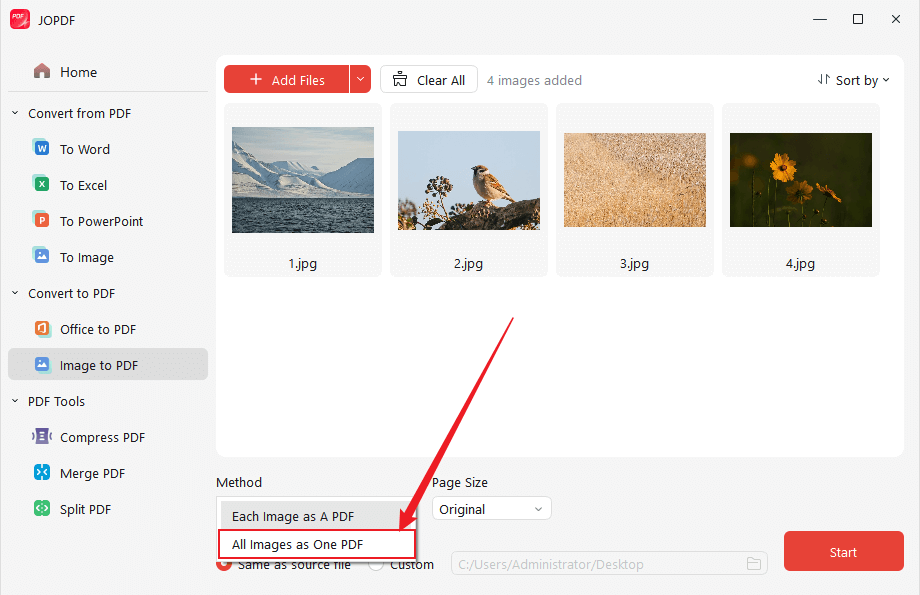
Step 4. After setting all output options, choose where to save the file. Enter a file name and arrange your images in order. Then, click the Start button to merge the JPG files into a single PDF for free.
How to Combine Images into One PDF in Adobe Acrobat
Supported OS: Windows and Mac computers.
Adobe Acrobat also helps users quickly combine JPGs into a single PDF with accurate layout management. You can convert one or multiple photos without losing quality. Besides that, Adobe offers professional tools for creating and managing documents. Its advanced features, such as OCR, convert scanned images into searchable, editable PDFs.
Learn how to combine images into one PDF in Adobe Acrobat Pro in a few clicks.
Step 1. Download and install the Adobe Acrobat Pro on your computer.
Step 2. After you launch the PDF converter software, navigate to Tools and select Combine Files.
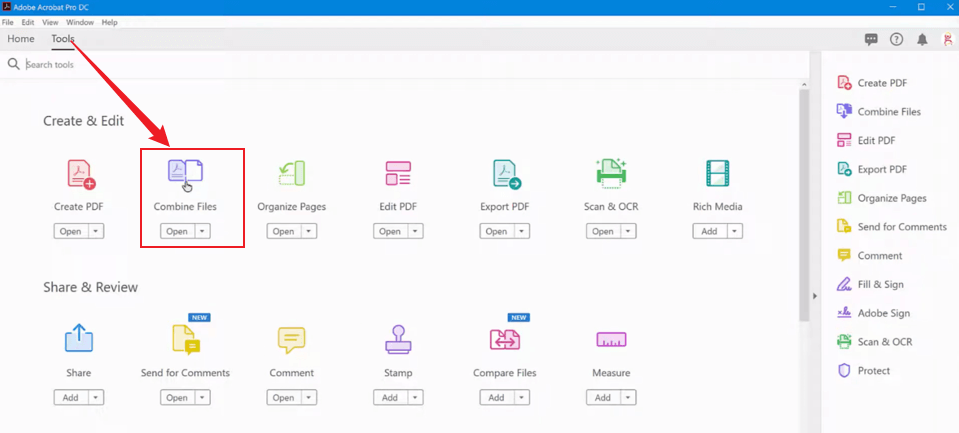
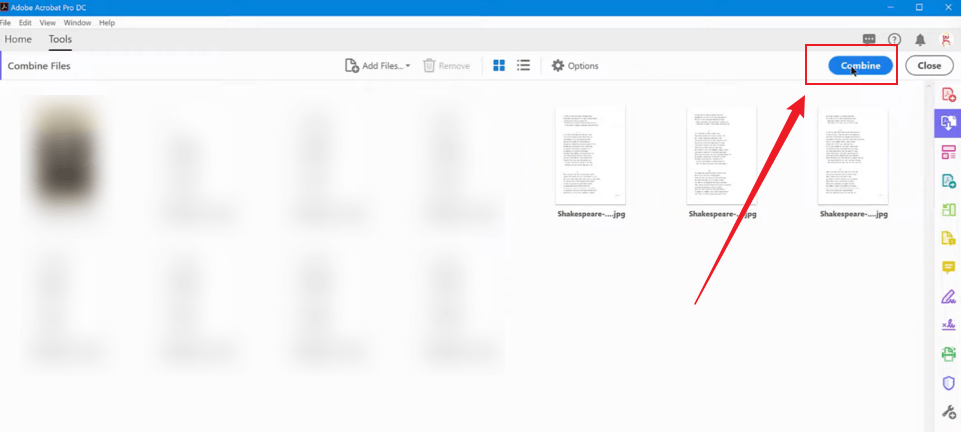
Step 3. Add all image files you want to combine into a single PDF. Also, arrange the image order as you prefer. Customize how the pages appear from the Options menu.
Step 4. Hit the Combine button to start merging the image files into a single PDF.
How to Combine Photos into One PDF Using Mac Preview
Supported OS: Mac (built-in app)
Preview is a pre-installed macOS app offering straightforward and effective PDF tools. It enables Mac users to quickly combine photos into one PDF by organizing and arranging images. Along with merging images, Preview also allows basic edits such as changing fonts in PDFs, making it a convenient all-in-one solution.
Discover how to combine photos into one PDF in Preview in a few clicks.
Step 1. Choose all the images to combine into a single PDF and right-click.
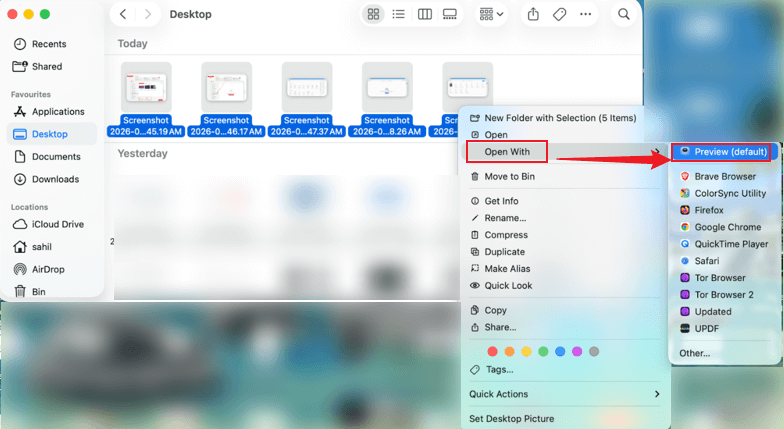
Step 2. Select Open With. Next, choose Preview from the available options to open your selected images.
Step 3. Head to the top bar and click on File. And select Print from the dropdown list.
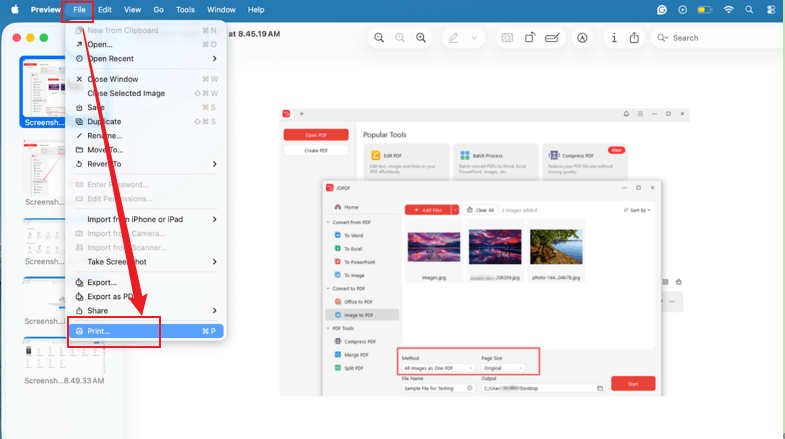
Configure output options, including page size, orientation, and other necessary settings for the conversion.
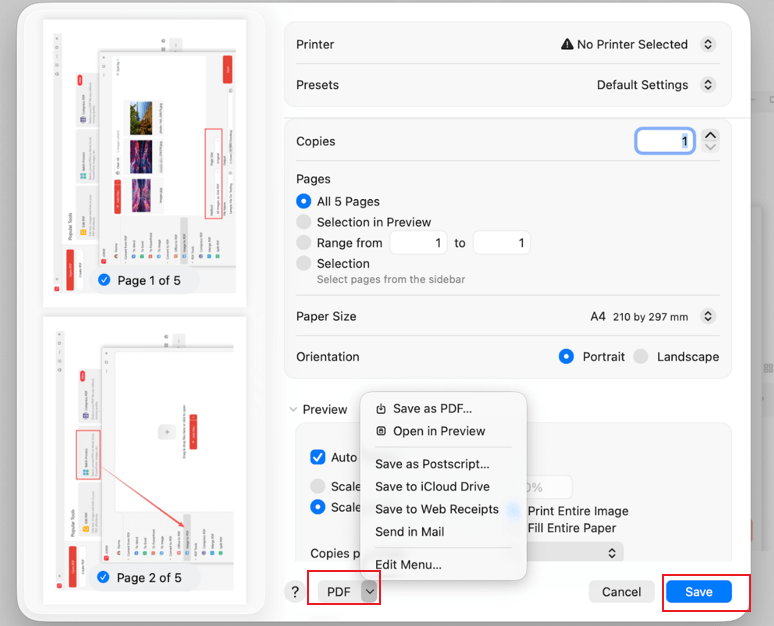
Step 4. Tap the PDF button to decide the file name and where to save it. Once done, tap Save to merge the images into one PDF.
How to Combine Two Images into One PDF Online via iLovePDF
Supported OS: Web-based solution (works seamlessly on all devices and browsers).
iLovePDF is also a popular online platform that offers quick, accessible PDF tools without requiring software installation. It lets users combine multiple images into one PDF by arranging uploaded photos directly on the platform. In addition to merging images, iLovePDF can combine PDF files, offering a fast solution for organizing documents.
Learn how to combine two images into one PDFonline using iLovePDF in a few clicks.
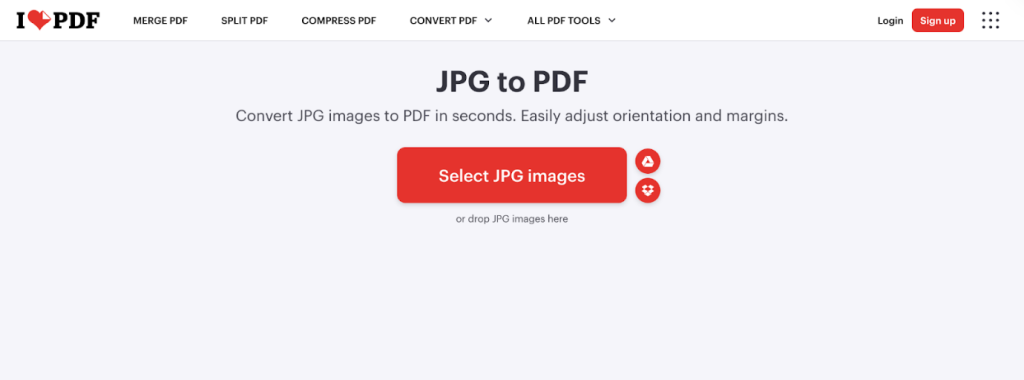
Step 1. Access iLovePDF through your browser. Navigate to the JPG to PDF tool from the list of options.
Step 2. Click Select JPG images to import your two or more image files. Alternatively, drop your images directly into the program.
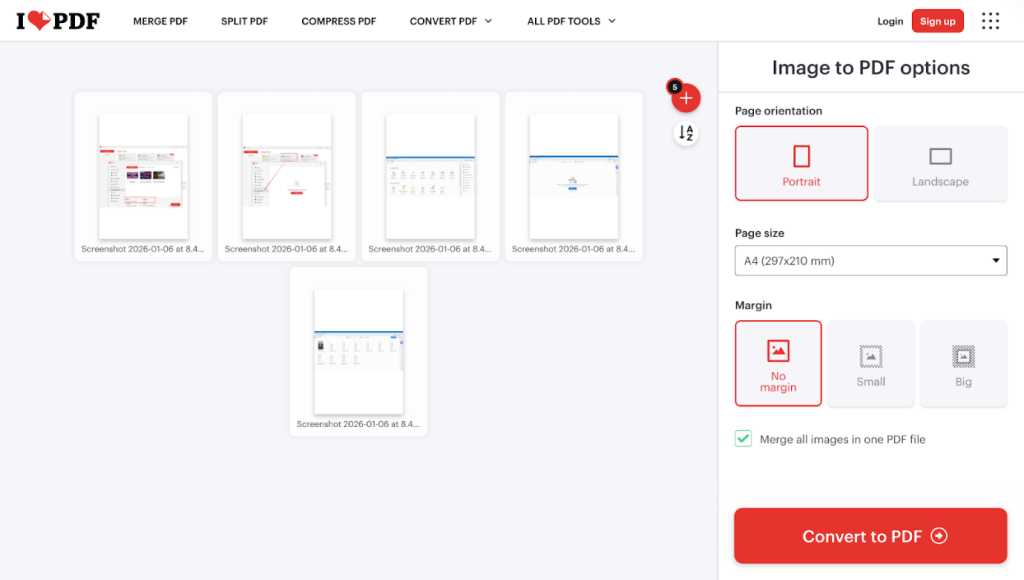
Step 3. After uploading, click Convert to PDF.iLovePDF will quickly combine your images into a single PDF file.
Step 4. After that, click Download PDF to save the converted PDF file.
How to Combine Images into PDF on Android via the Built-in Gallery
Supported OS: Android
Lastly, the built-in Gallery app on Android makes it easy to combine images into a PDF without needing extra apps. Users can quickly select multiple photos, arrange them in order, and export them as a single PDF. This simple feature is perfect for creating organized documents directly from your phone.
Find out the steps to combine images into a PDF using the built-in gallery on Android in a few clicks.
Step 1. Open the Gallery app on your Android device.
Step 2. Select the images you want to combine and convert to PDF.
Step 3. Tap the three-dot menu (…) button in the bottom right corner. And choose Print or Export to PDF.
Step 4. In the print settings, click the three-dots icon (…) in the top-right corner. And click Save as PDF.
Quick Wrap Up
Merging images into one PDF is now easier than ever, providing a simple way to organize, share, and store files efficiently. This guide covered how to combine images into one PDF using five proven methods. Depending on your needs and preferences, you can choose any solution that best fits your needs. Whether for work, school, or personal use, these options ensure fast, reliable results every time.
FAQs
a. Online Tools: Websites such as iLovePDF and Smallpdf let you upload multiple JPGs, reorder them, and download a single PDF—no software needed.
b. Mac Preview: Pick your images, open in Preview, reorder as needed, and export as PDF.
c. Windows: Use the free JOPDF tool or Windows’ Print to PDF by selecting your images, right-clicking, and choosing Print > Microsoft Print to PDF.
d. Android/iOS: Use the Gallery or Photos app to pick your images and create a PDF.
Table of Contents

Your Best Free PDF Expert in PDF editing, compressing, converting, annotating, protect, organizing, and more.
Free DownloadWindows · macOS

Olivia
“Olivia is an editor at JOPDF, where she writes practical guides and insightful articles on managing PDFs—covering topics like editing, annotating, converting, and organizing files efficiently. Passionate about clear communication and digital productivity, Olivia enjoys spending her free time cooking, watching movies, and hiking to unwind and find inspiration for her writing.”