Introduction :
Sometimes, you need to edit and change the text color in PDFs to highlight key points or for other purposes. However, it can be a bit tricky to edit text in PDFs, as the PDF format is technically not designed to be directly editable. How can you edit and change text color in PDFs? Just follow me to read this comprehensive post to learn about how to change text color in PDF files with some reliable and free PDF editors.
Method 1. Free Way to Change Text Color in PDF on Windows and Mac
The first method I’d like to introduce is to use JOPDF, a completely free and robust PDF editor available for both Windows and macOS. It provides you with basic editing features to edit PDFs, such as adding text to PDFs, changing the font and color of text, and inserting images into PDFs. What’s more, advanced features are also included in JOPDF, such as encrypting PDFs, adding hyperlinks to PDFs, printing secured PDFs, etc.
Why JOPDF Is Recommended?
The first reason I recommend JOPDF is that it’s absolutely free and requires no registration. You don’t have to worry about your personal information being leaked. Additionally, no matter you are a beginner or a professional, JOPDF can meet your needs. For beginners, its interface is intuitive and user-friendly. For professionals, its various features can aid you in handling and completing many PDF tasks and problems.
How to Edit Text Color for Free in JOPDF?
Step 1. Hit the button below to download JOPDF for Windows or Mac and then install it on your computer.
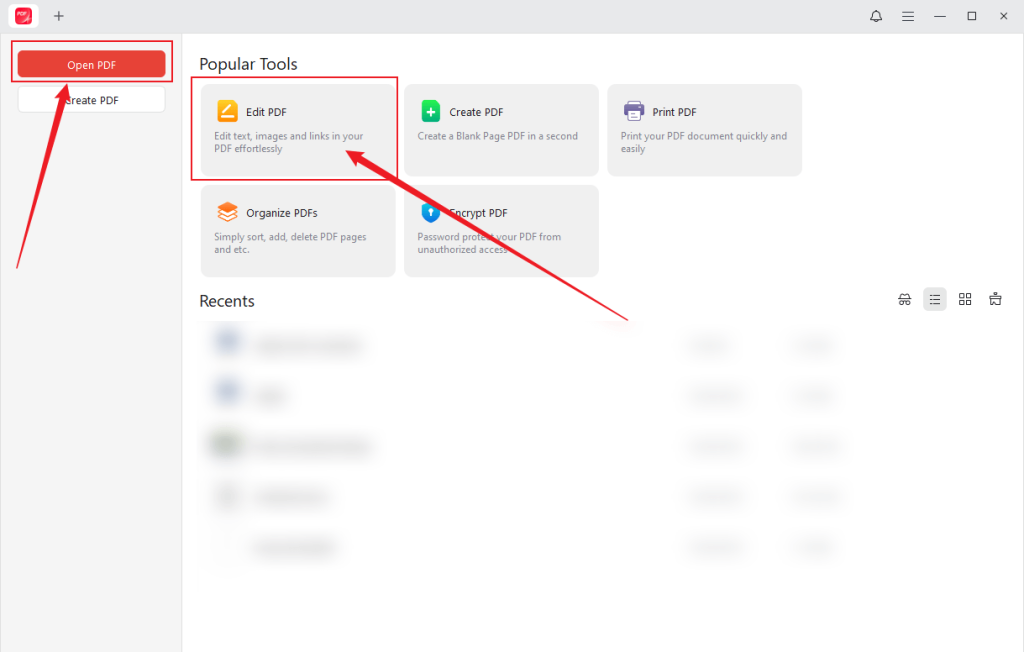
Step 2. Click Open PDF to import your PDF file and then go to the Edit tab for PDF editing. Alternatively, you can directly click the Edit PDF option to upload a PDF file for editing.
Tips
If the PDF file has editing restrictions, go to Protect > Decrypt, click on “Don’t have the permission password?”, and click Remove to remove editing restrictions. Then, you can edit the content in the PDF file.
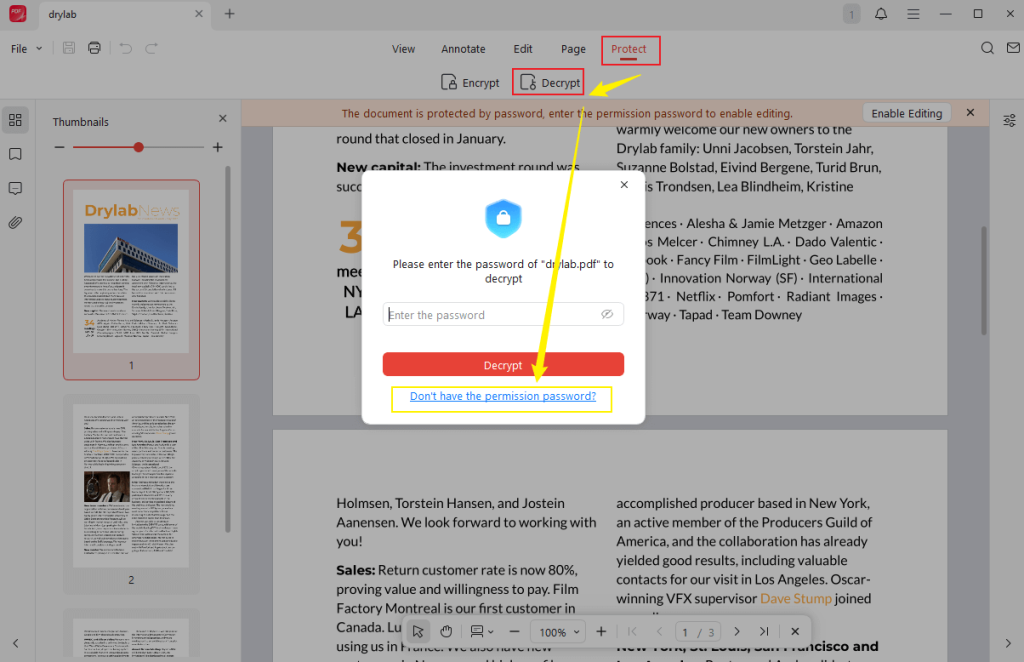
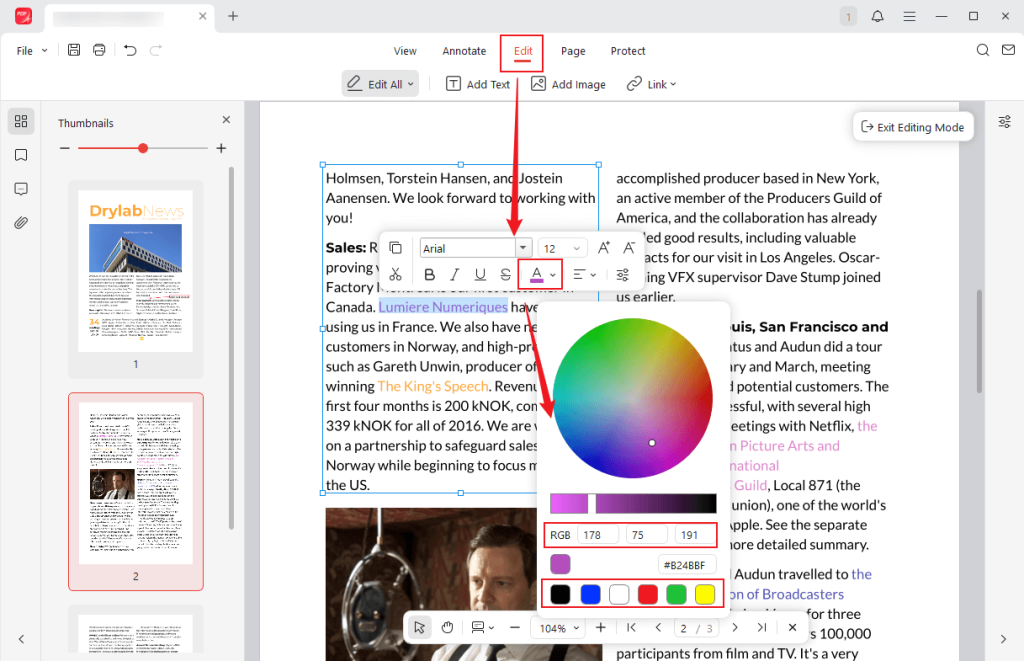
Step 3. Use the mouse cursor to choose the text that you want to change its color. Then, the Text Style panel will appear. Click to open the Font Color list and choose a preset color. Or, you can adjust the RGB values and select a preferred color from the color picker.
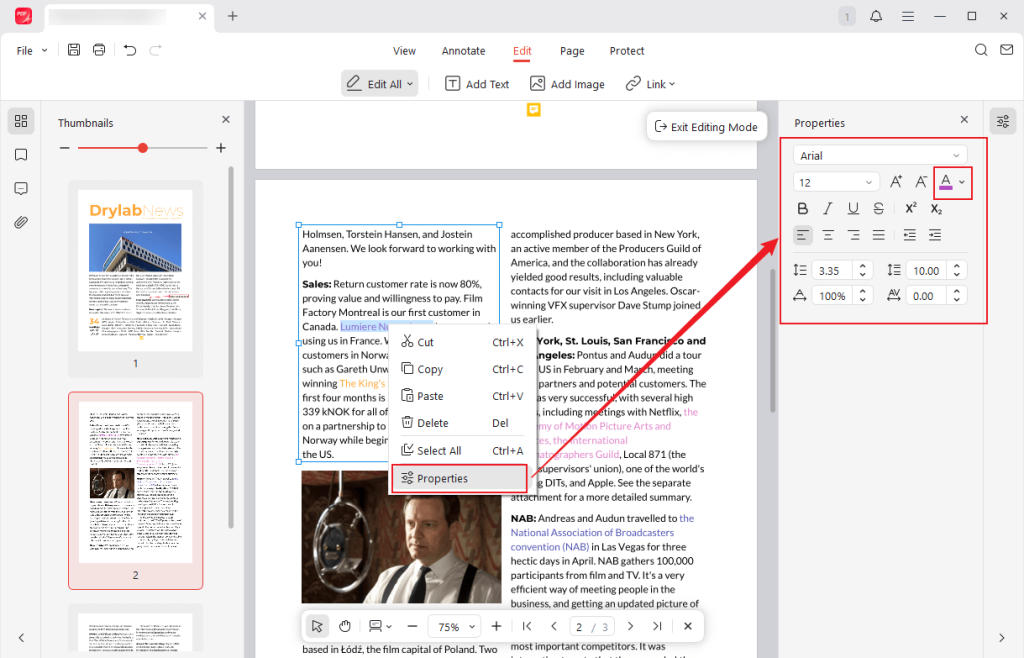
If you don’t see the Text Style panel, right-click on the selected text and select the Properties option. In the right Properties section, you can also adjust the text color.
Step 4. Optionally, you can change the text font, bold or italicize the text, strikethrough text in the PDF, or make other edits. Once finished, click the Save icon to save the changed PDF file.
Method 2. How to Change Text Color in PDF Using Adobe Acrobat
Adobe Acrobat, compatible with Windows, macOS, and mobile devices, is recognized as an industry-standard PDF editor, providing a comprehensive set of tools to view, create, edit, convert, and secure PDFs. You can use it to edit text in PDFs effectively, as it provides professional-grade tools for modifying text color, font, and formatting in PDFs.
However, unlike JOPDF, you need to pay for Adobe Acrobat Pro to enjoy the feature of editing text and changing the text color in PDFs.
Why Do I Recommend Adobe Acrobat?
Adobe Acrobat features an intuitive user interface. Even first-time users can easily figure out how to perform simple tasks like modifying font colors. More importantly, Adobe Acrobat supports precise color editing using RGB or CMYK values, which makes it ideal for maintaining brand consistency. Additionally, you can enjoy its advanced features, like OCR for scanned PDFs and e-signature integration.
How to Edit Text Color in Adobe Acrobat?
Step 1. Launch Adobe Acrobat Pro on your computer, and click the Open option from the File list to upload your PDF file.
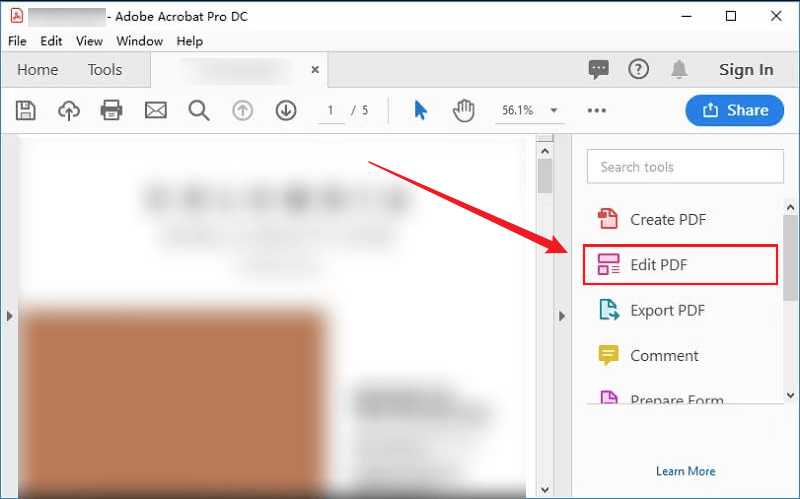
Step 2. Select the Edit PDF option from the right Tools panel. Then, Adobe Acrobat will detect all editable text boxes.
Step 3. Use the cursor to highlight target text, and a small toolbar will appear. If the PDF file has too many pages, you can use its Find and Replace feature to search for the word in the PDF.
Next, simply click the color icon to open the color palette and choose your desired color. Or, you can click the More Colors option to create a custom color.
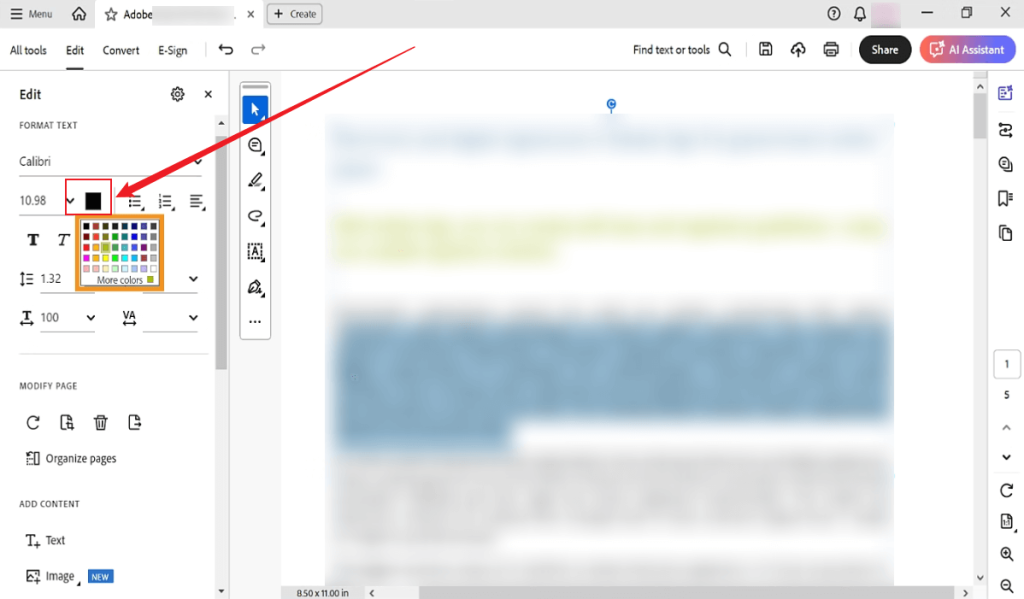
Step 4. Finally, click File and choose the Save or Save As option to save the changes in the PDF file.
Method 3. Change Text Color in Scanned PDF via SwifDoo PDF
SwifDoo PDF is a cross-platform, feature-rich PDF editor. It offers a set of tools to adjust the formatting, font, and color of the text in PDFs. More importantly, SwifDoo PDF comes with the OCR technology to make the text in scanned PDFs editable and searchable. With this PDF editor, you can easily change the text color in a PDF file. Additionally, you can use it to refine PDF documents with its other professional PDF editing tools.
Why SwifDoo PDF Is Suggested?
Working as a cost-effective alternative to Adobe Acrobat, SwifDoo PDF offers a wide range of basic and advanced features. Additionally, it offers AI-powered features that enable translation, proofreading, rewriting, and summarizing of PDFs. With its OCR technology, you can easily change text color in scanned or image-based PDFs.
How to Edit Text Color in a Scanned PDF Using SwifDoo PDF?
Step 1. Visit the SwifDoo PDF download center to download and install it on your PC.
Step 2. Run this software and click Open to import your scanned PDF document. Or, click Edit PDF to upload your scanned PDF file.
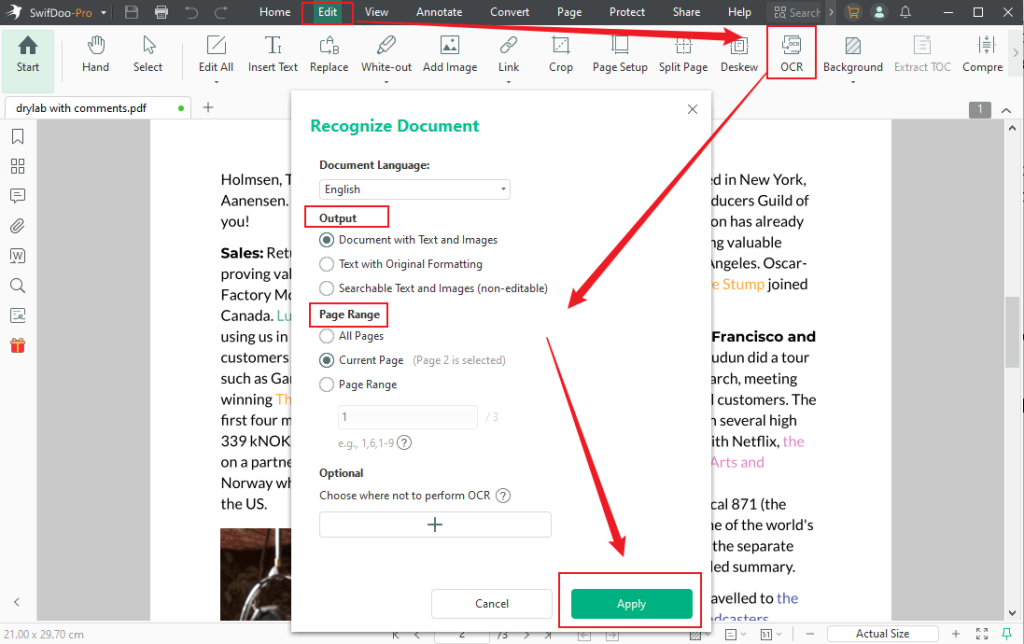
Step 3. Under the Edit tab, click OCR. Then, specify the Output and Page Range settings in the Recognize Document pop-up. Next, click Apply to make the scanned PDF editable.
Step 4. Click Edit All, locate and select the text that you want to change its color. Open the Color list, and then you can choose a preset color from the Theme Colors or Standard Colors section. Alternatively, click More to create a custom color. Furthermore, you can click the Color Picker option to use the cursor to select an existing color in your PDF file.
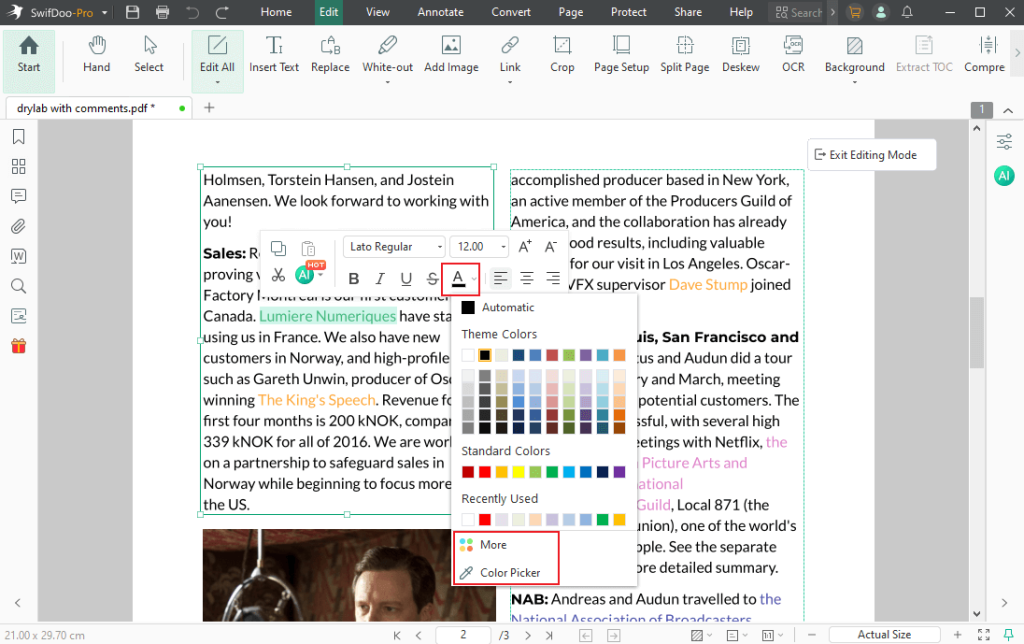
Once you have changed the text color successfully, don’t forget to click the save icon to save the PDF file.
Method 4. How to Change Text Color in PDF Online
Smallpdf is a web-based PDF tool that works with almost all browsers. You can use it to change text font, color, formatting, and other aspects in a PDF file without downloading or installing any software. All its operations occur on the cloud, allowing it to significantly reduce the storage space required on your device. It also offers other features to edit, annotate, convert, organize, and protect PDFs.
However, to enjoy its editing features for text, you need to pay for its Pro version.
Why Choose Smallpdf?
The primary reason I recommend Smallpdf is that it’s an online tool accessible on both desktop and mobile devices. You won’t need to use up your bandwidth or storage space to download and install third-party software. What’s more, its user interface is quite intuitive and user-friendly.
How to Change Text Color with Smallpdf Online?
Step 1. Visit Smallpdf’s PDF Editor official website in your browser.
Step 2. Hit the CHOOSE FILES button to import your PDF file from your device. Or, you can upload files from cloud services, like Google Drive, OneDrive, and Dropbox.
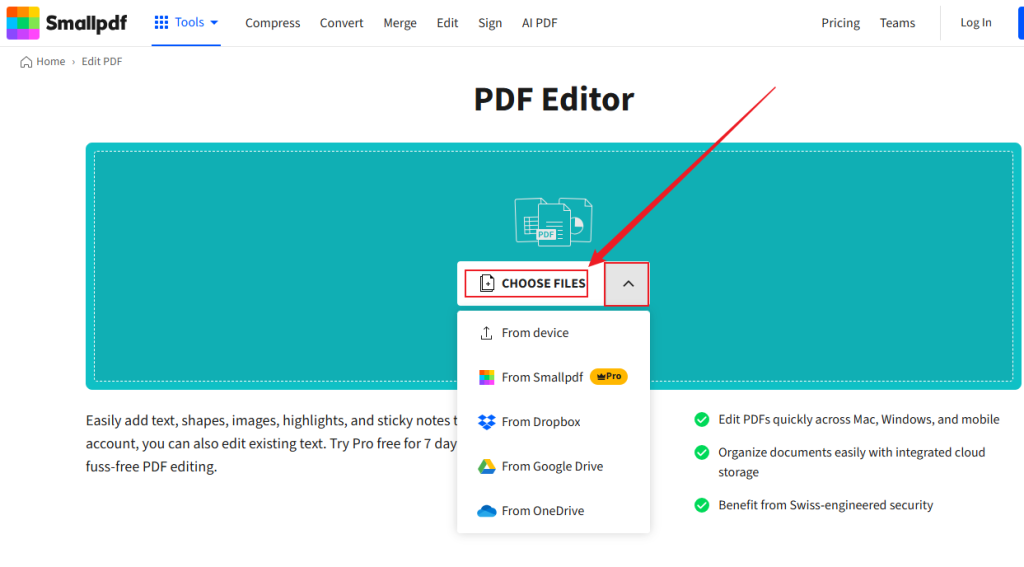
Step 3. Click on to select the text you want to edit. On the top text editing toolbar, click the font color icon and select your desired color from the palette. Finally, click the Download button located in the upper-right corner.
Final Words
How to change text color in PDF files? You can use JOPDF to edit text color in normal and secured PDFs for completely free on both Windows and Mac. Or, you can give Adobe Acrobat a try if you have to pay for the Adobe Acrobat Pro version. If the PDF file is scanned or image-based, consider SwifDoo PDF. If you don’t want to download any software, Smallpdf or other online PDF editors can be your choice. Hopefully, this post can be helpful to you.
FAQs
1. SwifDoo PDF
2. Adobe Acrobat
3. Wondershare PDFelement
4. Foxit PDF Editor
Table of Contents

Your Best Free PDF Expert in PDF editing, compressing, converting, annotating, protect, organizing, and more.
Free DownloadWindows · macOS

Olivia
“Olivia is an editor at JOPDF, where she writes practical guides and insightful articles on managing PDFs—covering topics like editing, annotating, converting, and organizing files efficiently. Passionate about clear communication and digital productivity, Olivia enjoys spending her free time cooking, watching movies, and hiking to unwind and find inspiration for her writing.”