![Proven Guide on How to Change Highlight Color in PDF [4 Ways]](https://b.jopdf.com/wp-content/uploads/2025/11/how-to-change-highlight-color-in-pdf-thumbnail.png)
Introduction :
Among various annotating methods, highlighting text in a PDF is one of the most common ways to mark up documents for study, editing, or collaboration. Sometimes, you need to change the highlight color to make key information stand out or simply match your visual preferences. How to change highlight color in PDF files? Why can’t you change the highlight color? All you want to learn is covered in this comprehensive post. Now, let’s get started!
Free Way to Change Highlight Color in PDF Using JOPDF
Supported OS: Windows & Mac
Changing the highlight color is not merely a matter of aesthetics. It is also an important way to manage information visually. Instead of using paid PDF highlighters, free tools are more popular. Here, I strongly recommend JOPDF, a 100% FREE PDF editor with no ads or registration requirements.
JOPDF allows you to easily change the color of highlighted text or areas in PDFs. Meanwhile, all the colors you need or desire are available here. In addition to the highlighting feature, JOPDF offers other annotation features, including strikethrough in PDFs, drawing on or writing on PDFs, and adding attachments.
Step 1. Click the button below to download JOPDF for Windows or Mac and install it on your PC.
Step 2. Launch this free PDF editor to get to its main UI. Click the Open PDF button to upload your desired PDF document.

Tips
If the PDF file is locked and you don’t know the password, JOPDF can help you remove the password from the PDF. Go to the Protect tab, click the Decrypt option, and follow the on-screen prompts to remove restrictions.
Step 3. Click on the highlighted text or area and click the fourth Properties icon. Alternatively, right-click the highlighted text and select the Properties option.
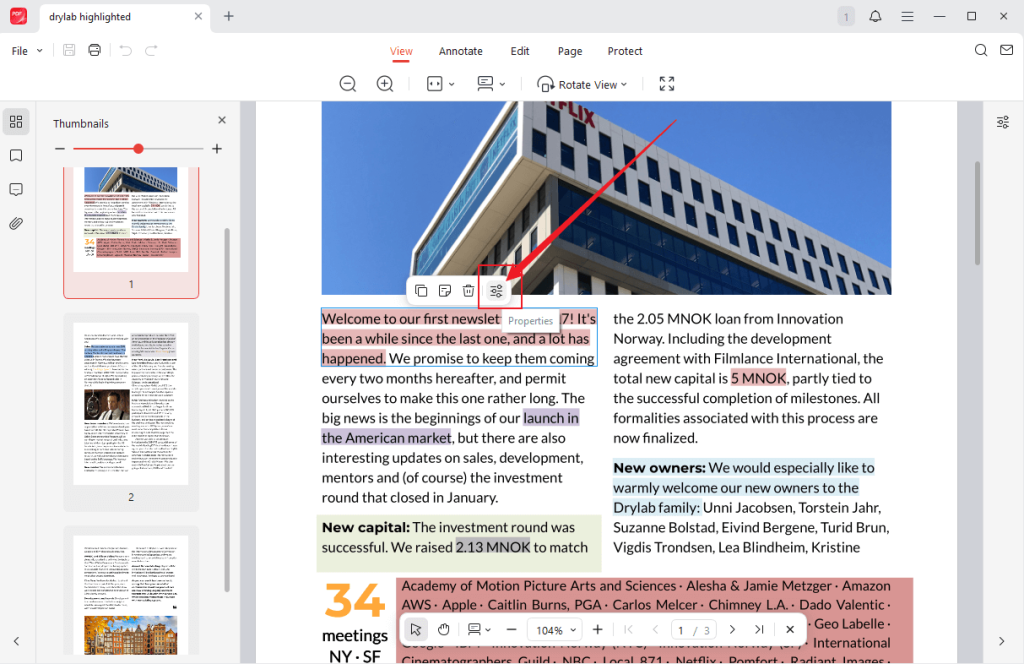
Step 4. Choose from the 5 premade color options or click the last option to customize a preferred color.

Step 5. Optionally, you can switch to the Annotate tab and click the Highlight or Area Highlight option to highlight the PDF. Finally, click the Save icon to save the changes.
How to Change Highlight Color in Adobe Acrobat Reader
Supported OS: Windows, Mac, Linux, Android, and iOS
Adobe Acrobat is a professional PDF editor with a wide range of advanced features. Its free version, Adobe Acrobat Reader, offers basic features to handle PDFs. It offers basic annotation tools to highlight, underline, strikethrough, or draw on PDFs. In addition, Adobe Acrobat Reader enables you to view and print PDFs, search for words in PDFs, or fill and sign forms.
If you are interested in Adobe Acrobat Reader, follow the steps below to change highlight color in Adobe Acrobat Reader.
Step 1. Go to the official website of Adobe to download and install Adobe Acrobat Reader. Then, launch it and sign in to your account.
Step 2. Locate your PDF file, right-click on it, click Open With, and select the Adobe Acrobat Reader option. Then, the PDF file will open in Adobe Acrobat Reader.
Step 3. Hit on the highlighted text and click the Choose a color option to select a preferred color.

Or, you can click the Choose a color option on the left sidebar. Here, you can drag the Opacity slider to transparentize the highlight color.

Furthermore, you can click the Settings icon, select the desired color, tick the Make Properties Default option, and click OK to confirm the changes. In this way, you can set the highlight color permanently.

Step 4. At last, press Ctrl + S (or Command + S for Mac) to save the PDF file.
How to Change Highlight Color in PDF with Preview
Supported OS: Mac
Congratulations! If you are a Mac user, you don’t need to download any software. Its built-in program, Preview, can help you change highlight color in PDFs. It is quite easy. However, compared with JOPDF and Adobe Acrobat Reader, Preview offers a limited set of preset colors, which only include yellow, blue, green, pink, and purple. If you don’t mind that, follow the steps below.
Step 1. Locate your PDF file and double-click it to open it with Preview (if you have set Preview as your default PDF viewer). Or right-click on the PDF and select the Open With Preview option.
Step 2. Click the Markup Toolbar icon (a pen icon) and click the Highlight button to activate the text highlighting mode.
Step 3. Select the highlighted text you want to change color, right-click on it, and choose a desired color from the dropdown. Later, save the changes in this PDF file.
How to Change Highlight Color in PDF Using Smallpdf
The last PDF editor I want to introduce is Smallpdf. As an online PDF editor, Smallpdf enables you to edit PDFs without downloading or installing any software. You can also use its other features to sign, convert, compress, or protect PDFs. Here, check the steps below to alter the highlight color in a PDF using Smallpdf
Step 1. Open any browser on your device and visit Smallpdf’s official website.
Step 2. Select the Edit PDF option from the Tools list and click the CHOOSE FILES button to upload your target PDF file.
Step 3. Click the highlighted text and click the Border color icon at the top. Choose one of the provided color options or click the Plus icon to create a customized color. Then, repeat the operation to change the other highlight color.

Step 4. At last, click the Download button to export the PDF file.
Tips for Managing Highlight Colors Efficiently
Now that we’ve explored four reliable and excellent PDF editors for changing highlight colors, you can further learn how to make PDF files with highlighted text look more professional. Here are several tips for managing highlight colors efficiently. Let’s check them one by one.
✨Generate a color system. It is helpful to remember the meaning of each color by creating a color key or legend. For instance, use the Yellow color to represent the key ideal, the Blue color for definitions, or the Red color for errors or issues.
✨Apply opacity wisely. High opacity can obscure text, while low opacity may make highlights appear too faint. For optimal readability, it is recommended to set opacity between 40% and 60%.
✨Keep consistency across different files. You’d better use the same color scheme across all your documents for easier reference and faster comprehension.
Troubleshooting: Why Can’t I Change Highlight Color
Sometimes, you may be unable to modify the highlight colors in PDF documents due to certain causes. Here, I have compiled several common causes and identified workable solutions. Let’s check them out.
Problem 1. The PDF File is Restricted or Secured
- Cause: If the PDF file is locked from editing or commenting, you can’t edit it if you don’t know the password.
- Fix: In that case, you need to check the PDF’s Security Settings first. If it is locked, ask for the password or permission to enable editing or commenting. Or, you can use PDF unlocker to remove restrictions. JOPDF can help you unlock PDFs.
Problem 2. The Existing Highlights Are Embedded in Scanned PDFs
- Cause: If your file is a scanned or image-based PDF, you can’t edit the highlights since the highlights are parts of the images rather than annotations.
- Fix: To make the highlights and the PDF editable, use PDF editors with OCR to convert the scanned PDF into editable text. Tools, like SwifDoo PDF and Adobe Acrobat, can give you a hand.
Final Words
How to change highlight color in PDF documents? It is not difficult as long as you get a reliable PDF editor. To change highlights in documents for free, both JOPDF and Adobe Acrobat Reader are good choices. Compared to Adobe Acrobat Reader, JOPDF has more advanced features for PDFs. For Mac users who prefer not to download additional software, consider Preview. In addition, Smallpdf is worth a try.
FAQs
Table of Contents

Your Best Free PDF Expert in PDF editing, compressing, converting, annotating, protect, organizing, and more.
Free DownloadWindows · macOS

Olivia
“Olivia is an editor at JOPDF, where she writes practical guides and insightful articles on managing PDFs—covering topics like editing, annotating, converting, and organizing files efficiently. Passionate about clear communication and digital productivity, Olivia enjoys spending her free time cooking, watching movies, and hiking to unwind and find inspiration for her writing.”