Introduction :
Sometimes, you need to edit a form, correct text visibility, improve readability, or ensure your PDF looks professional. In that case, it is essential to master how to adjust font size in PDFs. However, it is not always straightforward since PDFs are designed as “fixed-layout” files. How to change font size in PDF files and PDF fillable forms? All you want to know is included in this comprehensive post.
How to Change Font Size in PDF for Free Using JOPDF
If you are looking for a free way to change font size in PDF documents, JOPDF is worth trying! It is a completely free PDF editor with no hidden costs. It is a piece of cake to adjust the PDF font size in JOPDF. Additionally, JOPDF supports adjusting most text formatting. For instance, change the PDF font, bold text, change the text color, and more.
More surprisingly, JOPDF offers advanced features, including unlocking PDFs, converting PDFs to Word or other formats, annotating PDFs, converting PDFs to Letter size, and more. With this full-featured PDF tool, you can handle your PDFs easily and effectively.
Below is how to change font size in a PDF for free with JOPDF.
Step 1. Click the convenient button below to download and install JOPDF on your Windows or Mac PC.
Step 2. Launch this free PDF editor and click the Edit PDF option. Select the target PDF and click Open to import it into JOPDF.
Step 3. Then, you can find that the Edit Mode is enabled. Use the cursor to select the text you want to adjust the font size. Next, the text style panel will pop up. Open the font size list to choose the required value, such as 12. Additionally, click the A+ or A- icon to adjust the font size.
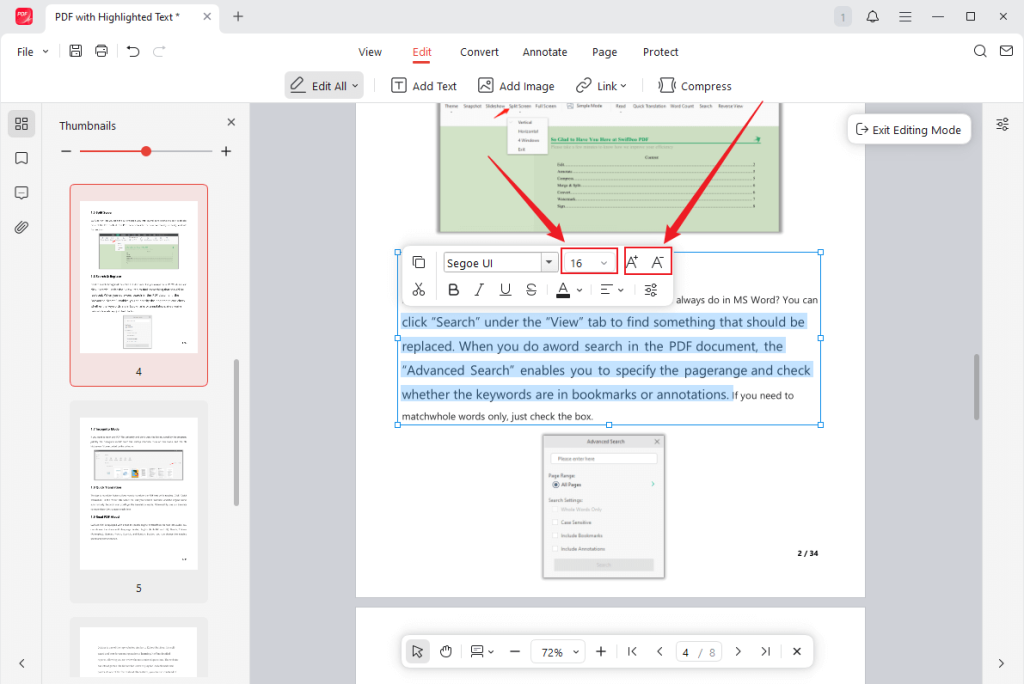
On this Text Style panel, you can also do the following edits:
- Change the PDF font
- Change the PDF text color
- Italicize, bold, underline, or strikethrough text
For more options, click the Properties icon to access the Properties window.
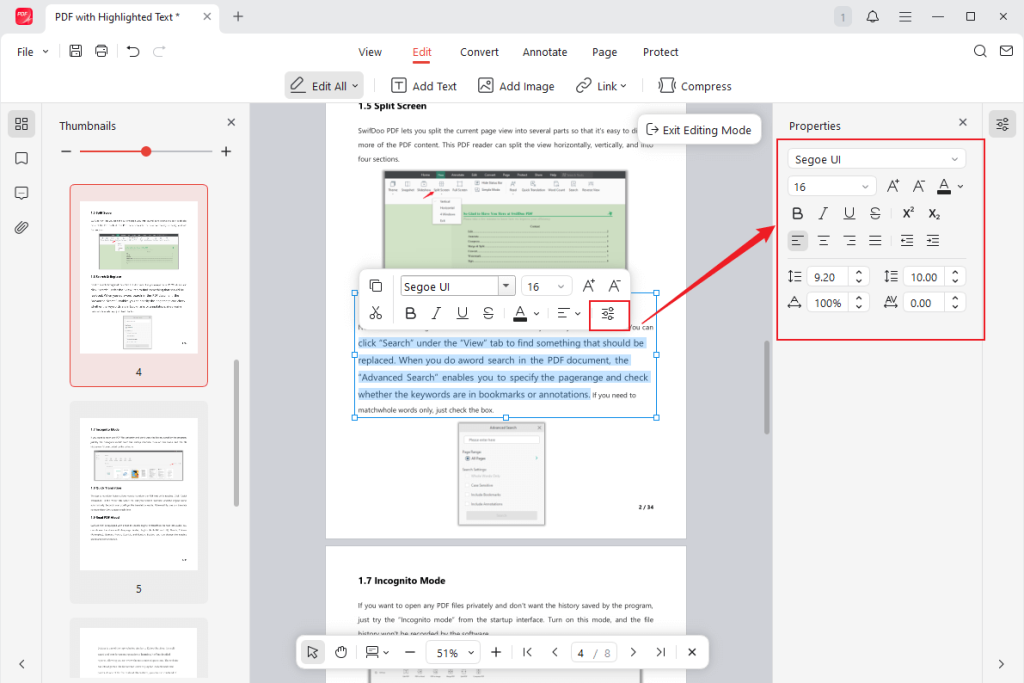
Step 4. Finally, press Ctrl + S or Cmd + S to save the font size changes.
How to Change Font Size in Adobe Acrobat
Whether you are a new or professional user, JOPDF can meet most PDF editing needs. However, if you have enough budget and other advanced requirements beyond editing PDF font size, Adobe Acrobat can be your choice. In addition to handling regular PDFs, Adobe Acrobat enables you to change font size in PDF fillable forms. Here, let’s learn how to change font size in Adobe Acrobat.
Option 1. Change Font Size in a Regular PDF with Adobe Acrobat
Step 1. Run Adobe Acrobat and open the PDF file that you need to change the font size.
Step 2. Click Tools and select the Edit PDF option. Click on the text you want to change, and then the Format panel will appear.
Step 3. Open the Font Size list to adjust the text size based on your needs. Finally, go to File > Save to save the modified PDF.
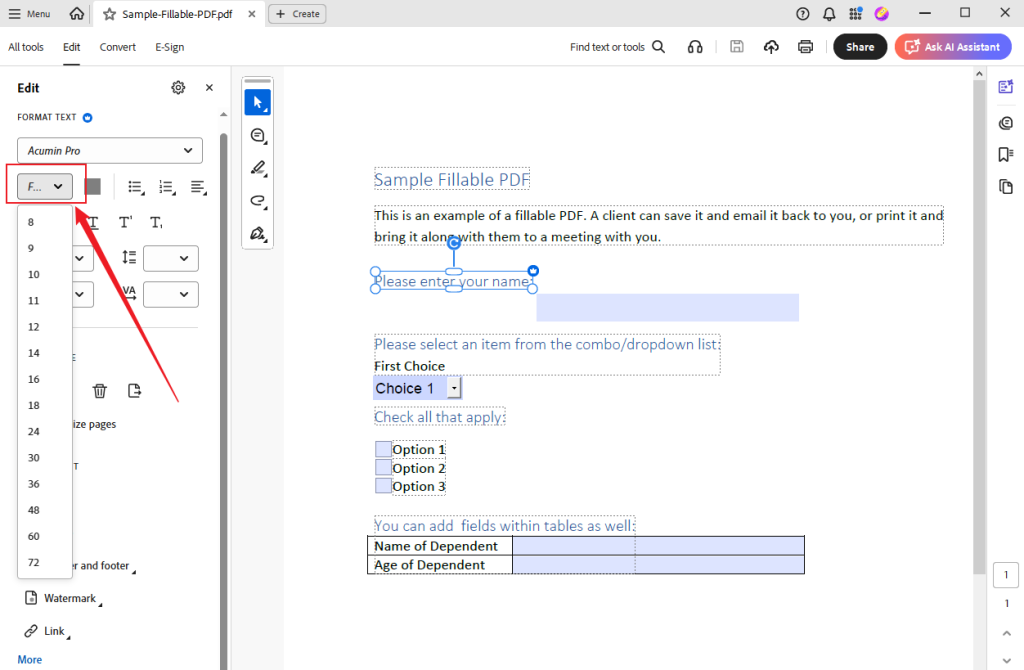
Option 2. Change Font Size in PDF Fillable PDF with Adobe Acrobat
Step 1. After importing your fillable PDF form into Adobe Acrobat, go to Tools and select the Prepare Form option.
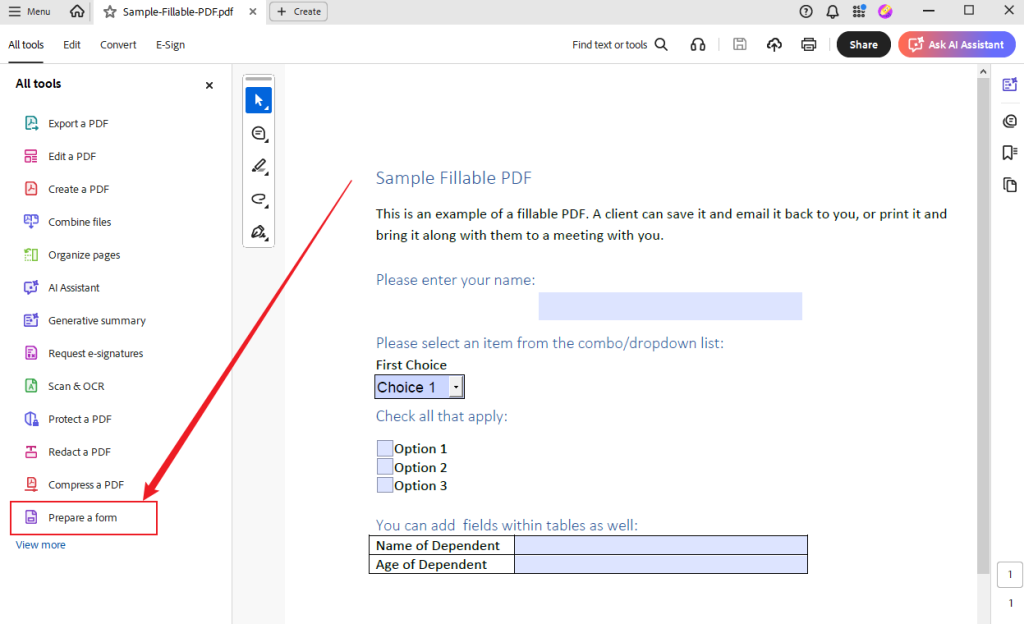
Step 2. Then, the form-editing mode is enabled. Right-click the text field, checkbox, or dropdown you want to modify, then select Properties.
Step 3. Switch to the Appearance tab, open the Font Size list, and select the Auto option. Alternatively, type a fixed value, such as 12 pt.
Step 4. Next, exit the Properties window and save the PDF file.
How to Change Font Size in Foxit PDF Editor
Foxit PDF Editor is a cost-effective alternative to Adobe Acrobat, equipped with features for editing, creating, signing, organizing, and securing PDFs. You can use it to change font size with ease. In addition to handling regular PDFs, Foxit PDF Editor allows you to edit fillable PDF forms. What’s more, you can handle scanned or image-based PDFs with its OCR technology. How to adjust font size in Foxit PDF Editor? Below is how:
Step 1. Visit its official download center to download and install Foxit PDF Editor on your PC.
Step 2. Run Foxit PDF Editor and open your PDF. Click the Edit tab from the top menu.
Step 3. Select the text you want to adjust the font size, open the Font Size dropdown, and select a new size or type in a number manually.
Step 4. Finally, save the modified PDF file.
How to Change Font Size in PDF Fillable Form via PDFelement
How to change font size in PDF fillable form? In addition to using Adobe Acrobat, Wondershare PDFelement can also give you a hand. It enables you to edit the font size in either regular or fillable PDFs. Compared to the expensive Adobe Acrobat, PDFelement offers a more affordable price. In addition to its font formatting feature, this PDF editor enables you to convert, protect, organize, or print PDFs on Mac or Windows.
Now, follow me to learn how to change font size in PDF fillable form in Wondershare PDFelement.
Step 1. Launch Wondershare PDFelement on your device and click Open PDF to import your PDF fillable form.
Step 2. Click the Form tab from the top menu and click the Recognize Form option.
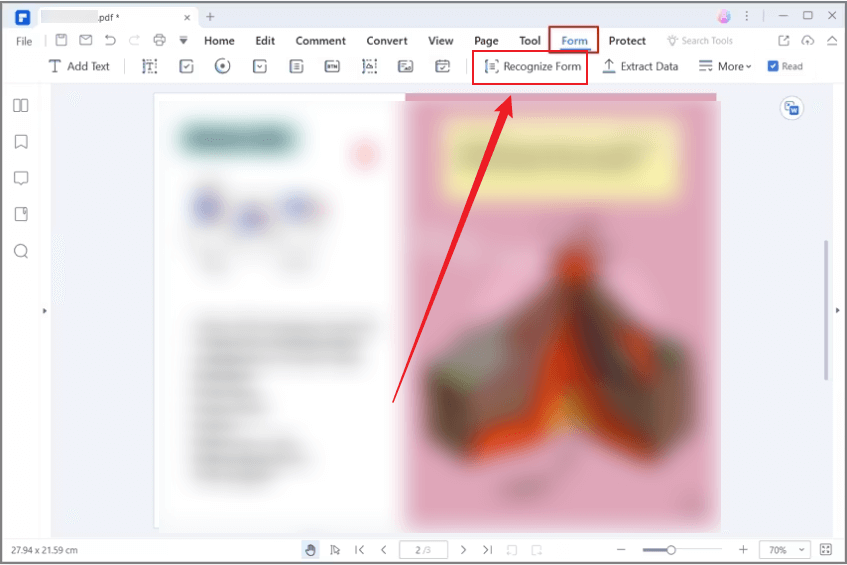
Step 3. Then, locate the target fillable field, right-click on it, and click the Properties option.
Step 4. Switch to the Appearance tab and open the Size list under the Text section. Select the desired font size and click Close.
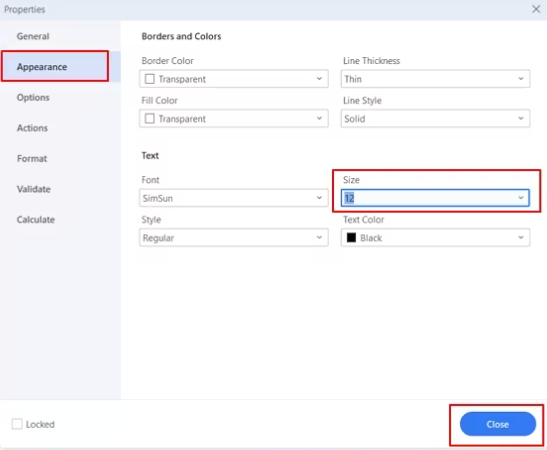
Step 5. Finally, save the modified fillable PDF.
How to Change Font Size in PDF with Preview
Fortunately, there is no need to download any software to edit PDFs or PDF forms on Mac. Preview is a reliable choice! As a preinstalled program on Mac, Preview offers features for viewing, editing, and printing images and PDFs. You can use it to adjust the font size in PDFs. How to change font size in a PDF with Mac Preview? Below are detailed steps for your reference.
Step 1. First, open your target PDF document in Preview.
Step 2. Click the Markup tool and select the Text option. Then, a text box will appear.
Step 3. Click the Aa icon in the Markup toolbar, and then the Fonts panel will appear. Here, you can change the font size, font color, and other font settings. Next, enter your content.
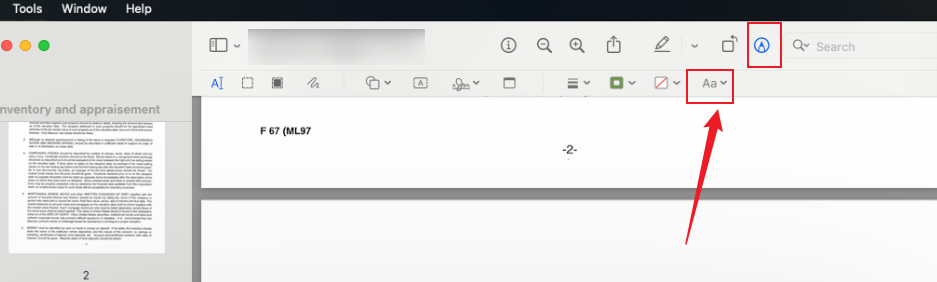
Step 4. At last, save the edited PDF file.
Final Words
Using a reliable PDF tool can help you adjust font size in PDF or fillable PDF forms effectively. Changing the PDF font size can be simple or tricky, depending on how the file was created. How to change font size in PDF? Try JOPDF, Adobe Acrobat, Foxit PDF Editor, PDFelement, and Preview. How to change font size in PDF fillable form? Consider Adobe Acrobat and PDFelement. All in all, this post gives you a comprehensive tutorial. I hope this post can be helpful to you.
FAQs
The font is embedded or restricted.
The PDF is secured or password-protected.
Table of Contents

Your Best Free PDF Expert in PDF editing, compressing, converting, annotating, protect, organizing, and more.
Free DownloadWindows · macOS · Linux

Olivia
“Olivia is an editor at JOPDF, where she writes practical guides and insightful articles on managing PDFs—covering topics like editing, annotating, converting, and organizing files efficiently. Passionate about clear communication and digital productivity, Olivia enjoys spending her free time cooking, watching movies, and hiking to unwind and find inspiration for her writing.”
![Find Ways to Download Manga as PDF for Free [5 Proven Ways]](https://b.jopdf.com/wp-content/uploads/2026/04/download-manga-pdf.png)

![5 Best Free PDF Compressors in 2026 [Desktop and Online]](https://b.jopdf.com/wp-content/uploads/2026/04/best-free-pdf-compressor.png)
