![How to Add a Signature to a PDF [Windows, Mac, and Online]](https://b.jopdf.com/wp-content/uploads/2026/03/how-to-add-signature-to-pdf.png)
Introduction :
PDFs are commonly used to share documents as they maintain formatting on all devices and systems. In many situations—like contracts, forms, or official paperwork—you may need to sign a PDF document without printing, saving time and effort. Learning how to add a signature to a PDF is important for managing both personal and professional documents. This JOPDF article highlights simple methods to digitally sign documents, improving efficiency, security, and convenience in everyday workflows.
Electronic signatures are a fast and secure way to sign PDF files without the need for physical paperwork. They enable users to quickly insert signatures in PDF files, streamlining digital workflows and boosting efficiency. Whether for business agreements or personal forms, knowing how to add an electronic signature to a PDF saves time while ensuring authenticity, convenience, and legal validity in many use cases.
How to Add Signature to PDF for Free in JOPDF
Supported OS: Windows, Mac, and Linux computers.
JOPDF is a versatile, free PDF editor that works smoothly across Windows, Mac, and Linux. It makes it straightforward to add an electronic signature to a PDF, saving time and effort in document workflows. Users can sign PDFs for free without needing additional tools or subscriptions. In addition to signing features, it allows you to add stamps to PDFs, making it a practical solution for both personal and professional document management.
Let us learn how to add a signature to a PDF for free in JOPDF in just a handful of clicks.
Step 1. Download and install JOPDF from the official site, then launch it on your computer.
Step 2. Once you enter the main interface, drag and drop the PDF file in which you want to place a signature.
Alternatively, select the Open PDF button on the Start page in the top-left corner. Or click the + icon at the top. And in the pop-up window, move to and select the PDF file you want to add a signature to.
Step 3. Now, go to the Edit tab in the top toolbar and select Signature in the secondary menu. Click Create New to place your signature.
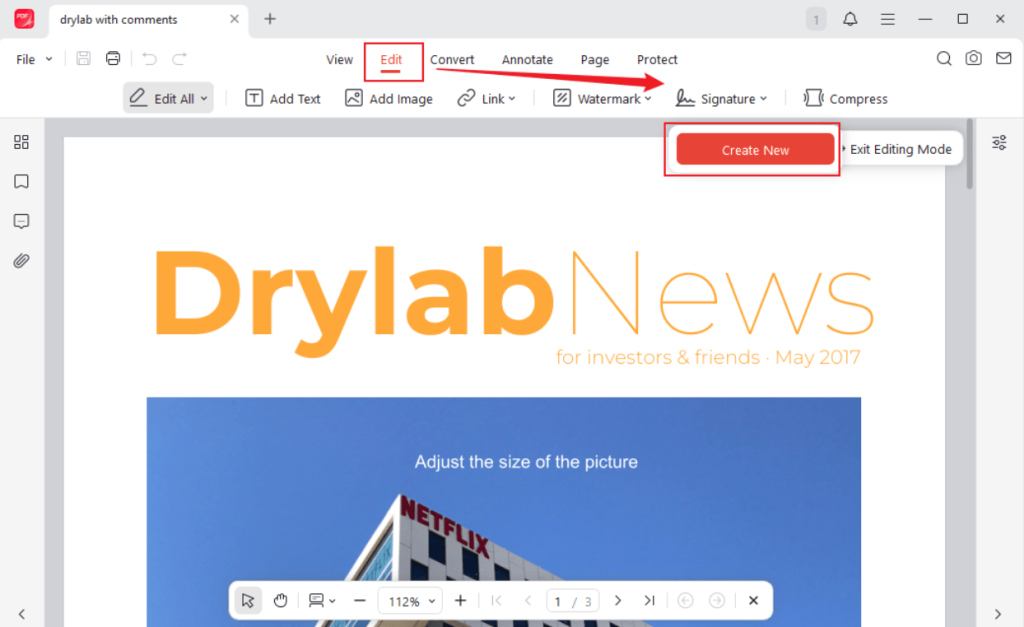
Step 4. In the Create Signature pop-up, choose to draw a handwritten signature, type one, or import an image to use as your signature.
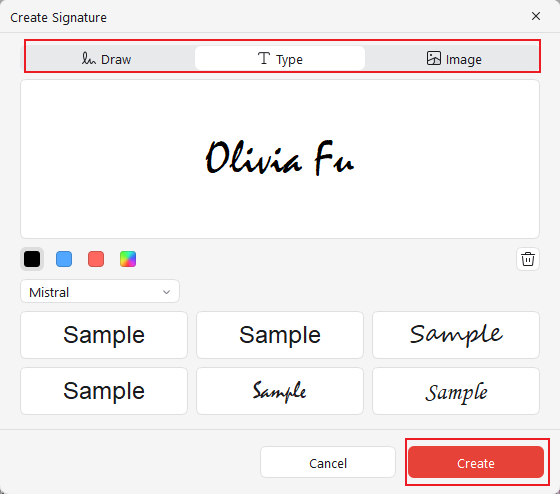
Once finished, tap Create. And position the signature where you want it on the document.
Using JOPDF makes it simple to sign a PDF without printing, saving both time and resources. Users can efficiently insert handwritten or image signatures into a PDF, streamlining the signing process. Be it for work or personal purposes, this method provides a smooth, safe, and efficient signing experience across all supported devices.
How to Add a Digital Signature to a PDF in Adobe Acrobat
Supported OS: Windows, Mac, iOS, Android, and Web services.
Adobe Acrobat is a robust and popular tool for handling PDF documents across multiple platforms. With Adobe Acrobat Pro, it’s simple to add a digital signature to a PDF, guaranteeing professional and secure handling. It also allows you to create a digital signature or even draw on a PDF, making it a versatile solution for both basic and advanced PDF tasks.
Let us see how to add a digital signature to a PDF in Adobe Acrobat Pro.
Step 1. Download and open Adobe Acrobat Pro on your device. Then select All Tools and choose Use a certificate. Then click Digitally sign.In the dialog box that prompts you to sign instructions, select OK to proceed.
Step 2. Now, use the dotted cursor to draw a rectangle where you want the signature to appear. In the Sign with a Digital ID dialog box, select the Digital ID you want to use to digitally sign the document and select Continue.
Note. If you do not have a digital ID, click Configure New Digital ID to create one before proceeding.
Step 3. In the Sign as <username> dialog box, verify your signature details. And then enter your digital ID password.
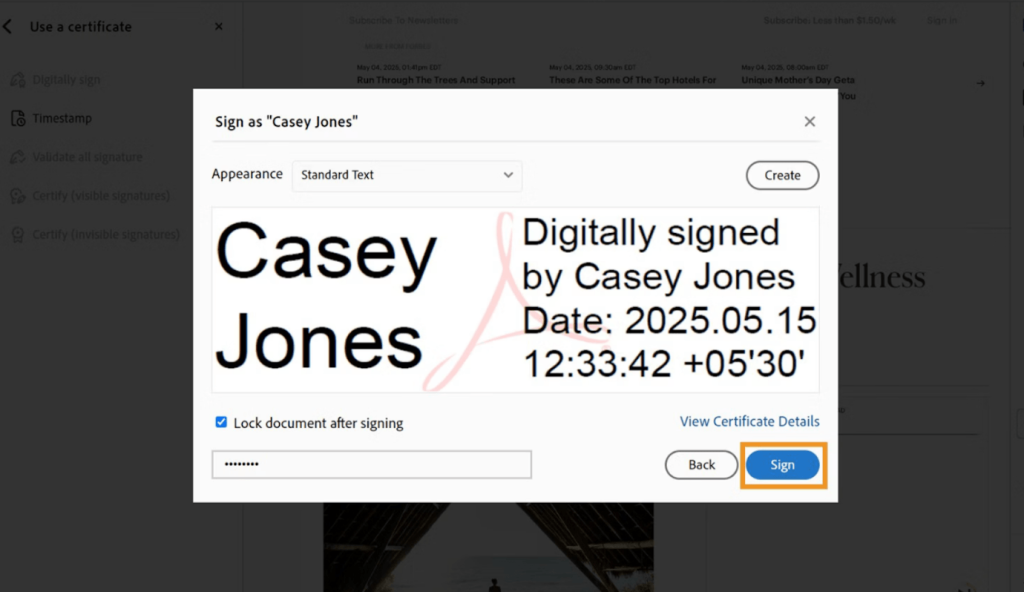
Step 4. Next, check the Lock document after signing box to prevent any edits to the PDF once it has been signed.
Select Sign, choose a location when prompted, and select Save.
Once signed, a confirmation message shows in the signature panel, confirming that all signatures are valid.
Adobe Acrobat offers a reliable signing solution for users who need to sign legal or official PDF documents securely. With digital signature features ensuring security and authenticity, the ability to create or draw signatures makes the process simple and versatile. For both business contracts and formal agreements, this approach ensures PDF signing is handled professionally and efficiently.
How to Add a Signature to a PDF Using Mac Preview
Supported OS: Built-in on macOS, iPadOS, and iOS.
As one of the best PDF editors for Mac, Preview allows users to quickly view, edit, and mark up PDFs. It makes it easy to sign a PDF on Mac without needing additional software. You can quickly add your signature using a trackpad, camera, or saved signature for a seamless signing experience.
Let us learn how to add a signature to a PDF in Preview in just a few clicks.
Step 1. Open Finder and locate the PDF you need to add a signature to.
Right-click the document, choose Open With, and select Preview.
Step 2. Now, click the markup tool located in the app’s top toolbar to proceed. Next, tap the signature option in the context menu.
Note. Clicking this gives you three ways to create a digital signature on Preview: Trackpad, Camera, and iPhone.
- Trackpad. Use the trackpad for a simple signature—sign your name directly, press any key when finished, then click “Done.” If you’re not satisfied, erase it and try again.
- Camera. Use the camera to sign on white paper, hold it up to your MacBook, and Preview will capture it digitally. Click “Done” once you’re satisfied with the result.
- iPhone. Use iPhone/iPad to create a signature—select the iPhone option, and a white screen will appear on your device. Use your finger or Apple Pencil to draw your signature, then save it for inserting into your PDF.
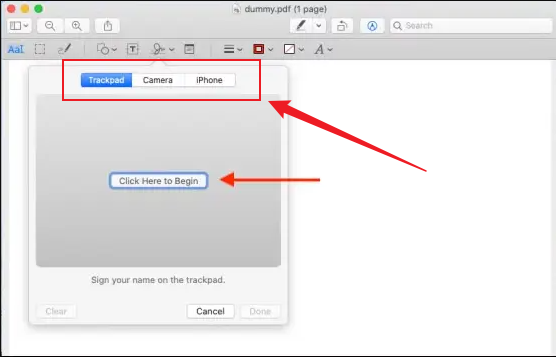
Note. This signature will then be displayed in the Preview on your Mac. Click on “Done” to finalize your electronic signature in Preview.
Step 3. Once your signature is created, insert it into the document.
Step 4. Just click on the signature you’ve made. Like a regular image, the signature can be moved and resized to fit your document perfectly.
Preview makes it easy to sign PDF files without additional apps, using built-in tools on your Apple devices. Whether you choose the trackpad, camera, or an iPhone/iPad, the process is simple and flexible. This allows you to add signatures at any time with minimal effort.
How to Sign a PDF with SwifDoo PDF
Supported OS: Windows, Mac, iOS, Android, and Web services.
As a cross-platform tool, SwifDoo PDF makes it quick and easy to sign PDF files wherever you are. With this tool, users can add digital signatures or electronic signatures to a PDF easily in a few clicks. As a compact Adobe Acrobat alternative, it ensures a smooth and powerful experience for everyday PDF tasks.
Let us discover how to add a digital signature in a PDF using SwifDoo PDF in just a handful of clicks.
Step 1. Download and install SwifDoo PDF on your device.
Step 2. Once launched, open the PDF you wish to digitally sign. And choose Protect in the top toolbar, then click Digital Signature in the secondary menu bar.
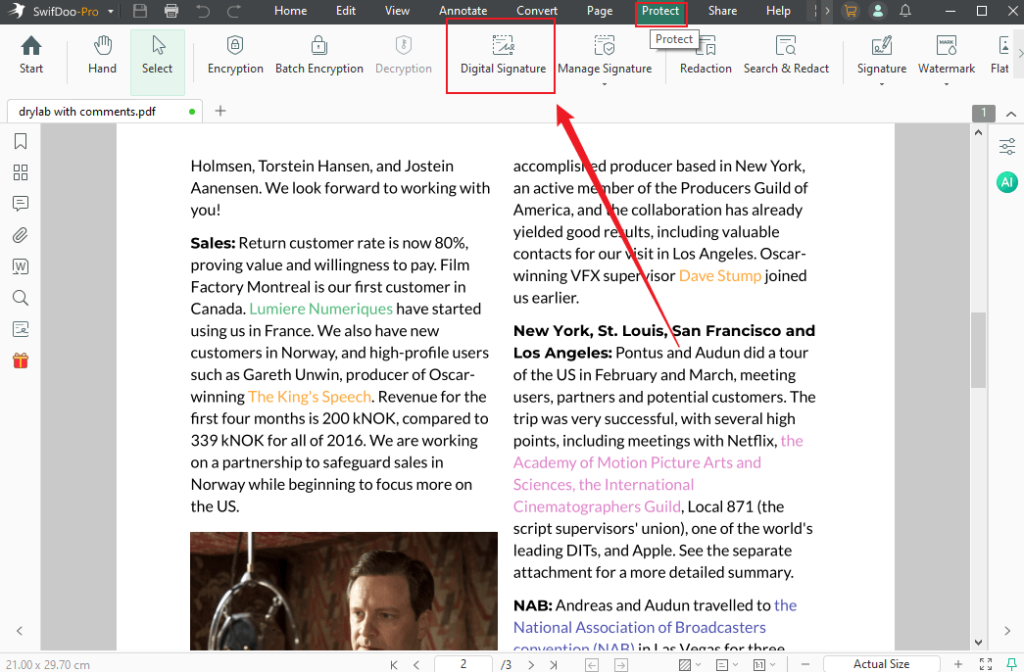
Step 3. Place the signature field where you want. And click New ID to select your digital certificate file from your computer.
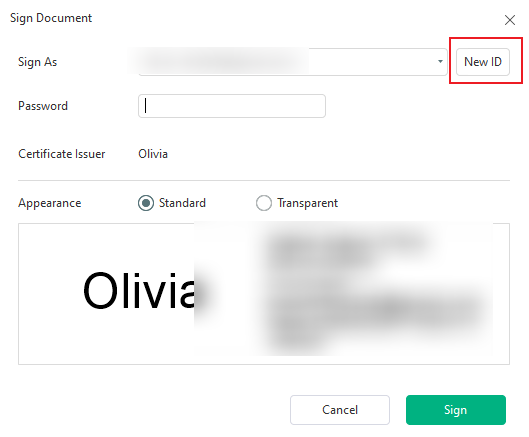
Note. You can also choose I want to create a new digital ID to create an ID.
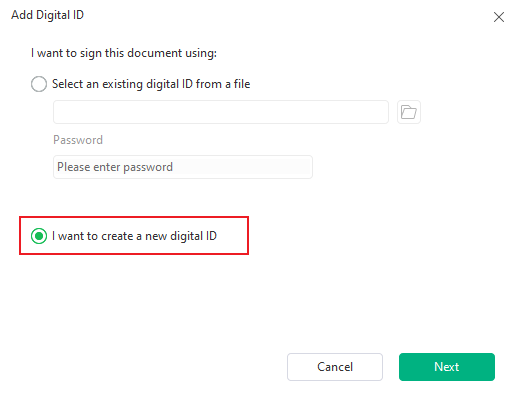
Step 4. Continue and return to the first small window. Then, click ‘Sign’ to sign the PDF document with a digital signature certificate.
SwifDoo PDF provides a simple and efficient way to handle document signing across devices. Its user-friendly tools simplify adding and managing signatures for both personal and professional purposes. Overall, it provides a simple and dependable solution for fast, stress-free PDF signing.
How to add an Electronic Signature to a PDF Online with Smallpdf
Supported OS: Web-based tool with dedicated desktop (Windows) and mobile apps (iOS and Android).
Smallpdf is a user-friendly online PDF signature tool that allows you to sign documents directly in your browser without any installation. It delivers a simple and efficient way to upload, sign, and download PDFs across all devices.
Learn how to sign a PDF online free quickly in Smallpdf in only a handful of clicks.
Step 1. Access Smallpdf on your web browser. Then, navigate to the Tools menu and select Sign PDF.
Step 2. Click Choose Files and import the preferred PDF from local storage, Dropbox, Google Drive, or OneDrive to add a signature.
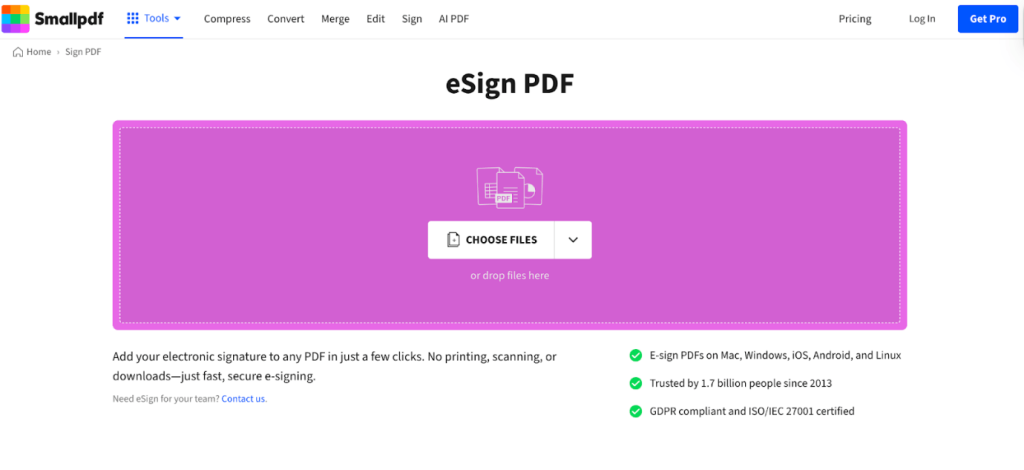
Alternatively, drop your files directly into the program.
Step 3. Once added, a “Choose who’s signing” pop-up will appear. Click “Sign myself” to proceed.
In the Choose sealing type pop-up, select either the sign without a seal or the sign with digital seal option.
Step 4. Once selected, add the Signatures & Initials icon at the top. Choose Signatures > +New signature.
Choose to draw, type, or upload your signature to e-signature a PDF.
- Draw. Use your mouse, touchpad, or touchscreen to draw your signature.
- Type. Type your name and select a handwritten-style font.
- Upload. Upload an image of your handwritten signature. You can opt for a PNG with a transparent background.
Once done, click Create.
Step 5. Add your signature to the PDF and modify its size to fit perfectly.
Then select “Finish & Sign” and hit Download PDF to get your signed PDF.
Smallpdf lets you sign documents online quickly and conveniently without installing any software. With its straightforward interface and cloud access, signing tasks can be handled from any location, offering a fast and secure PDF signing solution.
Digital Signature vs Electronic Signature
Although digital and electronic signatures are often used interchangeably, they differ considerably in security, technology, and intended use. Grasping these distinctions helps you decide on the best method for signing documents.
| Comparison Basis | Digital Signature | Electronic Signature |
| Authorization and Security | Authorized and highly secure with encryption and authentication. | Not authorized and less secure, may not always use encryption. |
| Validation | Performed by trusted certificate authorities or trust service providers. | Not performed by any trusted certificate authorities or trust service providers. |
| Verification | Can be verified using digital certificates. | Usually verified by simple methods (e.g., email, click-to-sign). |
| Legal Validity | Strong legal standing in regulated environments. | Valid in legal terms in many instances, though it depends on the jurisdiction. |
| Use Cases | Legal contracts, government documents, compliance-heavy industries. | Everyday agreements, forms, and approvals. |
| Complexity | More complex to set up and use. | Easy and quick to use. |
Final Words
Knowing how to add a signature to a PDF is essential for streamlining both personal and professional workflows. Whether using desktop tools, Mac Preview, or online services like Smallpdf, signing documents is simple, secure, and fast. Choosing the best approach ensures ease, authenticity, and efficient document management each time you sign.
FAQs
#On Mac. Use the built-in Preview to draw, capture, or upload a signature.
#On Windows. Tools like JOPDF or SwifDoo PDF let you draw or add signature images.
#Online platforms. Tools like Smallpdf allow uploading or drawing signatures directly in your browser—then place them and save the PDF.
Table of Contents

Your Best Free PDF Expert in PDF editing, compressing, converting, annotating, protect, organizing, and more.
Free DownloadWindows · macOS · Linux

Olivia
“Olivia is an editor at JOPDF, where she writes practical guides and insightful articles on managing PDFs—covering topics like editing, annotating, converting, and organizing files efficiently. Passionate about clear communication and digital productivity, Olivia enjoys spending her free time cooking, watching movies, and hiking to unwind and find inspiration for her writing.”
![How to Add a Digital Signature in Adobe in 2026 [Best Ways]](https://b.jopdf.com/wp-content/uploads/2026/03/how-to-add-a-digital-signature-in-adobe.png)