![How to Add a Digital Signature in Adobe in 2026 [Best Ways]](https://b.jopdf.com/wp-content/uploads/2026/03/how-to-add-a-digital-signature-in-adobe.png)
Introduction :
Digital signatures have become indispensable for protecting documents, streamlining tasks, and reducing paperwork in the modern digital world. Yet, numerous users find it difficult to figure out how to add a digital signature in Adobe, as the procedure can be confusing or restrictive. In this JOPDF article, we’ll explore different ways to add a digital signature in Adobe and introduce a powerful alternative solution.
Adobe Acrobat offers a dependable way to manage files, particularly when you want to sign PDFs securely and without hassle. It lets users apply a digital signature to confirm authenticity and maintain document integrity. Besides signing, it helps you edit a scanned PDF, ensuring efficient and professional document handling.
How to Create a Digital ID in Adobe
If you do not have one yet, it’s necessary to create a digital ID in Adobe for secure document signing. This easy setup guarantees your digital signature is secure and trusted during PDF signing.
Let us see how to create a digital ID in Adobe in a few clicks.
Step 1. Open Adobe Acrobat on the desktop. Then, in the main header navigation, locate and select Edit > Preferences.
Step 2. Now, scroll down in the left navigation panel and click Signatures. Now, tap More… under the Identities and Trusted Certificates section.
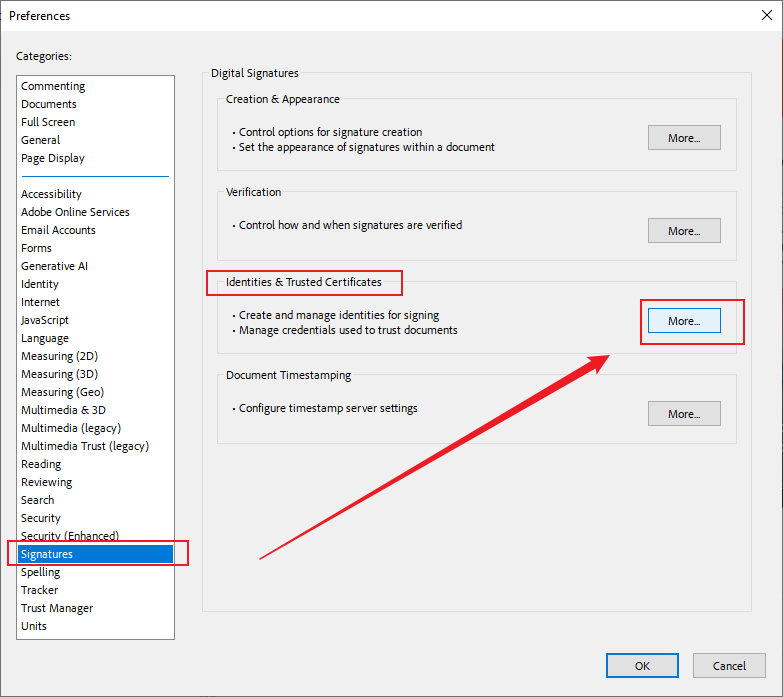
Step 3. Next, press the ID+ icon near the top-left corner of the pop-up window. Select “A new digital ID I want to create now,” then click Next. Now, select New PKCS#12 digital ID File, and click Next.
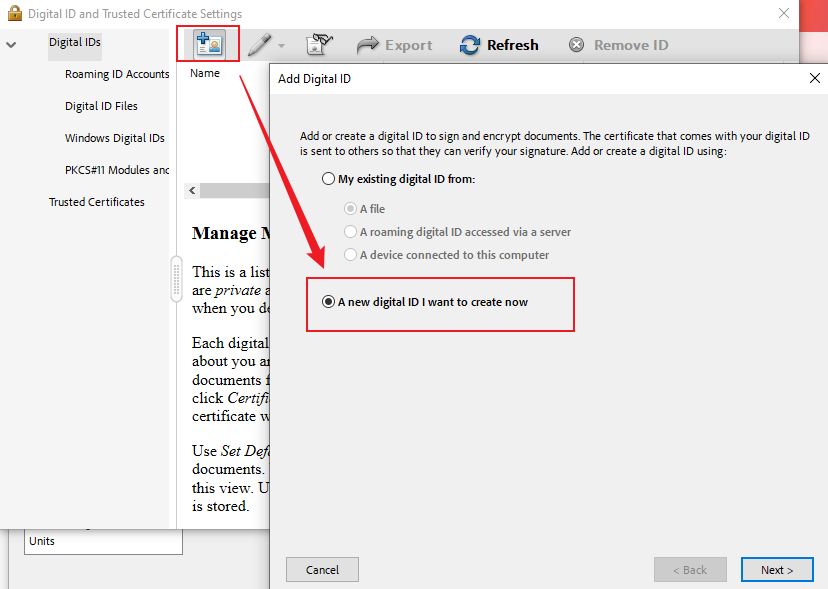
Step 4. Fill in your name, organization, and email address, then click Next > to continue. You’ll be required to choose a password for your digital ID.
Note
This password will be needed whenever you sign a document digitally. There are no options to reset or recover your password. Make sure your password is something you can recall easily.
When all settings are set, enter a secure password, re-enter it for confirmation, and click Finish to create your Digital ID.
How to Add a Certificated-Based Digital Signature in Adobe
Using a certificate-based signature lets you add a verified digital signature with authentication, guaranteeing the signer’s identity is secure. This technique is important when you need to sign legal or official PDF documents, providing strong security and trustworthiness. It also provides an additional layer of encryption, helping safeguard your document from tampering or unauthorized modifications.
Learn how to add a certified-based digital signature in Adobe in a few clicks.
Step 1. Download and open Adobe Acrobat on your computer, then launch the document you wish to sign.
Then, click on Tools in the top menu, then select Certificates to access signing options.
Step 2. In the Certificates toolbar, click Digitally Sign. If prompted, confirm that you want to use a digital signature.
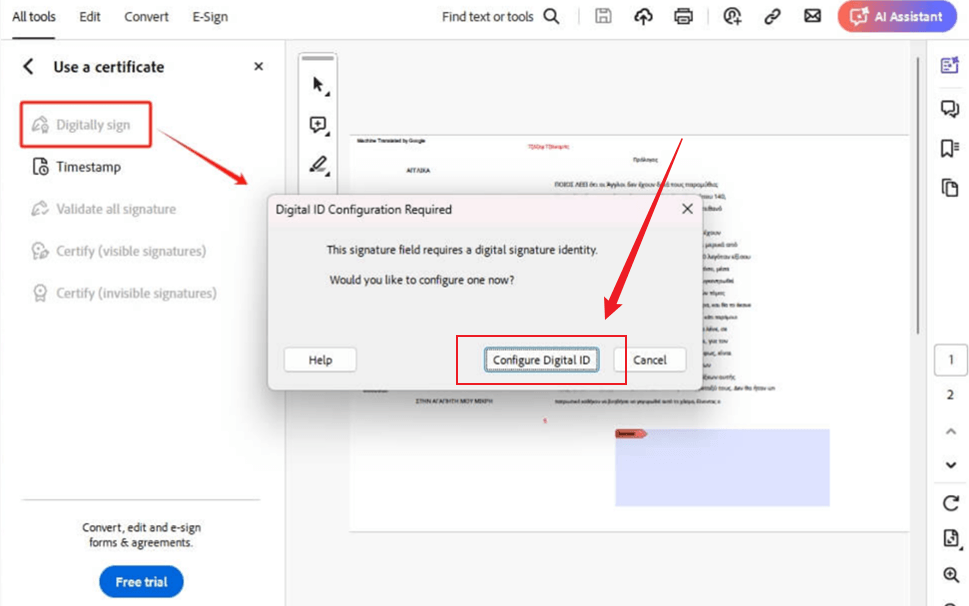
Use your cursor to click and drag on the document where you want your signature to appear. This creates a designated signature box.
Step 3. A dialog box will appear—select your existing Digital ID. Click Continue and check the preview, certificate information, and appearance settings before applying the signature.
Optional. You can choose how your signature looks, such as adding your name, date, or location.
Step 4. Click Sign, then choose a location to save the signed PDF file. If required, give the file a new name and click Save.
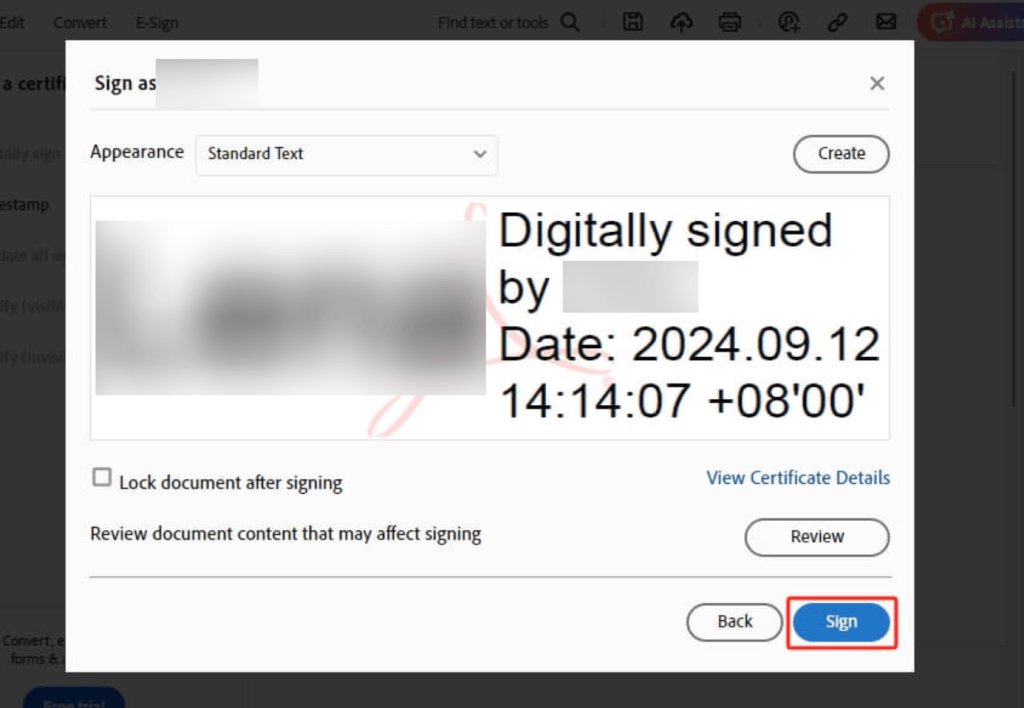
Once you’ve saved, the document will be locked to prevent any further edits.
How to Add a Digital Signature in Adobe Using Fill & Sign
The Fill & Sign tool in Adobe Acrobat offers a quick and simple way to sign a PDF document without needing a digital certificate. Suited for everyday use, it lets you swiftly add your signature using Fill & Sign.
Here’s how to add a digital signature in Adobe with the Fill & Sign tool, real quick.
Step 1. Download and launch Adobe on your device. On the homepage, go to the top navigation menu and press ‘E-sign.’
Then, select ‘Fill & Sign‘ to add your signature and complete the form.
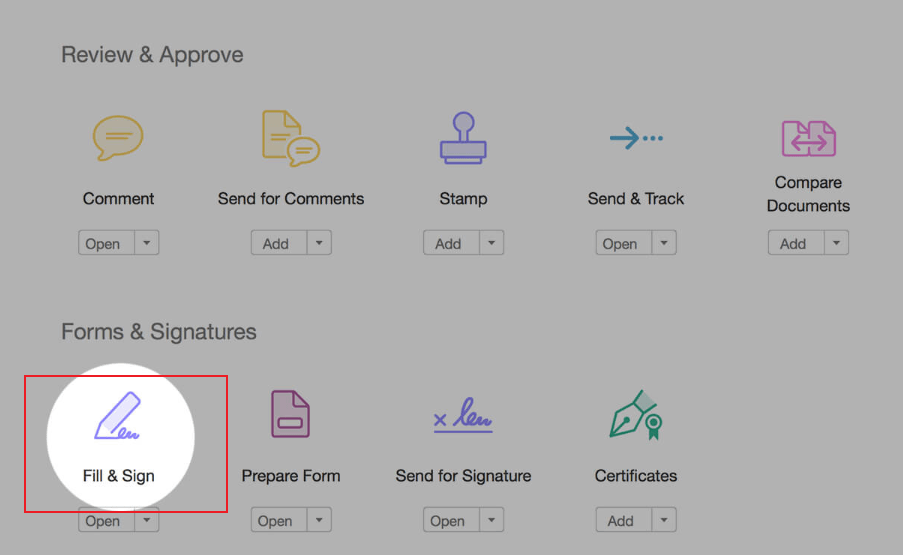
Step 2. Tap ‘Add a file from your device’ to upload a document for immediate signing. After the document uploads and opens, click the area where you want to place your signature.
You will be presented with several signing options.
Step 3. Select how you want—type your signature, draw it, or upload a signature image.
Step 4. Once you have selected your desired method for adding a signature, just adjust its size and position for optimal placement.
How to Add a Digital Signature in Adobe Acrobat Reader
Adobe Acrobat Reader supports electronic signatures, making it simple for users to sign documents without specialized software. It provides an easy and accessible way to insert signatures into PDFs for routine use.
Let us show you how to add a digital signature in Adobe Acrobat Reader in just a few clicks.
Step 1. Install and launch Adobe Reader. Then open the PDF file in the program where you need to add a digital signature.
Click the File menu and select Open… And then, import the PDF file you want to sign.
Step 2. Navigate to the Tools pane on the right and click on Fill & Sign.
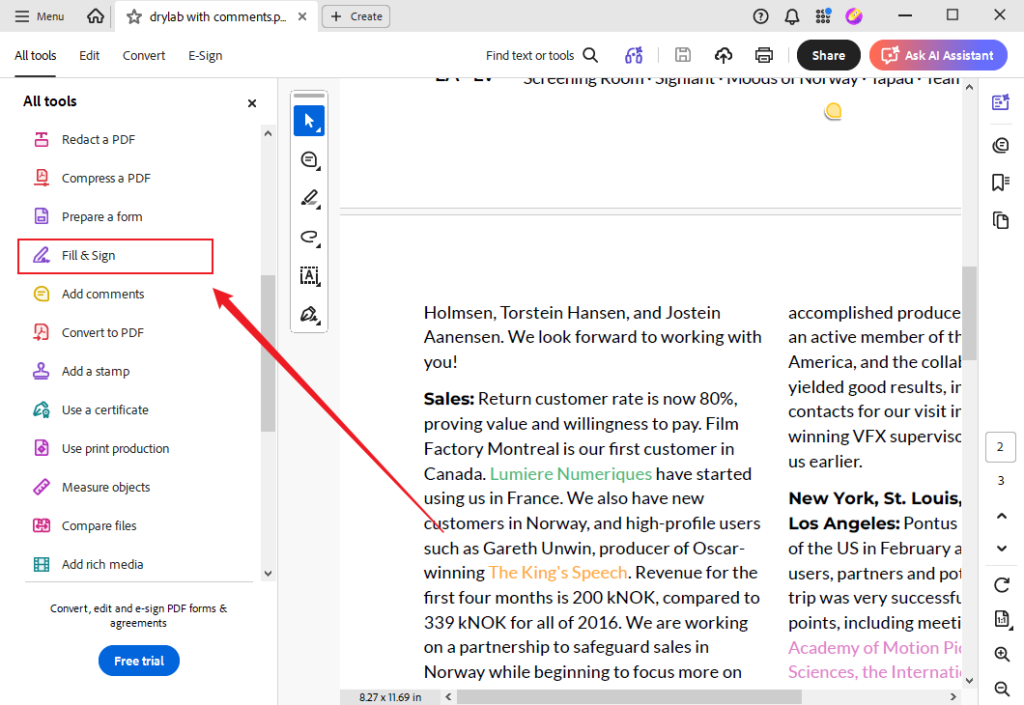
Note. If the Tools pane isn’t visible, press Shift + F4 on your keyboard to open it. A toolbar will appear across the top of your document.
Step 3. Click Sign, and then select Add Signature.
A pop-up will open, giving you three options: Type, Draw, and Image.
- Type. Enables you to type your name in a cursive style. You’re free to change the style of the signature.
- Draw. Enables you to draw your signature using a mouse, touchpad, or stylus on a touchscreen device.
- Image. Enables you to choose an image file of your signature.
Once you have chosen your desired option, press the Apply button.
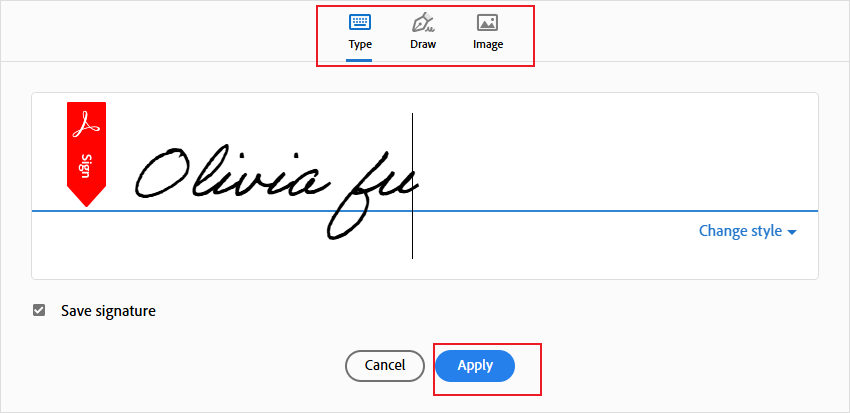
Step 4. Drag, resize, and position the signature inside your PDF.
Free Alternative to Adobe Acrobat to Sign PDFs in JOPDF
While Adobe Acrobat is powerful, its high subscription cost and complex interface can frustrate casual or new users. Many essential features, such as advanced signing and editing, require premium plans, which limit accessibility. For those seeking simple, cost-free PDF management, a free Adobe Acrobat alternative is often a smarter and more convenient choice.
JOPDF is a versatile tool that lets you electronically sign a PDF quickly and securely, making digital workflows smoother. It also lets you edit PDFs for free on Windows, Mac, and Linux, providing flexibility across all your devices. Additionally, the platform enables you to password protect PDFs, keeping sensitive data protected. With its simple interface and versatile features, JOPDF stands out as a dependable solution for managing PDFs, completely free of ads or watermarks.
Let us learn how to sign a PDF for free in JOPDF in just a handful of clicks.
Step 1. Download and install JOPDF from the official site, then launch it on your computer.
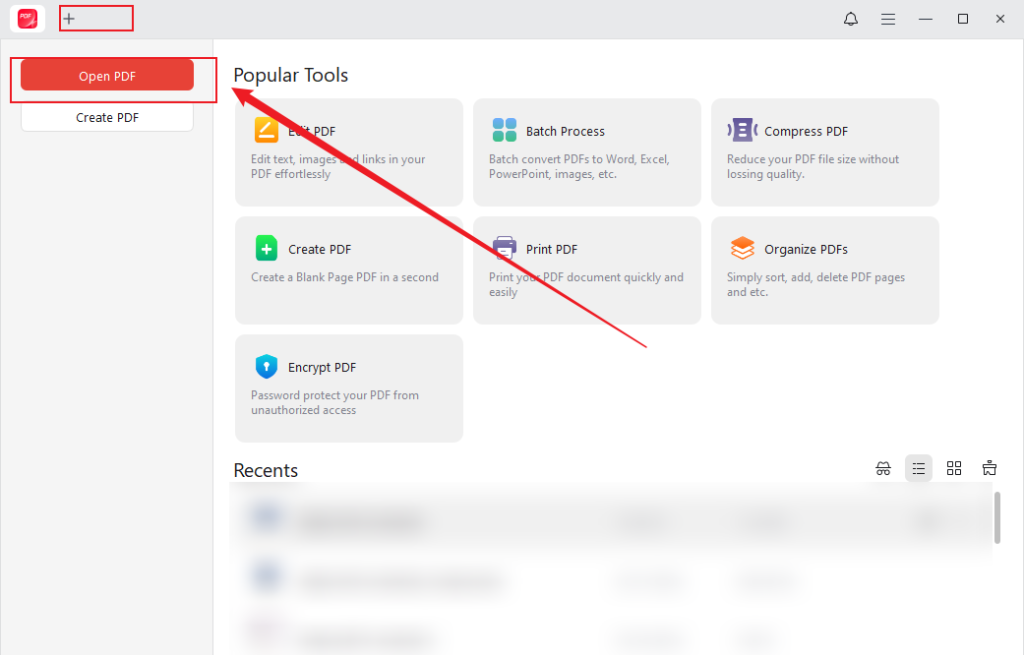
Step 2. Once you enter the main interface, drag and drop the PDF file in which you want to place a signature.
Alternatively, click Open PDF on the Start page in the top left corner. Or, use the + icon at the top. And in the pop-up window, navigate to and choose the PDF file you wish to add a signature to.
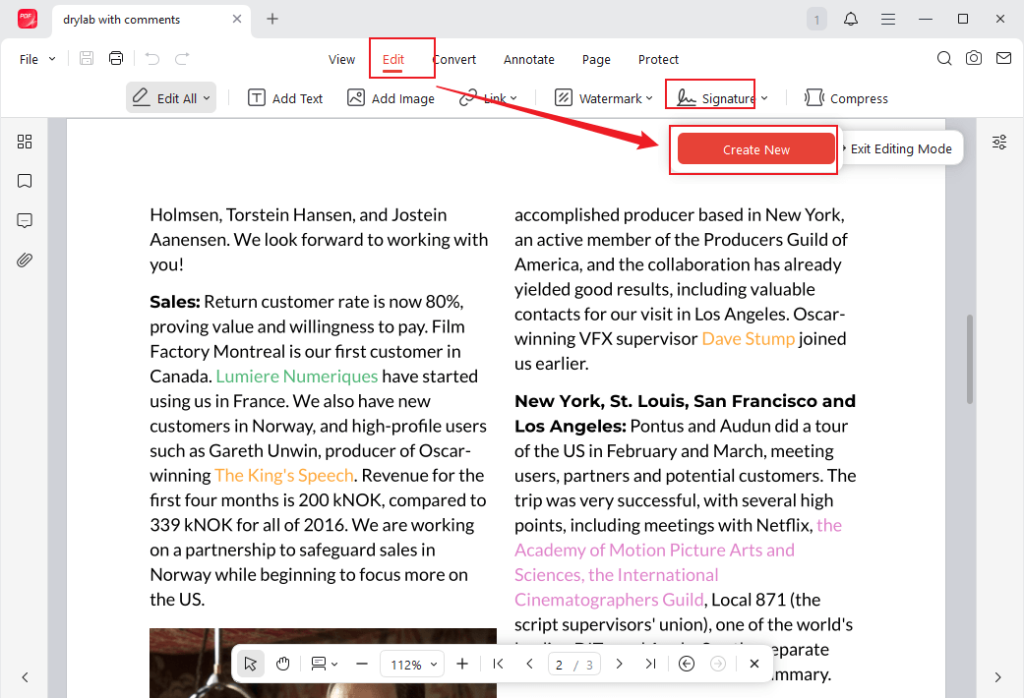
Step 3. Now, go to the Edit tab in the top toolbar and select Signature in the secondary menu. And tap Create New.
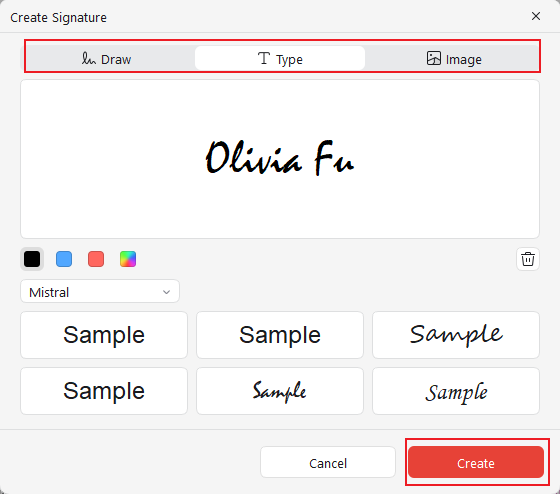
Step 4. In the Create Signature pop-up, decide whether to type, draw, or import an image for your signature. Once done, tap Create.
Then drop the e-signature where you want to sign in the PDF file. Meanwhile, you can adjust the size of the signature as needed. Later, click the Save icon to save the signed PDF.
A Quick Wrap Up
Mastering how to add a digital signature in Adobe helps keep your documents authentic and protected. Whether applying a certificate-based digital signature for legal documents or signing PDFs quickly, Adobe provides reliable tools for all purposes. For users looking for simplicity to sign PDFs or free alternatives, tools like JOPDF make signing and managing PDFs fast, easy, and effortless.
FAQs
#Use a free desktop tool (JOPDF). Upload your PDF, then electronically sign a PDF by typing, drawing, or uploading your signature. It also allows you to edit PDFs for free on Windows, Mac, and Linux, and you can password-protect them.
#Online PDF editors. Websites such as Smallpdf, PDFescape, and DocuSign allow you to add signatures directly in your browser without needing to install any software.
#Built-in OS Tools. On Windows, macOS, or iOS, apps like Preview (Mac) or Microsoft Edge (Windows) allow you to annotate and add signatures to PDFs.
#Mobile Apps. You can easily sign PDFs on your mobile device or tablet using free apps such as Xodo or PDFelement.
Table of Contents

Your Best Free PDF Expert in PDF editing, compressing, converting, annotating, protect, organizing, and more.
Free DownloadWindows · macOS · Linux

Olivia
“Olivia is an editor at JOPDF, where she writes practical guides and insightful articles on managing PDFs—covering topics like editing, annotating, converting, and organizing files efficiently. Passionate about clear communication and digital productivity, Olivia enjoys spending her free time cooking, watching movies, and hiking to unwind and find inspiration for her writing.”
![How to Add a Signature to a PDF [Windows, Mac, and Online]](https://b.jopdf.com/wp-content/uploads/2026/03/how-to-add-signature-to-pdf.png)