Introduction
Need to quote a report, analyze data, or repurpose content in a PDF file? It can be frustrating when a simple copy and paste doesn’t work. Don’t worry. Check this guide to learn six easy methods to extract text from PDF, ensuring you can access your information in any case.
Part 1. Extract Text from PDF via Copy and Paste
Let’s start with the most direct method: a simple copy and paste. For a standard, text-based PDF without security restrictions, this is the quickest way to get the text you need.
Simply click the download button below to get JOPDF and start. It is a professional and free PDF editor that works on Windows and macOS.
How to extract text from PDF for free:
1. Launch JOPDF on your computer. On the homepage, select Edit PDF and choose your document.
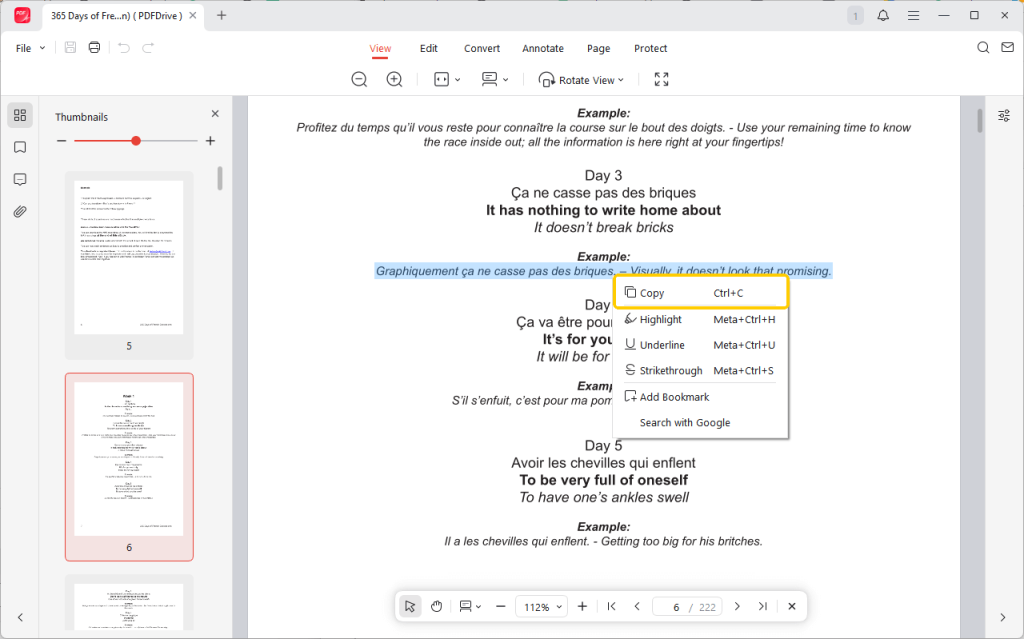
2. Next, locate and select the text you want to extract. The selected text should become highlighted.
3. Right-click the text and select the Copy option, or press Ctrl+C (on Windows) or Cmd+C (on Mac).
4. Paste the text to the desired location, like a word processor, email, or any other application.
If this works, you’re all set. However, if you can’t select the text or the paste option is unavailable, the PDF is likely a scanned image or has copy restrictions. In that case, move on to the methods below.
Part 2. Other Proven Ways to Extract Text from PDF
When direct copying fails, you need a more powerful tool. The following methods can handle everything from protected documents to scanned, image-based files.
Method 1. Use JOPDF to Remove Copy Restriction
Why can’t I copy and paste from a PDF? When you can select text within a PDF but cannot copy and paste it, this indicates the PDF has editing permissions.
In such cases, you can request an unrestricted version from the owner, or you can ask for the password and then use JOPDF to unlock it. The steps are as follows.
1. After opening the document in JOPDF, please select the Protect option.
2. Then, click the Decrypt tab and enter the password.
3. Click Remove to remove password from PDF.

4. Now, you can select and extract the text as usual.
Method 2. Use a Free Online Converter
Want to extract text from PDF online? PDF2GO, PDF Candy, and iLovePDF can help. These online tools can help you translate the PDF document into an editable format like Microsoft Word (.docx) or a plain text file (.txt) using OCR.
After that, you can easily extract the text. They are good choices for one-off tasks because they require no software installation.
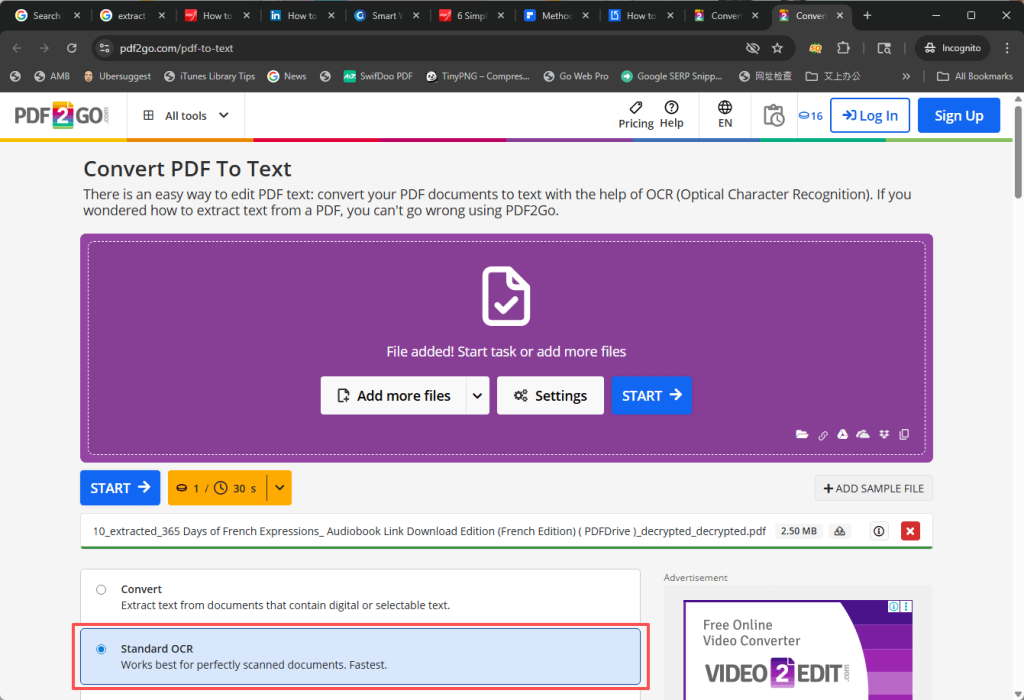
1. Open a browser and go to an online converter like PDF2GO (https://www.pdf2go.com/pdf-to-text)
2. Upload your document from your computer.
3. Once uploaded, select Standard OCR and click the “START” button and wait for the process to complete.
4. Finally, download the document to your computer. All the text from the PDF will now be accessible.
Method 3. Use Google Docs to OCR PDF and Extract Text
Google Docs is another way to extract text from PDF online for free. IIn fact, Google Docs features a powerful OCR engine, and it’s free to use. Therefore, it can help you recognize and extract text from a scanned PDF.
1. Go to your Google Drive in a browser.
2. Click the “+ New” button to upload the PDF file.
3. Then, right-click on the PDF file, select Open with, and then choose Google Docs.
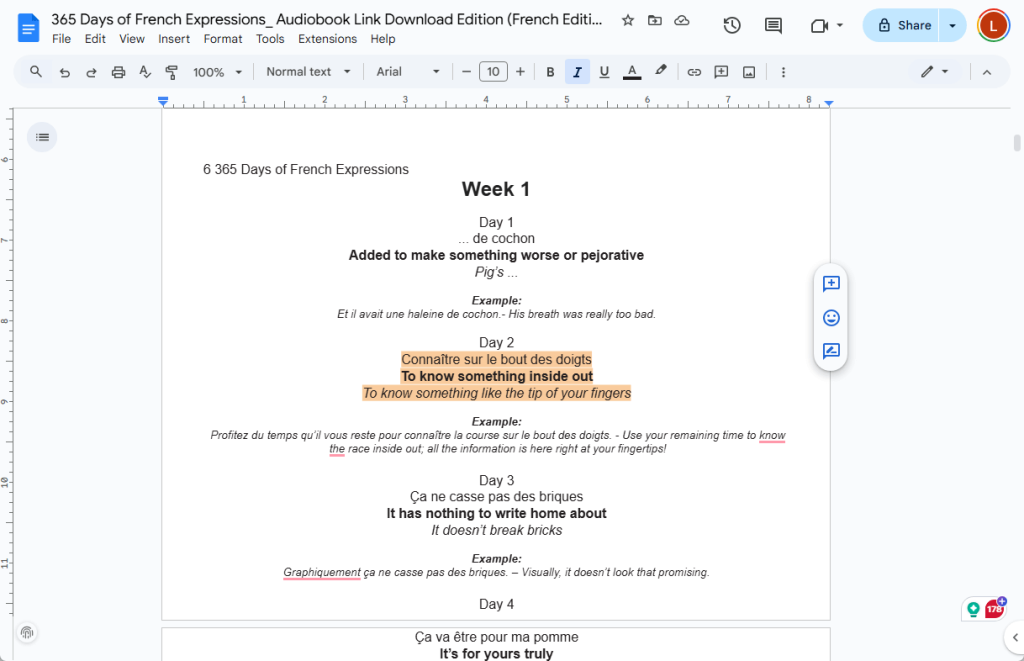
4. Google will automatically perform OCR on the file and create a new Google Doc. The document will typically display the original image at the top, with all the extracted, editable text directly below it.
Method 4. Use a Desktop Editor with OCR
When your PDF is a scan or a photograph of a document, the text isn’t actually text—it’s an image. To extract text from a scanned PDF, you need a tool with OCR. This technology can scan the image, recognizes the characters, and converts them into selectable, editable text.
Learn how to extract text from a scanned PDF using OCR:
1. Download and install a desktop PDF tool that includes OCR, such as the completely free PDFgear.
2. Launch PDFgear, click Open File to add your PDF document.
3. Then, select Home at the top and choose OCR.
4. Select the area you want to apply OCR to and click Done.
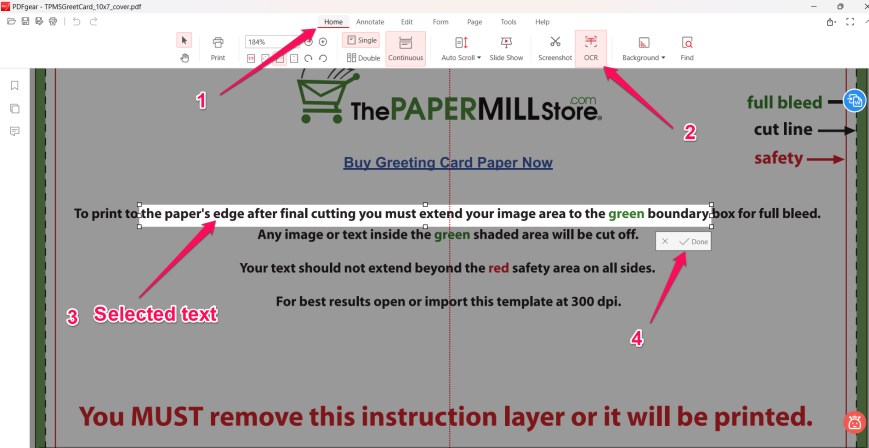
5. Once the process is finished, you can copy and paste the text or save it as a TXT file.
Method 5. Use Microsoft Word to Convert and Extract
If you have a modern version of Microsoft Word (2013 or newer), you already have a powerful PDF text extractor on your computer. Word can directly open PDF files and convert them into fully editable Word documents, preserving much of the original formatting.
1. Open Microsoft Word > Go to File > Open to select the PDF file.
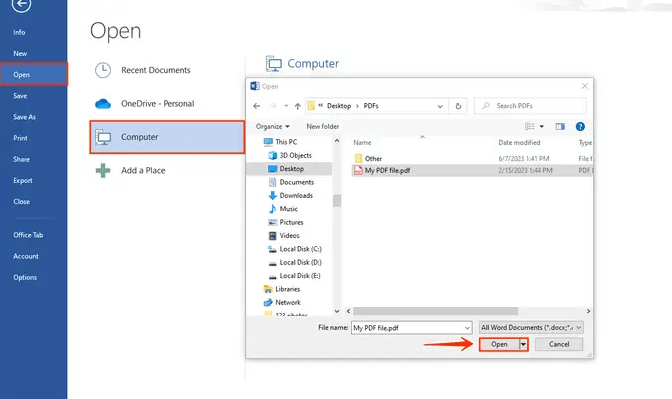
2. Then, a dialog box will inform you that Word is about to convert the PDF into an editable Word document. Please click “OK“.

3. Word will process the file and open it. Then, you can select and paste the text to another place.
Part 3. How to Choose the Right Method for Your Task?
When faced with multiple options, choosing the best solution can be challenging. In fact, you can decide based on your specific needs. Below is a comparison table.
| Method | Best Use Case | Cost | Requires Installation? | Handles Scanned PDFs? |
| Copy and Paste (JOPDF) | Test-based PDF | Free | Yes | No |
| Password Removal Tool (JOPDF) | PDF with Restriction | Free | Yes | No |
| Online Converter | Quick, full-document conversion | Free (with limits) | No | Often |
| Desktop Editor | High-accuracy | Free / Paid | Yes | Yes (with OCR) |
| Google Docs | Free & accessible OCR | Free | No | Yes |
| Microsoft Word | Text-based PDF | Paid (MS Office) | Yes | No |
Conclusion
That’s all about how to extract text from PDF. Whether your documents are simple text files, secured documents, or scanned images, there’s always a solution to help you extract their content. You can choose the method that best suits your needs and effortlessly extract text!
FAQs
Table of Contents

Your Best Free PDF Expert in PDF editing, compressing, converting, annotating, protect, organizing, and more.
Free DownloadWindows · macOS · Linux

Queena
Editor
“As a staff editor for JOPDF, Queena excels at guiding users to the optimal tools and solutions. When she's not analyzing the latest PDF solutions, she enjoys spending her free time playing with her four cats.”
![Find Ways to Download Manga as PDF for Free [5 Proven Ways]](https://b.jopdf.com/wp-content/uploads/2026/04/download-manga-pdf.png)

![5 Best Free PDF Compressors in 2026 [Desktop and Online]](https://b.jopdf.com/wp-content/uploads/2026/04/best-free-pdf-compressor.png)
