
Introduction
Knowing how to edit PDF text on Mac helps streamline tasks and guarantees accuracy in both work and personal projects. In this blog post, you’ll find 5 free and paid strategies for editing PDF text on Mac effectively.
1. The Best Free Way to Edit PDF Text on Mac
JOPDF is a simple, easy-to-use PDF tool designed for Mac users who want a fast, affordable way to manage PDF documents. As the best PDF editor for Mac, it gives users essential PDF functions with no steep learning curve or high-cost subscription.
One of JOPDF’s main features is its PDF text editing function. It lets users update existing text directly in a PDF, adjust font size, color, line spacing, and style, and easily correct mistakes or outdated content.
JOPDF also lets you add new text, images, drawings, shapes, and pages. The editing process is smooth and intuitive, enabling quick changes while preserving the document’s original layout and formatting.
Let’s quickly find out how to edit PDF text on Mac with JOPDF in just a few clicks.
Step 1. Get and launch the free JOPDF editor on your Mac. And then open the PDF file you want to edit text in.
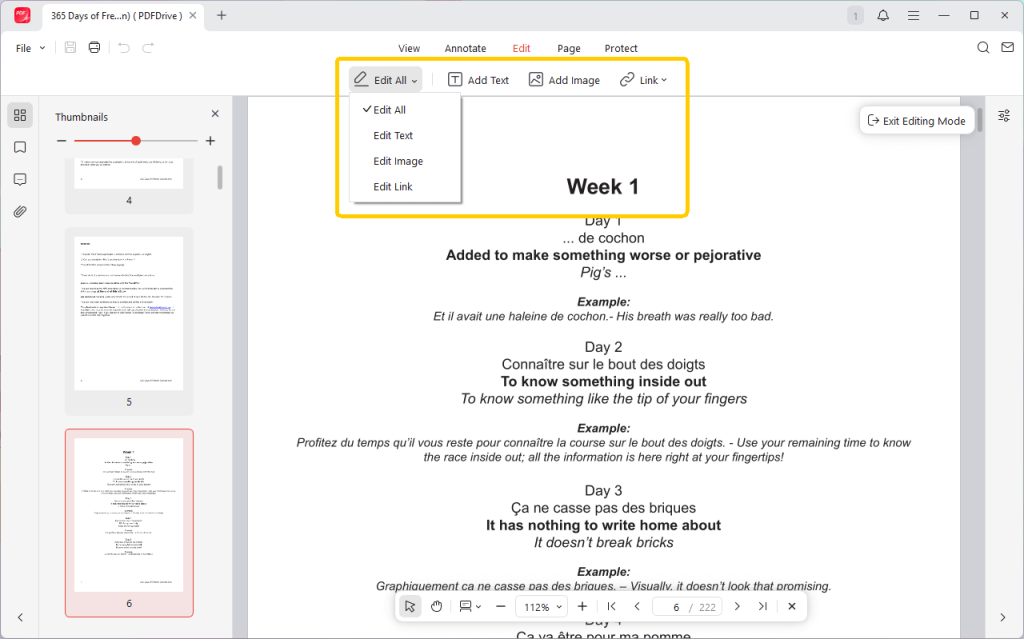
Step 2. Next, navigate to the top Edit tab, and press Edit All or Edit Text in the secondary menu bar to make the text elements editable.
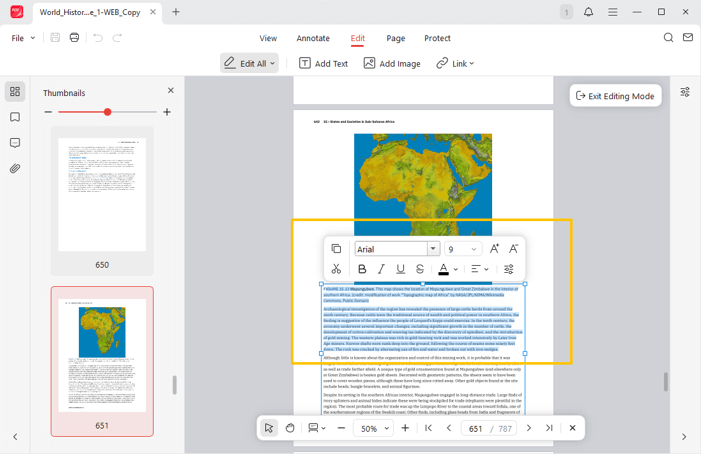
Step 3. Click anywhere you want to edit, and select the text block.
Tips
The pop-up Properties sidebar lets you edit text color, size, style, font, and other properties in the PDF.
Why struggle with limited tools when you can do more for free? JOPDF lets you edit PDF on Mac, add annotations, password-protect files, and organize pages effortlessly. Download JOPDF today and take charge of all your PDF documents on Mac!
2. Edit PDF Text on Mac in Preview
Preview is the built-in PDF viewer on macOS that lets users open and make basic edits to PDF files without installing third-party software.
It provides basic editing tools like highlighting text, adding notes, drawing shapes, signing documents, and adding text to a PDF via the Markup toolbar. This makes it handy for quick notes and small modifications.
This is how to edit text in PDF on Mac for free with the Preview app.
Step 1. Right-click your PDF file, go to Open With, and pick Preview.
Alternatively, press the Spacebar to use Quick Look, then click “Open in Preview” if prompted.
Step 2. Press the Markup Toolbar icon (pen tip icon).
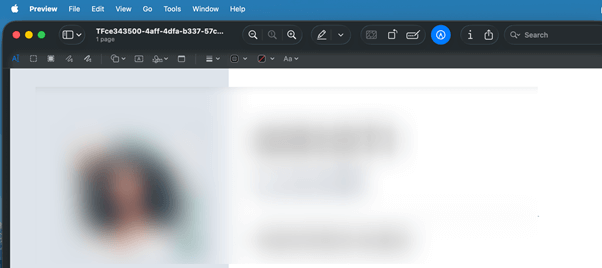
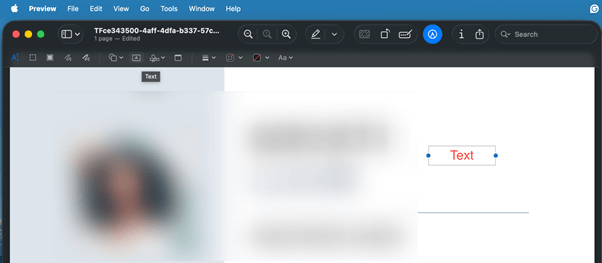
Step 3. Click the Text icon (an ‘A’ in a box) to add a new text box. Then type and refine your text using the formatting bar. You can press Cmd+Shift+E to show or hide.
Step 4. Use the Shapes tool or highlight/underline tools to mark up existing content without changing the original text.
While Preview comes in handy as a built-in tool, you must remember that it does not support editing existing text in a PDF. Users can only add new text boxes; they cannot modify or replace the original content.
If full PDF text editing is required, using a dedicated tool like JOPDF is a more effective alternative.
3. Edit PDF Text on Mac with Adobe Acrobat
Adobe Acrobat is a well-established, professional PDF solution often used to create, edit, and manage PDF files on Mac.
It includes comprehensive editing capabilities, including modifying existing text, changing text color, adjusting fonts and formatting, inserting images, reordering pages, and adding comments or signatures. This makes it suitable for business and advanced PDF editing.
Let’s find out how to edit text in PDF on Mac through Adobe Acrobat.
Step 1. Open Adobe Acrobat and select Open to choose the PDF file you need to edit text in.
Alternatively, drag and drop the file into the application.
Step 2. Click the Edit PDF tool in the right-hand tools pane or from the Tools tab.
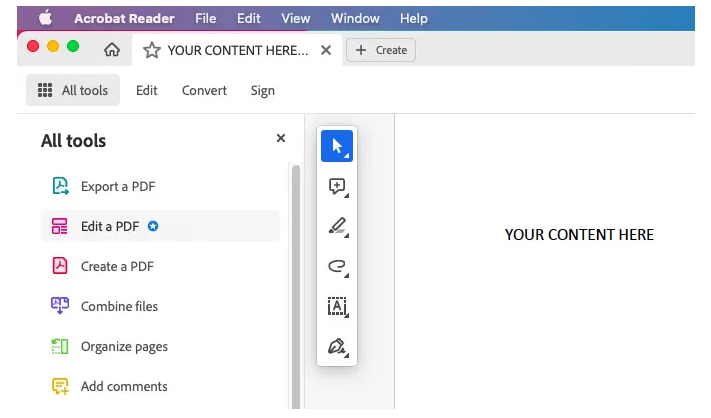
Step 3. Locate and select the text box you wish to edit. Then start typing, adding, deleting, or modifying.
Step 4. Use the features in the Format Text section of the right panel to change font, size, color, or alignment.
You can also select a text box to move it to a new spot, or use the white handles to resize it.
Step 5. When editing is done, go to the File tab on the top-left menu and choose Save or Save As to save your PDF.
Be aware that Adobe Acrobat requires a paid subscription to use all editing functions, which may not work for everyone. If you need an Adobe Acrobat alternative that lets you edit PDF text for free on Mac, JOPDF is a solid option to try.
4. Edit PDF Text on Mac in Microsoft Word
Microsoft Word lets Mac users edit PDF text by converting the PDF to a Word document. Once opened, users can edit text, adjust formatting, insert images, and update content using familiar Word tools.
This method is practical for those with Word installed, yet complex layouts, images, or fonts may not convert accurately. Moreover, Microsoft Word demands a paid Microsoft 365 subscription.
Here’s an easy method showing how to edit text in a PDF on a Mac using Microsoft Word.
Step 1. Launch Microsoft Word on your Mac.
Step 2. Select File, click Open, and choose the PDF file you wish to edit from your computer. A prompt will appear stating that Word will now convert your PDF to an editable Word document. Tap OK.
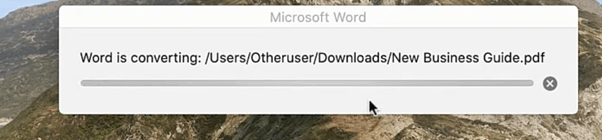
Step 3. Update the text, images, or layout as required.
Step 4. Click File and select Save As (or Export). After that, select PDF as the format, and save your document.

5. Edit PDF Text on Mac Using an Online Editor
Online PDF editors let Mac users edit PDF text without installing any software, working directly in a browser. They typically offer basic tools such as text editing, annotations, and file conversion, making them well-suited for quick edits.
PDFGuru, for instance, lets users edit PDF text for free, unlike many popular online editors that restrict features or need a paid subscription, making it a convenient choice for simple PDF edits.
Check out how to edit text in PDF on Mac for free using PDFGuru with ease.
Step 1. Use a web browser to go to the official PDFGuru website.
Step 2. Tap the large + icon on the main interface to import the desired PDF file you want to edit the text in. Alternatively, drop your desired PDF files into the program.
Step 3. After the file loads, click the Edit Text tab below and choose the text block you want to edit.
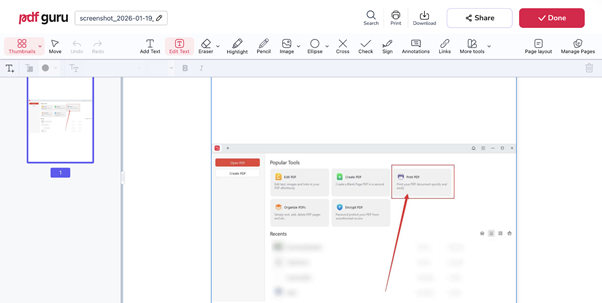
Step 4. Once you make all the necessary changes, tap Done. Click the Download button to save your edited file to local storage.
A Quick Wrap Up
Now you know multiple ways to how to edit PDF text on Mac efficiently. Whether you use built-in Preview for adding text, Microsoft Word for converting and editing PDFs, Adobe Acrobat for advanced professional edits, or free options like JOPDF and online editors like PDFGuru, every editing need is covered. Hope this guide is helpful!
FAQs
Table of Contents

Your Best Free PDF Expert in PDF editing, compressing, converting, annotating, protect, organizing, and more.
Free DownloadWindows · macOS · Linux

Queena
Editor
“As a staff editor for JOPDF, Queena excels at guiding users to the optimal tools and solutions. When she's not analyzing the latest PDF solutions, she enjoys spending her free time playing with her four cats.”
![Find Ways to Download Manga as PDF for Free [5 Proven Ways]](https://b.jopdf.com/wp-content/uploads/2026/04/download-manga-pdf.png)

![5 Best Free PDF Compressors in 2026 [Desktop and Online]](https://b.jopdf.com/wp-content/uploads/2026/04/best-free-pdf-compressor.png)
