Introduction
Many Mac users search for alternatives because Adobe can feel expensive, resource-heavy, and difficult to learn. In this article, we’ll show how to edit a PDF on Mac without Adobe, covering four simple, free methods anyone can use today, safely and easily.
1. The Best Free Way to Edit a PDF on Mac Without Adobe
JOPDF is a versatile, efficient, and completely free Adobe Acrobat alternative that functions flawlessly on Mac and Windows systems alike.
For anyone looking to edit a PDF on Mac easily, JOPDF is an excellent choice. The design is straightforward and user-friendly, so even beginners can use it without experience in PDF software.
JOPDF offers fundamental PDF editing capabilities suitable for most routine tasks. You can edit text, include or delete content, add images, and insert hyperlinks in PDFs.
Plus, JOPDF lets you adjust the size, font, and color of the text and link. JOPDF makes it easy to copy, paste, rotate, crop, resize, replace, and do more to images in PDFs. In addition, you can easily annotate pages and even fill out forms directly.
Learn how to edit a PDF on Mac without Adobe using JOPDF in only a handful of clicks.
Step 1. Obtain JOPDF from the official site and install it on your Windows or Mac computer.
Step 2. Once you launch the program, go to the Edit tab in the top menu bar. And hit the Edit All or Edit Text option to make the text elements editable.
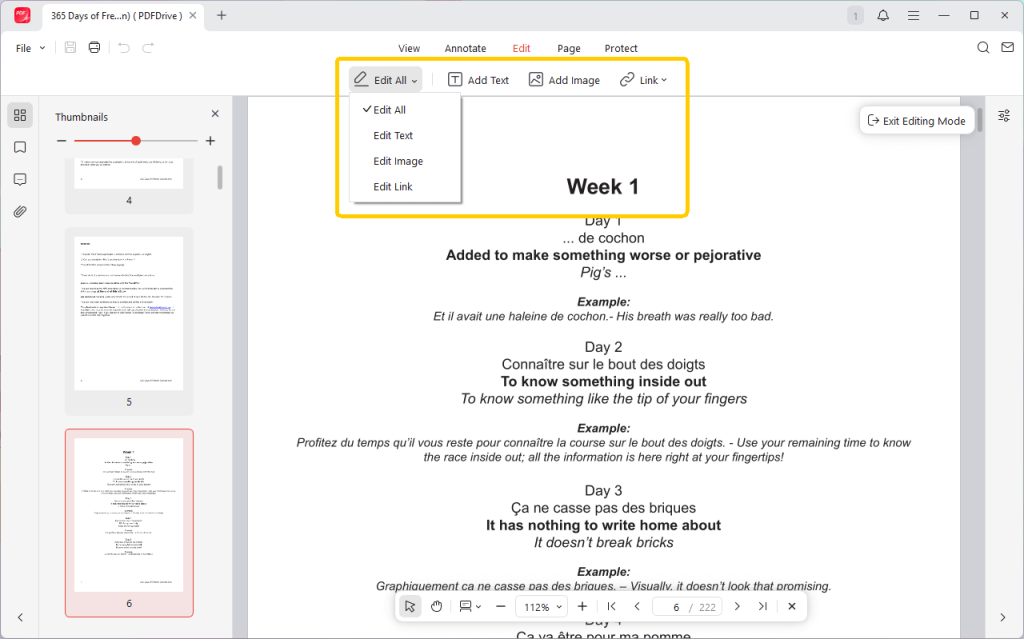
Step 3. Click into a text block to edit. As needed, you can change, delete, replace, or add new text.
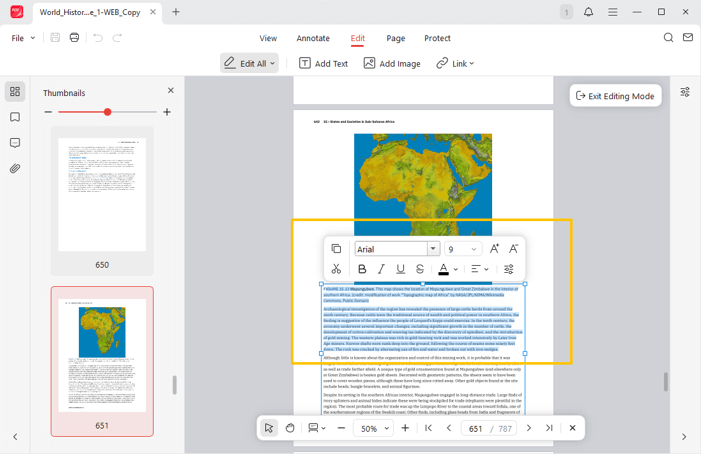
Step 4. Adjust text color, size, and other options by selecting it and using the Properties menu.
Finally, if you want a fast, free, and hassle-free solution, give JOPDF a try today. Combining a simple interface with strong editing tools, it stands out as the best PDF editor for Mac for those who want results without paying for Adobe.
Head over to JOPDF and start editing your PDFs in minutes—no ads, no watermarks, no sign up, no learning curve, just easy editing.
2. Edit a PDF on Mac in Preview
Preview comes preinstalled on Macs and is one of the most straightforward ways to edit PDF on Mac without extra software.
Preview lets you make quick edits, such as adding text, inserting shapes, highlighting content, adding notes, signing documents, and rearranging or deleting pages.
Let’s see how to edit a PDF on Mac using the Preview app in just a few clicks.
Step 1. Find your PDF in Finder on Mac and double-click it; it should open in Preview by default. Click the Markup Toolbar icon (a circle with a pen tip) in the toolbar.
Step 2. Click the Text tool (a ‘T‘ in a box), and a text box will appear.
Next, drag it, then type and format using the slanted ‘A‘ icon for font, size, and color.
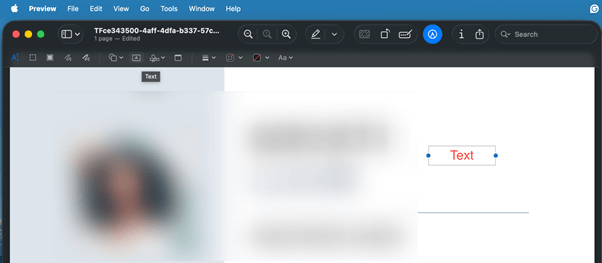
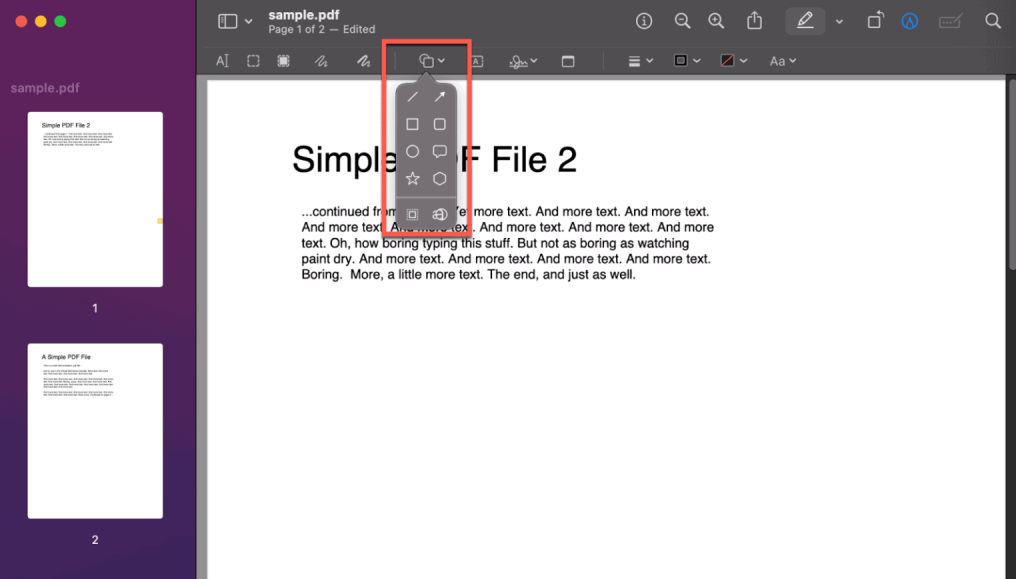
Use the Shape icon to add rectangles, ovals, and other shapes, or the Highlight tool to mark text.
Similarly, you can pick the Redaction, Sketch, Draw, Sign, Note, Crop, Rotate, and more tools to edit the preferred elements in your PDF.
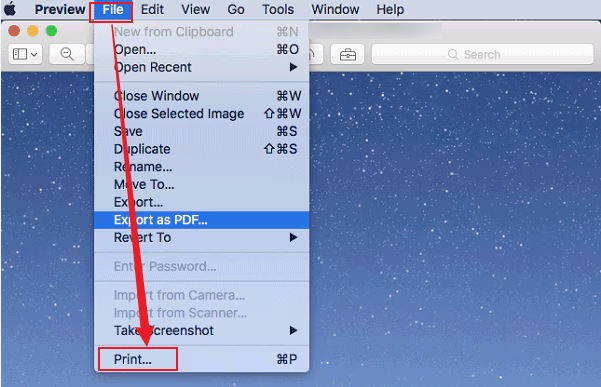
Step 3. Once you finish editing, go to the File menu in the top-left corner and select Save.
Or select the File menu and tap Export to keep changes editable.
You can also click File, select Print, and choose Save as PDF to flatten annotations.
Preview has its limitations. It cannot directly edit text in PDF—you can only add new text boxes or annotations. If you want to change or replace the original text, a more versatile tool like JOPDF is ideal, offering real text editing while staying free and simple on a Mac.
3. Edit a PDF on Mac with Microsoft Word
Microsoft Word is another way that lets you edit PDFs on Mac by converting them into fully editable documents. You can modify existing text, change fonts, adjust layouts, insert images, and delete or rearrange content with familiar Word tools.
It also supports comments and formatting edits. Although complex layouts may not convert flawlessly, Word is a useful choice for text-heavy PDFs that require quick edits without Adobe.
Let’s quickly explore how to edit a PDF on Mac without Adobe with Microsoft Word in only a few simple steps.
Step 1. Launch the Microsoft Word application on your Mac.
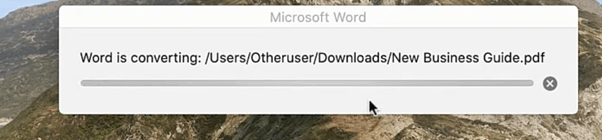
Step 2. Click File, select Open, and select the PDF file you wish to edit. Word will show a message stating it will convert the PDF to an editable Word document. Click OK.
Step 3. Adjust text, images, and formatting exactly like you would in a standard document.
Step 4. Once you’ve finished editing, go to the File menu and click on Save As.

After that, choose the destination and pick PDF from the file format menu to save it in PDF format.
4. Edit a PDF on Mac Using Online Tools
Online tools make it easy to edit PDFs on a Mac without installing software. They work directly in your browser and handle quick edits efficiently.
Smallpdf is a popular online tool that lets you modify text, add pictures, annotate pages, highlight sections, and fill out forms. However, remember that unless you have a Pro subscription, you cannot edit existing text with SmallPDF.
Learn the quick steps to edit a PDF on Mac using SmallPDF in just a few clicks.
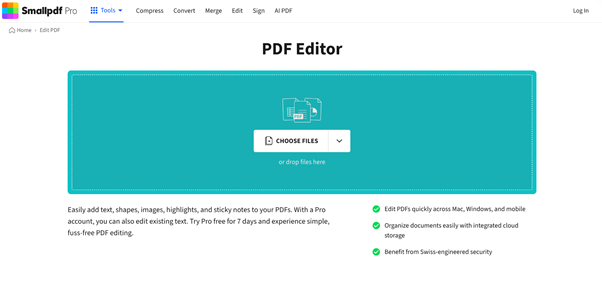
Step 1. Go to the official Smallpdf site directly from your web browser. Then, under the Tools menu, select the Edit PDF option.
Step 2. When the PDF editor opens, click Choose Files to bring in your PDFs from your computer, Dropbox, Google Drive, or OneDrive. Alternatively, drag your PDF directly into the upload area.
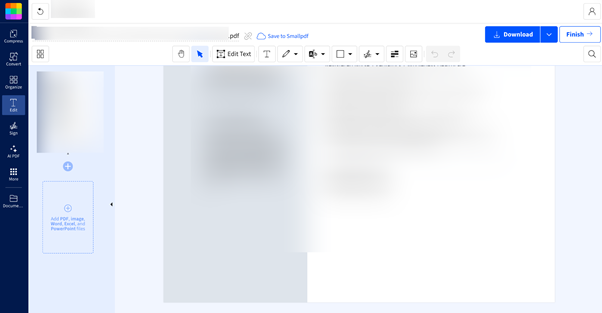
Step 3. Use the toolbar to:
- Add new text boxes, images, shapes (arrows, rectangles), or signatures to the document.
- Select the highlight, underline, or freehand tools to mark up sections of the content.
- Reorder or delete pages by using the page management tools.
Tips
If you are using Smallpdf’s free trial mode or have a Pro account, you can click on existing text to modify, delete, or change its format (bold, color, size).
Step 4. After completing your PDF edits, select “Finish” or “Download” to store the file on your Mac or in the cloud.
A Quick Wrap Up
Working on PDFs with a Mac doesn’t have to be hard or costly. At this point, you know how to edit a PDF on Mac without Adobe with simple and accessible methods.
Whether using built-in apps like Preview or flexible solutions like JOPDF, Microsoft Word, and online editors, each method works for different needs. Choose the one that matches your editing requirements and enjoy hassle-free PDF editing on your Mac—no subscriptions or steep learning curves required!
FAQs
Table of Contents

Your Best Free PDF Expert in PDF editing, compressing, converting, annotating, protect, organizing, and more.
Free DownloadWindows · macOS · Linux

Queena
Editor
“As a staff editor for JOPDF, Queena excels at guiding users to the optimal tools and solutions. When she's not analyzing the latest PDF solutions, she enjoys spending her free time playing with her four cats.”
![Find Ways to Download Manga as PDF for Free [5 Proven Ways]](https://b.jopdf.com/wp-content/uploads/2026/04/download-manga-pdf.png)

![5 Best Free PDF Compressors in 2026 [Desktop and Online]](https://b.jopdf.com/wp-content/uploads/2026/04/best-free-pdf-compressor.png)
