Introduction
In this guide, we will show you exactly how to compress a PDF in Adobe Acrobat. Then, if you are looking to avoid expensive subscriptions, we will introduce a powerful, completely free alternative called JOPDF that can get the job done just as well.
You try to send a PDF to email, and then… nothing. It seems that the file size exceeds the limit. In this case, you plan to use Adobe Acrobat to compress your documents.
While Adobe offers robust tools for file compression, navigating its menus can be confusing. Moreover, the price tag can be shocking. Anyhow, this guide will show you how to use Acrobat to reduce the size of your PDF.
Or, if you prefer a simpler and free PDF editor, you can click the button below to get JOPDF, a popular Acrobat alternative.
How to Compress a PDF in Adobe Acrobat
If you have a paid subscription to Adobe Acrobat Pro DC (or the older Pro/Standard versions), you have access to powerful compression tools built directly into the software. It will automatically delete unnecessary data and adjust the images to the standard resolution suitable for screen display.
These steps will not work on the free Adobe Acrobat Reader. The free Reader is strictly for viewing and printing; it lacks the engine required to re-process and compress file data.
Here are the steps to compress a PDF in Adobe Acrobat:
1. Open Your PDF: Launch Adobe Acrobat Pro DC and open the large file you wish to compress.
2. Access the Menu: Simply look for “Compress a PDF” directly under the Tools pane.

3. Add Documents: Go to Documents and select the PDF file you want to compress. Click Continue to confirm.
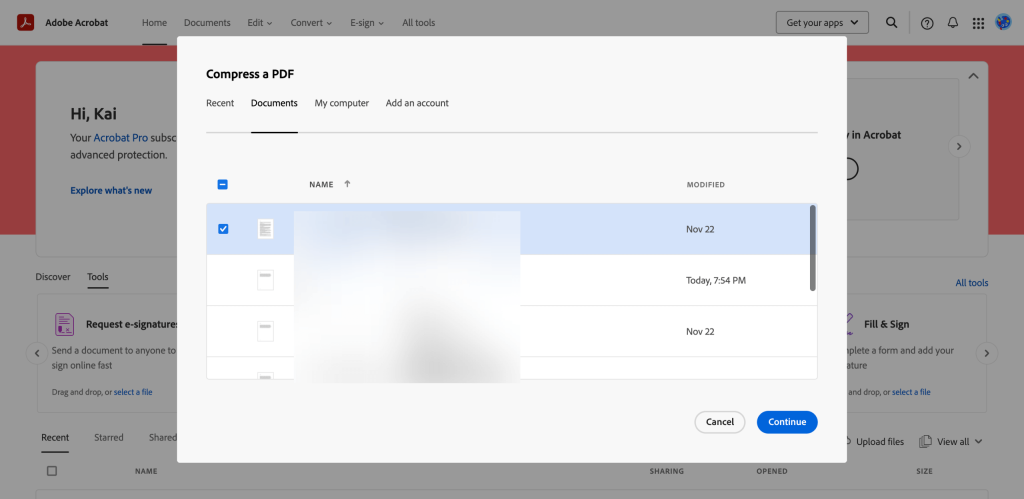
4. Select Level: Select a preferred compression level and click Compress.

After that, Acrobat will start the process. When finished, you can click the pop-up box to check the compressed document.
The Disadvantages of Using Adobe Acrobat
There is no denying that Adobe Acrobat is powerful. However, for the average student, freelancer, or small business owner, it is often overkill—and it comes with significant downsides.
❌ 1. High Cost
The biggest barrier is price. Adobe moved away from one-time purchases years ago. Now, to use the compression tools, you must subscribe to Adobe Creative Cloud.
Paying $15 to $25 per month just to compress a PDF occasionally is simply not cost-effective for most people. If you stop paying, you lose access to your tools immediately.
❌ 2. Performance Issues
Adobe Acrobat is a large software application. Sometimes opening a simple 2MB document takes longer than expected because the software is loading hundreds of advanced features you may never use, such as preflight, indexing, and editing tools.
❌ 3. Complexity for Beginners
The Adobe interface layout is quite dense. Sometimes, finding a simple button can take a long time. These menus are clearly designed for professional users, not the average user.
❌ 4. Free Version Limitations
Many users download Adobe Acrobat Reader, assuming it can do everything. They are inevitably disappointed when they click “Compress” or “Edit,” only to be greeted by a pop-up window asking for a credit card number to unlock the “Pro” features.
A Free Way to Compress PDF with High Quality
If you want to compress PDFs without the monthly fees, complex menus, or heavy software, there is a better way: JOPDF.
JOPDF is a lightweight, all-in-one PDF editor designed for Windows and Mac users who need essential tools for daily tasks. Unlike Adobe, which tries to be everything to everyone, JOPDF focuses on speed, simplicity, and accessibility.
Why Choose JOPDF Over Adobe?
✅ 100% Free & No Subscriptions: You don’t need to sign up for a trial that secretly renews into a paid plan.
✅ Lightweight & Fast: The software installs in seconds and launches instantly, even on older laptops.
✅ No Watermarks: Many “free” tools let you compress a file, but then stamp a giant logo over your pages. JOPDF keeps your documents professional and clean.
✅ Offline Security: Many people try to avoid Adobe by using free online websites. However, uploading your bank statements to a random server is a massive security risk. JOPDF runs offline on your computer. Your data never leaves your device, ensuring total privacy.
Check to learn how to compress a PDF using JOPDF:
Compressing a file in JOPDF is straightforward and fast. Because the interface is designed for clarity, you won’t need to dig through nested menus.
Step 1: Download, install, and launch JOPDF.
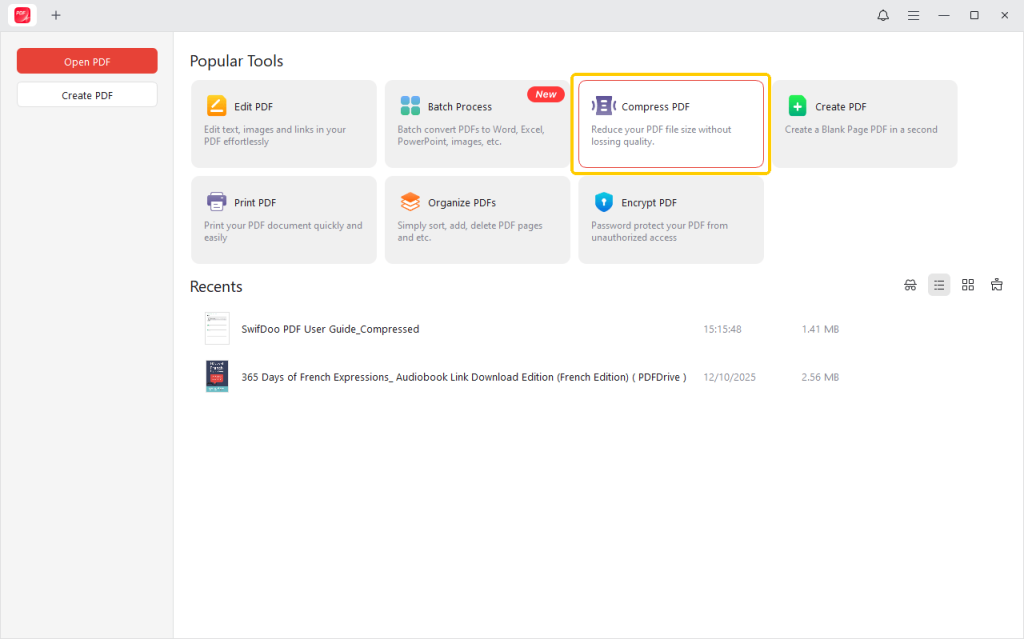
Step 2: Select the Compress PDF tool from the home interface.
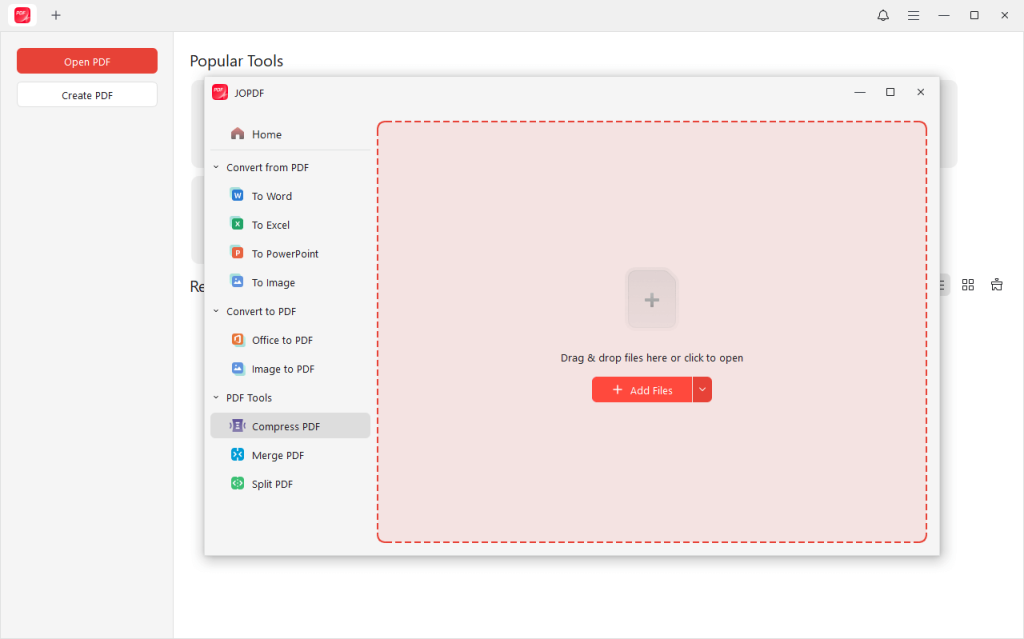
Step 3: Click Add Files to select the documents. JOPDF can compress multiple PDFs at once, so you can add as many documents as you want.
Step 4: Select a compression level and decide the output path. Finally, click Start.
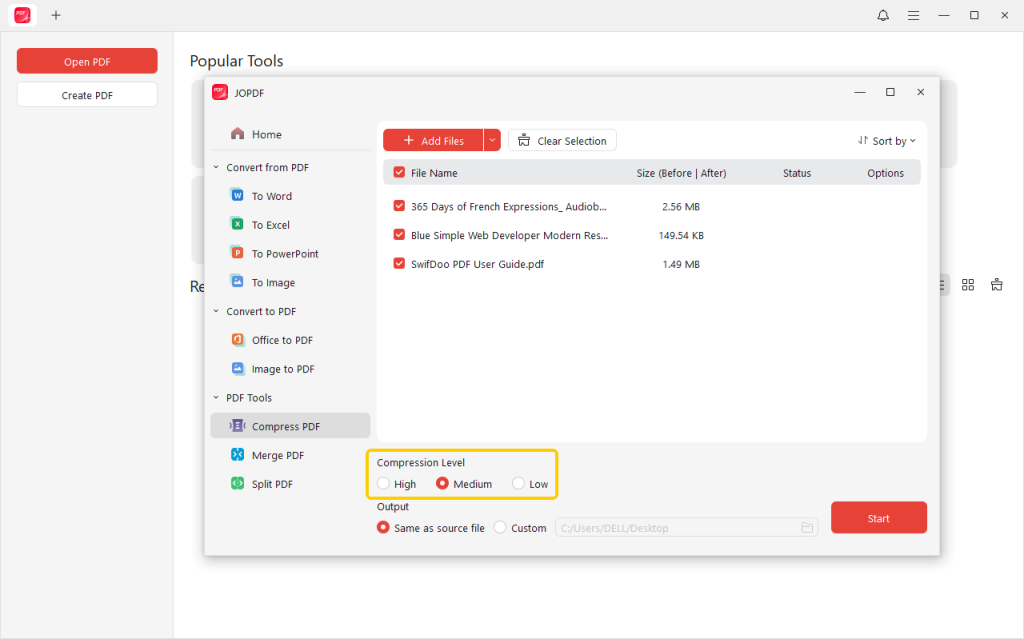
JOPDF will process the file in seconds. After that, you can open the document and go to the folder as needed. You will likely see a significant reduction—often shrinking a 10MB file down to 2MB or less—without any noticeable loss in text sharpness. You can now email or upload your file instantly.
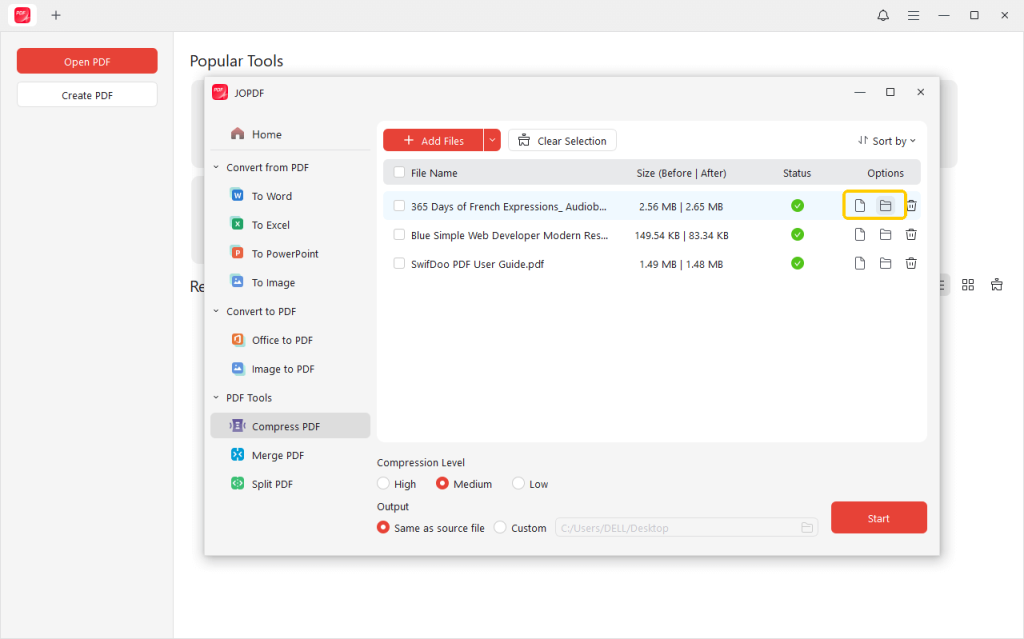
The software will automatically analyze your document structure and images. It applies an intelligent compression algorithm that balances quality and file size.
Beyond compression, JOPDF also enables you to edit, annotate, merge, split, convert, and password-protect PDF files. It’s powerful, easy to use, and, best of all, completely free. Why not give it a try!
Conclusion
Now, you know how to compress a PDF in Adobe Acrobat. It is indeed extremely professional.
However, for the rest of us who just want to email a document without hitting an attachment limit, Adobe’s high price and complexity are unnecessary hurdles.
If you want a fast, free solution, we highly recommend JOPDF. Like Acrobat, it can help you compress PDFs without losing quality. ll without costing you a dime. Stop struggling with “File Too Large” errors and expensive subscriptions—download JOPDF and streamline your workflow today.
FAQs
Table of Contents

Your Best Free PDF Expert in PDF editing, compressing, converting, annotating, protect, organizing, and more.
Free DownloadWindows · macOS · Linux

Queena
Editor
“As a staff editor for JOPDF, Queena excels at guiding users to the optimal tools and solutions. When she's not analyzing the latest PDF solutions, she enjoys spending her free time playing with her four cats.”
![Find Ways to Download Manga as PDF for Free [5 Proven Ways]](https://b.jopdf.com/wp-content/uploads/2026/04/download-manga-pdf.png)

![5 Best Free PDF Compressors in 2026 [Desktop and Online]](https://b.jopdf.com/wp-content/uploads/2026/04/best-free-pdf-compressor.png)
