
Summary :
You may have scanned a book into a bunch of JPGs or saved online images in JPG format. However, you mostly read digital materials in PDF format on your computer or phone. You want a way to combine these JPG files into one PDF for easier loading and access. After some digging, we’ve found some of the best desktop and online converter tools to do that. Explore the 4 selected free methods to combine JPGs into one PDF, all straightforwardly and seamlessly.
Combine JPGs into One PDF with JOPDF
JOPDF is an offline, dedicated image-to-PDF converter and PDF editor that supports JPG-to-PDF conversion and combination. It lets you combine two or multiple images into one PDF, regardless of the image format. It supports almost all common formats, including JPG (JPEG), PNG, TIFF (TIF), BMP, and WebP. The application allows drag-and-drop and image previewing after upload. You can also convert Word, Excel, and PowerPoint, and compress and merge PDFs.
Check out how to combine JPGs into one PDF for free on Windows or Mac without losing the quality.
Step 1. Launch the software: Click the JOPDF for Windows or Mac download button, install, and start it.
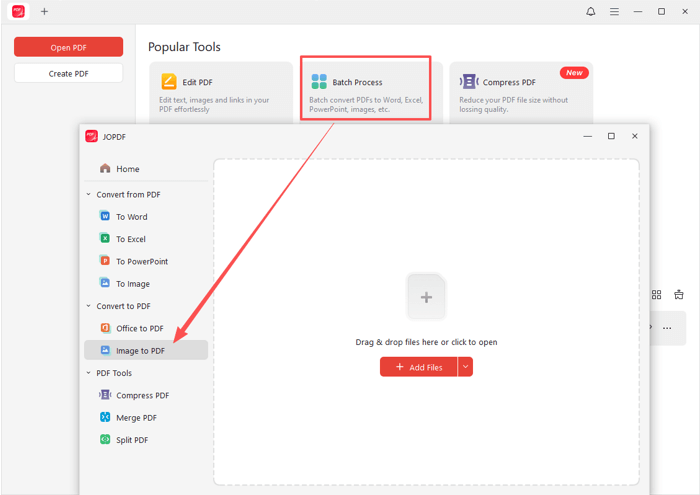
Step 2. Open the JPG to PDF converter and merger: click the Batch Process category, and choose the Image to PDF tool under the Convert to PDF section.
Step 3. Add files & set combining method: Add the JPGs you wish to combine to one PDF by dropping or clicking Add Files. Select All Images as One PDF in the Method drop-down, and specify the page size.
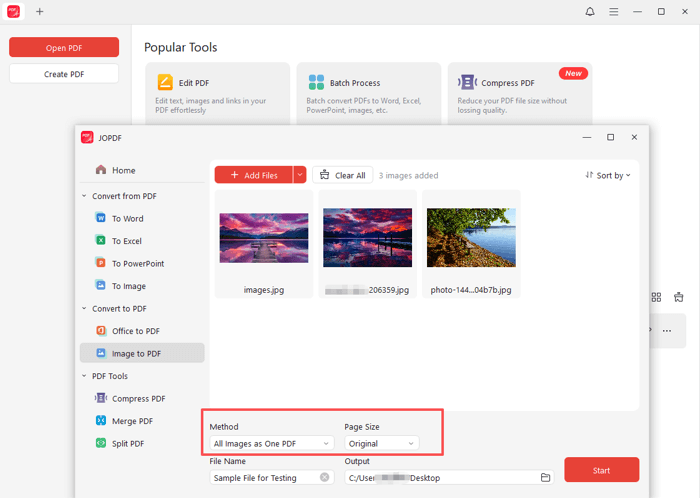
Step 4. Combine the JPGs into one PDF: choose a save location, enter a file name, arrange the images in order, and click the Start button to merge the JPG files into one PDF for free.
How to Combine Images into One PDF in Preview
Mac Preview works well enough if you’re stuck on how to combine images into one PDF for free. Born with macOS, Preview is handy for viewing, signing, printing, and annotating PDFs and images. It lets you extract pages from a PDF by dragging them and merge PDFs by inserting pages. The app avoids downloading or subscribing to third-party programs.
Steps to convert and combine JPGs into one PDF using Preview.
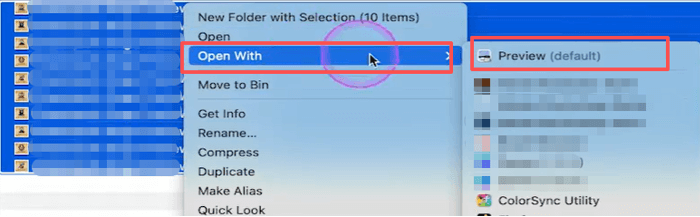
Step 1: Select all the JPGs you want to merge into one PDF, then right-click them.
Step 2: Choose Open with, then select Preview from the list of available apps to open them.
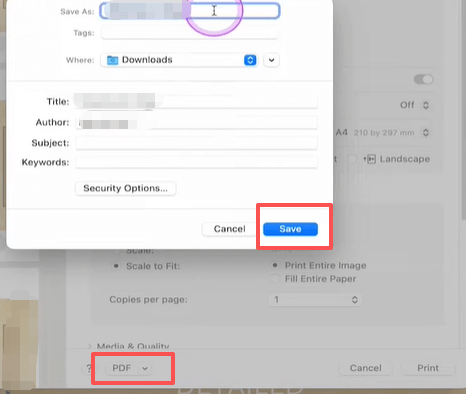
Step 3: Go to the top bar, click File, and select Print from the drop-down list.
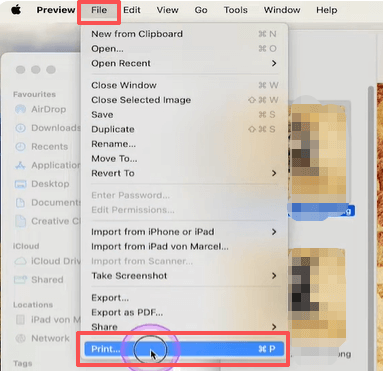
Step 4: Adjust the page orientation, page size, and other options for the conversion.
Step 5: Click the PDF button to select where to save the file and the file name. Then click Save to merge the images into one PDF.
How to Combine JPEGs into One PDF with iLovePDF
iLovePDF is one of the most popular JPG-to-PDF converters and combiners. You can combine JPGs into one PDF online for free on Android, iPhone, PC, Mac, and other devices with iLovePDF. The online tool has no sign-up requirement and offers a clean website interface. It allows you to rearrange PDF pages after conversion if necessary. The total size of the JPGs should not exceed 40 MB per task; don’t upload too many images.
Follow this simple guide to combine JPEGs into one PDF.
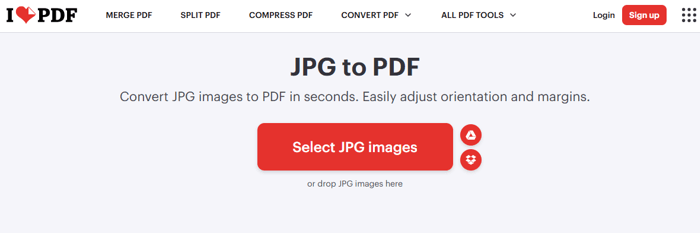
Step 1: Choose the iLovePDF JPG to PDF tool in the CONVERT PDF group.
Step 2: Upload the JPG/JPEG images you need to merge into one PDF online for free.
Step 3: The “Merge all images in one PDF file” option is selected by default. Set the resulting page options.
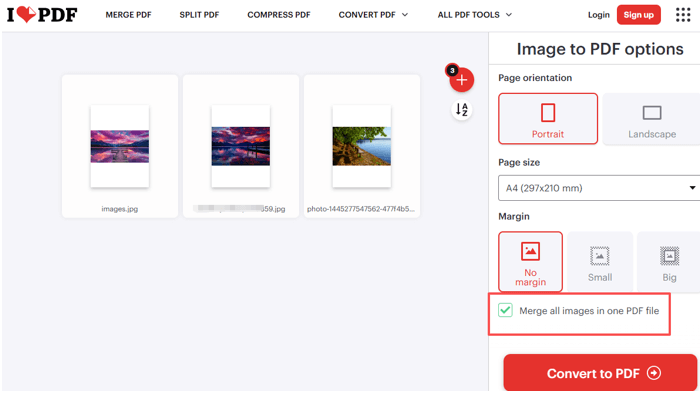
Step 4: Click Convert to PDF at the bottom to merge the two or multiple JPGs and convert them to one PDF online for free.
Step 5: Download and save the converted PDF. You can also combine other image files into one PDF using the “JPG to PDF” tool, not just JPG.
Merge JPG Files into One PDF in Adobe Acrobat
Adobe Acrobat Pro is a well-known way to combine JPGs into one PDF and make PDF edits. It allows you to convert JPGs to PDFs and combine the PDFs successively, or directly merge multiple JPGs into one PDF at once. The software lets you create and convert PDFs from/to various file types, such as HTML, TXT, and RTF. It can merge, compress, split, secure, and edit PDFs. This is an expensive, paid way.
Discover how to combine multiple JPGs into one PDF using Adobe Acrobat Pro.
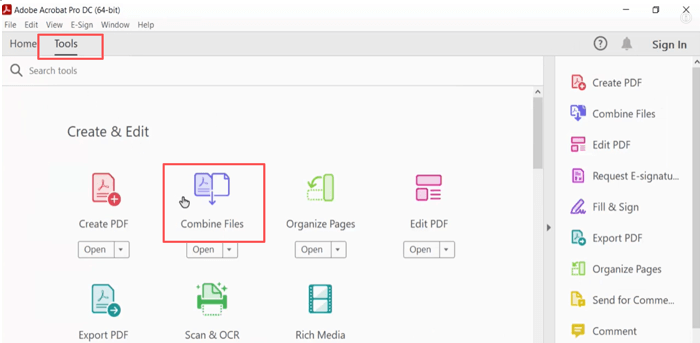
Step 1: In the PDF converter software, go to Tools and choose Combine Files.
Step 2: Add your two or more JPG files you hope to combine into one PDF.
Step 3: Arrange the image order to your liking, and customize how the pages appear from the Options menu.
Step 4: Click the Combine button to start converting the JPGs to one PDF.
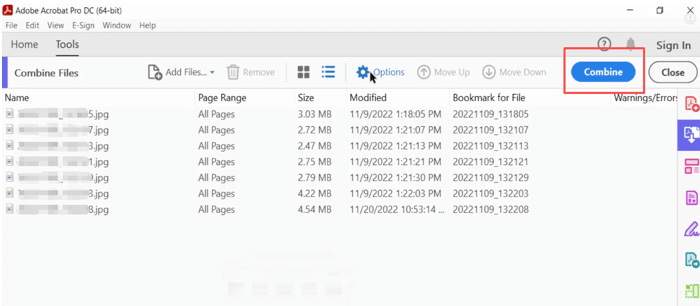
Step 5: Save the created PDF to a selected location.
Conclusion
Running into problems with combining JPGs into a PDF? If you have hundreds of JPG or other image files, this comprehensive guide will help. We suggest using the three free approaches above to get the job done. If you are an Adobe user, follow the above step-by-step tutorial to complete your task. JOPDF is completely worth trying as a freeware that lets you convert multiple JPGs to one PDF without limitations.
FAQs
Table of Contents

Your Best Free PDF Expert in PDF editing, compressing, converting, annotating, protect, organizing, and more.
Free DownloadWindows · macOS · Linux

Selena
Staff Editor
“Selena is a staff editor working for JOPDF, passionate and committed to providing how-to and round-up articles. Over 8 years of specialized skills and experience in PDF solutions, hoping to help users ease their lives and solve whatever they encounter. "Work smarter, not just harder!"”
![Find Ways to Download Manga as PDF for Free [5 Proven Ways]](https://b.jopdf.com/wp-content/uploads/2026/04/download-manga-pdf.png)

![5 Best Free PDF Compressors in 2026 [Desktop and Online]](https://b.jopdf.com/wp-content/uploads/2026/04/best-free-pdf-compressor.png)
