![Instant Ways to Change Font in PDF Files [Detailed Guide]](https://b.jopdf.com/wp-content/uploads/2025/12/change-font-in-pdf-thumbnail.png)
Introduction :
Are you looking for instructions on how to change font in PDF? You are not alone. PDF is widely used in today’s work and study life. It can preserve layout, making it harder to edit than Word files. But fortunately, it is not impossible. With a reliable PDF editor, you can also edit PDF fonts quickly and accurately. In this comprehensive guide, let’s explore how to change PDF fonts using JOPDF, Adobe Acrobat Pro, Microsoft Word, and PDFescape.
To improve the formatting of your PDF file, it is necessary to change its font. Below are the common reasons for changing the PDF font:
💎Fix formatting: correct mismatched fonts after a file conversion.
💎Correct specific errors: update outdated styles or incorrect font sizes.
💎Maintain brand consistency: update your PDF files to align with new brand guidelines.
💎Readability: use clear fonts to replace those that are hard to read.
💎Professional appearance: make your reports, resumes, or presentations look polished.
No matter the reason, the process is easier than you might expect if you have the right PDF editor. Now, let’s get started!
Recommended Free Way to Change Font in PDF via JOPDF
First, I’d like to introduce JOPDF. It is a 100% FREE PDF editor with no hidden costs and registration requirements. That’s quite appealing, isn’t it? Additionally, JOPDF offers various useful features for handling PDF documents. As a PDF editor, it enables you to adjust the formatting of PDFs, such as editing text, changing fonts, adjusting text colors, and modifying font sizes, among other options.
More than a PDF font changer, JOPDF also has other features:
- Edit and extract images from PDFs
- Highlight text and areas in PDFs
- Add or remove hyperlinks in PDFs
- Underline or strikethrough PDFs
- Protect or unlock PDFs
- Convert PDFs to Word Files
- …
All in all, JOPDF is a free PDF editor well worth trying! Come on, download and install it. Here, let’s learn how to change the font in a PDF using JOPDF.
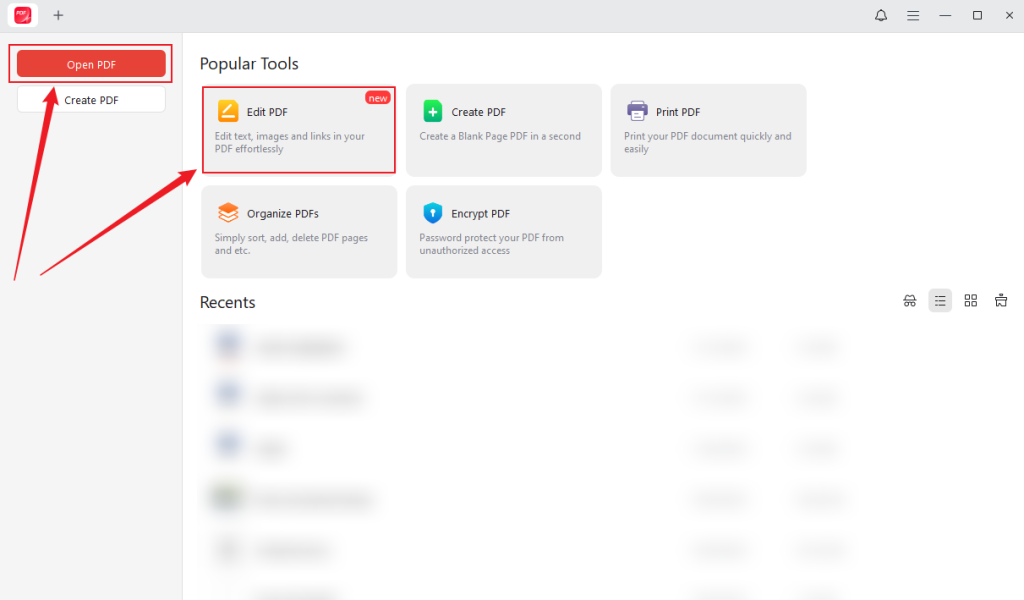
Step 1. Run JOPDF on your Windows or Mac computer to access its main interface, then click “Open PDF” or “Edit PDF” to locate and import your PDF file. Alternatively, locate your PDF file, right-click it, and then select “Open with” from the menu. Choose JOPDF to open the PDF.
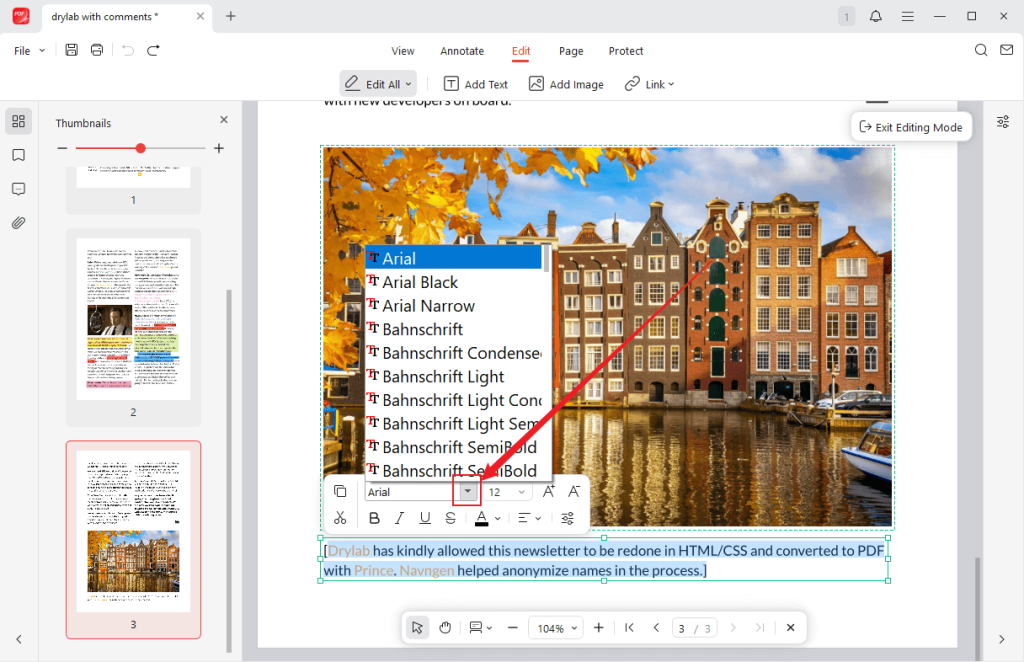
Step 2. Click the Edit tab from the top five tabs. Then, the Editing Mode is activated. Use the cursor to select the text font you want to change, and the Text Style panel will appear.
Step 3. Open the Font list to select a preferred font. Additionally, you can bold, italicize, underline, or strikethrough the text.
Tips
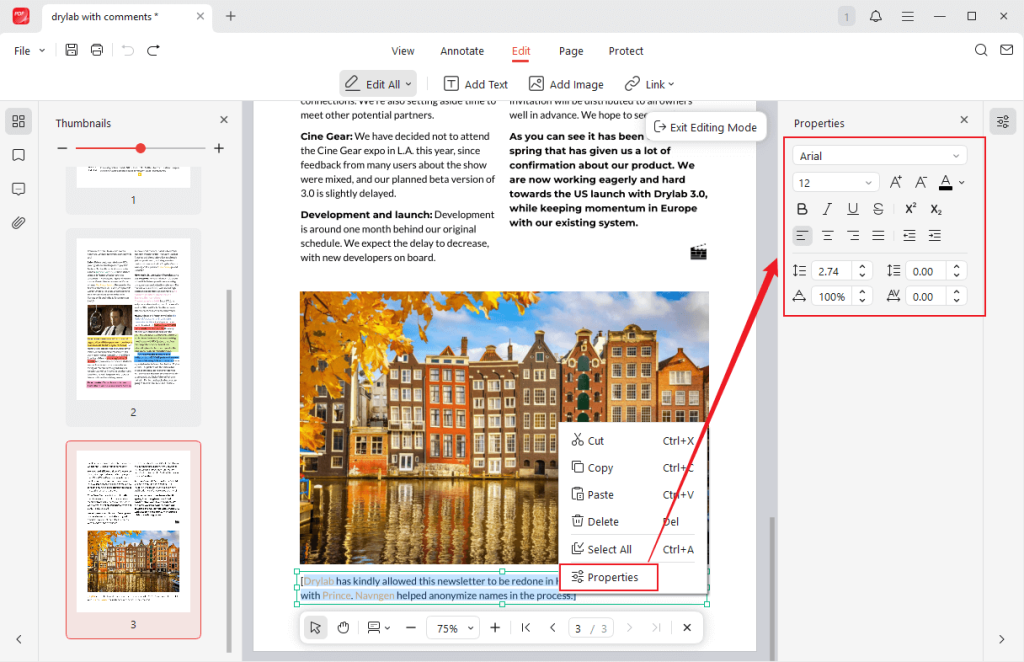
If you don’t see the Text Style panel, right-click on the selected text and choose the Properties option. Then, you can find the Properties window on the right side.
Step 4. Finally, click the “File” option in the upper-left corner. Select the “Save” or “Save As” option.
How to Change Font in PDF in Adobe Acrobat Pro
As a professional PDF editor, changing PDF fonts is a piece of cake for Adobe Acrobat. One thing to note is that only Adobe Acrobat Pro has the feature to change the font. In other words, this feature is not available in the free Adobe Acrobat Reader. If you don’t want to pay for Adobe Acrobat Pro, try JOPDF, a free alternative to Adobe Acrobat.
Adobe Acrobat Pro provides the most comprehensive and reliable method for changing fonts in a PDF file. It supports full-text editing, embedded fonts, and other advanced formatting options. Below is a comprehensive guide on how to change the font in a PDF in Adobe Acrobat Pro.
Step 1. Launch your Adobe Acrobat Pro and select the Open option from the File list to import your PDF file.
Step 2. Next, click the Tools option in the top toolbar and select Edit PDF to activate the Edit Mode.
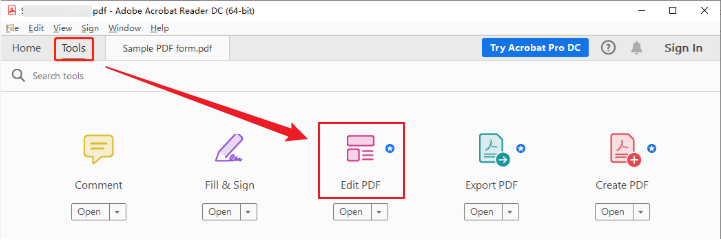
Step 3. Click and select the text you want to edit. The formatting pane appears on the right side. Here, you can open the Font dropdown to select the needed font. Furthermore, you can edit the font size, text color, bold/italic/underline text, and others.
Tips
If the PDF file is non-editable or scanned, go to Tools > Scan & OCR > Recognize Text to make the PDF editable first.
Step 4. Go to File and choose Save or Save as to save the changes in the PDF file.
How to Change Font in PDF Using Microsoft Word
If you are using Microsoft Word 2013 or a later version, fortunately, you can use it to handle PDFs. In addition to working as a word processor, it is a surprisingly capable PDF editor. Microsoft Word enables you to open, edit, and re-save PDFs with ease. You can use it to update text, change font, or reformat content in PDFs. You can check the steps below to change the PDF font in Microsoft Word.
Step 1. Run Microsoft Word on your PC, go to File, and select Open to browse and pick your PDF file for uploading.
Step 2. Then, Word will display a warning: “Word will now convert your PDF to an editable Word document. This may take a while. The …”. Click OK to confirm.
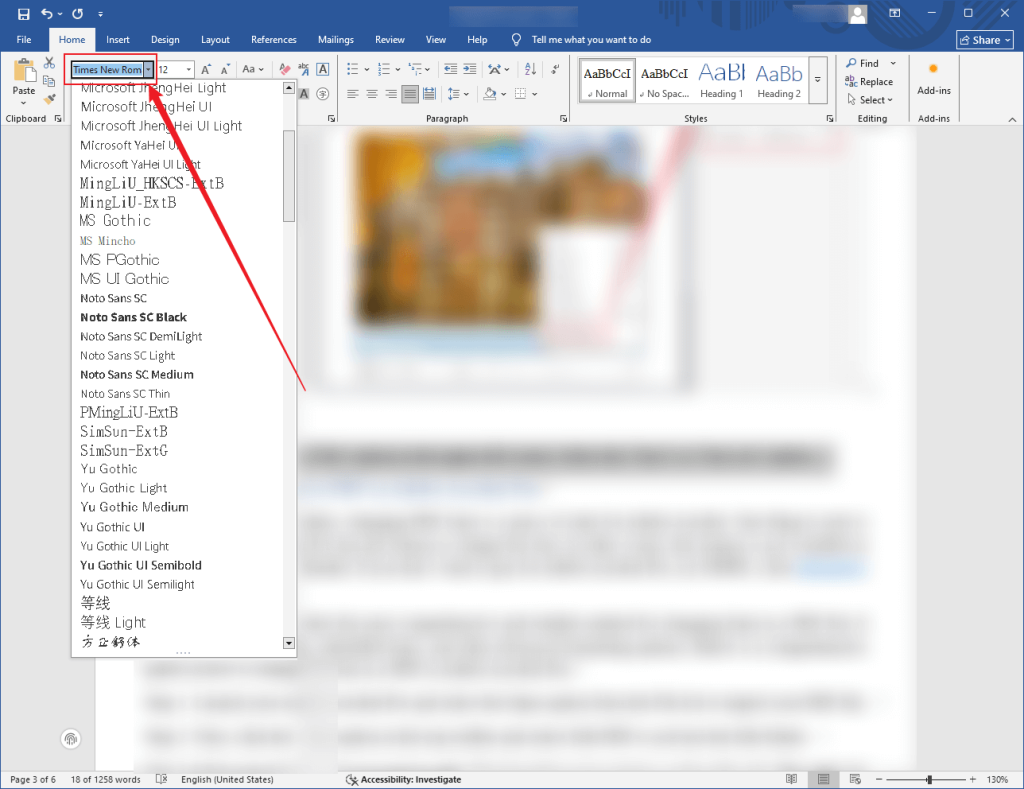
Step 3. Select the text you want to change. Or press Ctrl + A to select all. Click the Home tab, then select a desired font from the Font dropdown. Meanwhile, adjust other font settings as needed.
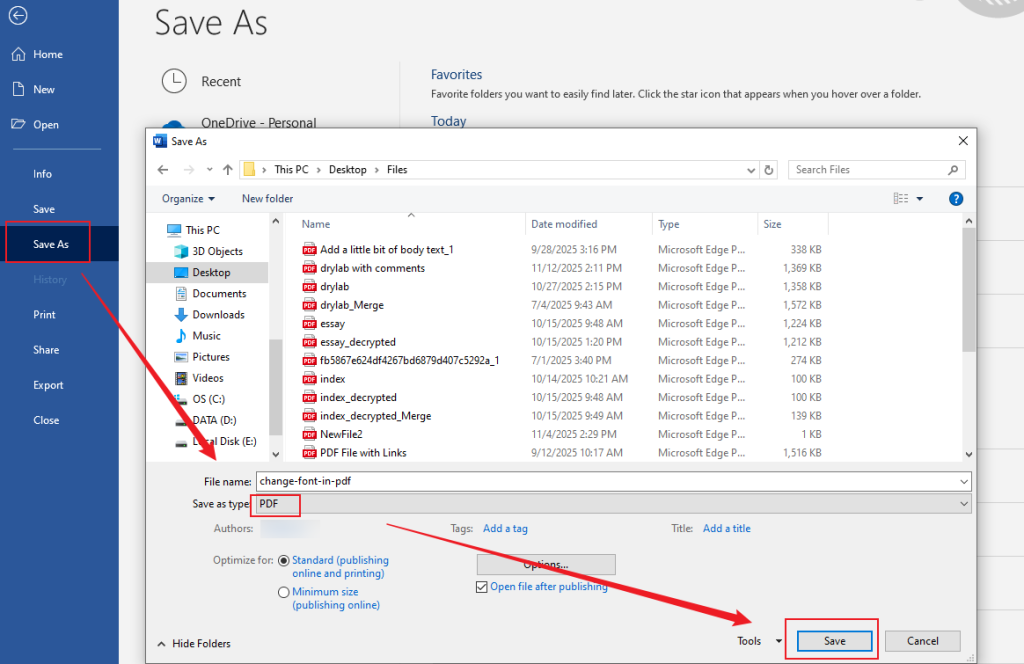
Step 4. Click File and select Save As. Choose a folder to save the file, select PDF as the file type, and click Save.
How to Change Font in PDF via PDFescape
PDFescape offers both online and desktop versions for Windows. PDFescape Online PDF Editor is compatible with most browsers, including Chrome, Firefox, Edge, Safari, and Opera. The desktop version works with Windows 11/10/8/7. Its online version can meet your need to change the font in PDFs.
Additionally, PDFescape Online PDF Editor supports annotating PDF documents, filling out PDF forms, creating basic PDF forms, and protecting PDFs with a password. Here, refer to the exact steps below to change the font in a PDF using PDFescape Online PDF Editor.
Step 1. Open your browser and visit the official website of PDFescape Online PDF Editor.
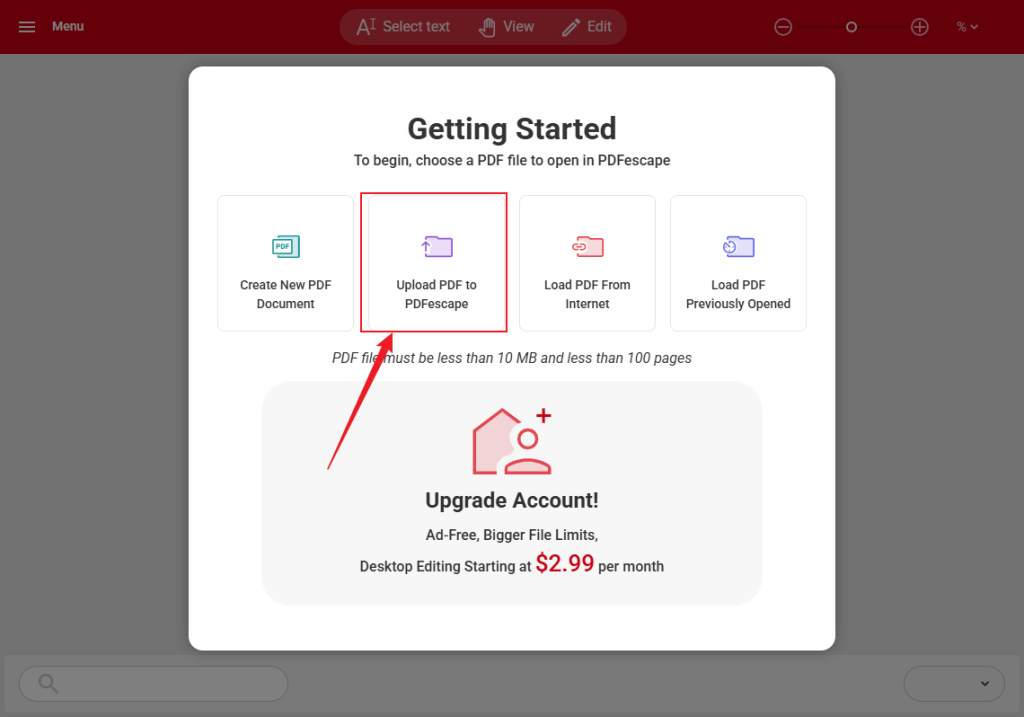
Step 2. Click the Free Online option, select the Upload PDF to PDFescape, and click the Choose file button to import the target PDF file.
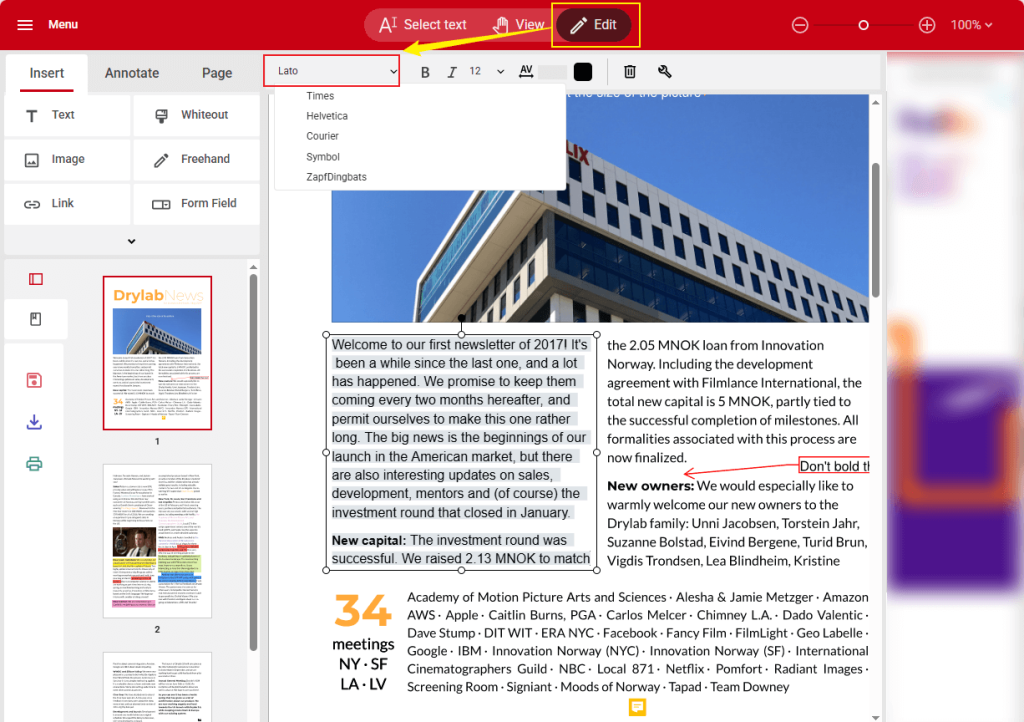
Step 3. Switch from the View tab to the Edit tab. Select the text you want to change, open the top font list, and choose the desired one.
Step 4. Finally, click the Download icon on he left sidebar to save the PDF file with the changed font.
Final Words
How to change font in PDF? It can be an easy task as long as you use the right PDF editor. JOPDF is a free PDF font changer that allows you to easily change PDF fonts. Additionally, Adobe Acrobat Pro, Microsoft Word, and PDFescape are also viable options. Now, it’s your time to have a try! Just follow the guidance above.
FAQs
1. The PDF file is scanned or image-based.
2. The font isn’t embedded or available on your PC.
3. The PDF has editing restrictions.
1. Click Edit PDF to import the PDF file.
2. Select the text you want to change the font of.
3. Open the Font list and select the desired font.
4. Save the changed PDF file.
Table of Contents

Your Best Free PDF Expert in PDF editing, compressing, converting, annotating, protect, organizing, and more.
Free DownloadWindows · macOS · Linux

Olivia
“Olivia is an editor at JOPDF, where she writes practical guides and insightful articles on managing PDFs—covering topics like editing, annotating, converting, and organizing files efficiently. Passionate about clear communication and digital productivity, Olivia enjoys spending her free time cooking, watching movies, and hiking to unwind and find inspiration for her writing.”
![Find Ways to Download Manga as PDF for Free [5 Proven Ways]](https://b.jopdf.com/wp-content/uploads/2026/04/download-manga-pdf.png)

![5 Best Free PDF Compressors in 2026 [Desktop and Online]](https://b.jopdf.com/wp-content/uploads/2026/04/best-free-pdf-compressor.png)
